Overview
Subscribers who have been inactive for a sustained period are at higher risk of churning. When users are no longer actively engaging with your product, external channels—such as email, or messaging—provide an effective way to reach them with targeted retention offers.
This tutorial explains how to implement an email-based churn prevention flow where your application sends subscriber activity (for example, last login date) to Chargebee Growth and requests a personalized retention offer using the Offers APIs. Chargebee returns an offer when the subscriber qualifies—in this example, when their last login was 30 or more days ago. You deliver the offer through your email provider. When the subscriber accepts, you notify Chargebee, which applies the offer benefit to the subscription.
Note
While this tutorial uses email as an example, the same integration pattern can be adapted for other external channels such instant messaging.
Architecture overview
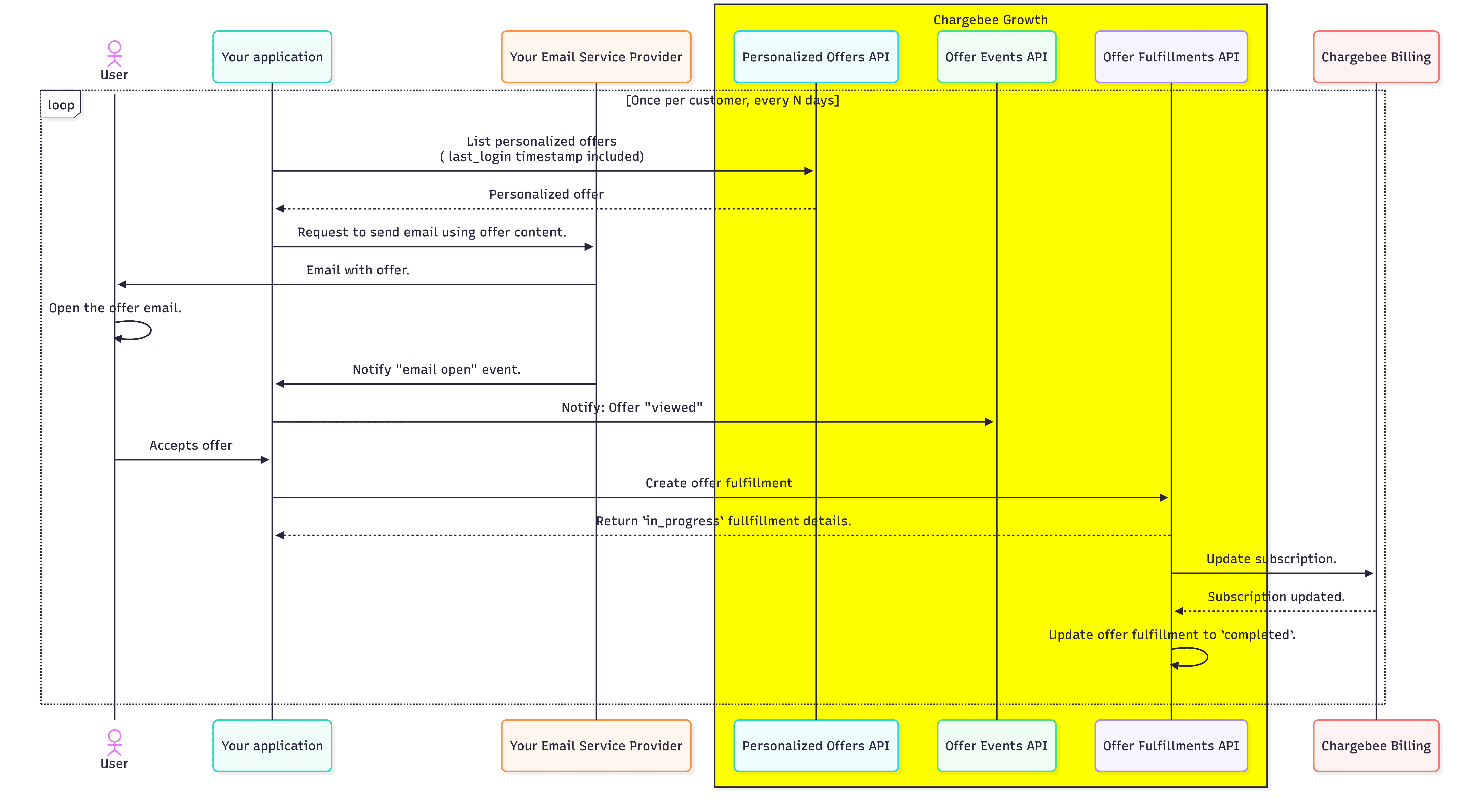
The flow splits responsibilities between your backend and Chargebee as follows.
Your application:
- Requests offers from Chargebee
- Delivers offers via your email service provider (ESP)
- Notifies offer engagement events to Chargebee
- Creates an offer fulfillment on acceptance
Chargebee:
- Evaluates offer eligibility
- Selects the appropriate offer
- Records offer engagement events
- Fulfills the offer by applying the benefit
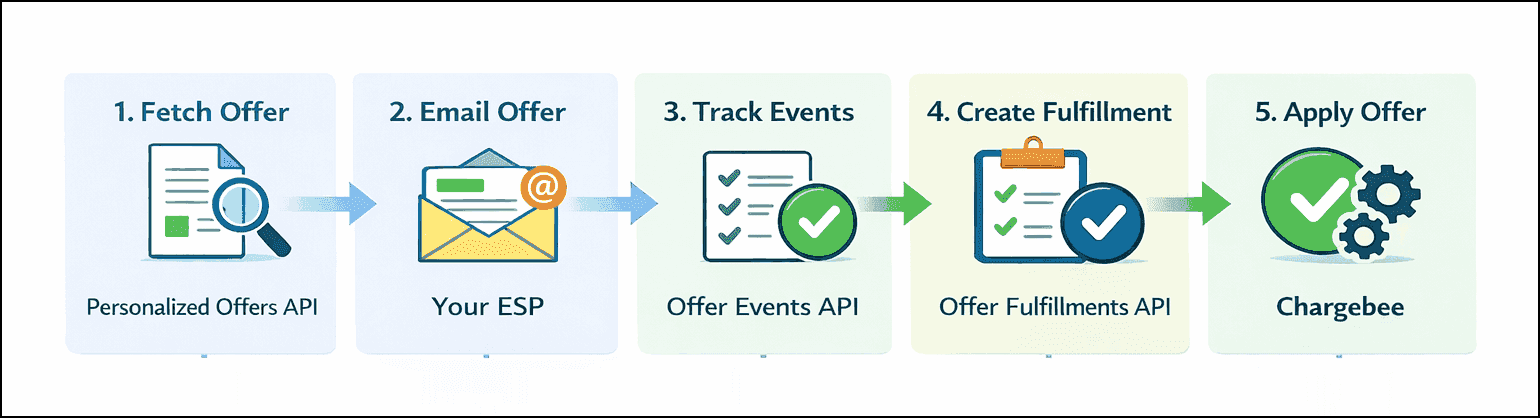
A typical flow:
- Run a scheduled job (for example, daily or weekly) that fetches a personalized offer from Chargebee for each subscriber.
- Build each offer into an email and send it to the subscriber through your email service provider (ESP).
- If your ESP supports open-tracking, notify Chargebee when the email is viewed.
- When the subscriber accepts the offer (for example, by selecting the CTA in the email), notify Chargebee.
- Chargebee applies the offer benefit to the subscription.
Before you start
If you're new to Chargebee Growth's Offers APIs, complete Getting started with Chargebee Growth's Offers APIs first.
For this tutorial to work, you need the following setup:
Set up your development environment
- Obtain a full-access API key from Chargebee Billing.
- Have an email service provider (SendGrid, Amazon SES, Mailgun, etc.) to send emails programmatically to your subscribers.
- Have a scheduled job or workflow (cron, background worker, cloud scheduler) to trigger the email flows.
Set up Chargebee Billing and Growth
Users with access to Chargebee Growth must complete these steps.
- Have Chargebee Growth enabled and connected to your Chargebee Billing site.
- Ensure that the required configuration has been completed in Chargebee so the APIs return offers at runtime.
Implementation steps
Follow these steps to implement the email-based churn prevention flow.
Security
- Never expose Chargebee API keys in client-side code.
- Call Growth APIs only from secure backend services.
Step 1: Track login activity
In your application, maintain the last_login field for each subscriber and update it when they log in to your application. This field will be used in the next step by Chargebee to evaluate offer eligibility.
Step 2: Schedule the offer retrieval job
Set up a scheduled job (daily or weekly) that iterates through your list of active subscribers and fetches a personalized offer for each subscriber.
For each subscriber, call the Personalized Offers API with the subscriber identifiers and the last_login custom field.
curl  https://YOUR_CHARGEBEE_SUBDOMAIN.grow.chargebee.com/api/v2/personalized_offers \
     -u YOUR_CHARGEBEE_API_KEY:\
     --header 'Content-Type: application/json;charset=UTF-8' \
     --data '{
     "customer_id": "cus_9AbCDe",
     "subscription_id": "sub_123",
     "custom": { "last_login": "2025-09-01" }
}'
If the subscriber matches one or more configured plays in Growth, Chargebee returns the offer corresponding to the play of highest priority. Example response:
{
  "personalized_offers": [
    {
      "id": "vdyjO2qlLD_715653d4",
      "offer_id": "vdyjO2qlLD",
      "content": {
        "title": "<div class=\"slate-p\">We saved 20% just for you</div>",
        "description": "<div class=\"slate-p\">We noticed you haven't logged in recently. Reactivate now and enjoy 20% off your next 2 renewals.</div>"
      },
      "options": [
        {
          "id": "6cd5280e",
          "label": "Redeem 20% off",
          "processing_type": "billing_update"
        }
      ]
    }
  ],
  "brand": { "id": "brand_123", "name": "Acme" },
  "expires_at": 1732790400
}
The response includes a processing_type of billing_update, which means the offer is configured for fulfillment via Chargebee Billing.
When no offer is returned
If the response has an empty personalized_offers list, do not proceed with the next steps. An empty response means the user isn't eligible (for example, the request parameters don't match any active plays, or the offer was already accepted or dismissed).
Ensure fields are mapped
An empty response from the Personalized Offers API may also happen if one or more of the parameters provided have not been mapped in Growth. Make sure to map fields in Growth before using them in API requests.
Step 3: Create and send the retention email
Once you have received a personalized offer, use it to build the email draft and send it to the subscriber.
Best practice
To avoid chances of the offer expiring before the subscriber accepts it, perform this step as soon as you have received a personalized offer in the previous step.
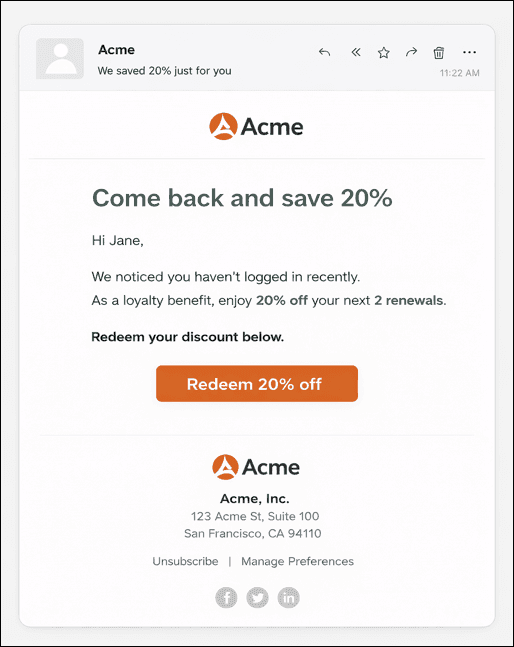
- Use
content.titlefor the Subject. - Use
content.descriptionfor the Body. - Use
options[0].labelfor the text on the CTA buttons. - Set the CTA link to a backend URL that includes the offer identifiers (
personalized_offers.idandoptions.id), so your backend can pass them back to Chargebee in the next step. You may choose pass the identifiers in plaintext or encoded form. - Send the email to the subscriber using your email provider.
Here's a sample email draft:
Step 4: Track offer views by tracking email opens
If your email provider supports open-tracking webhooks, use the Offer Events API to record a viewed offer event when the email is opened.
curl  https://YOUR_CHARGEBEE_SUBDOMAIN.grow.chargebee.com/api/v2/offer_events \
     -u YOUR_CHARGEBEE_API_KEY:\
     --header 'Content-Type: application/json;charset=UTF-8' \
     --data '{
     "type": "viewed",
     "personalized_offer_id": "vdyjO2qlLD_715653d4"
}'
These events are for reporting; the dismissed event also affects offer cooldown. They do not affect fulfillment behavior.
Step 5: Fulfill the offer on acceptance
When the subscriber clicks the CTA corresponding to accepting the offer, use the Offer Fulfillments API to create an offer fulfillment, passing the personalized_offer_id and option_id received from the previous step.
curl  https://YOUR_CHARGEBEE_SUBDOMAIN.grow.chargebee.com/api/v2/offer_fulfillments \
     -u YOUR_CHARGEBEE_API_KEY:\
     --header 'Content-Type: application/json;charset=UTF-8' \
     --data '{
     "personalized_offer_id": "vdyjO2qlLD_715653d4",
     "option_id": "6cd5280e"
}'
This will return a response like the following:
{
  "offer_fulfillment": {
    "id": "507c340b",
    "personalized_offer_id": "vdyjO2qlLD_715653d4",
    "option_id": "6cd5280e",
    "processing_type": "billing_update",
    "status": "in_progress"
  }
}
At this point, Chargebee automatically applies the discount to the subscription without any intervention required on your side or the subscriber's side.
Best practice
Save the offer_fulfillment.id and map it to the customer_id and subscription_id. You can use it later to track the status of the offer fulfillment.
(Optional) Step 6: Poll fulfillment status
You can optionally poll the fulfillment status for asynchronous tasks such as syncing conversion events to your analytics system. Use the Retrieve an Offer Fulfillment API to do this.
curl  https://YOUR_CHARGEBEE_SUBDOMAIN.grow.chargebee.com/api/v2/offer_fulfillments/off_ful_123 \
     -u YOUR_CHARGEBEE_API_KEY:
As seen in the response below, when the billing update has completed successfully and the discount has been applied, offer_fulfillment.status becomes completed.
{
  "offer_fulfillment": {
    "id": "507c340b",
    "personalized_offer_id": "vdyjO2qlLD_715653d4",
    "option_id": "6cd5280e",
    "processing_type": "billing_update",
    "status": "completed"
  }
}
Error handling
Duplicate acceptance
If the subscriber clicks the acceptance CTA in the email multiple times, and you request a new offer fulfillment, the API returns an error because multiple fulfillments aren't allowed for the same personalized_offer_id.
Handle the error as follows:
- Fetch the
offer_fulfillment.idsaved earlier in the Step 5. - Retrieve the fulfillment status using the
offer_fulfillment.id. - Check
offer_fulfillment.status:- If
offer_fulfillment.statusiscompleted, inform the subscriber that the offer has already been fulfilled. - If
offer_fulfillment.statusisfailed, check theoffer_fulfillment.error.codeto determine the reason.
- If
Expired or deactivated offer
If the subscriber clicks the acceptance CTA in the email after the offer has expired or deactivated, and you request an offer fulfillment, the API returns an error such as:
"This offer is no longer applicable for this subscription."
Handle the error as follows:
- Inform the subscriber that the offer is no longer applicable.
- No further action is required as any applicable offer will be sent to the subscriber on the next scheduled job.
Same offer accepted by different users
Calling the Offer Fulfillments API succeeds only once for the same base offer_id when the offer originates from the same Play.
If you're a B2B business with multiple users per subscription, the same offer from the same Play can be emailed to different users. In this case, after the first user accepts the offer, the Offer Fulfillments API returns the following error for subsequent users:
Fulfillment is already in progress/completed. Retrieve the fulfillment to know the latest status.
Show a message to the user such as, "This offer has already been accepted."
Summary
In this tutorial, you learned how to:
- Run a scheduled job that fetches a personalized offer per subscriber from Growth.
- Use the offer content to build an email draft and send it to the subscriber.
- Record offer events when emails are opened.
- Create an offer fulfillment when the subscriber accepts the offer.
- Handle errors such as duplicate acceptance, expired or deactivated offer, and same offer accepted by different users.
Appendix
Details
Required setup in Chargebee
This section describes the setup required in both Chargebee Billing and Chargebee Growth to enable churn prevention offers for billing updates to be returned by Chargebee APIs. The steps below configure a retention offer that targets subscribers who haven't logged in for 30 or more days, shows copy such as "We saved 20% just for you", and uses Chargebee Billing for fulfillment.
Administrators or growth marketers with access to Chargebee Growth and Billing typically handle this configuration.
1. Create a coupon in Billing
Create a coupon in Chargebee Billing for 20% off on the invoice for the next 2 billing cycles.
2. Create the offer in Growth
Define the retention incentive and how it is applied when accepted.
- In Growth, navigate to Offers > In-app.
- Create a new offer with the following configuration:
- Offer objective: Retention.
- Offer category: Discount.
- Under Button settings:
- Set the Button processing to Billing integration.
- Set the Button action > Discount option to % based discount
- Set the Button action > Coupon ID to the coupon created in Chargebee Billing in the previous step.
3. Create and map a custom field for "last login" in Growth
Important
If fields passed in the API request are not mapped in Growth, they are ignored.
- In Growth, navigate to Settings > Setup.
- Under Field mappings, select Map fields.
- Scroll down to Field Mapping and select the button View & map passed data. A modal appears.
- On the modal, under Custom Chargebee Retention fields, select the +add a new field button and enter the following details:
- Field Label: "Last login".
- Data Type: "Date".
- JS Name: "
custom.last_login".
- Select the Save changes button. The modal closes.
- Scroll down and fill in the form above the Add custom field button:
- Name: "Last login".
- Type: "Date".
- Source Field dropdown: Under API & Chargebee.js, select Last login.
- Select the Add custom field button.
- Select the Save changes button.
4. Create an audience in Growth
- In Growth, navigate to People > Audiences.
- Create a new audience with the following rule:
- Property: "Last login".
- Operator: "Happened before".
- Value: "30".
5. Create a play in Growth
- In Growth, navigate to Plays > Retention.
- Create a new play.
- Select the in-app offer play type.
- Select the audience created in the previous step.
- For Trigger, select Any page load.
- For Action, select Show offer.
- Select the offer created in the previous step.
- Set the play priority.
- Select the Publish Play button.
We're always happy to help you with any questions you might have! Click here to reach out to us.