Upgrading from Starter Churn Insights to Churn Deflection
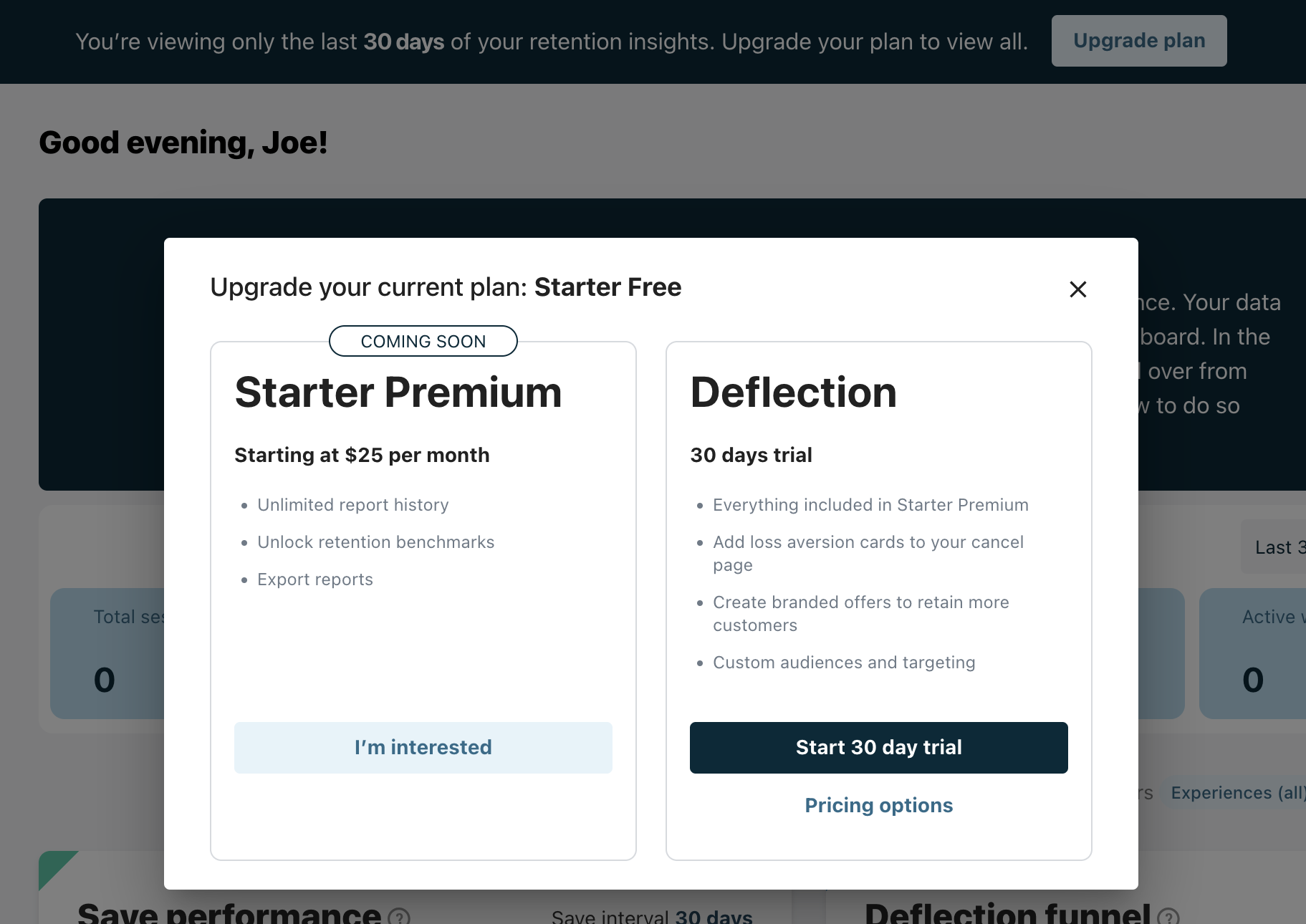
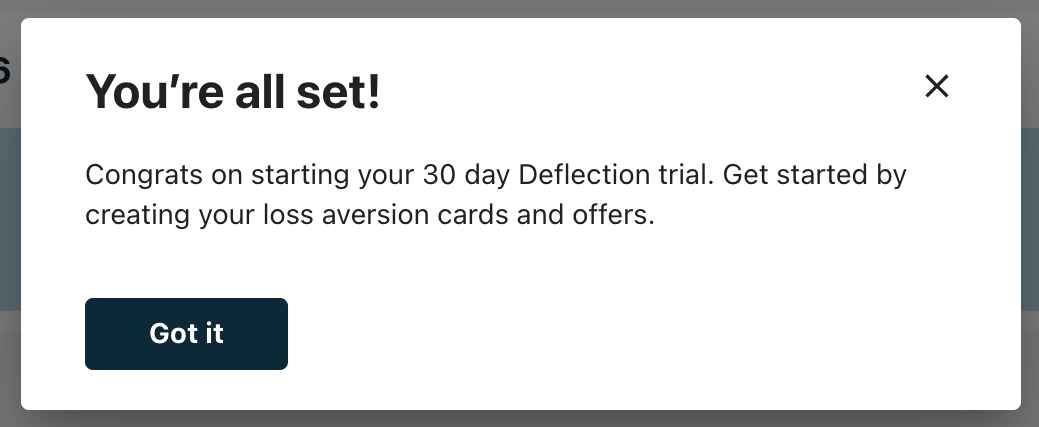
Customers who are ready to test offers can start a free 30 day for Churn Deflection. Within the Retention app, click Upgrade Plan to view plan options. Click the "Start 30 day trial" button to use the Churn Deflection product. If you complete the 30 day trial period and do not purchase Churn Deflection, you will automatically be moved back to the Starter Churn Insights plan and access your prior data and settings.
Setting up Churn Deflection
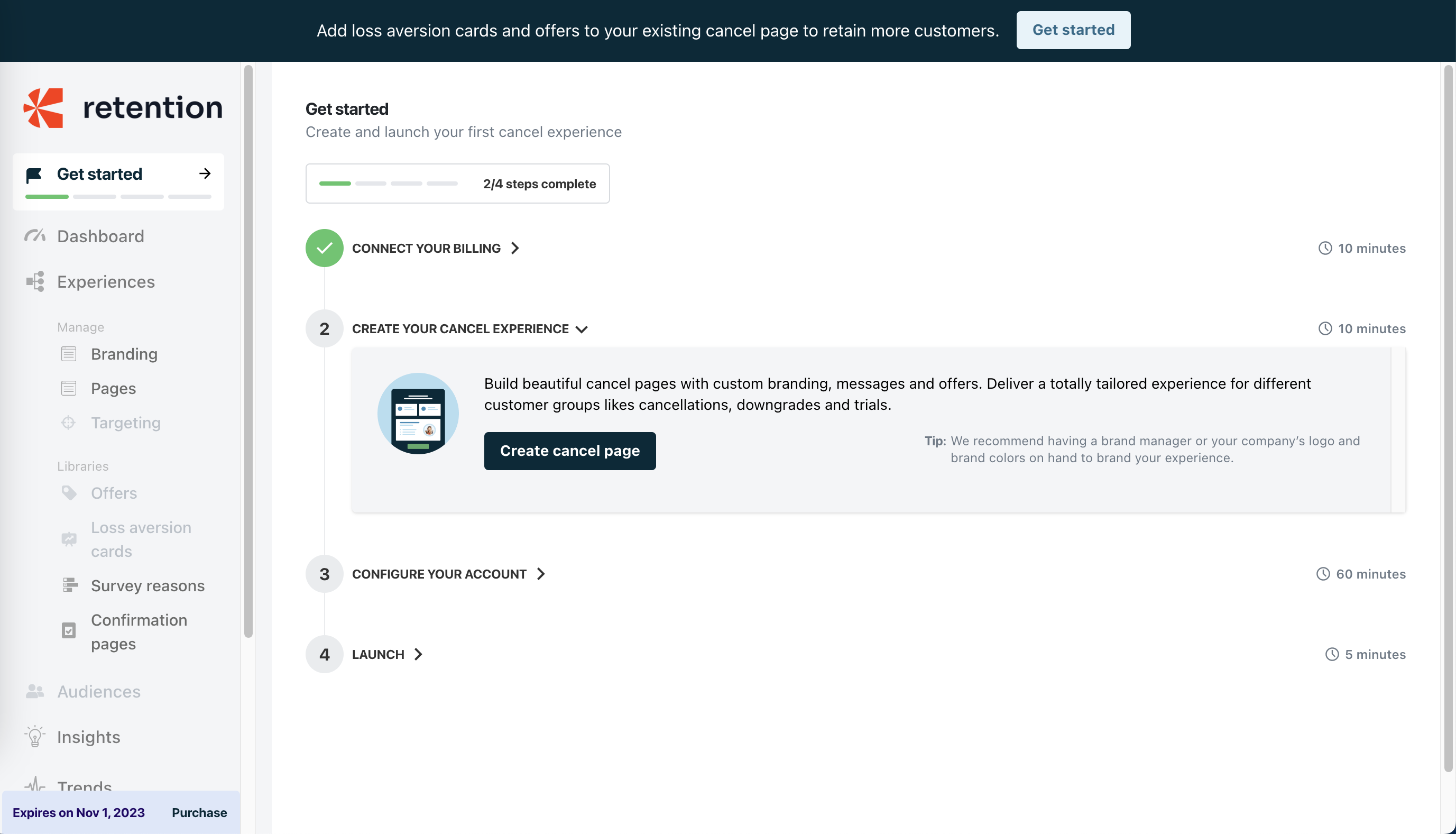
After starting your trial, you will be presented with an onboarding flow similar to the one used to set up Starter Churn Insights. Since you have already configured most of the settings for your Starter cancel page, you will be prompted for remaining steps to launch your Deflection cancel page with offers. Go to step 2 to create your cancel page with offers.
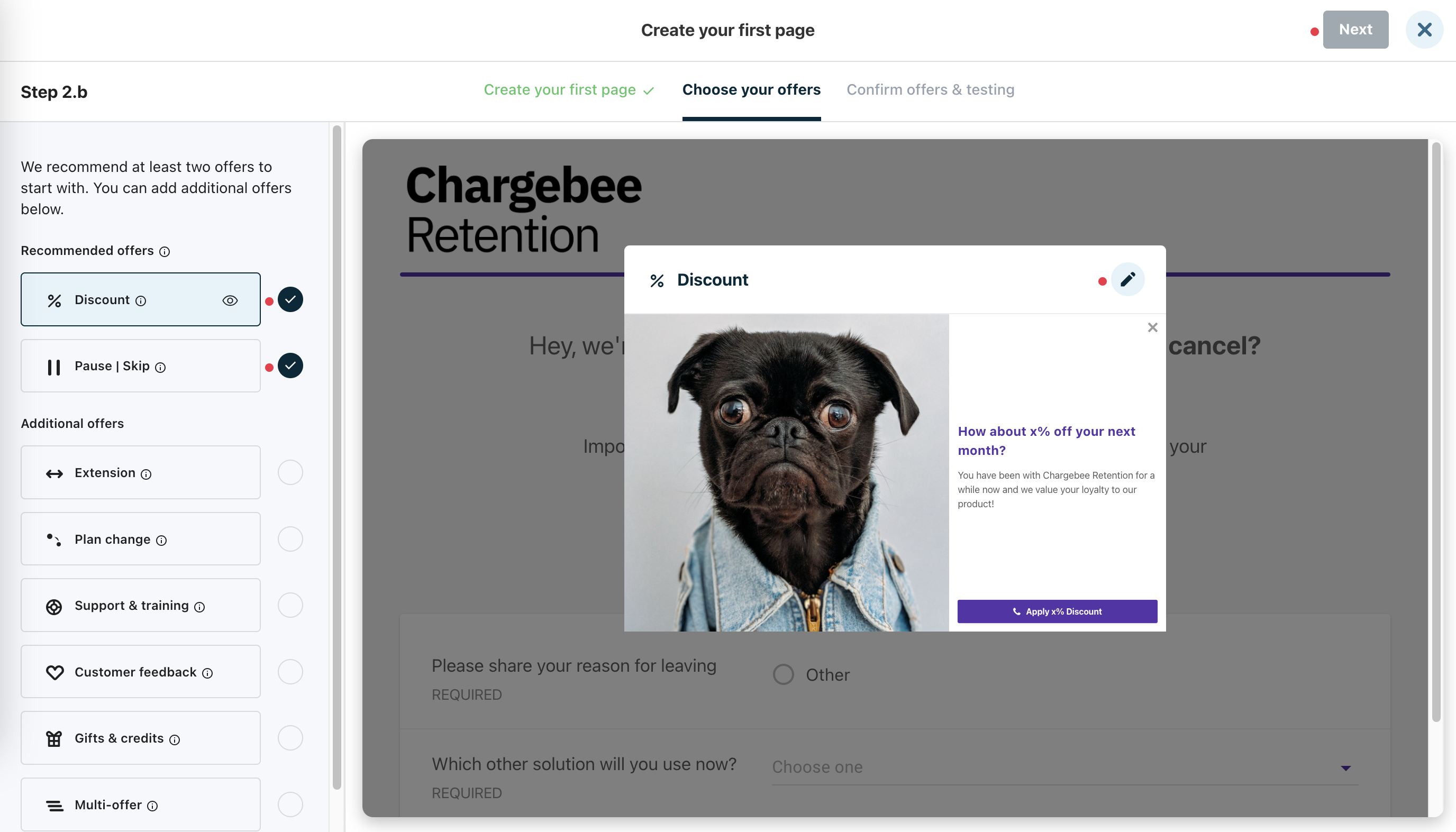
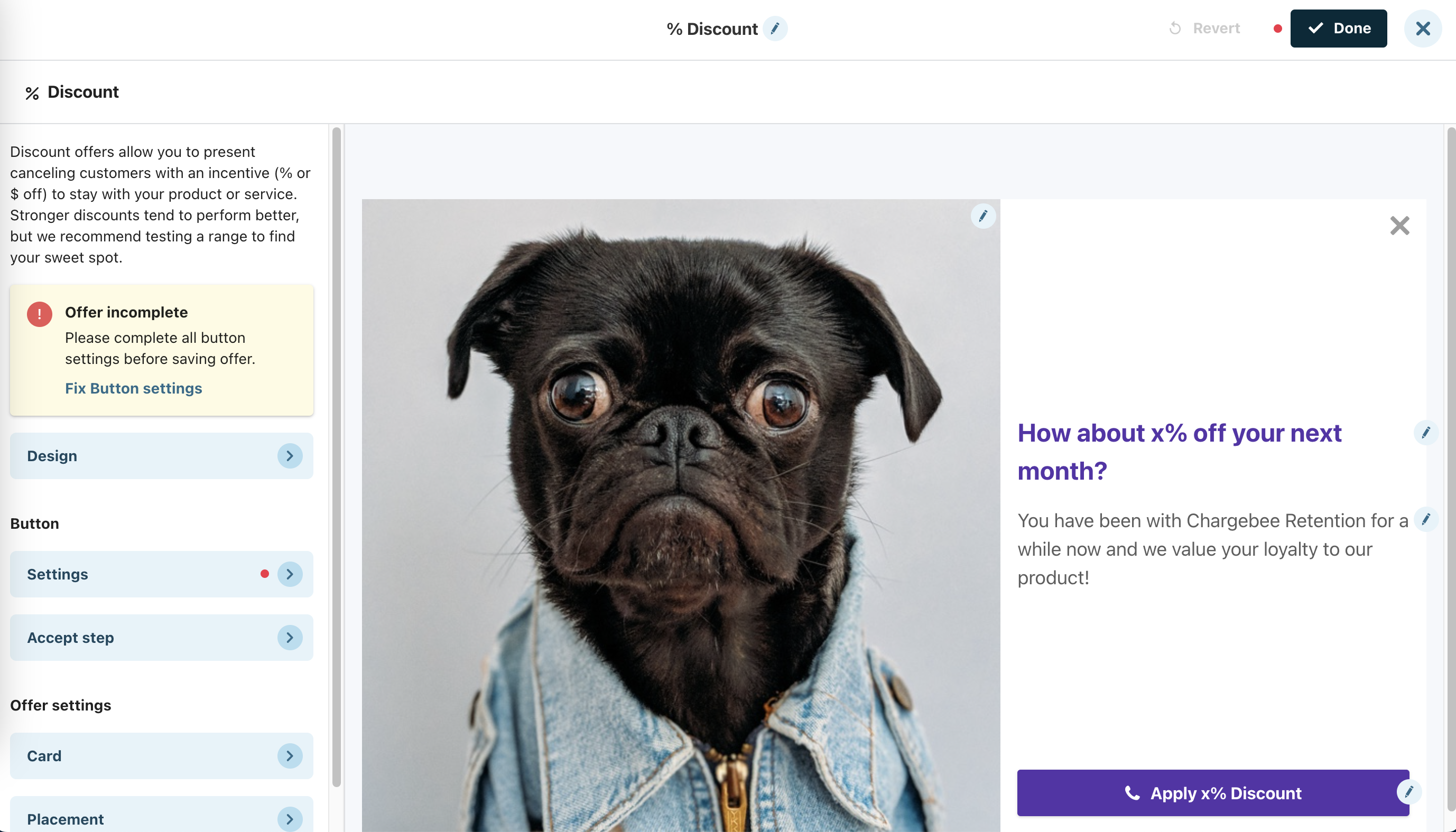
You will be presented with a list of offers to add to your cancel page. These offers will appear after your customers select a cancel reason. By default, discount and pause offer categories are selected as those typically drive the highest churn reduction for our customers. Select the desired offer category and click the pencil icon in the offer modal to configure offer details. The red dots indicate required input to continue.
Within the offer editor, configure offer details such as discount amount, offer processing type, and action after customers accept the offer. Click on the offer content on the right side to customize the image and copy.
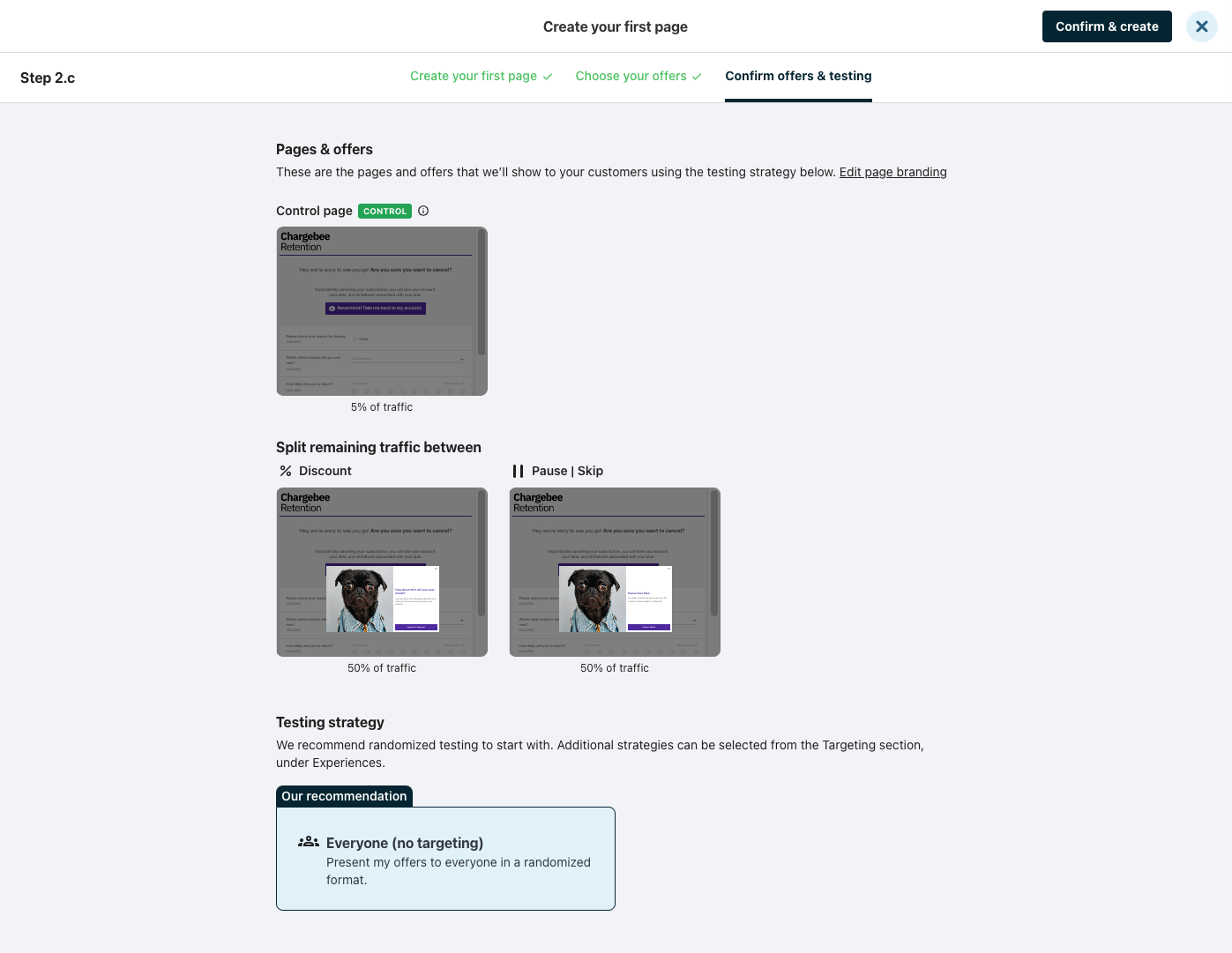
After configuring offers, go to the next step to review your recommended testing setup. 5% of your cancel traffic will be directed to a no-offers holdout page to establish the baseline performance. The remaining 95% of traffic will evenly distributed to your cancel pages with offers. We will automatically create a cancel page for each offer selected in the previous step. If you wish adjust the traffic allocation, you can do this by going to Experiences > Targeting tab after completing this step.
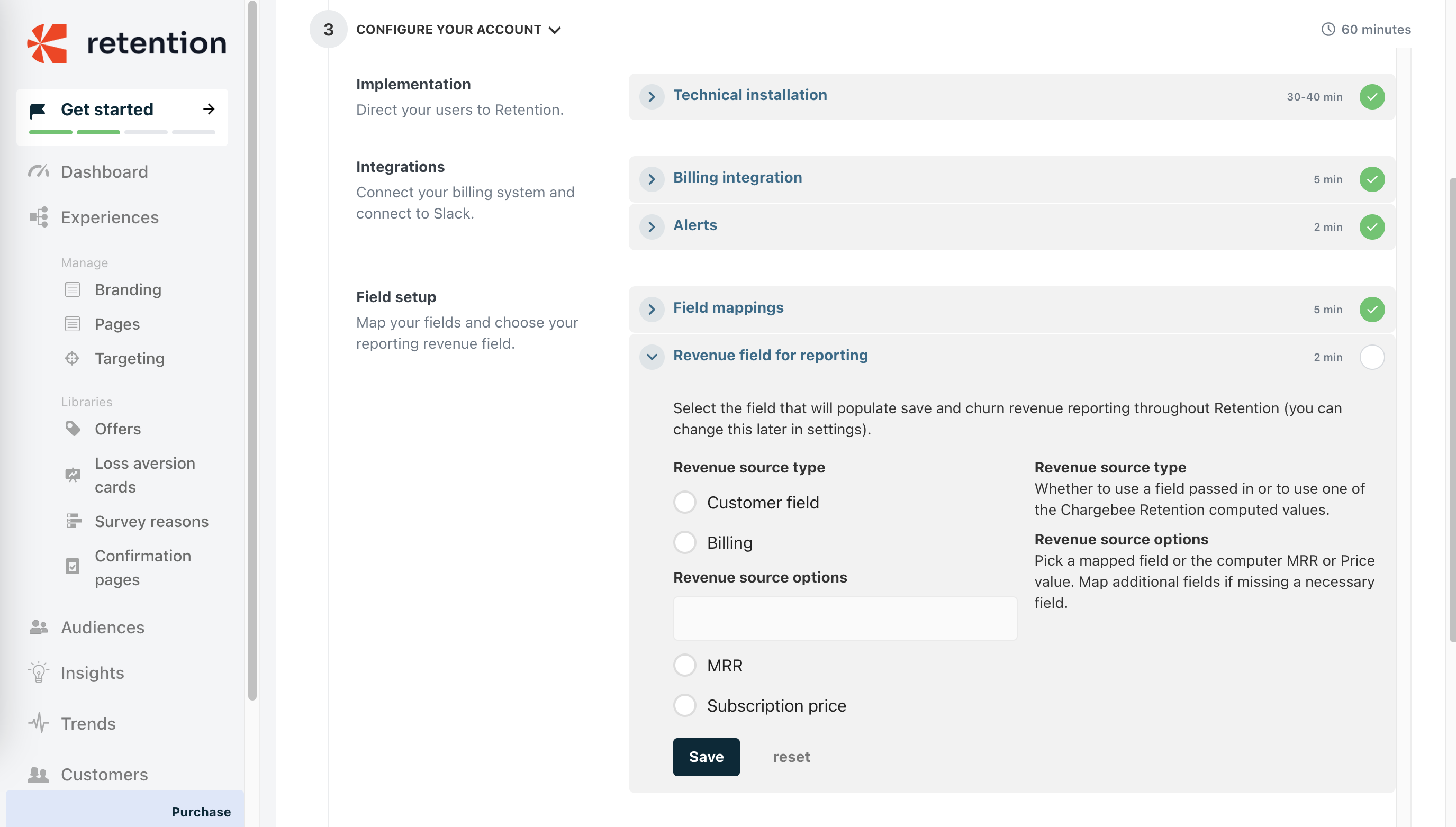
After setting up your cancel page, review key settings for Deflection. Set up Revenue field for reporting to view revenue impact in the reports.
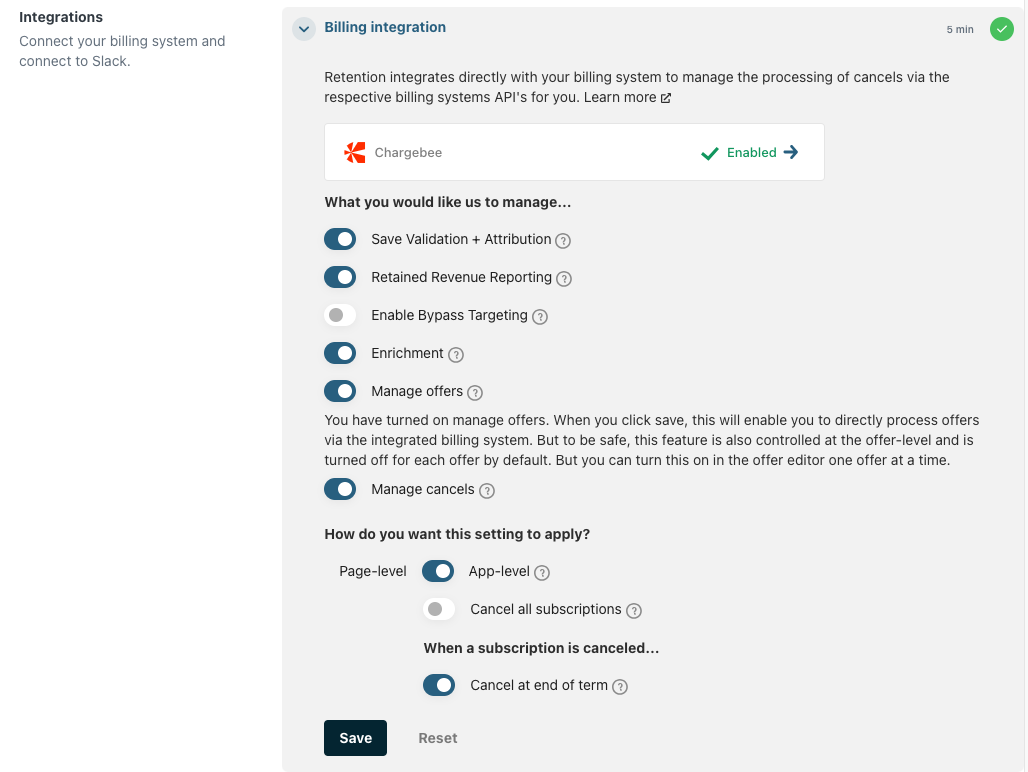
We suggest opening the Billing integration settings to review features that will be enabled in Deflection:
- Save Validation + Attribution: Validate saves against Chargebee Billing
- Retained Revenue Reporting: Show revenue impact based off customers who repurchase after seeing and exiting the cancel page
- Manage offers: Process offer accepts automatically with Chargebee Billing
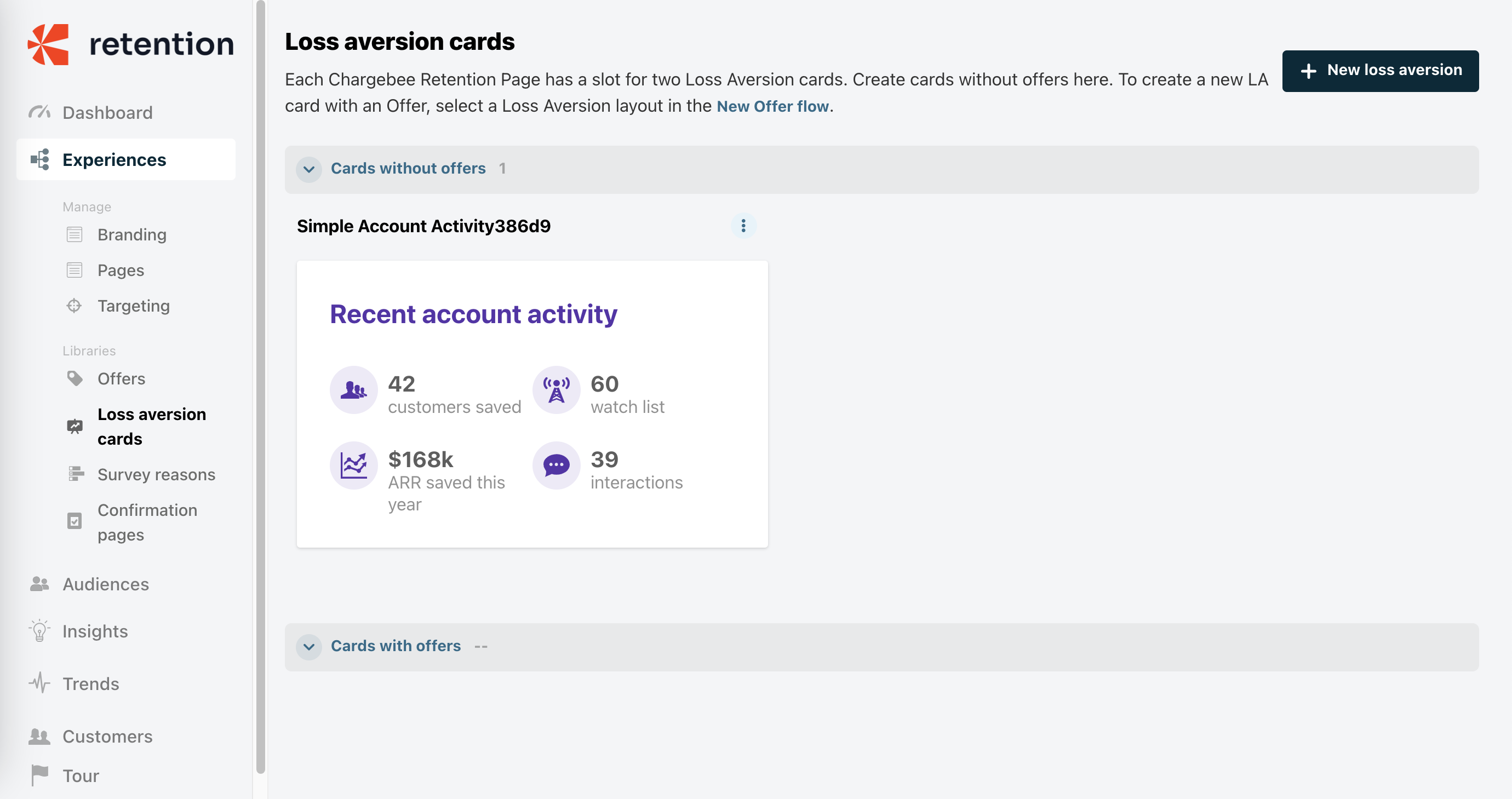
In addition to offers associated with clicking cancel reasons, you may want to display loss aversion cards and offers which appear directly on the cancel page. Loss aversion cards highlight the value customers have received from the product/service or benefits they will lose by canceling. Click on Experiences > Loss aversion cards to create loss aversion cards and add them to your cancel pages.
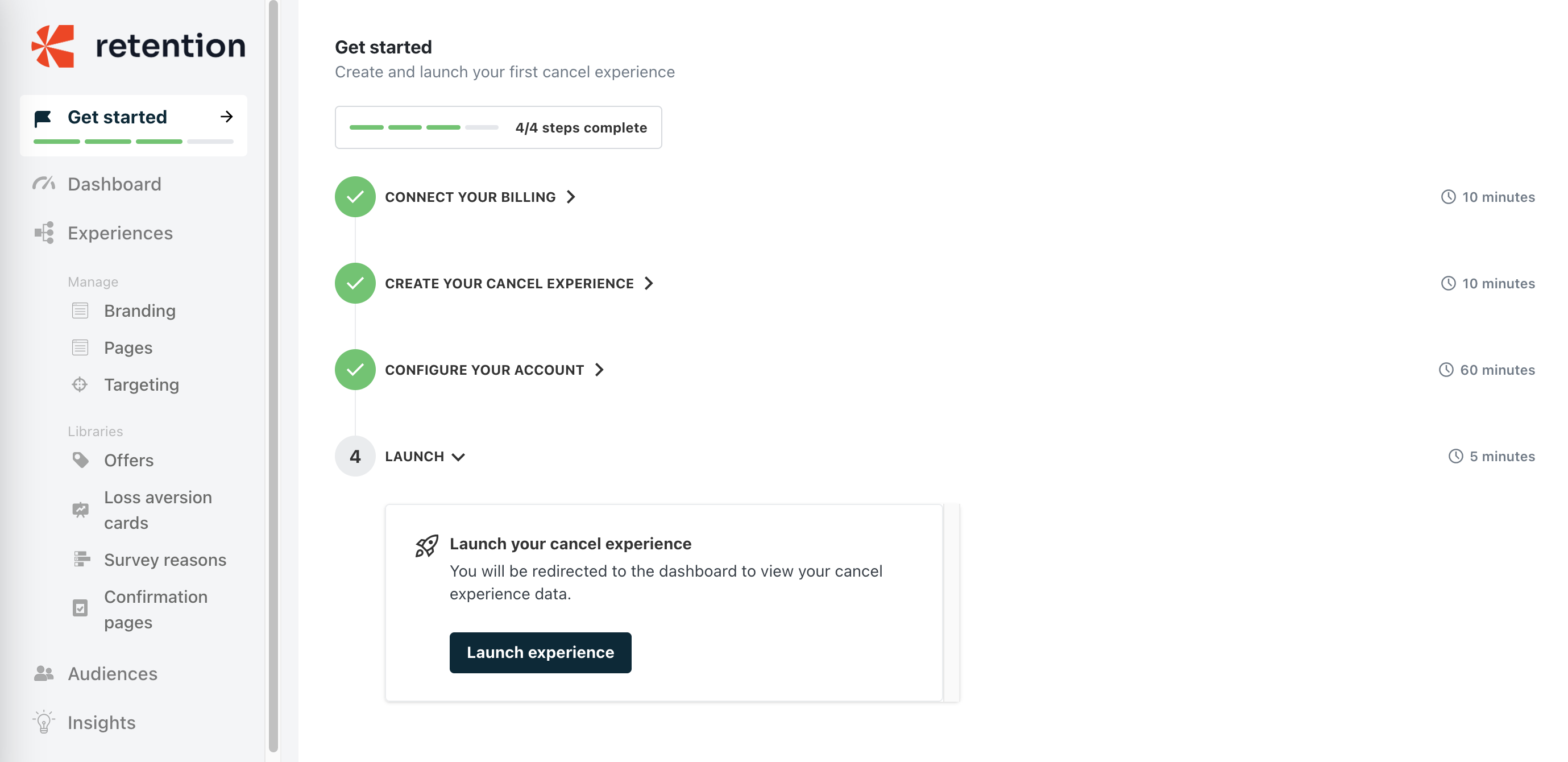
On the Get Started page, click Launch experience to close the Deflection onboarding flow. You are ready to test and measure performance of your cancel pages with offers.
If you have any questions about moving from Starter Churn Insights to Churn Deflection, please contact retention-support@chargebee.com.
Was this article helpful?