New in Chargebee: Explore Reveal and understand your payment performance end-to-end.Try Now
Docschargebee docs
HomeBillingPaymentsRevRecGrowthReveal
Support

Product Updates


  • Release Notes

Payment Methods


  • Payment Methods Overview
  • Cards
  • Direct Debit
  • Bank Based Payments
  • Wallets
  • Vouchers
  • Articles and FAQ

Payment Gateways and Configuration


  • Payment Gateways Overview
  • Chargebee Test Gateway
  • Stripe
  • PayPal Payment Services
  • Chargebee Pay
  • Adyen
  • Authorize.net
  • Bambora (formerly Beanstream)
  • Bank of America
  • BluePay
  • BlueSnap
  • Braintree
  • Checkout.com
  • CyberSource
  • dLocal
  • EBANX
  • Ecentric
  • Elavon
  • E-xact Direct Integration
  • eWay Rapid
  • Global Payments
  • GoCardless
  • J.P. Morgan Mobility Payment Solutions
  • Metrics Global
  • Mollie
  • Moneris
  • Network Merchants Incorporated (NMI)
  • Nuvei
  • Orbital (Chase Paymentech)
  • Pay.com
  • Paymill
  • Paystack
  • Pin Payments
  • QuickBooks Payments
  • Razorpay
  • Sage Pay
  • Solidgate
  • Tempus
  • Twikey
  • Windcave
  • Worldline Online Payments(formerly Ingenico)
  • Worldpay
  • Articles and FAQ

Level 2/3 Data Support


  • Level 2/3 Data Support

Payment Optimization Engine


  • Overview
  • Defaults
  • Advanced Setup
  • Payment Method Display Rules
  • Verification Rules
  • Routing Rules

Dunning


  • Dunning
  • Articles and FAQ

Offline Checkout


  • Offline Checkout
  • Articles and FAQ

Transaction Sync & Invoice Mapping


  • Transaction Sync and Invoice Mapping

Fraud Management


  • Fraud Management

Error Handling


  • Errors with Root Cause and Troubleshooting

Payment Lifecycle Logs


  • Payment Intents
  • Transactions
  • Gateway Activity Logs
  • Gateway Webhook Logs
  • Articles and FAQ

Others


  • Reach (Merchant of Record)
  • Bulk Deletion of Payment Methods
  • Custom Payment Methods
  • Payment Initiator Parameter
  • PSD2 and Strong Customer Authentication
  • RBI e-Mandate
  • RBI Tokenization Regulations
  • Chargeback Management
  • Transaction Descriptors
  • Payment Preferences
  • Visa Trial Rules
  • Mastercard Trial Rules
  • Co-badged Card Compliance
  • Articles and FAQ
  1. Payments
  2. Payment Methods
  3. Articles and FAQ
  4. Direct Debit
  1. Payments
  2. Payment Methods
  3. Articles and FAQ
  4. Direct Debit

How do I resolve a mandate error for direct debit payments via Stripe?

Problem Statement

You encounter an error when processing a direct debit payment via Stripe indicating that a valid mandate is missing or not found.
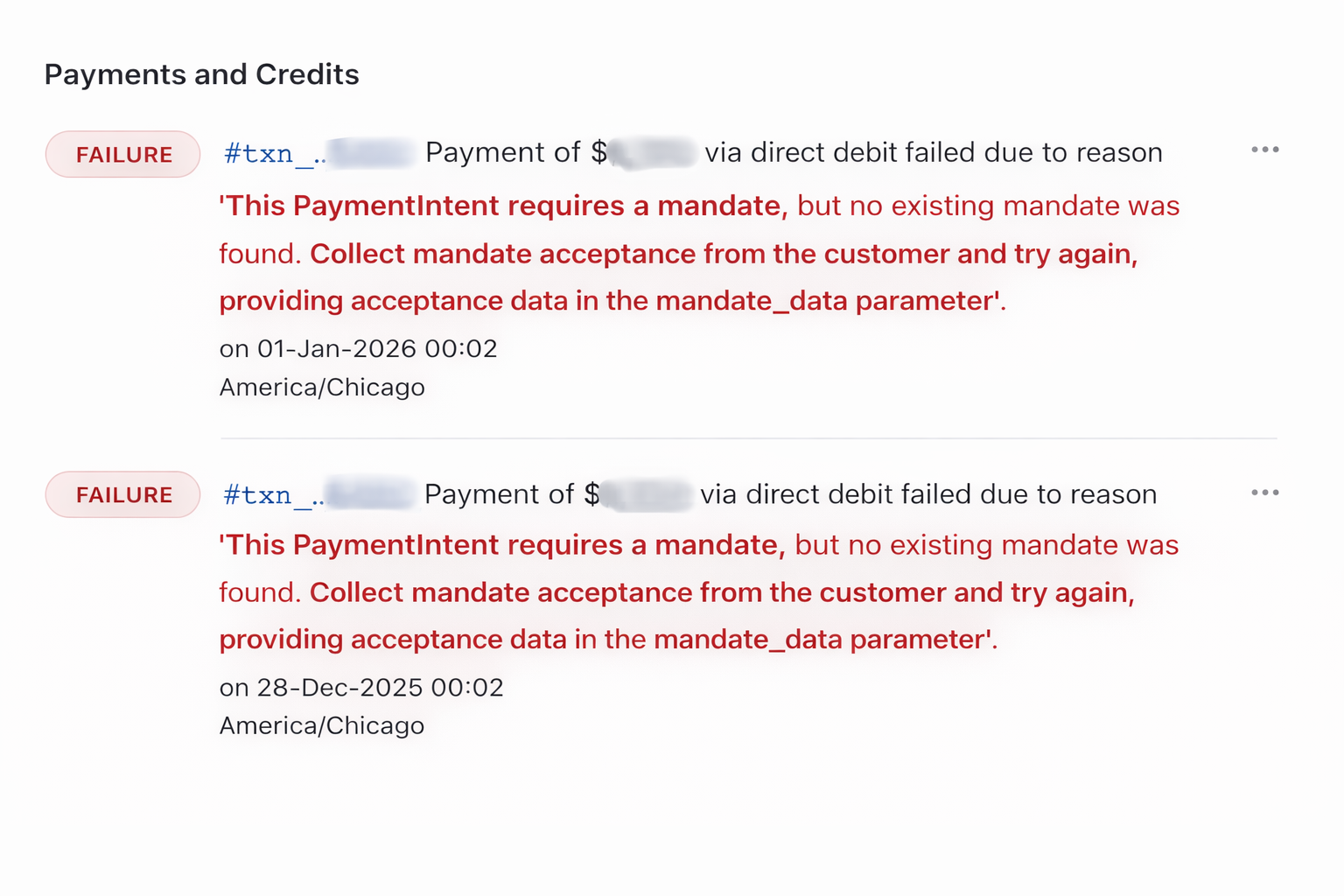
error

Related Scenarios

  • What to do when a direct debit payment fails due to a missing mandate?
  • How to re-authorize a mandate for Stripe direct debit payments?
  • Steps to take if a customer's bank cancels a direct debit mandate.

Solution

When processing a direct debit payment via the Stripe gateway, you may encounter an error indicating that a mandate is required but not found. This typically occurs if the mandate was canceled by the customer's bank or by the customer themselves. To resolve this issue, follow these steps:

  1. Verify with the Customer's Bank: Contact the customer and ask them to check with their bank to ensure there are no blocks or issues with their account that might have led to the cancellation of the mandate.

    • Advise the customer to confirm that their account is active and capable of processing direct debit transactions.
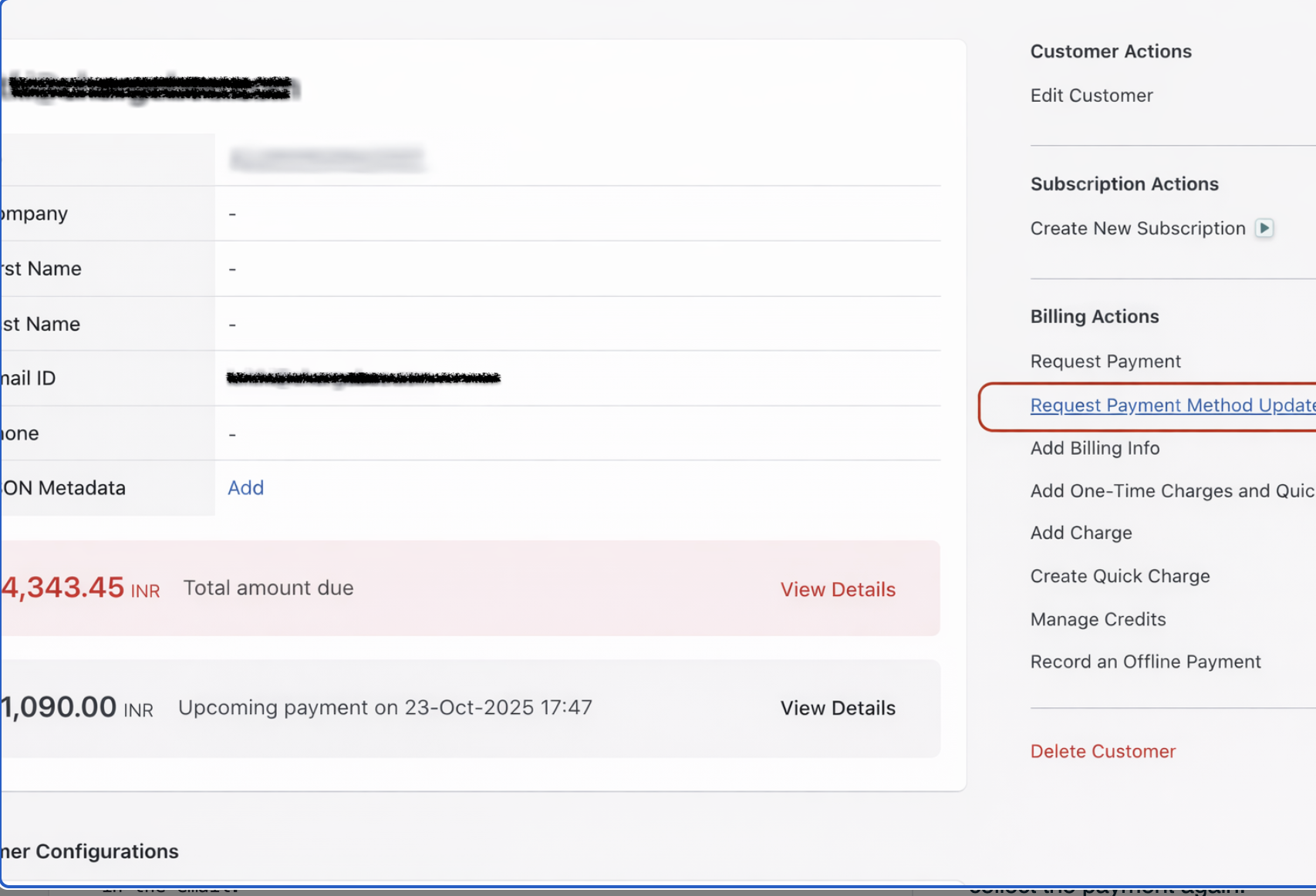
  2. Re-authorize the Mandate: Send a 'Request Payment Method Update' email from Chargebee to the customer to re-authorize the mandate.

    • Navigate to Customers.
    • Select the customer name that you want to update.
    • In the Customer Details page, under the Billing Actions section, click on Request Payment Method Update and follow the steps to send the email.
    • Ensure the customer completes the authorization process as instructed in the email.
      Screenshot 2026 05 05 at 3.00.01 PM
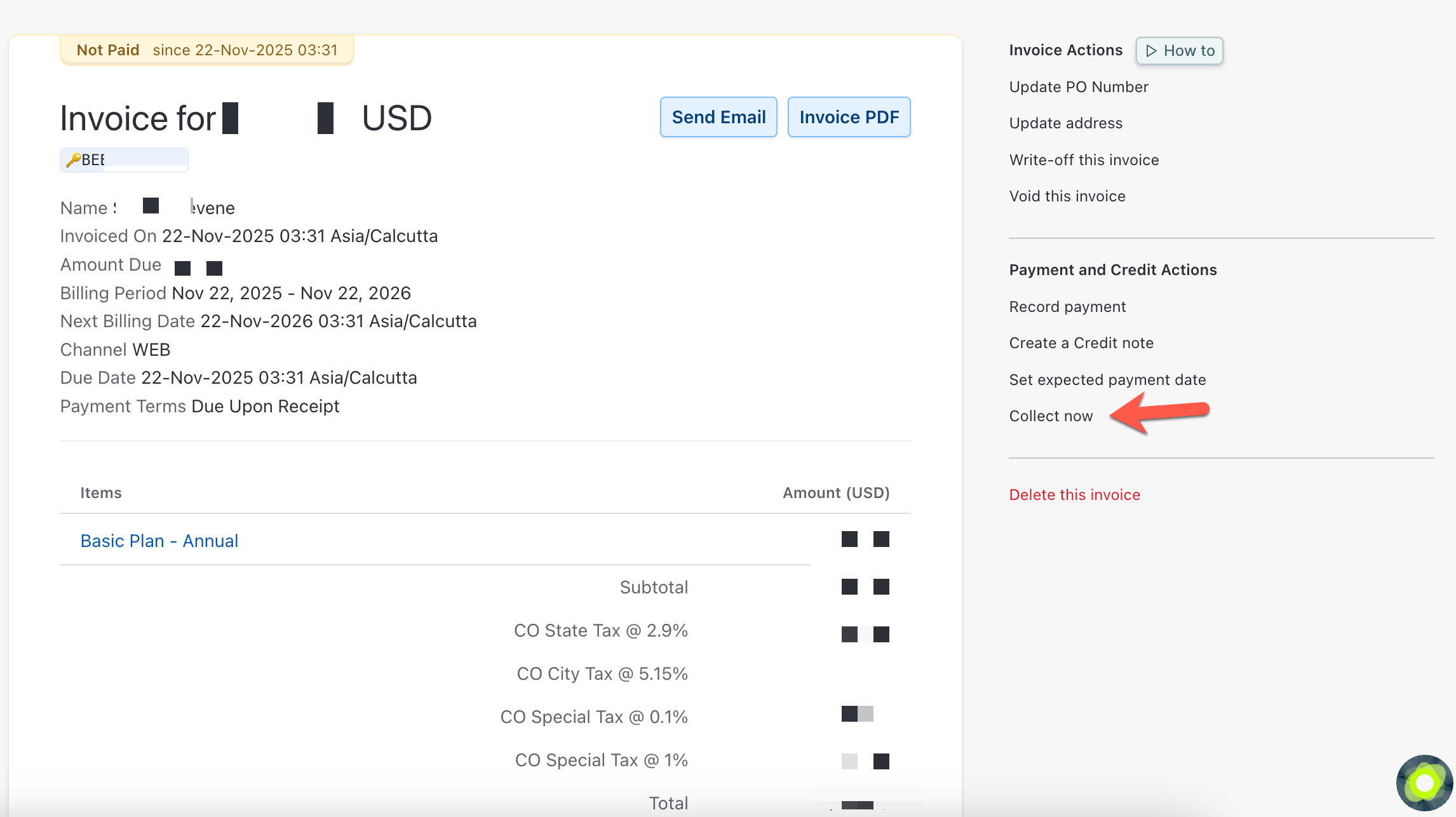
  3. Retry the Payment: Once the mandate is re-established, attempt to collect the payment again.

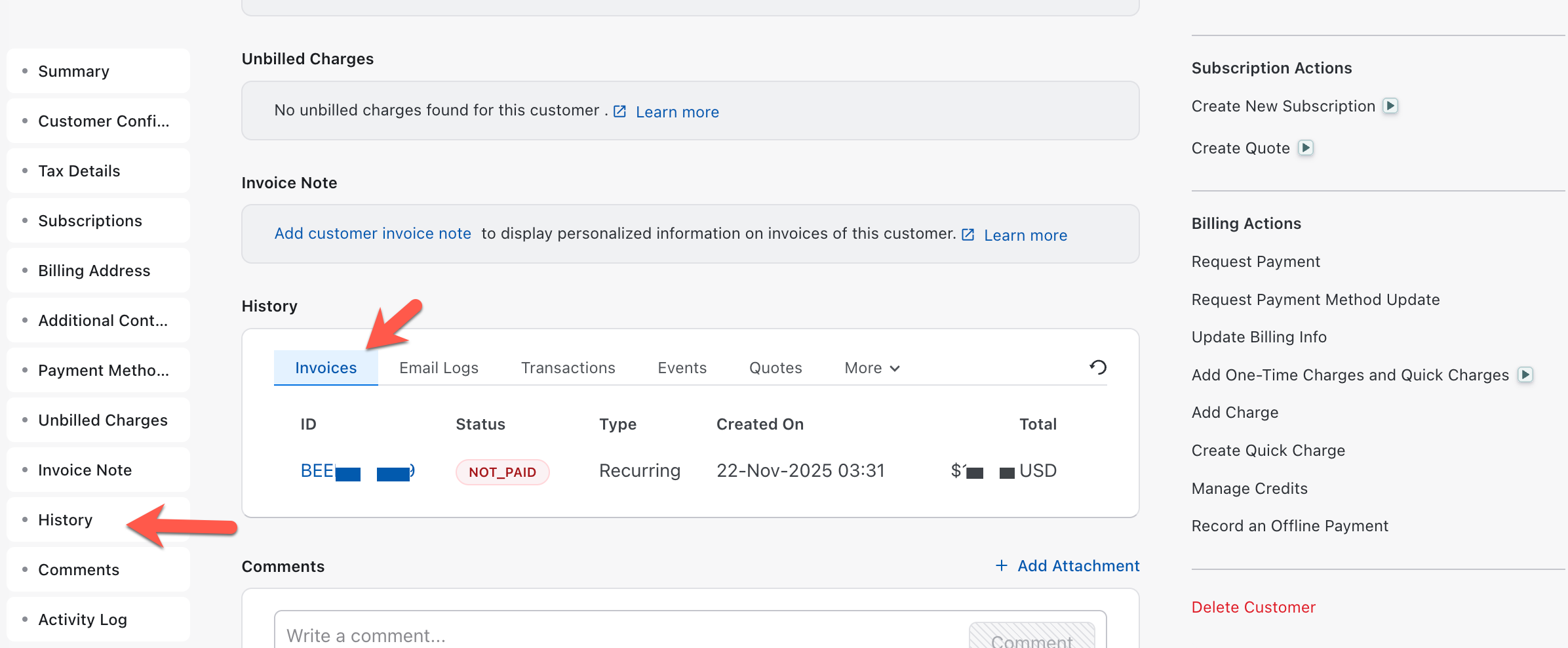
    • Navigate to Customers. Select the same customer for which you have requested the payment method update.
    • In Customer Details page, go to History.
    • Under History, select the Invoices tab and click the invoice for which you want to collect the payment.
      image
    • Click on Collect Now and confirm that the payment is processed successfully.
      image

Additional Information

  • Ensure that the customer's email address is correct before sending the 'Request Payment Method' email.
  • If the issue persists, consider checking the Stripe dashboard for any additional error messages or logs that might provide further insights.
  • Regularly update your Chargebee and Stripe integration settings to prevent similar issues in the future.
  • Educate customers on the importance of maintaining active mandates for uninterrupted service.

Was this article helpful?