How to review Expense Results and Reports in RevRec?
Scope
How to view the revenue arrangement for a particular Sales Order?
What is the list of expense reports available in RevRec?
What are the additional attributes used in expense reports?
Summary
You can view the associated contract cost, allocation, and recognition schedule for each product from the sales order UI, while you can see aggregate information related to expenses on the report. You can also drill down using the various attributes available in the drill hierarchy. Navigate from Customers > Sales Order > Revenue Arrangement.
Solution
Sales Order UI Contract costs associated with sales orders can be viewed or edited from the sales order screen.
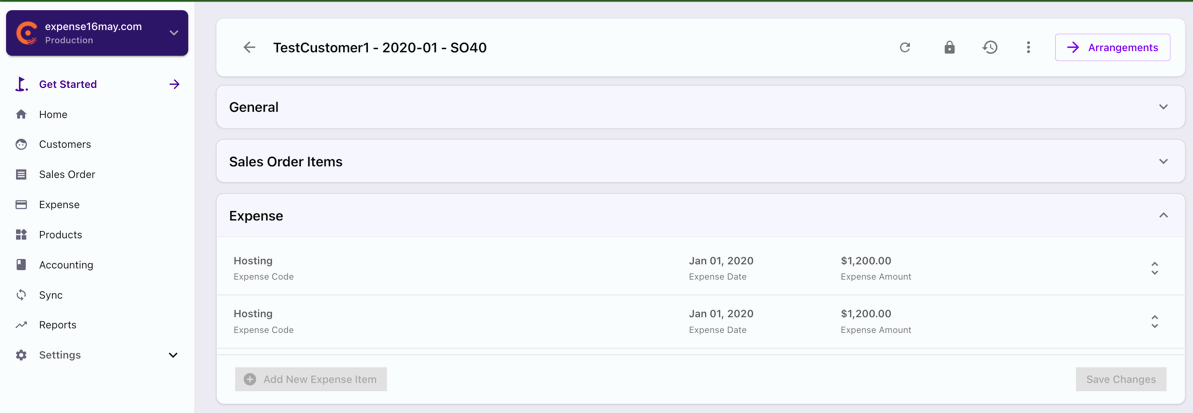
Click Arrangements at the top left corner of the screen to view revenue and cost arrangements for the sales order. There are two sections for the contract cost like revenue such as:
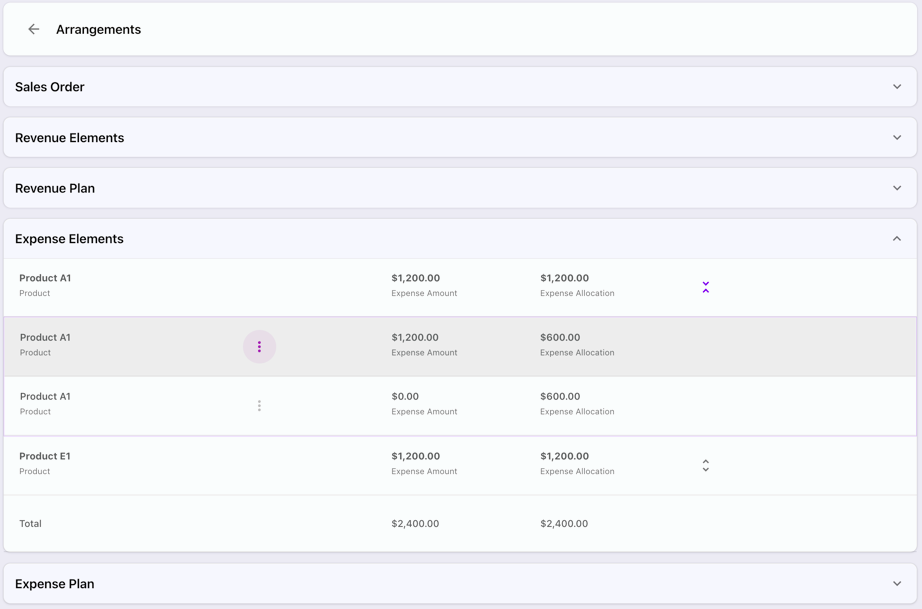
Contract Cost Elements This section has two columns.
Contract Costs: This is the cost provided against each Sale Order and/or Product. Allocated Costs: This is the cost allocated to each product by processing the accounting rule provided earlier.
You can click the ellipsis icon to view the calculation for each product.
Contract Cost Plan
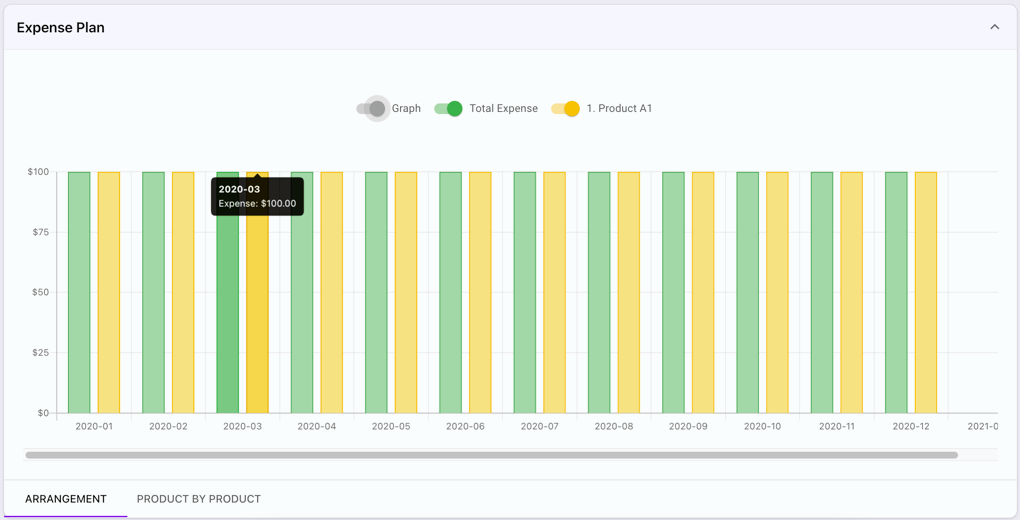
This section displays a cost recognition plan for each product. You can use the toggle switch to enable or disable the graph. There is also an option to view the recognition plan by product.
Reports
The following reports are available with RevRec's Expense Recognition feature.
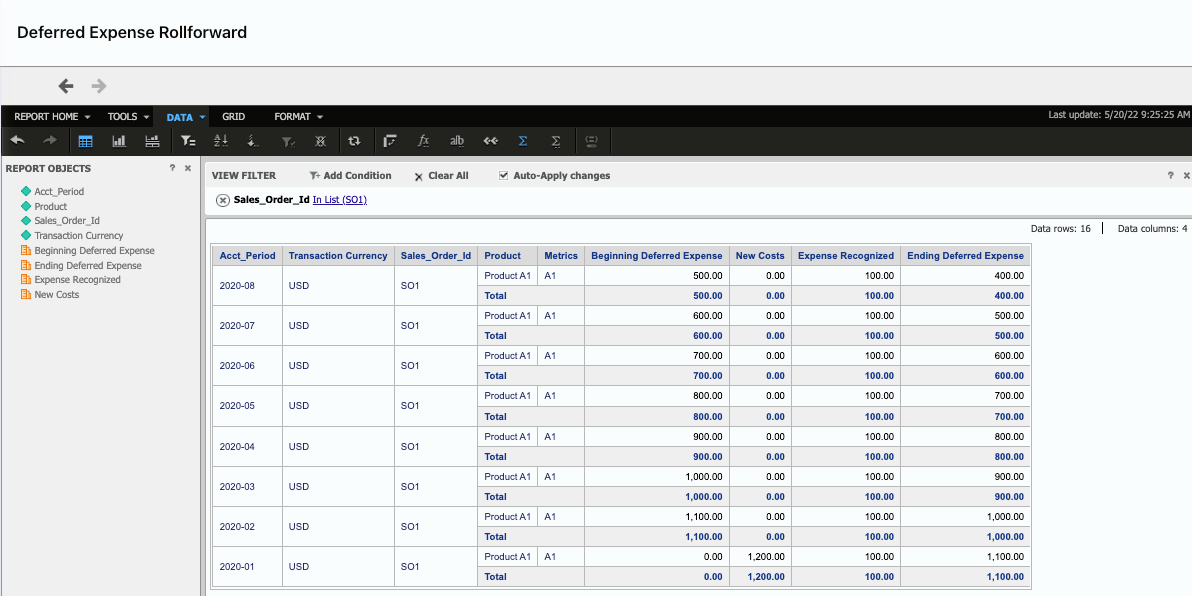
Deferred Expense Roll Forward
You can use this report to view the New Costs and Expenses recognized for each accounting period. New Costs represent the expense incurred by your company. It can be contract costs or other business costs. Expense Recognized represents the allocated expense recognized for the accounting period by RevRec. You can also use the drill functionality to break down the aggregated values. This report displays only past and current data.
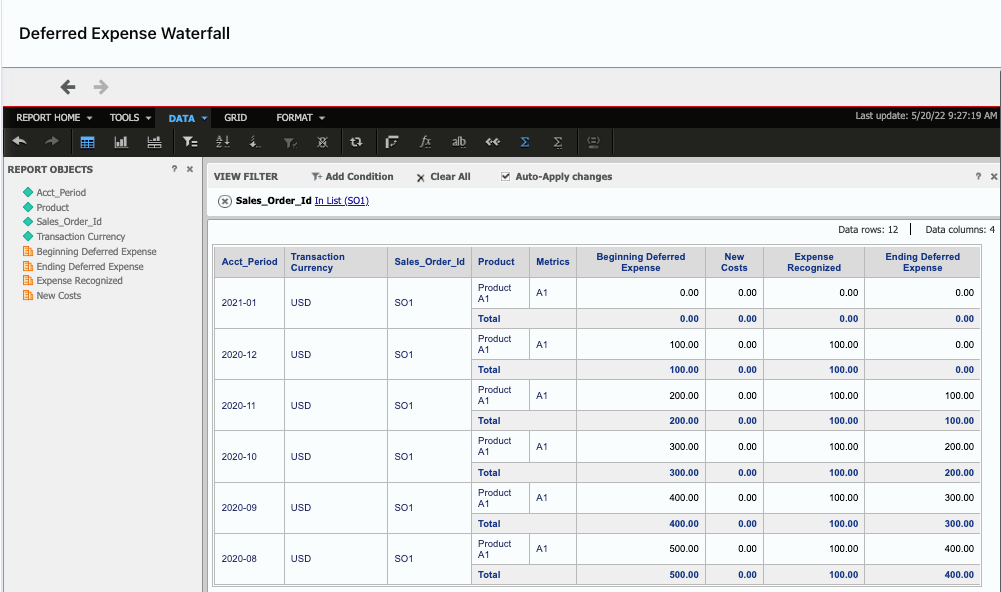
Deferred Expense Waterfall
You can use this report to view the New Costs and Expenses Recognized for each accounting period. This report displays future data based on the amortization plan.
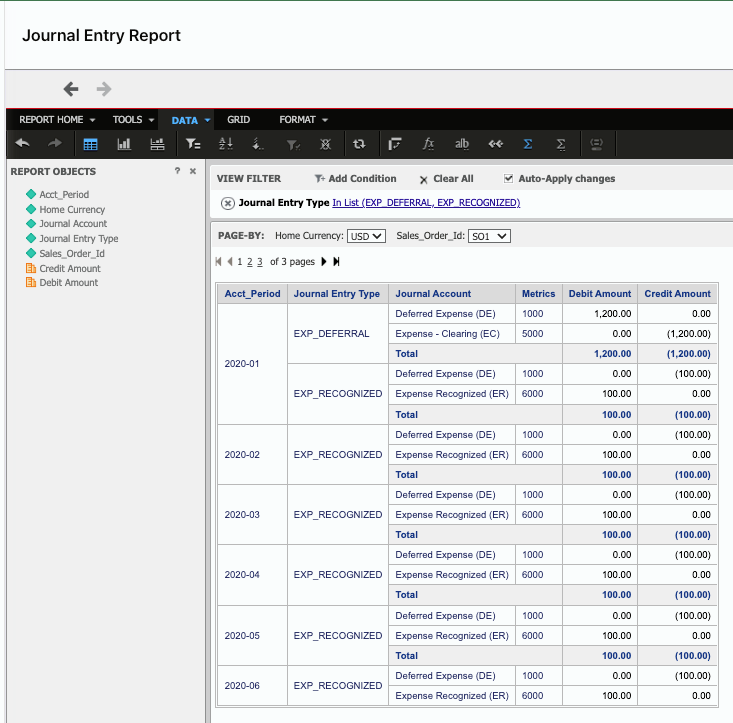
Journal Entry Report
Additional Attributes or Fields
You can add or drill additional attributes on the report. Following are the attributes available on both reports for Expense Hierarchy:
Expense Code Expense Type Reference Number Class Department Location Salesperson
Was this article helpful?