Dangling Transactions
This document addresses the concept of dangling transactions in Chargebee and the methods for effectively managing them. A dangling transaction arises when a payment is successfully processed by the payment gateway but encounters an error within Chargebee, preventing the creation or updating of a customer's subscription or invoice. Although these situations are rare, they can lead to discrepancies in your records. In this document, we will explain the causes of dangling transactions and provide comprehensive strategies for resolving these issues to maintain the accuracy of your billing and customer data.
Handling dangling transactions in Chargebee
In Chargebee, dangling transactions may appear with a status of Success, but their resolved status remains Open.
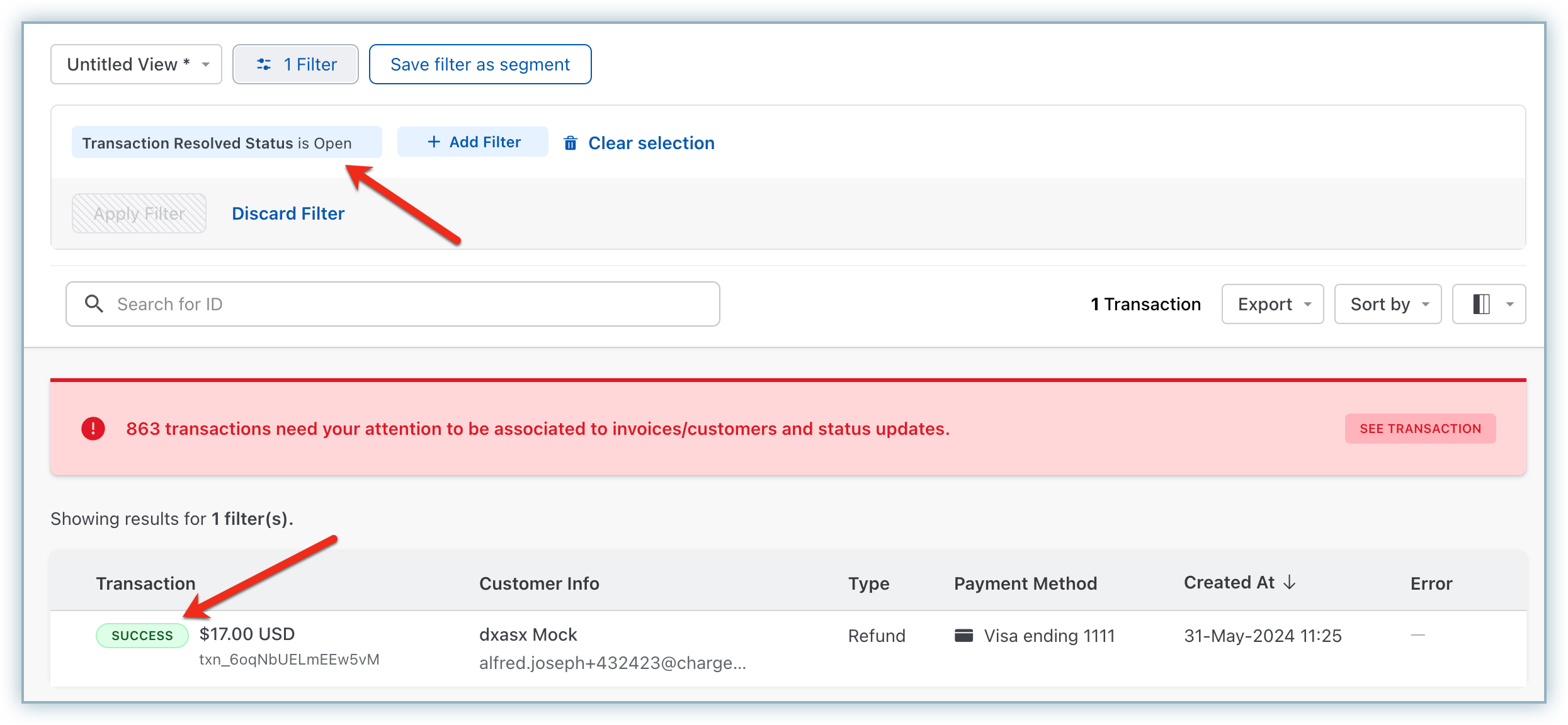
This indicates that the transaction is not correctly associated with a customer or invoice, meaning it is not fully reconciled within the Chargebee system. Chargebee attempts to resolve these issues through its automatic reconciliation process as explained below.
Automatic reconciliation in Chargebee
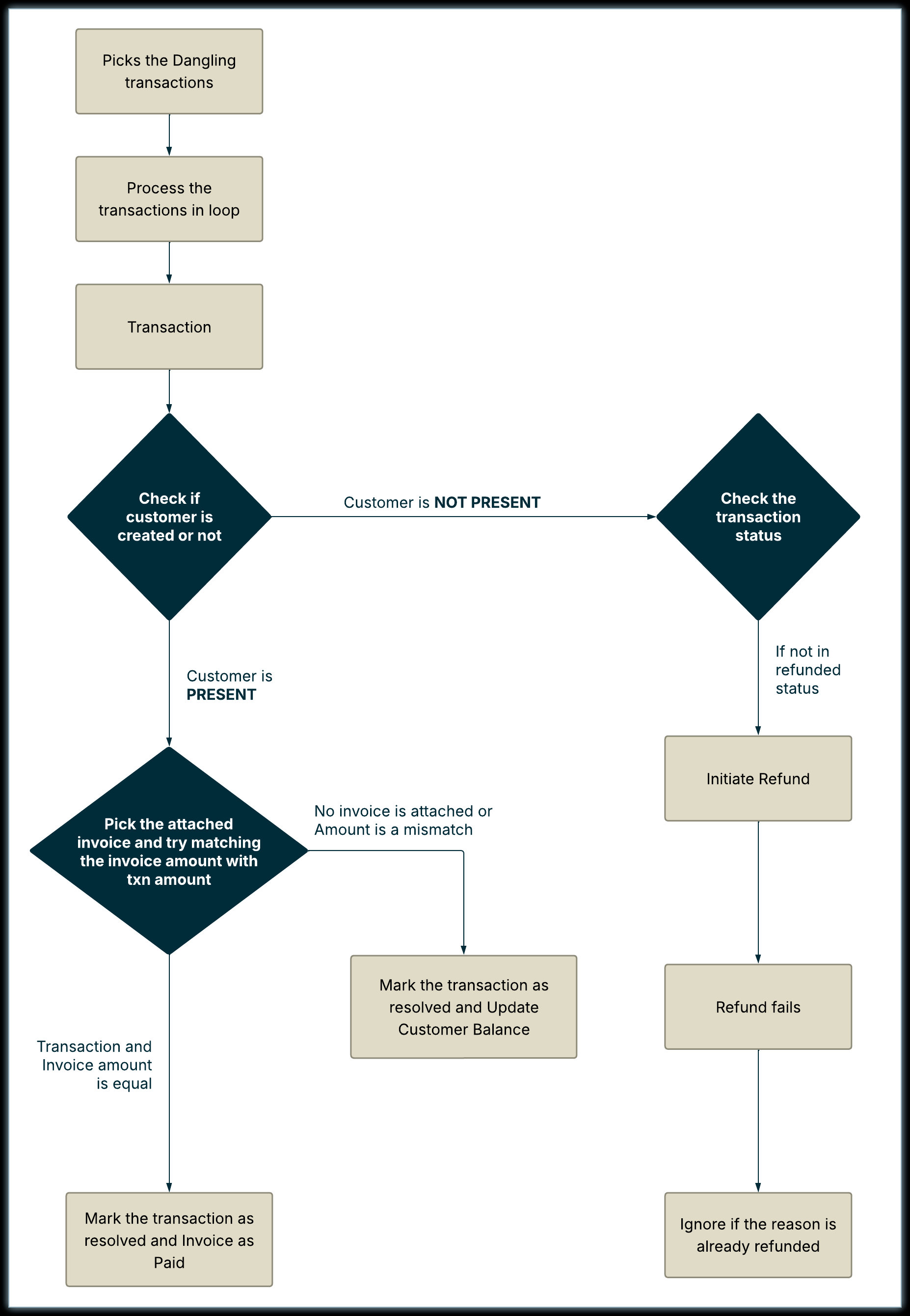
Chargebee's automatic dangling transaction reconciler process attempts to reconcile transactions by matching them with the correct invoice based on the transaction amount and currency. If a match is not found, but the transaction has a customer ID attached, the amount is added to the associated customer's excess payments balance. The complete reconciliation workflow is outlined below:
Reconciliation workflow
Chargebee tries to automatically reconcile dangling transactions using a daily reconciler process. Let us understand the workflows behind the automated reconciliation process for these transactions:
- Identify and retrieve dangling transactions: Begin by identifying and retrieving transactions marked as dangling for further processing.
- Verify customer status:
For each transaction, verify if the associated customer exists in the Chargebee system:
- Customer not found: Log this information and skip to the next transaction.
- Customer found: Proceed to check for an associated invoice with the transaction.
- Handle transactions without associated invoices:
If no invoice is linked to the transaction, verify the transaction status with the payment gateway:
- Not refunded at gateway: Chargebee attempts to initiate a refund when no customer entity is attached:
- Successful refund: Mark the transaction as resolved and log the action in Chargebee.
- Failed refund: Analyze the failure reason:
- Already refunded: Log the information and ignore further action on this transaction.
- Other reasons: Log the issue and determine the appropriate action based on your or the support team's input.
- Not refunded at gateway: Chargebee attempts to initiate a refund when no customer entity is attached:
- Handle transactions with associated invoices:
Locate the invoice linked to the transaction and attempt to reconcile the amounts:
- Amounts match:
- Settle the invoice and mark the transaction as resolved.
- Update the status of both the transaction and the invoice to "Paid," confirming accurate reconciliation of the customer's account and billing records.
- Amounts do not match: Log the discrepancy and update the customer's balance in Chargebee accordingly.
- Amounts match:
When Automatic reconciliation is not working
Chargebee may occasionally be unable to reconcile a dangling transaction, particularly when the transaction lacks an associated invoice or customer, or if an error occurs during a refund attempt through the payment gateway. In such cases, manual intervention is required to resolve the transaction within Chargebee's system.
If a dangling transaction does not have a customer or invoice linked to it, and the automatic reconciliation process fails, your assistance will be needed to reconcile it, as outlined in the following section.
You can reconcile dangling transactions manually using either of the following methods:
Reconciling Transactions via API
You can use the Reconcile transaction API to update the Customer ID, provided it is not attached to the Dangling transaction, which will recalculate the customer's excess balance.
Reconciling Transactions via the Chargebee App
This section involves two sets of steps:
- Locating Dangling Transactions
- Reconciling Transaction
Locating Dangling Transactions
There are two ways to locate and identify Dangling or Needs Attention transactions:
-
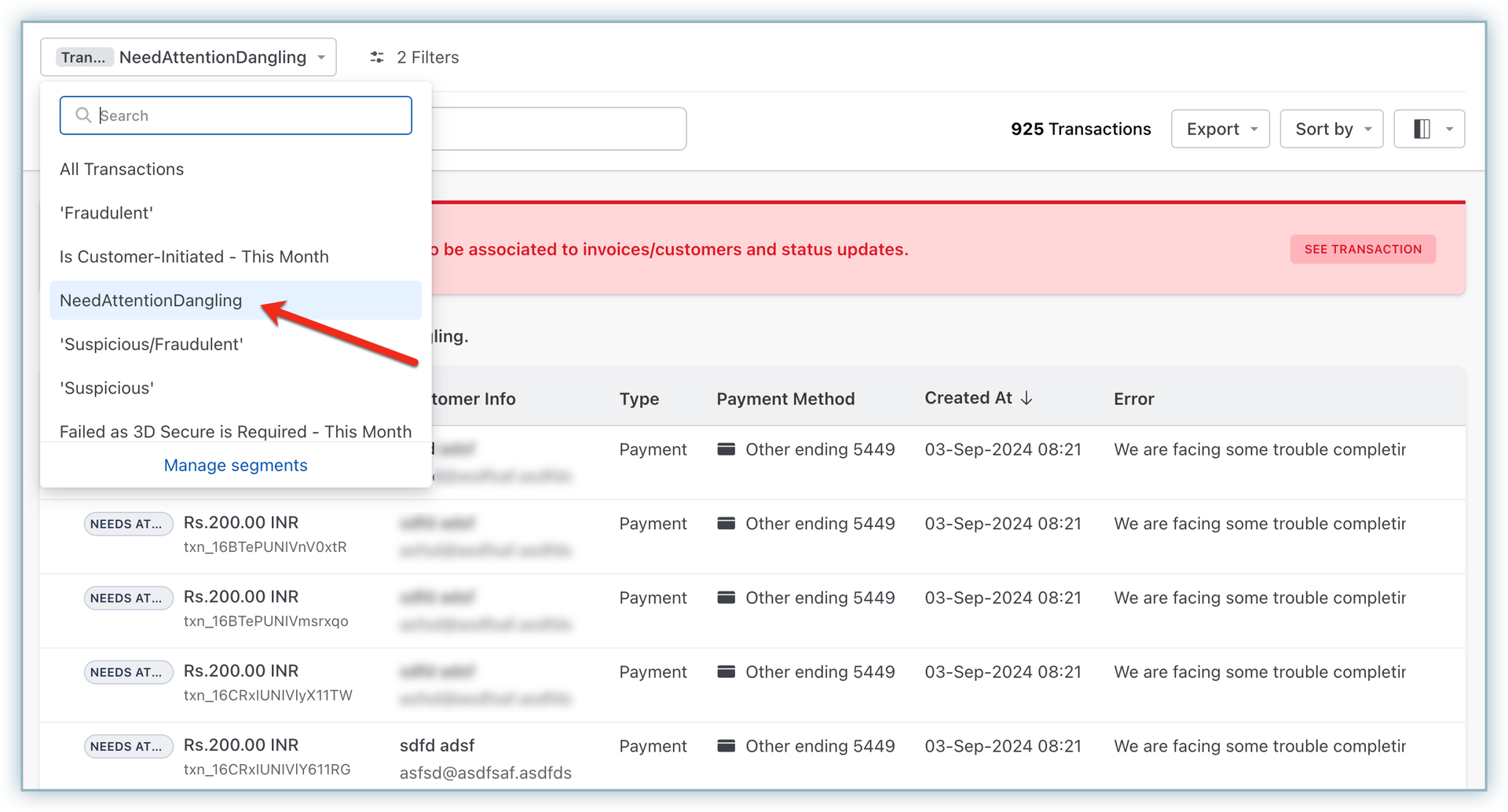
Using the NeedsAttentionDangling filter. Simply, go to the Transactions page and select the NeedsAttentionDangling filters from the All Transactions drop-down menu on top.
-
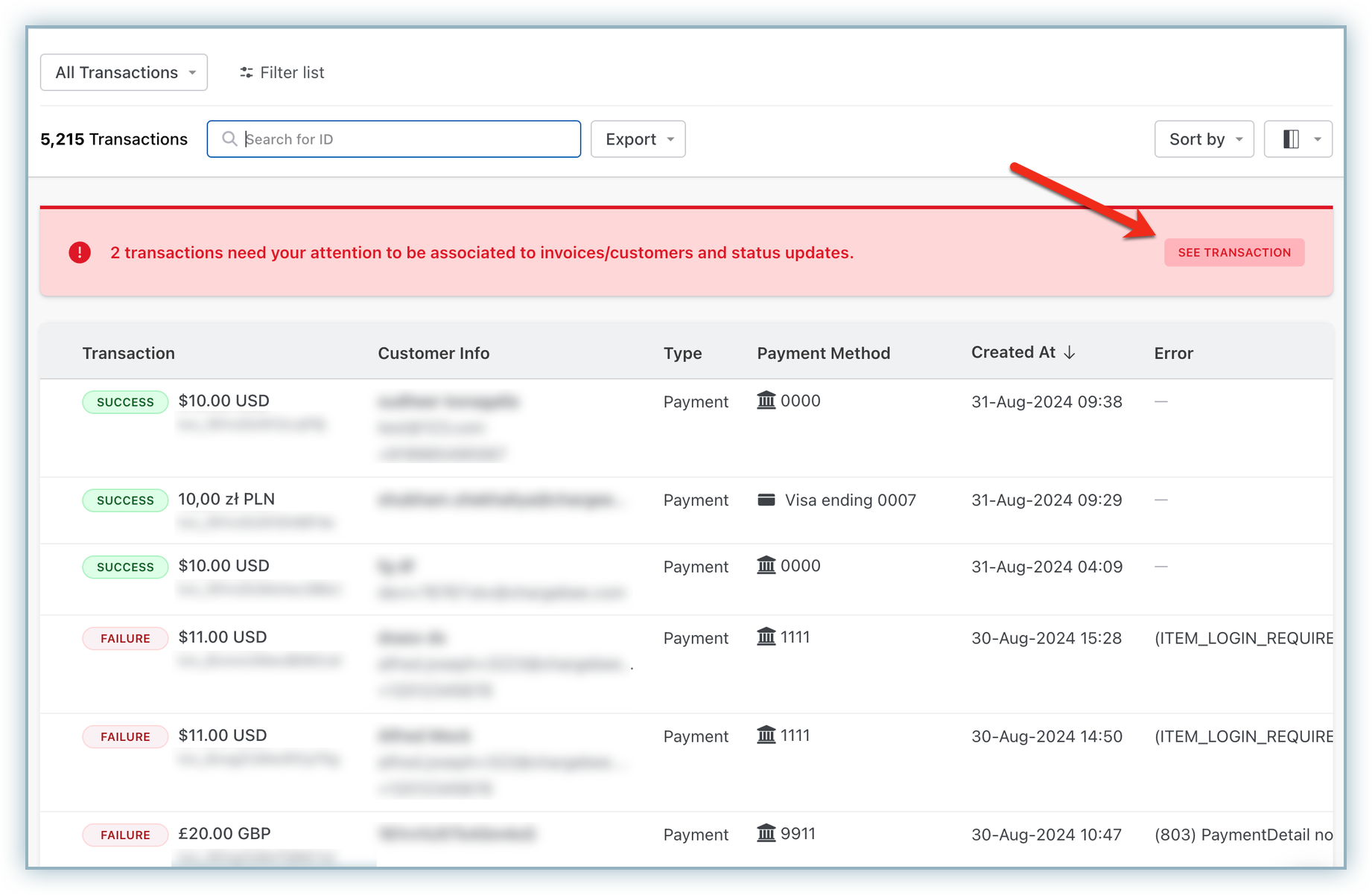
From the banner on top of the Transactions page. Follow the steps below: a. Login to the Chargebee app and go to Logs > Transactions. b. When any Dangling transactions are created in the Last 30 days, a banner appears, indicating that your attention is required. c. Click See Transaction to view the list of all Dangling transactions.
Reconciling a Dangling Transaction
When it is a Dangling transaction that is not attached to any customer / Invoice and is not yet refunded. You can follow these steps:
-
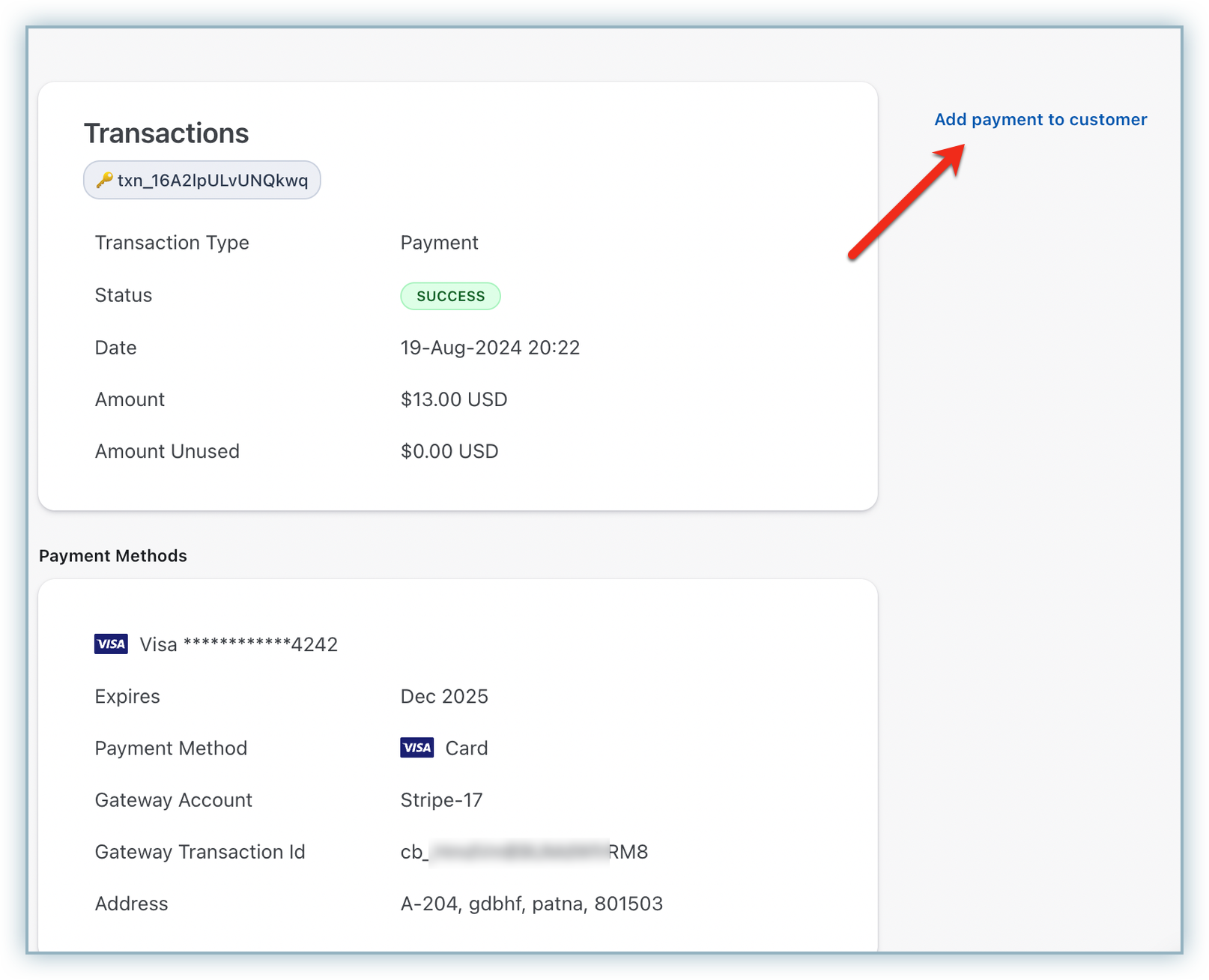
On the Transactions page, click on the transaction to open the transaction detail page
-
Click Add payment to customer from the right pane.
-
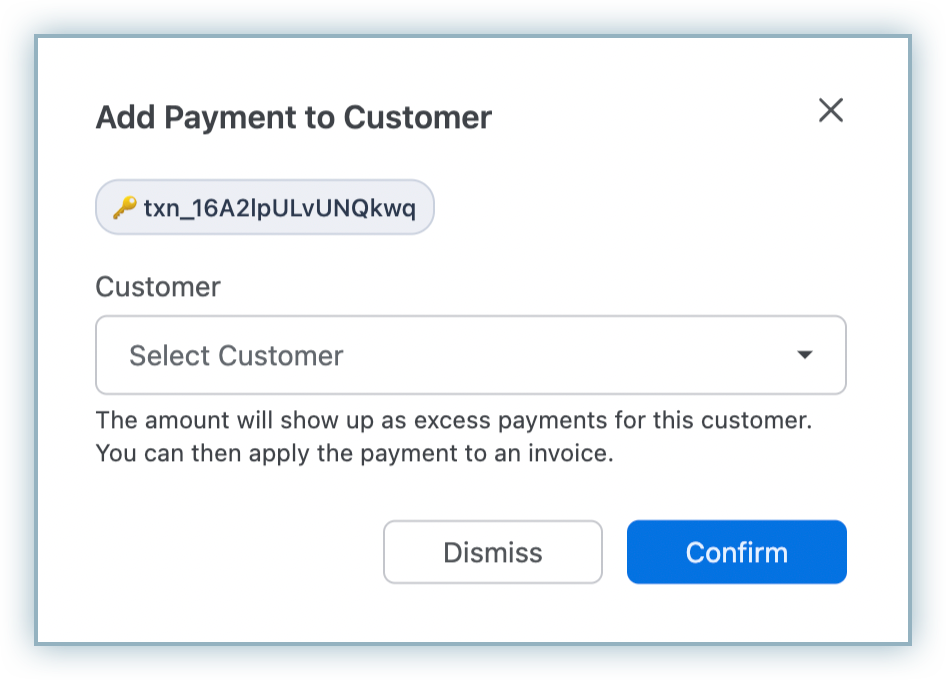
On the following pop-up, search for the customer either using the name or ID and select it.
-
Click Confirm.
-
Once the customer is attached, Chargebee recalculates the customer's excess balance by adding the transaction amount to it and reconciling the transaction.
Utilizing the excess payment balance
Once a dangling transaction is reconciled and the amount is added to the customer's excess payment balance, it can be utilized in the following ways:
- Automatic adjustment against future invoices: The excess balance is automatically applied toward the customer's upcoming invoices, reducing the amount to be collected.
- Manual application to unpaid invoices: If the customer has invoices in Not Paid or Payment Due status, you can manually apply the excess balance to settle them.
To apply the balance:
- Navigate to the invoice detail page.
- Click the ellipsis (...).
- Select Apply Payments.
Learn more in How does the Apply Payments option work?
Was this article helpful?