New in Chargebee: Explore Reveal and understand your payment performance end-to-end.Try Now
Docschargebee docs
HomeBillingPaymentsRevRecGrowthReveal
Support

Product Updates


  • Release Notes

Getting Started


  • Overview
  • Chargebee Billing Data Centers
  • Object Relationship Model
  • Understanding Sites
  • Developer Resources
  • Chargebee Tech Glossary
  • Articles and FAQ

Implementing Chargebee


  • Implementation Guide
  • Go-live Checklist
  • Articles and FAQ

AI in Chargebee


  • Chargebee Agents
  • Chargebee Copilot
  • Chargebee MCP Server (Model context protocol)

Product Catalog


  • Product Catalog Overview
  • Coupons
  • Articles and FAQ

Subscriptions


  • Working with Subscriptions
  • Billing
  • Orders
  • Articles and FAQ

Customers


  • Managing Customers
  • Account Hierarchy
  • Email Notifications
  • Branding
  • Configure Multiple Languages
  • Articles and FAQ

Invoices, Credit Notes and Quotes


  • Invoices
  • Credit Notes
  • Quotes [Legacy]
  • Transactions
  • Articles and FAQ

Taxes


  • Overview
  • Configuring Taxes
  • Country-specific Taxes
  • Articles and FAQ

Hosted Capabilities


  • Overview
  • Hosted Checkout
  • Hosted Self-Serve Portal
  • Hosted Pages Features
  • Additional Hosted Pages
  • Payment Components
  • Managing payments with ChargebeeJS
  • Mobile-Optimized Hosted Pages
  • Articles and FAQ

Site Configuration


  • Users & Roles
  • Custom Fields & Metadata
  • Mandatory Fields
  • File Attachments & Comments
  • Advanced Filter Options
  • Multicurrency Pricing
  • Multi-decimal Support
  • Configuring Reason Codes
  • Events and Webhooks
  • API Keys
  • Time Zone
  • Time Machine
  • Transfer Configurations
  • Articles and FAQ

Reports and Analytics


  • RevenueStory
  • Home Dashboard
  • Frequently Asked Questions
  • FAQs for Classic Reports Sunset
  • Articles and FAQ

Integrations


  • Sales
  • Customer Support and Success
  • Finance
  • Tax
  • Marketing
  • Stitch
  • Collaboration
  • Contract Management
  • Order Management
  • Mobile Subscriptions (Legacy)
  • Other Integrations
  • Articles and FAQ

Data Privacy & Security


  • Two Factor Authentication
  • SAML Single Sign-On
  • System for Cross-Domain Identity Management (SCIM)
  • EU-GDPR
  • Consent Management
  • Personal Data Management
  • Compliance Certificates
  • HIPAA Guidelines
  • PCI Recommendations and Integration Types
  • Articles and FAQ

Data Operations


  • Bulk Operations
  • Migration
  • Articles and FAQ
  1. Billing
  2. Customers
  3. Articles and FAQ
  4. Email Notifications
  1. Billing
  2. Customers
  3. Articles and FAQ
  4. Email Notifications

How to include the payment link in quote email as a hyperlink?

Scope

Is it possible to configure the "Accept Quote link" as a button?

Can I include Accept Quote links in pdf?

Summary

Invoicing quotes can be made easier by setting up the "Accept Quote" link in your email templates. Using this, your customer can proceed with the checkout and to do so you can include the quote.accept_quote_link. You can use this merge tag anywhere in the email as you see fit.

Note: Attaching "Accept Quote" links to the PDF copy is not possible in Quotes, as these links come with an expiry date.

Solution

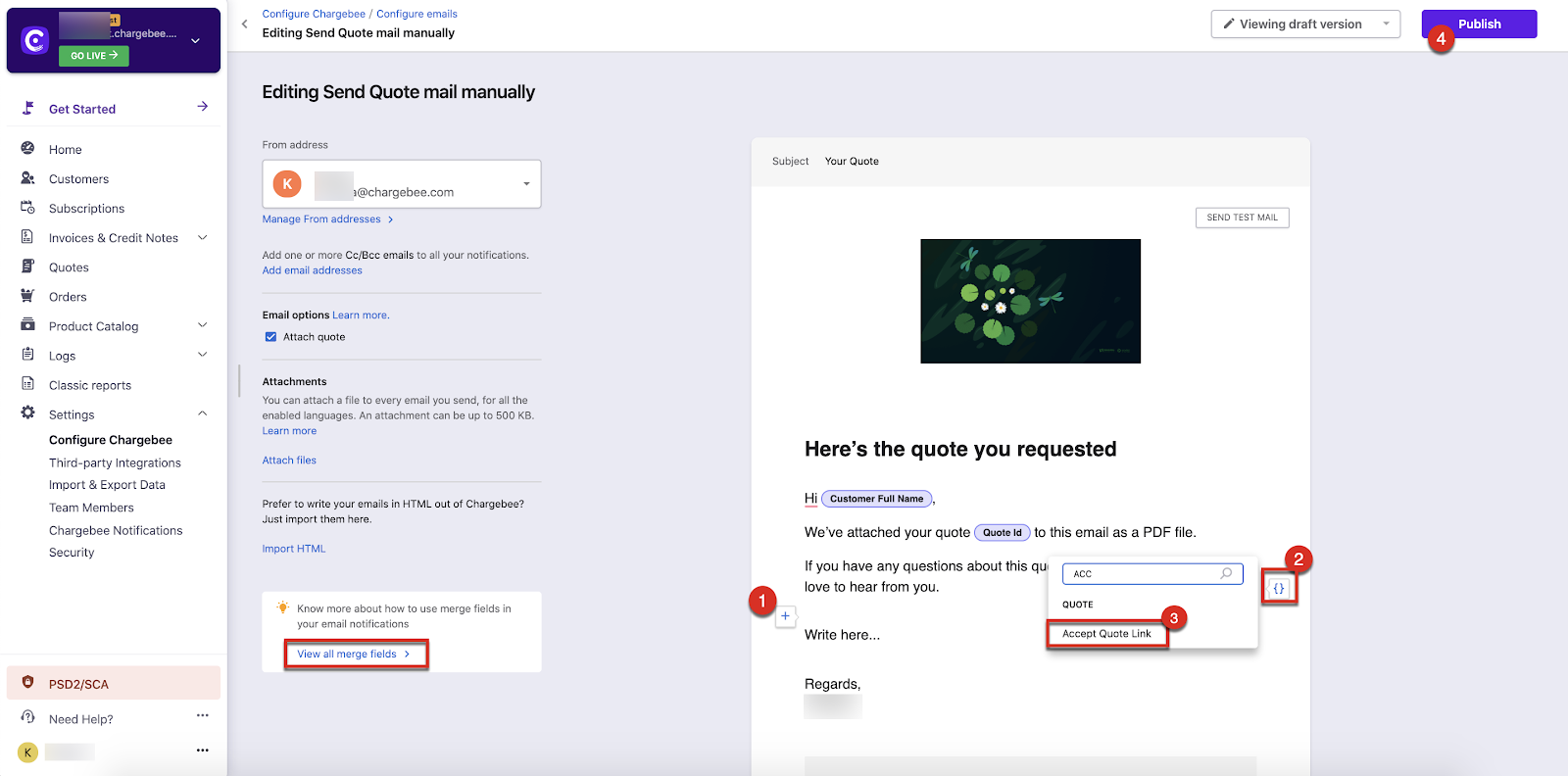
  • Go to Settings » Configure Chargebee » Email notifications » Standard emails » Send Quote email » Open Email to Edit.

  • Click the "+" icon to add a section where you can include the quote accept the link.

  • Click the "" to the right to select the Quote link generation variable from the list. The c__hanges made are automatically saved as drafts.

  • Click Publish (top right) to make it available for emails.
image

Email notifications template (Image - 1)

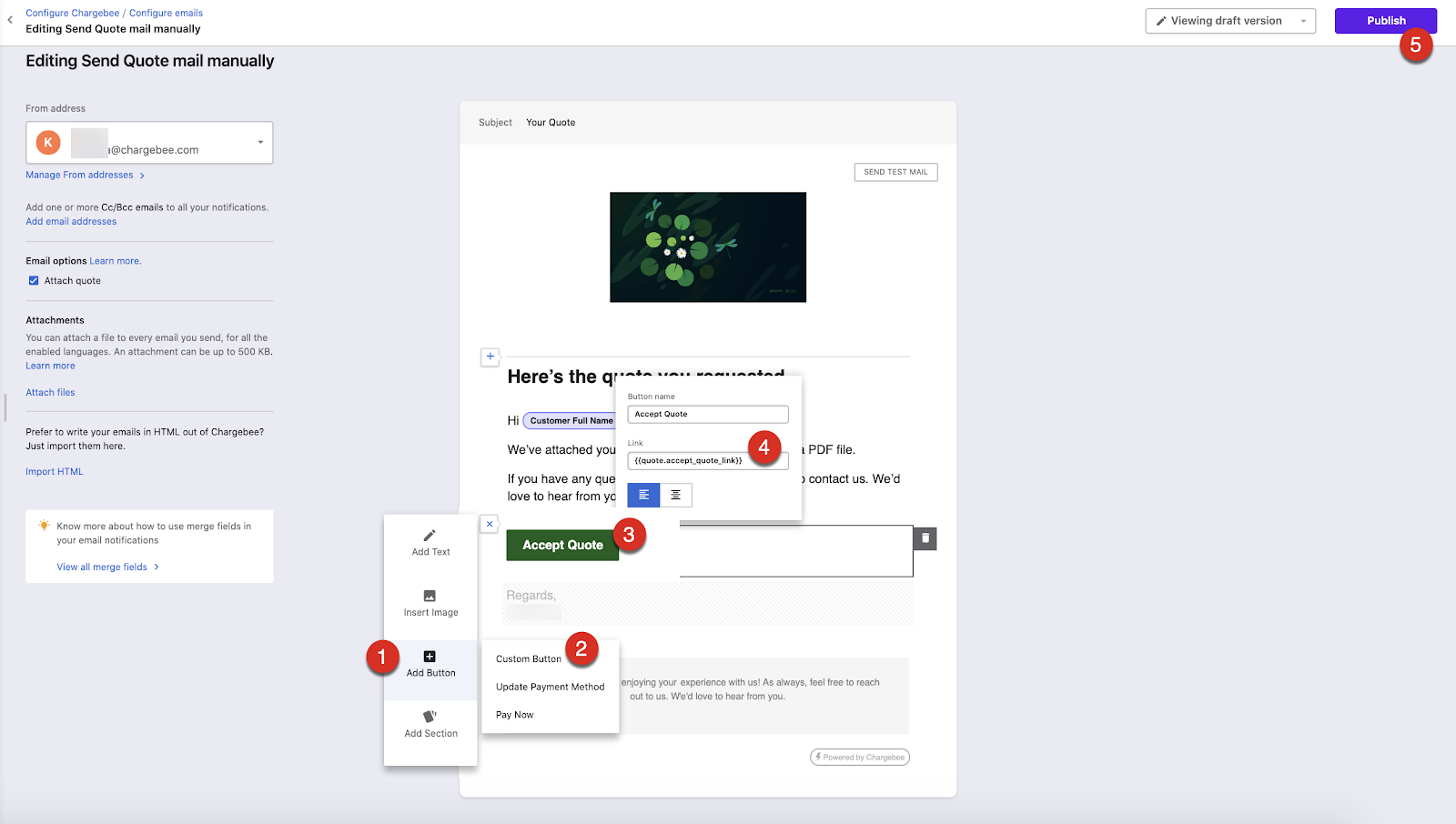
You can also choose to use a button to embed the link, this way you can have a tidy button tucking away the raw link.

To do this replace these steps at point #3 from the above steps.

  1. Click the "View All Merge Fileds" button at the bottom left of the page.

  2. Select Quotes and click "+"

  3. Copy the quote.accept_quote_link

  4. Now, Go back to Editing Send Quote mail manually

  5. Click "+" > Add button > Custom button

  6. Give Button a name

  7. Paste the quote.accept_quote_link in the link field and Publish.

image
_Mergevar for Email Notifications_
image

Accept Quote Link custom button

Was this article helpful?