New in Chargebee: Explore Reveal and understand your payment performance end-to-end.Try Now
Docschargebee docs
HomeBillingPaymentsRevRecGrowthReveal
Support

Product Updates


  • Release Notes

Payment Methods


  • Payment Methods Overview
  • Cards
  • Direct Debit
  • Bank Based Payments
  • Wallets
  • Vouchers
  • Articles and FAQ

Payment Gateways and Configuration


  • Payment Gateways Overview
  • Chargebee Test Gateway
  • Stripe
  • PayPal Payment Services
  • Chargebee Pay
  • Adyen
  • Authorize.net
  • Bambora (formerly Beanstream)
  • Bank of America
  • BluePay
  • BlueSnap
  • Braintree
  • Checkout.com
  • CyberSource
  • dLocal
  • EBANX
  • Ecentric
  • Elavon
  • E-xact Direct Integration
  • eWay Rapid
  • Global Payments
  • GoCardless
  • J.P. Morgan Mobility Payment Solutions
  • Metrics Global
  • Mollie
  • Moneris
  • Network Merchants Incorporated (NMI)
  • Nuvei
  • Orbital (Chase Paymentech)
  • Pay.com
  • Paymill
  • Paystack
  • Pin Payments
  • QuickBooks Payments
  • Razorpay
  • Sage Pay
  • Solidgate
  • Tempus
  • Twikey
  • Windcave
  • Worldline Online Payments(formerly Ingenico)
  • Worldpay
  • Articles and FAQ

Level 2/3 Data Support


  • Level 2/3 Data Support

Advanced Routing


  • Advanced Routing

Dunning


  • Dunning
  • Articles and FAQ

Offline Checkout


  • Offline Checkout
  • Articles and FAQ

Transaction Sync & Invoice Mapping


  • Transaction Sync and Invoice Mapping

Fraud Management


  • Fraud Management

Error Handling


  • Errors with Root Cause and Troubleshooting

Payment Lifecycle Logs


  • Payment Intents
  • Transactions
  • Gateway Activity Logs
  • Gateway Webhook Logs
  • Articles and FAQ

Others


  • Reach (Merchant of Record)
  • Payment Verification
  • Bulk Deletion of Payment Methods
  • Custom Payment Methods
  • Payment Initiator Parameter
  • PSD2 and Strong Customer Authentication
  • RBI e-Mandate
  • RBI Tokenization Regulations
  • Chargeback Management
  • Transaction Descriptors
  • Payment Preferences
  • Visa Trial Rules
  • Mastercard Trial Rules
  • Co-badged Card Compliance
  • Articles and FAQ
  1. Payments
  2. Payment Gateways and Configuration
  3. Articles and FAQ
  4. Braintree
  1. Payments
  2. Payment Gateways and Configuration
  3. Articles and FAQ
  4. Braintree

Testing with Braintree sandbox.

Problem Statement

This article helps you understand testing with braintree sandbox..

Solution

You can run test transactions in your Chargebee test site using your Braintree sandbox credentials.

Step 1

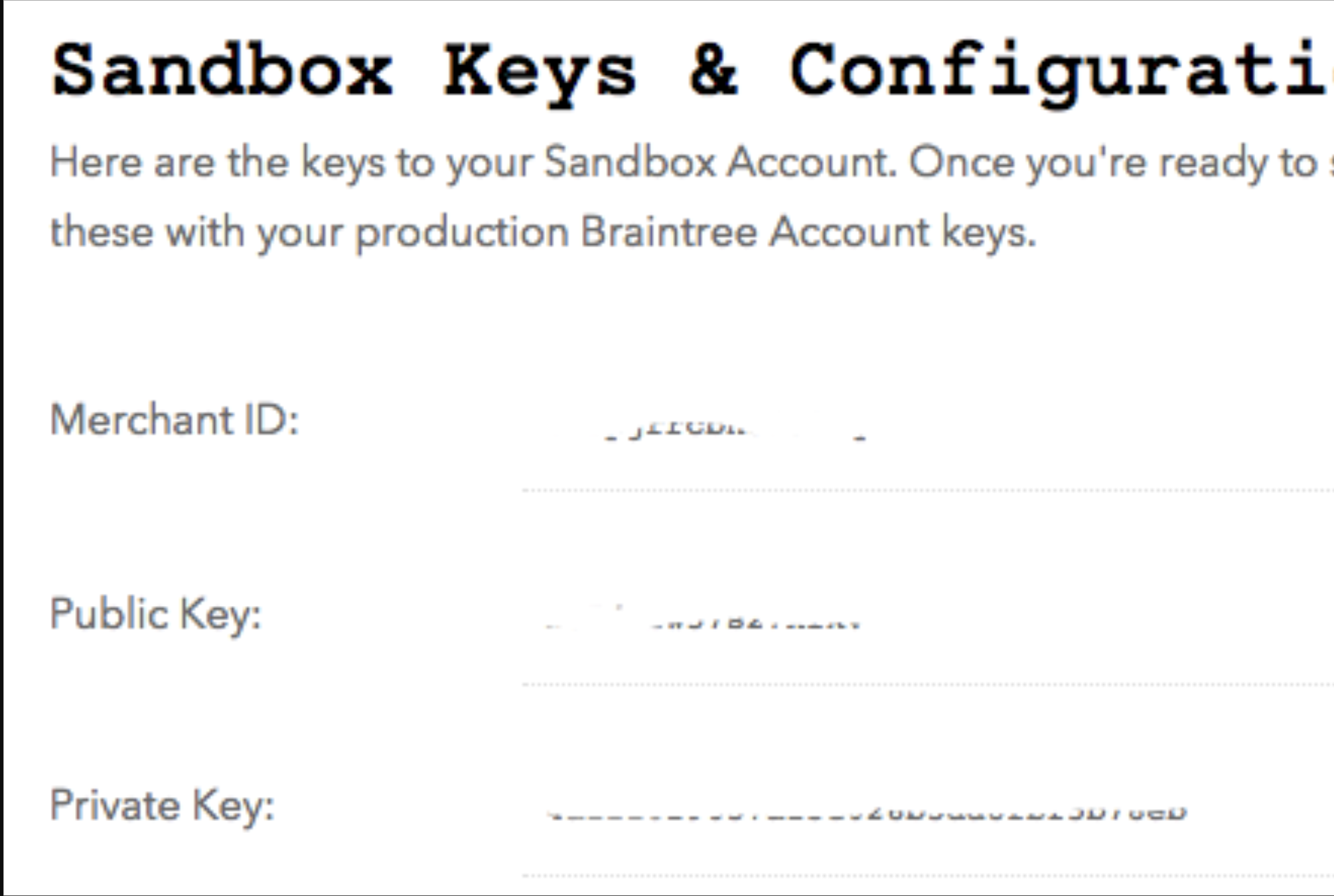
After setting up a Braintree account, copy down the three Sandbox API Key values to be entered into Chargebee (Merchant ID, Public Key and Private Key). These keys are displayed on the dashboard of your Braintree sandbox account.
image

You can also find your Braintree API keys under:

Account -> My User -> API Keys(Under Authorization) -> View(Private Key)

Step 2

Go to your Chargebee test site and click on the Settings tab, and under the Site Settings tab, click on Gateway Settings . Click on Add a Payment Gateway and select Braintree to configure Braintree's sandbox account details. Once you've entered all the details, save the settings.

Step 3:

Now, set Braintree as your default payment gateway. Under Gateway Settings, right click on Braintree and select Mark as Default.

Testing

The Braintree payment gateway can be tested in two ways:

  1. Create a new subscription

or

  1. By updating the card details of an existing subscription

1) Create a new subscription

Go to Product Config, select a plan (or create anew plan)

Click on the Hosted Page URL, fill in the required details and use the test card numbers shown on the right side of the hosted to simulate various test results.

You can simulate various other results by trying out the additional card details mentioned here.

2) By updating the card details of an existing subscription

By updating the card details of an existing subscription

Open an existing subscription from the subscriptions list under the "Subscriptions" tab.

Click on the Add Card link. If the card is not present in the subscription, or use the "Update Credit Card" on the right side if existing card details are available.

Ensure that the gateway is updated to Braintree

Utilize the test card numbers on the right side of the page and click on "Add/Update Credit Card".

Related Articles

'Error: 2046/2038 Declined/Processor Declined. What''s going on?'
'Error: 2000 Do Not Honor. What''s going on?'
'Transaction Error: Cannot Authorize at this time (Life cycle) / (Policy)'
'Error: 91517/91577 Payment instrument is not accepted by this merchant account/merchant account does not support payment instrument. What''s going on?'
'Error: 3000 Processor Network unavailable. What''s going on?'
'Error: 2057 Issuer/Cardholder has put a restriction on the card. What''s going on?'
'AVS/CVV: Configuration and error codes'
'Error: 2047/2053 Call Issuer. Pick up card/Card reported lost or stolen. What''s going on?'
Why I can't refund partial amount for certain transactions on same day?
'Error: 2005 Invalid credit card number. What''s going on?'
Can I view Processor Responses in my Braintree account?
Braintree error codes 2015 and 2099
How to configure Braintree with Chargebee?
How can I import existing Braintree customers from a CSV?
How to integrate PayPal Via Braintree?
Error message when trying to process a refund in Chargebee

Show more

Was this article helpful?