Configure Twikey in Chargebee
This feature is a Private Beta release. Contact Chargebee Support to enable Twikey payment gateway for your live and test sites.
For an overview of gateway capabilities, supported regions, and to check if it fits your needs, see Twikey Gateway Overview.
Prerequisites
- Ensure you have an active Twikey account with access to both the test and live sites.
- We recommend completing and reviewing the end-to-end integration in your test site before transitioning to your live site.
Checkout integration options
Chargebee supports the following checkout integration methods for Twikey.
| Integration method | Description | Supported |
|---|---|---|
| Chargebee Hosted Pages (In-App Checkout) | Customer bank account details are collected by Chargebee's in-app checkout and passed directly to Twikey. | Yes |
| Chargebee Hosted Pages (Full-Page Checkout) | Customer bank account details are collected by Chargebee's full-page hosted checkout and passed directly to Twikey. | Yes |
| Chargebee JS (Payment Components) | Use Chargebee Payment Components to securely collect bank account details and mandate acceptance from customers. | Yes |
| Own form fields with Chargebee JS / APIs | Raw bank details are collected in your custom checkout form and passed through Chargebee JS or APIs to complete mandate setup and payment processing. | Yes |
Retrieve information from your Twikey account
Follow these steps to retrieve the required credentials from your Twikey account:
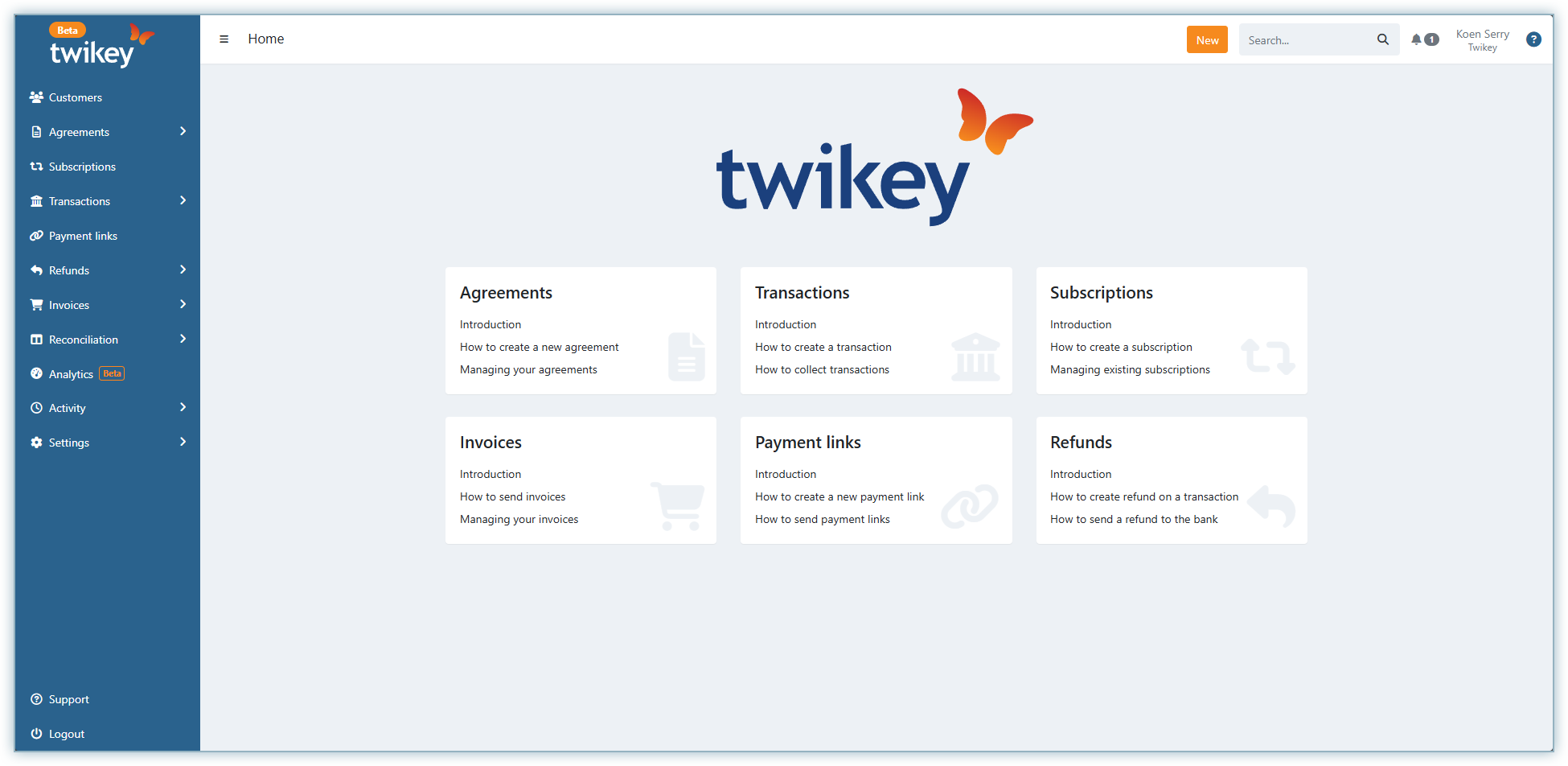
- Log in to your Twikey account.
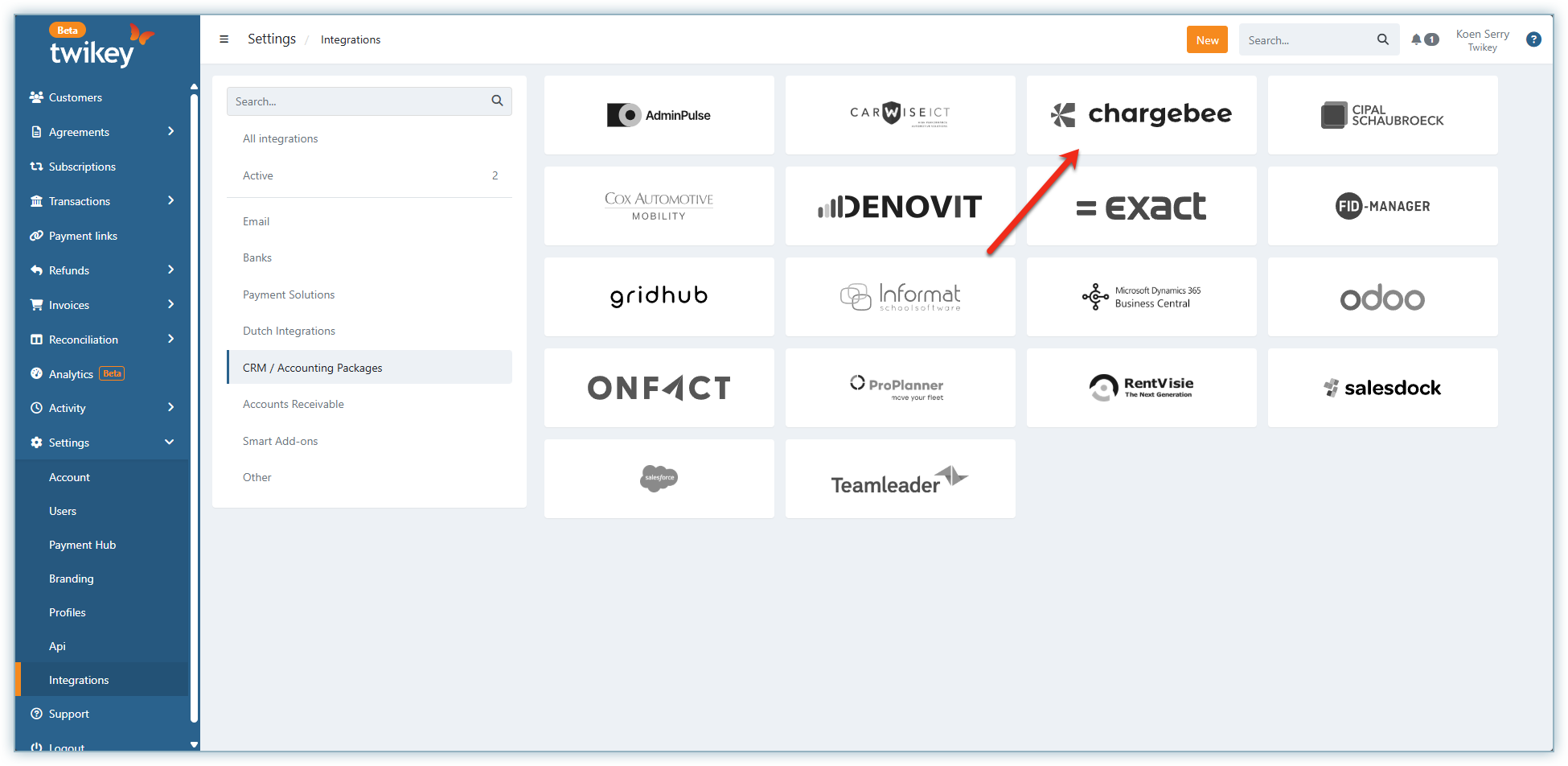
- Go to Settings > Integrations, then look for Chargebee under the CRM/Accounting Packages section.
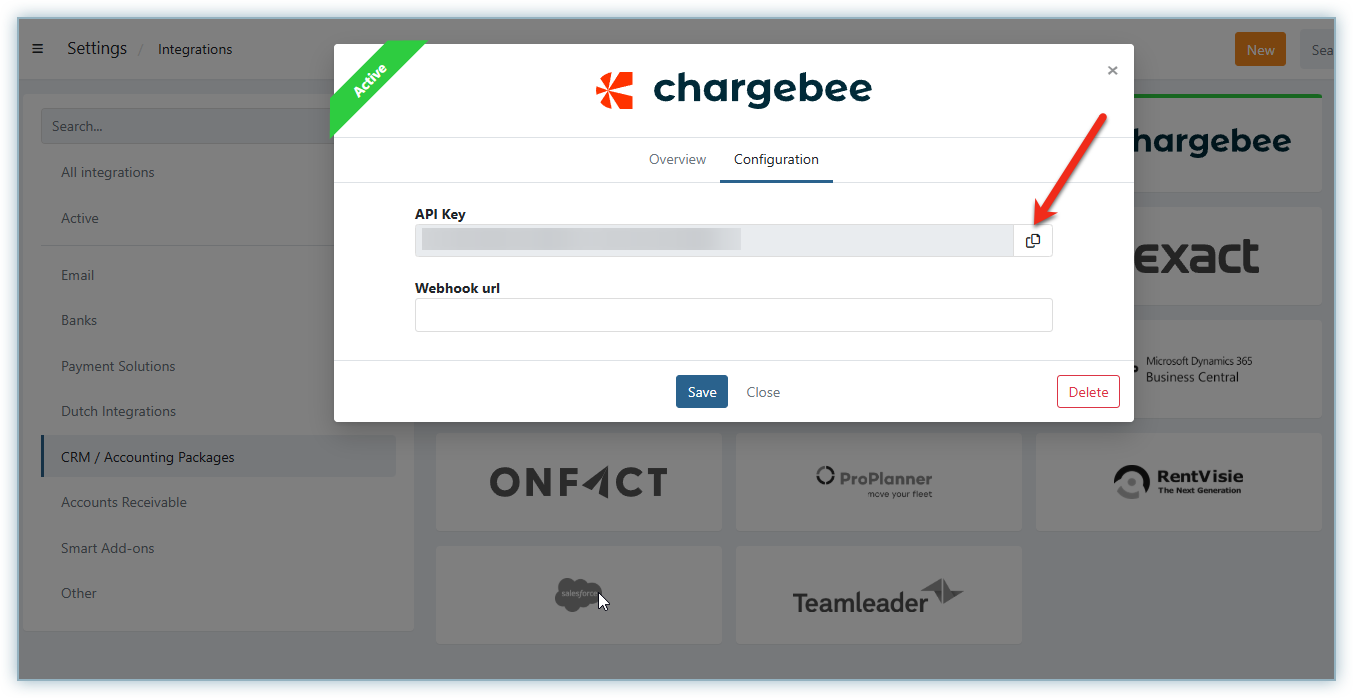
- Click Initialize.
- Copy the API key and keep it ready for gateway configuration in Chargebee.
Configure Twikey in Chargebee
- Log in to your Chargebee site.
- Go to Settings > Configure Chargebee > Payment Gateways.
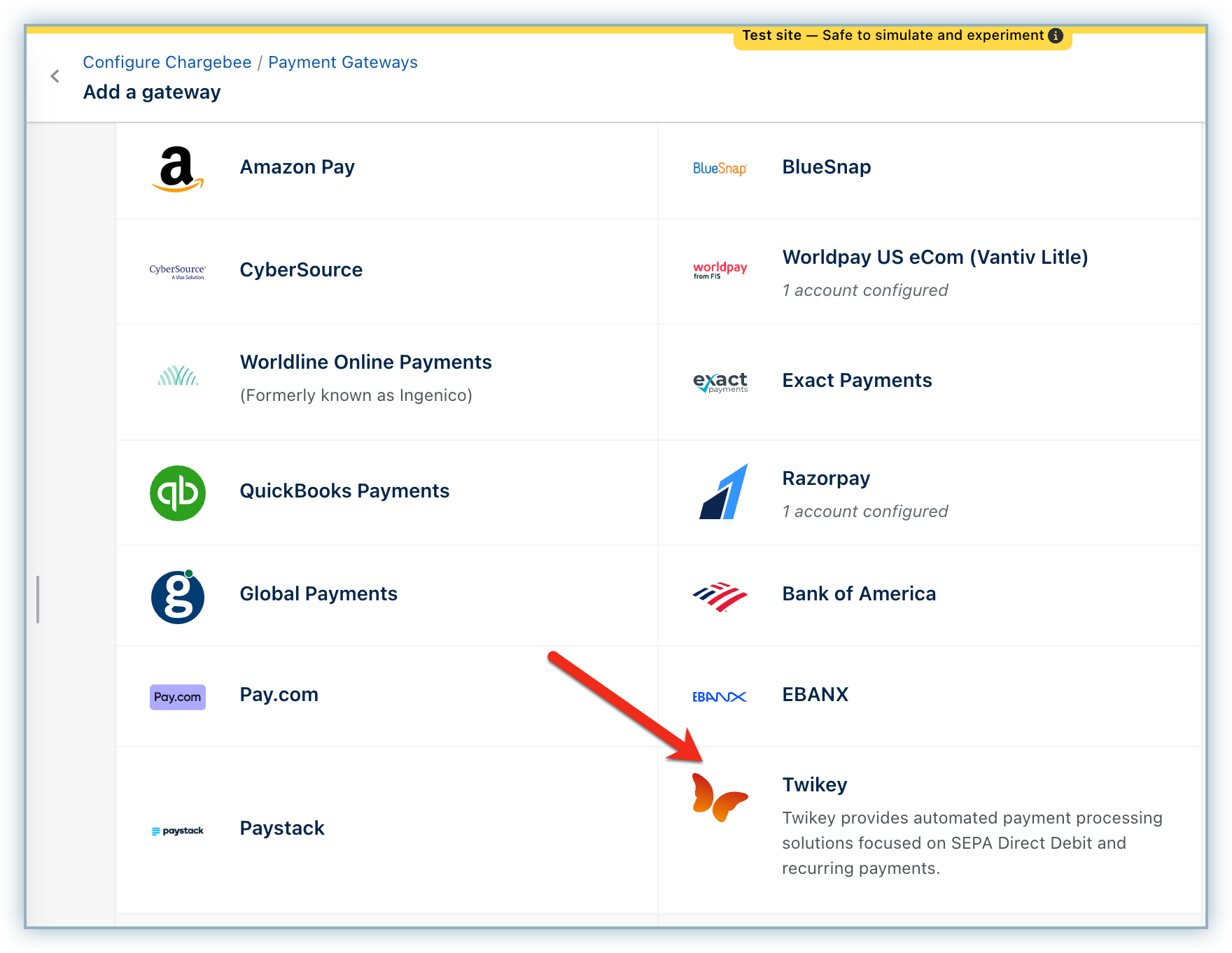
- Click Add gateway and select Twikey.
- Enter the API key and click Connect.
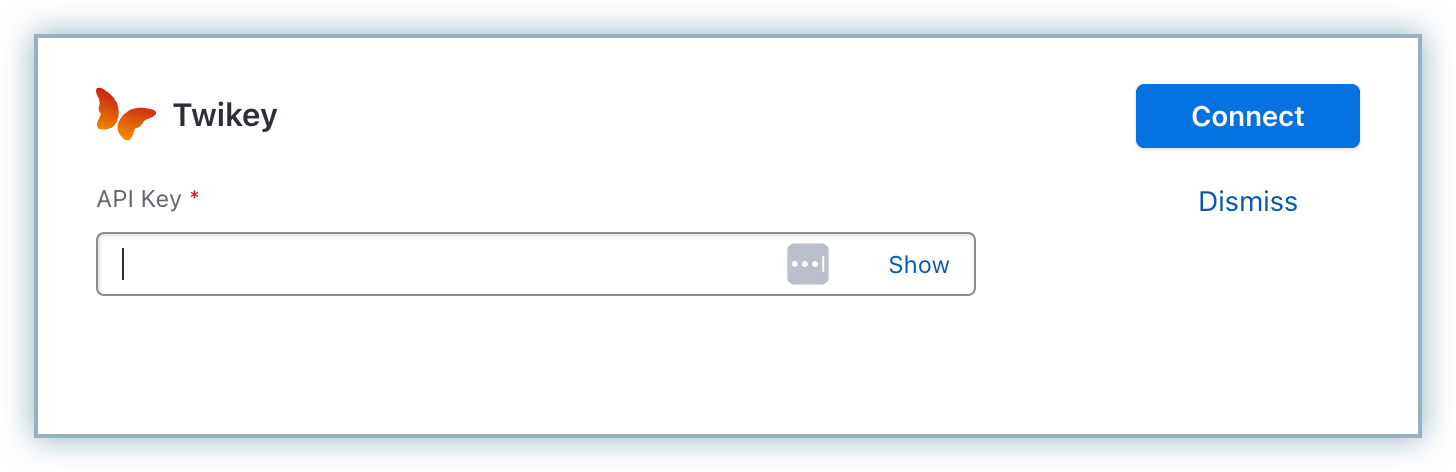
Twikey is now configured in your Chargebee site.
Configure webhook notifications
After configuring Twikey in Chargebee:
- In the Configure Twikey page in Chargebee, copy the Notification URL under Webhooks.
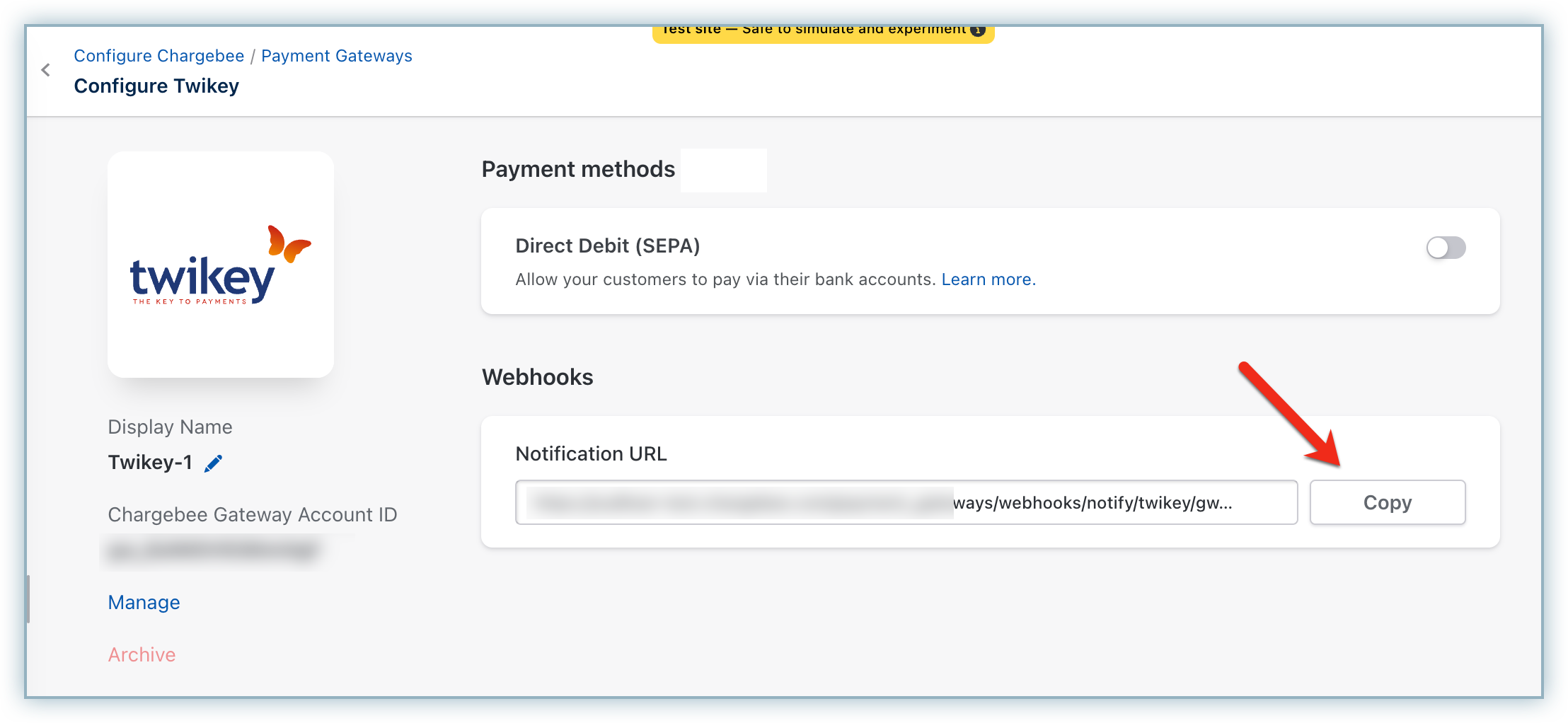
- Log in to the Twikey dashboard.
- Go to Settings > Integrations and select Chargebee.
- Paste the copied notification URL into the webhook URL field and save it.
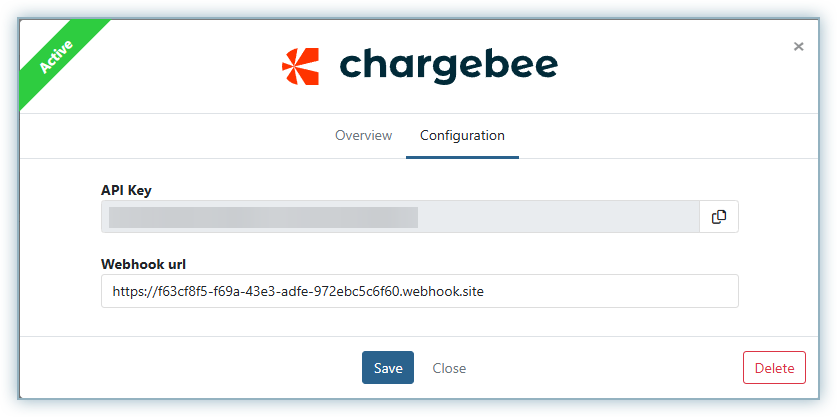
You have now configured webhook notifications between Twikey and Chargebee.
Was this article helpful?