SEPA Direct Debit via Twikey
This feature is a Private Beta release. Contact Chargebee Support to enable SEPA via Twikey for your live and test sites.
To set up the Twikey gateway first, see Configure Twikey in Chargebee. For gateway capabilities and regional support, see Twikey Gateway Overview.
Prerequisites
Before enabling SEPA Direct Debit:
- Ensure Twikey is configured in your Chargebee site.
- Review gateway setup requirements and supported configurations
- Keep the following SEPA-specific details ready:
- Creditor Name
- Creditor ID
- Creditor Email
- Phone Number
Configure SEPA Direct Debit
Follow these steps to enable Direct Debit (SEPA) via Twikey in your Chargebee site:
-
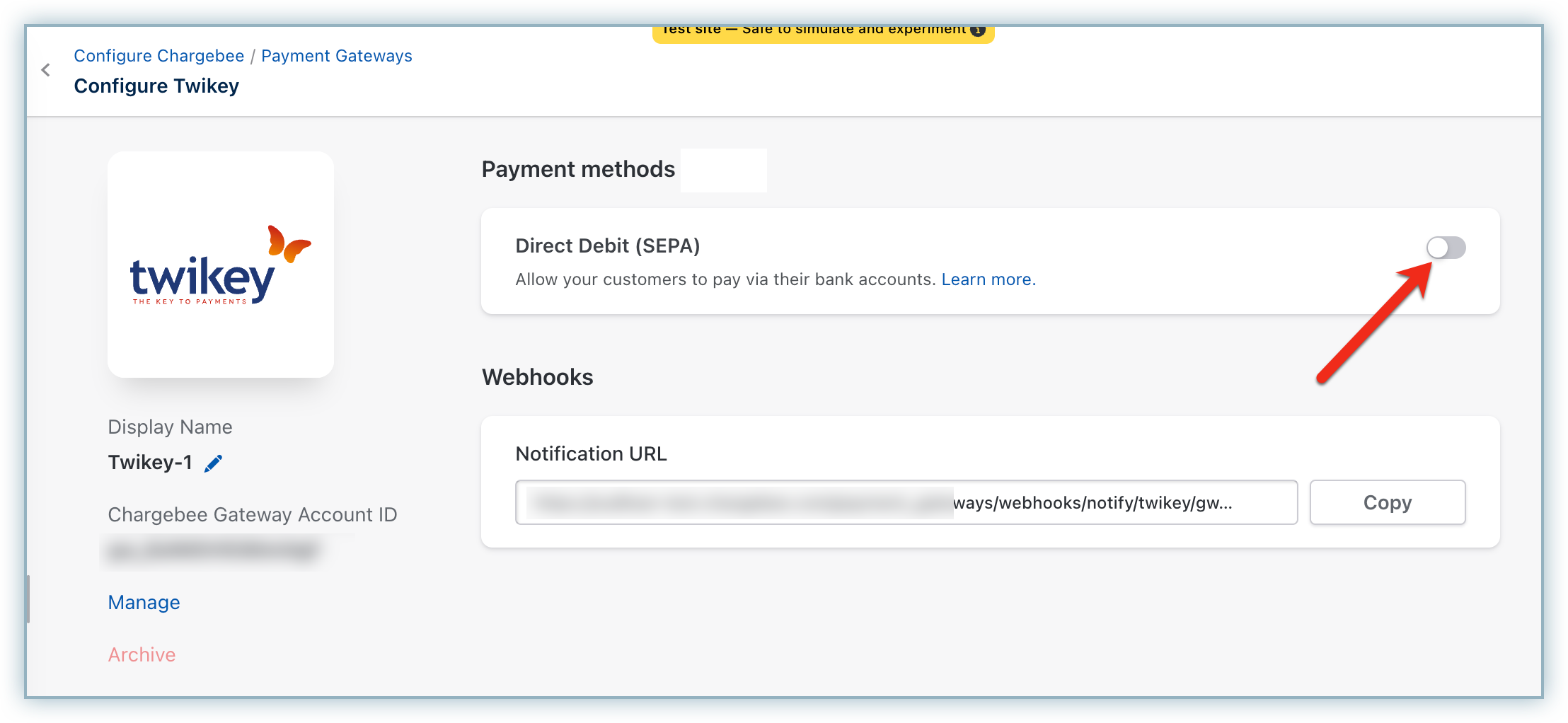
Go to Settings > Configure Chargebee > Payment Gateways > Twikey.
-
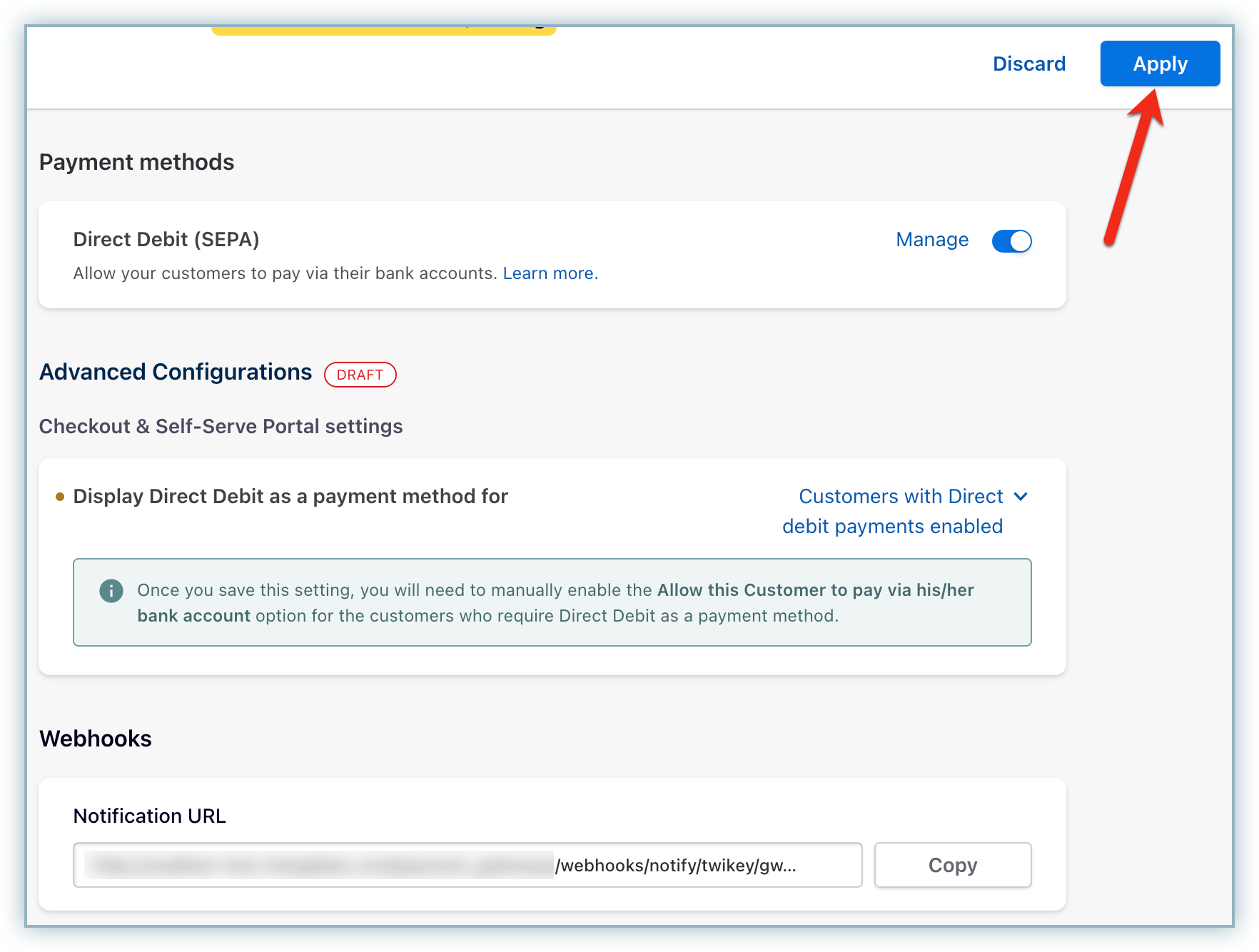
On the Configure Twikey page, enable Direct Debit (SEPA).
-
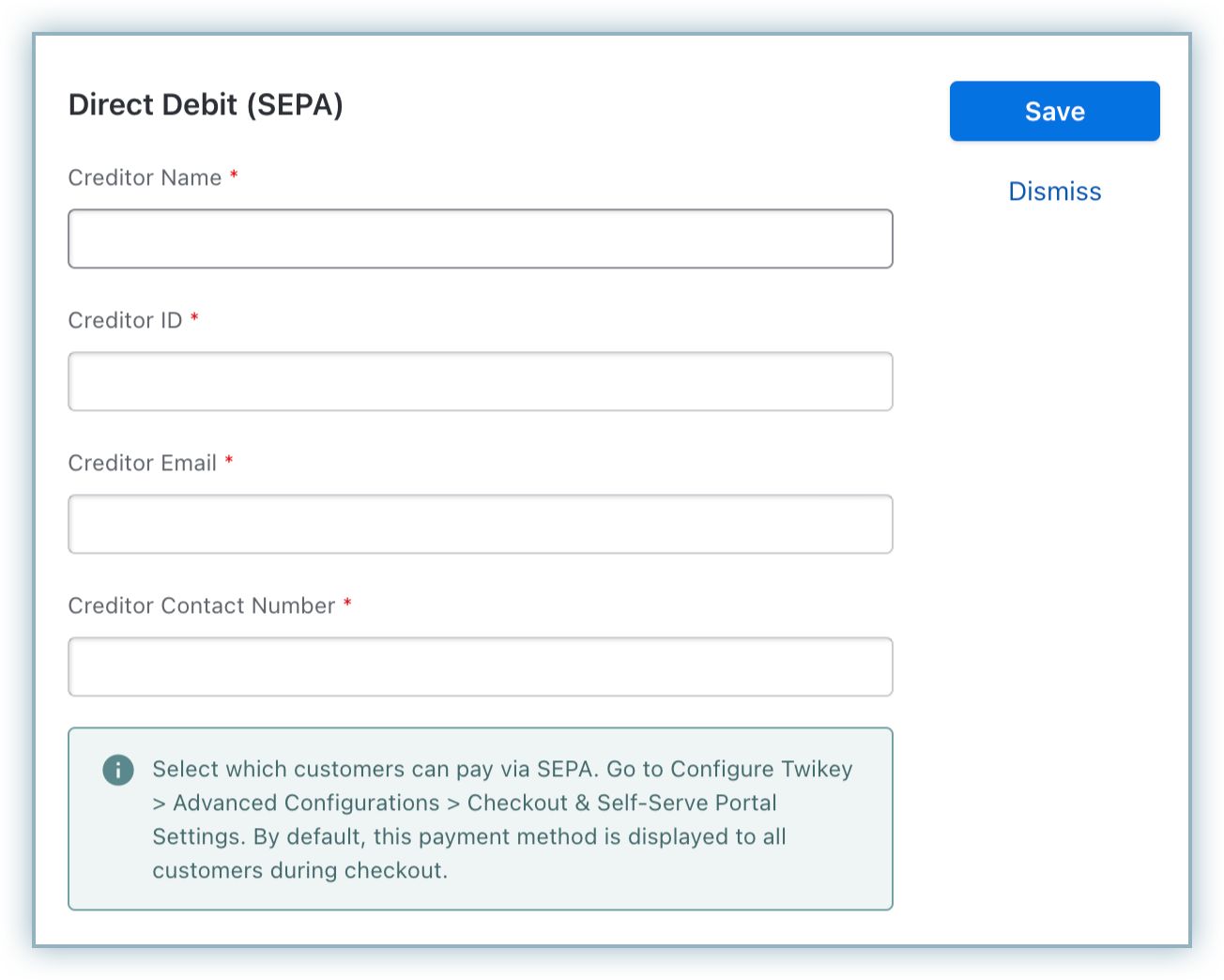
Enter the following details:
- Creditor Name
- Creditor ID
- Creditor Email
- Phone Number
The Creditor Name and Creditor ID are required to create the authorization agreement that allows you to collect funds from the customer’s bank account.
-
Save changes and click Apply.
Send SEPA-compliant emails from Chargebee
SEPA requires that customers receive emails for:
- mandate creation
- payment pre-notification
To send these emails from Chargebee, select Send SEPA compliant emails from Chargebee.
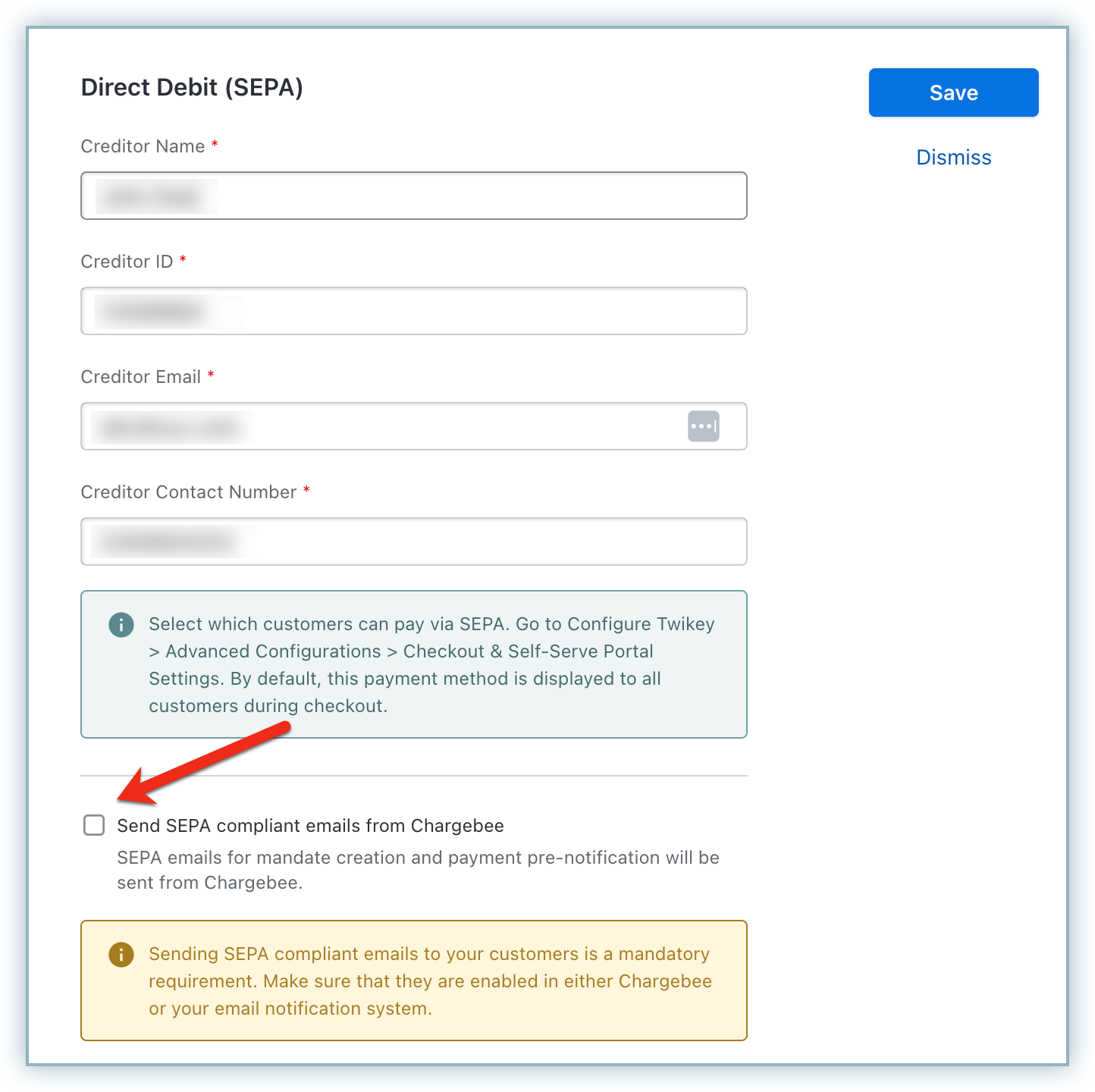
Sending these emails from Chargebee lets you customize elements such as your company logo and signature.
Note
If you enable this option in Chargebee, disable the mandate create email in your Twikey setup to avoid duplicate emails being sent from both systems.
Control where Direct Debit is shown
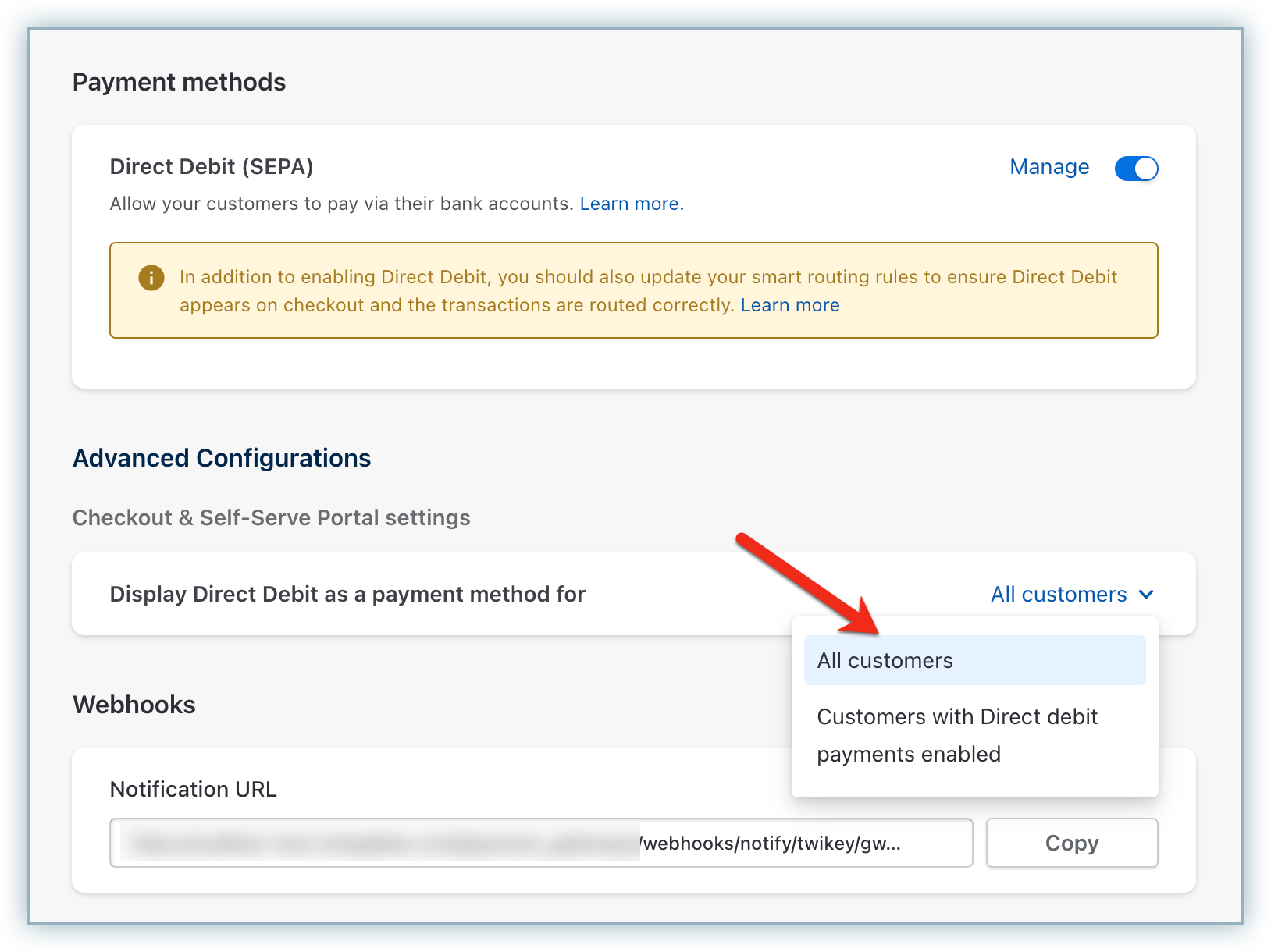
Use the Display Direct Debit as a payment method setting to control who sees SEPA Direct Debit in checkout and the self-serve portal.
Available options:
| Option | Description |
|---|---|
| All your customers | Displays Direct Debit for all customers, including new customers, regardless of the customer-level bank account setting. |
| Customers with Direct Debit payments enabled | Displays Direct Debit only for customers for whom Allow this customer to pay via their bank account is enabled. |
Click Apply to save your changes.
Payment features
The following are the features for this integration and details about them:
| Feature | Description | Supported | Default state | Configuration / behavior |
|---|---|---|---|---|
| Integration sync mode | Defines the integration mode between Chargebee and Twikey, including how payment requests are processed and statuses are communicated. | Yes (Only Asychronous mode) | Asynchronous | Twikey processes Direct Debit payments asynchronously. Chargebee receives the final payment status through webhook notifications. Webhooks are mandatory, and final status updates can appear with a delay. |
| Capture settings | Payment processing involves two stages: Authorization and Capture. Capture settings in Chargebee and Twikey determine when and how funds are collected post authorization. | Yes | Auto capture | No configuration is required. Auto capture is the only supported capture setting for Twikey. |
| Verification modes | Defines how customer bank accounts are validated before initiating Direct Debit | Yes | Enabled | No configuration is required. Twikey performs background verification and may redirect the user to their bank when applicable. |
| Regulatory requirements support | SEPA scheme rules require mandate text to be displayed at checkout and notifications to be sent on mandate creation and prior to debit (Predebit notification) | Yes | Mandate display in Chargebee Checkout - Enabled by default SEPA email notifications - Disabled by default | In Chargebee's prebuilt checkout interfaces, the mandate text is automatically displayed when SEPA is used. For custom checkouts, you must render the mandate text explicitly. To send mandate creation and pre-notification emails from Chargebee, navigate to the configured Twikey gateway account and click Manage under the Direct Debit (SEPA) section. Enable the Send SEPA-compliant emails from Chargebee option and save the settings. |
| Statement descriptor | A statement descriptor is the business name shown on a customer’s bank or card statement, helping them recognize charges and reducing disputes. | Yes | Disabled | Configure this under Settings > Configure Chargebee > Transaction Descriptor. If set, the site-level descriptor is used; otherwise, Twikey uses the name configured on their end for payment requests. |
| Chargeback management | Processes chargeback events via webhooks and automatically applies configured actions on invoices and subscriptions to streamline handling and prevent repeat disputes. | Yes | Disabled | Configure at Settings > Configure Chargebee > Billing LogIQ > Payments > Chargeback Management. Twikey sends webhook events only when a chargeback is lost. |
| Fraud management | Automatically interprets fraud signals from the payment gateway to identify and flag high-risk transactions for appropriate action. | No | NA | Twikey performs background checks to detect and reject fraudulent payments. As this is handled at Twikey, no additional fraud signals are managed in Chargebee. Contact Twikey to configure specific fraud rules. |
| Transaction initiation type | Identifies whether a transaction is customer-initiated (CIT) or merchant-initiated (MIT) based on gateway-defined parameters | No | NA | Not supported. Direct Debit transactions are merchant-initiated by design. |
| Error intelligence | Provides standardized categorization of payment failures | No | NA | Not supported for Twikey. No configuration required. |
| Gateway transaction details | Provides access to raw gateway responses for transactions | Yes | Enabled | Available on the transaction page under Error details. No configuration required. |
| Addition of payment methods in Chargebee dashboard | Ability to add a payment method in Chargebee when details are collected outside the platform. | No | NA | Not supported. Customers must complete the Twikey verification flow via redirect. |
Supported token formats
This section is relevant if you are building a custom checkout or migrating bank accounts from another provider to Twikey.
| Token type | Description | Supported | Token field | Token format |
|---|---|---|---|---|
| Chargebee Payment Intent | Recommended token format when building a custom checkout using Chargebee JS | Yes | payment_intent[id] | payment_intent_id |
| Chargebee token | Legacy token format supported for selected payment methods and gateways with Chargebee JS. Not recommended for new implementations. | No | token_id | NA |
| Gateway permanent token | Permanent reference provided by the gateway and used for future recurring payments or migrations from another PSP to Twikey | Yes | payment_method[reference_id] | mandate_id |
| Gateway temporary token | Short-lived token format that can be converted to a permanent token | No | NA | NA |
Testing
Testing in sandbox
Twikey provides the following sandbox scenarios:
| Amount | Twikey | Chargebee |
|---|---|---|
| 1 to 10 EUR | Insufficient funds (soft fail) | Transaction fails |
| 11 to 20 EUR | Customer refuses (hard fail) | Chargeback created |
| 21 to 32 EUR | Failure at bank (other) | Transaction fails |
| 33 EUR | Paid | Transaction succeeds |
Reference: https://www.twikey.com/developers/test.html
To mirror live behavior, Twikey initially marks all transactions as successful. On a subsequent job run, the final status is updated with the actual outcome. For example, a transaction may first appear as successful and later be updated to a chargeback after the second run.
Testing in production
Before moving to live:
- Ensure SEPA Direct Debit is fully configured in Twikey and Chargebee
- Perform end-to-end testing using a real bank account to validate the complete payment flow
Reconciliation
For financial reconciliation between Chargebee and Twikey (e.g., matching transaction records), follow the steps below:
- Use the Chargebee transaction field id_at_gateway as the mapping key. This value corresponds to the Invoice ID in Twikey, which is the recommended reference, as invoices are expected to become the primary reference for transactions in Twikey.
- To reconcile transactions, locate the Chargebee transaction’s id_at_gateway value and use it to find the corresponding Invoice ID in Twikey.
Was this article helpful?