How to Customize a Report in RevRec?
Scope
How to Customize a Report in RevRec?
How to add a table column in reports?
Why I am not able to clear the filter in the RevRec report?
How to save filters in reports?
How to Open the report in RevRec?
How to remove the table column in RevRec?
How to add the table column in RevRec?
Summary
Customize reports by adding or removing attributes or metrics. You can also create and manage report subfolders from the Reports menu. Click Reports on the main menu then click a category tab and then select a report, then click and drag an attribute or metric from REPORT HOME by which you add multiple metrics, and add or remove a table column. Admin, Controller, and Analyst have access limited to their roles in customizing reports however these roles will not have access to save reports or clear filters.
Note: Save option is not available by default, please reach out to RevRec Support for more details.
Solution
- Opening a report
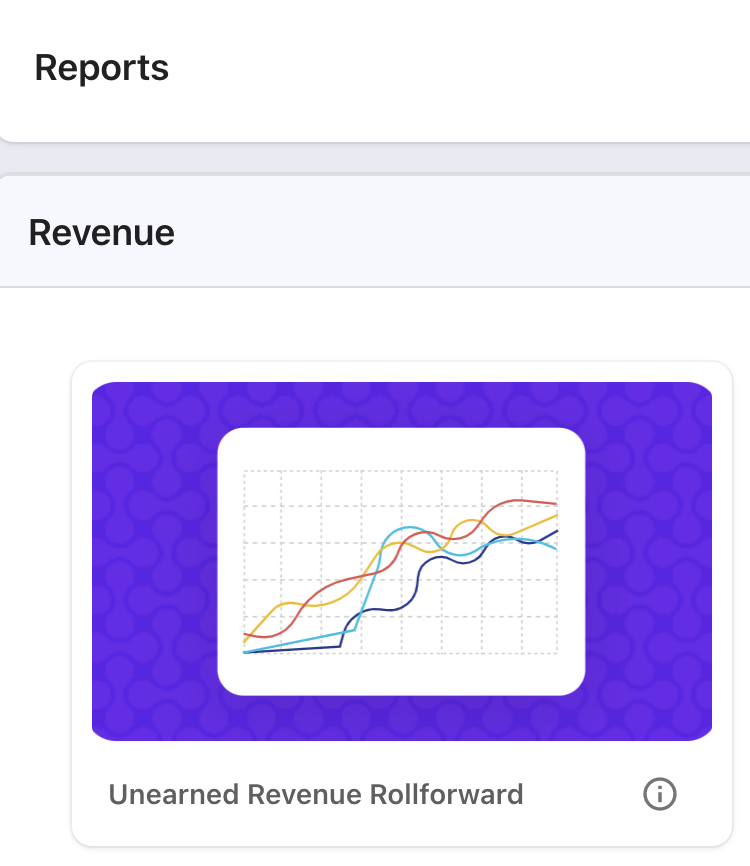
Click Reports on the main menu then click a category tab and then select a report the example below, we click the Revenue tab and select the Unearned Revenue Rollforward report.
- Removing table columns
You can remove attributes and metrics from a report table. Click the metric column heading. Drag the metric to the Report Objects pane.
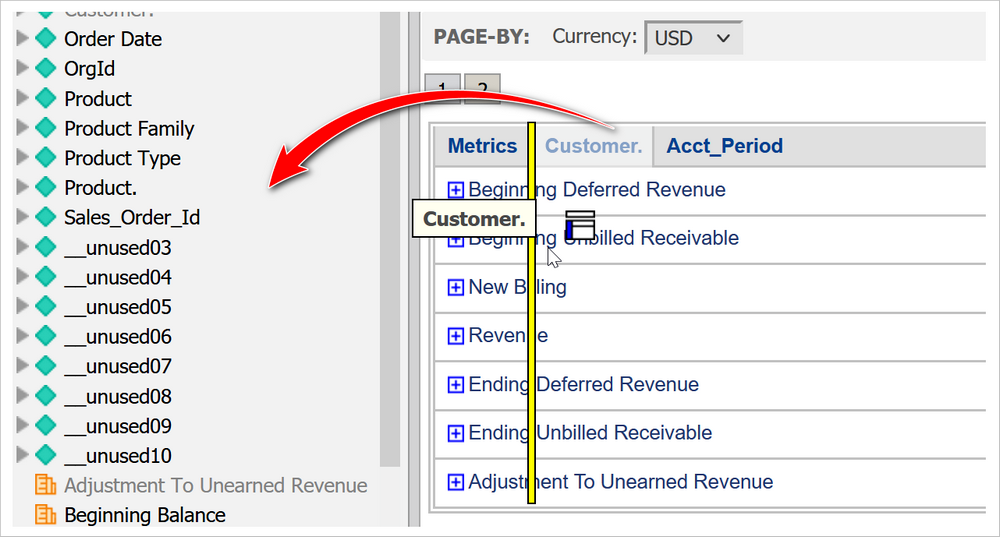
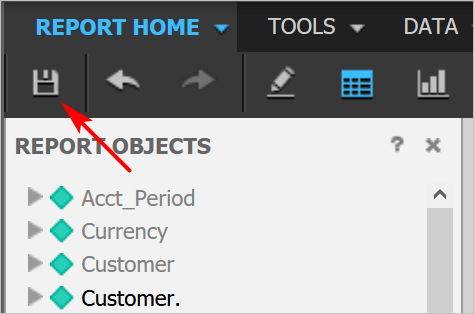
Click Save. Admin, Controller, and Analyst have access limited to their roles in customizing reports. Refer to this link for more information. However, these roles will not have access to save reports or clear filters. Reach out to RevRec Support for more details.
- Adding table columns
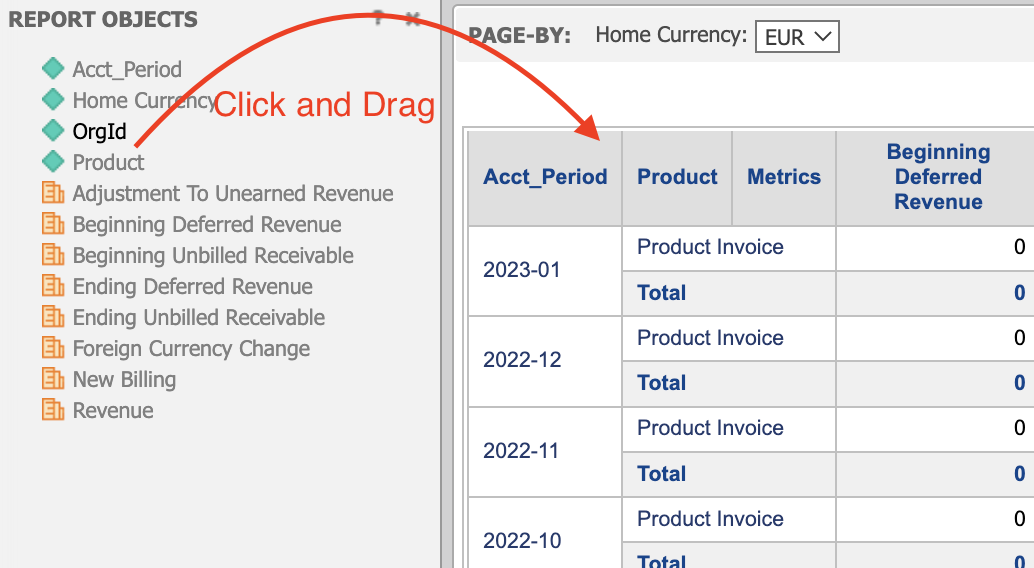
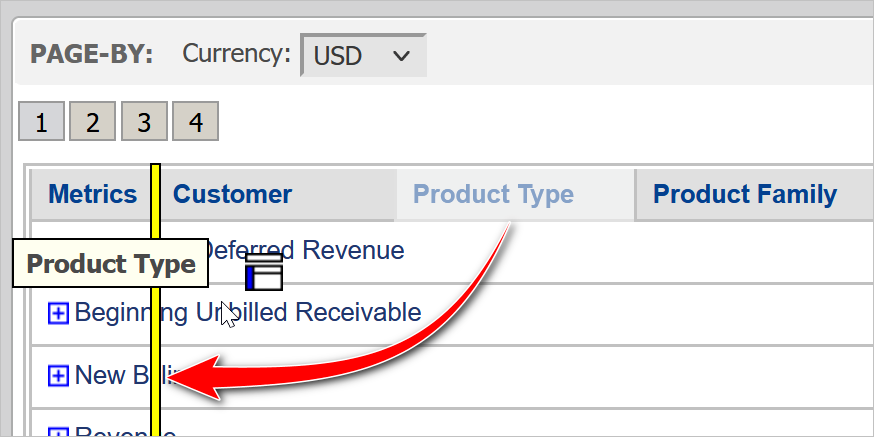
Click an attribute or metric in the Report Objects pane. Drag the object to the table. Release the mouse when a yellow bar displays.
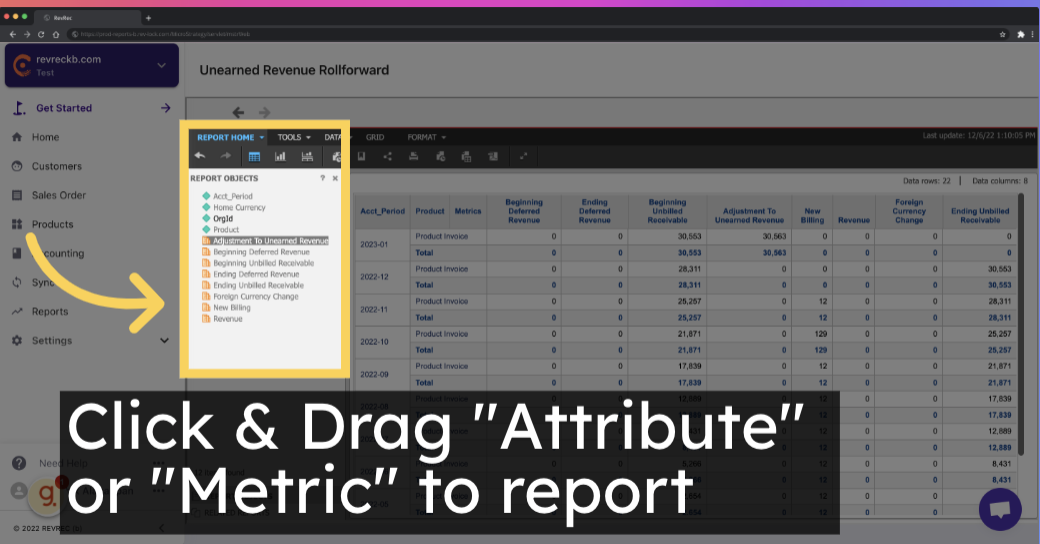
Click a square button to open a folder and verify the information.
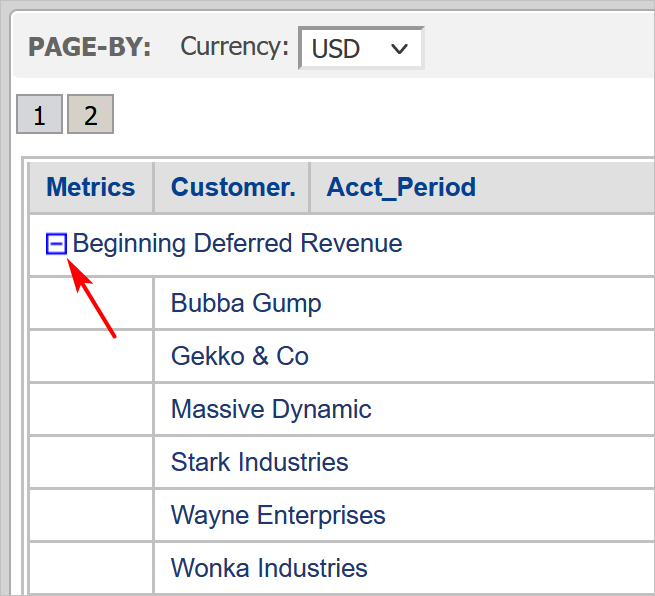
- Adding multiple metrics
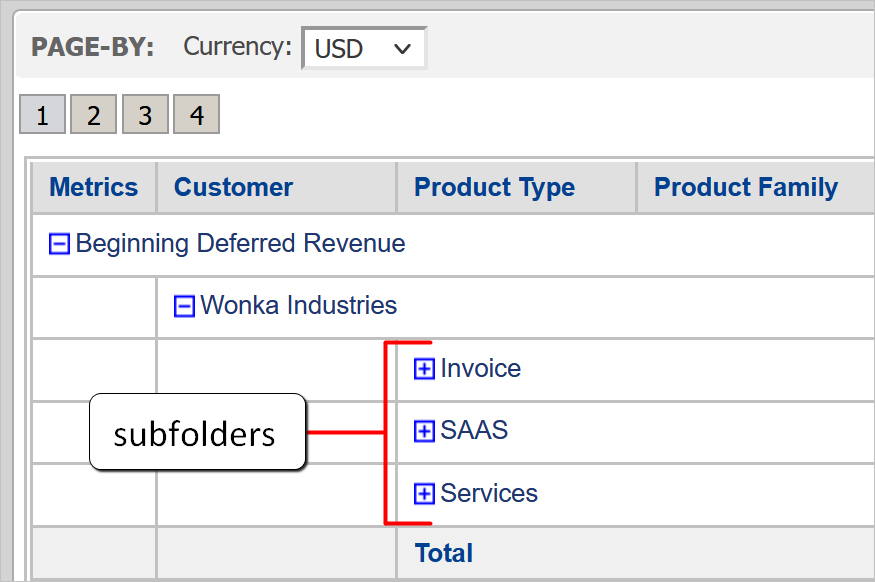
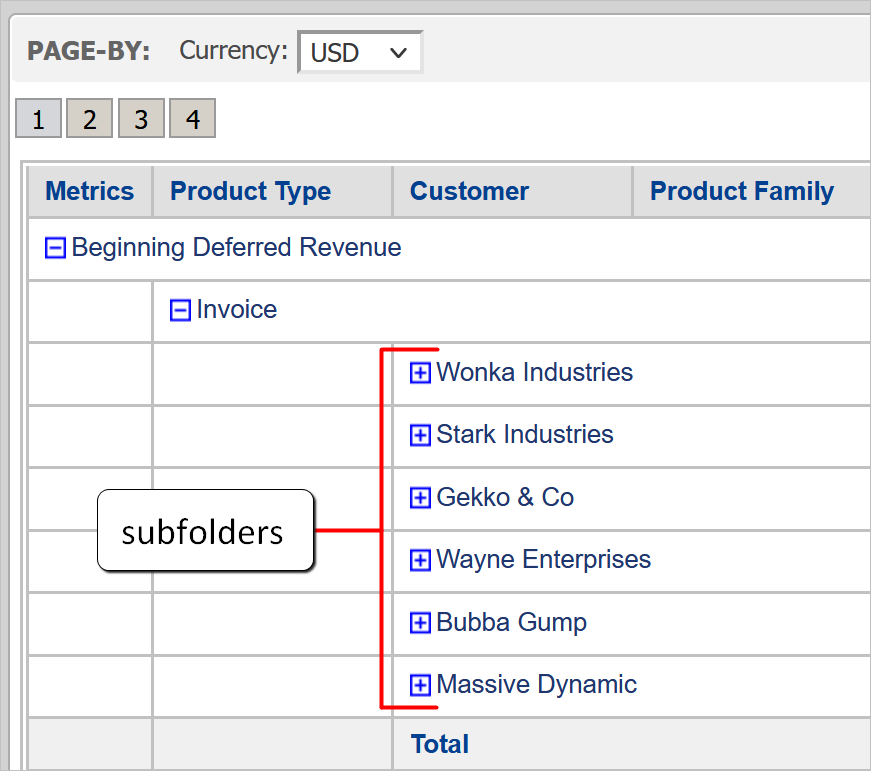
When you add multiple metrics to a table, RevRec automatically creates subfolders. You can change the folder order by dragging column headings.
a. In the example below, the table has one attribute called Customer.
Drag an object to the table.
b. In this example, we add Product Type.
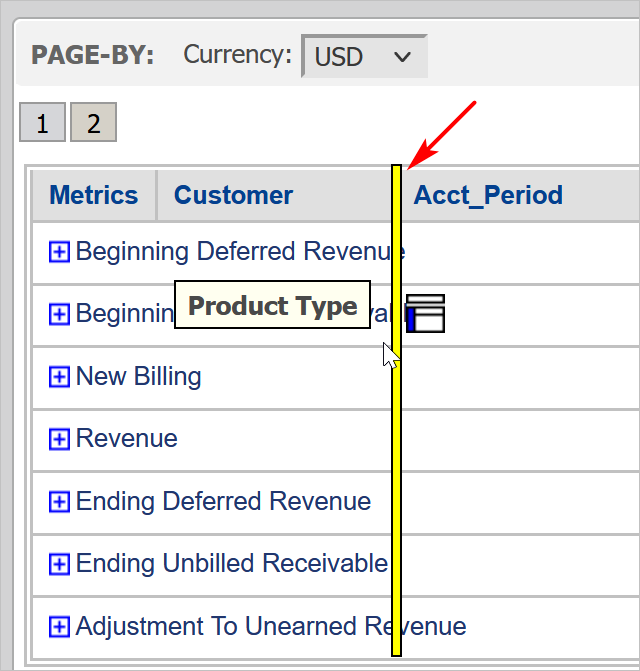
RevRec automatically creates subfolders inside the top-level folder (Beginning Deferred Revenue).
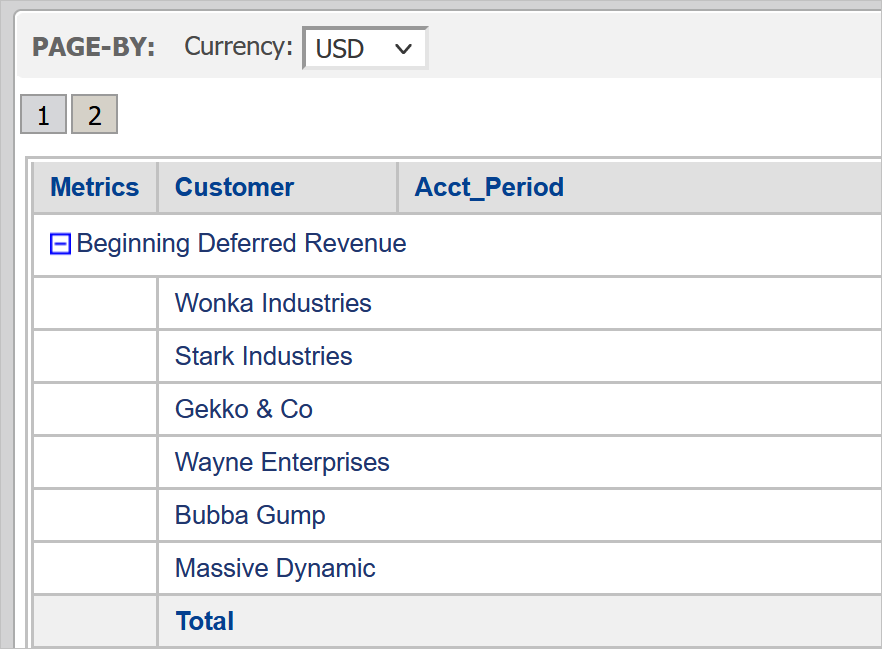
To change the folder order, drag a column heading to a new position. In this example, we place the Product Type in front of the Customer.
RevRec changes the folder hierarchy. In the example below, Customer is a subfolder of Product Type.
Was this article helpful?