New in Chargebee: Explore Reveal and understand your payment performance end-to-end.Try Now
Docschargebee docs
HomeBillingPaymentsRevRecGrowthReveal
Support

Product Updates


  • Release Notes

Getting Started with RevRec


  • About Chargebee RevRec
  • Quick Start Guide
  • Site Configuration
  • Conversion
  • RevRec Essential
  • Articles and FAQ

Revenue Recognition


  • Configuring Product Catalog
  • Standalone Selling Price
  • Configuring Revenue Rules
  • Recognizing Discounts
  • Revenue Arrangement
  • Prior Period Adjustment
  • Pending Collectibility
  • Chargebee Billing Features
  • Articles and FAQ

Expense Recognition


  • Recognizing Expenses
  • Articles and FAQ

Multi Currency


  • Multi-Currency
  • Articles and FAQ

Multi Entity


  • Multi-Entity

Data Processing & Validation


  • Overview
  • Automated Data Synchronization
  • Importing Data in Bulk
  • Input via User Interface
  • Control Checks
  • Automated Import and Export
  • Understanding Errors
  • Articles and FAQ

Adjustments


  • Manual Adjustments

Reports & Analytics


  • Overview of RevRec Reporting
  • RevRec Standard Reports
  • Articles and FAQ

General Ledger & Accounting Close


  • Journal Account Mapping
  • Understanding Journal Entries
  • Creating Journal Entries
  • Journal Posting & Closing Accounting Period
  • Articles and FAQ

Integrations


  • HubSpot
  • Salesforce
  • QuickBooks Online
  • Xero
  • Sage Intacct
  • NetSuite
  • Stripe
  • Mobile Stores
  • Articles and FAQ

RevRec Premium


  • Overview
  • Quick Start Guide
  • Site Configuration
  • Getting Around RevRec Premium
  • General Ledger & Accounting Close
  • Reports & Analytics
  • Integrations
  1. Revrec
  2. Reports & Analytics
  3. Articles and FAQ
  4. Reports & Analytics
  1. Revrec
  2. Reports & Analytics
  3. Articles and FAQ
  4. Reports & Analytics

Where do I access reports in RevRec?

Scope

The reporting system in RevRec

Summary

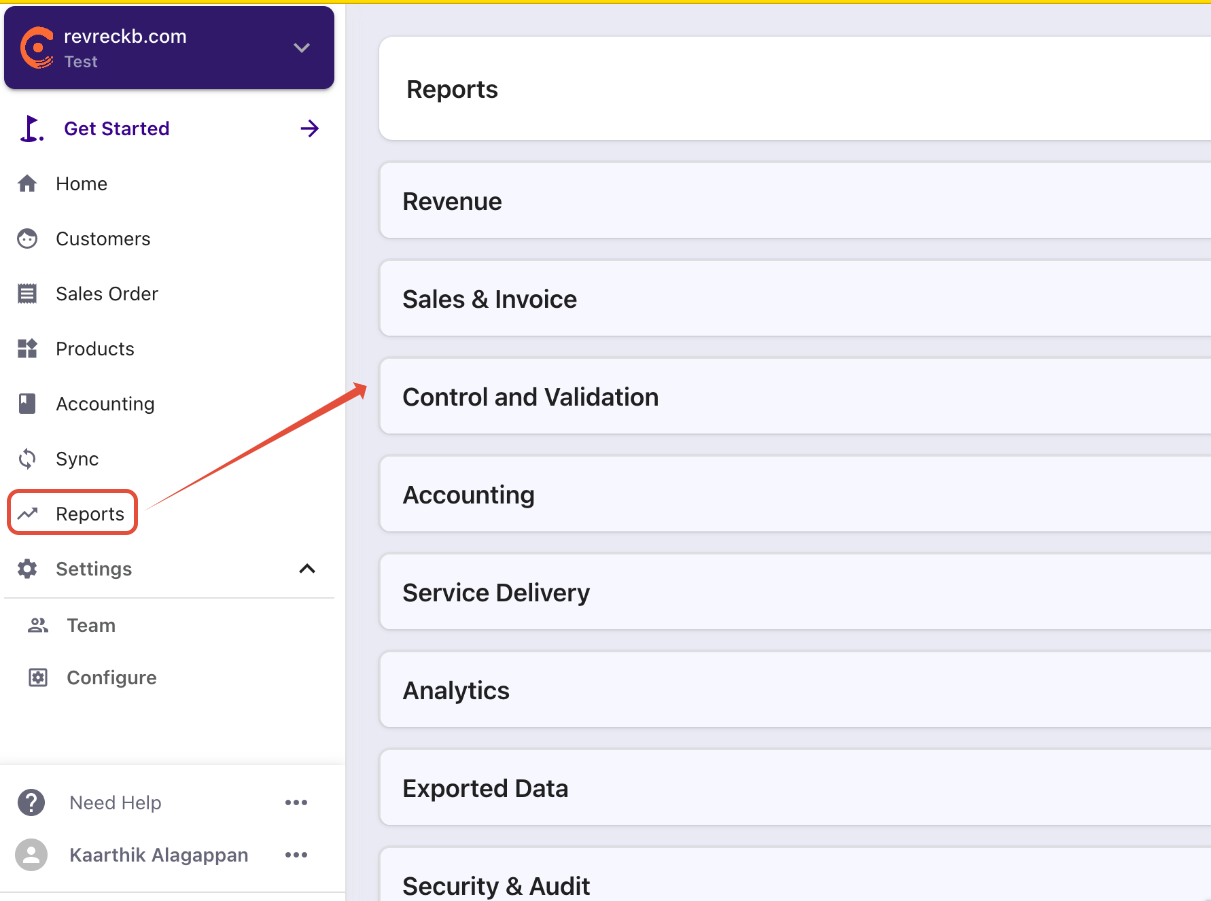
RevRec includes a powerful warehouse and embedded reporting toolset. This overview highlights some of those features and provides a roadmap to help new clients navigate the reporting system. You can access Reports from the Menubar in the left-hand corner.
image

Solution

Navigating reports

Each reporting dashboard has six main sections.

  • Main menu. This is where you open the Reports dashboard.
  • Report name. Always know where you are.
  • Top toolbar. The range of available tools changes with report type.
  • Attributes. Add these to dig deeper into the data.
  • Metrics. Add these to understand performance.
  • Drillable data. The list of categories changes with report type.

Structure

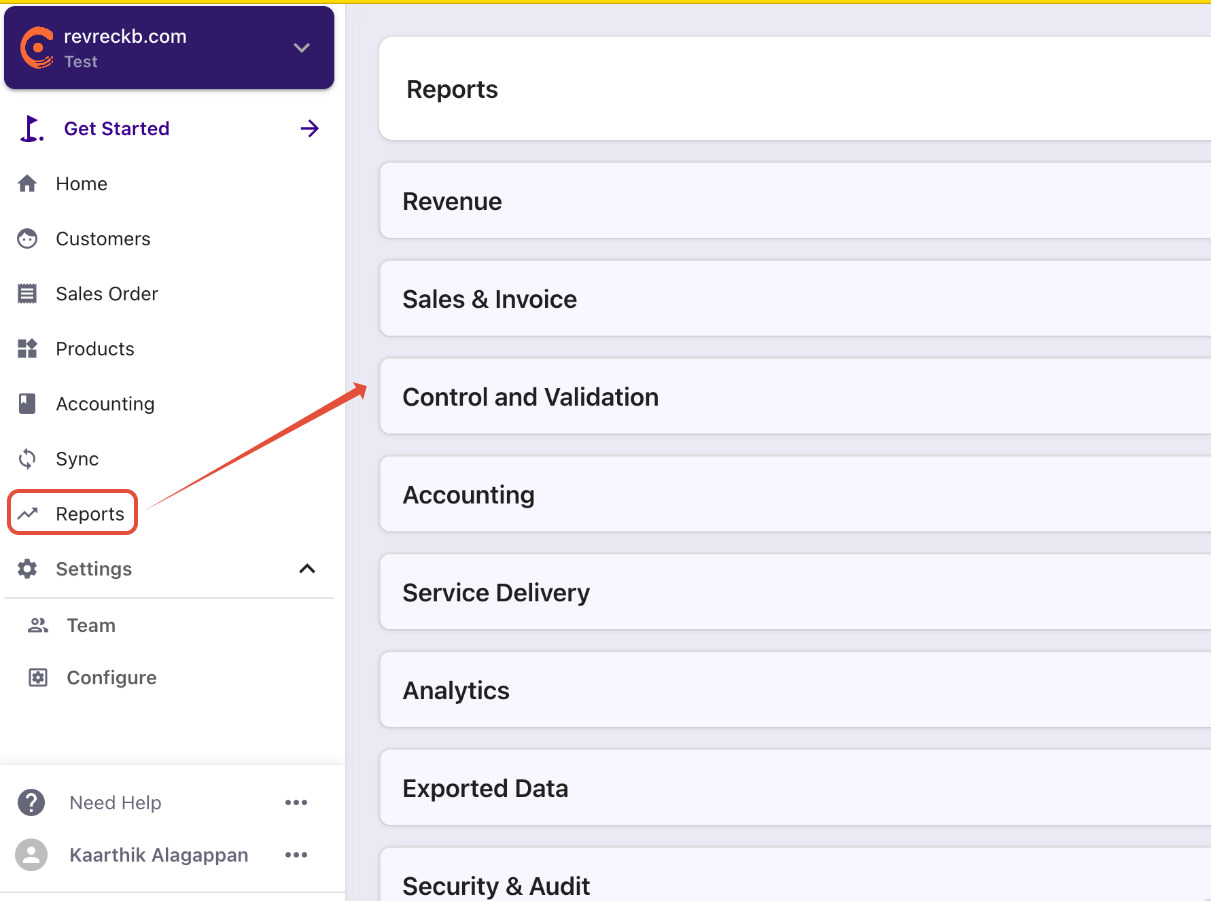
Click the Reports link on the main menu. It opens a Reports dashboard with tabs for each key category of reports.
image

Revenue reports

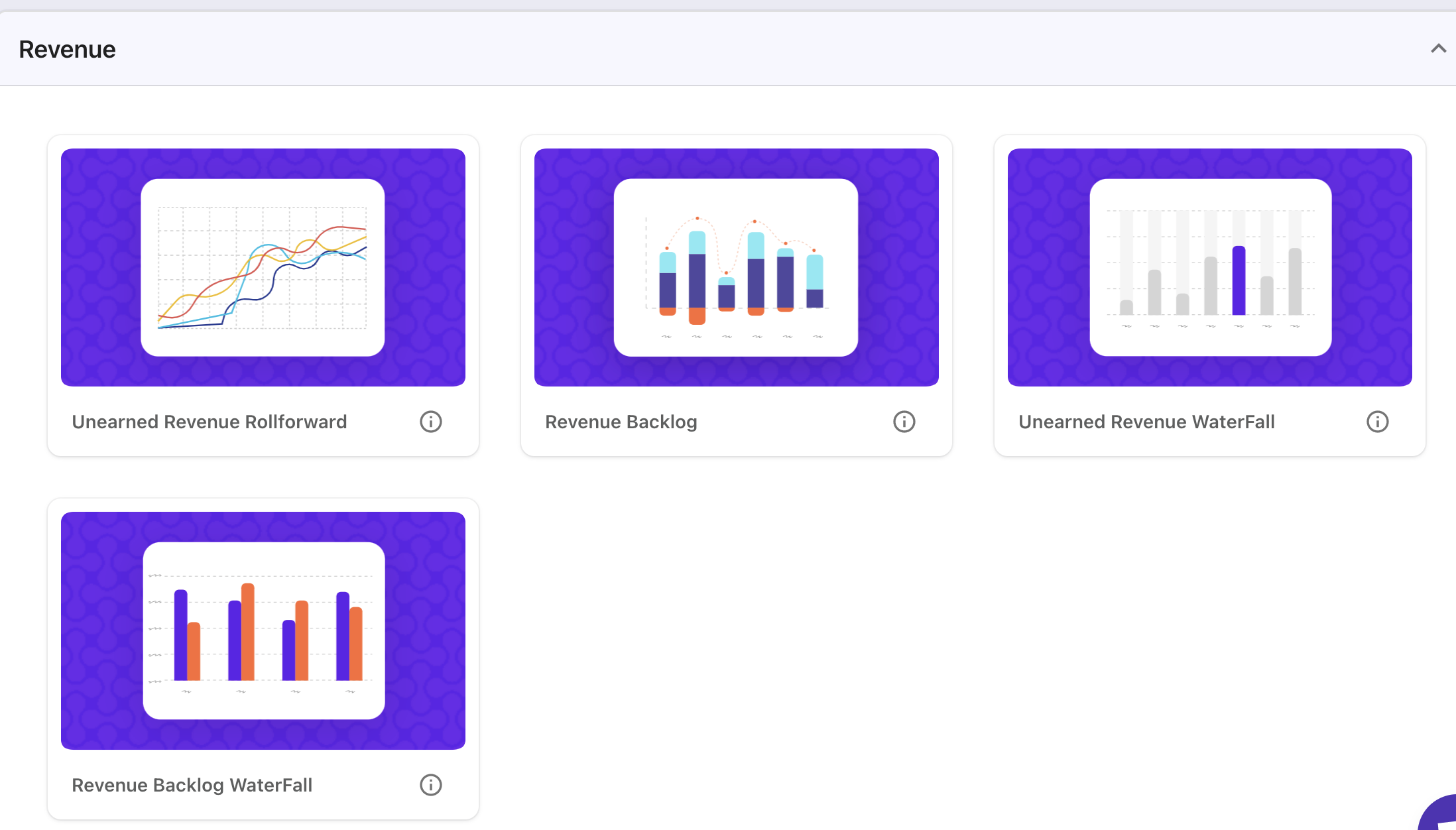
Click the Revenue tab.
image

Related Articles

How are MRR and ARR calculated in RevRec?
How to find the Unearned Revenue Rollforward Report in RevRec?
Where can I find Revenue Journal Report in RevRec?
How to Customize a Report in RevRec?
How to save and share a report in RevRec?
How to export a report in RevRec?
How to add Custom fields to a RevRec report?
What are the categories available on RevRec Standard Reports?

Show more

Was this article helpful?