What are the categories available on RevRec Standard Reports?
Scope
How to customize RevRec standard reports based on our unique business needs?
RevRec Standard Reports
Summary
The standard reports are built under seven significant categories Revenue, Sales, Billings, Control and Validation, Accounting, Forex, and Service Delivery. All the standard reports that are available on the RevRec site are available for your immediate access under various categories.
A RevRec Admin user can customize RevRec standard reports based on your unique business needs to track key metrics that are critical to your business. Contact RevRec Support for more details.
Solution
RevRec Reports**
The standard reports are built under seven significant categories Revenue, Sales, Billings, Control and Validation, Accounting, Forex, and Service Delivery. The following table contains all the standard reports that are available on the RevRec site for your immediate access under various categories:
| Category | Report | | --- | --- | | Revenue | Unearned Revenue Rollforward | | | Revenue Backlog | | | Unearned Revenue WaterFall | | | Revenue Backlog WaterFall | | Sales & Invoice | Sales Order | | | Invoices | | | Unbilled Receivable Rollforward | | | Sales Order Control | | Expense | Deferred Expense Rollforward | | | Deferred Expense Waterfall | | Control and Validation | Invoice Control | | | Journal Entry Control | | | Revenue Control | | | Job Errors | | | Monthly Trend/Reasonableness | | Accounting | Journal Entry Report | | Forex | Forex Exchange Rates | | | Forex Transalation by Order | | Service Delivery | Service Delivery | | | Service Delivery Rollforward | | | Overage Service Delivery | | | Service Delivery Control | | Security & Audit | Audit Trail | | | Security Events |
Revenue Reports
You can access the following standard reports under the Revenue category:
- Unearned Revenue RollForward: Tracks the deferred revenue balance (or unbilled receivable) by accounting period, as well as the activities, including sales, billings, recognized revenue, and foreign currency adjustments that impact the balances. This report increases deferred revenue with new billings and decreases the total as revenue is earned.
- Revenue Backlog: Reports the remaining total sales order amount (total contract value) that is yet to be earned by accounting periods and not impacted by invoices/billings.
- Unearned Revenue WaterFall: Forecasts the future deferred revenue balances based on the current orders and revenue recognition schedules.
- Revenue Backlog WaterFall: Forecasts the future remaining unearned total sales order based on the current orders and their revenue recognition schedule. It provides a periodic roll forward of the backlog as is planned today through a specified future reporting date.
Sales & Invoice Reports
You can access the following sales and invoices-related standard reports under the Sales & Invoices category:
- Sales Order: Shows the active sales orders (contract value) and SSP allocation by accounting period.
- Invoices: Tracks the invoices that RevRec has received, including future dated invoices.
- Unbilled Receivable Rollforward: Tracks the total unbilled receivables for sales orders during the accounting period.
Expense Reports
You can access the following expense-related standard reports under the Expense category:
- Deferred Expense Rollforward: Tracks the new costs and expenses recognized for each accounting period. This report displays only past and current data.
- Deferred Expense Waterfall: Tracks the new costs and expenses recognized for each accounting period. This report displays future data based on the amortization plan.
Control and Validation Reports
You can view the following control reports under this category:
-
Invoice Control: Tracks the invoices that RevRec has received, up to the current period.
-
Journal Entry Control: Validates that no journal entry is missed due to GL account mapping issues for recognized revenue for the period.
-
Revenue Control: Ensures that the total transaction price of the sales order will be recognized as revenue over time.
-
Job Errors: Tracks the data exceptions identified during bulk upload or in automated data sync(integration with upstream process systems, such as downloads from CRM, Chargebee, or Xero).
-
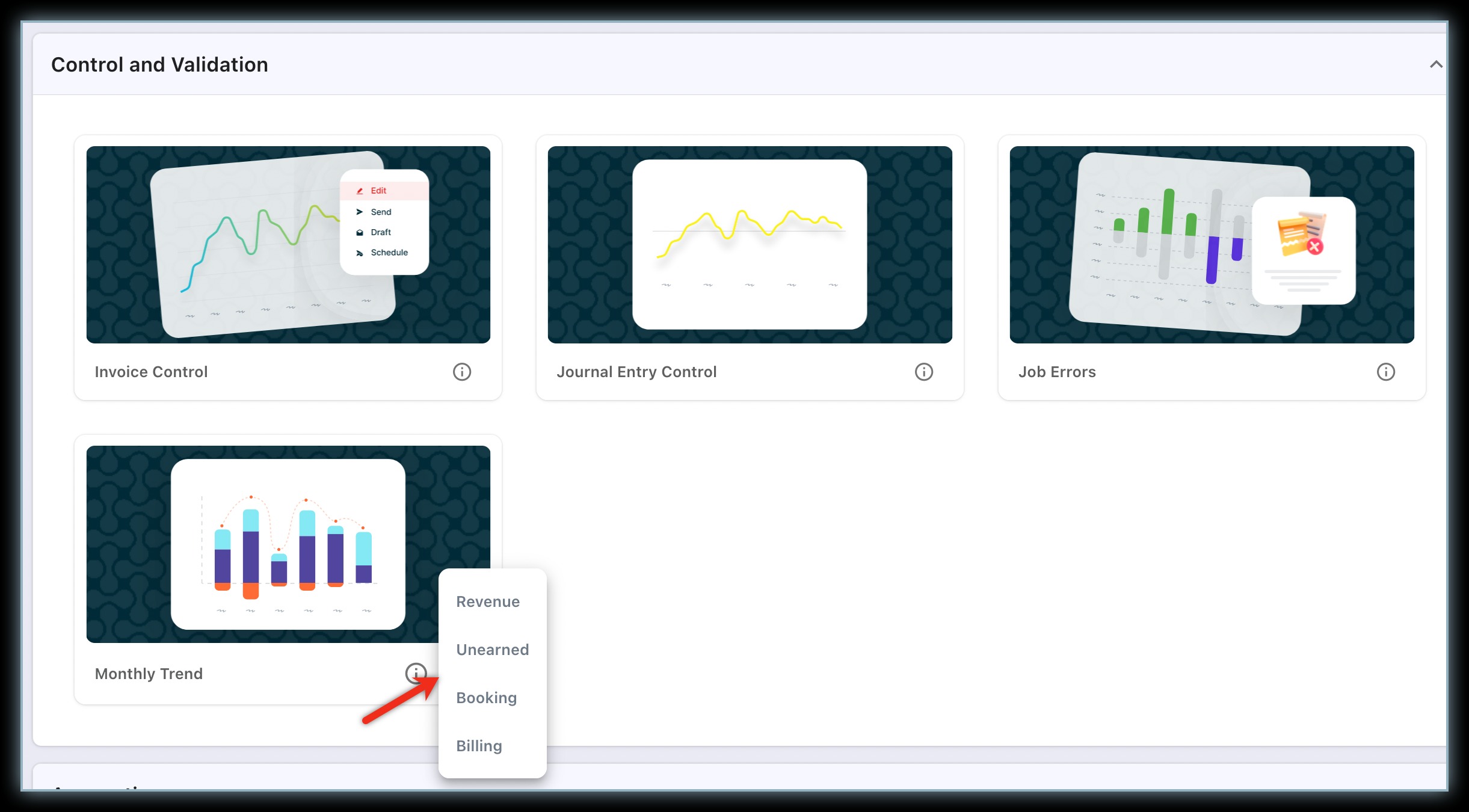
Monthly Trend/Reasonableness: Tracks the monthly trend for key metrics such as Revenue, Unearned Revenue Balance, Billing, and Booking. You can view the trend for all metrics using the summary report, or click the ellipsis icon to view the trend for individual metrics.
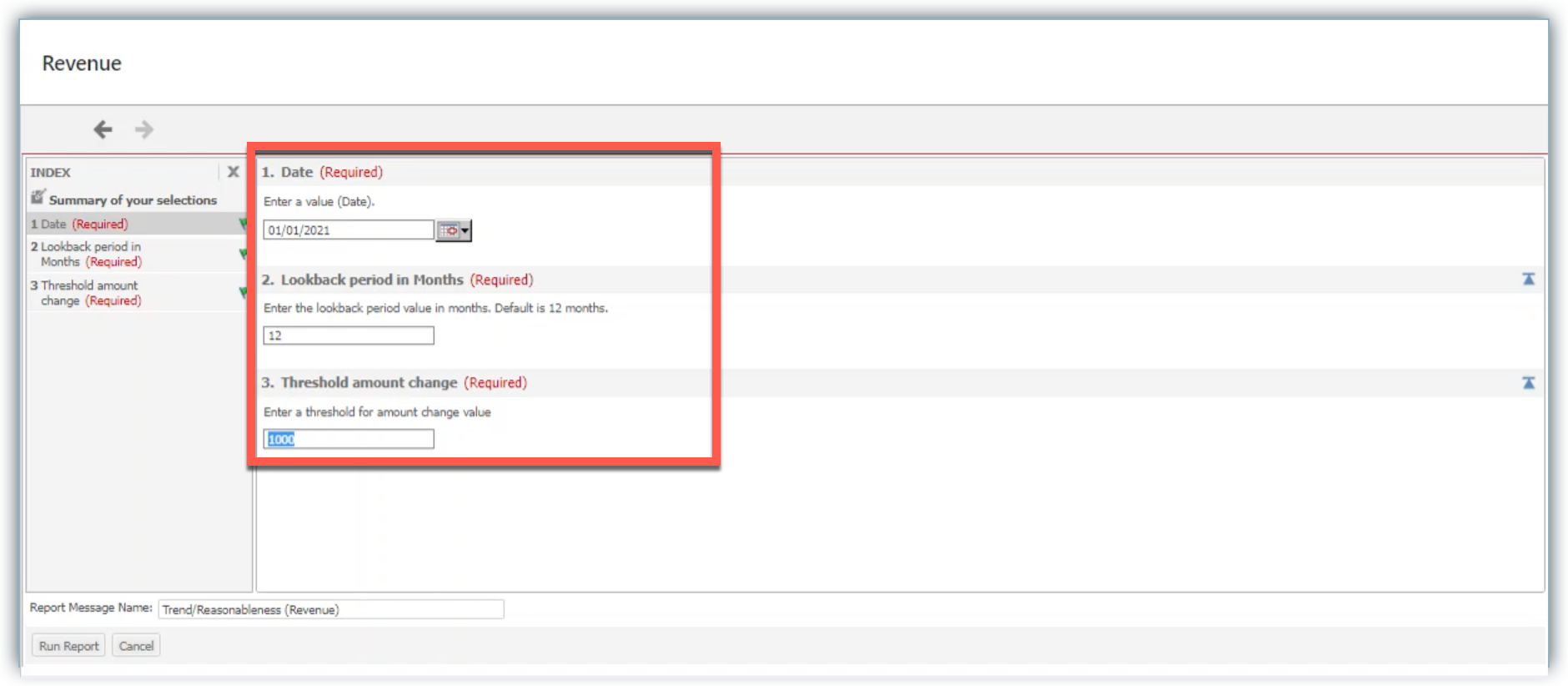
For the individual metric trend report, you can specify a change threshold filter to display only orders with month-over-month change that are equal to or greater than the threshold.
Accounting Reports
The Journal Entry Report under the Accounting category reports the accounting journal entries for revenue and commissions based on the account mappings.
Forex Reports
Forex reports are accessible if you have enabled the multi-currency feature in your RevRec site. You can view the following Forex reports in this category:
- Forex Exchange Rates: Tracks the daily close foreign exchange rates used by RevRec for foreign currency transactions.
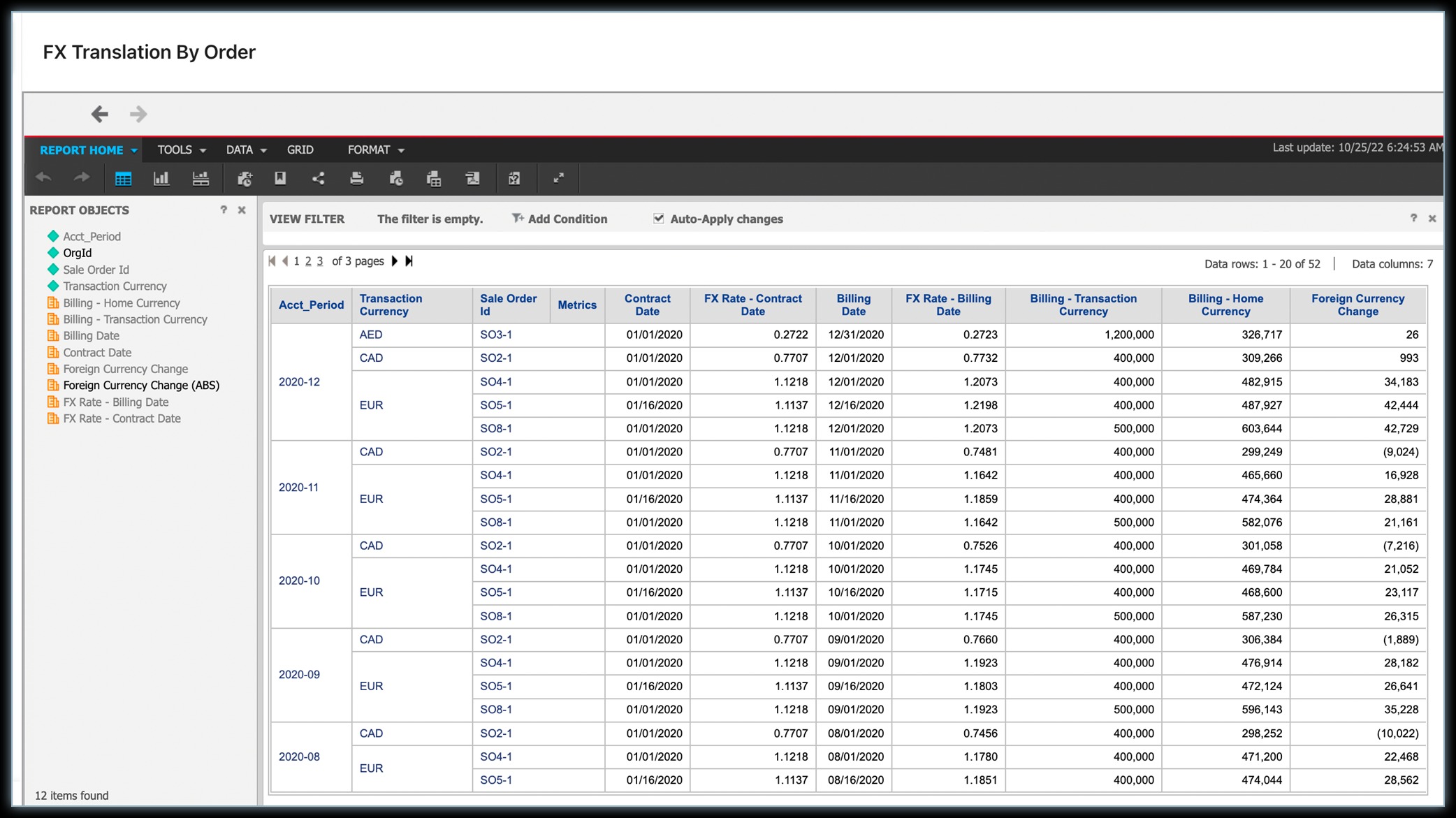
- Forex Translation by Order: Shows the details behind the forex translation calculations such as the specific forex rates used for each contract to translate revenue and calculate forex change impact.
Service Delivery Reports
You can access the following standard reports under the Service Delivery category:
- Service Delivery: Tracks the quantity of the services delivered during the accounting period.
- Service Delivery Rollforward: Tracks the quantity of the services delivered during the accounting period including the future.
- Overage Service Delivery: Tracks the quantity of the overage services delivered during the accounting period.
- Service Delivery Control Report: Tracks the quantity of the services delivered during the accounting period up to the current period.
Security & Audit Reports
You can access the following security and audit-related standard reports under the Security & Audit category:
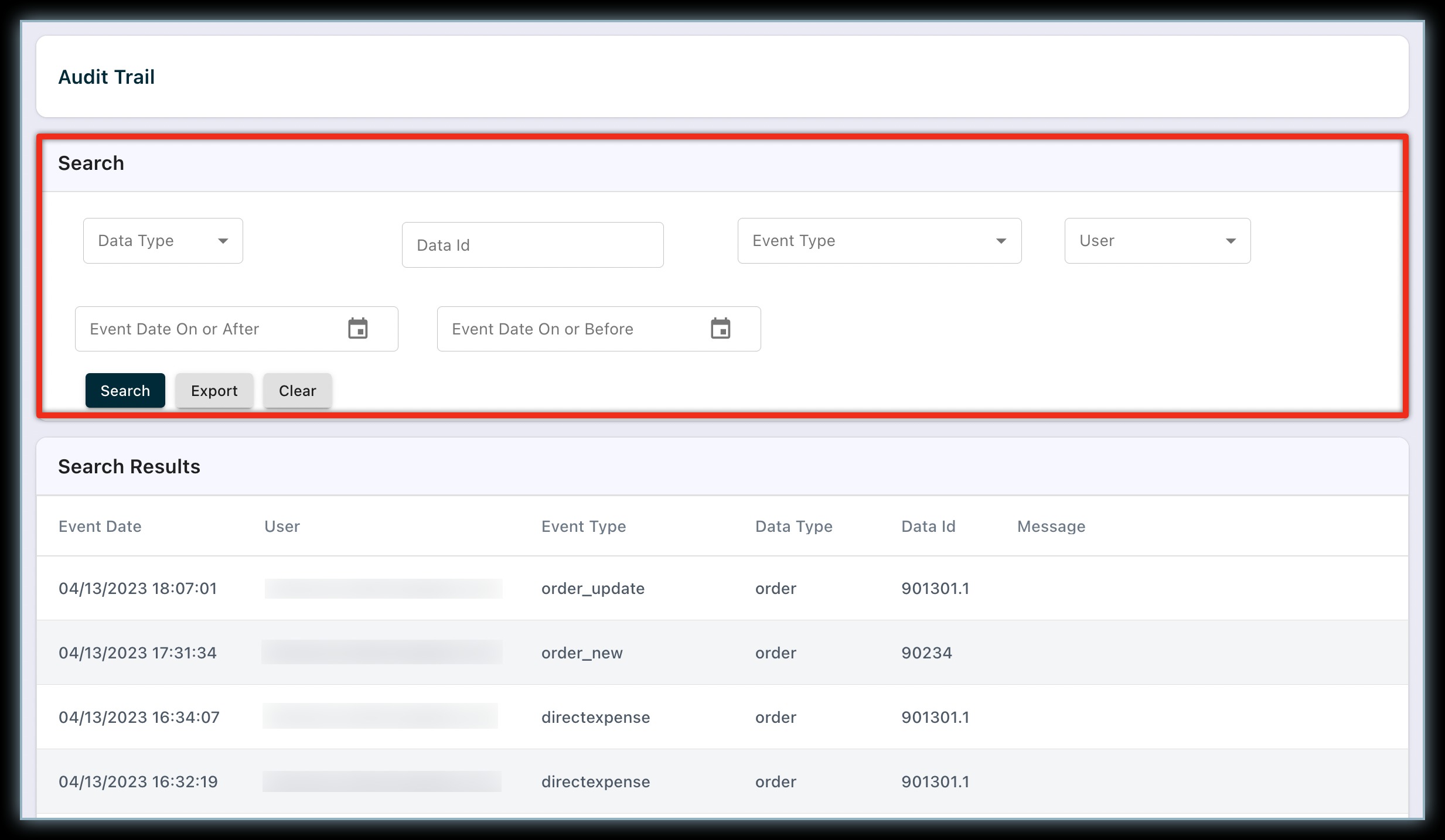
- Audit Trail: Tracks the event logs relating to all data-related activities performed by any user or the RevRec system over time. Any change that happens in your RevRec site is captured as an event. You can filter the results by Data Type, Data Id, Event Type, User, or Event date.
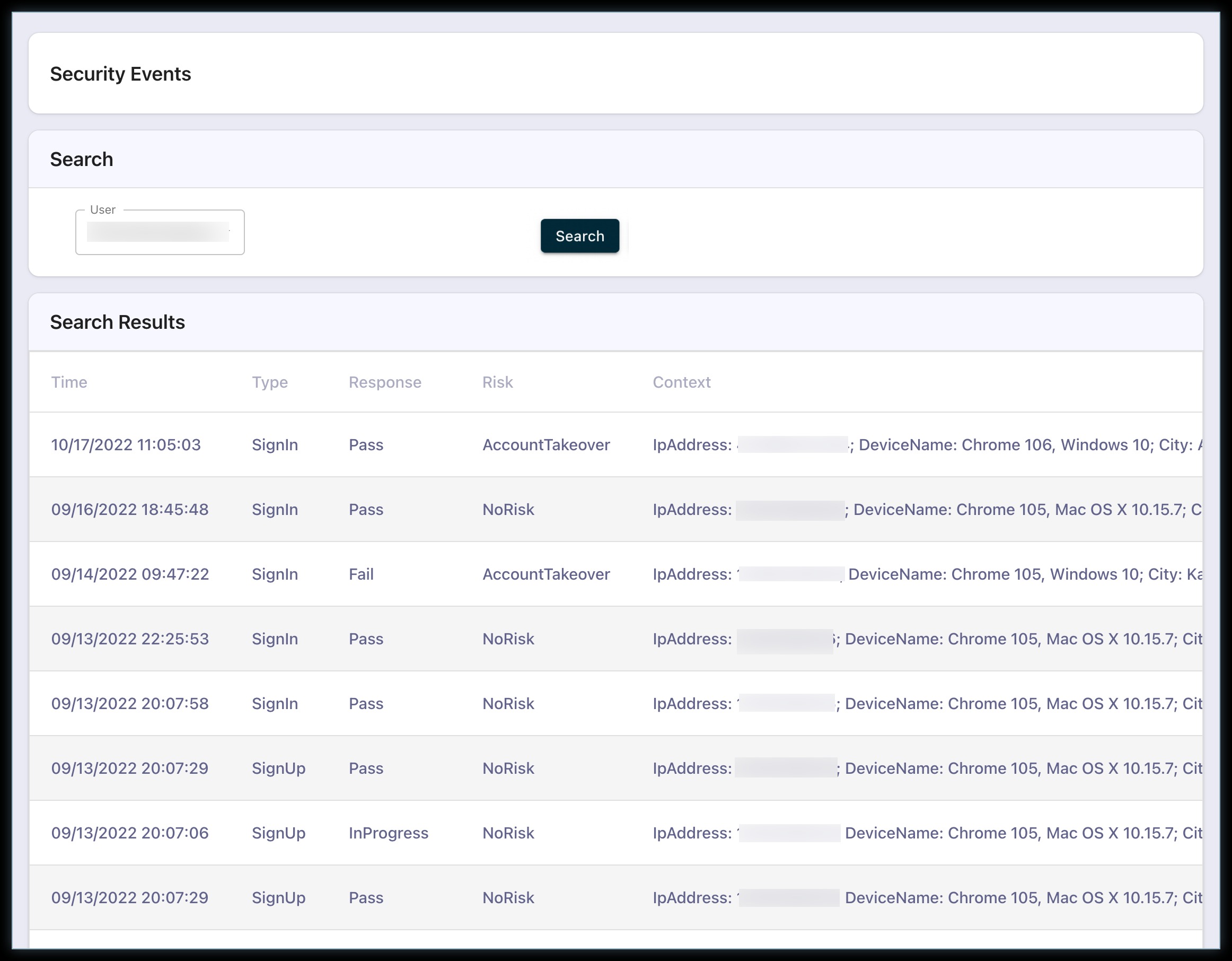
- Security Events: This report logs all authentication-related activities including SignIn, SignUp, and so on for users in your RevRec site over time. You can filter the report results by User.
My Reports
You can drill down and apply filters to any reports to customize them based on your metric requirements. When you save these reports, they get saved under the My Reports section.
Was this article helpful?