New in Chargebee: Explore Reveal and understand your payment performance end-to-end.Try Now
Docschargebee docs
HomeBillingPaymentsRevRecGrowthReveal
Support

Product Updates


  • Release Notes

Getting Started with RevRec


  • About Chargebee RevRec
  • Quick Start Guide
  • Site Configuration
  • Conversion
  • RevRec Essential
  • Articles and FAQ

Revenue Recognition


  • Configuring Product Catalog
  • Standalone Selling Price
  • Configuring Revenue Rules
  • Recognizing Discounts
  • Revenue Arrangement
  • Prior Period Adjustment
  • Pending Collectibility
  • Chargebee Billing Features
  • Articles and FAQ

Expense Recognition


  • Recognizing Expenses
  • Articles and FAQ

Multi Currency


  • Multi-Currency
  • Articles and FAQ

Multi Entity


  • Multi-Entity

Data Processing & Validation


  • Overview
  • Automated Data Synchronization
  • Importing Data in Bulk
  • Input via User Interface
  • Control Checks
  • Automated Import and Export
  • Understanding Errors
  • Articles and FAQ

Adjustments


  • Manual Adjustments

Reports & Analytics


  • Overview of RevRec Reporting
  • RevRec Standard Reports
  • Articles and FAQ

General Ledger & Accounting Close


  • Journal Account Mapping
  • Understanding Journal Entries
  • Creating Journal Entries
  • Journal Posting & Closing Accounting Period
  • Articles and FAQ

Integrations


  • HubSpot
  • Salesforce
  • QuickBooks Online
  • Xero
  • Sage Intacct
  • NetSuite
  • Stripe
  • Mobile Stores
  • Articles and FAQ

RevRec Premium


  • Overview
  • Quick Start Guide
  • Site Configuration
  • Getting Around RevRec Premium
  • General Ledger & Accounting Close
  • Reports & Analytics
  • Integrations
  1. Revrec
  2. Reports & Analytics
  3. Articles and FAQ
  4. Reports & Analytics
  1. Revrec
  2. Reports & Analytics
  3. Articles and FAQ
  4. Reports & Analytics

How to save and share a report in RevRec?

Scope

How can I share a report in RevRec?

Where can I find my shared reports in RevRec?

Can I save the reports in a sub-folder?

Summary

Save reports to the User Reports or Shared Reports folder. Choose the User Reports folder to limit access to the document creator. Choose the Shared Reports folder to give any user with the required permissions access to the file. Navigate from Reports > Specific report > REPORT HOME > Save. To save a report, reach out to RevRec Support for more details.

Solution

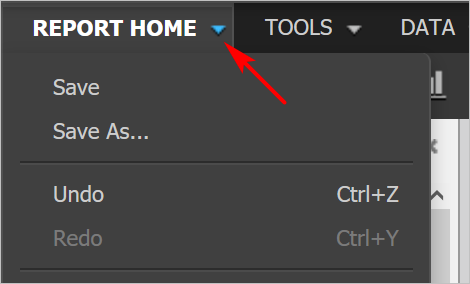
  1. Saving a report

Go to the top menu and click the arrow next to REPORT HOME. Click Save.

Note: Saving reports require additional permission, please reach out to RevRec Support for more details.
image

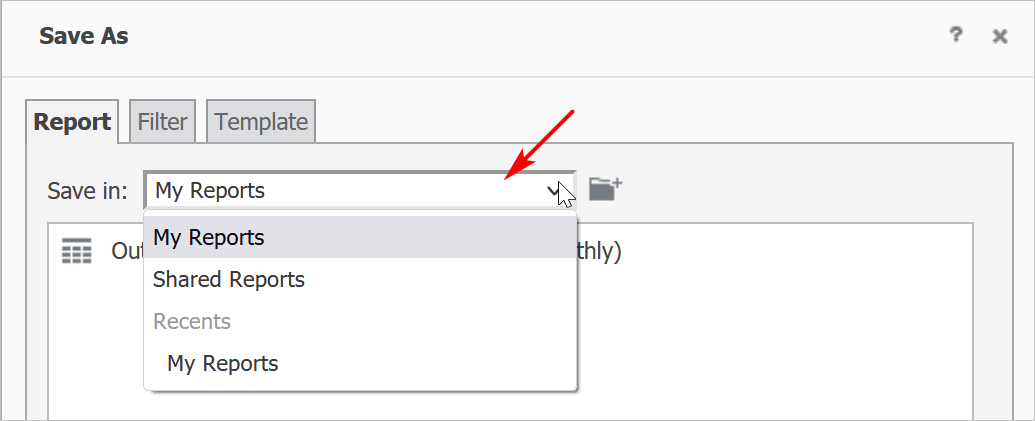
2. On the Save As window, click the field next to the folder icon and select an option: My Reports or Shared Reports.
image

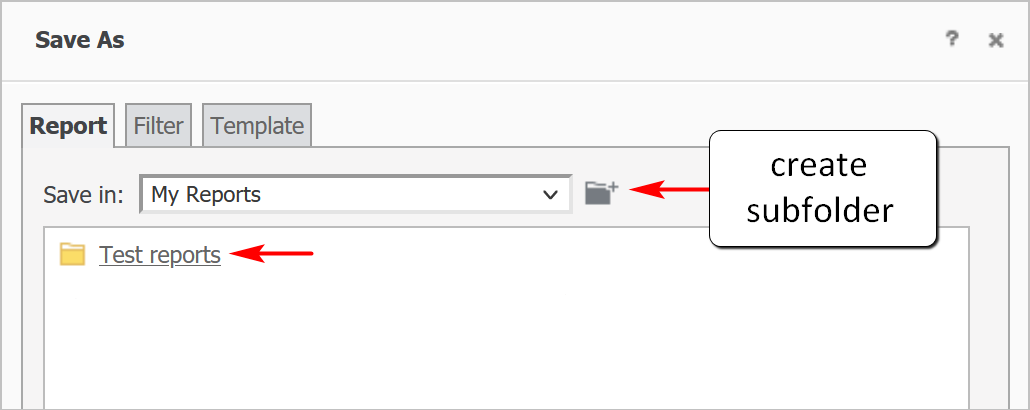
3. Select a subfolder if available. (optional)

Create a subfolder. (optional)
image

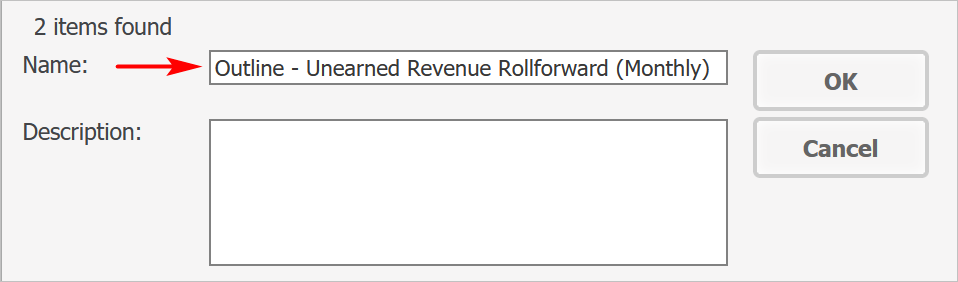
4. Change the report name. (optional)
image

Click OK.

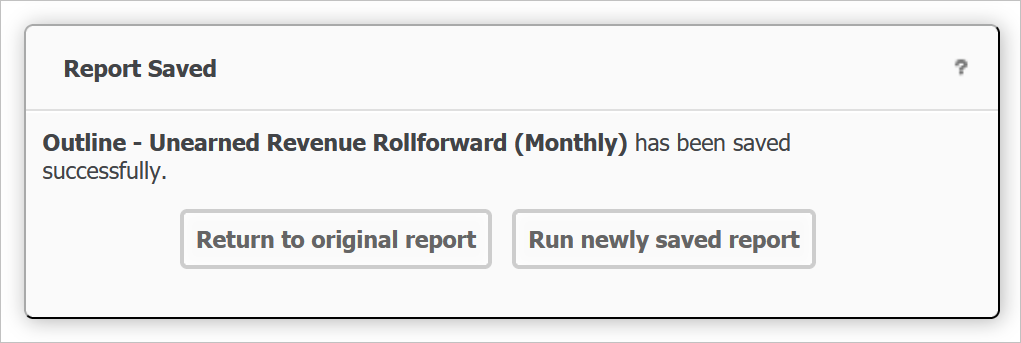
5. On the Report Saved pop-up window, open the original or new report. (optional)
image
  1. Opening a saved report

Click Reports on the main menu.

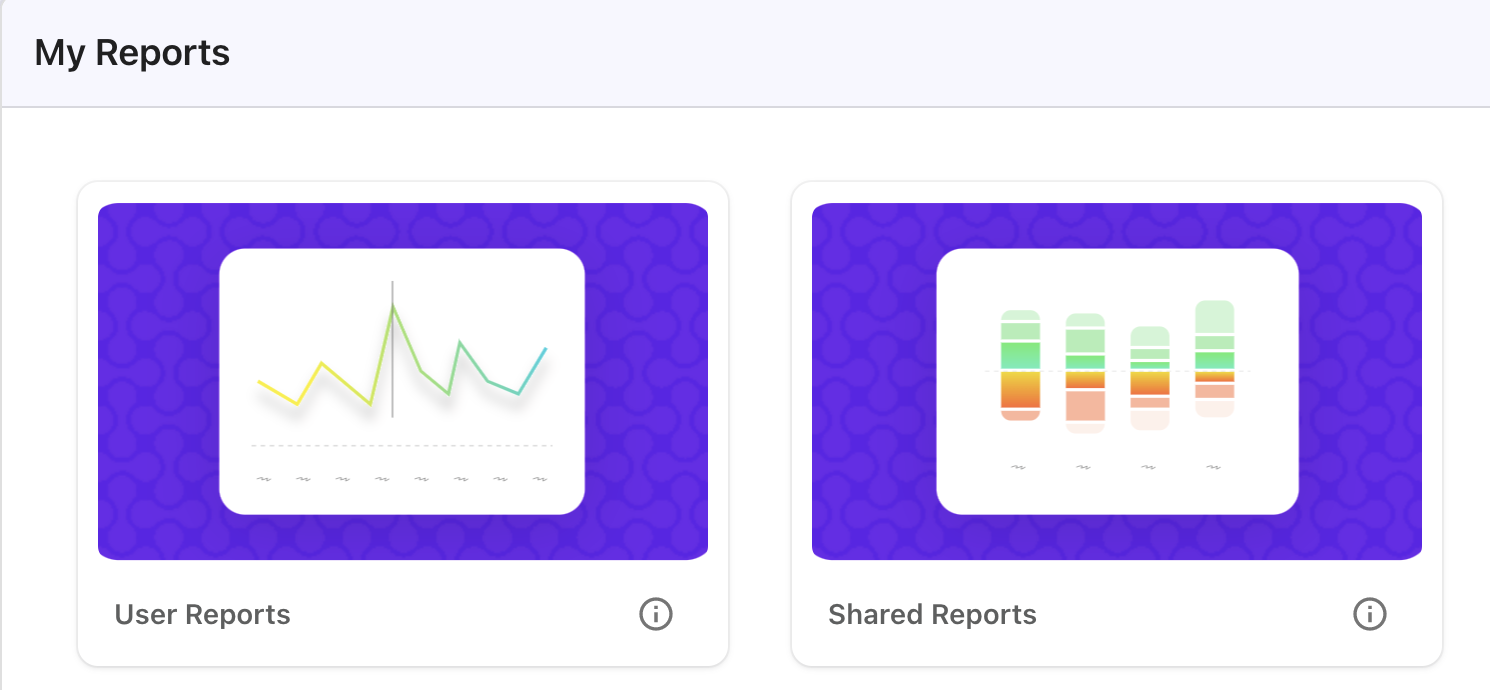
Scroll down and click the My Reports tab.

Select a folder: User Reports or Shared Reports.
image

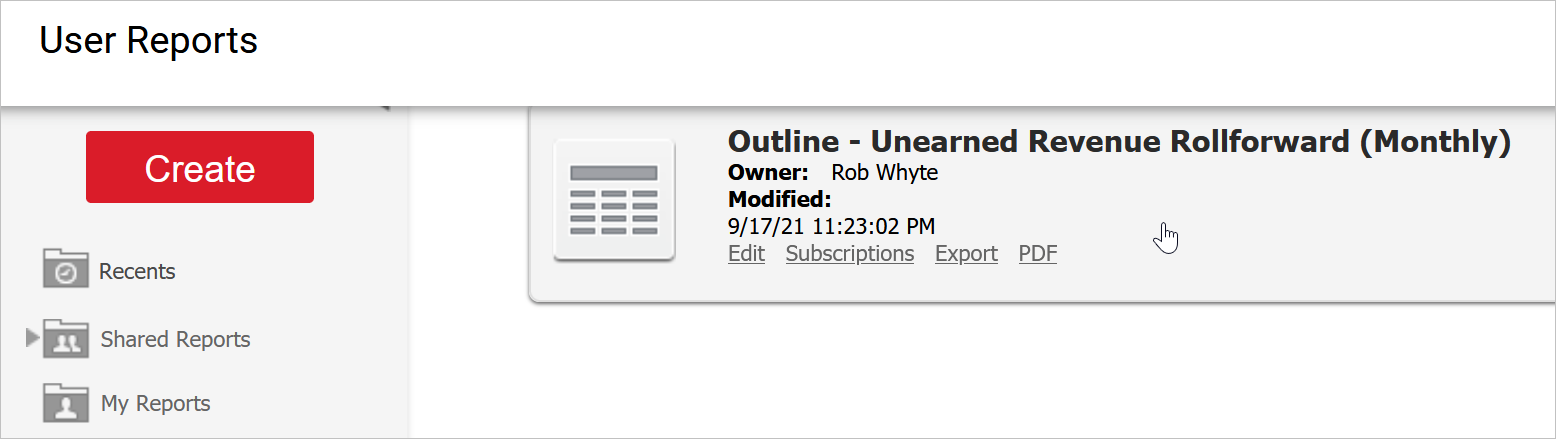
A list of reports and subfolders displays.
image

Hover a report tile to display options. You can:

  • Edit the report (Power User rights)
  • Add Subscriptions
  • Export the report as an Excel or CSV file
  • Download the report as a PDF (whole report or sections)

Related Articles

Where do I access reports in RevRec?
How are MRR and ARR calculated in RevRec?
How to find the Unearned Revenue Rollforward Report in RevRec?
Where can I find Revenue Journal Report in RevRec?
How to Customize a Report in RevRec?
How to export a report in RevRec?
How to add Custom fields to a RevRec report?
What are the categories available on RevRec Standard Reports?

Show more

Was this article helpful?