Setting Up and Managing Sandbox Sites
Overview
The Multi-Sandbox feature allows you to create and manage additional sandbox sites beyond your primary test site. These additional sandboxes offer a safe and flexible environment for experimenting with new features and configurations before deploying them to your live site. Each additional sandbox behaves like a test site — with its own configuration and testing capabilities — without affecting your main test or production environments.
You can use additional sandboxes to:
- Try out new or beta features.
- Safely test one-way settings (e.g., multi-entity, multi-decimal) that cannot be reversed once enabled.
- Run Time Machine without impacting your main staging or production environments.
Most customers use their main test site as a staging environment, keeping its configuration aligned with the live site. This limits opportunities to explore new functionality or perform risk-free testing. The Multi-Sandbox feature removes this constraint by providing dedicated, isolated environments for experimentation and adoption.
By providing more flexibility to test and adopt new capabilities, this feature helps reduce risk while supporting continuous improvement. Customers who regularly explore and enable new features tend to have better retention and lower churn rates.
Note
- You can create up to two additional active sandboxes per account. Your primary test site does not count toward this limit.
- Each sandbox functions like a test site, with full configuration and testing capabilities.
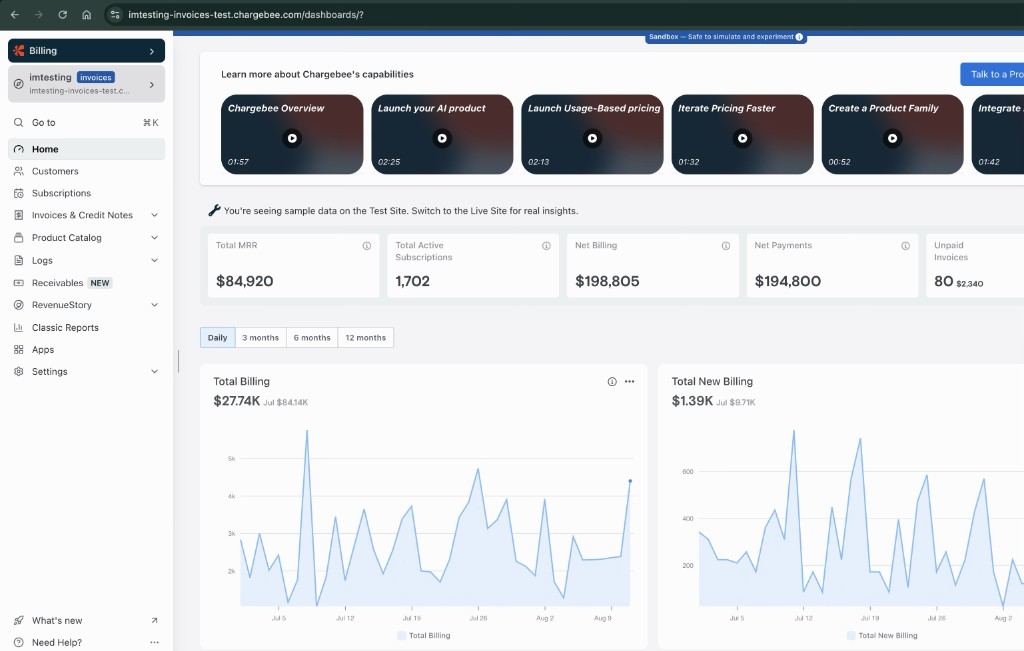
- Sandbox sites display a Sandbox banner so you always know you are working in an isolated environment.
How to Create a Sandbox Site
You can create a new sandbox site from the site switcher, or from feature settings pages and pop-ups for irreversible settings. Only Admins and Owners can see the sandbox actions in the site switcher.
Option 1: From the Site Switcher
The action you see in the account/site switcher depends on how many additional active sandboxes already exist for the account:
- No sandboxes: Click Create Sandbox to open the create new sandbox site flow.
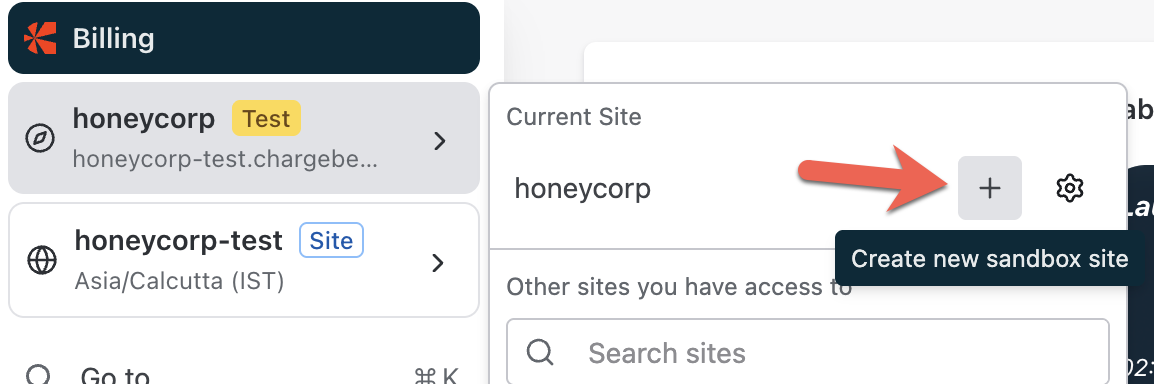
- One active sandbox: Click Manage Sandboxes to open the Sandbox Sites list, then click Create Sandbox Site to create another sandbox.
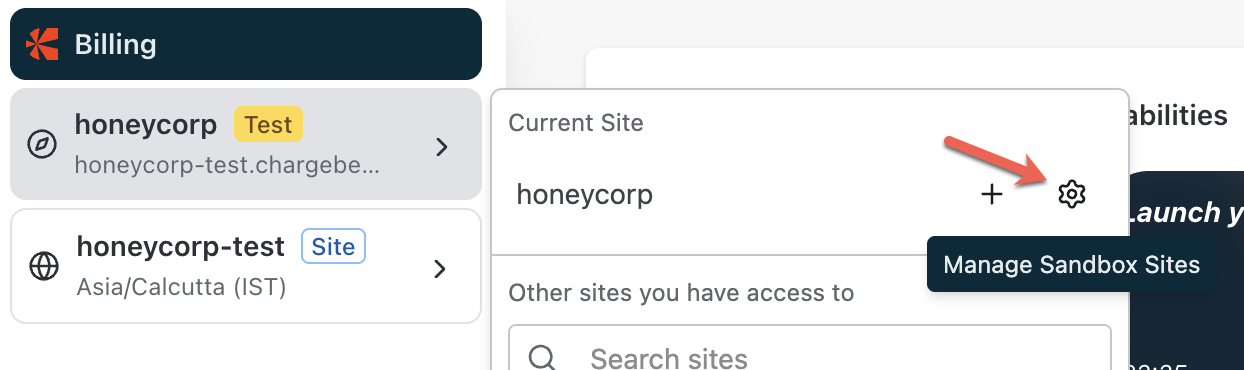
- Two active sandboxes (limit reached): Click Manage Sandboxes to open the Sandbox Sites list. You cannot create another sandbox until an active slot is available.
Option 2: From Feature Settings Pages
Some settings — such as Multi-entity or Multi-decimal support — cannot be turned off once they are enabled. On these feature pages, a Try it in a New Site card appears on the right-hand side.
- Click Create Sandbox from this card to open the sandbox creation page.
- Proceed with setup to safely test the feature before enabling it on your main site.

Option 3: From Feature Pop-ups
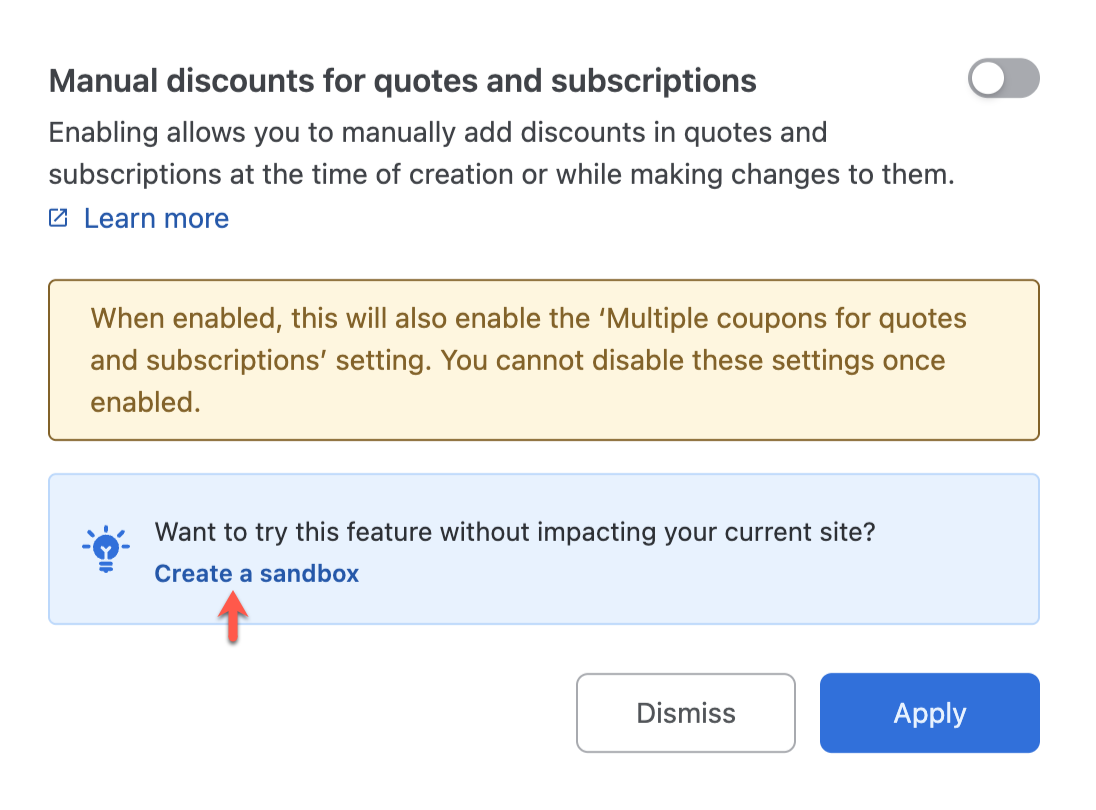
For settings that do not have a dedicated page, a pop-up displays the option to create a sandbox before enabling the feature.
In the pop-up, click Create a Sandbox to generate a new sandbox environment for testing.
Steps to Create a Sandbox Site
Once you've opened the sandbox creation screen, follow these steps:
-
Enter Sandbox Details
-
Enter a Sandbox name. The name must meet the following rules:
- 4 to 10 characters long.
- Letters, numbers, and hyphens only.
- No capital letters.
- Cannot start or end with a hyphen.
- Cannot contain the
-testsuffix (Chargebee adds this automatically).
-
Choose a Tag color for easy visual identification in the site switcher.
-
The sandbox URL preview follows this format:
<site-name>-<sandbox-name>-test.chargebee.comExample:
imtesting-invoices-test.chargebee.com

-
-
Create the Sandbox
- Click Create to generate your sandbox.
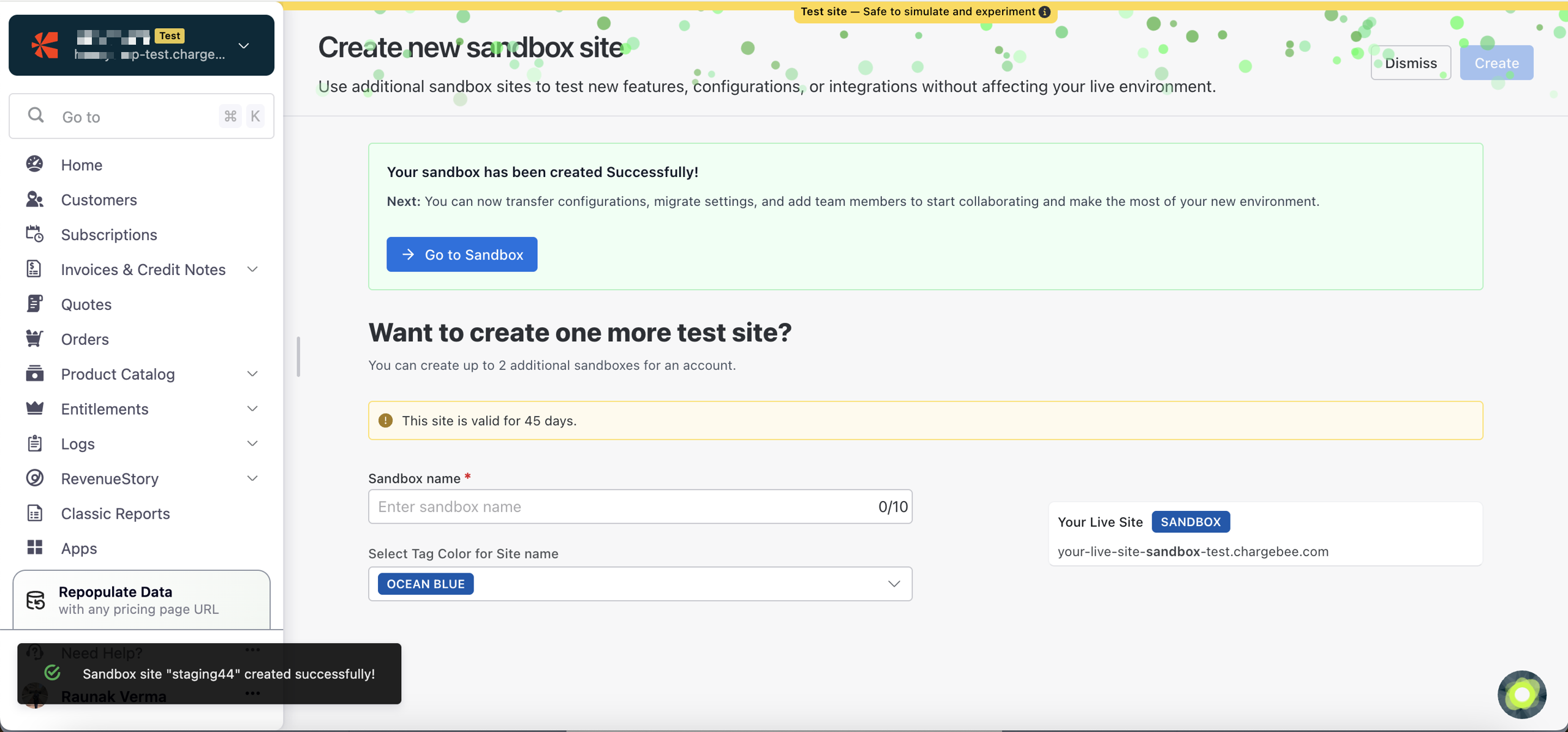
- Once complete, Chargebee opens the Get started with your sandbox page to confirm creation.
-
Get Started with Your Sandbox
After creation, the Get started with your sandbox page shows the next steps you can take:
- Click Go to Sandbox to open your new site.
- Use Transfer Configurations to copy plans, pricing, catalog, gateway settings, and other configuration from a live or test site into the sandbox.
- Use Invite Team Members to add teammates and assign roles for the sandbox.
You can also switch between your live, test, and sandbox sites from the site switcher in the left navigation.
-
Manage Existing Sandboxes
- From the site switcher, click Manage Sandboxes to open the Sandbox Sites list.
- The Sandbox Sites table shows each sandbox's lifecycle in the Status column, and includes:
- Site
- Status
- Created by
- Expires / Expired
- Created at
- Action

Limitations
Sandbox sites are designed for lightweight experimentation and testing. As such, certain usage and data limits apply to maintain optimal performance.
The following limits currently apply to the free version of sandboxes:
| Category | Limit |
|---|---|
| Customers | 2,500 |
| Subscriptions | 2,500 |
| Invoices, Credit Notes, etc. | 5,000 |
| Product Families | 10 |
| Plans, Addons, Coupons, Entitlements, Item Prices | 50 each |
| Team Members (Invited Users) | 3 |
| Webhooks | 3 |
| Active Sandboxes per Account | 2 |
The primary test site does not count toward the Active Sandboxes per Account limit. Create a new sandbox only when an active slot is available.
Feature Restrictions
The following feature limitations apply to additional sandbox sites created using the Multi-Sandbox feature:
- To copy configurations (including custom fields) from another site, use Transfer Configuration.
Retention and Expiry
Each additional sandbox site stays active for 90 days from creation.
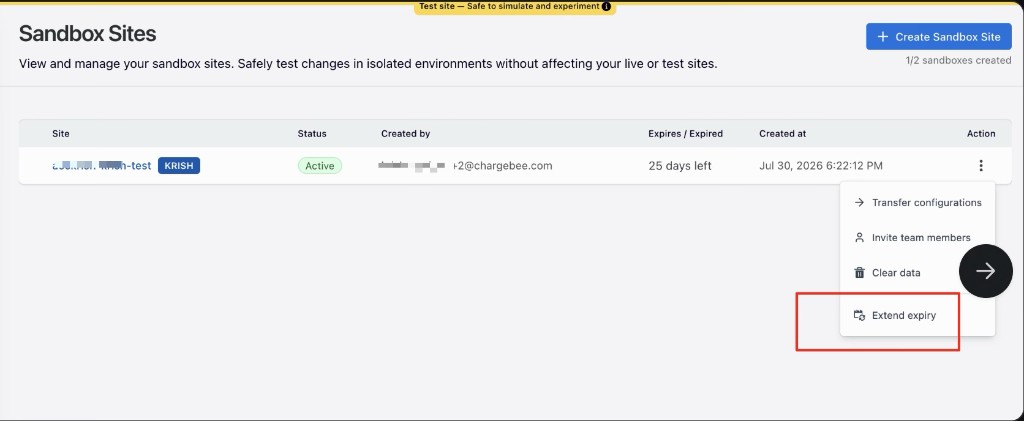
During the last 45 days of the active period, you can extend the sandbox expiry. After the sandbox expires, you can activate it again. Expired sandboxes remain visible in the Sandbox Sites table.
You can have a maximum of two additional active sandboxes per account. The primary test site does not count toward this limit. Create a new sandbox only when an active slot is available.
Extend expiry or activate a sandbox
-
From the site switcher, click Manage Sandboxes.
-
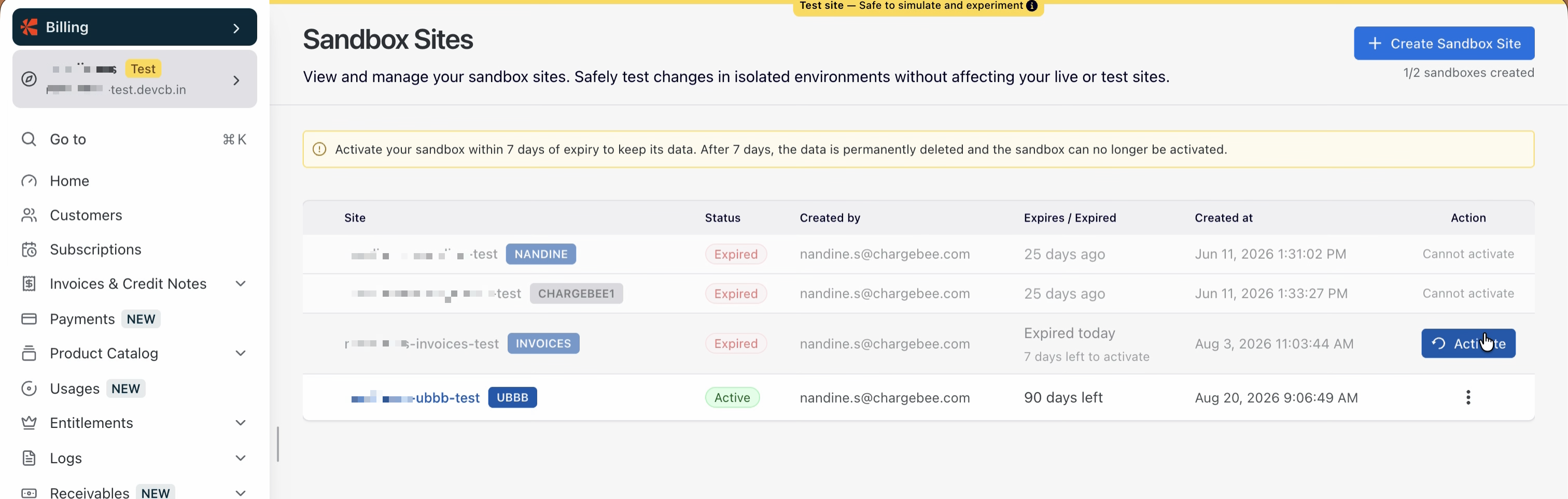
In the Sandbox Sites table, check the sandbox status in the Expires / Expired column.
-
If the sandbox is in the last 7 days of its active period, click the Action > Extend expiry.
-
If the sandbox is in the expired period, click the Activate button in the Action column.
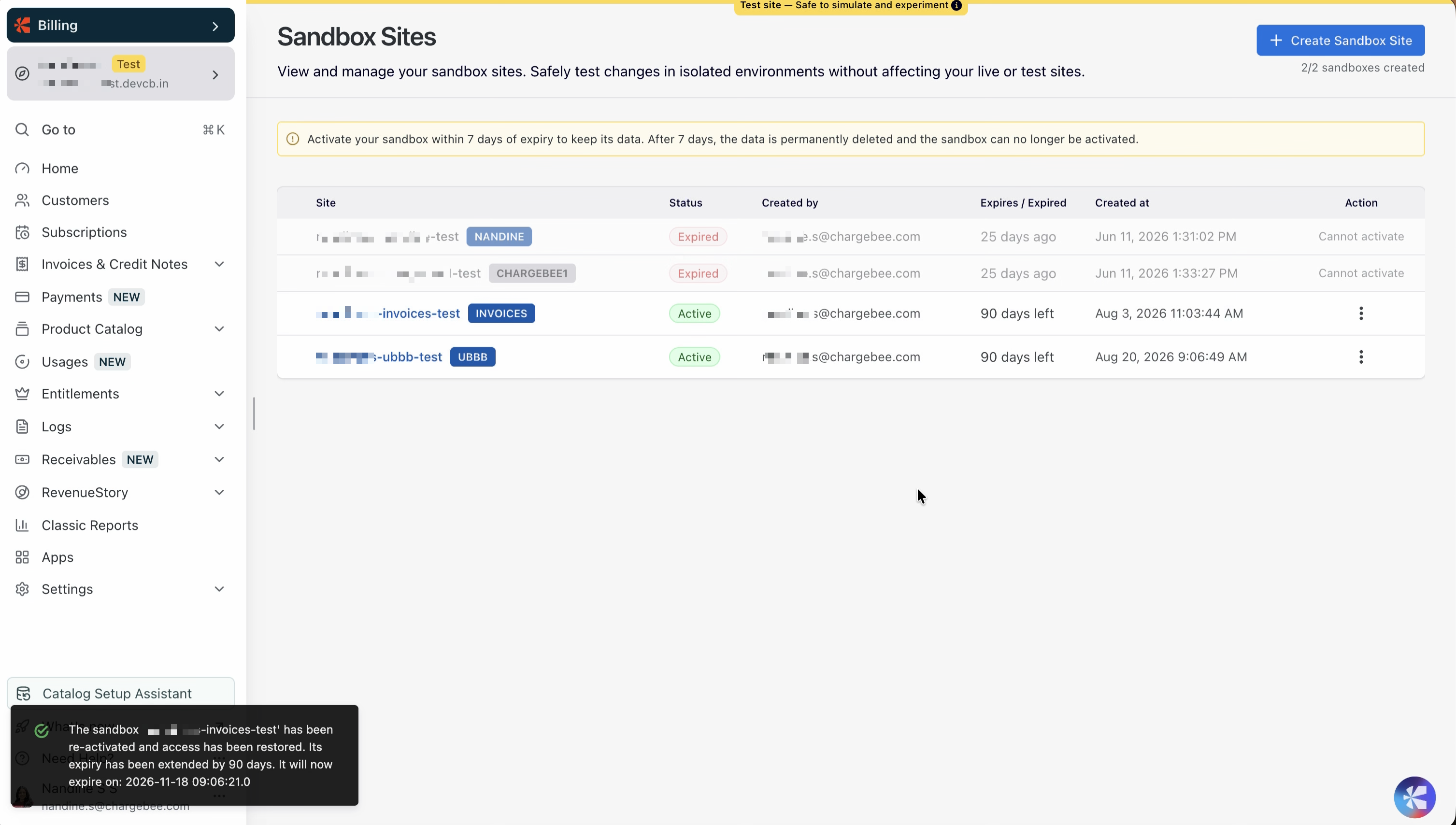
Once activated, the sandbox status will update to Active and its expiry will be extended by 90 days.
Error Messages
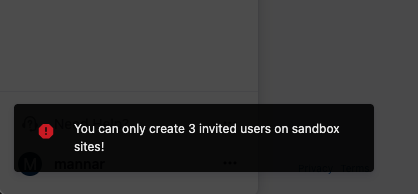
When you reach a sandbox limit, you'll see an on-screen error notification.
Examples:
You can only create three invited users on sandbox sites!
You can only create three webhooks on sandbox sites!

Note
- Sandbox environments are intended for testing and evaluation only.
- Some advanced integrations or production-level API volumes may not be supported.
- Data from sandbox sites does not carry over automatically to live environments.
SAML Single Sign-On
New sandboxes do not inherit SAML Single Sign-On from your existing test or live sites. When you create an additional sandbox, you must configure SAML Single Sign-On for that sandbox separately, following the same process used for your test and live sites.
Was this article helpful?