How to update plan tier range prices for existing subscriptions in bulk?
Problem Statement
You want to know how to update plan tier range prices for existing subscriptions in bulk.
Solution
Scope
How to perform a price override on tiered subscriptions for a specific plan
How to update the plan tier range for multiple existing subscriptions?
Summary
To Override tier range and price, please ensure that you have enabled Allow Tier Range Override setting to allow your team users to update the tier range for plans and add-ons that have volume, tiered, or stairstep pricing models.
Once enabled, you will be able to perform a bulk operation to override the subscription tiers, and tier price for a specific plan or edit existing subscriptions in bulk using two options.
1. Import and Export Data
Import and Export Data option on your Chargebee site. You will need to navigate to Settings > Import & Export Data > Choose a Bulk Operation Subscriptions > Update Subscription for items in your Chargebee site
If you are to perform a bulk operation for existing data from Chargebee you may have to export the data from Chargebee and update those data to the import sheet from Bulk Operations. Earlier the export data format and import data format varied which involves a lot of manual intervention. With the new enhanced Export file option, you can either export a file using Download Data or use Download import-friendly file from Settings > Import & Export Data > Product Catalog. Refer to this link for more information.
2. Update Subscriptions for Items API
You can also make use of our Update Subscriptions for Items API call for this. The parameters required would be the same as the bulk operation.
Tiered Override input parameters for Bulk Operation and Update Subscriptions for Items API
|
Solution
You need to contact support to have this setting enabled on your Chargebee Latest Product Catalog site. Once enabled follow the steps below.
Import & Export Data
Step 1: Navigate to the Bulk Operation.
You can perform this action from Settings > Configure Chargebee > Import & Export Data > Choose a Bulk Operation > Subscriptions > Update Subscription for items.

Step 2: Download the sample CSV file

- Upon downloading the CSV 'update_subscriptions_sample_data.csv' file, you require the current data from your site to update in the sample CSV.
Step 3: In order to download the current data, follow these steps. You can export it from Chargebee, there are 2 different ways to achieve this:
-
From the Subscriptions index page, you can filter data using 'Add Filter' if you want to narrow down the search to a specific list of subscriptions. You can also save the filter for future purposes, this feature is called Advanced Filter Options.
Navigate to Subscriptions index page > Add Filter > Plan > is > Specific Plan > Apply Filter

Then click on Export > Export as CSV to download subscription data for a specific plan.

Note
On the recent UI enhancement you On the recent UI enhancement you can now scroll the index pages - Customers, Subscriptions, Invoices, and Credit Notes vertically. Earlier, the pages will be paginated which may prolong your search however with the new enhancement as you scroll down the list it will load all other data in a single page as highlighted below on the screenshot. Refer to this link for more information.
Alternate step:
-
Navigate to Settings > Configure Chargebee > Import & Export Data > Export Data > Subscriptions > Select Criteria to Export > Export
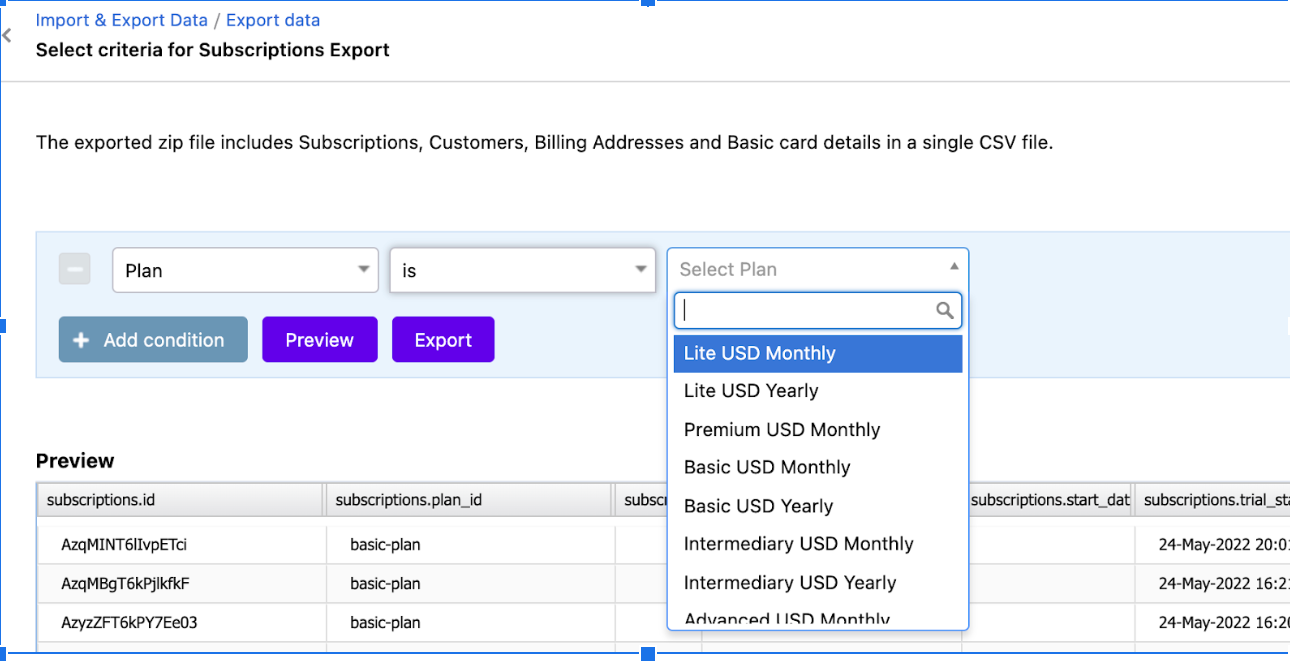

Step 4: This file will contain sample records that you can replace with the current data records. Note that the data that needs to be added to the sheet should be in the same format as the sample data.
Now, you can update the subscription tiers and tier prices.

The fields that you would need to update in the Bulk operation CSV are -
item_tiers
Parameters for item_tiers. Multiple item_tiers can be passed by specifying unique indices. pass parameters as item_tiers[ ][idx:0..n]
item_tiers[item_price_id][0..n]
optional, string, max chars=100 The id of the item price for which the tier price is being overridden.
item_tiers[starting_unit][0..n]
optional, integer, min=1 The lowest value in the quantity tier.
item_tiers[ending_unit][0..n]
optional, integer The highest value in the quantity tier.
item_tiers[price][0..n]
optional, in cents, min=0 The overridden price of the tier. The value depends on the type of currency.
item_tiers[starting_unit_in_decimal][0..n]
optional, string, max chars=33
The decimal representation of the lowest value of the quantity in this tier. This is zero for the lowest tier. For all other tiers, it is the same as ending_unit_in_decimalfor the next lower tier. Returned only when the pricing_model is tiered, volume or stairstep and multi-decimal pricing is enabled.
Note:
- Your CSV data file should contain all the columns specific to the operation you are performing. The sample CSV file has most of the columns required for the operation.
- Do not edit the column labels in the sample file and make sure the file extension is .CSV.
- You can update this sheet with the data exported from the Invoice level.
Step 5: Drag and drop your data file into the web interface or upload it

Please refer to the Bulk operations document if you have received any errors while uploading the file.
Updating the tier on the plan level is not going to impact any existing subscriptions created before the plan change. Only new subscriptions created after the plan change would have the new tier range.
Please ensure to try the bulk operation on your TEST site with a sample subscription before going ahead on the LIVE site.
Update Subscriptions for Items API
You can also make use of our Update Subscriptions for Items API call for this. The required parameters are the same as in the Bulk Operation above.
Was this article helpful?