New in Chargebee: Explore Reveal and understand your payment performance end-to-end.Try Now
Docschargebee docs
HomeBillingPaymentsRevRecGrowthReveal
Support

Product Updates


  • Release Notes

Getting Started


  • Overview
  • Chargebee Billing Data Centers
  • Object Relationship Model
  • Understanding Sites
  • Developer Resources
  • Chargebee Tech Glossary
  • Articles and FAQ

Implementing Chargebee


  • Implementation Guide
  • Go-live Checklist
  • Articles and FAQ

AI in Chargebee


  • Chargebee Copilot
  • Chargebee MCP Server (Model context protocol)

Product Catalog


  • Product Catalog Overview
  • Coupons
  • Articles and FAQ

Subscriptions


  • Working with Subscriptions
  • Billing
  • Orders
  • Articles and FAQ

Customers


  • Managing Customers
  • Account Hierarchy
  • Email Notifications
  • Branding
  • Configure Multiple Languages
  • Articles and FAQ

Invoices, Credit Notes and Quotes


  • Invoices
  • Credit Notes
  • Quotes [Legacy]
  • Transactions
  • Articles and FAQ

Taxes


  • Overview
  • Configuring Taxes
  • Country-specific Taxes
  • Articles and FAQ

Hosted Capabilities


  • Overview
  • Hosted Checkout
  • Hosted Self-Serve Portal
  • Hosted Pages Features
  • Additional Hosted Pages
  • Payment Components
  • Managing payments with ChargebeeJS
  • Mobile-Optimized Hosted Pages
  • Articles and FAQ

Site Configuration


  • Users & Roles
  • Custom Fields & Metadata
  • Mandatory Fields
  • File Attachments & Comments
  • Advanced Filter Options
  • Multicurrency Pricing
  • Multi-decimal Support
  • Configuring Reason Codes
  • Events and Webhooks
  • API Keys
  • Time Zone
  • Time Machine
  • Transfer Configurations
  • Articles and FAQ

Reports and Analytics


  • RevenueStory
  • Home Dashboard
  • Frequently Asked Questions
  • FAQs for Classic Reports Sunset
  • Articles and FAQ

Integrations


  • Sales
  • Customer Support and Success
  • Finance
  • Tax
  • Marketing
  • Stitch
  • Collaboration
  • Contract Management
  • Order Management
  • Mobile Subscriptions (Legacy)
  • Other Integrations
  • Articles and FAQ

Data Privacy & Security


  • Two Factor Authentication
  • SAML Single Sign-On
  • System for Cross-Domain Identity Management (SCIM)
  • EU-GDPR
  • Consent Management
  • Personal Data Management
  • Compliance Certificates
  • HIPAA Guidelines
  • PCI Recommendations and Integration Types
  • Articles and FAQ

Data Operations


  • Bulk Operations
  • Migration
  • Articles and FAQ

E-invoice fails with error “Recipient cannot be SEZ for B2B transaction”

Problem statement

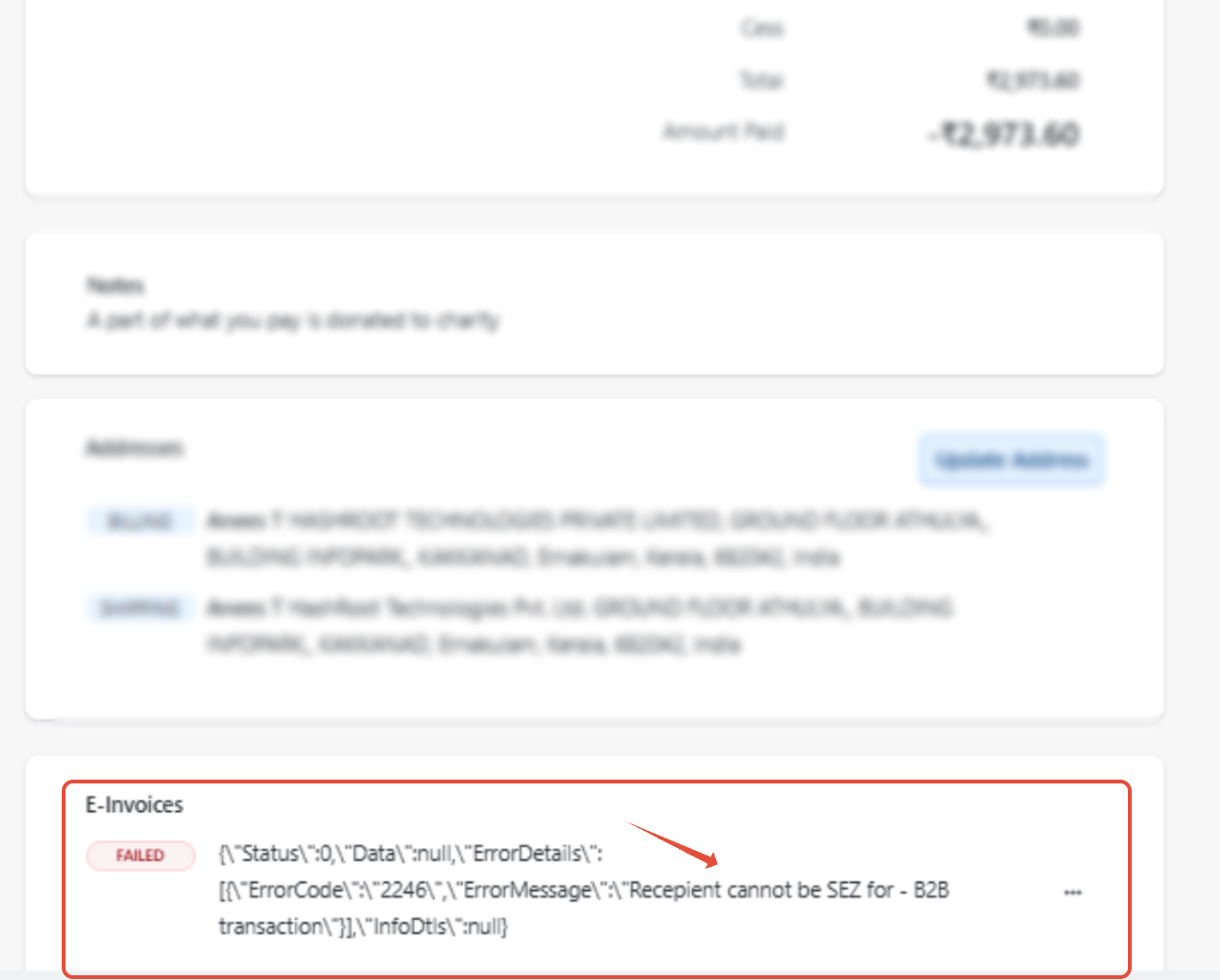
An e-invoice generation attempt failed with the following error message:
Recipient cannot be SEZ for B2B transaction.

The customer linked to the transaction is marked as a Special Economic Zone (SEZ) unit. Users may encounter this error when attempting to generate an e-invoice for such customers and may want to understand when SEZ units are exempt from e-invoicing and why this validation error occurs.
image

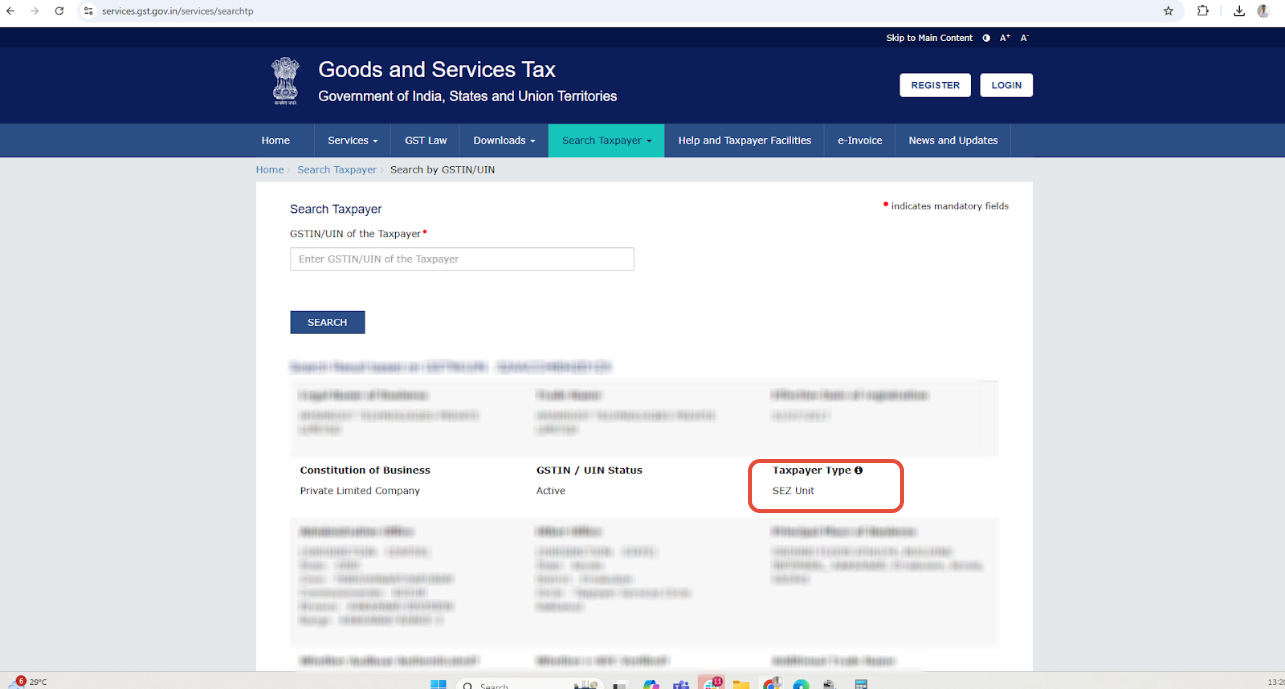
Under Taxpayer type, it is mentioned as SEZ unit
image

Solution

The first step should always be to email Storecove and check the status, as we rely on Storecove as a third-party provider to verify e-invoicing status across various networks.

After confirmation from Storecove, checking the error message “Recipient cannot be SEZ for B2B TRANSACTION.” , this will typically be returned by the Invoice Registration Portal (IRP) in India during e-invoice validation. It indicates that:

  • The recipient’s GSTIN is marked as SEZ (Special Economic Zone).

  • However, the invoice is being submitted as a regular B2B (Business-to-Business) transaction, which is not allowed for SEZ recipients under this classification.

The failure you are viewing is Recipient cannot be SEZ for B2B TRANSACTION. This failure occurs due to misclassification of the invoice type during e-invoice generation via the IRP, particularly when the recipient is registered as an SEZ unit.

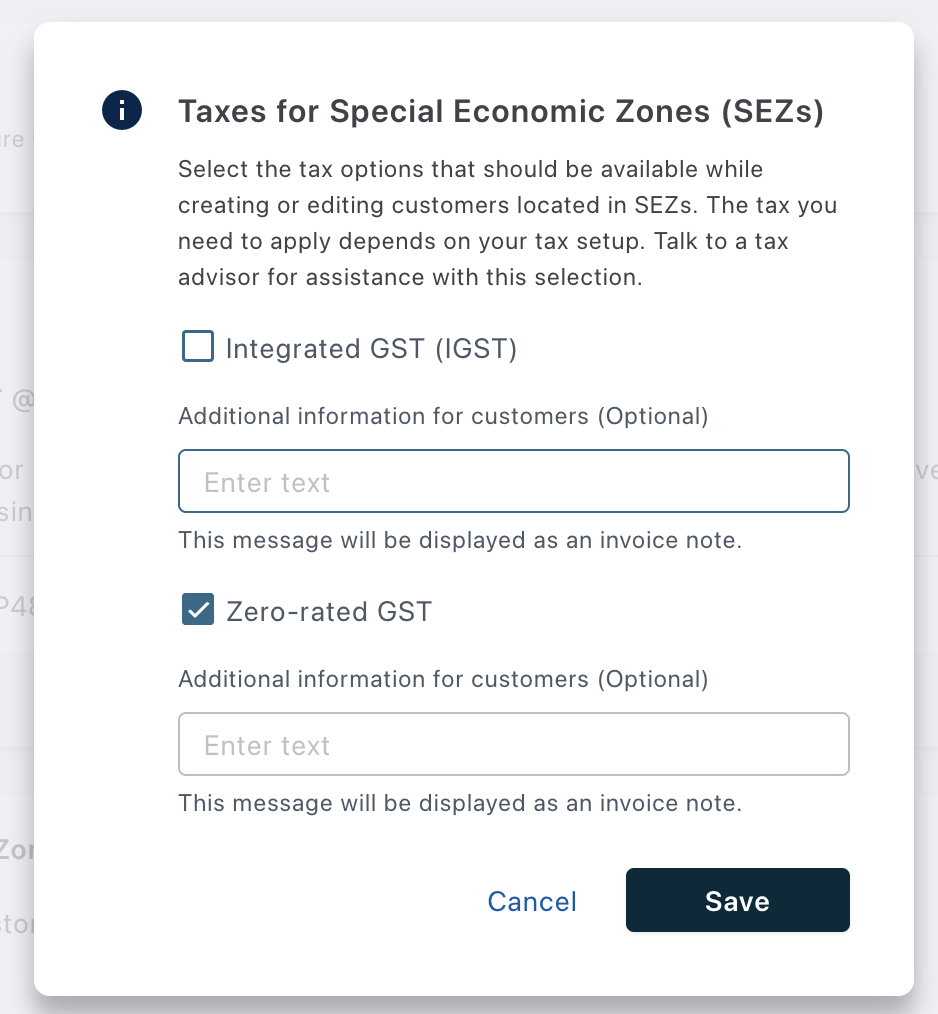
To resolve the issue, ensure that the SEZ configuration is properly set up in Chargebee for zero-rated GST transactions.

Steps to fix the issue

To resolve the issue, follow these steps:

  1. In Chargebee, go to Configure Chargebee > Taxes > Taxes for Special Economic Zone. Enable the option Zero-rated GST.
    image
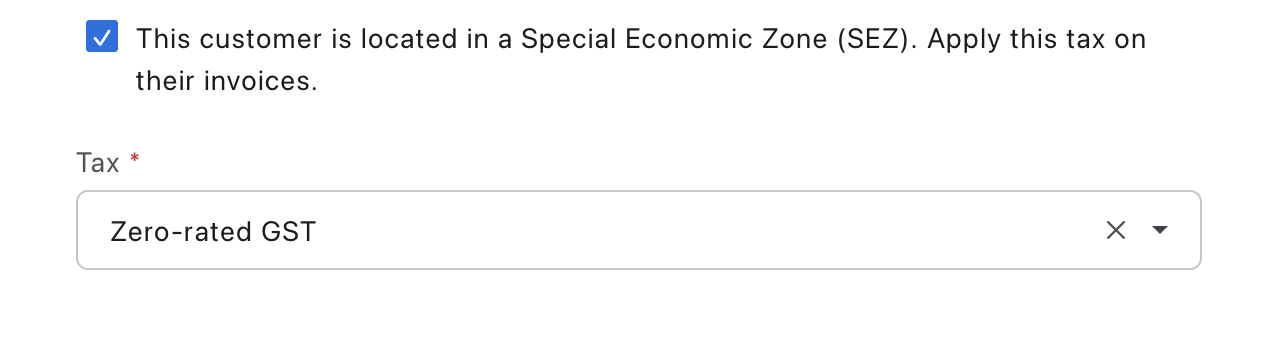
  2. Open the affected Customer record and update the Billing Information to correctly mark the customer as belonging to an SEZ unit.
    image
  3. After saving the updates, retry sending the e-invoice.
  4. Once the zero-rated GST configuration is enabled and the customer details are updated, the e-invoice should be generated successfully.

Was this article helpful?