Net D
Net Days, or Net D, is a payment term that refers to the period within which a customer must pay their outstanding invoice (net amount) for the service or product received.
Net D terms specify that the seller expects to receive payment within a specified number of days after the service is activated or the product is dispatched.
In Chargebee, Net D can be set anywhere from Net 1 to Net 180. There are default values available, and you can add more values within that range. You can also set specific Net D values for each customer in Chargebee.
Example
If the payment term specified for a customer or invoice is Net 30, the total invoice amount must be paid within 30 days.
The following diagram explains the Invoice Status Life Cycle:
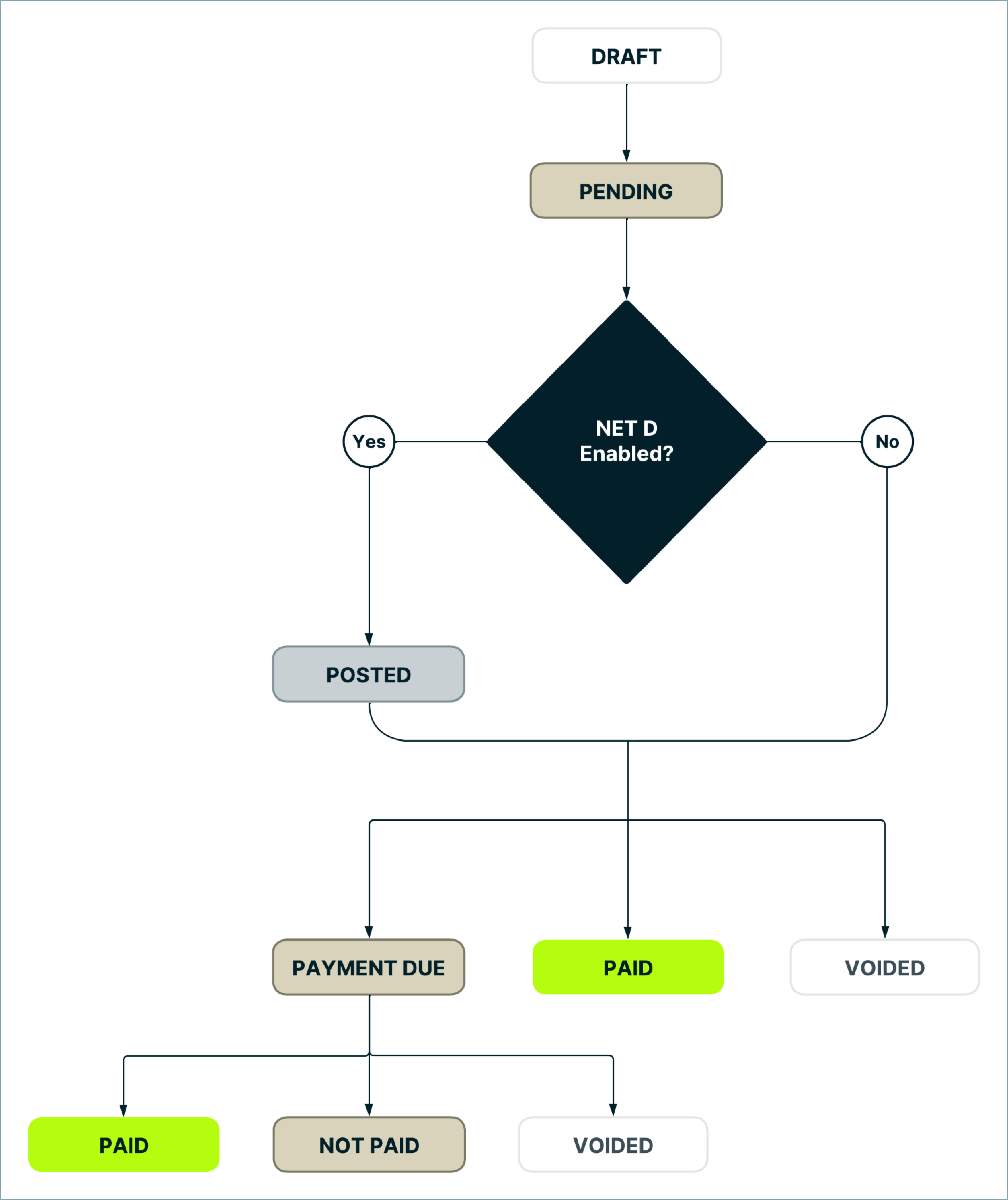
For example, if you've set Net 15 as your payment term, when an invoice is generated, Chargebee checks whether Net D is enabled for your site. With Net D enabled, the invoice moves to Posted status. The customer can make payment within the defined term—in this case, 15 days. If payment is made within 15 days, the invoice status is updated to Paid. If the customer fails to pay after 15 days, the status will be Payment Due or Void, depending on the payment situation.
Note
Enable Net D for Chargebee Invoices
To include Net D as a payment term in your invoices, follow these steps:
-
Click Settings > Configure Chargebee > Billing LogIQ > Payment Terms and click Enable Payment Terms.
-
Select to enable Net D for Offline payment method and Online payment method as needed. Once enabled, you cannot disable Net D for the selected payment methods.

-
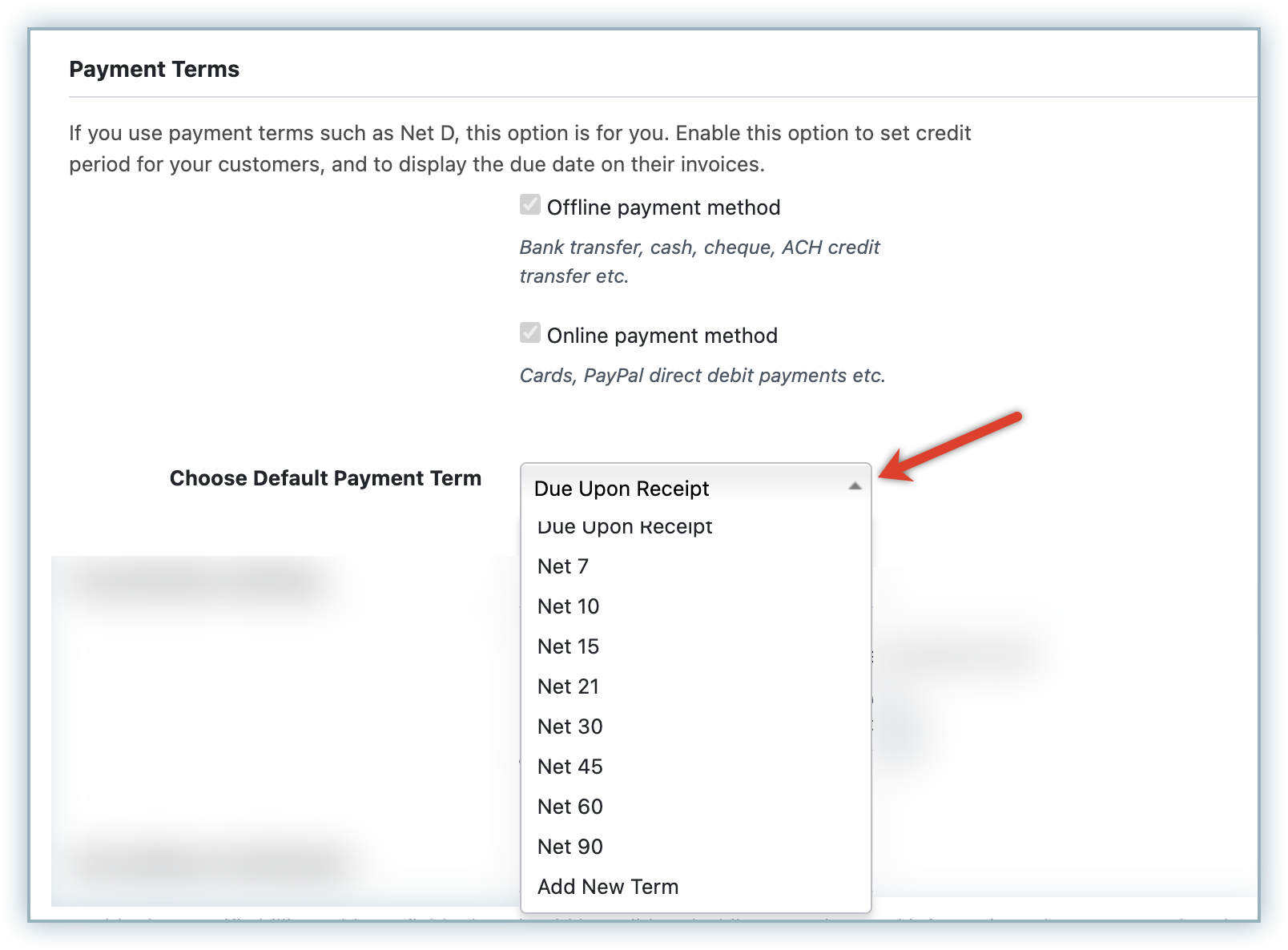
Set a default payment term for the site using Choose Default Payment Term.
-
The options are as shown in the screenshot above:
- Due Upon Receipt: Select this option to avoid using specific payment terms.
- Net 7 to Net 90: These payment terms are available out-of-the-box in Chargebee.
- Add New Term: This allows you to add a custom Net D term to the list of available options.
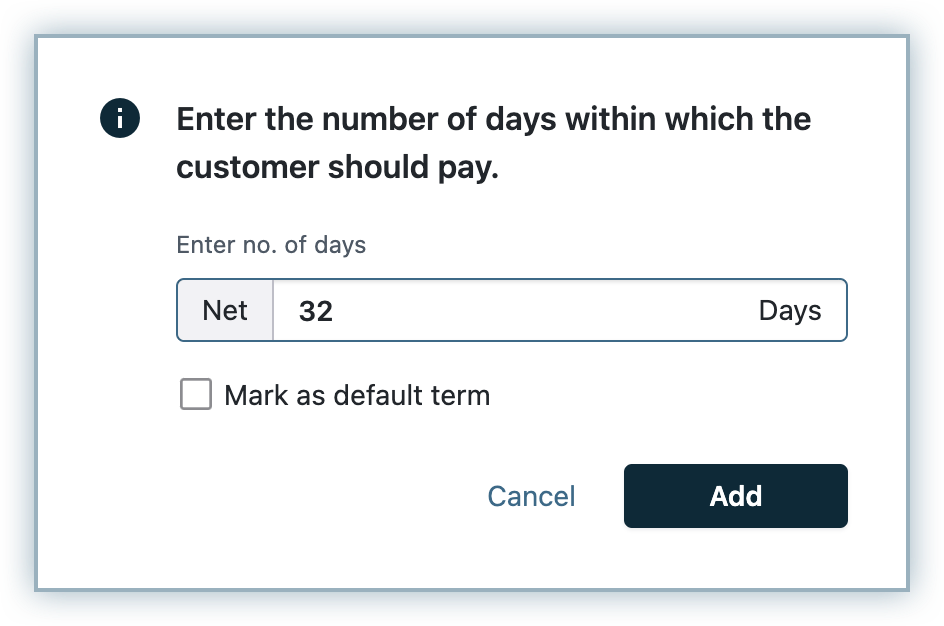
- This new term can range from 1 to 180 days.
- Use the Mark as default term option to set it as the site default. Note that this does not change the Net D setting already applied to your existing customers.
-
Click Update Billing LogIQ.
After Net D is enabled, the payment term chosen is applied to all new customer records created from then on, depending on the payment method for which Net D is configured.
Enable Payment Terms for a specific customer
In addition to configuring payment terms at the site level in your Chargebee site, here are two ways to set payment terms for specific customer records:
Via Web Interface
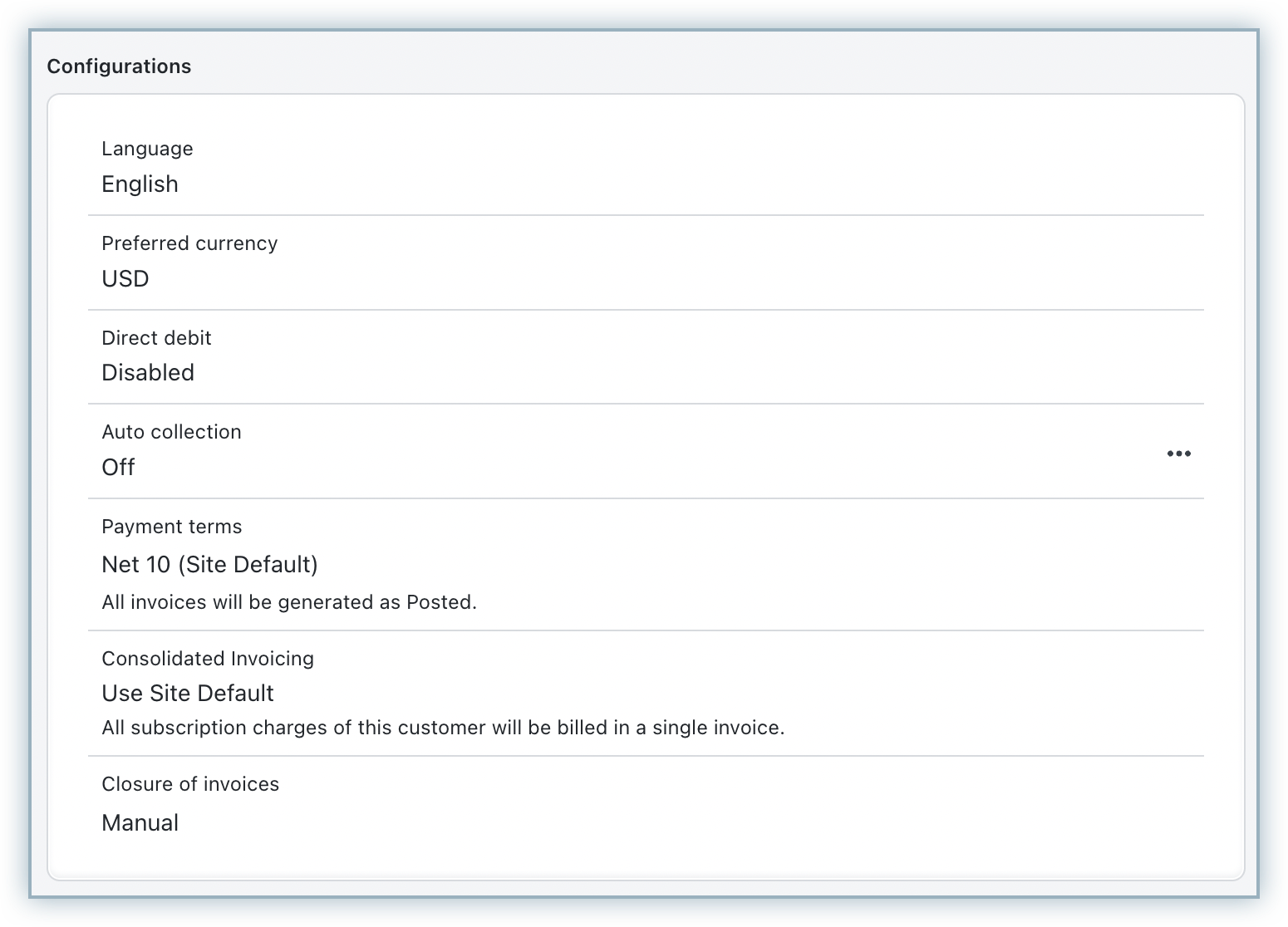
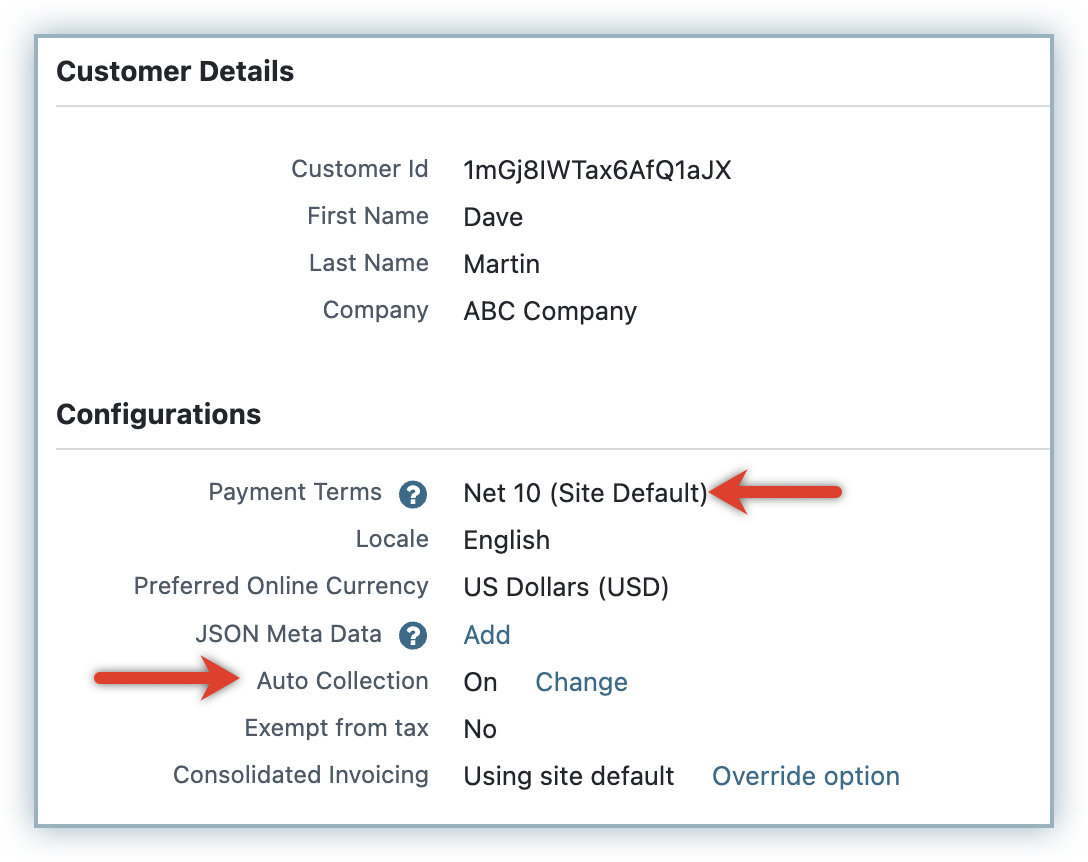
The Payment Term set under Billing LogIQ is applied to all customers who pay via offline and/or online mode, based on your configuration (that is, customers for whom Auto Collection is turned OFF and/or ON).
You can modify the payment term for a specific customer from the customer details page, as shown below:
Via API
The net_term_days attribute of the customer resource holds the Net D value for the customer. This can be set using the Create a customer or Update a customer endpoints.
Payment Terms in Invoice
Once Payment Terms is enabled, invoices are created in Posted status for active subscriptions.
The invoice also displays the payment term (Net 15 or Net 30 days) and the due date for the payment, which is the invoice generation date plus the number of days set as payment terms.
To display the Payment Term and Due Date in the Invoice PDF, enable the Payment Terms & Due Date (Invoice Only) option under Settings > Configure Chargebee > Invoices & Credit Notes.
[screenshot images/net_d/netd3.png " " "]
Changing Payment Terms
Site-Level Change
You can change Net D at the site level the same way you enable it. However, this does not affect existing customer records. Only new customer records created from then on will store the new setting.
Customer-Level Change
You can also update Net D for a particular customer by navigating to the customer details page and using the Edit Customer link.
Once changed, the new setting only applies to new invoices generated for the customer from then on; existing invoices are not affected.
Search for Posted Invoices
You can search for posted invoices using the Status = "Posted" filter in the Chargebee site and the API.
Email Notifications
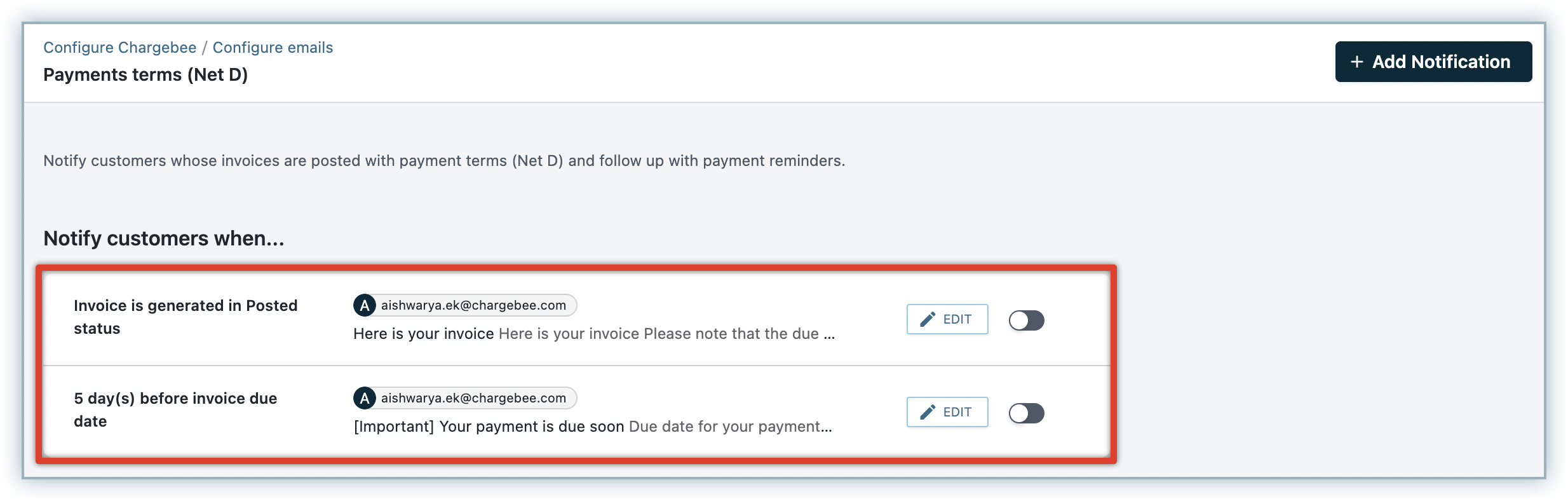
Chargebee can send emails to your customers informing them that an invoice has been Posted and when it's due for payment. These emails can be sent based on the version of email notifications enabled for your Chargebee site.
Email Notifications V1
If you have Email Notifications V1 enabled for your Chargebee site, navigate to Settings > Configure Chargebee > Email Notifications and enable Net D - Payment Due Reminder. The Customize Template option allows you to configure the email to be triggered before a specific number of days.
Email Notifications V2
If you have Email Notifications V2 enabled in your Chargebee site, configure the email notifications for Net D by navigating to Settings > Configure Chargebee > Email Notifications > Invoices & Payments > Payments Terms (Net D).
The number of Net days is displayed in the customer details page as shown here:
Was this article helpful?