How to sync offline payment in Accounting integration from Chargebee?
Scope
Can I record an offline payment in both Xero and Chargebee?
Can I record an offline payment in both Quickbooks and Chargebee?
Can I record an offline payment in both Netsuite and Chargebee?
Summary To sync offline payments from Accounting integrations to Chargebee, enable "Sync offline payments" under Apps -> Accounting integrations (Xero/QBO/Netsuite) -> Manage mapping. Once enabled whenever you record any payments then it will sync back to Chargebee against the customer invoice.
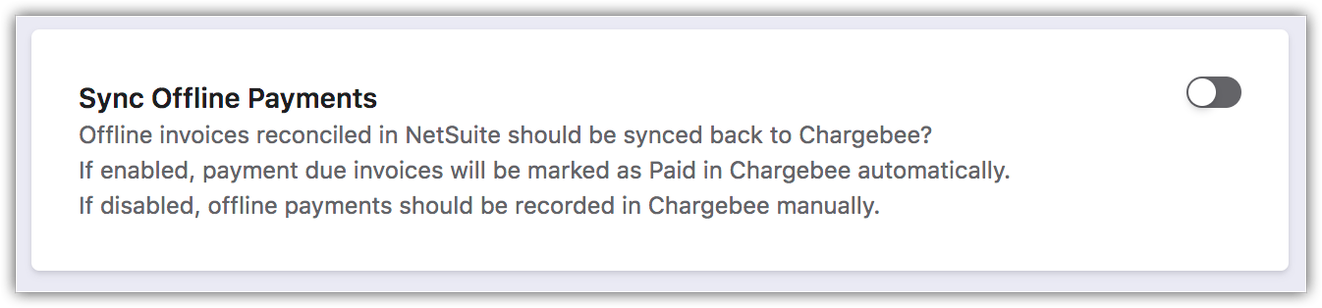
Note, that we strongly recommend not to record the payment both on Chargebee and accounting platforms.
Solution
Navigate to Apps> Xero/QBO/Netsuite> Manage Mapping
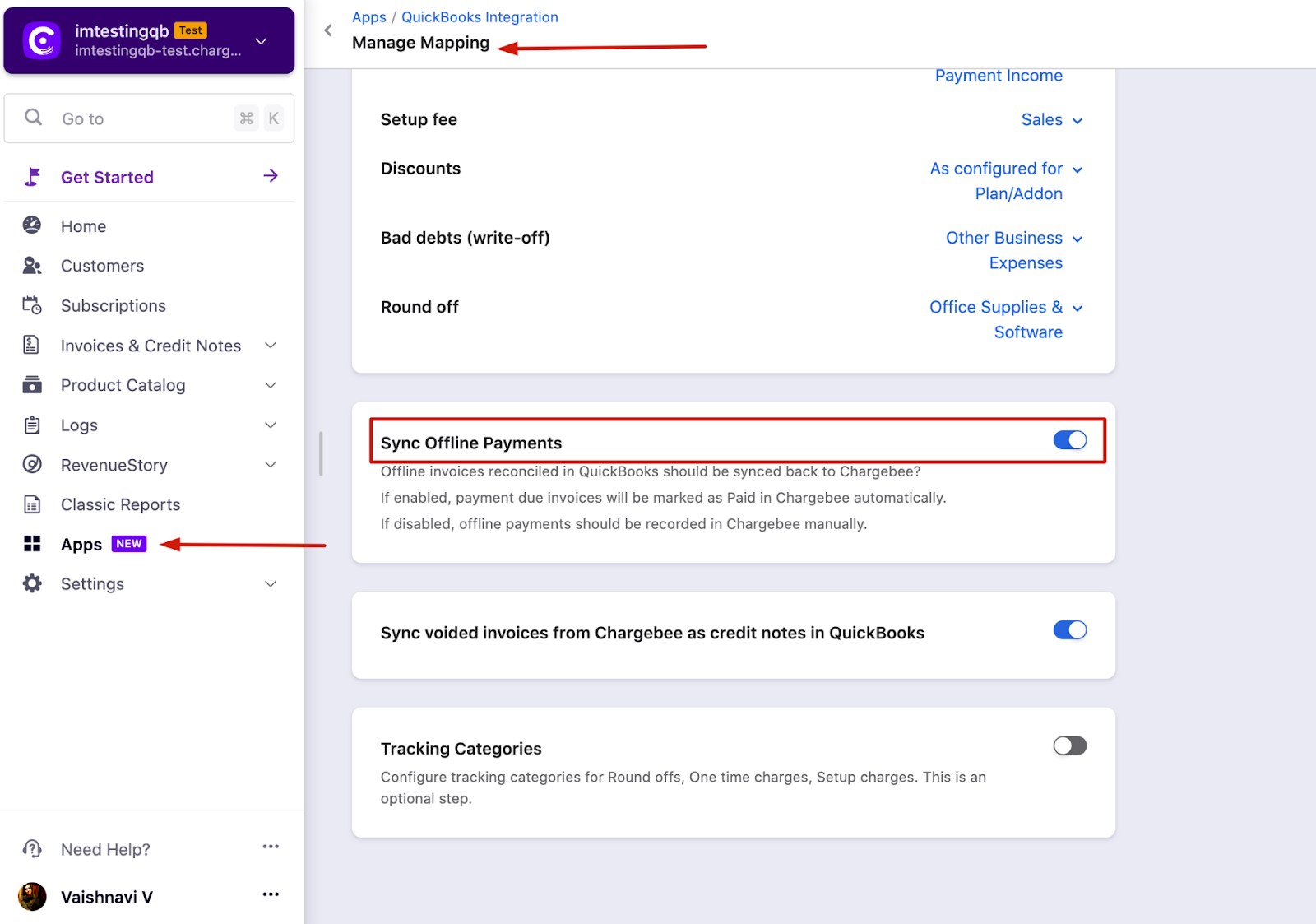
Then, if you record offline payments against invoices in Xero/QBO/Netsuite, the said offline payments will be synced back to Chargebee and will be marked against the corresponding invoice in Chargebee as well.
Note: The above setting is applicable ONLY for offline payments recorded in NetSuite and not Online Payments
**If you see that the offline payments are not synced to Chargebee in spite of this feature being enabled, then the possible reasons are listed below.**A. Only the offline payments that you record manually against each invoice in NetSuite will sync back to Chargebee.
B. If you record offline payments, using Bulk Operations in NetSuite, the offline payments that were uploaded via bulk operations, will not be synced back to Chargebee.
C. Therefore, if you want offline payments recorded in NetSuite to sync back to Chargebee, ensure that you manually record the payments against each invoice in NetSuite, and not using Bulk Operations.
In case you have recorded the payments both in Chargebee and Account integrations for the same invoice, then you have the option to revert back the payments recorded in Chargebee and that payment is moved as an excess payment to the customer's account. Hence, when the next new invoice gets created for the customer in Chargebee, it will be automatically paid from the excess payments.
In such instances, if you want to move the invoice back to "Payment Due" or "Not Paid", then open the invoice and scroll down to "Payments & Credit Notes". Confirm if the transaction associated with the invoice is imported from the accounting platform.
To confirm, you can click on the transaction and you will see "Payment imported from Xero/QBO/Netsuite"
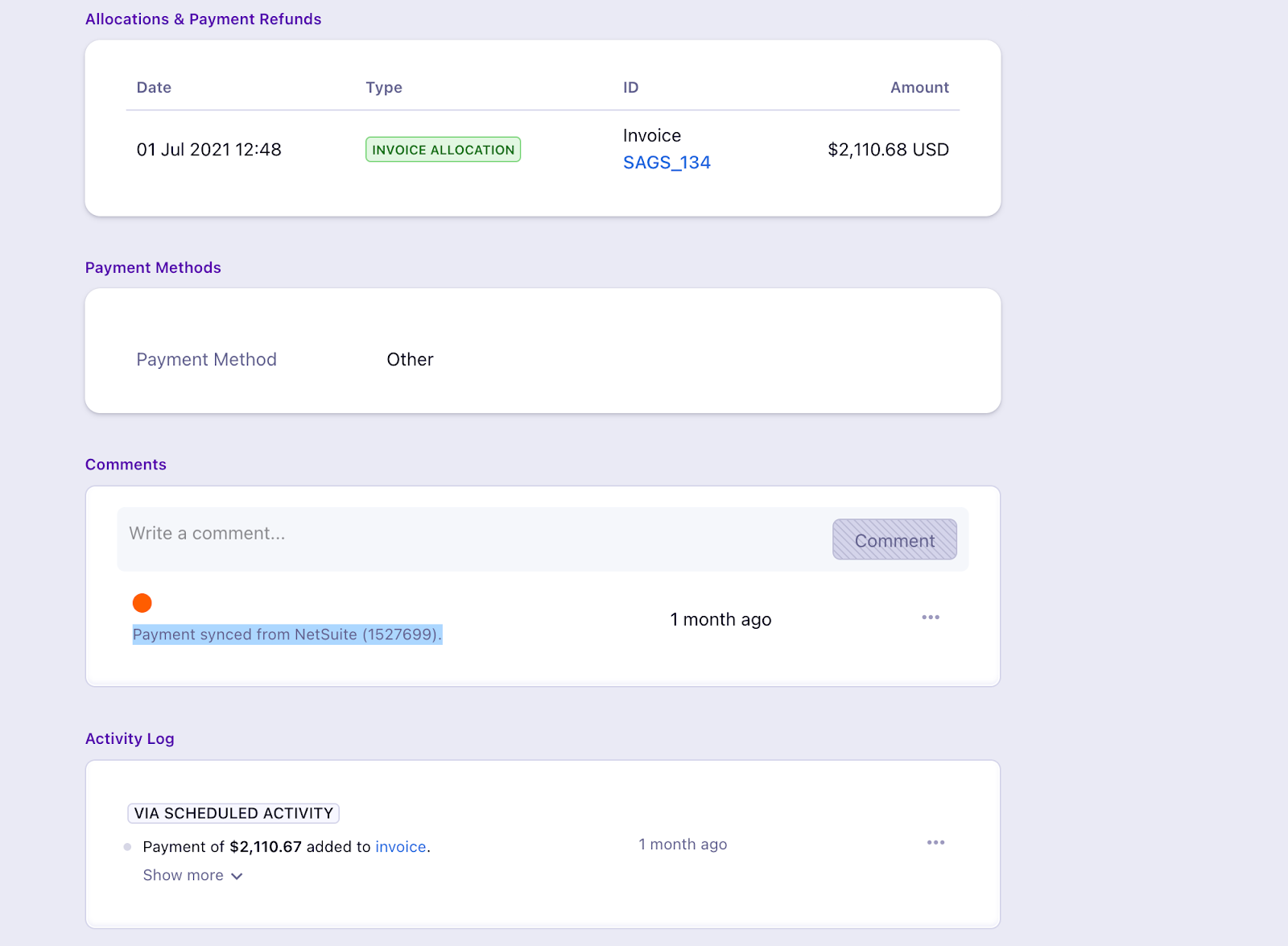
If yes, click on the three-dot ellipsis and remove the transaction from the invoice. This will move the transaction to "Payment Due".
You can then refer to the article here to remove the excess payment from the customer.
If you want to run the offline payment sync to previous dates, contact support. The previous date can go back only till the sync start date.
Was this article helpful?