Docschargebeedocs

HomeBillingPaymentsRevRecGrowthReveal
Support

Product Updates


  • Release Notes

Getting Started


  • Overview
  • Chargebee Billing Data Centers
  • Object Relationship Model
  • Understanding Sites
  • Developer Resources
  • Chargebee Tech Glossary
  • Articles and FAQ

Implementing Chargebee


  • Implementation Guide
  • Go-live Checklist
  • Articles and FAQ

AI in Chargebee


  • Chargebee Agents
  • Chargebee Copilot
  • Chargebee MCP Server (Model context protocol)

Product Catalog


  • Product Catalog Overview
  • Coupons
  • Articles and FAQ

Subscriptions


  • Working with Subscriptions
  • Billing
  • Orders
  • Articles and FAQ

Customers


  • Managing Customers
  • Account Hierarchy
  • Email Notifications
  • Branding
  • Configure Multiple Languages
  • Articles and FAQ

Invoices, Credit Notes and Quotes


  • Invoices
  • Credit Notes
  • Quotes [Legacy]
  • Transactions
  • Articles and FAQ

Taxes


  • Overview
  • Configuring Taxes
  • Country-specific Taxes
  • Articles and FAQ

Hosted Capabilities


  • Overview
  • Hosted Checkout
  • Hosted Self-Serve Portal
  • Hosted Pages Features
  • Additional Hosted Pages
  • Payment Components
  • Managing payments with ChargebeeJS
  • Mobile-Optimized Hosted Pages
  • Articles and FAQ

Site Configuration


  • Users & Roles
  • Custom Fields & Metadata
  • Mandatory Fields
  • File Attachments & Comments
  • Advanced Filter Options
  • Multicurrency Pricing
  • Multi-decimal Support
  • Configuring Reason Codes
  • Events and Webhooks
  • API Keys
  • Time Zone
  • Time Machine
  • Transfer Configurations
  • Articles and FAQ

Reports and Analytics


  • RevenueStory
  • Home Dashboard
  • Frequently Asked Questions
  • FAQs for Classic Reports Sunset
  • Articles and FAQ

Integrations


  • Sales
  • Customer Support and Success
  • Finance
  • Tax
  • Marketing
  • Stitch
  • Collaboration
  • Contract Management
  • Order Management
  • Mobile Subscriptions (Legacy)
  • Other Integrations
  • Articles and FAQ

Data Privacy & Security


  • Two Factor Authentication
  • SAML Single Sign-On
  • System for Cross-Domain Identity Management (SCIM)
  • EU-GDPR
  • Consent Management
  • Personal Data Management
  • Compliance Certificates
  • HIPAA Guidelines
  • PCI Recommendations and Integration Types
  • Articles and FAQ

Data Operations


  • Bulk Operations
  • Migration
  • Articles and FAQ
  1. Billing
  2. Integrations
  3. Articles and FAQ
  4. Sage Intacct
  1. Billing
  2. Integrations
  3. Articles and FAQ
  4. Sage Intacct

Multiple base currency support in Intacct Integration

Scope

Intacct Integration - Multi-Entity with different base currency Support

Prerequisites

  • Multiple base currency support is enabled only when the top-level entity is selected.

  • Override base currency based on the location id provided for either plan/Adhoc charges/addon so that invoice/credit note gets synced to the related entity as per location provided.

  • Excess payments in Chargebee get synced as Overpayments in Intacct.

  • This feature is not supported if the customer has purchased the Tax solution module in Intacct.

    • Multiple base currency support is only available for Sales Invoice workflow
    • Not available for Tax solution (AR Invoice workflow)enabled flow account. Reach out to support to enable this featur

Solution:

Once this feature is enabled on your site. Follow the below steps

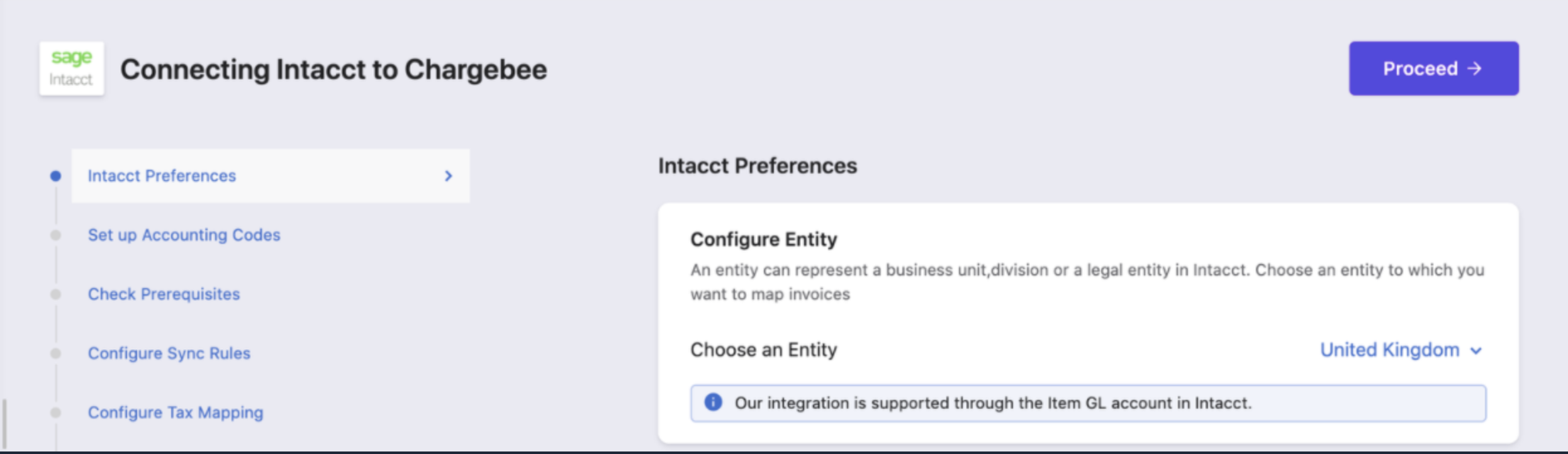
  1. Select the Top-Level Entity for enabling the multiple base currency support features.

Location id is mandatory when top-level is selected.
image
  1. Select the itemGL group for each currency. Listed below are the invoice line items in the itemGL group:
  • One Time Charges

  • Setup Fee

  • Discounts

  • Bad Debts (write-off)

  • Round off

3. Define the Dimension Configuration for each currency. The following are invoice line items within the Dimensions Configuration:

  • Location - It is mandatory to define this field.

  • One Time Charges

  • Setup Fee

  • Round Off

  • Refund Note: Defining Dimension 2 and Dimension 3 is optional.

  1. To sync Overpayment mapping for each currency :
  • It is mandatory to configure the Location

  • It is optional to configure the Department

  1. Once all this is set up, you need to configure Inter-Entity Account Mapping on Intacct.

Select Company → Setup → Inter-Entity Account Mapping

Related Articles

What is Sage intacct integration?
How to change sync rules in Intacct integration?
Intacct customer ID character limit

Was this article helpful?