New in Chargebee: Explore Reveal and understand your payment performance end-to-end.Try Now

Docschargebeedocs

HomeBillingPaymentsRevRecGrowthReveal
Support

Product Updates


  • Release Notes

Getting Started


  • Overview
  • Chargebee Billing Data Centers
  • Object Relationship Model
  • Understanding Sites
  • Developer Resources
  • Chargebee Tech Glossary
  • Articles and FAQ

Implementing Chargebee


  • Implementation Guide
  • Go-live Checklist
  • Articles and FAQ

AI in Chargebee


  • Chargebee Agents
  • Chargebee Copilot
  • Chargebee MCP Server (Model context protocol)

Product Catalog


  • Product Catalog Overview
  • Coupons
  • Articles and FAQ

Subscriptions


  • Working with Subscriptions
  • Billing
  • Orders
  • Articles and FAQ

Customers


  • Managing Customers
  • Account Hierarchy
  • Email Notifications
  • Branding
  • Configure Multiple Languages
  • Articles and FAQ

Invoices, Credit Notes and Quotes


  • Invoices
  • Credit Notes
  • Quotes [Legacy]
  • Transactions
  • Articles and FAQ

Taxes


  • Overview
  • Configuring Taxes
  • Country-specific Taxes
  • Articles and FAQ

Hosted Capabilities


  • Overview
  • Hosted Checkout
  • Hosted Self-Serve Portal
  • Hosted Pages Features
  • Additional Hosted Pages
  • Payment Components
  • Managing payments with ChargebeeJS
  • Mobile-Optimized Hosted Pages
  • Articles and FAQ

Site Configuration


  • Users & Roles
  • Custom Fields & Metadata
  • Mandatory Fields
  • File Attachments & Comments
  • Advanced Filter Options
  • Multicurrency Pricing
  • Multi-decimal Support
  • Configuring Reason Codes
  • Events and Webhooks
  • API Keys
  • Time Zone
  • Time Machine
  • Transfer Configurations
  • Articles and FAQ

Reports and Analytics


  • RevenueStory
  • Home Dashboard
  • Frequently Asked Questions
  • FAQs for Classic Reports Sunset
  • Articles and FAQ

Integrations


  • Sales
  • Customer Support and Success
  • Finance
  • Tax
  • Marketing
  • Stitch
  • Collaboration
  • Contract Management
  • Order Management
  • Mobile Subscriptions (Legacy)
  • Other Integrations
  • Articles and FAQ

Data Privacy & Security


  • Two Factor Authentication
  • SAML Single Sign-On
  • System for Cross-Domain Identity Management (SCIM)
  • EU-GDPR
  • Consent Management
  • Personal Data Management
  • Compliance Certificates
  • HIPAA Guidelines
  • PCI Recommendations and Integration Types
  • Articles and FAQ

Data Operations


  • Bulk Operations
  • Migration
  • Articles and FAQ
  1. Billing
  2. Data Operations
  3. Articles and FAQ
  4. Self Migration
  1. Billing
  2. Data Operations
  3. Articles and FAQ
  4. Self Migration

Self Migration of data

Scope

I would like to migrate the data myself. What are the steps?

Summary

Self Migration empowers you to complete the migration process in a self-reliant way and on your own terms. Migration simply put is a bulk import into Chargebee, hence being accommodated with our Bulk Operations feature and Import APIs.

If you are looking at migrating data to Chargebee yourself

  • through the Chargebee app, then use Bulk Operations.
  • through APIs, then use Import APIs.

If you are looking at migrating to Chargebee with the help of our Migration engineers, raise a request to us in the Chargebee app by clicking Settings > Import and Export data > Raise a migration request.

Solution

Ensure the prerequisites mentioned here are followed.

  1. In your Chargebee app, go to Settings > Import and Export Data > Choose a bulk operation and select the bulk operation you need to perform.

  2. Download the sample CSV file which has pre-filled Chargebee fields in it.

  3. Fill your data into the CSV file and upload it.

  • Prior to filling in the data for upload, read through our API doc to understand the input value for each field.
  • We prefer data to be in the same format as the sample CSV.
  • Columns color-coded in green are compulsory fields.
  1. Validation is performed for the uploaded file.
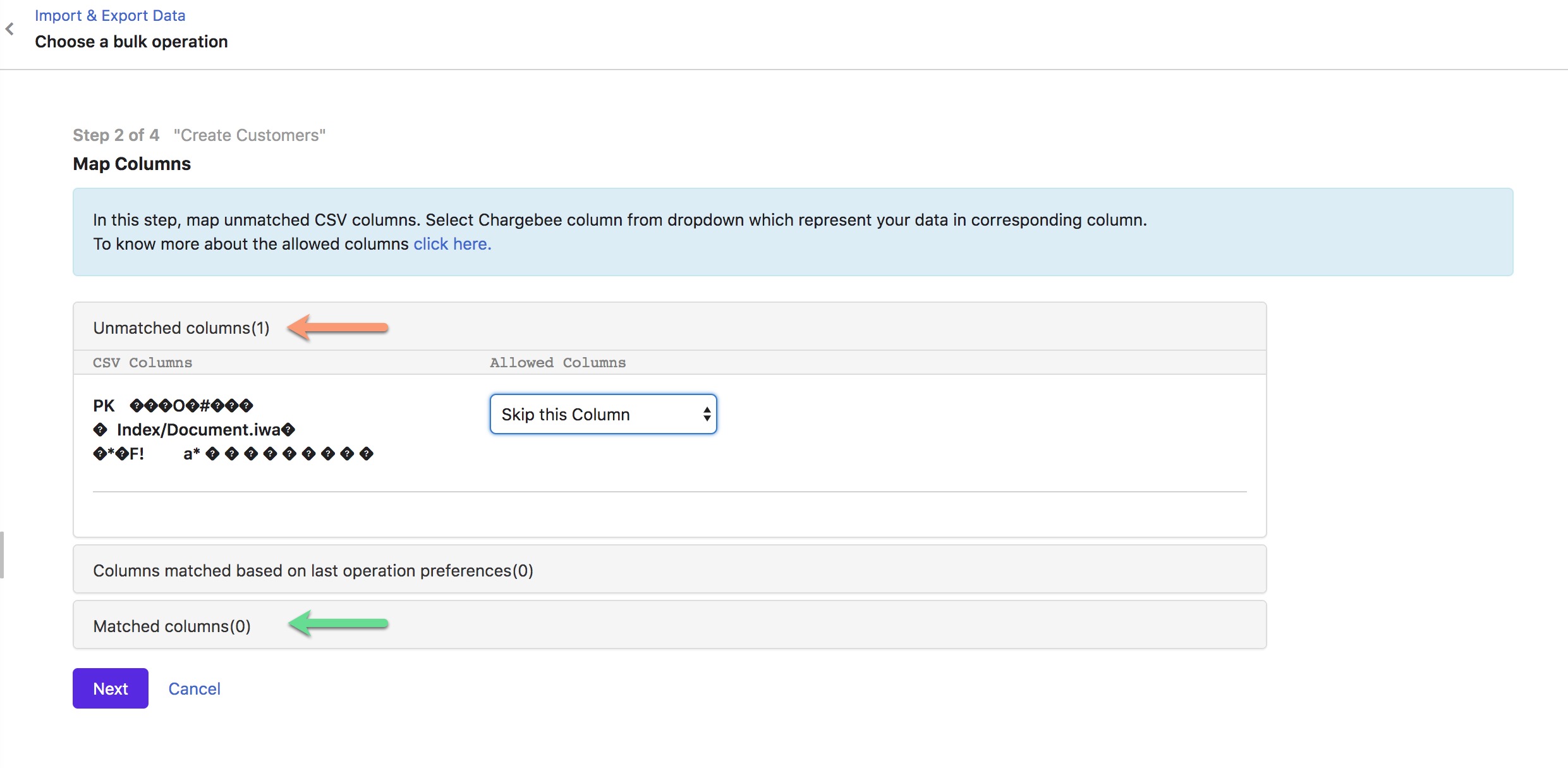
  • Positive validation shows all the fields in Matched columns.
  • If there are unmatched columns in the CSV which were not mapped automatically to the exact Chargebee fields, it is displayed in the Unmatched columns section(in the screenshot below). You can choose to skip the column or pick the right field.

After selecting the choice of action, click Next.
image
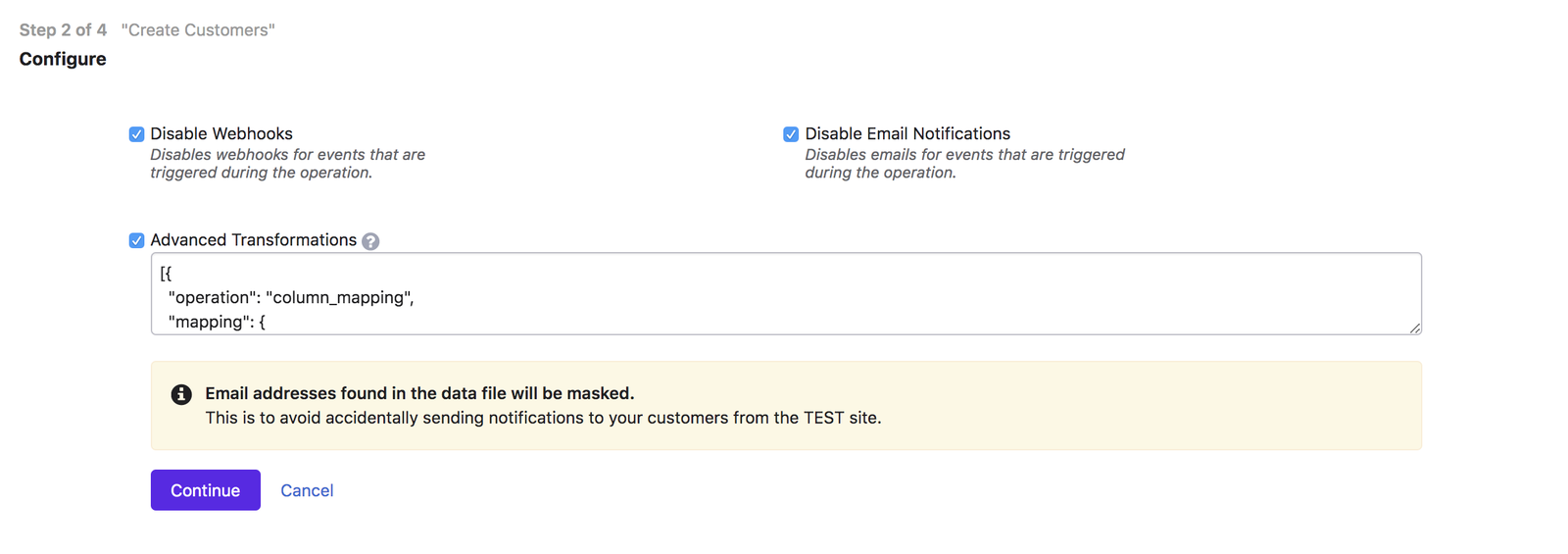
  1. By default, emails and webhooks are disabled to ensure no notification is triggered during the import. You can deselect the boxes if you need them enabled during import. Click Continue to proceed.
image
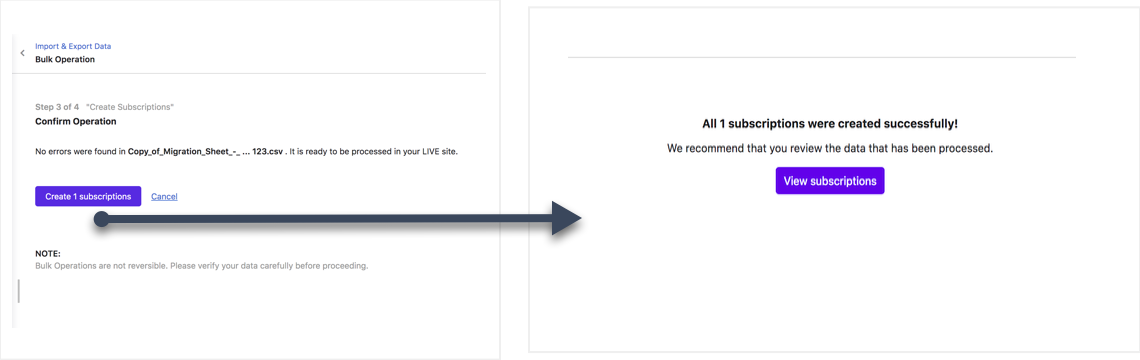
  1. Following a successful import, you are given the option to view imported data.
image

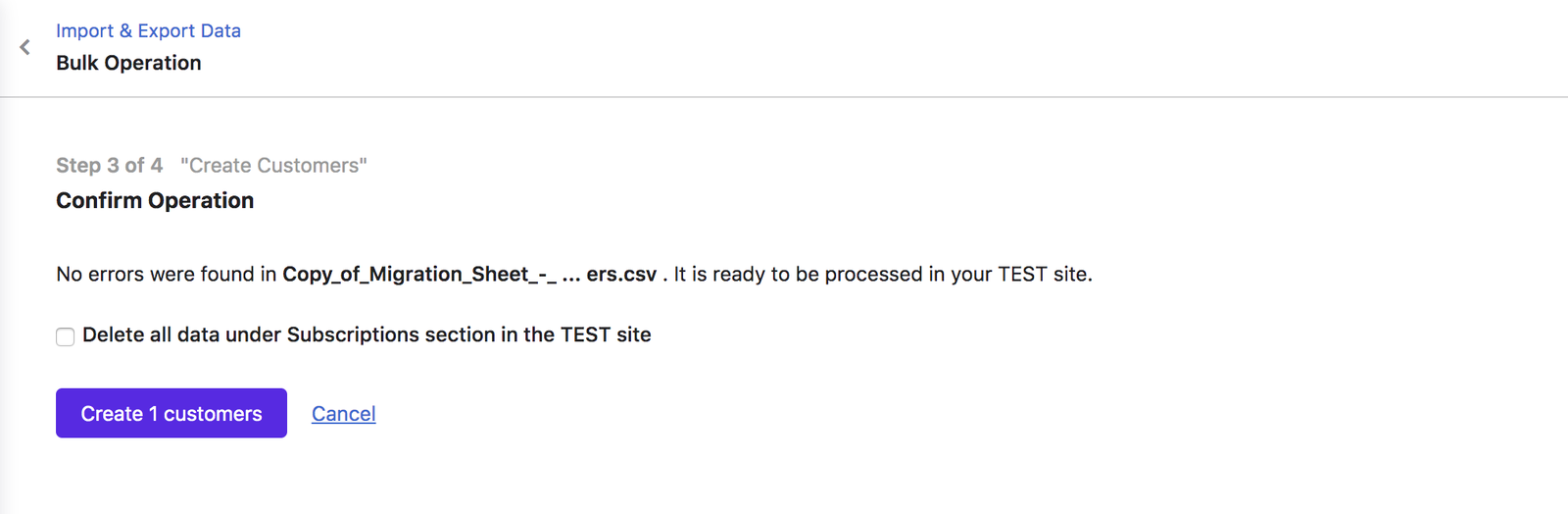
On your Test site:

Check Delete all data under the Subscription section in the TEST site if you want to clear all the subscription data on your Chargebee Test site during the tryout.
image
  1. Validate the imported data manually in your Chargebee Live site.

  2. Post validation, cancel all the subscriptions in your previous billing system. This ensures your customers are not billed twice.

Note: Make sure you disable the notification in your previous billing system as well to ensure no cancellation email is sent.

Related Articles

What are the prerequisites for self migration?

Was this article helpful?