How to sign in to Chargebee using SSO?
Problem Statement
This article explains how to sign in to Chargebee using SAML Single Sign-On (SSO) and how to configure or disable SAML.
Related Scenarios
- Can I sign into the Chargebee dashboard using SSO?
Solution
You can sign in via Chargebee (SAML SSO) or via your IdP. SAML is an XML-based framework for authentication through a third-party identity provider (IdP) or in-house SSO. It is available on specific plans. See plans and pricing.
Sign in via Chargebee: On the login page, click Sign in with Single Sign-On, enter your Chargebee site URL, and click Sign in. You are taken to your IdP’s login screen; sign in there.
Other options: Sign in via IdP, Login using Chargebee URL.
Steps to Set It Up (Configure SAML)
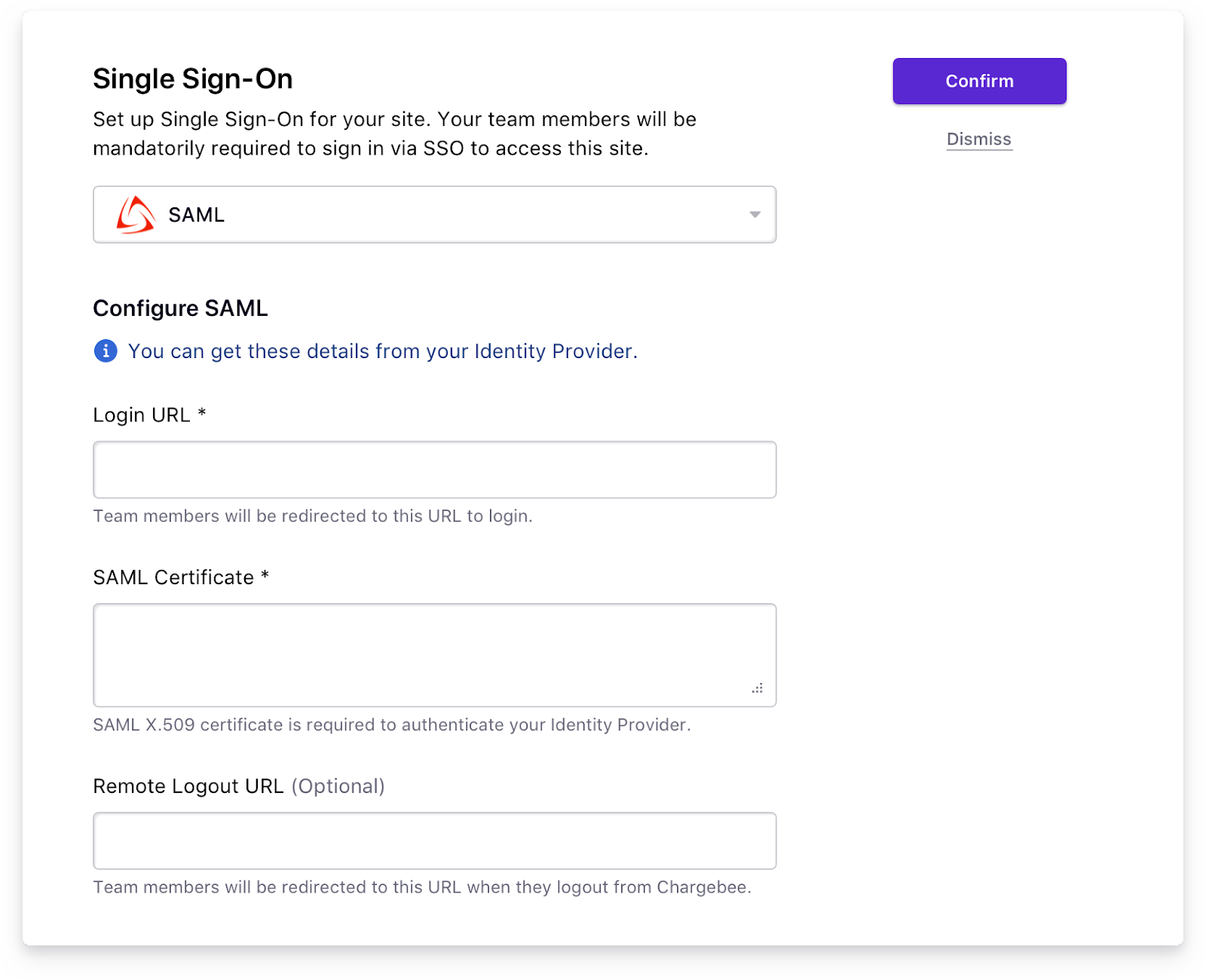
- In Chargebee go to Settings > Security > Single Sign-on > Setup.
- Select SAML and click Confirm.
- Paste the Login URL and X.509 Certificate from your IdP.
Disable SAML: Go to Settings > Security and click Disable. Team members are notified to sign in with custom credentials or Google SSO.
Important Notes
- Enabling SAML requires all users to sign in only via SAML.
- Supported IdPs: Okta, OneLogin, Azure AD. For other IdPs, contact Chargebee Support.
- Only one IdP can be configured per Chargebee site.
- Chargebee supports SAML 2.0.
- Enabling SAML disables 2FA in Chargebee (IdP can provide 2FA).
- The team member’s email must exist in both Chargebee and the IdP.
Additional Information
Was this article helpful?