New in Chargebee: Explore Reveal and understand your payment performance end-to-end.Try Now

Docschargebeedocs

HomeBillingPaymentsRevRecGrowthReveal
Support

Product Updates


  • Release Notes

Getting Started


  • Overview
  • Chargebee Billing Data Centers
  • Object Relationship Model
  • Understanding Sites
  • Developer Resources
  • Chargebee Tech Glossary
  • Articles and FAQ

Implementing Chargebee


  • Implementation Guide
  • Go-live Checklist
  • Articles and FAQ

AI in Chargebee


  • Chargebee Agents
  • Chargebee Copilot
  • Chargebee MCP Server (Model context protocol)

Product Catalog


  • Product Catalog Overview
  • Coupons
  • Articles and FAQ

Subscriptions


  • Working with Subscriptions
  • Billing
  • Orders
  • Articles and FAQ

Customers


  • Managing Customers
  • Account Hierarchy
  • Email Notifications
  • Branding
  • Configure Multiple Languages
  • Articles and FAQ

Invoices, Credit Notes and Quotes


  • Invoices
  • Credit Notes
  • Quotes [Legacy]
  • Transactions
  • Articles and FAQ

Taxes


  • Overview
  • Configuring Taxes
  • Country-specific Taxes
  • Articles and FAQ

Hosted Capabilities


  • Overview
  • Hosted Checkout
  • Hosted Self-Serve Portal
  • Hosted Pages Features
  • Additional Hosted Pages
  • Payment Components
  • Managing payments with ChargebeeJS
  • Mobile-Optimized Hosted Pages
  • Articles and FAQ

Site Configuration


  • Users & Roles
  • Custom Fields & Metadata
  • Mandatory Fields
  • File Attachments & Comments
  • Advanced Filter Options
  • Multicurrency Pricing
  • Multi-decimal Support
  • Configuring Reason Codes
  • Events and Webhooks
  • API Keys
  • Time Zone
  • Time Machine
  • Transfer Configurations
  • Articles and FAQ

Reports and Analytics


  • RevenueStory
  • Home Dashboard
  • Frequently Asked Questions
  • FAQs for Classic Reports Sunset
  • Articles and FAQ

Integrations


  • Sales
  • Customer Support and Success
  • Finance
  • Tax
  • Marketing
  • Stitch
  • Collaboration
  • Contract Management
  • Order Management
  • Mobile Subscriptions (Legacy)
  • Other Integrations
  • Articles and FAQ

Data Privacy & Security


  • Two Factor Authentication
  • SAML Single Sign-On
  • System for Cross-Domain Identity Management (SCIM)
  • EU-GDPR
  • Consent Management
  • Personal Data Management
  • Compliance Certificates
  • HIPAA Guidelines
  • PCI Recommendations and Integration Types
  • Articles and FAQ

Data Operations


  • Bulk Operations
  • Migration
  • Articles and FAQ
  1. Billing
  2. Hosted Capabilities
  3. Articles and FAQ
  4. Recover Abandoned Carts
  1. Billing
  2. Hosted Capabilities
  3. Articles and FAQ
  4. Recover Abandoned Carts

How to track Abandoned Carts

Abandoned cart tracking allows you to measure how many visitors/customers leave the portal before completing a purchase, leaving items in the cart. When a customer leaves a hosted page/checkout page unattended for 30 minutes, it is counted as an Abandoned Cart. Read more about it here.

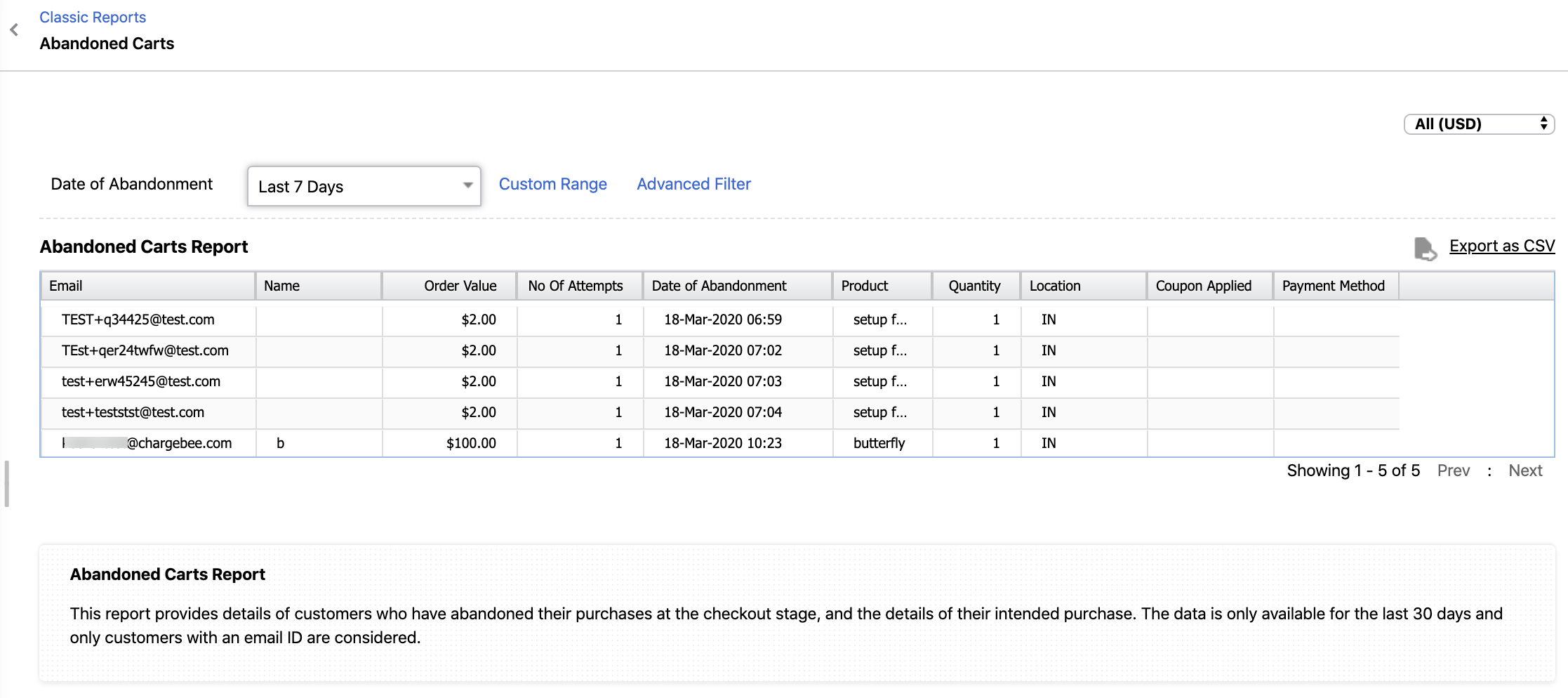
Chargebee generates a report to track the abandoned carts. You can view this at Reports > Revenue Recovery > Abandoned Carts. Chargebee also tracks recovered carts under Reports > Revenue Recovery > Recovered Carts.

_

image
_

To track abandoned carts via API, a new attribute is added to the Hosted Pages resource called "checkout_info". This attribute persists the end customers' actions and customer entered information during the checkout process and it is logged for every 5 sec. For every action performed in the hosted pages, the "updated_at" and "state" attributes will be updated.

You can filter the data with the attributes below:

  • updated_at - timestamp indicating when this hosted page was last updated

  • state - mentions whether the checkout was successful or not (actual values are created, requested, succeeded, canceled, and acknowledged)

  • type - can be set to checkout_new or checkout_existing based on the type of customers you are trying to track

A combination of updated_at, state, type as well as list_hosted_pages API helps in identifying the customers who had abandoned the cart. Poll list_hosted_pages API regularly with:

updated_at = set to a specific time range

state = "requested"

type = "checkout_new" or "checkout_existing"

The checkout_info attributes will have the information about the customer (email address, first name, and last name) which you can retrieve and utilize for retargeting and failure reason (if any).

Email Reminders:

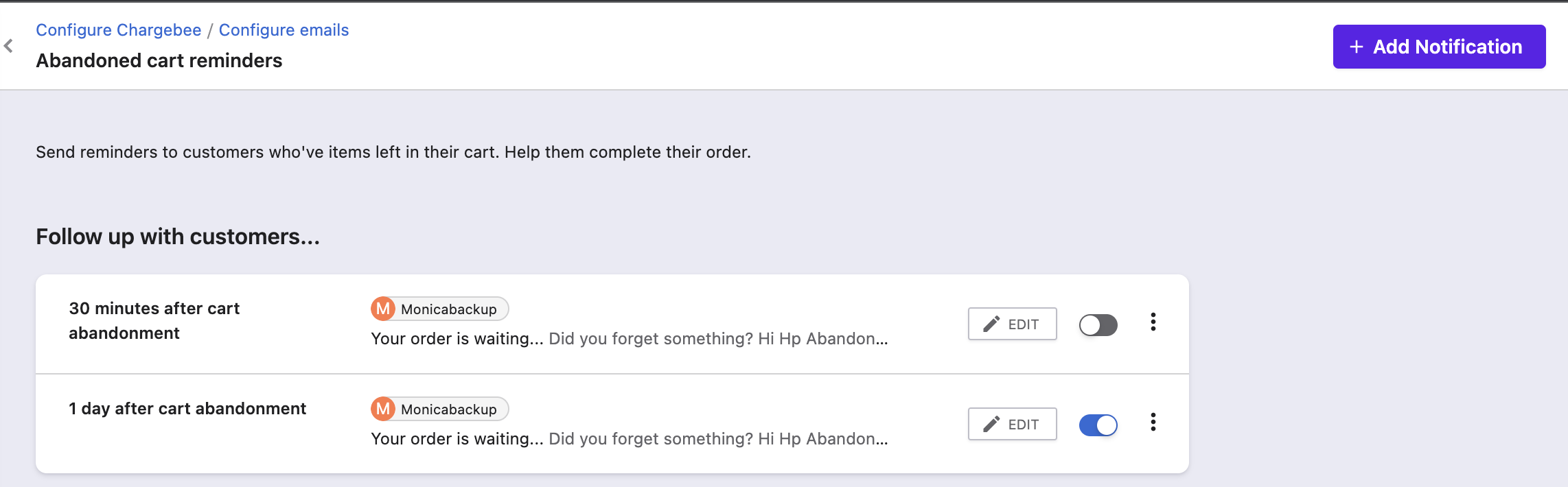
You can send emails to customers reminding them about their abandoned carts so that they may finish checking out. To configure the email notifications and their content, navigate to Settings > Configure Chargebee > Email Notifications > Abandoned Cart Re_minders.
image
_

The reminder emails can be configured to be sent from 30 minutes to up to 30 days of cart abandonment. Multiple such emails can be configured.

Checkout V2:

  1. On Checkout V2 you can enable the Abandoned Cart tracking by navigating to Settings > Checkout and Self-Serve Portal > Tracking & font settings> Check "Track cart abandonment from Chargebee's Checkout".

  2. If you wish to send email reminders to customers then check the box that appears next: "Send cart abandonment emails from Chargebee."

Note:

  1. The Abandoned cart Reports and email notifications are available only on specific plans, refer to the Pricing pagefor more details.

  2. To protect the privacy of your customers, we strongly recommend that you clearly indicate to them when this feature is being used.

Related Articles

What is an Abandoned Cart?

Was this article helpful?