How to personalize the emails being sent to the customers?
Scope
Email customization options
Segmentation
Solution
Chargebee offers extensive customization options for you to personalize your emails. In the latest version of the email notifications(V2), here's the list of options we offer:
- Email Branding
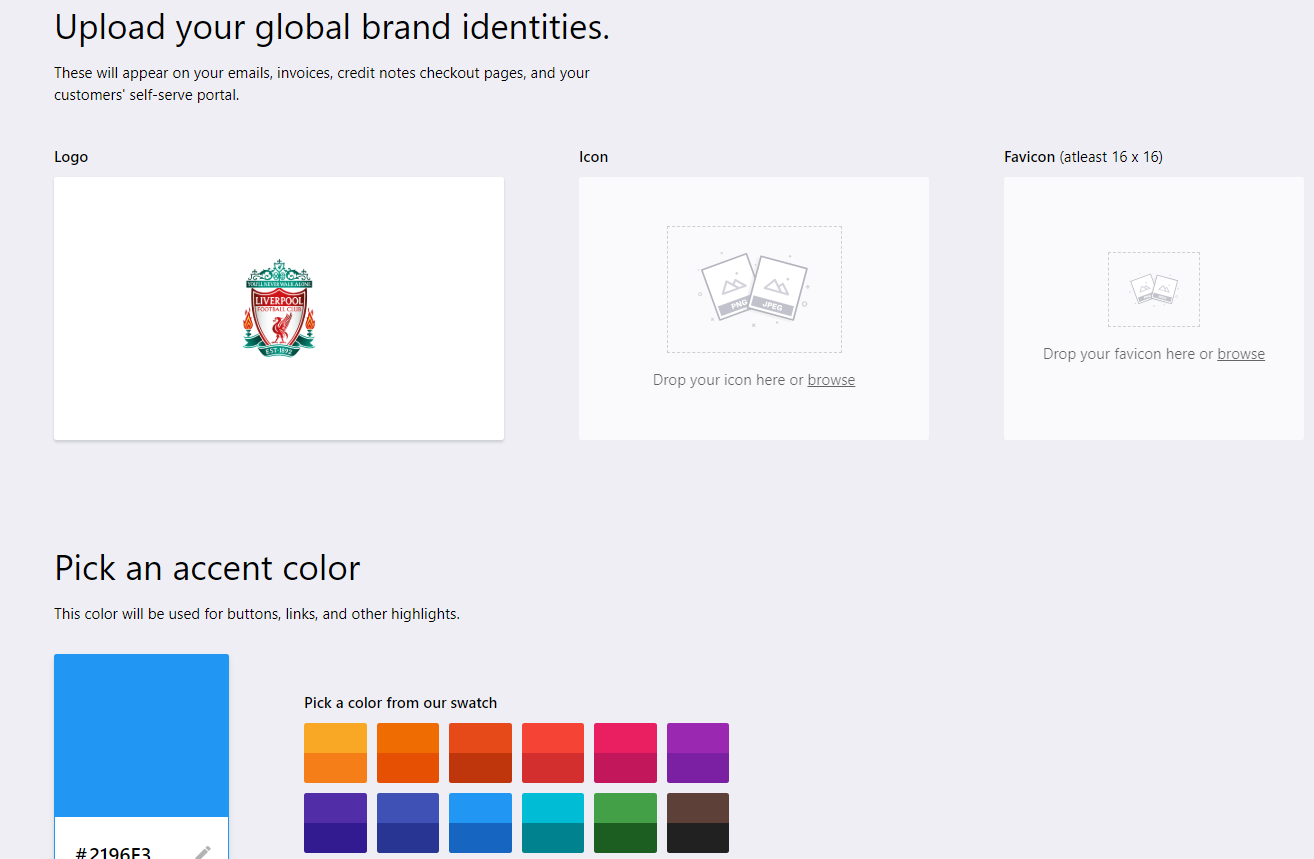
- With Chargebee, you can upload your brand's logo, icon, and color theme in the Emails head to Settings > Configure Chargebee > Brand Settings to make these changes. Click here to know more about the Logo/Image sizes.
- Master Template
-
The master template can be configured with the settings listed below to maintain a uniform template across all your email notifications. These options are available under Settings > Customize Chargebee > Email Notifications:
-
Sender Address
-
Header
-
CC/BCC
-
Subject Prefix
-
Footer
-
- Email Options
-
Attach Invoice
-
Attach Credit Note
-
Don't Attach Zero Value Invoices
-
Don't Send Email for Zero Value Invoices
-
Don't Send Email for Zero Value Estimated Invoices
-
Send to Account Contacts/ Send to Billing Contacts
- Add Notification
- This option helps you create your own emails based on the events in each category.
Note
Add Notifications is available in select Chargebee plans. Visit Plans and Pricing for more details.
- Segmentation
-
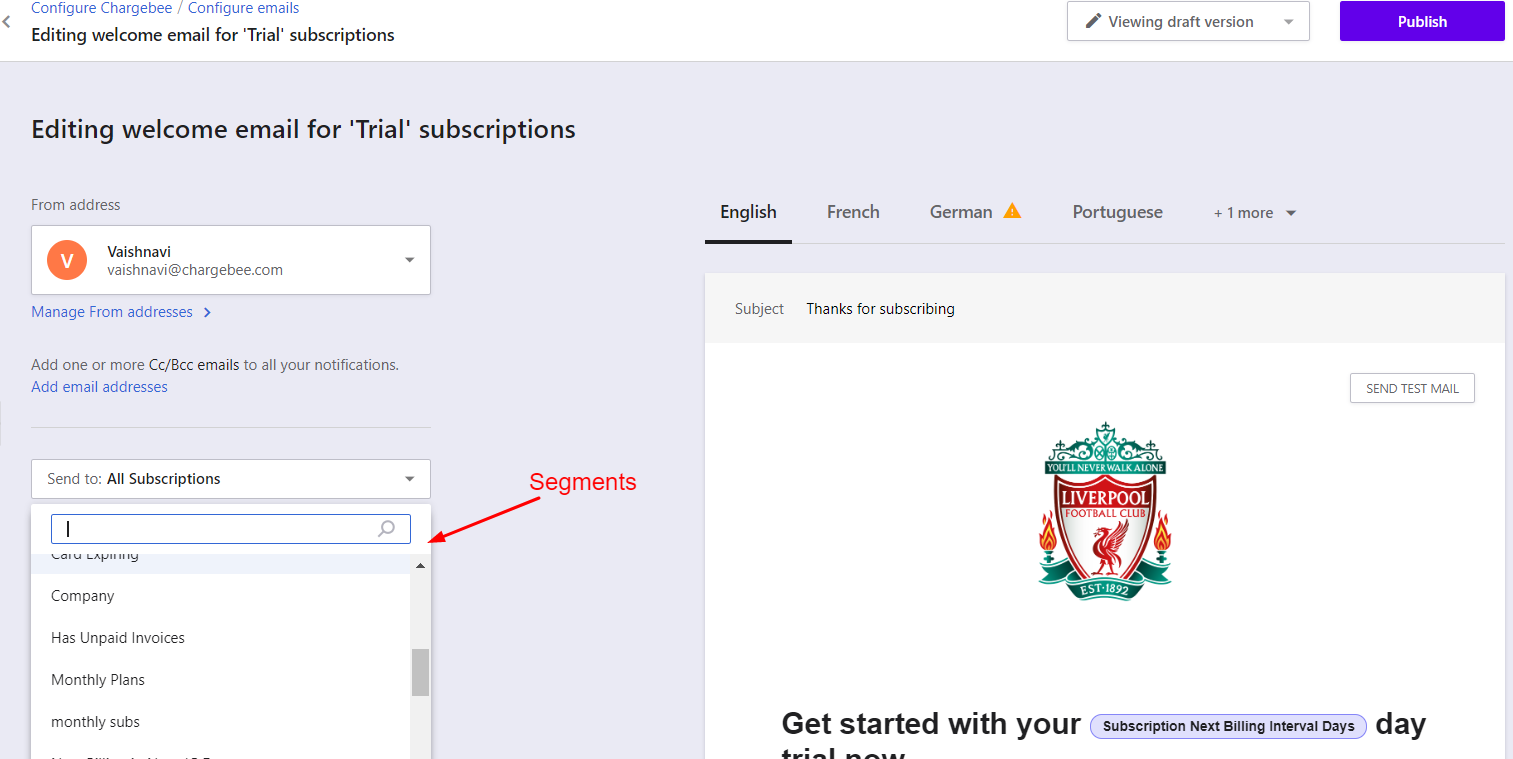
You can now send different email notifications to different types of customers based on their subscription details, such as plan, billing frequency, and custom field values.
-
Customer Segments can be created using the Filters option available on the customer, subscription, and invoice details pages.
-
These segments can then be selected on the email template so that a particular email template is sent only to that segment.
Note
Segmentation is available in select Chargebee plans. Visit Plans and Pricing for more details.
Add Notification
The 'Add Notification' option in each category will allow you to create emails. You can create your own emails based on the events in each category. The following are the features you can use:
Customising Email Content: You can either edit the default content or add your own. Mail Merge fields help you add further information you want to display in the subject and the mail body. You can set up a fallback for cases where the value is not present.
Add Text: You can add text content.
Insert Image: Adding an image to the email is made easy with this option.
Add Button: You can add buttons in the email. You can name it and attach a link to it.
Add Attachment: Chargebee now allows you to add attachments to the email notifications that you send to your customers. This enables you as a merchant to share documents/agreements with your customers easily
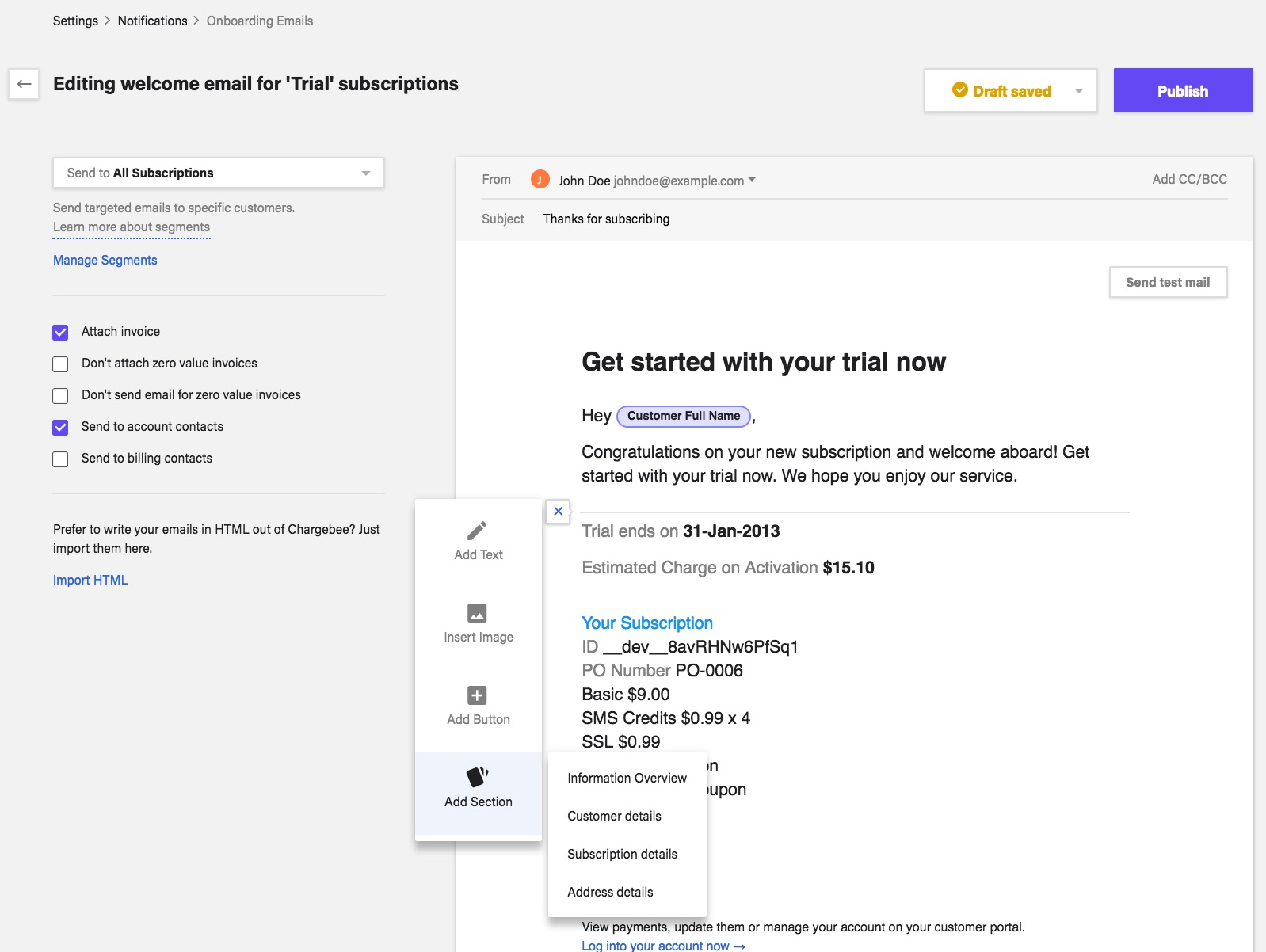
Add Section: The following sections can be added to an email:
-
Information Overview: The content of this section is based on the email event. It ideally consists of general information such as the charge, date, card details, and so on. The information will vary based on the nature of the email.
-
Customer Details: This section will add your customer's details. You can choose the information you want to display from the given list.
-
Subscription Details: In this section, you can add the customer's Subscription ID, PO number, Plan, and Addons.
-
Address Details: You can add either the customer's billing address, shipping address, or both.
-
Contact Details: Include this section to display the following - Contract Period, Total Contract Value, Total Billing Cycles, Current Cycle, At Term-End, and Termination fee. You can deselect the items that you don't want to display. Do note that this section is only available if Contract Terms are enabled on your Chargebee site.
-
Invoice Details: Include this section to display the details of paid invoices. It is available in the Initial/Recurring charge is successful and the Subscription is changed emails.
Import HTML: To send emails in a format that you've designed, instead of using Chargebee's templates, you can paste the HTML code for the email using this option. Chargebee supports only inline CSS styles.
Note: You can edit the content of a specific email notification by going to Configure Chargebee > Configure Emails > opening the specific email notification type and clicking on edit. Once you make changes to it, publish the changes.
Related Articles
Show more
Was this article helpful?