How to enable metered billing on Legacy Product Catalog?
Problem Statement
This article explains how to enable metered billing on your Chargebee site when using Legacy Product Catalog (1.0).
Solution
Enable metered billing by configuring Billing LogIQ to notify and wait before closing invoices, so you can add metered charges before the invoice is finalized.
Steps to Set It Up
-
Open Billing LogIQ settings
- Click Settings > Configure Chargebee > Billing LogIQ.
-
Select invoice closing behavior
- Select Notify and wait to close Invoices.
-
Choose the invoice date to display
- Select the invoice date you want to display to your customers:
- Date of closing invoice: The date when you close the invoice (via API or UI) to add all metered charges.
- Date of invoice generation: The date when the subscription is renewed and the invoice is generated in pending status.
- Select the invoice date you want to display to your customers:
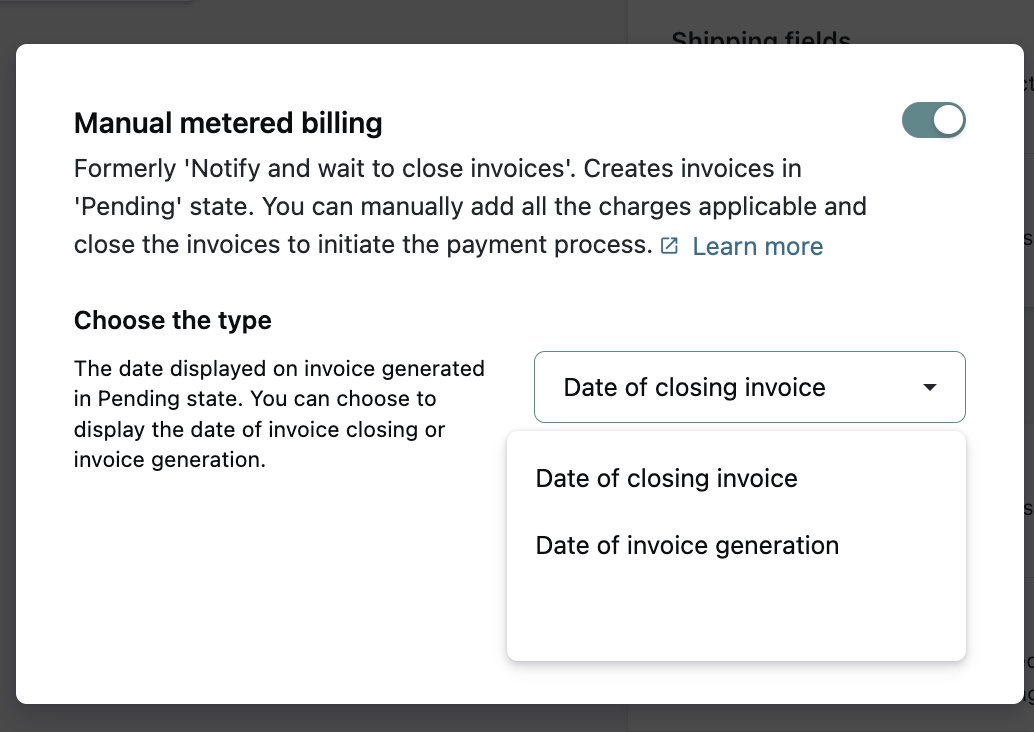
- Save the configuration
- Click Update Billing LogIQ.
Additional Information
Metered billing via API
When metered billing is enabled, Chargebee creates a pending invoice and triggers a pending_invoice_created event during either of these conditions:
- Subscription renewal
- Plan changes (upgrade, downgrade, or quantity changes) in the subscription
You will receive generated invoices in your webhook handler. After receiving the invoice, use the invoice resource ID to add usage charges to the invoice.
Refer to Metered Billing via API for details.
Important Notes
- The invoice number of a pending invoice is not taken from the main sequence. A temporary invoice number in the
draft_inv_format is assigned to it.
Was this article helpful?