Backdating Subscription Creation
This feature is currently available for Private Beta Testing. Contact support to enable for your site.
Introduction
After enabling the Backdating Subscriptions and Invoices feature in your Chargebee site, users can backdate certain subscription actions and invoices. When creating a new subscription record, you can specify the start date from the past to backdate the subscription creation. The subscription will continue to renew based on the backdated start date.
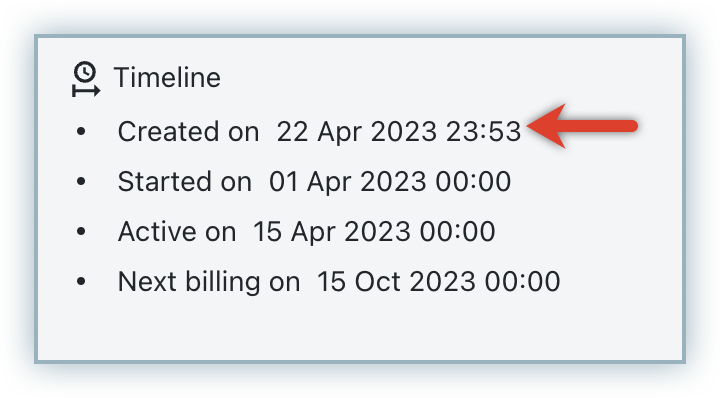
As shown in the screenshot above, although the subscription is created on April 22, 2023, it is backdated to start on April 1, 2023, and renews on October 15, 2023.
Prerequisites for Backdating Subscription Creation
Following are the prerequisites to be met to backdate subscription creation in Chargebee:
- Ensure that the setting for Backdating subscription actions and invoicing for creation is enabled in your Chargebee site.
- Ensure that the day you are performing the backdating does not exceed the limit set in Chargebee for backdating subscription operation.
Backdating Subscription Creation
To backdate a subscription creation in your Chargebee site, follow these steps:
-
Click Create Subscription and specify the subscription details.
-
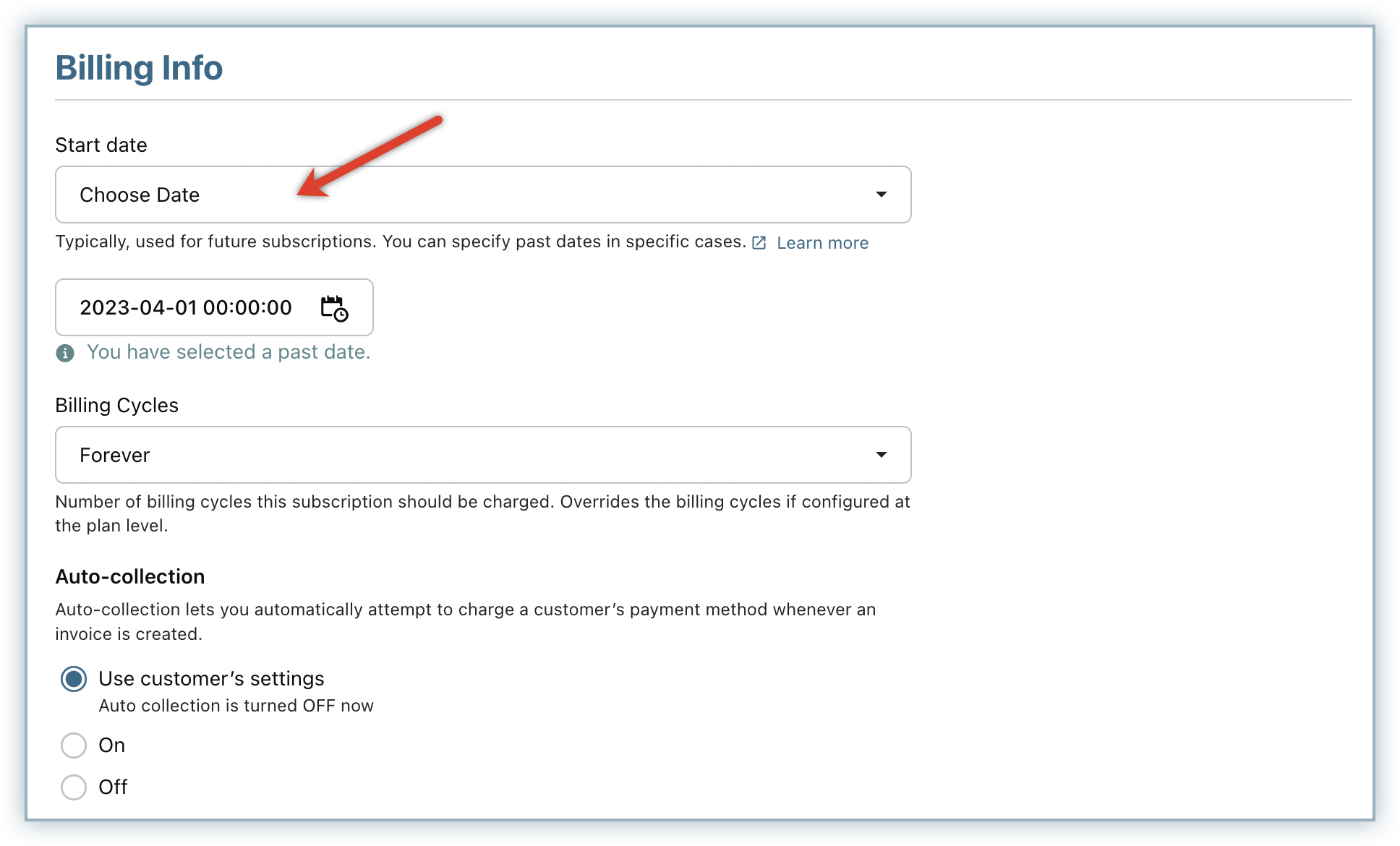
The Billing Info section displays a new option Choose date under Start date for the subscription. You can select this option and select a date from the past to specify the exact subscription start date. You can select a date for up to one plan term in the past. For example, in the case of a monthly plan, the subscription can be backdated for up to one month in the past from the day of backdating. For a weekly plan, the subscription can be backdated for up to one week in the past from the day of backdating.
-
In the Invoicing Options section, select Immediately. Click Set the Invoice date to a past date, and select a date using the calendar.
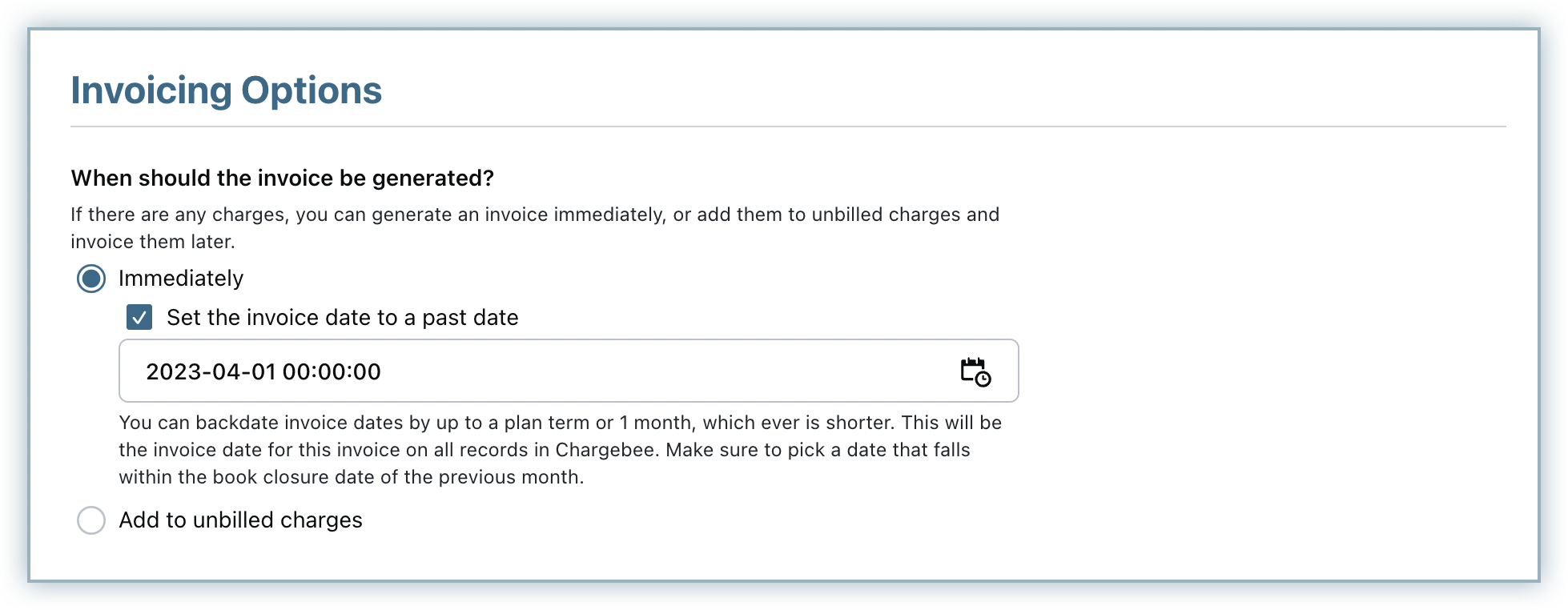
You can backdate the invoice by up to one plan term or one month in the past, whichever is shorter. However, you can not select a date that is earlier than the subscription start date.
-
If you select Add to unbilled charges option, the invoice date will be the date the charges get auto-invoiced or are manually invoiced. In this case, backdating the invoice date is not possible.
-
Click Create.
The subscription is created successfully with the start date from the past as per your selection.
If you are using Chargebee's Classic user interface(UI), note that you can only backdate the creation of new subscription records and respective invoices. You cannot backdate any subscription actions other than the creation.
Backdated Invoices and Taxes
When an invoice is backdated, taxes are applied based on the date of the backdated invoice and not the date when backdating is performed. This forms the basis for calculating or re-calculating the applicable taxes while backdating a subscription.
When you update your tax rates in Chargebee for a specific country, the older rates are recorded under the Expired tab on the respective country's tax page upon every change. For example, when you update your site's tax rates manually to comply with the tax regulations, the older tax rates can be viewed under the Expired tab.
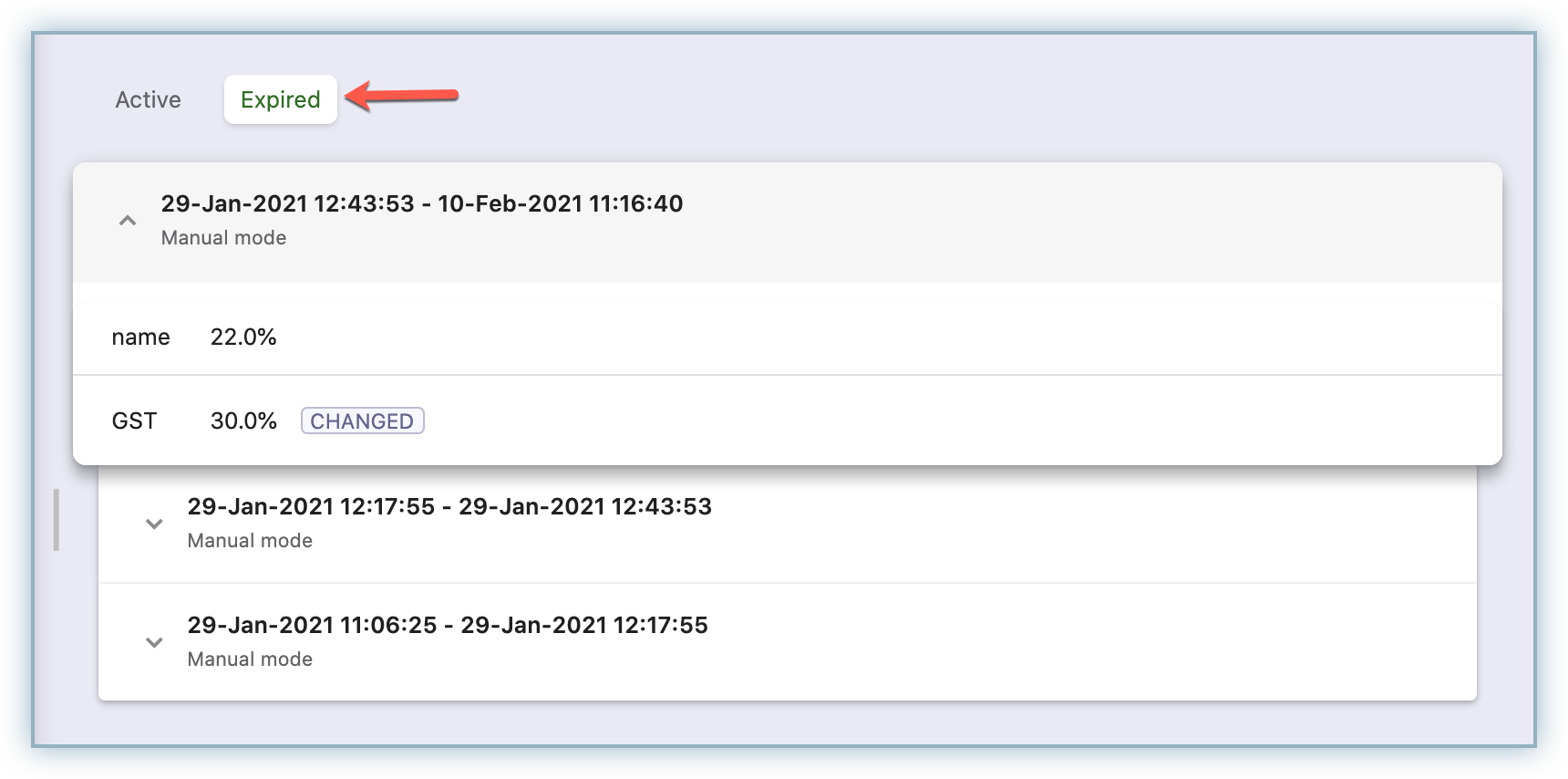
With regard to subscription changes, taxes are recalculated if the subscription is backdated to the date when an expired tax rate is applicable.
If tax was not configured for the period to which a subscription creation or change is backdated, the subscription record will not have taxes applied.
Was this article helpful?