Chargebee Pay is available to pre-qualified Chargebee Billing customers.
Transaction and Payout Reconciliation
Overview
Reconciliation is the process of verifying that the reported amounts in your system match the actual flow of funds from initiation to settlement in your bank account. Chargebee Pay provides reports to help you reconcile transactions and payouts. Depending on your reconciliation needs, you can use the consolidated report, transaction export, or invoice records.
Types of Reconciliation
Monthly Reconciliation
Use the Consolidated Detail Report to reconcile your monthly payouts. This report provides a transaction-level breakdown of:
- Payments
- Payouts
- Fees
- Refunds
- Chargebacks
- Reserves You can download the report directly from the Chargebee Pay portal.
Daily or Weekly Reconciliation
Transaction exports let you download data for any given time period. This report includes all transactions, refunds, and payment returns initiated by your customers in a given date range, along with fees associated with each transaction or payment return, payout ID, and customer details. Follow these steps to reconcile transactions and payouts using Chargebee Pay reports.
Reconcile Using the Consolidated Monthly Report
Note
All timestamps in the report are based on your billing time zone. The gross amount is displayed in both the settlement currency and the transaction currency. Fee and the net amount are displayed only in the transaction currency.
To access the Consolidated Monthly Report, follow these steps:
- Sign in to the Chargebee Pay portal.
- Go to Downloads > Reports.
- Select the desired Month from the filter options.
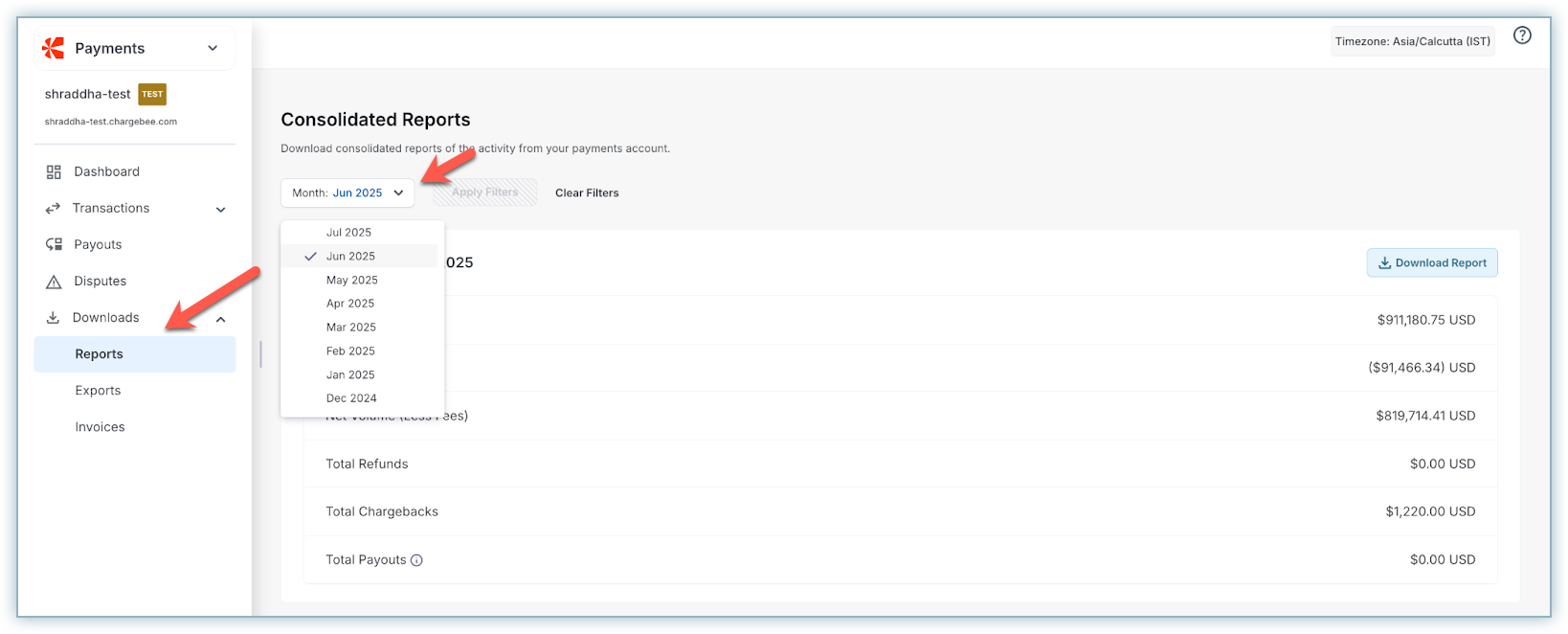
- Click Apply Filters.
- Confirm that the correct month is shown in the Summary section.
- Click Download Report.
The report is downloaded in .xlsx format.
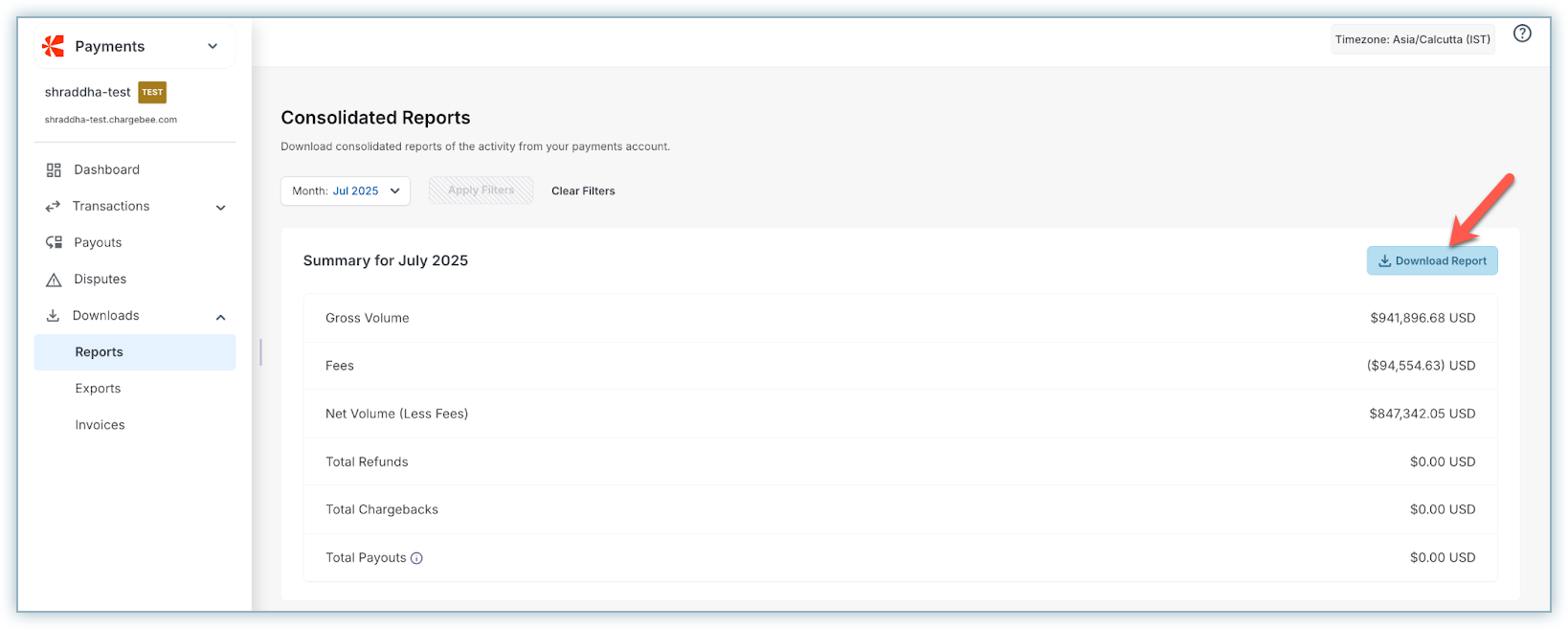
Use the Consolidated Monthly Report to validate gross amounts, fees, deductions, net payouts, and reserves. Start by reviewing the Summary section, and then drill down into the detailed reports to ensure all metrics align.
Note
Reserve details are only available in the Consolidated Monthly Report. Daily and weekly reports do not include this data.
Follow these steps to reconcile using the consolidated monthly report:
1. Review the Summary section
Begin by examining the Summary section in the report. It displays key metrics:
- Gross
- Fees
- Net Payouts
2. Reconcile Metrics in the Transaction Report
Go to the Transaction Report. It lists the following:
- All transactions initiated during the selected month.
- All transactions included in payouts during the selected month.
Computation logic for these metrics:
| Metric | How to Calculate | Filter Criteria | Should Match |
|---|---|---|---|
| Gross Amount Processed | Sum of Gross Amount (in settlement currency) | Created Date in the selected month, Category = Payment | Gross Amount in Summary |
| Transaction Fees | Sum of Transaction Fees | Created Date in the selected month, Category = Payment | Transaction Fees in Summary |
| Total Deductions | Sum of Total Deductions | Created Date in the selected month, Category = Payment | Fees in Summary |
| Net Payout to Bank | Sum of Net amounts where Payout ID is populated | Category = Payment | Net Payouts in Summary Includes transactions for:
|
3. Review Refunds and Chargebacks
After reconciling your gross amounts, fees, and net payouts, validate the refund and chargeback amounts to ensure they align with the amounts in the Summary section. Use the Refund Reserve Report and Disputes Report to cross-check these values.
| Report | How to Calculate | Filter Criteria | Should Match |
|---|---|---|---|
| Refund Reserve Report | Sum of Amount | Type = Debit | Total Refunds in Summary |
| Disputes Report | Sum of Amount | All rows | Total Chargebacks in Summary |
4. Match Net Amounts to the Payout Report
Compare the sum of net payout values in the Payout Report with the Net Payouts shown in the Summary section. The sum of the Net column in the Payout Report should also align with the total net amount in the Transaction Report for rows with populated Payout IDs.
5. Confirm Settlement Dates
Verify that the payout creation dates in the Payout Report correspond to the actual deposit dates in your bank account. Note: Reserve details are only available in the Consolidated Monthly Report. Daily or weekly reports do not include reserve details.
6. Refund Reserve
The Refund Reserve includes reserve top-ups, amounts debited from the reserve for refunds, and negative balance adjustments for the given month.
7. Chargeback Reserves
Chargeback reserves include reserve top-ups, amounts debited from the reserve, fees associated with chargebacks, deductions for late payment failures, and negative balance adjustments for the selected month.
Note
Negative Balance Adjustments occur when the chargeback reserve has insufficient funds. To offset the negative balance, funds are automatically moved from ending payouts to the reserve account.
Reconcile Using the Daily/Weekly Report
Note
All timestamps in this report are in the merchant's billing time zone, and gross, net, and transaction fees are shown in the transaction currency.
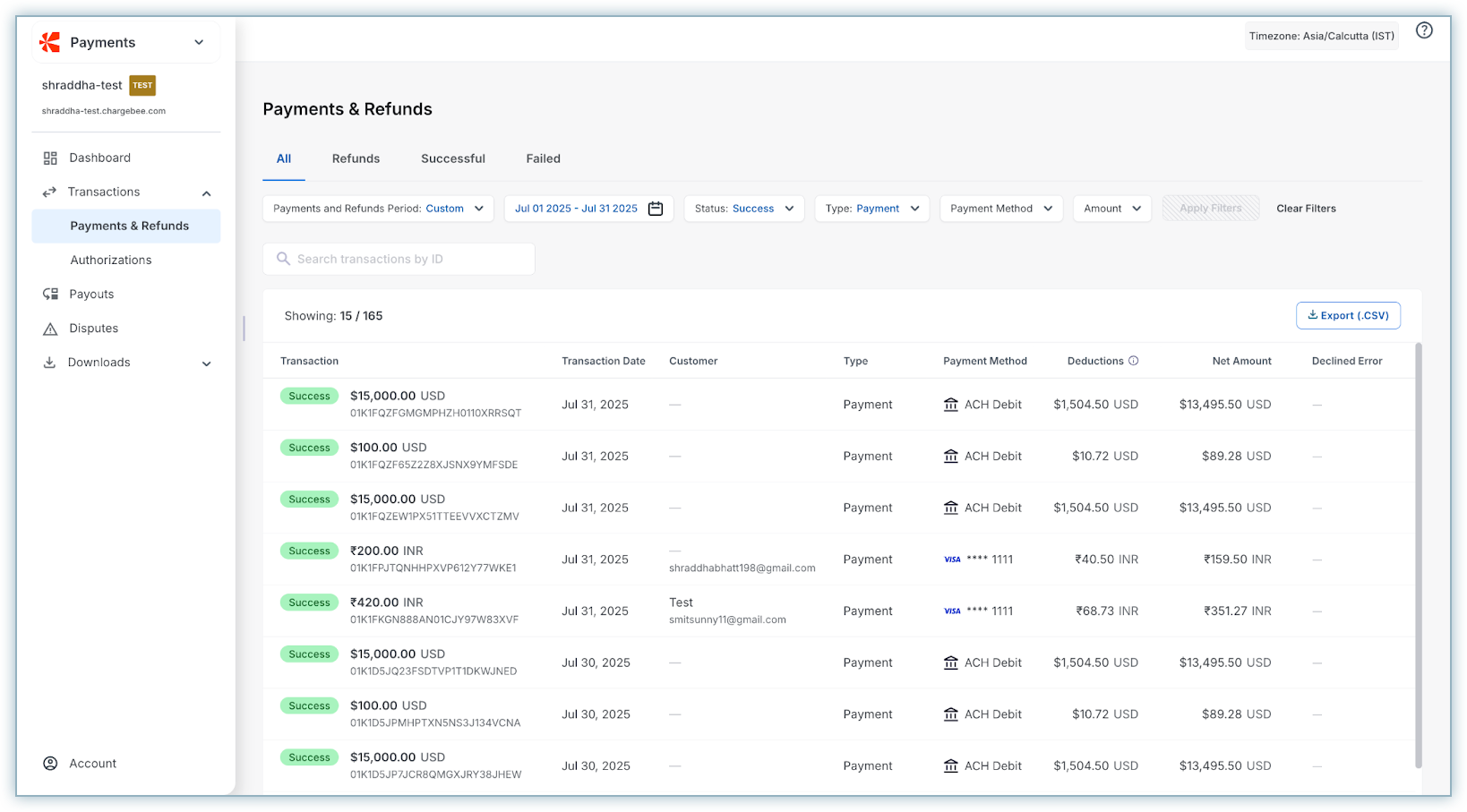
To access the Consolidated Daily/Weekly Report, follow these steps:
- Sign in to the Chargebee Pay portal.
- Navigate to Transactions > Payments and Refunds.
- Select the required date range, set the Type filter to Payment, and set the Status filter to Success.
- Click Apply Filters.
- Click Export (.CSV) at the top right of the table to download the report.
| Metric | Calculation Method | Description |
|---|---|---|
| Gross Amount Processed in the selected time period | Sum of values in the Amount column | Total value of all transactions processed in the given time period. |
| Transaction fees incurred in the selected time period | Sum of values in the Transaction Fee column | Total transaction fees deducted for processing payments during the selected time period. |
| Total deductions incurred in the selected time period | Sum of values in the Fees column | Overall deductions (including transaction fees and other charges) during the selected time period. |
| Net payout for transactions processed in the selected time period | Sum of values in the Net Amount column | Net payout after deductions. Note that this amount will not be credited to the bank account during the selected time period, as settlement follows a T+2 timeline. Refer to the next section to compute the net payout amount in the merchant's bank account for a selected time period. |
Payout Report
- Sign in to the Chargebee Pay portal.
- Navigate to Payouts in the Chargebee Pay portal and download the Payout Report.
- Select the required date range.
- Click Apply Filters.
- Click Export (.CSV) in the top right of the table to download the report.
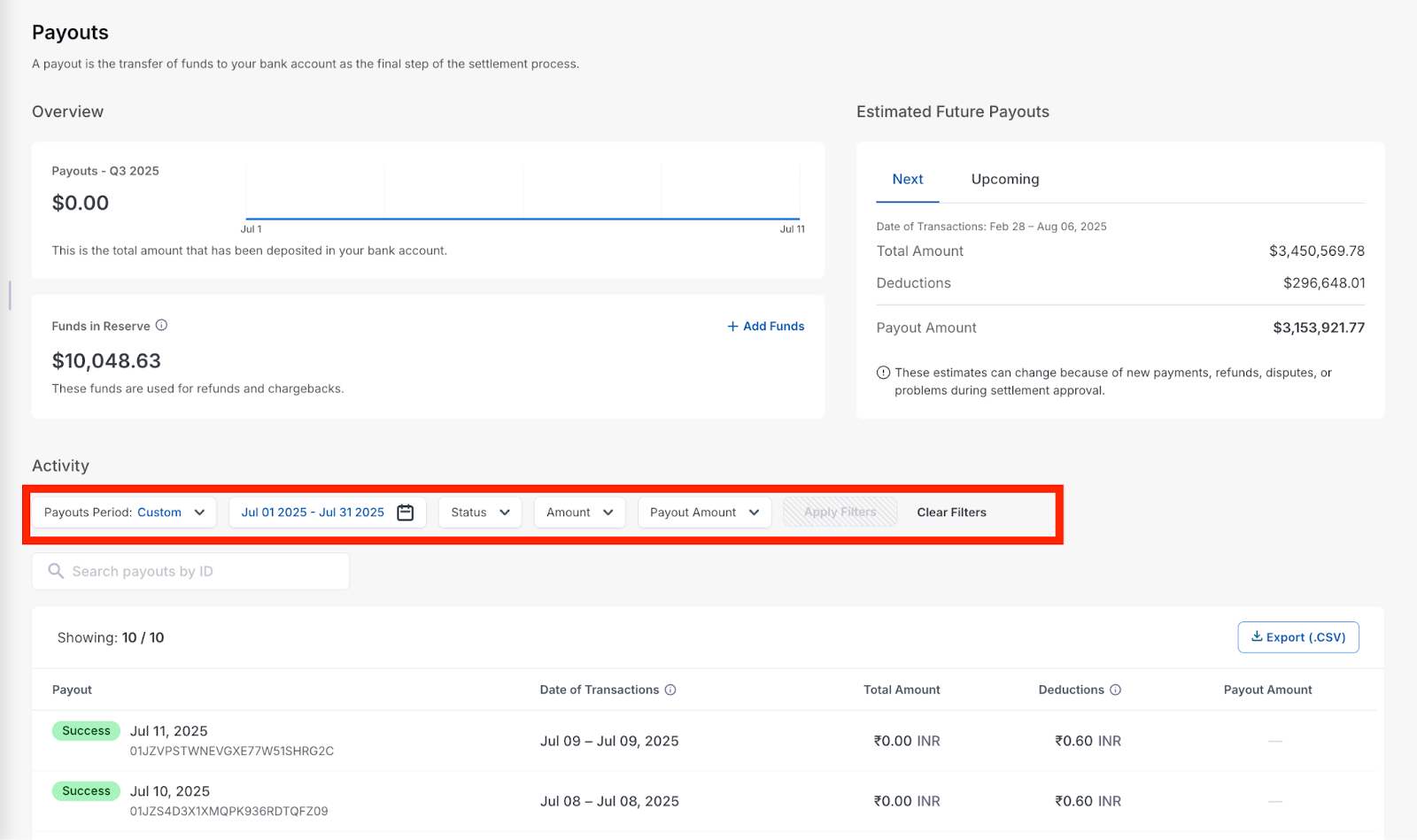
The net amount credited to the merchant’s bank account during the selected time period is the sum of all values in the Payout Amount column.
Was this article helpful?