What are the types of flows Quickbooks online can be configured with RevRec?
Scope
How to configure RevRec with Quickbooks online?
What are the types of flows Quickbooks online can be configured with RevRec?
Summary
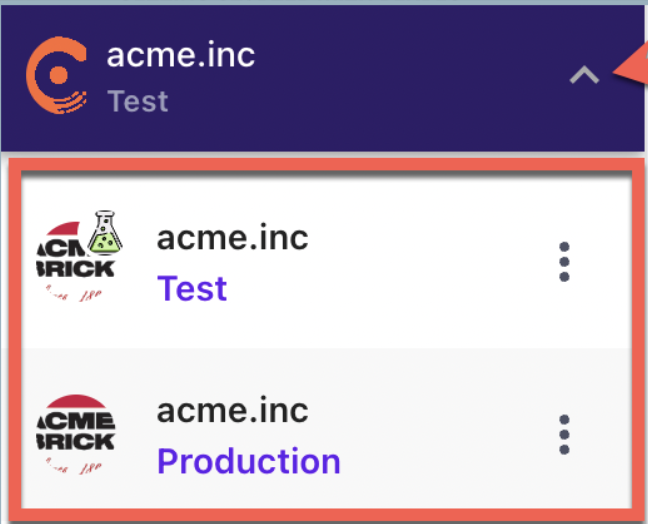
RevRec seamlessly integrates with Quickbooks Online (QBO), all you have to do is go through our sync interface and configure the connection flows. After logging in to your RevRec site, you can navigate to the environment panel on the top left corner of your site name then select Production for the live environment or Test for the sandbox environment to configure Quickbooks, Click Sync > Connect to other systems > Connect your data > Invoices > QuickBooks.
There are three main flows that can be configured with QBO,
Accounting: Connects to your accounting system to pull your ledger account configuration Invoices: This pulls your billing records Journal Posting: Post monthly journal entries to your ledger
Solution
-
After logging in to your RevRec site, navigate to the right environment in which you are integrating QBO.
-
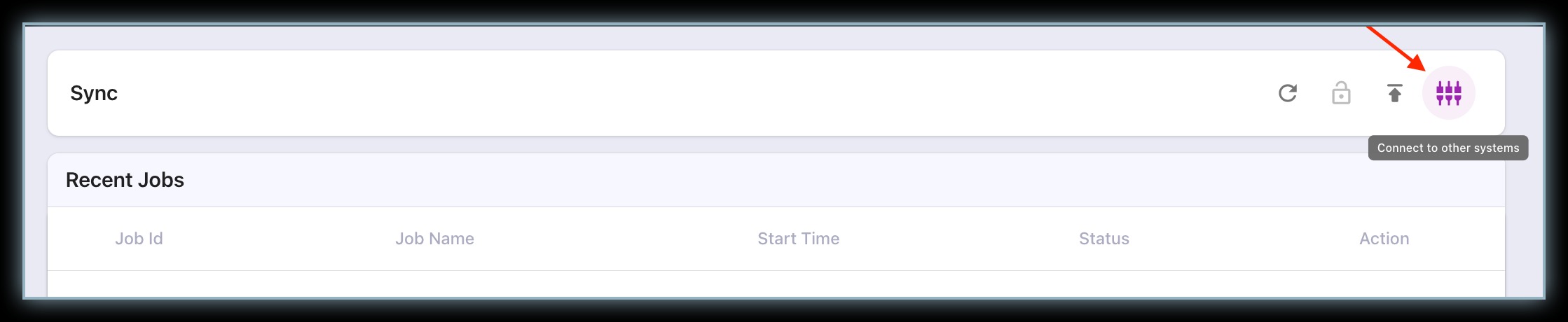
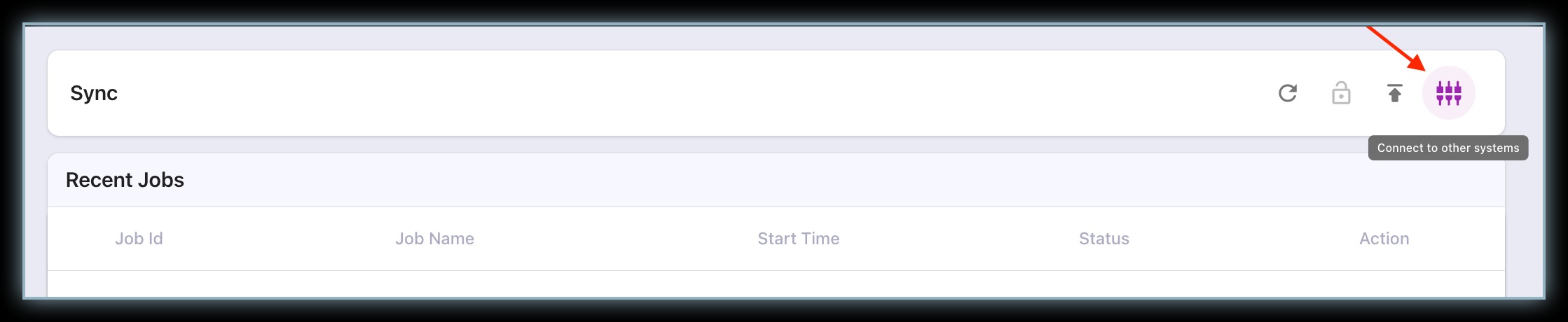
Click Sync > Connect to other systems icon.
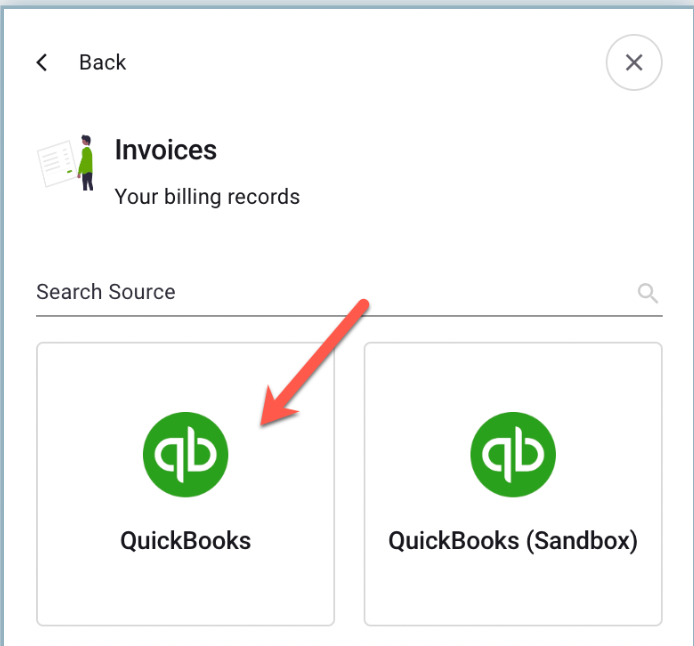
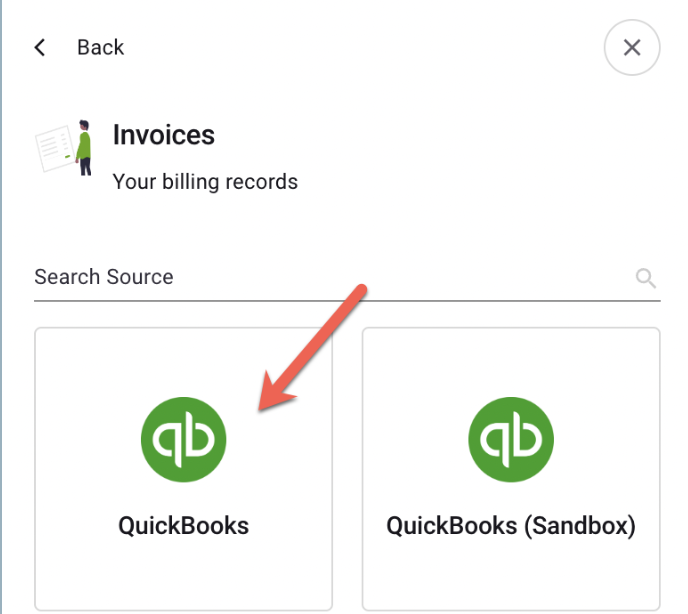
- On the Connect your data pop-up, select Invoices > QuickBooks.
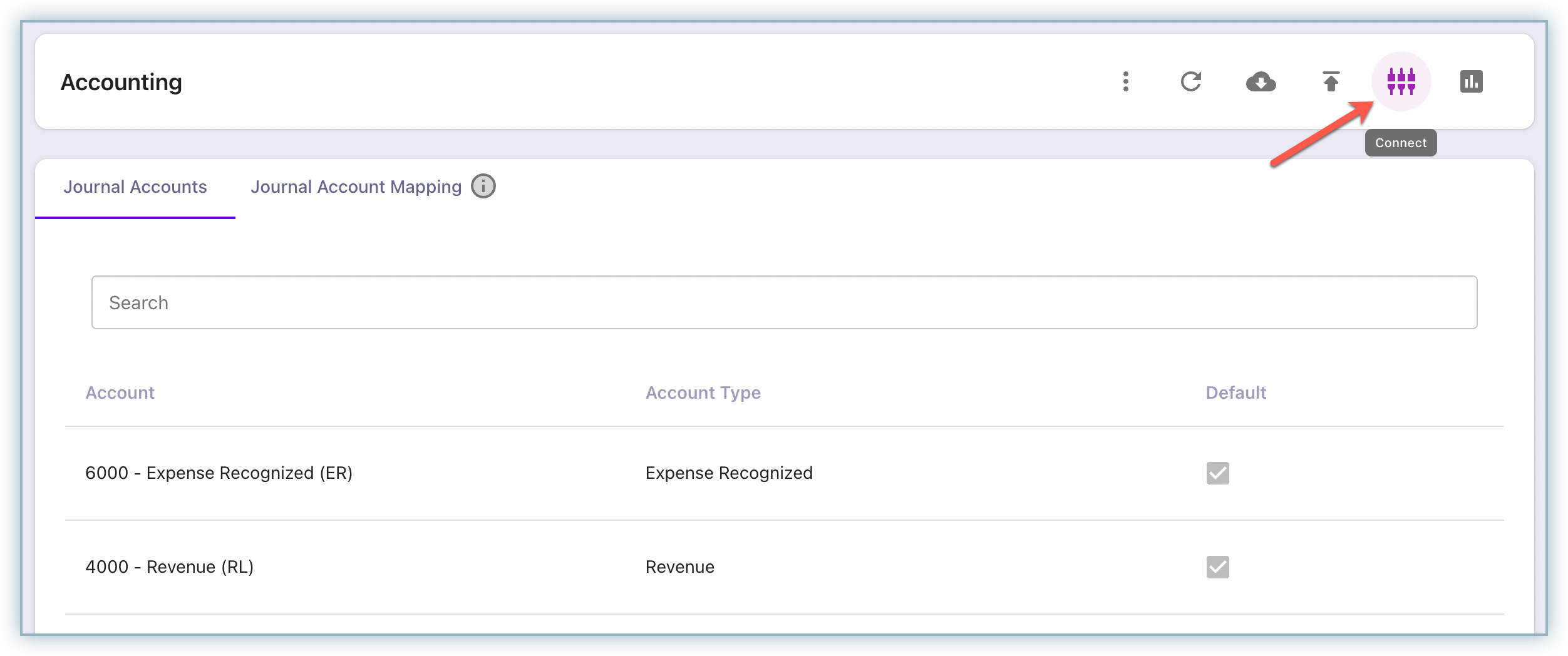
Accounting This flow pulls your journal account information into RevRec and allows you to then configure your journal process and accounting mapping. On the Accounting page, click the Connect icon.
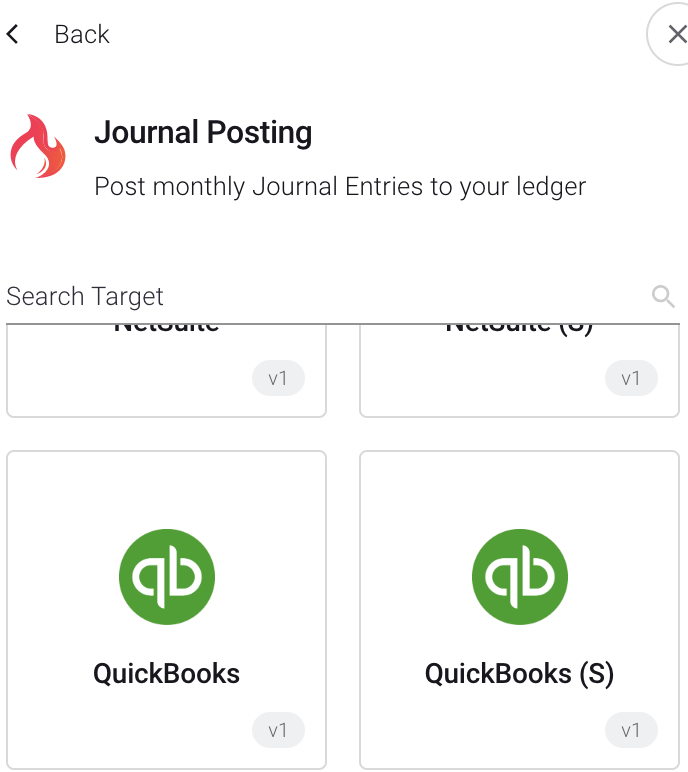
Journal Posting Finally, you can configure the journal posting flow to post your configured journal entries automatically post to QBO when you close your accounting period. Before posting you must configure your journal account mapping.
On the Connect your data popup, select Journal Posting.
- Click Sync > Connect to other systems icon.
-
On the Connect your data pop-up, select Invoices > QuickBooks.
Execution of Invoices Flow
After establishing the link as described in the previous section, click QuickBooks.
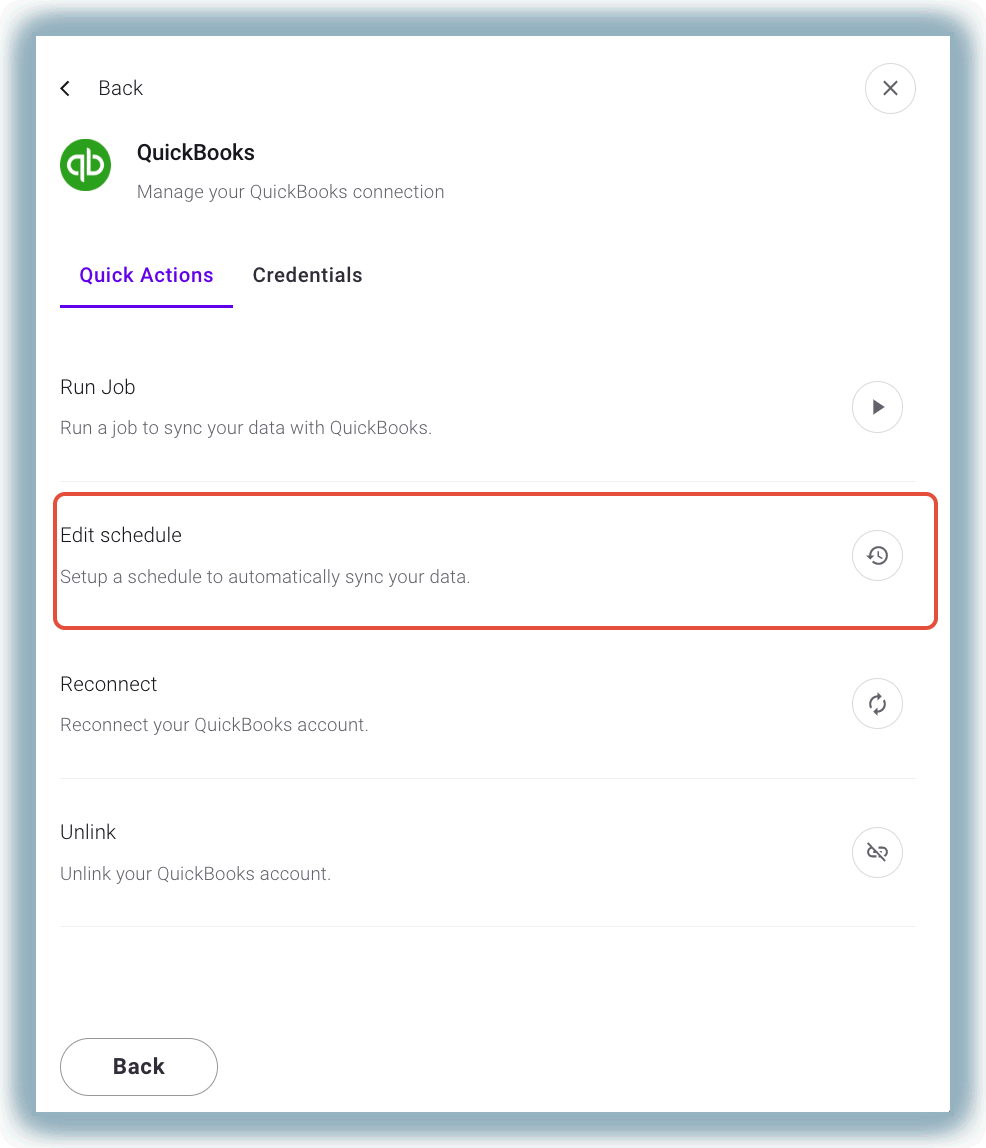
In the Quick Options tab, click Edit schedule to schedule an automated data sync from QuickBooks to RevRec in your preferred frequency. The invoice flow is executed automatically based on the schedule to sync data from QuickBooks.
Click the Run job option to execute the invoice flow that picks data from QuickBooks on-demand.
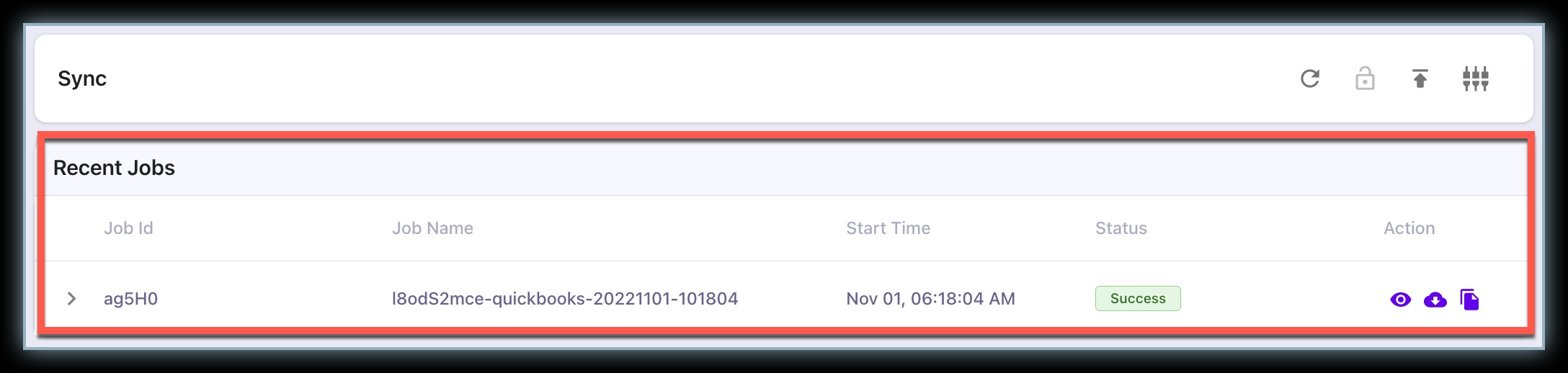
When you execute the invoice flow, you will see a job created on the Sync UI page in the Recent Jobs tab.
All invoices are tracked at a customer level when pulled from QBO so it is important that the customer as specified in QBO matches with the customer inside RevRec. If sales orders are being pulled in from the CRM system this would be the customer as specified in the sales system
Was this article helpful?