Docschargebeedocs

HomeBillingPaymentsRevRecGrowthReveal
Support

Product Updates


  • Release Notes

Getting Started


  • Overview
  • Chargebee Billing Data Centers
  • Object Relationship Model
  • Understanding Sites
  • Developer Resources
  • Chargebee Tech Glossary
  • Articles and FAQ

Implementing Chargebee


  • Implementation Guide
  • Go-live Checklist
  • Articles and FAQ

AI in Chargebee


  • Chargebee Agents
  • Chargebee Copilot
  • Chargebee MCP Server (Model context protocol)

Product Catalog


  • Product Catalog Overview
  • Coupons
  • Articles and FAQ

Subscriptions


  • Working with Subscriptions
  • Billing
  • Orders
  • Articles and FAQ

Customers


  • Managing Customers
  • Account Hierarchy
  • Email Notifications
  • Branding
  • Configure Multiple Languages
  • Articles and FAQ

Invoices, Credit Notes and Quotes


  • Invoices
  • Credit Notes
  • Quotes [Legacy]
  • Transactions
  • Articles and FAQ

Taxes


  • Overview
  • Configuring Taxes
  • Country-specific Taxes
  • Articles and FAQ

Hosted Capabilities


  • Overview
  • Hosted Checkout
  • Hosted Self-Serve Portal
    • Integration Options
    • Chargebee Self-Serve Portal
    • Portal Features
    • Chargebee Widgets
  • Hosted Pages Features
  • Additional Hosted Pages
  • Payment Components
  • Managing payments with ChargebeeJS
  • Mobile-Optimized Hosted Pages
  • Articles and FAQ

Site Configuration


  • Users & Roles
  • Custom Fields & Metadata
  • Mandatory Fields
  • File Attachments & Comments
  • Advanced Filter Options
  • Multicurrency Pricing
  • Multi-decimal Support
  • Configuring Reason Codes
  • Events and Webhooks
  • API Keys
  • Time Zone
  • Time Machine
  • Transfer Configurations
  • Articles and FAQ

Reports and Analytics


  • RevenueStory
  • Home Dashboard
  • Frequently Asked Questions
  • FAQs for Classic Reports Sunset
  • Articles and FAQ

Integrations


  • Sales
  • Customer Support and Success
  • Finance
  • Tax
  • Marketing
  • Stitch
  • Collaboration
  • Contract Management
  • Order Management
  • Mobile Subscriptions (Legacy)
  • Other Integrations
  • Articles and FAQ

Data Privacy & Security


  • Two Factor Authentication
  • SAML Single Sign-On
  • System for Cross-Domain Identity Management (SCIM)
  • EU-GDPR
  • Consent Management
  • Personal Data Management
  • Compliance Certificates
  • HIPAA Guidelines
  • PCI Recommendations and Integration Types
  • Articles and FAQ

Data Operations


  • Bulk Operations
  • Migration
  • Articles and FAQ
  1. Billing
  2. Hosted Capabilities
  3. Hosted Self-Serve Portal
  4. Portal Features
  1. Billing
  2. Hosted Capabilities
  3. Hosted Self-Serve Portal
  4. Portal Features

Portal Features

This document explores one of the hosted portal features: Custom Codes.

With Custom Codes, you can tailor your customer portal to meet your unique business needs. Whether you want to enhance the user experience or integrate specialized functionalities, this feature empowers you to create a customer portal that stands out and delivers a seamless experience for your customers.

Let's explore the possibilities of Custom Codes within your Chargebee-hosted customer portal.

Custom codes

Custom code is a feature enabled by Chargebee that lets you implement custom business logic while the customer performs certain actions in the portal.

  • Contact support to enable the custom code feature.
  • Currently, this feature is supported in the customer portal in Edit Subscription using the functions.

Custom codes use case

Let's look at an example.

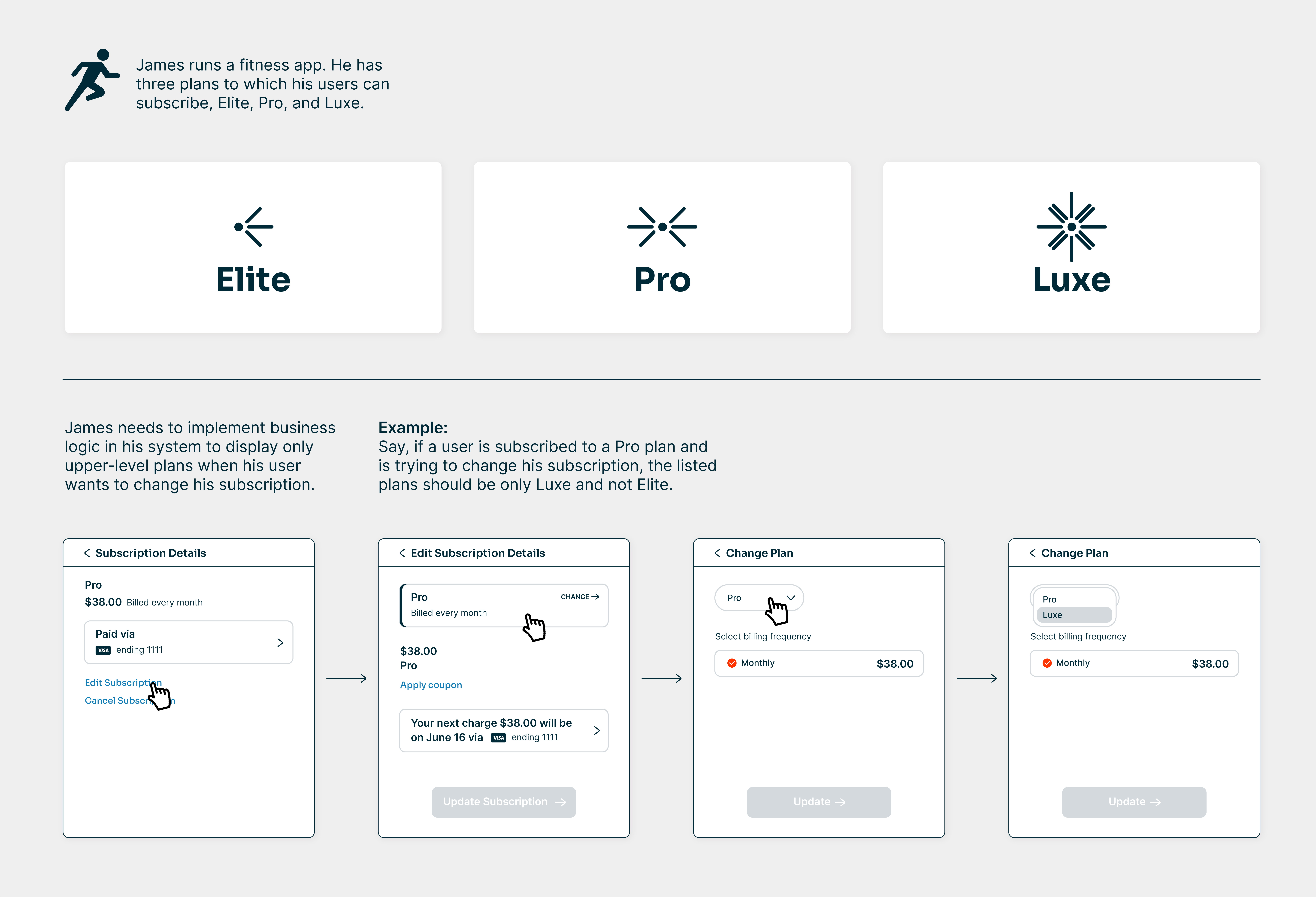
James runs a fitness app.

He has three plans to which his users can subscribe: Elite, Pro, and Luxe.

James needs to implement business logic in his system to display only upper-level plans when his user wants to change his subscription.

For example, if a user is subscribed to a Pro plan and is trying to change his subscription, the listed plans should be only Luxe and not Elite.

image

Custom code enables you to implement this business logic easily using functions.

Let's see the supported functions for Custom Code.

Supported functions for custom code

The functions fetchChangeSubscriptionOptions or fetchAllowedPlanConfig enable you to use this feature.

Fetch change subscription options

Using this function, fetchChangeSubscriptionOptions, you can change subscriptions immediately or end-of-term based on custom code logic.

Implement your business logic on subscription change scenarios that need to happen with immediate effect or at the end of the subscription term, and finally return a value for each scenario.

  • If the changes need to take effect immediately, the end-of-term should be set to false.

  • If the changes need to take effect at the term end, end-of-term should be set to true.

Let's take an example. For downgrades, you can choose to make the change during the end of the term. Whereas for upgrades, you can choose to make the change immediately.

Fetch allowed plan config

Using this function, fetchAllowedPlanConfig, the following functionalities can be performed:

  • Specify allowed addons.
  • Specify allowed addons for a particular plan.
  • Specify addons to be automatically attached to a plan when selected.
  • Specify quantity meta for a plan or addon.

This function gets the list of plans and addons combinations for a specific subscription. Only the plans and addons present in the list appear to the customer while changing the subscription. You can write your business-specific logic in this function to restrict the plan list and addon list for your customers.

Let's take an example. For users on the Platinum plan you can provide the plan items and addon items from a premium group to choose from during upgrade. Whereas for users on the Gold plan, you can provide the plan items and addon items from a basic group to choose from, during downgrade.

Learn more about the implementation details of the functions.

Execute your custom code

Once the custom code is enabled by the support, you can access it by navigating to https://\{your-site-name}/custom_codes

The published version of your custom code will be available in the link above.

Click Download code to download the custom code to make changes if needed.

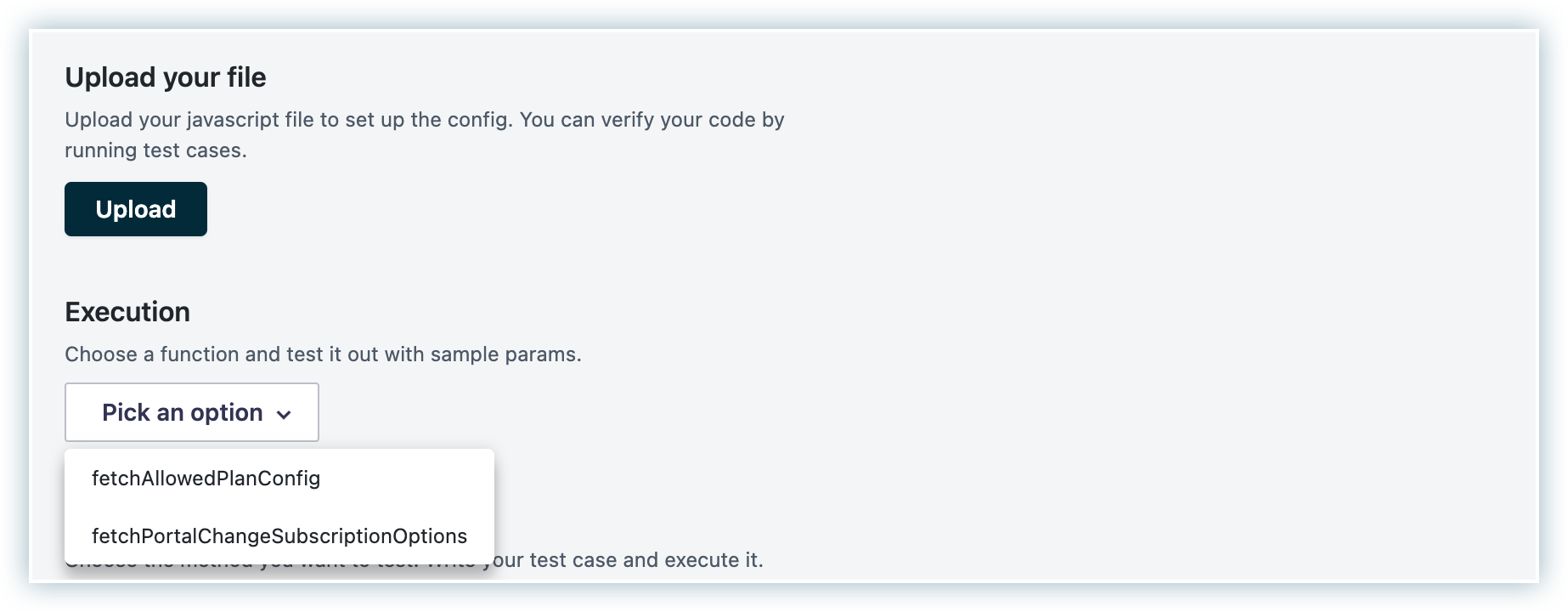
To execute your custom codes, follow these steps:

  1. Upload your file - Upload the file containing your business logic using this option.

  2. Pick an execution option - Pick an option to execute. Based on the coding, fetchChangeSubscriptionOptions or fetchAllowedPlanConfig or both populates in the dropdown.

image
  1. Enter the required input parameters. Sample input: ['sampleSubscriptionId']

  2. Click Run and validate your results.

  3. Click Publish.

The Custom Codes feature within Chargebee's Hosted Customer Portal opens endless customization possibilities. By using custom code, you can shape your customer portal into a unique and tailored platform that aligns perfectly with your business goals.

Articles & FAQs

What are the events that can be tracked using Facebook Pixel?

Was this article helpful?