How to remove addons from a subscription in the Latest Product Catalog?
Problem Statement
You want to know how to remove addons from a subscription via API in the Latest Product Catalog.
Solution
The addon can be removed directly from the UI from the individual subscription level, or via Update Subscription for items API or Bulk Operation.
UI Approach
The addon can be removed directly from the individual subscription level:
- Navigate to the Subscription.
- Click Edit Subscription.
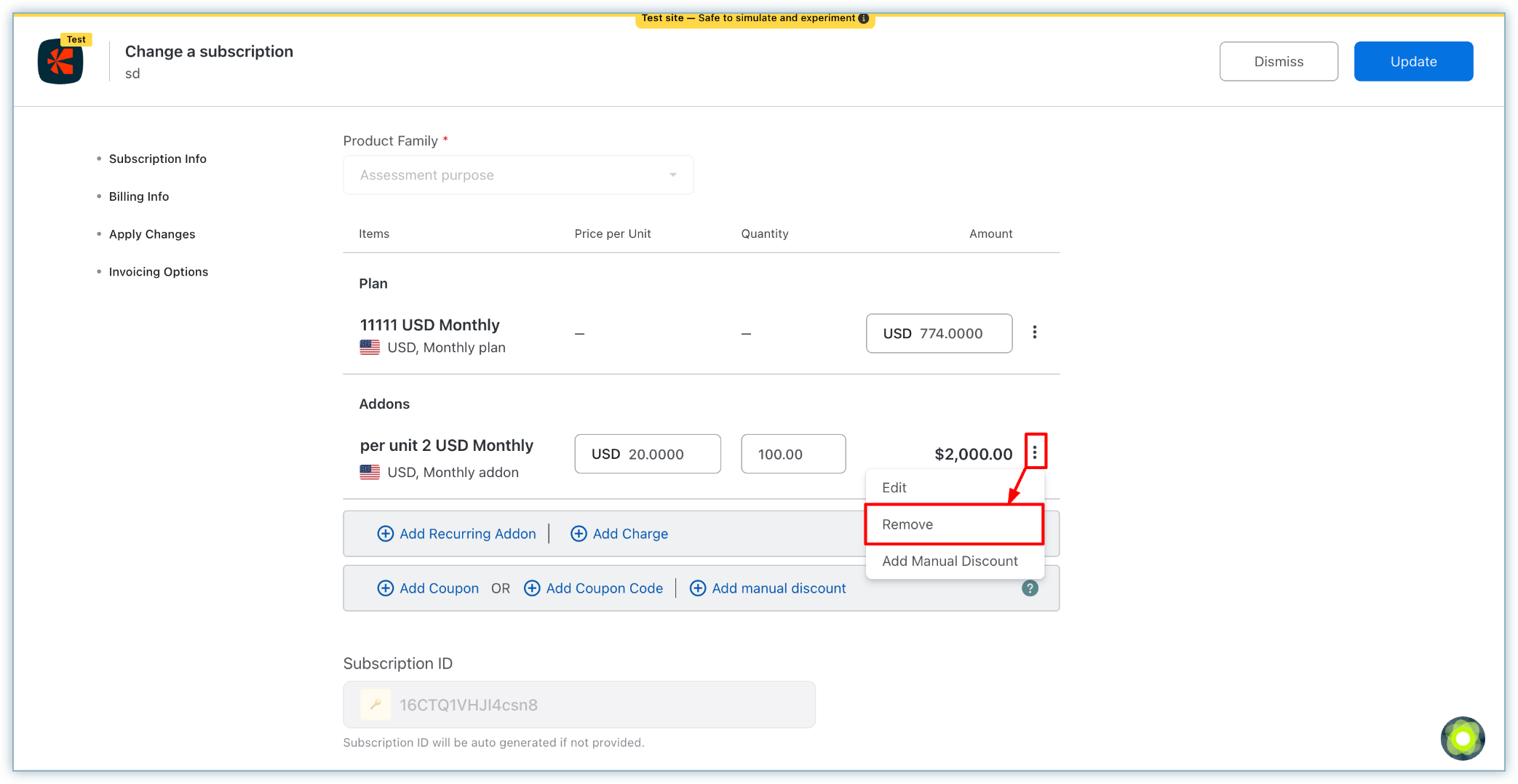
- Click the ellipsis icon against the addon you wish to remove.
- Select Remove.
Note
This action is only available at the individual subscription level. There is no native bulk operation to remove addons in bulk from the UI.
API Solution
You need to call the Update subscription for items API call
https://apidocs.chargebee.com/docs/api/subscriptions#update_subscription_for_items
You need to pass "subscription_items[item_price_id]" and "replace_items_list" parameters.
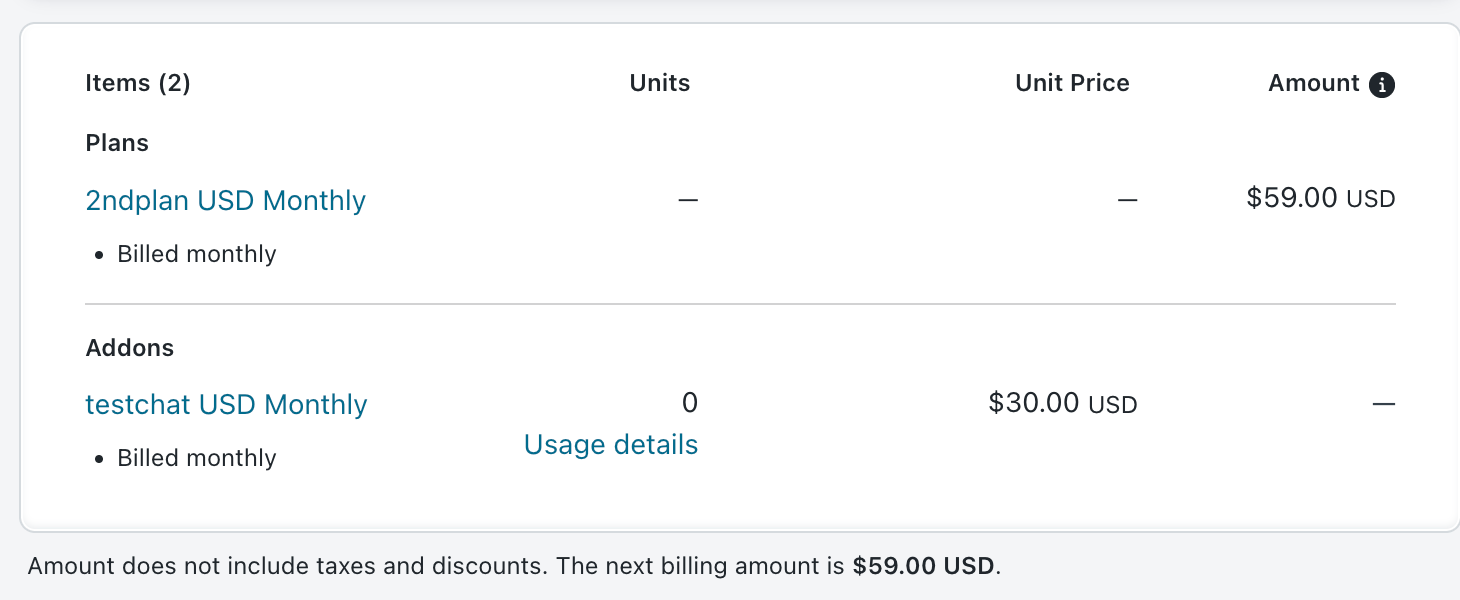
When we set "replace_items_list" to true, and do not pass any other parameter, it ideally removes all the addons attached to the plan.
For example, if a subscription has 2 addons, and when replace_items_list=true and no other subscription items are passed, it removes both addons.
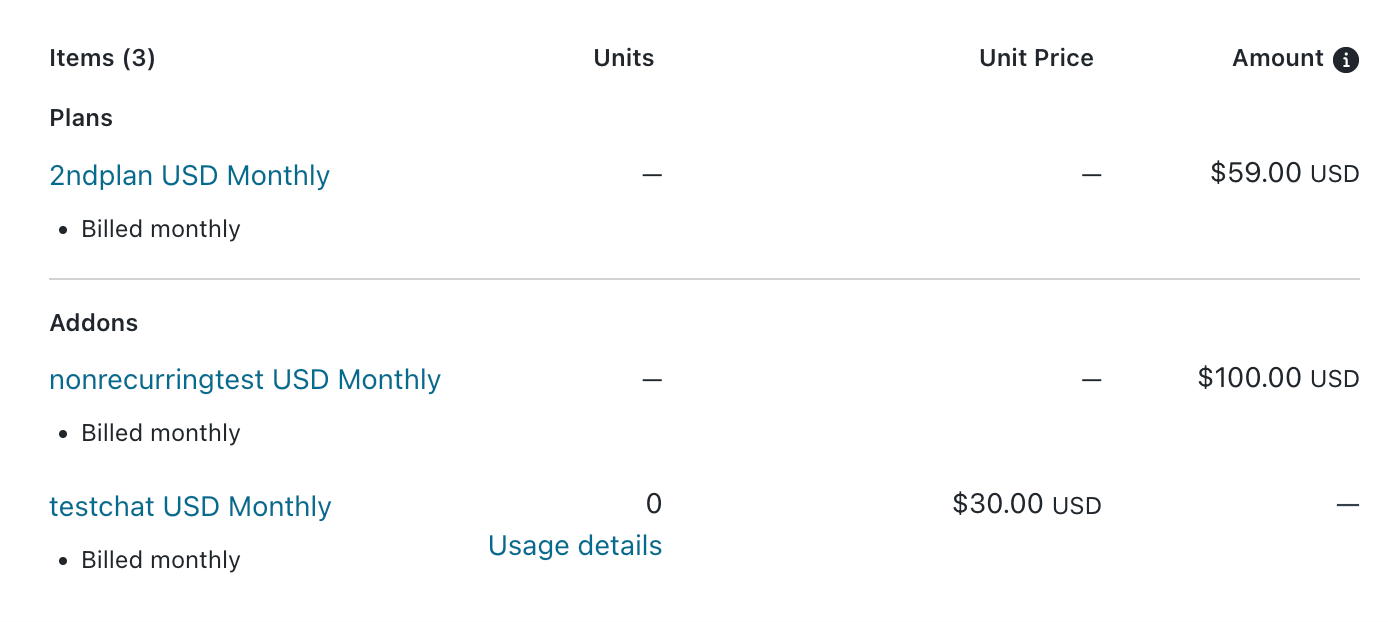
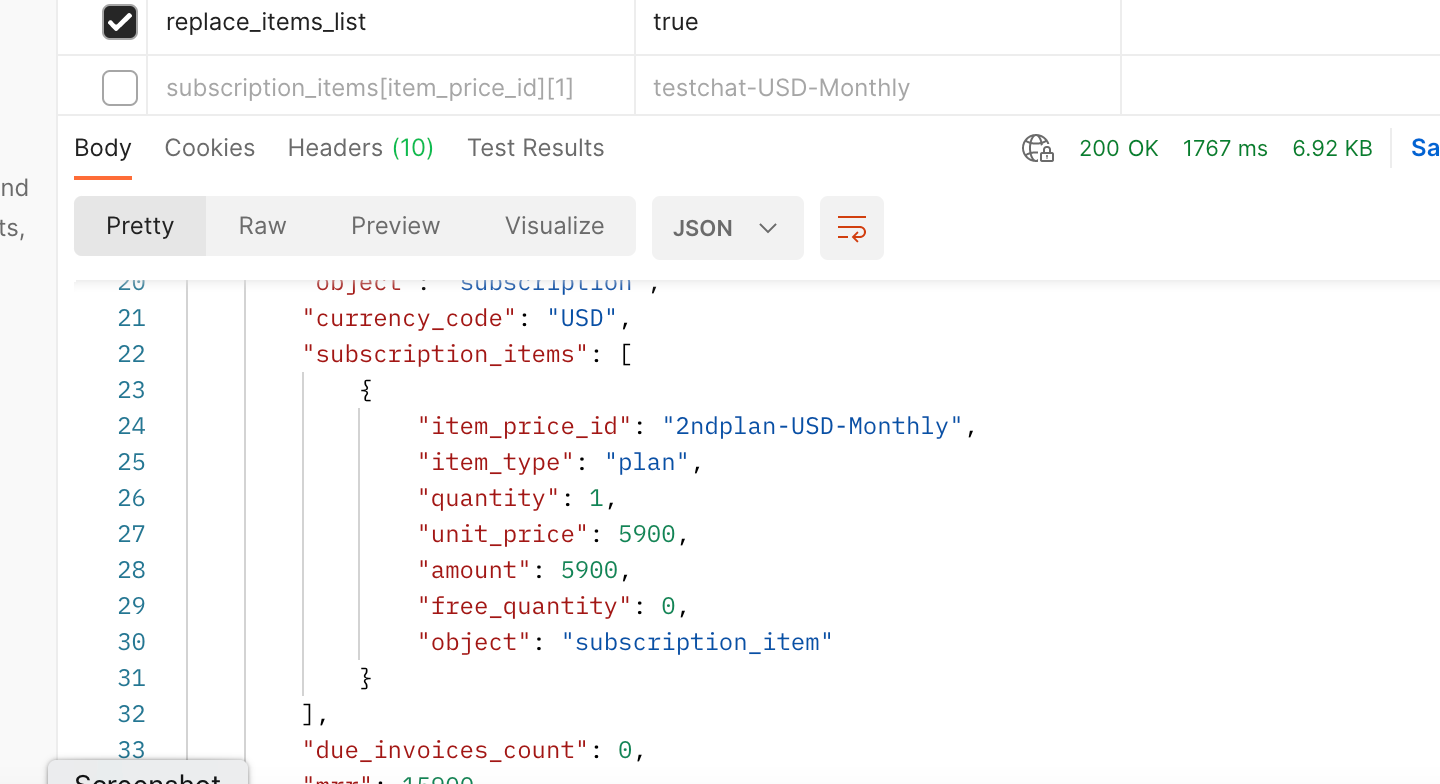
Both of the above addons are removed from the subscription.
If replace_items_list=false and if any subscription items are passed, then it adds the addon.
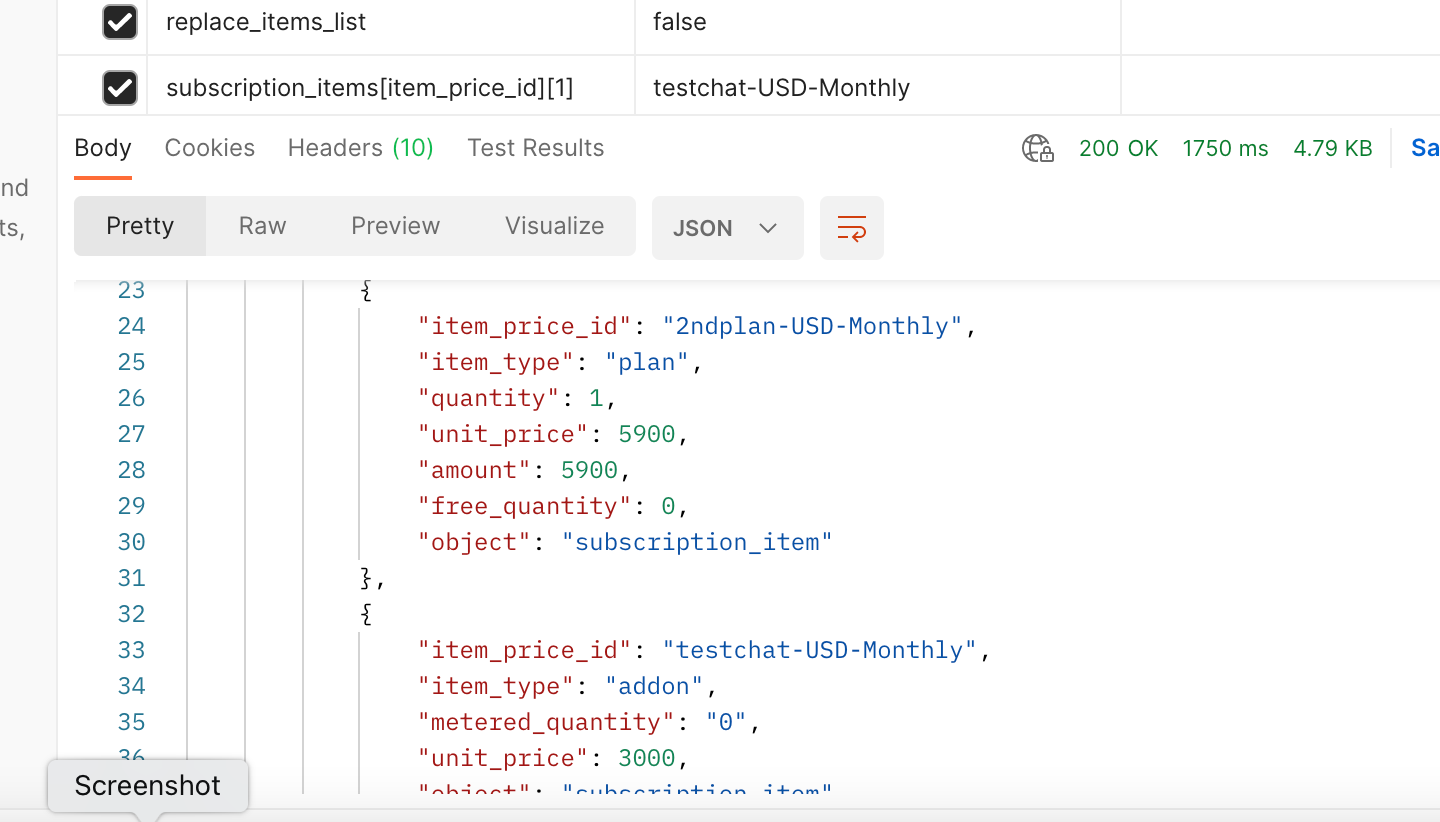
If a subscription has 2 or more addons, and if you want to remove one addon, then you need to pass replace_items_list=true and pass addon item price id as subscription_items[item_price_id][1] which needs to be retained.
For example, a subscription has the following 3 addons:
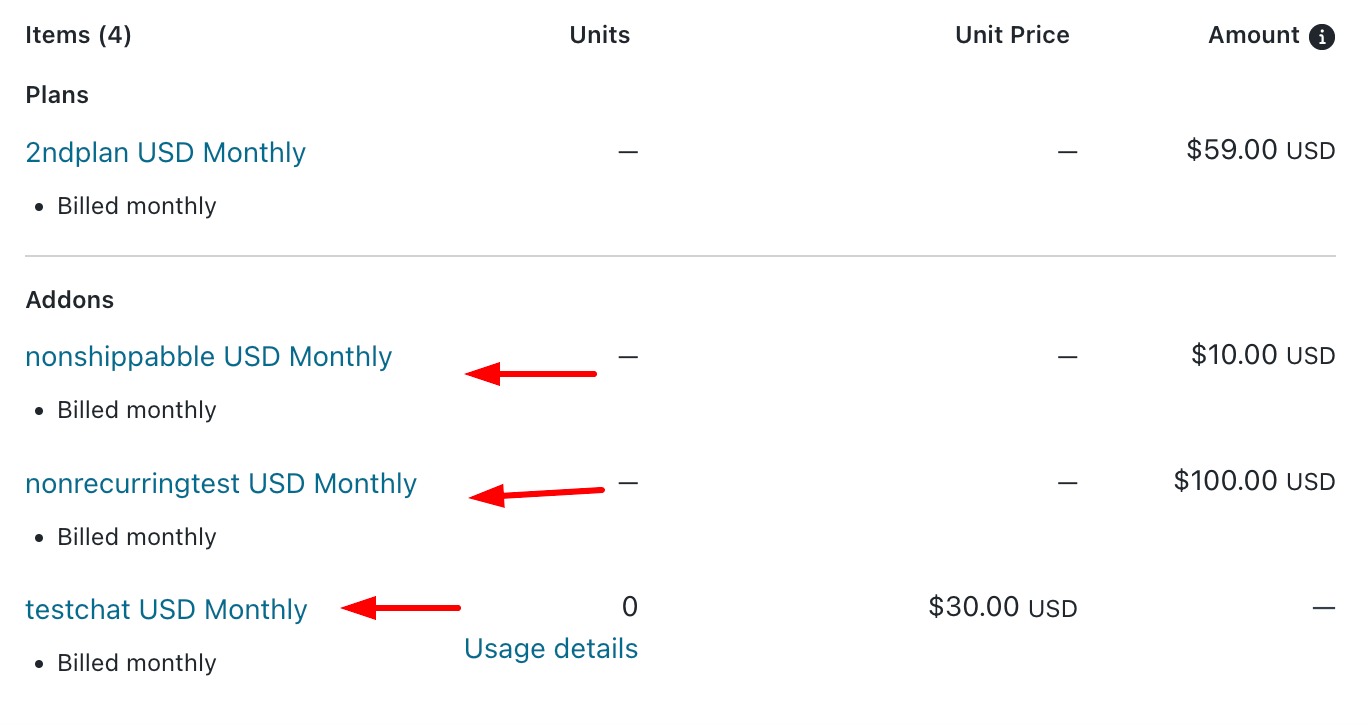
The addon that needs to be removed is non-shippable USD Monthly, so the API call would be as below:
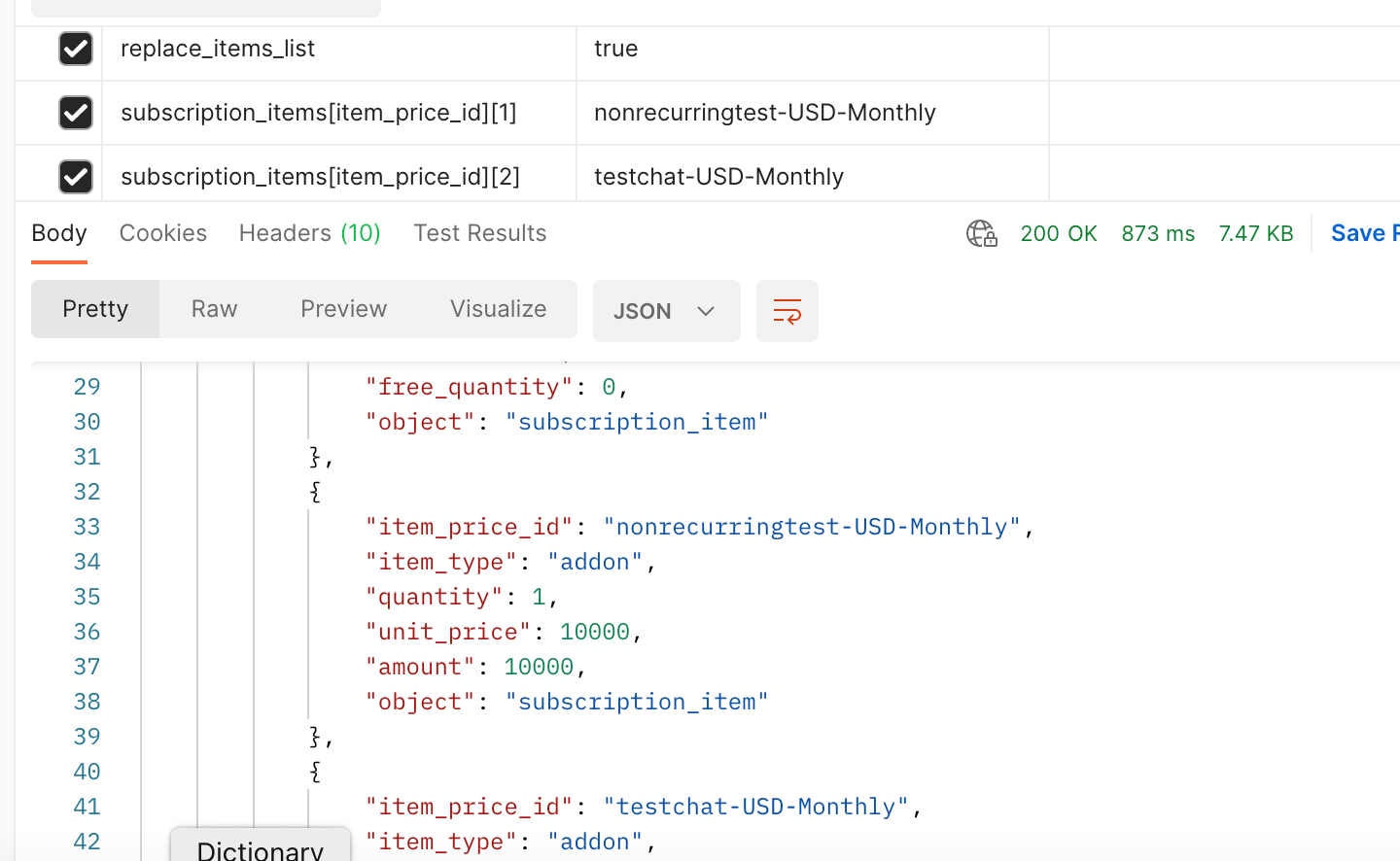
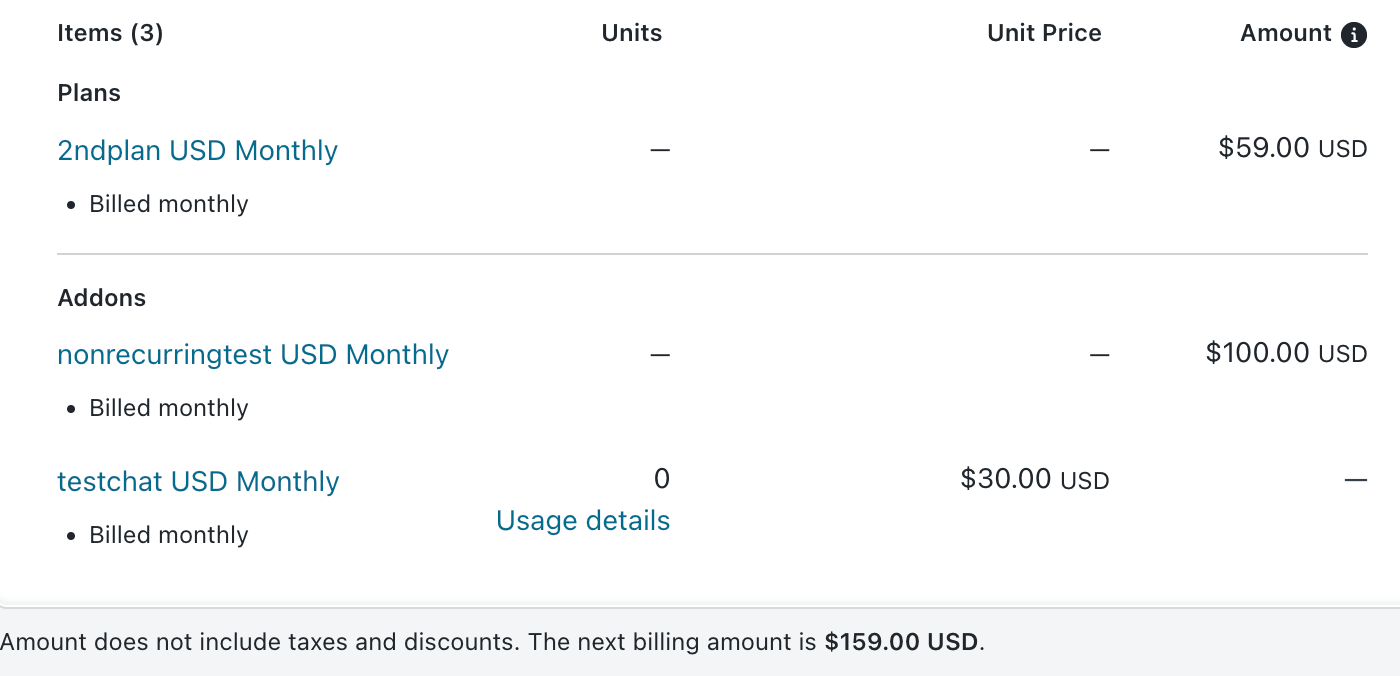
Hence, if the subscription has 2 addons and you want to remove 1 addon, you would need to just pass the addon that you need to retain and define the replace_items_list parameter as "true".
Bulk Operation Approach
The above API approach can also be executed via Chargebee's Bulk Operation feature.
Step 1: Filter the Subscription List
- Navigate to Subscriptions > Filter List > Recurring Addons > Contains Only > select the addon > Add > Apply Filter.
- Click Export and download the list as a CSV.
Step 2: Download the Sample CSV for Bulk Operation
Navigate to Settings > Configure Chargebee > Import & Export Data > Choose a Bulk Operation > Subscriptions > Update Subscription for Items.
Step 3: Edit the Sample CSV
Use the Subscription IDs exported in Step 1 as input. In the CSV, pass the following:
replace_items_list=truesubscription_items[item_price_id]= the Item Price ID(s) of the addon(s) to be retained
Note
The existing plan and any mandatory addons are always preserved. Mandatory addons are removed only if explicitly listed under mandatory_items_to_remove.
Step 4: Upload the CSV
Drag and drop the edited CSV into the web interface, or use the upload option to execute the Bulk Operation.
Note
Test this operation on your test site before executing it on the live site.
Related Articles
Was this article helpful?