New in Chargebee: Explore Reveal and understand your payment performance end-to-end.Try Now

Docschargebeedocs

HomeBillingPaymentsRevRecGrowthReveal
Support

Product Updates


  • Release Notes

Getting Started


  • Overview
  • Chargebee Billing Data Centers
  • Object Relationship Model
  • Understanding Sites
  • Developer Resources
  • Chargebee Tech Glossary
  • Articles and FAQ

Implementing Chargebee


  • Implementation Guide
  • Go-live Checklist
  • Articles and FAQ

AI in Chargebee


  • Chargebee Agents
  • Chargebee Copilot
  • Chargebee MCP Server (Model context protocol)

Product Catalog


  • Product Catalog Overview
  • Coupons
  • Articles and FAQ

Subscriptions


  • Working with Subscriptions
  • Billing
  • Orders
  • Articles and FAQ

Customers


  • Managing Customers
  • Account Hierarchy
  • Email Notifications
  • Branding
  • Configure Multiple Languages
  • Articles and FAQ

Invoices, Credit Notes and Quotes


  • Invoices
  • Credit Notes
  • Quotes [Legacy]
  • Transactions
  • Articles and FAQ

Taxes


  • Overview
  • Configuring Taxes
  • Country-specific Taxes
  • Articles and FAQ

Hosted Capabilities


  • Overview
  • Hosted Checkout
  • Hosted Self-Serve Portal
  • Hosted Pages Features
  • Additional Hosted Pages
  • Payment Components
  • Managing payments with ChargebeeJS
  • Mobile-Optimized Hosted Pages
  • Articles and FAQ

Site Configuration


  • Users & Roles
  • Custom Fields & Metadata
  • Mandatory Fields
  • File Attachments & Comments
  • Advanced Filter Options
  • Multicurrency Pricing
  • Multi-decimal Support
  • Configuring Reason Codes
  • Events and Webhooks
  • API Keys
  • Time Zone
  • Time Machine
  • Transfer Configurations
  • Articles and FAQ

Reports and Analytics


  • RevenueStory
  • Home Dashboard
  • Frequently Asked Questions
  • FAQs for Classic Reports Sunset
  • Articles and FAQ

Integrations


  • Sales
  • Customer Support and Success
  • Finance
  • Tax
  • Marketing
  • Stitch
  • Collaboration
  • Contract Management
  • Order Management
  • Mobile Subscriptions (Legacy)
  • Other Integrations
  • Articles and FAQ

Data Privacy & Security


  • Two Factor Authentication
  • SAML Single Sign-On
  • System for Cross-Domain Identity Management (SCIM)
  • EU-GDPR
  • Consent Management
  • Personal Data Management
  • Compliance Certificates
  • HIPAA Guidelines
  • PCI Recommendations and Integration Types
  • Articles and FAQ

Data Operations


  • Bulk Operations
  • Migration
  • Articles and FAQ
  1. Billing
  2. Site Configuration
  3. Articles and FAQ
  4. Upgrade to Leap User Interface
  1. Billing
  2. Site Configuration
  3. Articles and FAQ
  4. Upgrade to Leap User Interface

How to switch between interfaces in the Chargebee site?

Problem Statement

This article explains how to switch between the new Leap UI and the Classic UI in Chargebee. The setting is per user and is in your profile.

Related Scenarios

  • I want to switch between the new and old UI in Chargebee. How do I do it?
  • Can I go back to Classic UI or do I need to request it each time?

Solution

Chargebee offers Leap UI as the new UX; you can switch between Classic and Leap at any time from your profile (bottom left). The choice is user-specific and does not change site performance.

Steps to Set It Up

  1. In the Chargebee dashboard, scroll to your user name (bottom left).
  2. If you are in Leap UI, click Switch back to Classic UI. If you are in Classic UI, click Switch back to Leap UI.
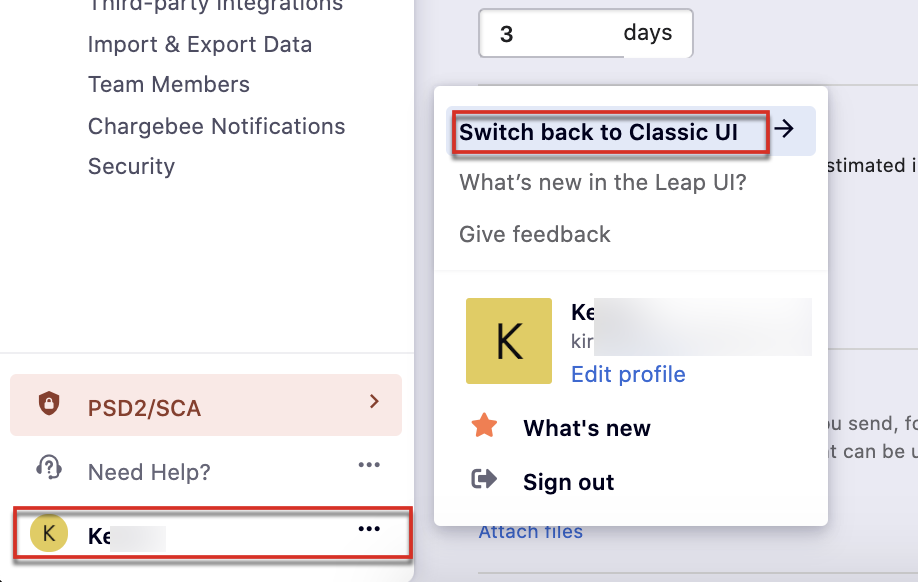
image
  1. Use What's new in Leap UI to see UX changes and Give Feedback to send feedback. For product updates, see Chargebee updates.

Important Notes

Switching between views does not change the performance of the site.

Related Articles

What are the new UI enhancements on Leap UI?
What is the enhancement on all Index Pages on Leap UI?
Where is the quick action option in Leap UI?

Was this article helpful?