Online Banking Poland via Adyen
Online Banking Poland is a popular online banking method in Poland and is convenient for your customers, as it allows them to make payments directly from their bank accounts. Chargebee supports Online Banking Poland as a payment method via the Adyen payment gateway.
Supported countries and currencies
Online Banking Poland via Adyen supports the following countries and currencies:
| Country | Currency |
|---|---|
| Poland | PLN |
Prerequisites
To accept Online Banking Poland payments using Chargebee, you must:
- Ensure PLN (Polish zloty) currency is enabled for your Chargebee account.
- Add Online Banking Poland as a payment method in your Adyen account. Learn more
- Ensure the Adyen payment gateway and webhooks are configured in the Chargebee account. Learn more
Integration options
You can integrate Online Banking Poland via Adyen using the following integration methods:
Supported tokens
This integration supports the following set of tokens:
| Token | Description | Format and Sample |
|---|---|---|
| Chargebee Payment Intent ID | This is the Payment Intent ID returned after a successful authorization process using Chargebee JS. | Format: payment_intent[id] |
Configure Online Banking Poland in Chargebee
Follow these steps to configure Online Banking Poland via Adyen in your Chargebee site:
- Log in to the Chargebee app.
- Go to Settings > Configure Chargebee > Payment Gateways.
- Select the relevant Adyen instance from the list.
- Enable Online Banking Poland.
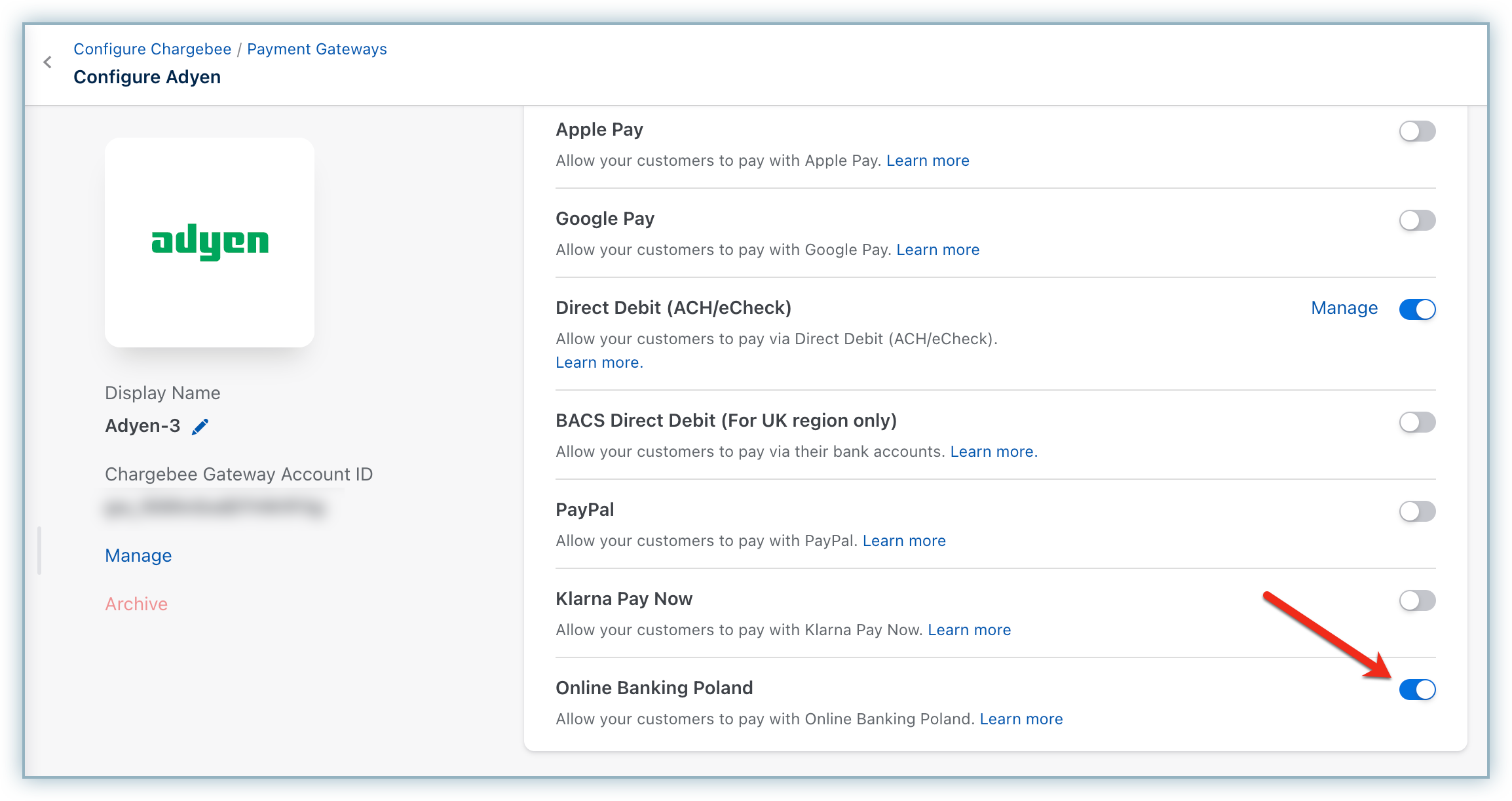
- Click Apply to save changes.
Configure smart routing for Online Banking Poland
When you configure Online Banking Poland through Adyen, smart routing for the PLN currency is automatically enabled. Check the Smart Routing settings, and if any other gateway is already designated for the PLN currency, adjust the Smart Routing settings manually to allocate Online Banking Poland to it.
Follow these steps to modify Smart Routing settings:
- Log in to the Chargebee app.
- Go to Settings > Configure Chargebee > Payment Gateways.
- Click Manage Rules under Smart Routing.
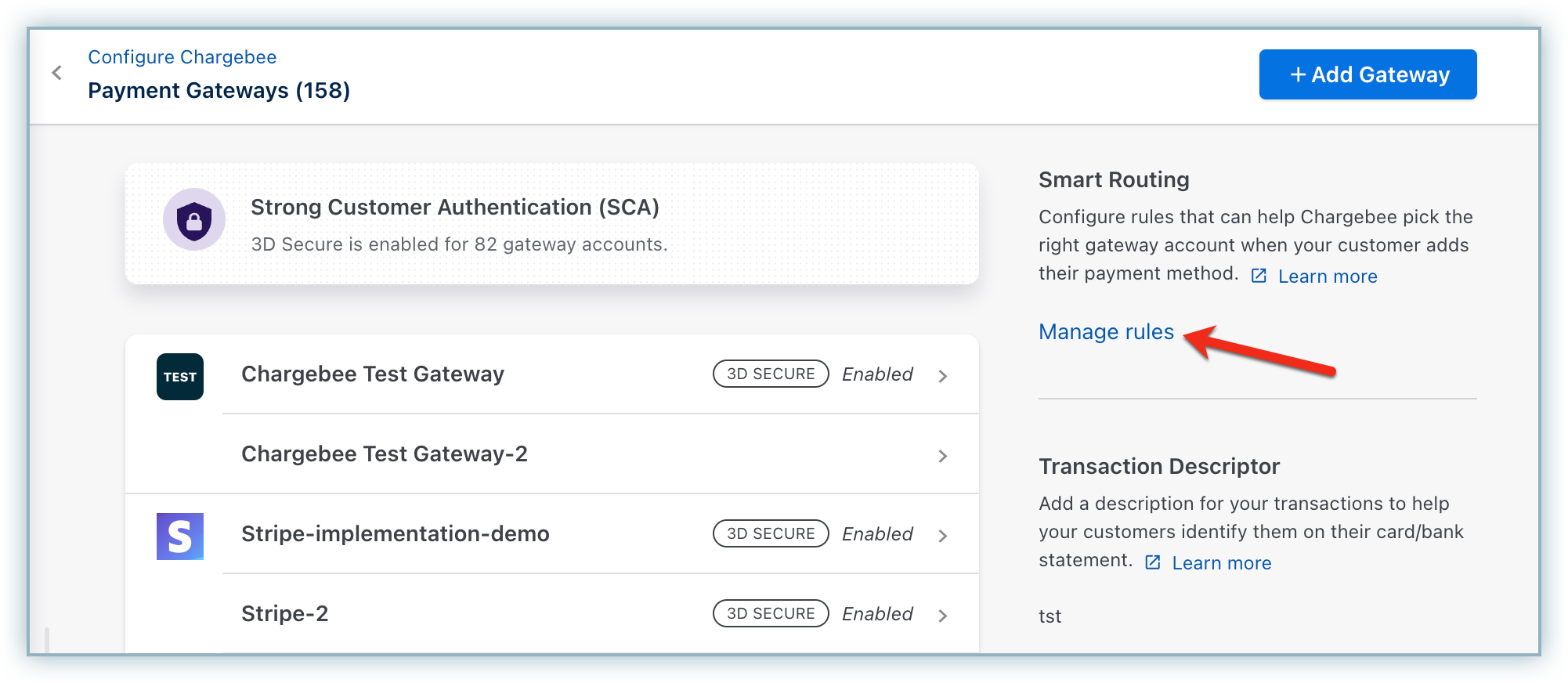
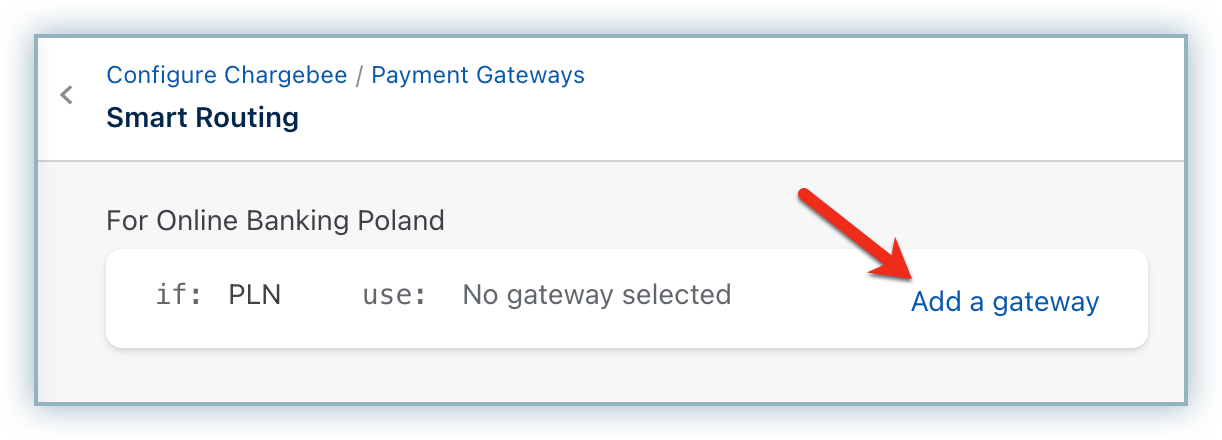
- Go to the Online Banking Poland section and click Add a Gateway for PLN. If you already have a payment gateway assigned to it, click Edit.
- From the Choose a payment gateway drop-down menu, select the relevant Adyen instance with Online Banking Poland enabled.
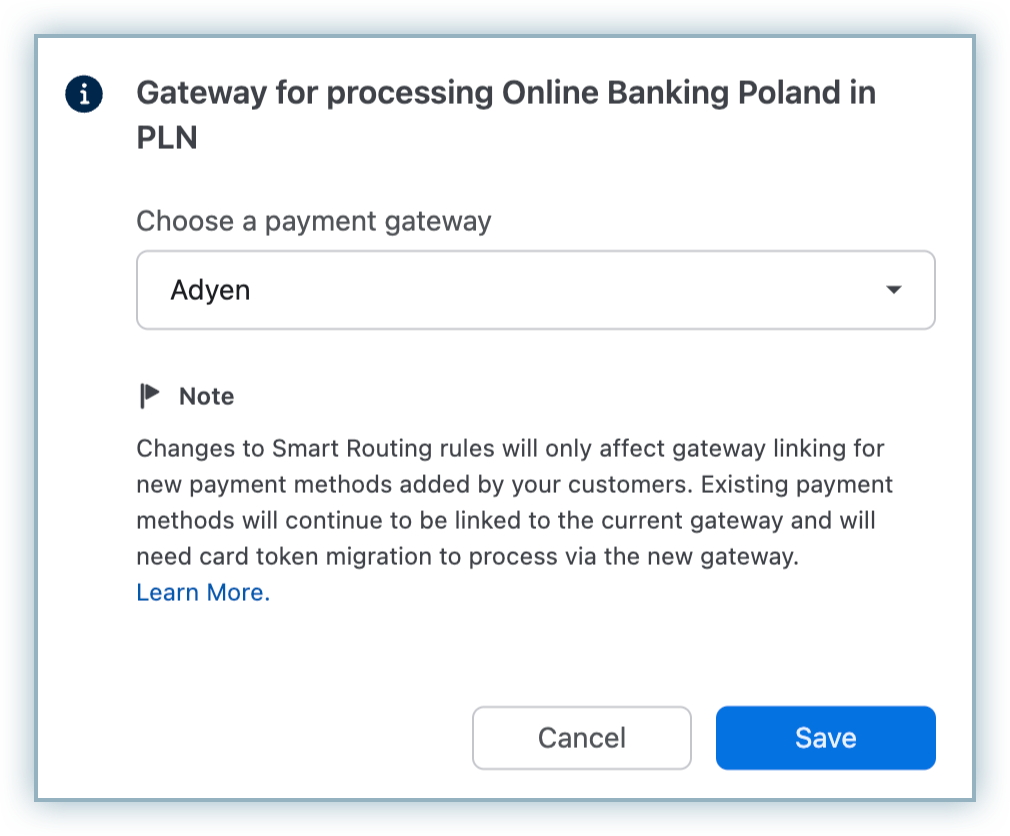
- Click Save.
Enable Online Banking Poland to pay for subscriptions
Online Banking Poland is a one-time payment method and cannot be used for recurring payments. To use it for subscriptions, configure your Chargebee site to allow all one-time payment methods for subscriptions.
Follow these steps to enable one-time payment methods for subscriptions:
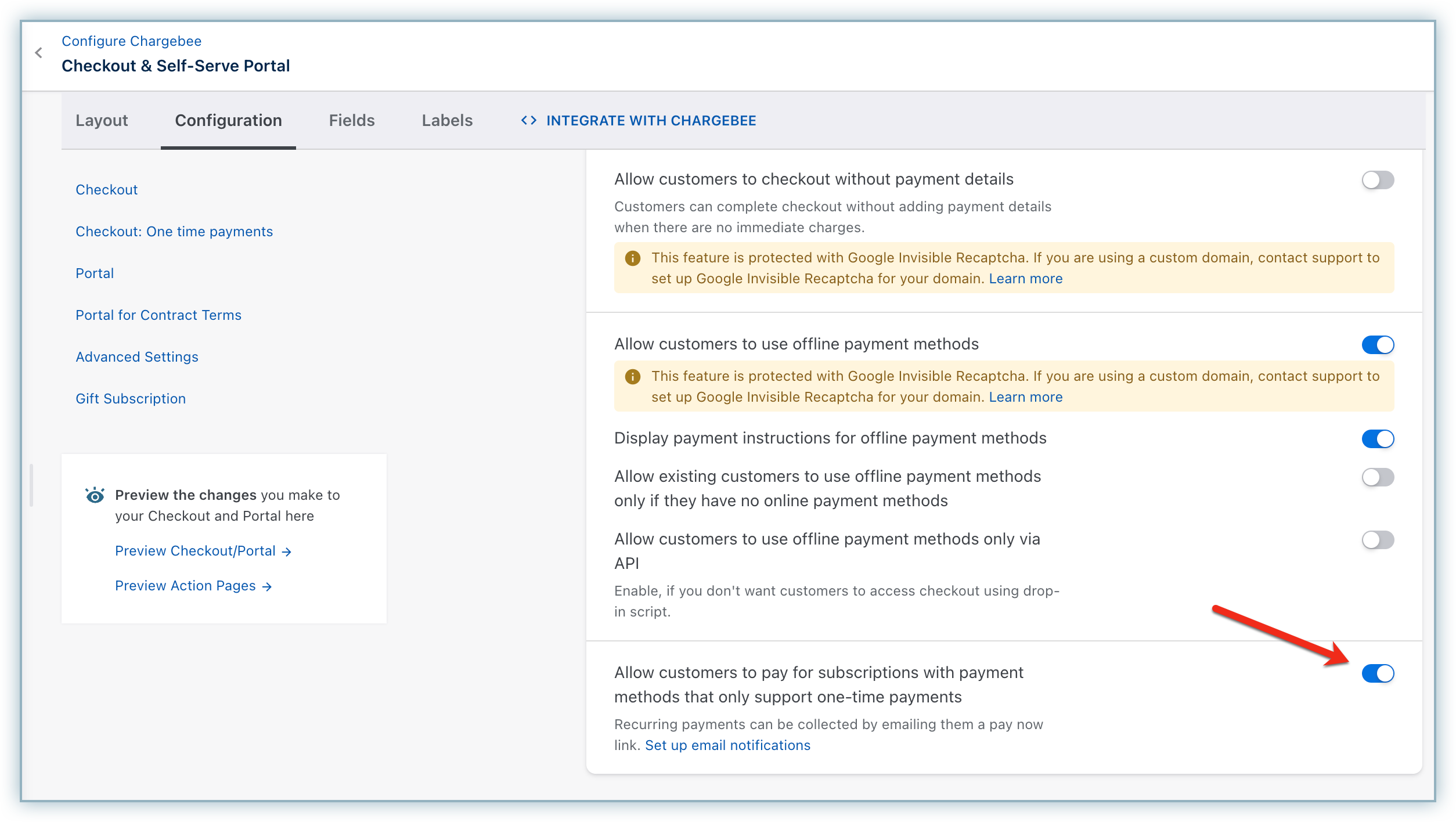
- In the Chargebee app, go to Settings > Configure Chargebee > Checkout & Self-Serve Portal.
- Select the Configuration tab and enable Allow customers to pay for subscriptions with payment methods that only support one-time payments.
Checkout flow
Note
If you are collecting the billing address, make sure to enable the First Name and Last Name fields from the Checkout settings in Chargebee. Instructions on modifying the Checkout fields are here.
Your customer performs the following steps during checkout using Online Banking Poland via Adyen:
- Initiate checkout and proceed to the next step.
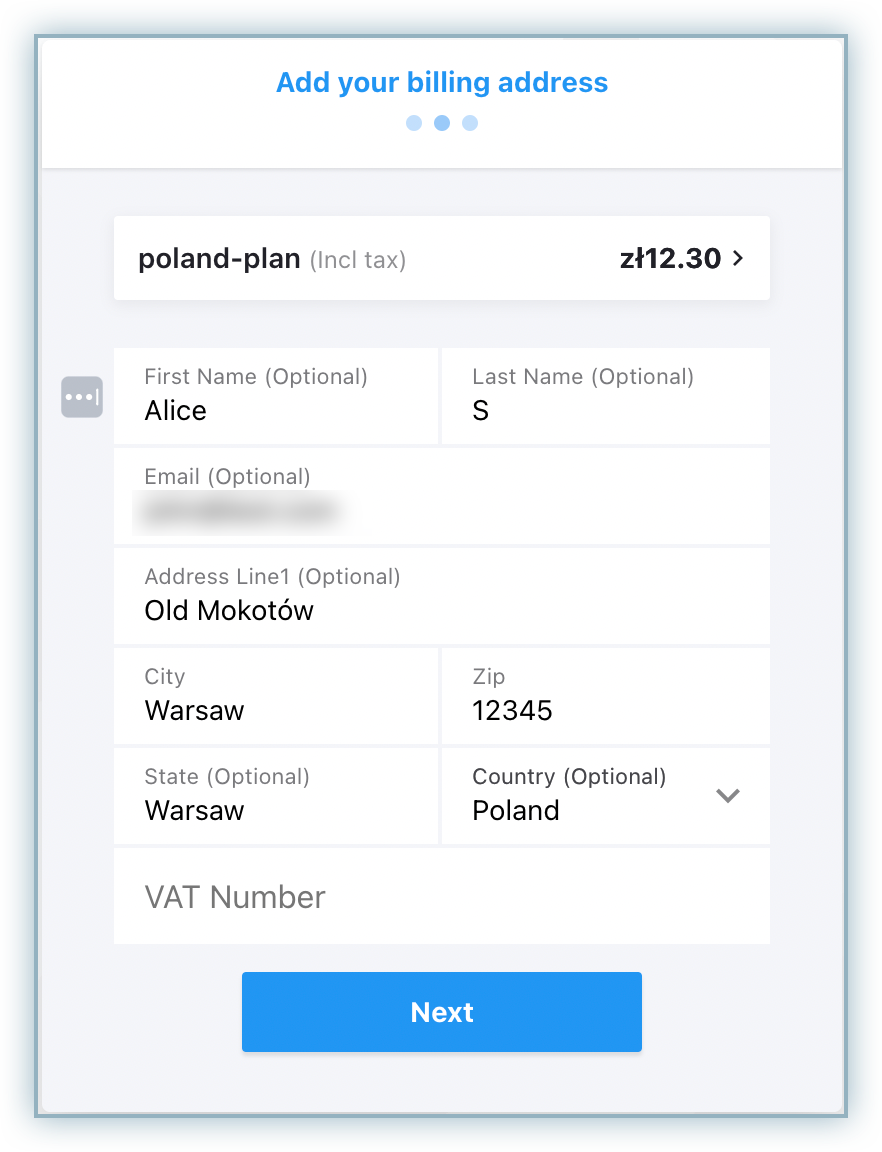
- Enter the Billing Address details.
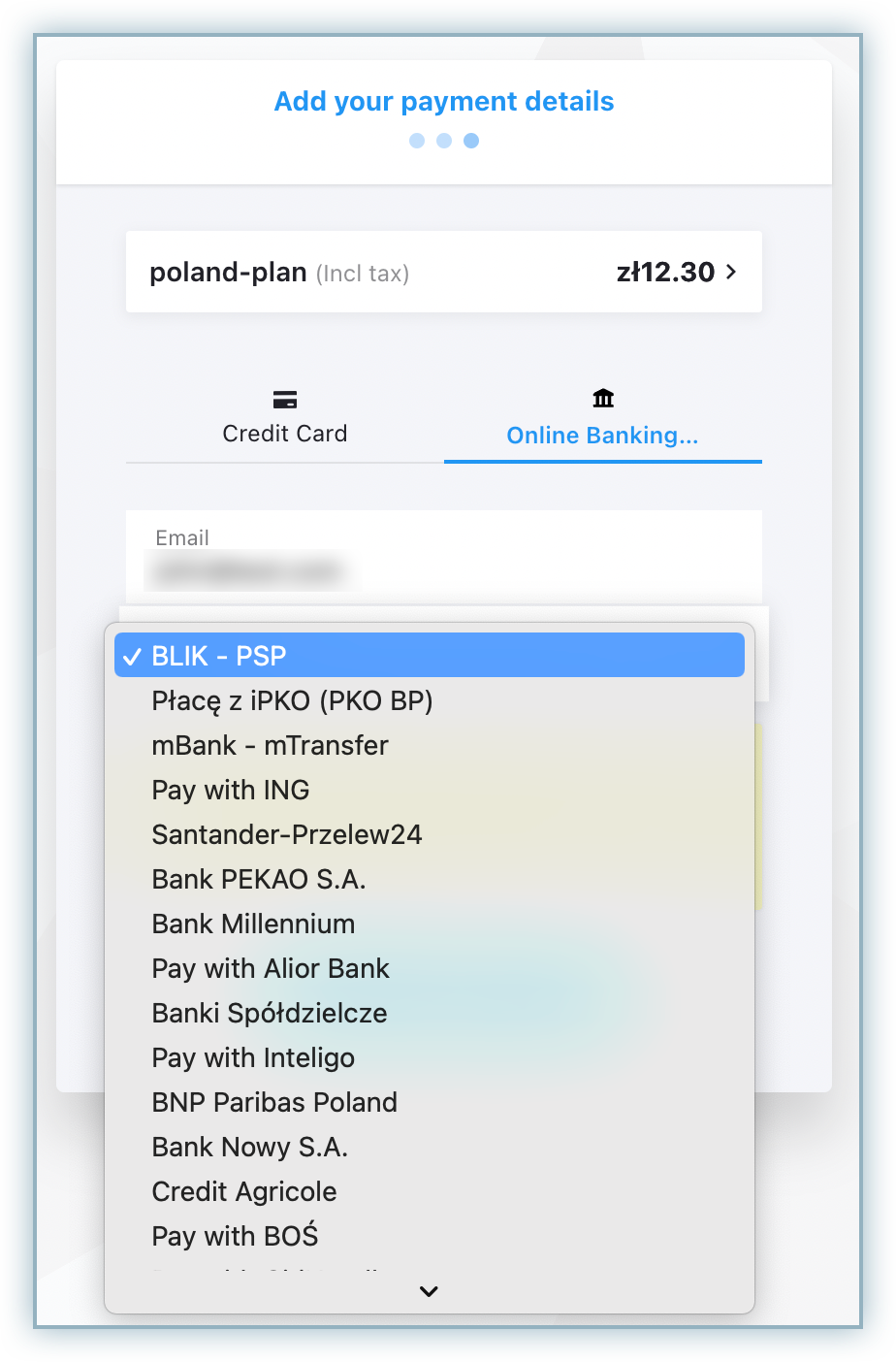
- Select Online Banking Poland as the payment method and choose the bank to make a payment.
- Click Next.
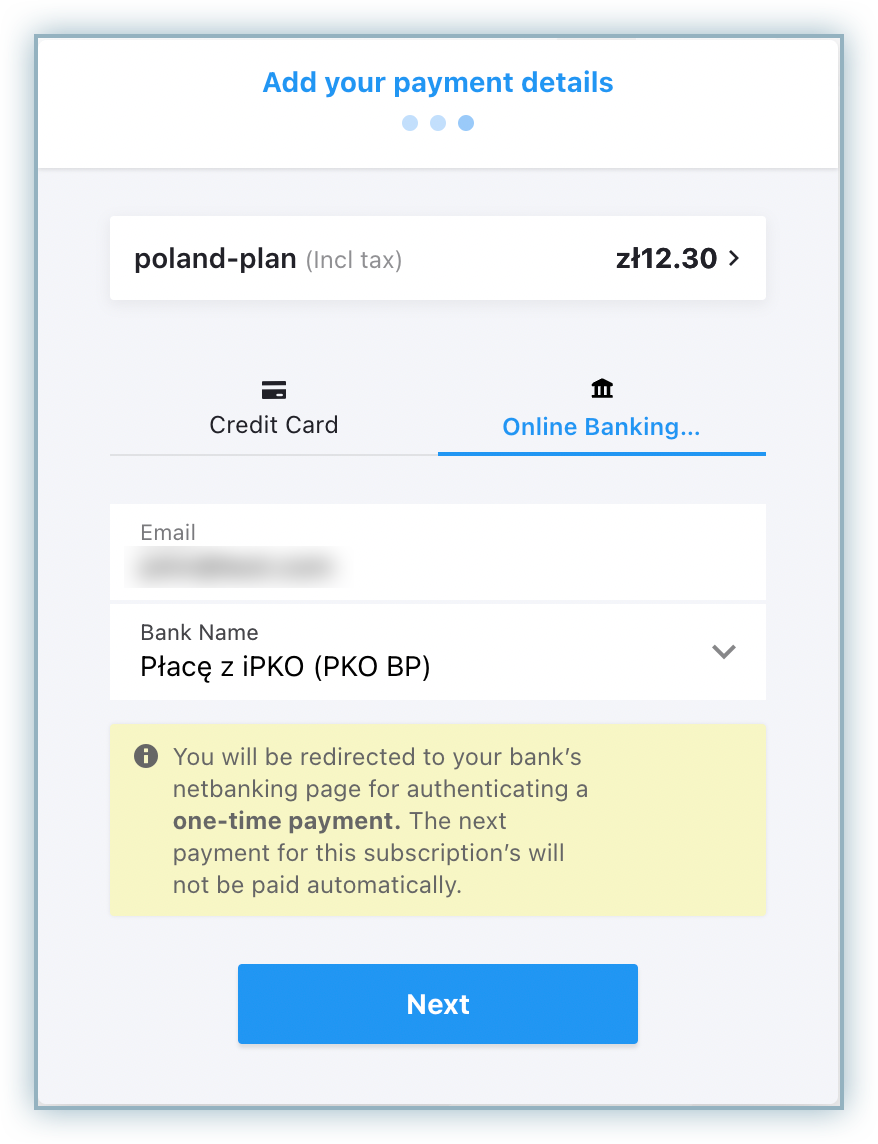
- Click Pay & subscribe.
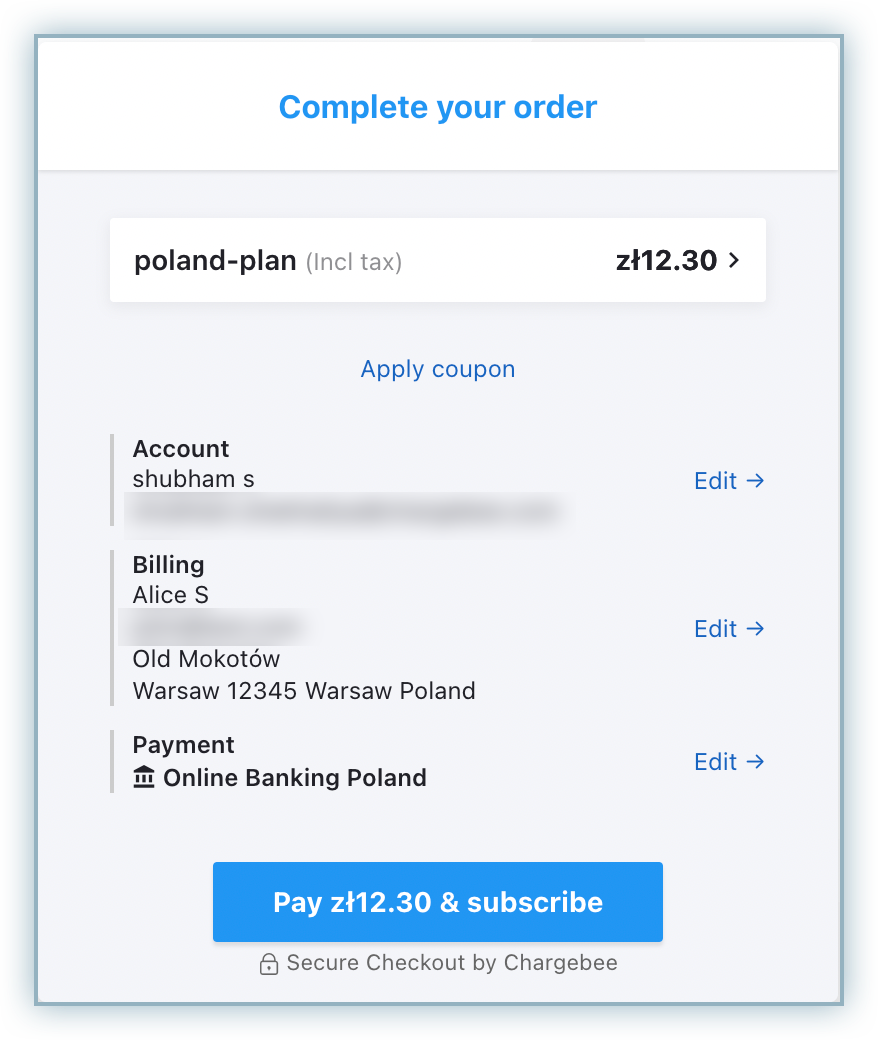
- Your customer will be redirected to the Online Banking Poland checkout page to complete the payment.
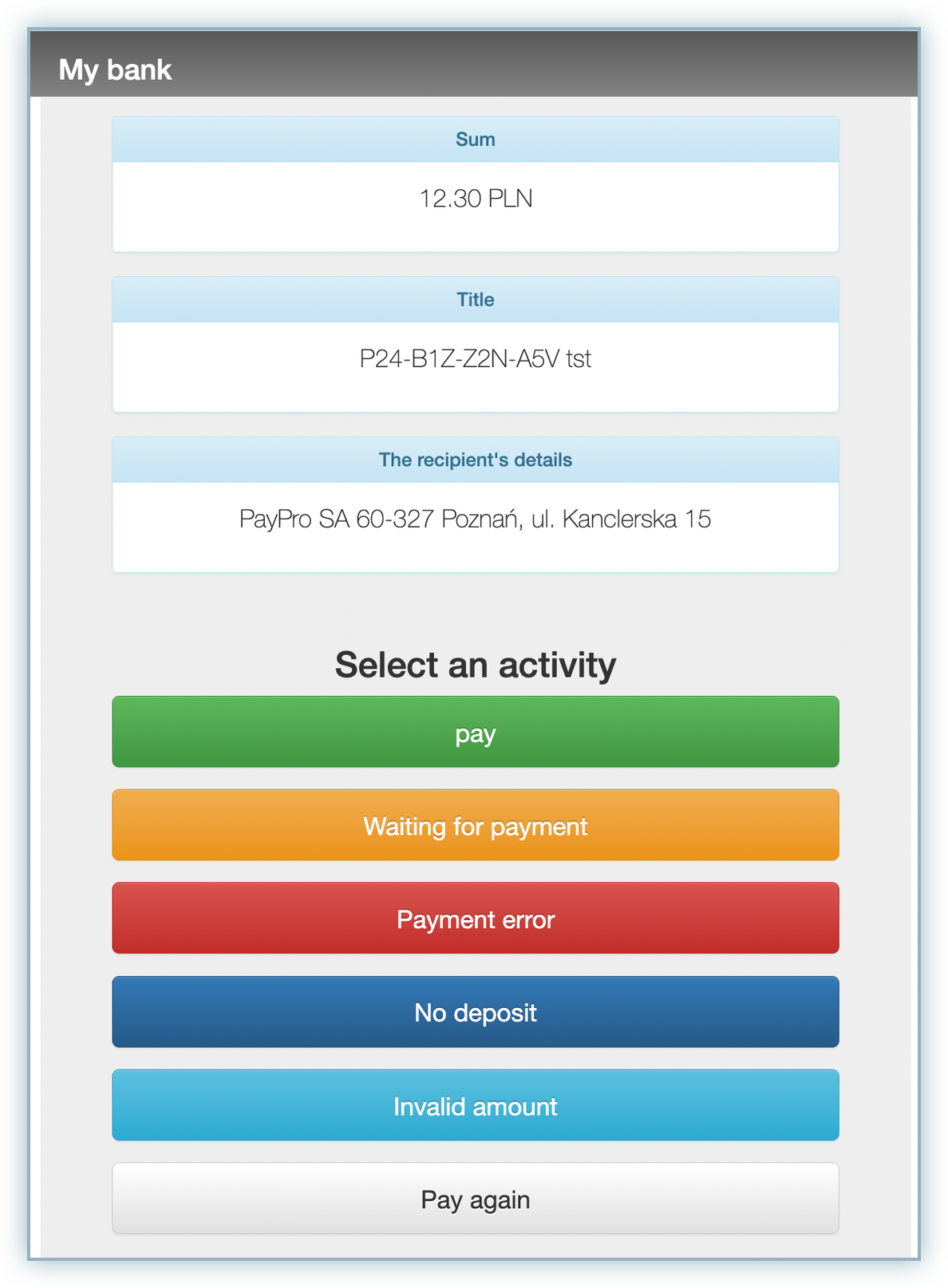
The Online Banking Poland checkout tab is closed once the checkout is completed.
Email notification for one-time payment methods
In invoice-generated emails, you can add a Pay Now button for one-time payment methods like Online Banking Poland.
Follow these steps in your Chargebee site to add a Pay Now button to the email template:
- In the Chargebee app, go to Settings > Configure Chargebee > Email Notifications.
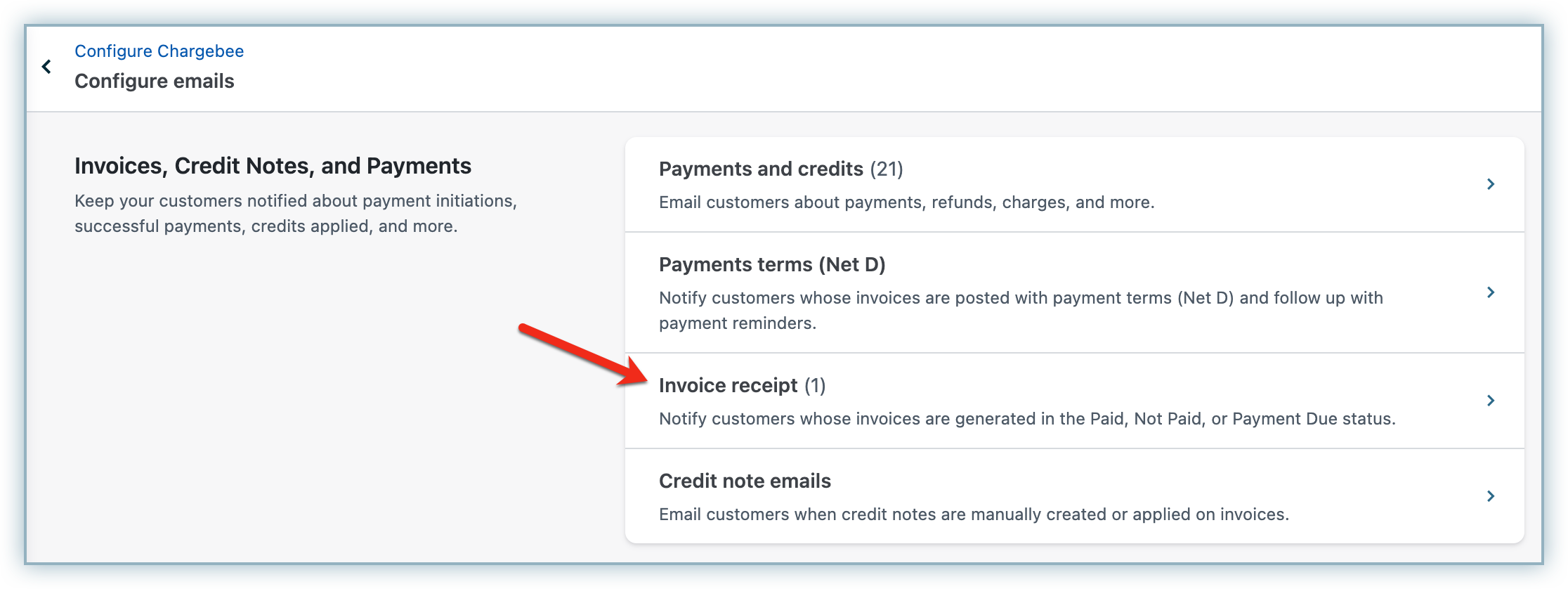
- Select Invoice receipt under the Invoices, Credit Notes, and Payments section.
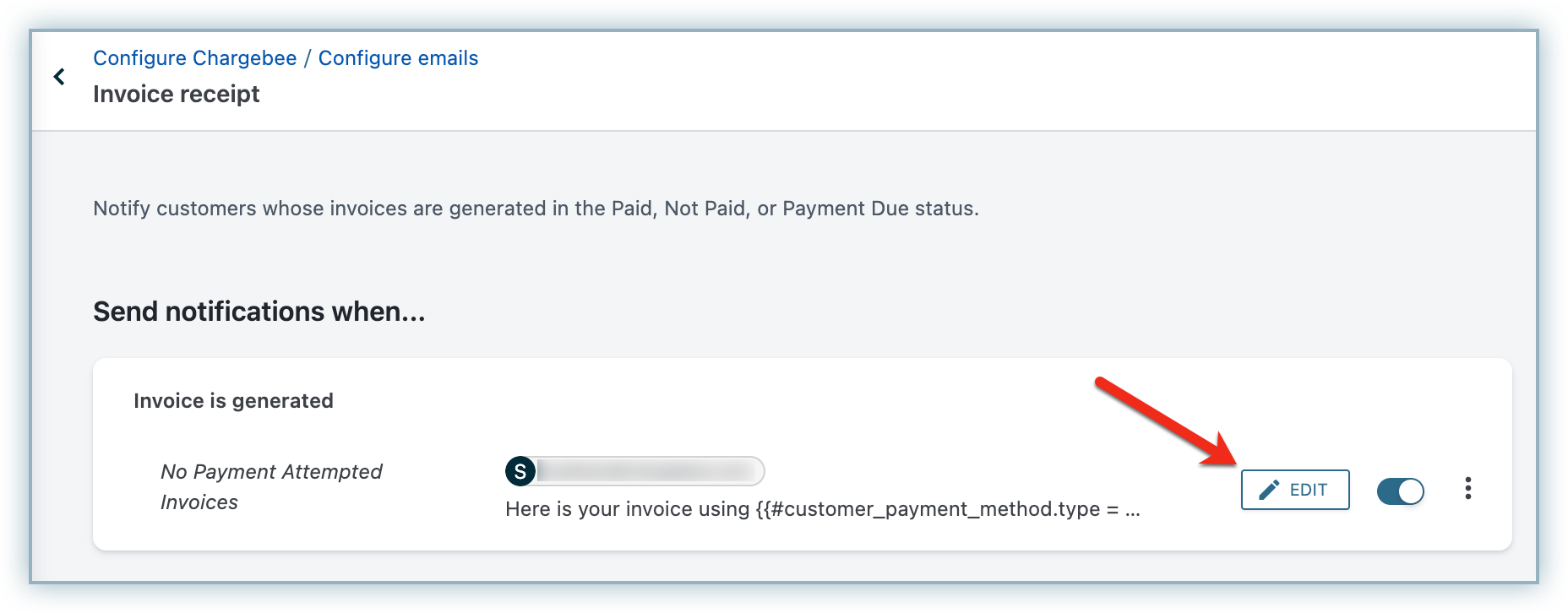
- Click Edit for Invoice is generated.
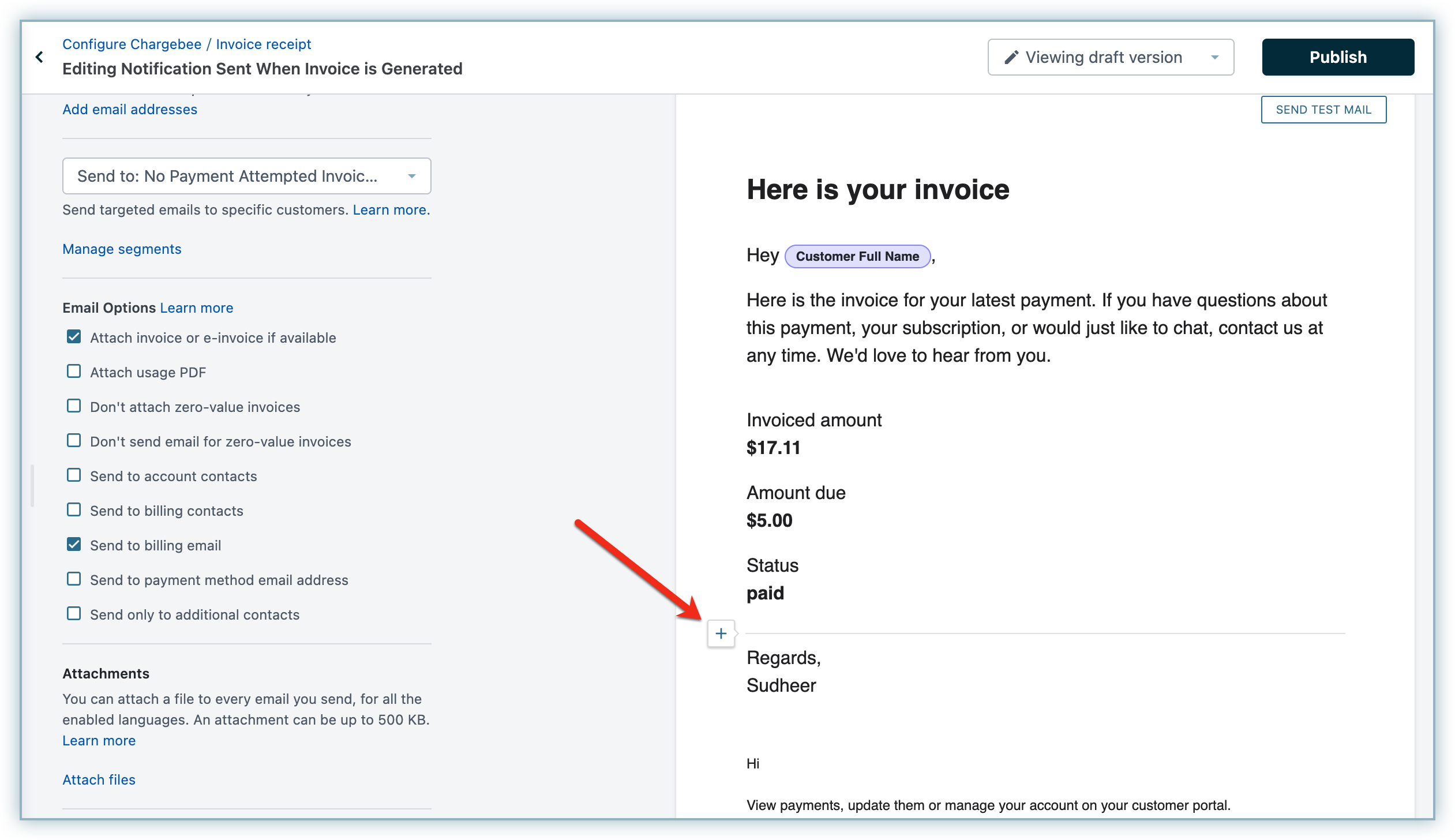
- In the email body, hover over the area where you want to place the Pay Now button and click the + button.
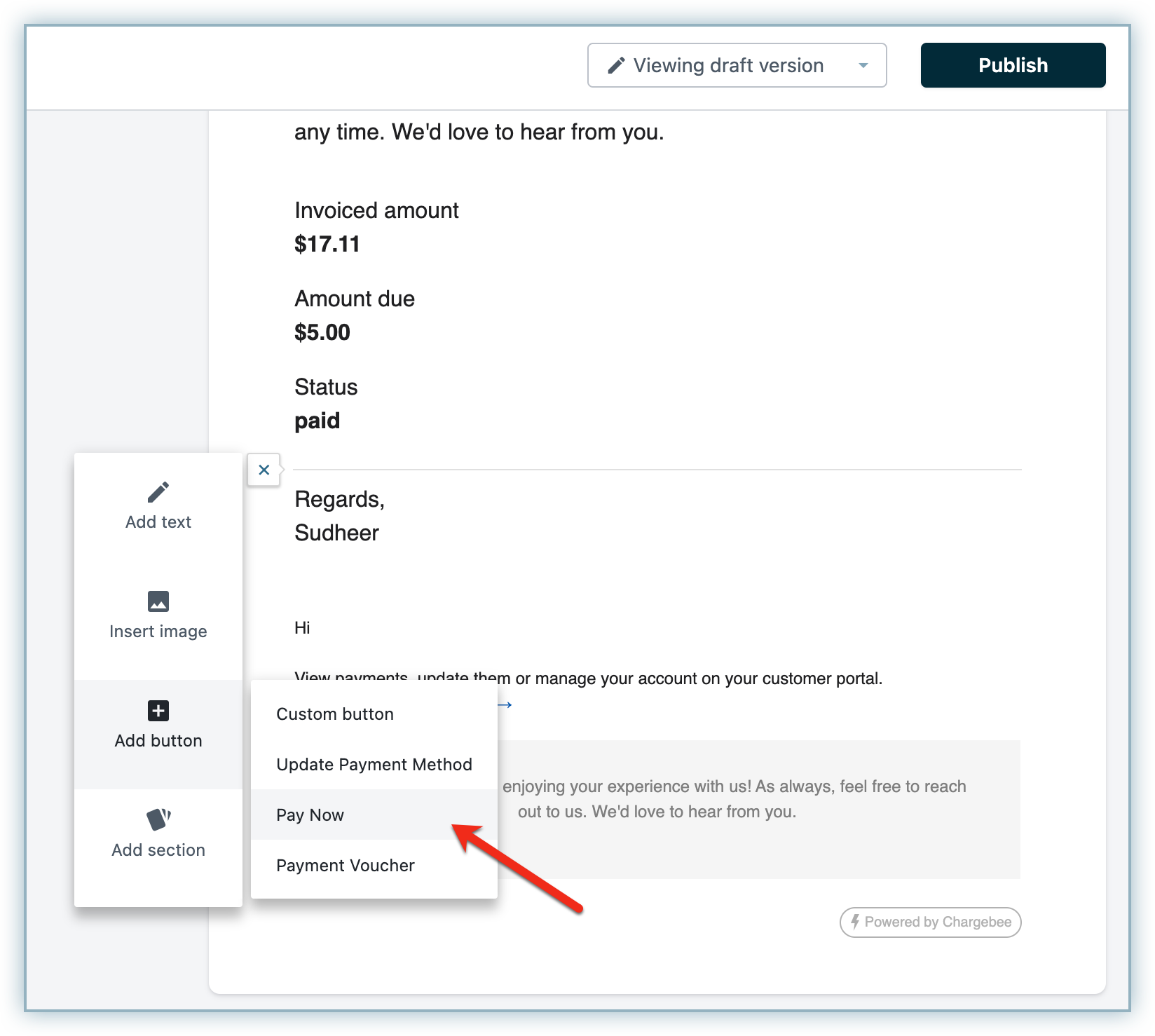
- Click Add button and then click Pay Now. You can also customize the button's name and alignment.
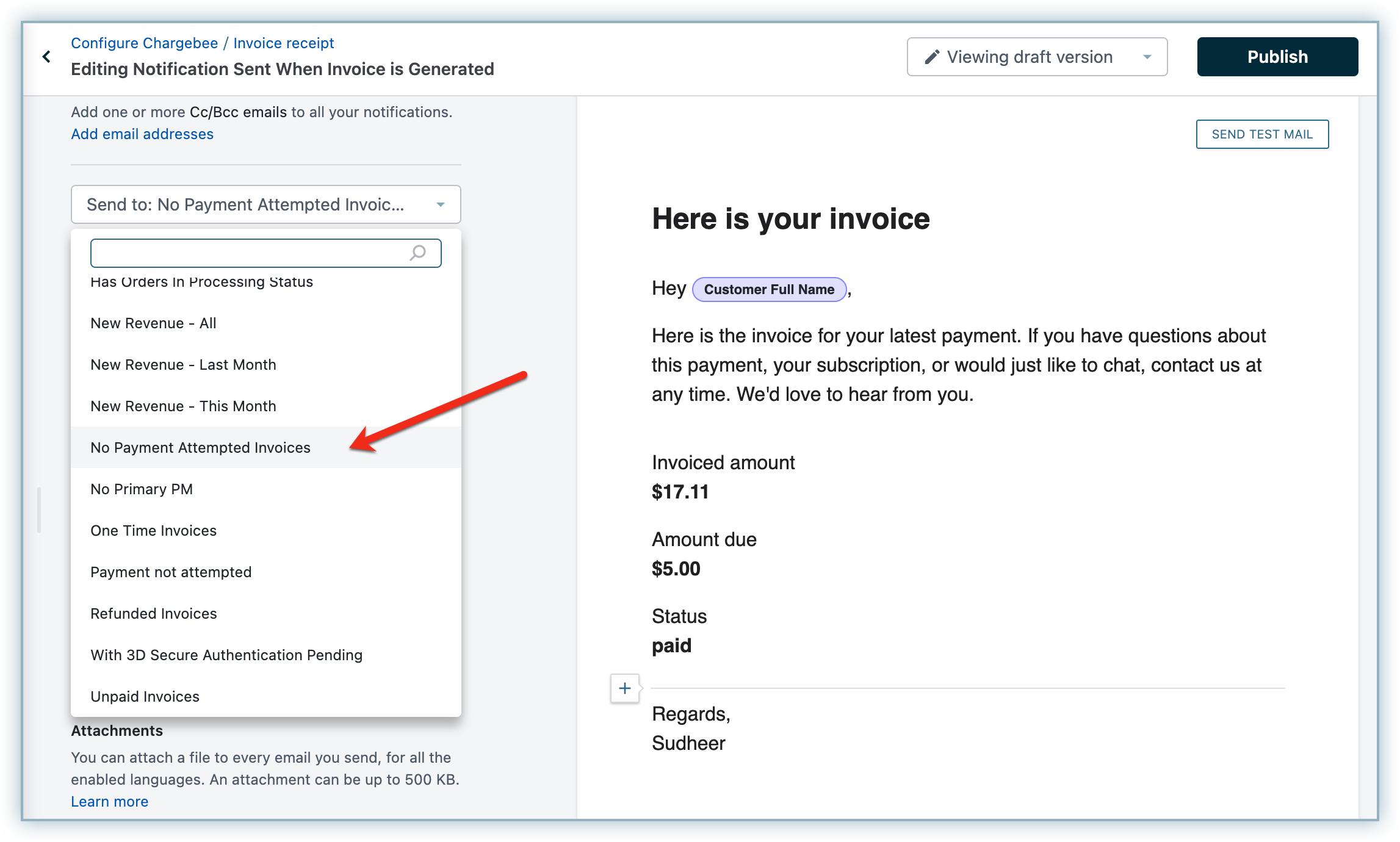
- Select No Payment Attempted Invoices from the Send to drop-down menu. This will send the Pay Now link only for invoices for which payment has not been attempted yet.
Limitations or important points
- Online Banking Poland cannot be added as a payment method using the customer portal or the Chargebee app. To initiate payment using Online Banking Flow, you can only use your checkout flow, Pay Now flow, or your custom checkout with Chargebee.js flow.
- As Online Banking Poland does not support recurring payments, to collect payments for subscriptions using Online Banking Poland, you must send email notifications with a Pay Now link when a new invoice is generated.
- Payments initiated using Online Banking Poland are usually settled within one to two days.
Was this article helpful?