How to list the items that belong to the same Product family?
Problem Statement
You want to know how to list the items that belong to the same product family.
Scope
How to list the plan (items) that belong to the same Product family?
How to make use of APIs to list the plan items that belong to a particular Product family?
Summary
There are two options to export plans by Product Family from Chargebee.
1. List item prices API - This API r**eturns a list of item prices satisfying all the conditions specified in the filter parameters. This API can be used to retrieve the list of Plan items under a specific Product Family. The required input Parameter is '**item_family_id[]'
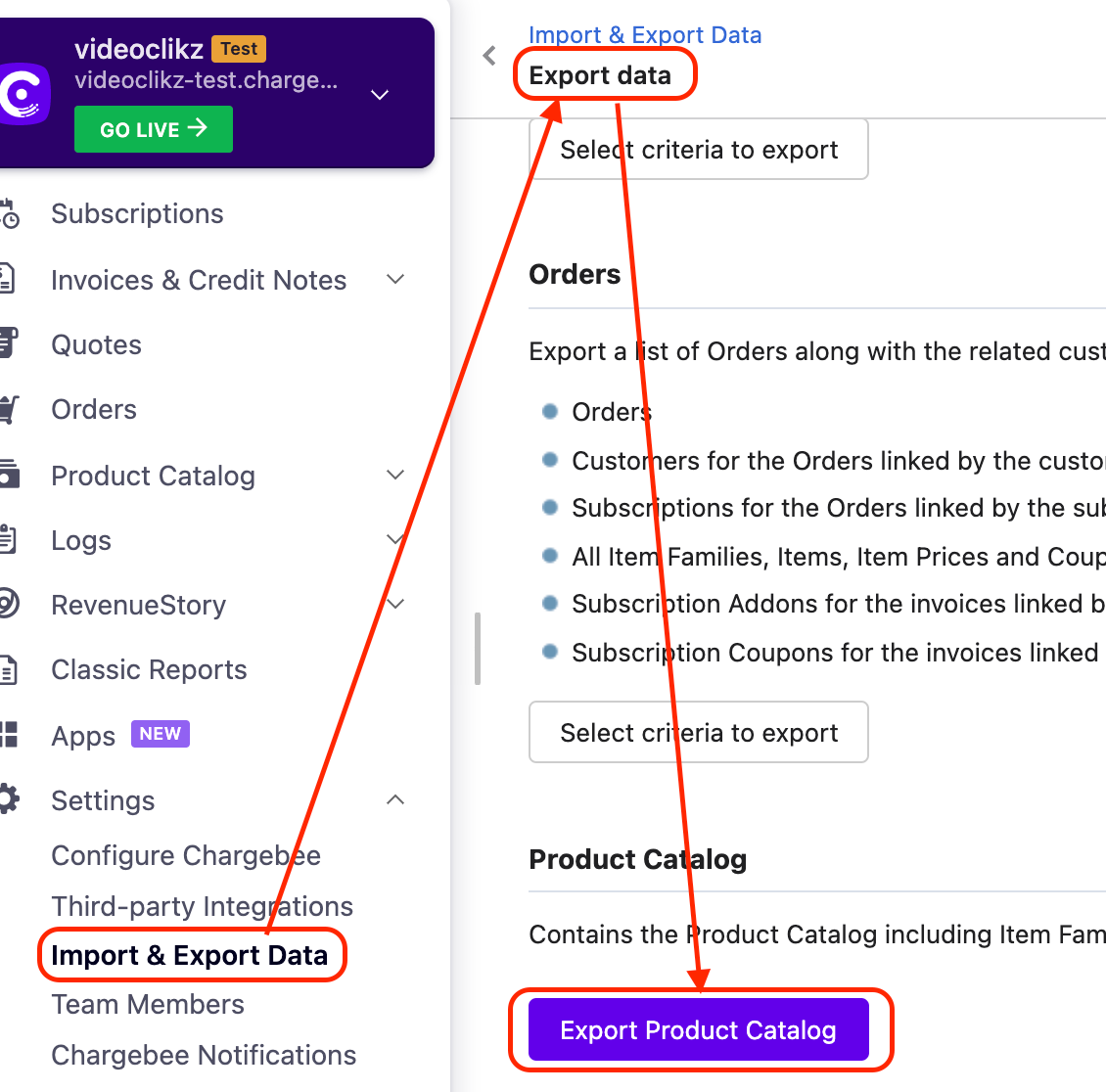
2. Import & Export Data - Settings > Import & Export Data > Export Data > Export Product Catalog and you will have a zip file with the set of CSV files downloaded and select 'Items.csv' file.
Also, you can now organize your Product catalog index pages to showcase only what's relevant by using the filters. You can perhaps search for items and item price points efficiently.
If you are to perform a bulk operation for existing data from Chargebee you may have to export the data from Chargebee and update those data to the import sheet from Bulk Operations. Earlier the export data format and import data format varied which involves a lot of manual intervention. With the new enhanced Export file option, you can either export a file using Download Data or use Download import-friendly file from Settings > Import & Export Data > Product Catalog. Refer to this link for more information.
Solution
There are two ways you can retrieve a tiered plan price, through UI and API.
List items API
If you are using Latest Product Catalog
First, you need to use the List item prices API call for this and use item_family_id[]. You can pass additional parameters as well.
item_family_id[]
optional, string filter
Filter items based on item_family_id.
Supported operators : is, is_not, starts_with, in, not_in
Example → item_family_id[is] = "acme"
Sample API call:
curl  https://{site}.chargebee.com/api/v2/items \\
-G  \\
-u {site_api_key}:\\
--data-urlencode limit=2
-d item_family_id[is]="ProductfamilyID"
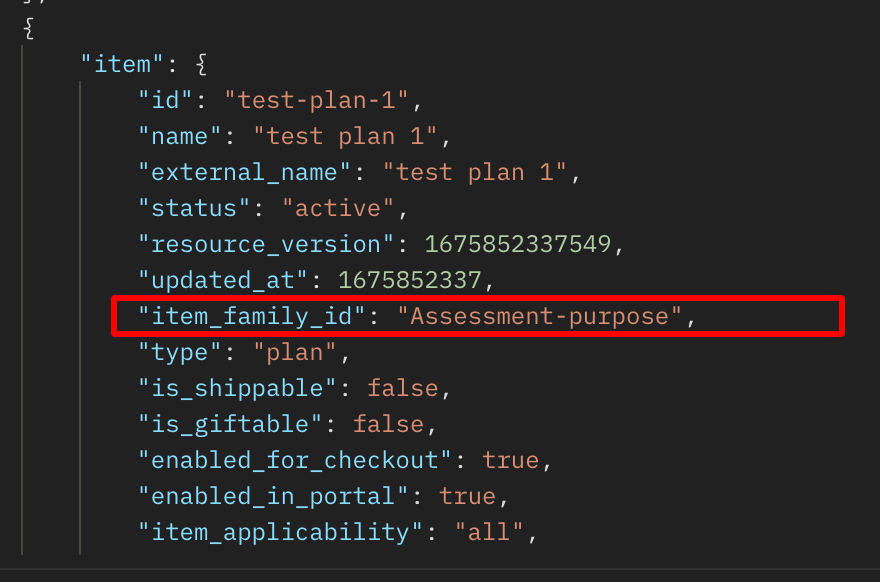
Sample API response
Retrieve Plan by Product Family via UI:
Navigate to Settings > Import & Export Data > Export Data > Export Product Catalog and you will have a zip file with the set of CSV files downloaded.
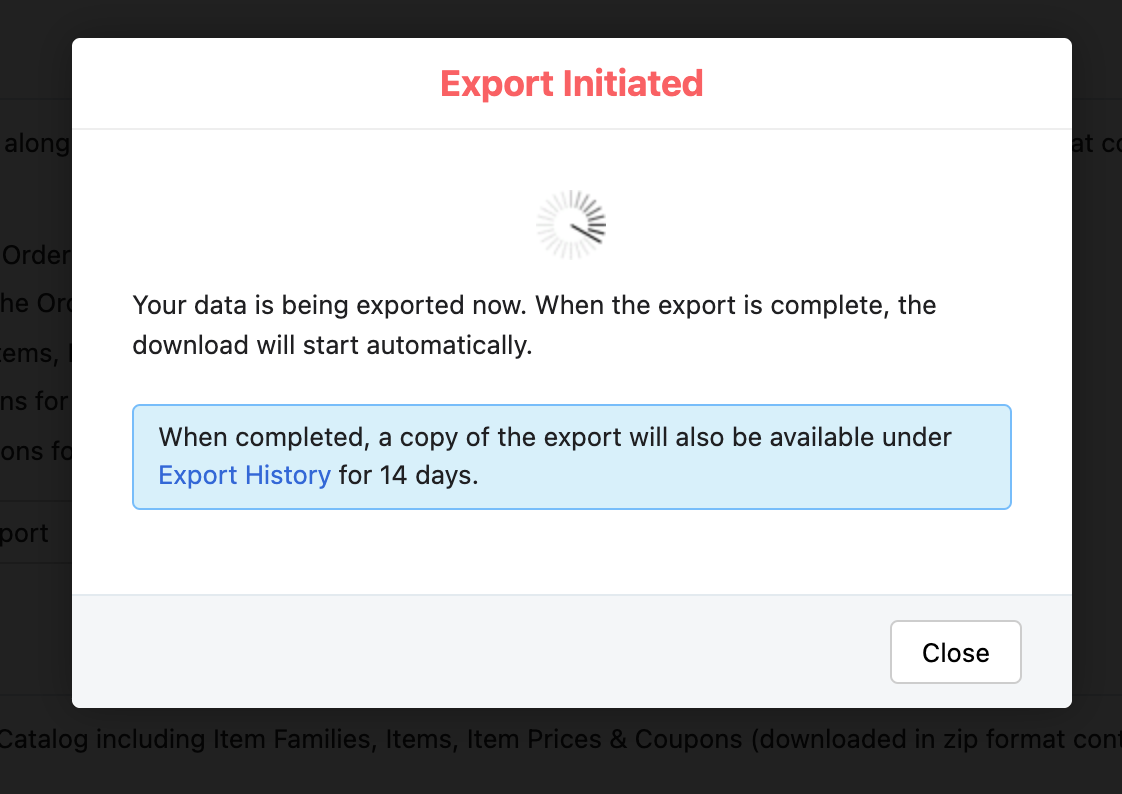
Upon successful download, you can view this export under Settings > Import & Export Data > Export History for 14 days.
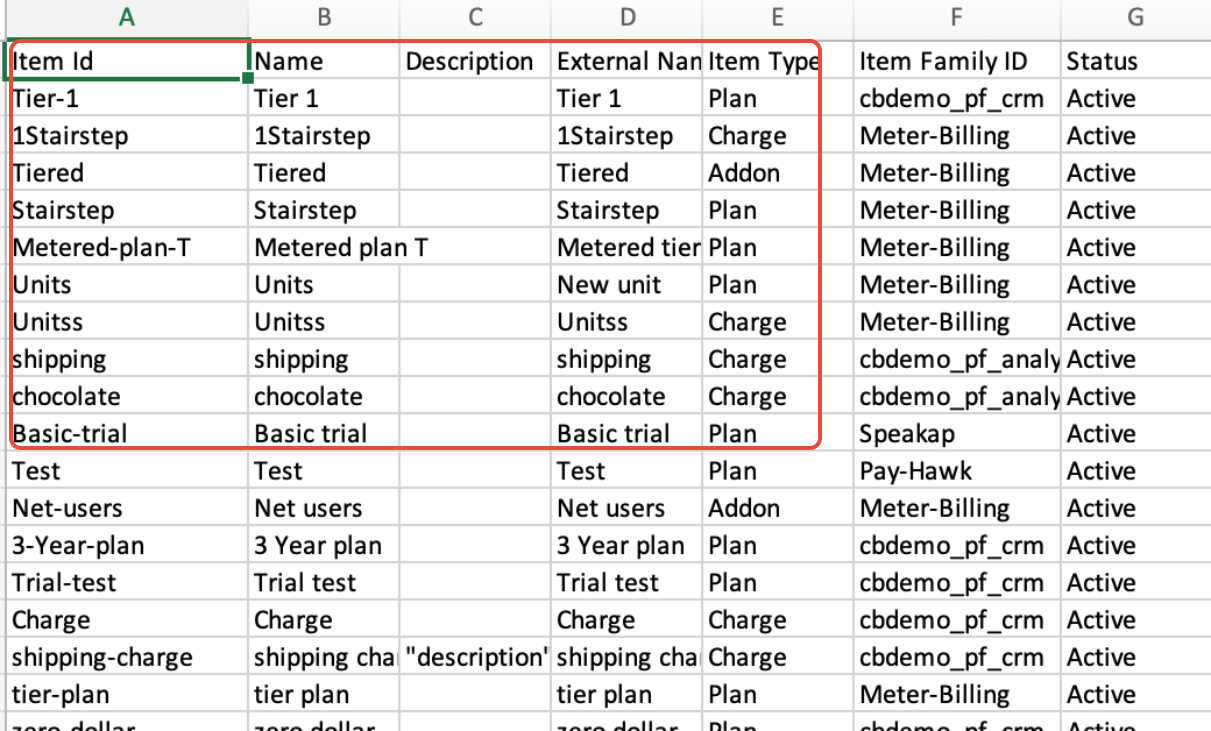
Please check for the 'Item.csv' file which will have the list of plans and their respective Product Families.
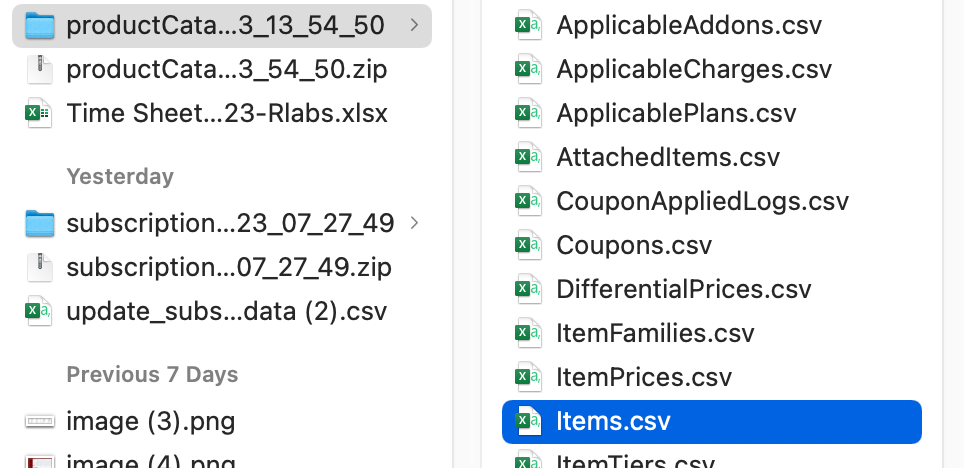
Now you can view the list of Plans respective to their Product Families.
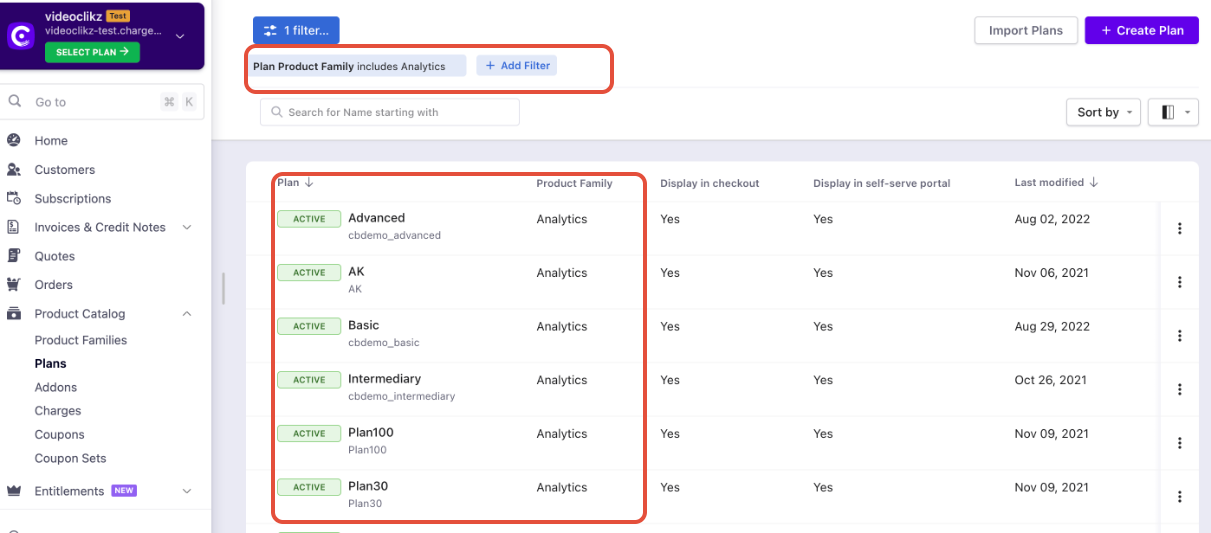
Product Family filters on the Plan Index Page.
Also, you can now organize your Product catalog index pages to showcase only what's relevant by using the filters. You can perhaps search for items and item price points efficiently.
Refer to this link for a quick demo video.
Was this article helpful?