Is it possible to override quantity and price of tiered/Volume/Stairstep plan in Latest Product Catalog?
Problem Statement
You want to know if it is possible to to override quantity and price of tiered/volume/stairstep plan in latest product catalog.
Scope
I want to override the price of the Tiered plan for a few customers.
I want to override the tiers in the tiered plan
I want to override the quantity of volume/ stairstep plan.
Can I override the volume/tiered/stairstep type addon?
Summary
When a plan is created, the tiers or quantities for tiered/volume/stairstep plans are well defined. Sometimes the merchant may choose to override the price for a specific customer while creating a subscription for various business reasons. There can be three types of override in this case.
-
Change the price at each level
-
Change the quantity at each level
-
Tier Override at the subscription level
Please note that this feature is only available in Latest Product Catalog and not in Legacy Product Catalog.
Solution
One of the features of Latest Product Catalog is to allow the merchant to override the price of tiered/volume/stairstep plans.
Configuring Price and Tier Override
Step 1: After the support team has enabled this feature, you can enable price and tier overrides for your Chargebee site, follow the steps below:
-
Login to your Chargebee site.
-
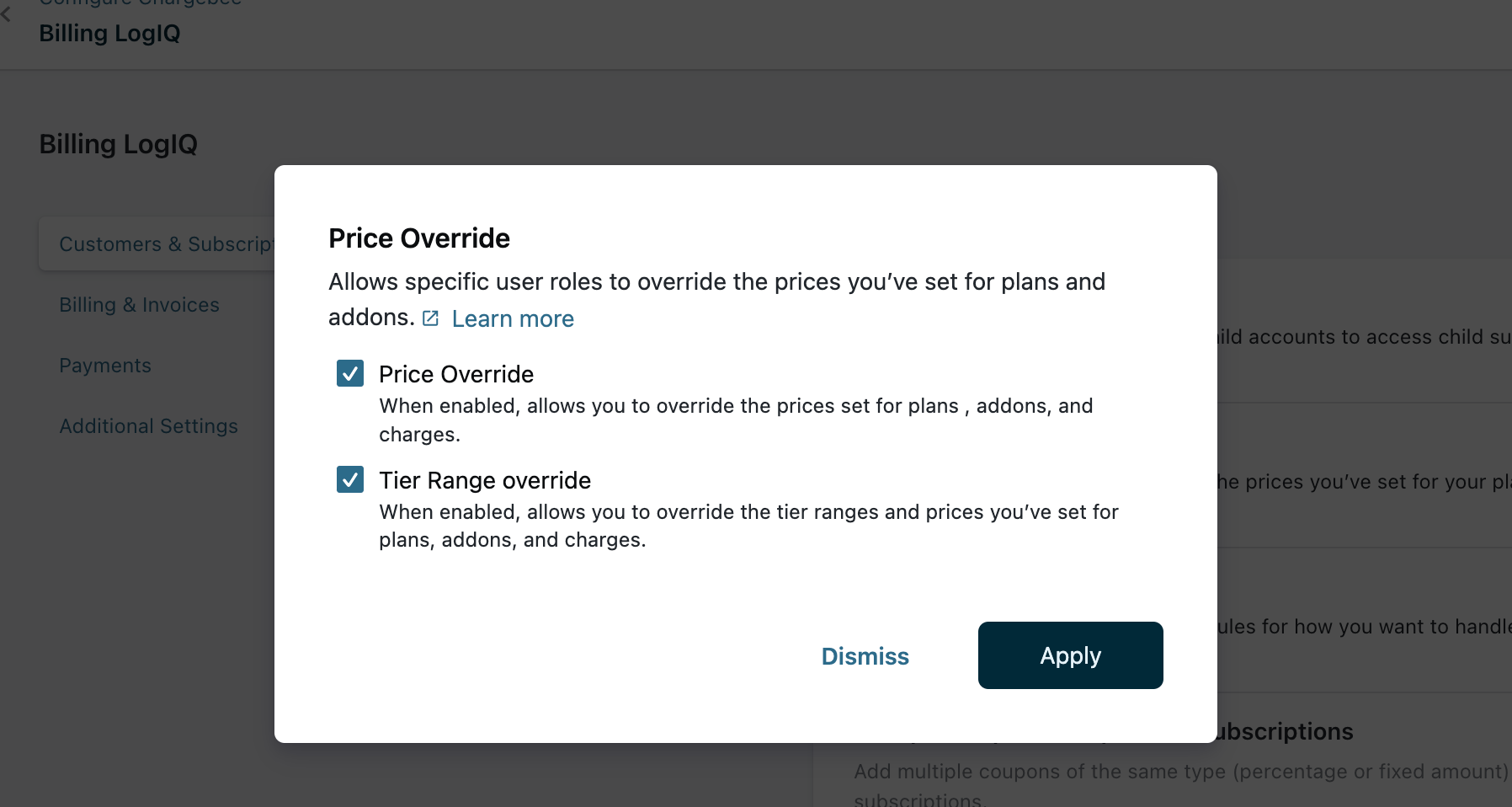
Click Settings > Configure Chargebee > Billing LogIQ.
-
Enable the Allow Price Override option.
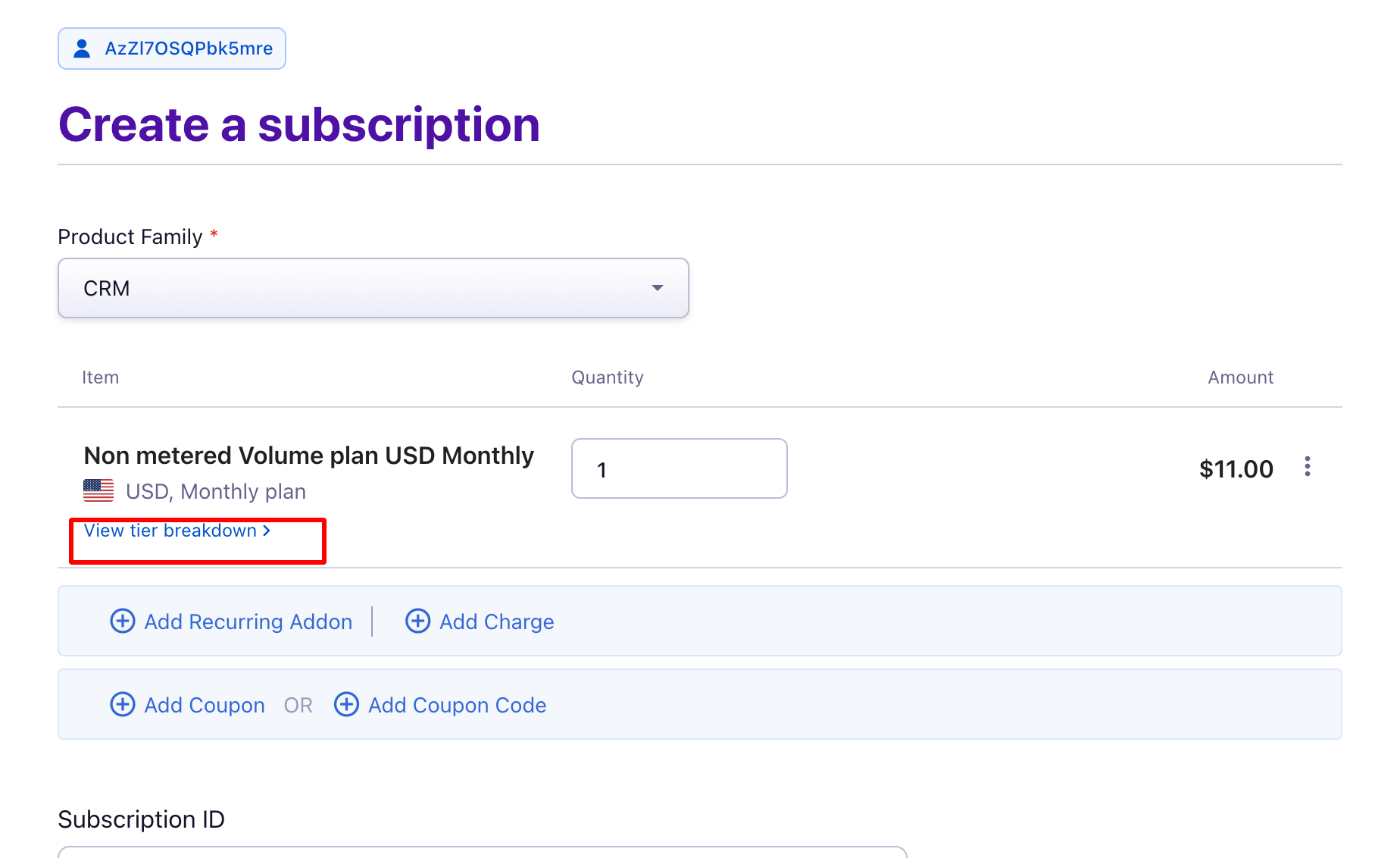
Step 2: Go to create a subscription and select the plan. Click on 'View tier breakdown' and then edit the price for each tier
Step 3: On the Tiered Pricing breakdown popup - Edit tab, the tier ranges are displayed with the lower(From) and upper(To) limits along with the price per unit for each tier range.
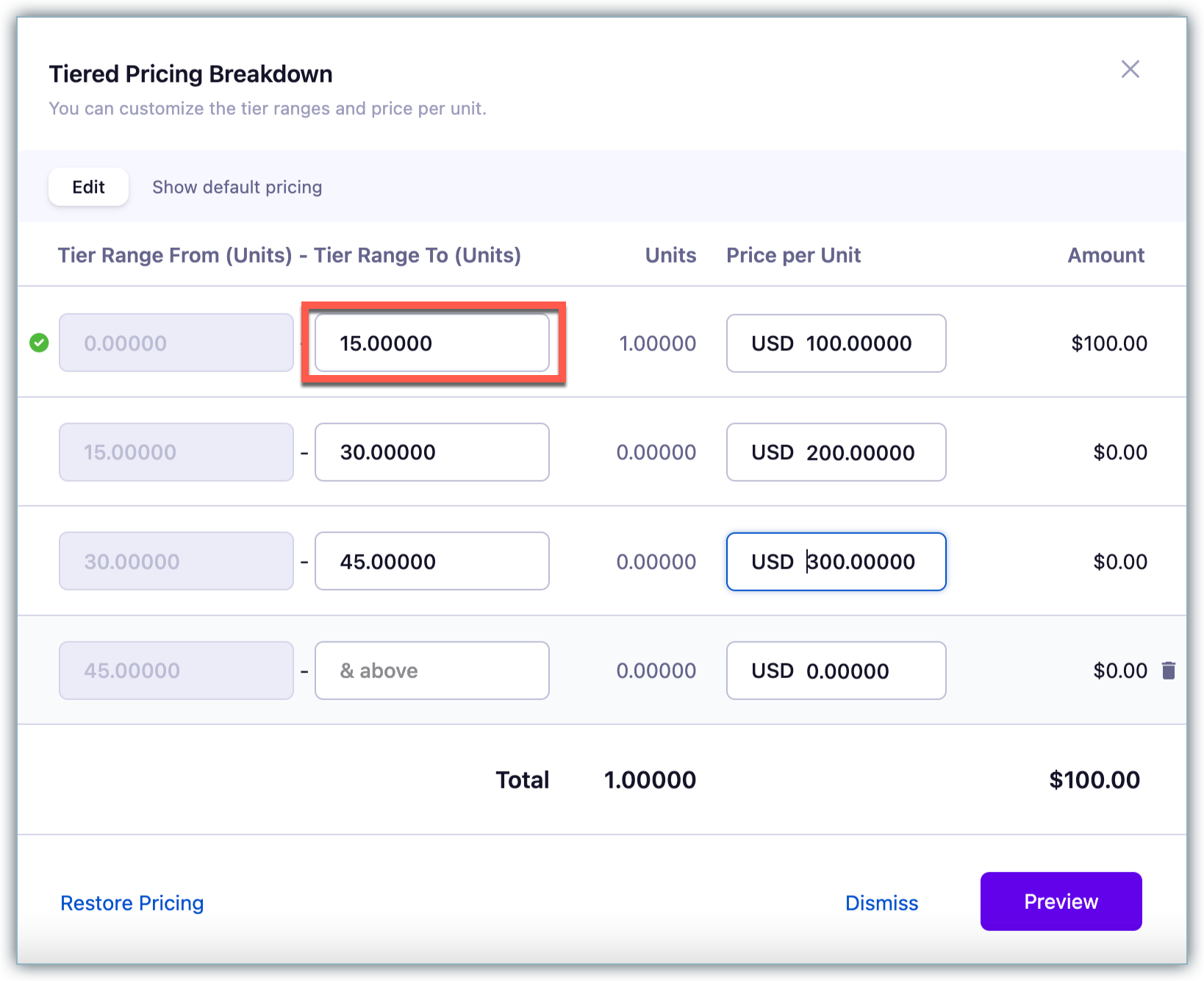
Show default pricing tab to view the original price and tier breakdown of the product as defined in the product catalog.
Once after creating the subscription and can still override the tier from the Edit subscription page, you will see an additional option as 'Show Existing pricing'.
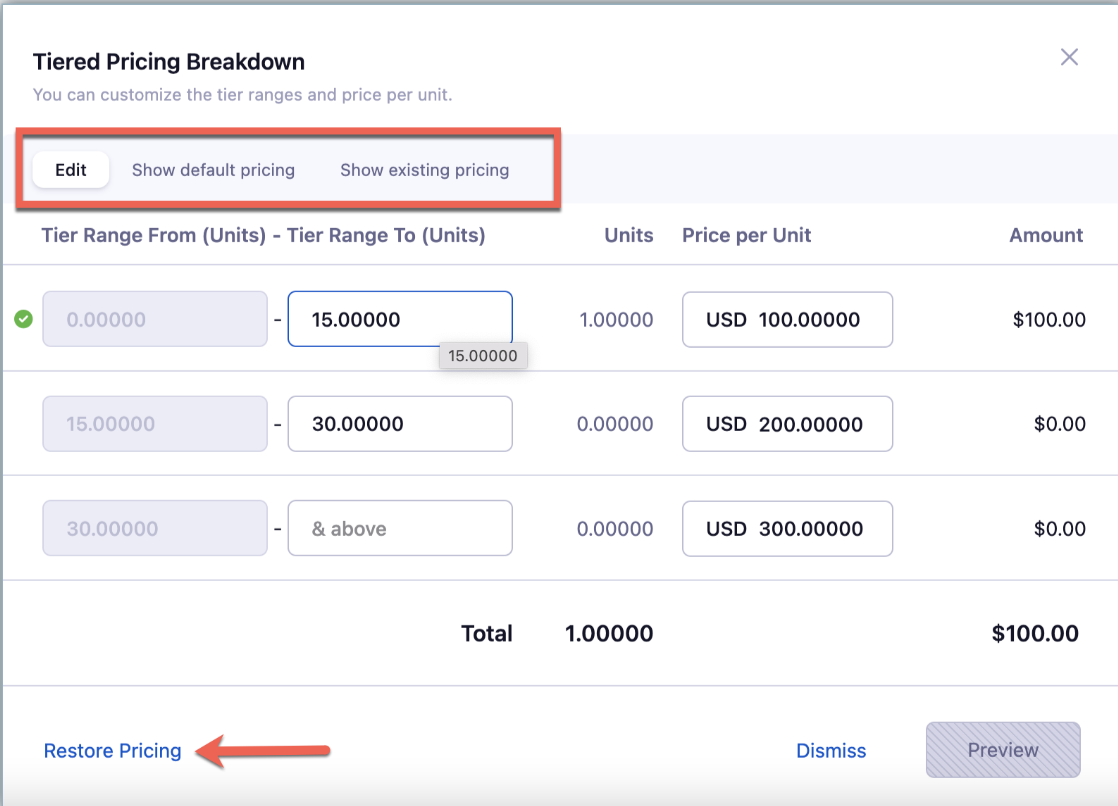
Click Restore pricing to restore the default tier ranges and pricing as defined in the product catalog to the subscription.
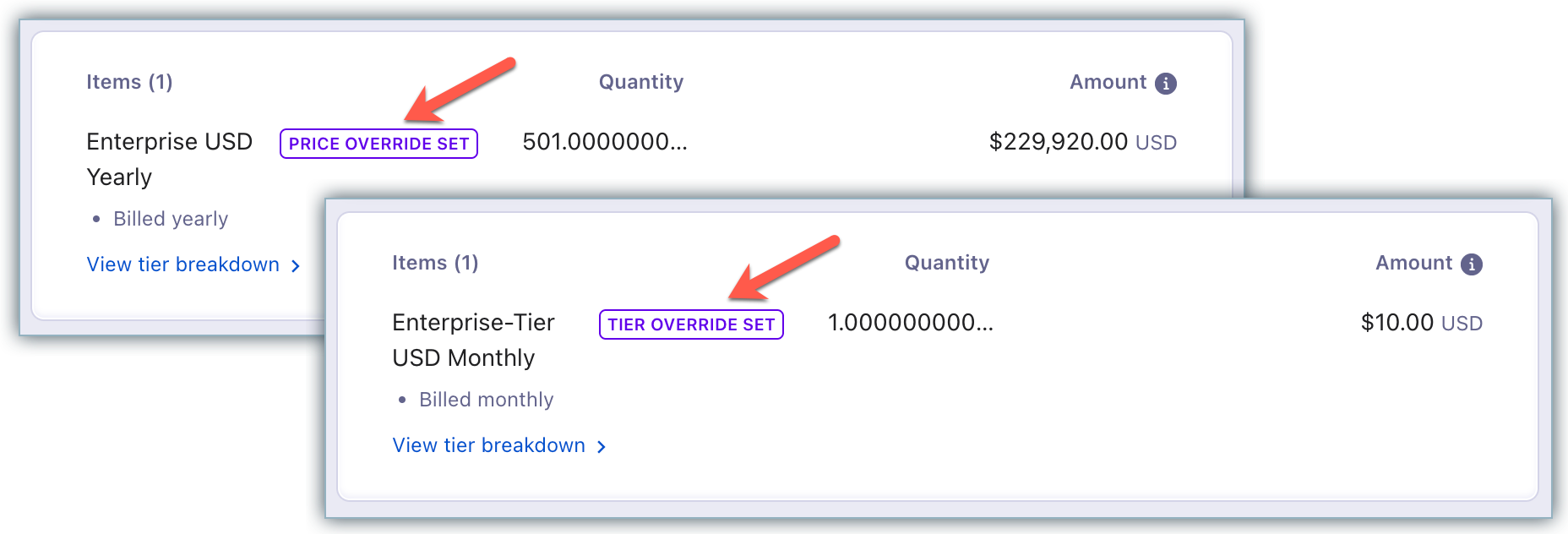
When the Price override setting is enabled and the price is overridden for a subscription record, the subscription details page displays a label PRICE OVERRIDE SET.
When the Tier override setting is enabled and the tiers are overridden for a subscription record, the subscription details page displays a label TIER OVERRIDE SET.
Note
Tier range override is applicable for Addons, Charges & Quotes.
Tier override is applicable for Tiered, Volume & Stairstep product catalogs.
**Limitations
**Tier Overriding is not supported while adding a charge to a pending invoice via UI or API
Tier Overriding is not supported for Chargebee's checkout, hosted pages and Purchase APIs
Tier Overriding feature is currently not compatible with the HubSpot Quote-to-Cash, HubSpot, and [Chargebee Salesforce]chargebee-salesforce.html integrations
Info
Coupon value cannot be overridden
Only Support Agent, Sales Manager, Admin & Owner roles in Chargebee can override prices and tier ranges
You cannot add new tier ranges in between the breakdown list
You cannot delete the first tier line item.
At any point in time while overriding the tier range or prices, if you exit the Pricing breakdown popup by clicking Dismiss or the Close icon or by clicking anywhere outside the popup, your changes do not get saved and will be lost. You need to start overriding from the scratch
once you override the price of a plan for a subscription, all subsequent instances of the plan as a part of the subscription will quote the new price.
To know how to override the price refer to this link
Related Articles
Show more
Was this article helpful?