How is the decreased subscription value within the billing period is calculated in RevRec?
Scope
How is the decreased subscription value within the billing period is calculated in RevRec?
How is the prorated credit note calculated in RevRec?
Example: Chargebee - Annual SaaS - Midterm Contraction in RevRec
Summary
A Midterm Contraction is a term in RevRec when the total subscription value such as plan, addon, or charge (price/unit) decreases within the billing period, and once the billing period is completed by autorenewing for the next term sync the data manually by navigating from Sync > Invoices > Chargebee > Run Job in RevRec. Then, you can check the data under Revenue Plan from Customer > Sales Order > Arrangements > Revenue Plan.
Solution
A yearly subscription with auto-renewal that was invoiced and paid upfront with a contraction occurring in the middle of the contract which results in a credit note to the customer.
Testing in Chargebee:
For instance, we have a customer (ACME) subscribing to the Annual 1Y plan with 100 units at $12,000.
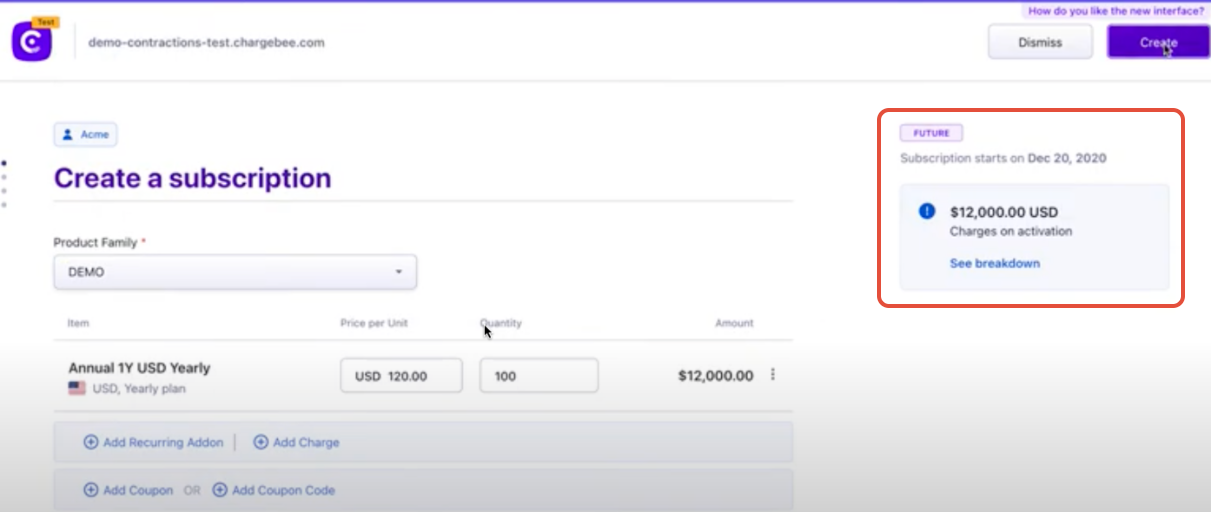
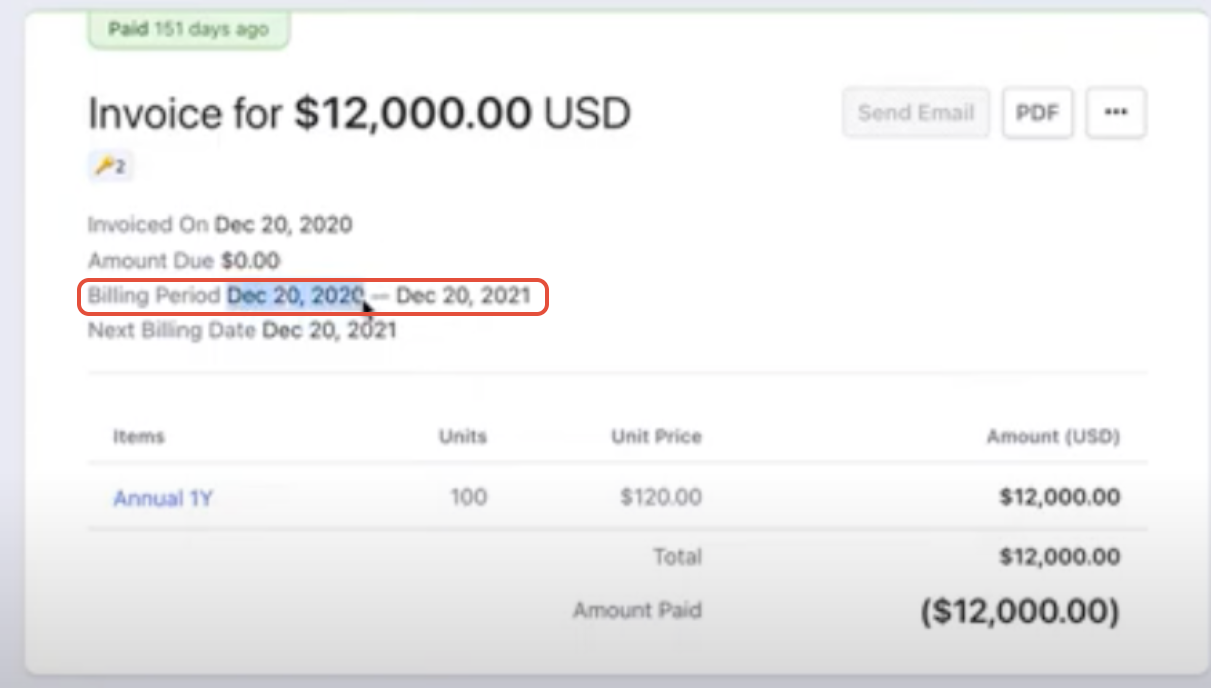
The subscription was created on and for the period of Dec 20, 2020, to Dec 20, 2021, as referred to in the screenshot below.
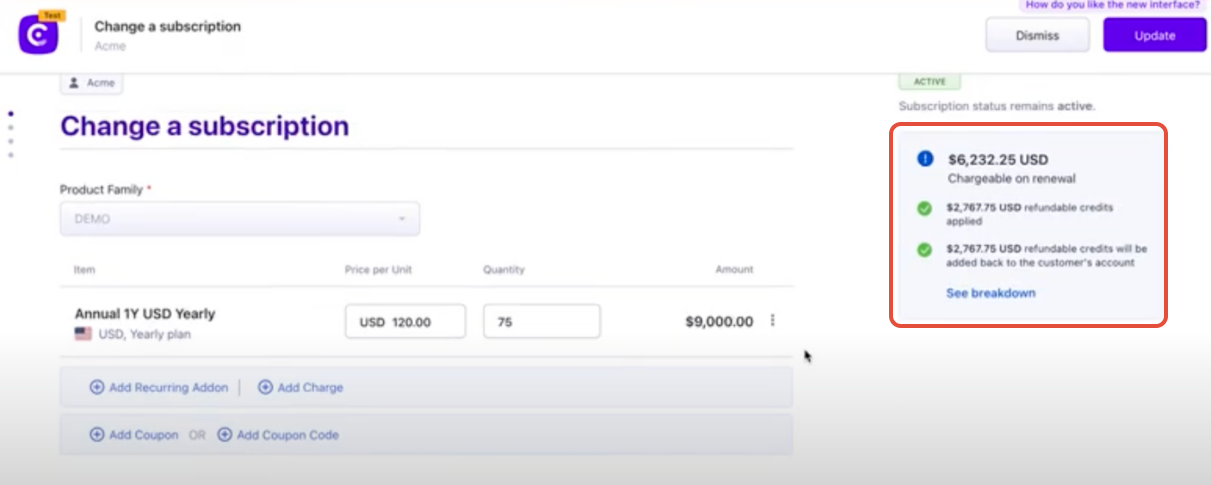
On 17 Jan 2021 customer requested to downgrade the plan units from 100 to 75, hence we have downgraded the subscription's quantities to 75 therefore by proration, there was a refundable credit note was created.
Once the billing period for Dec 20, 2020, to Dec 20, 2021, is completed, we can check the total revenue & Chargebee - Annual SaaS - Midterm Contraction in RevRec.
Testing in RevRec:
You can manually trigger an unscheduled sync from Chargebee from Connect Source dialog. Go to Sync -> CONNECT (three cables icon) on the right-hand corner > Invoices > Chargebee > Run Job. Click on the [Run Job] icon button on the Chargebee tile.
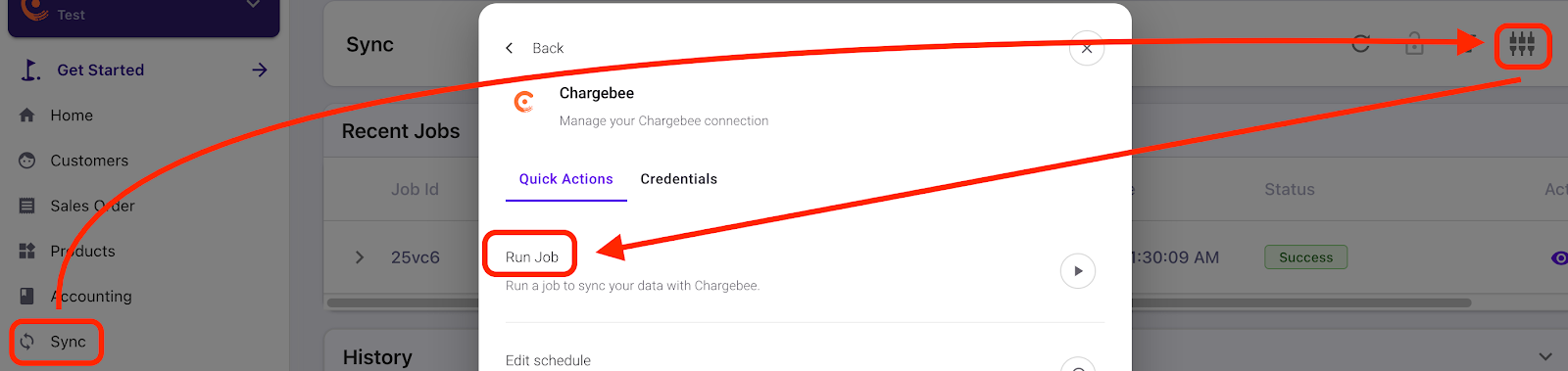
Once synced, we can see the value of the Chargebee invoice updated to the contract below in RevRec.
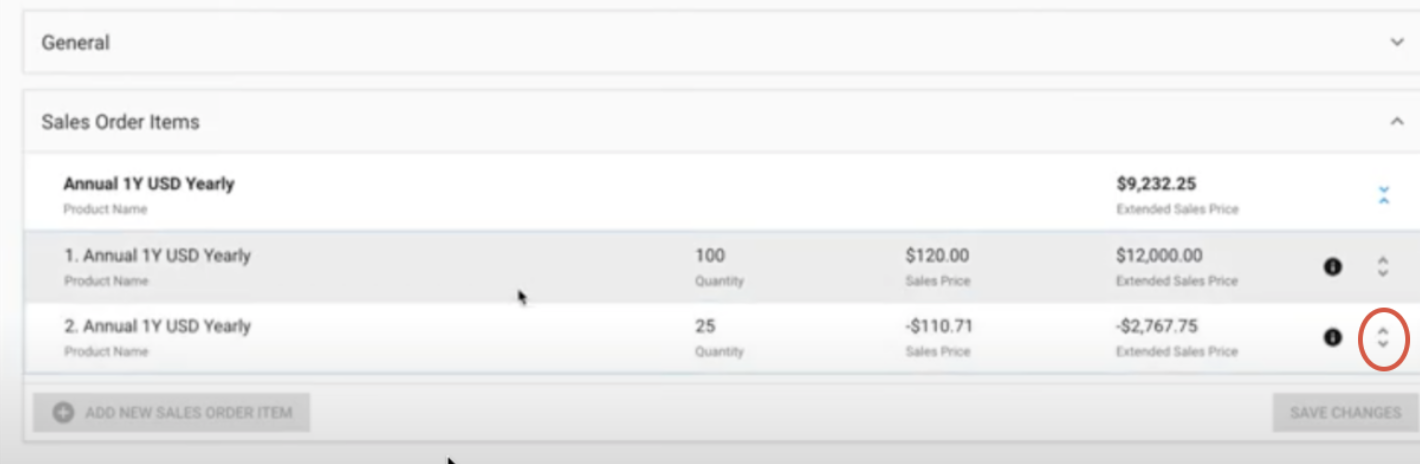
Navigate from Customer > Sales Order > Sales Order Items, you will find the Invoice and Credit note listed. You can click expand button for more details.
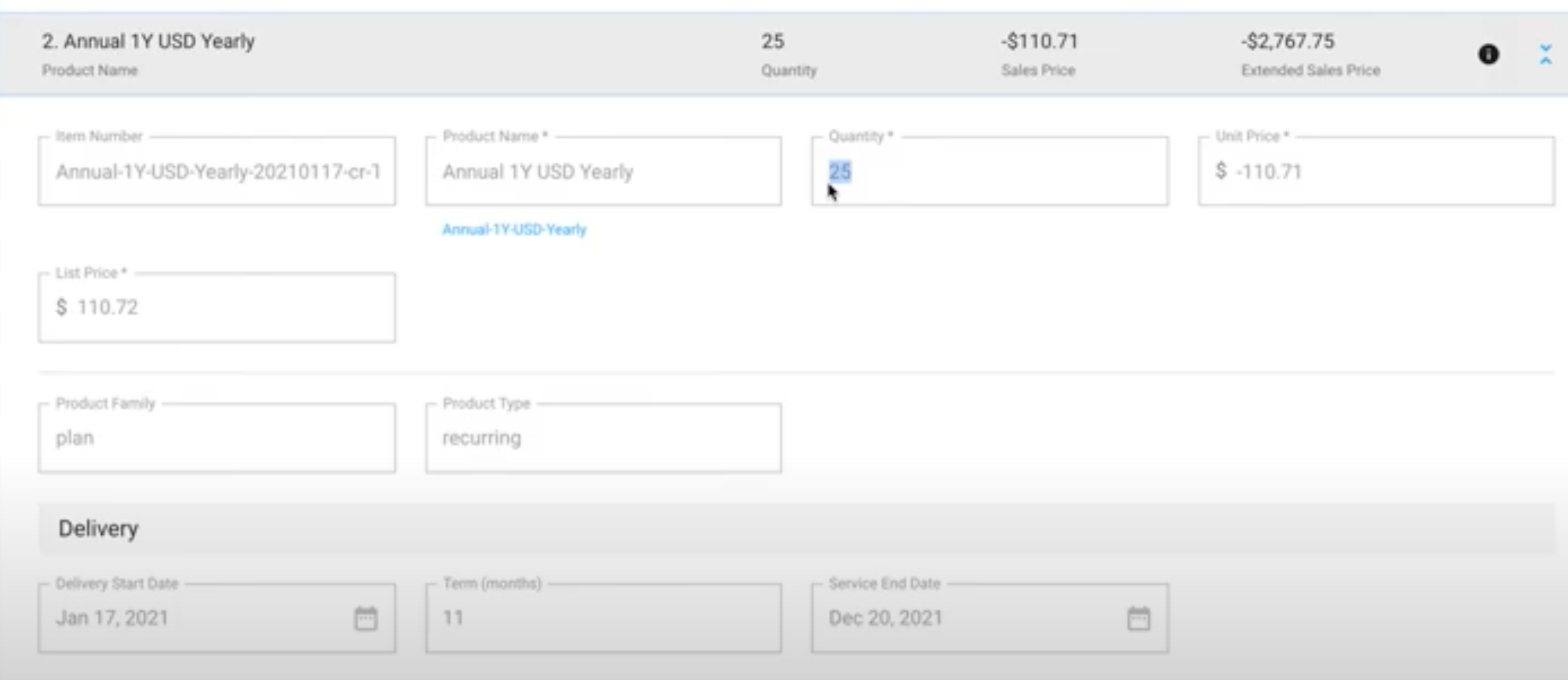
This window will provide the Item Number, Product Name, Quantity, Unit Price, List Price (Default price), Product Family, Product Type, and Service/Delivery period details.
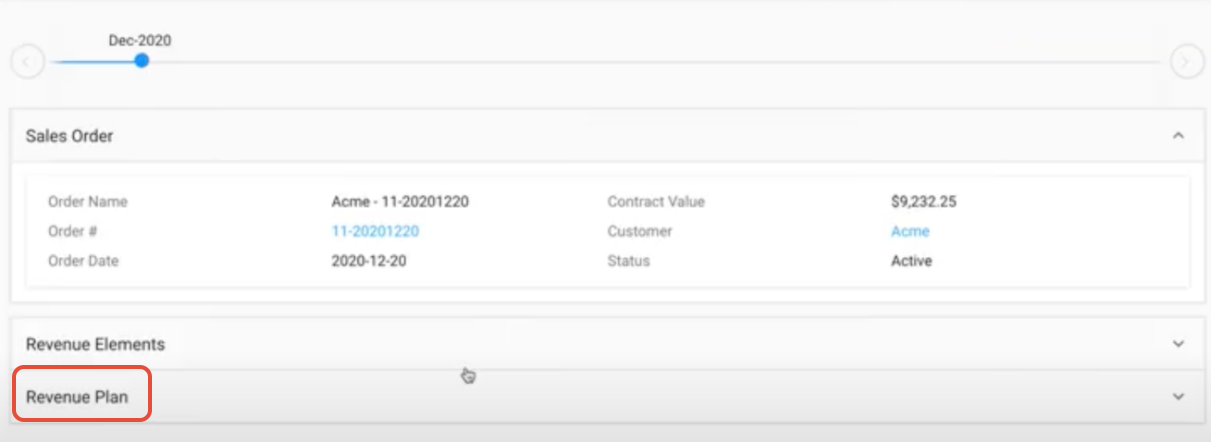
To view Total Revenue data and graph, click on the Order Number or navigate from Customer > Sales Order > Revenue Arrangement.

You will see Sales Order, Revenue Elements & Revenue Plan. Click on Revenue Plan to get the data and graph for more details.
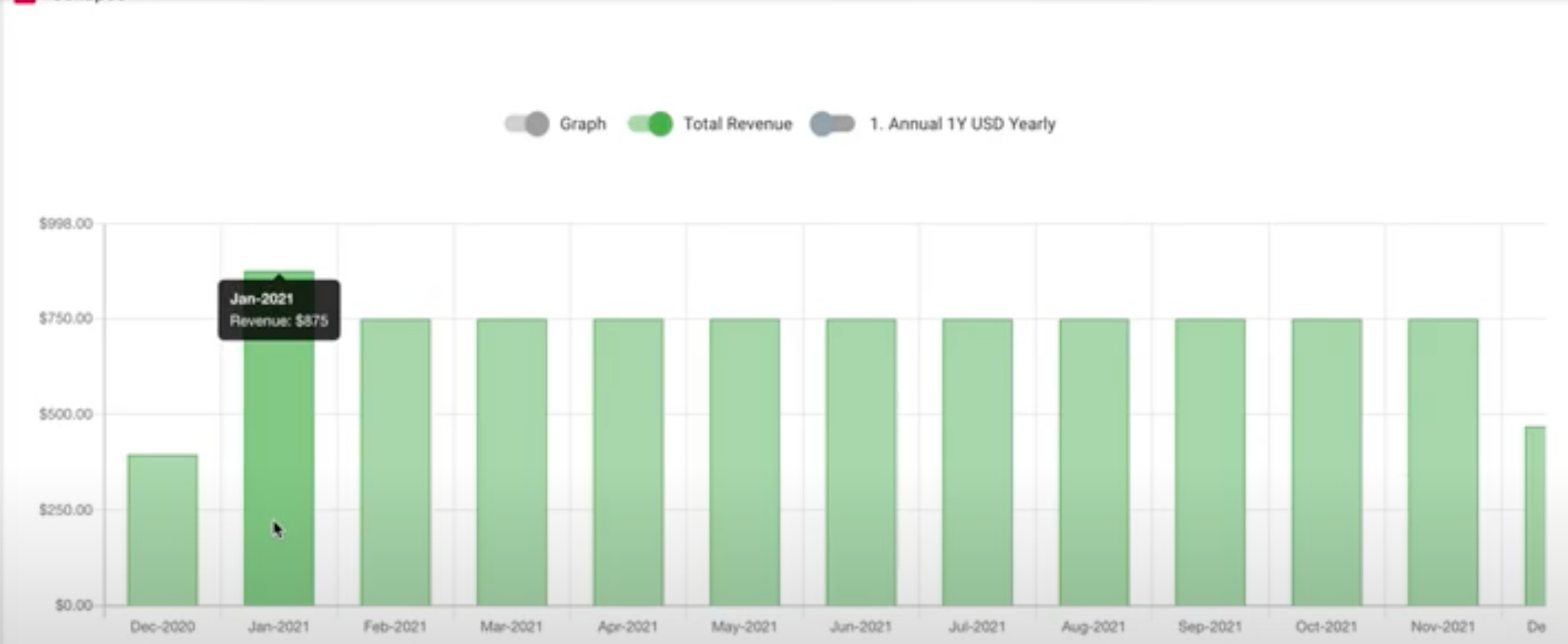
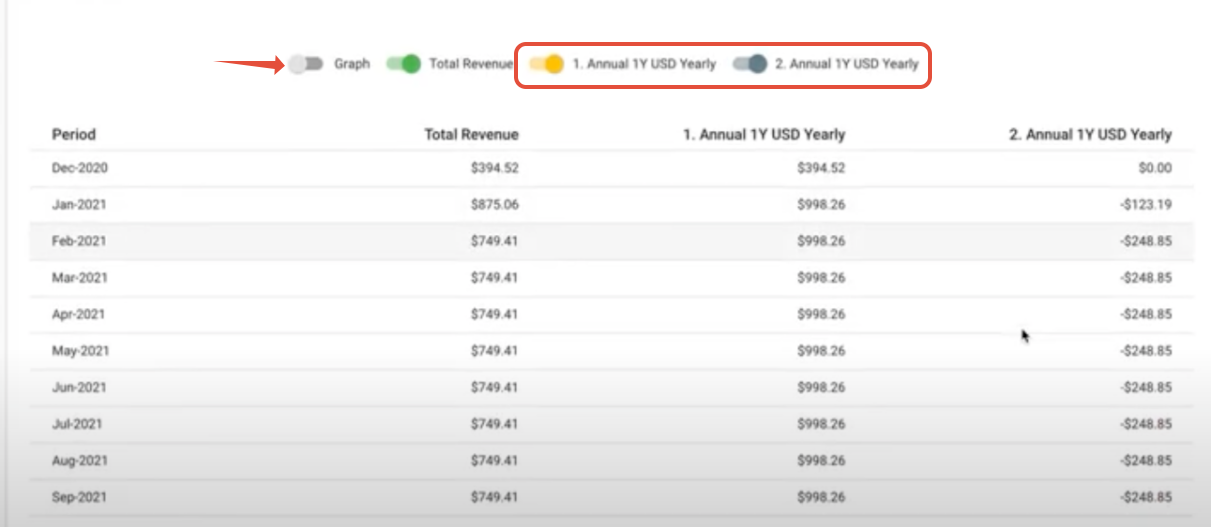
Here you will be able to see the details by items individually or combined. As you can see from the graph Dec-2020 is less as the subscription was started in the mid of the month and Jan-2021 is high due to 100 units of utilization. Eventually, after then Jan-2020 the subscription was downgraded from 100 to 75 units consequently.
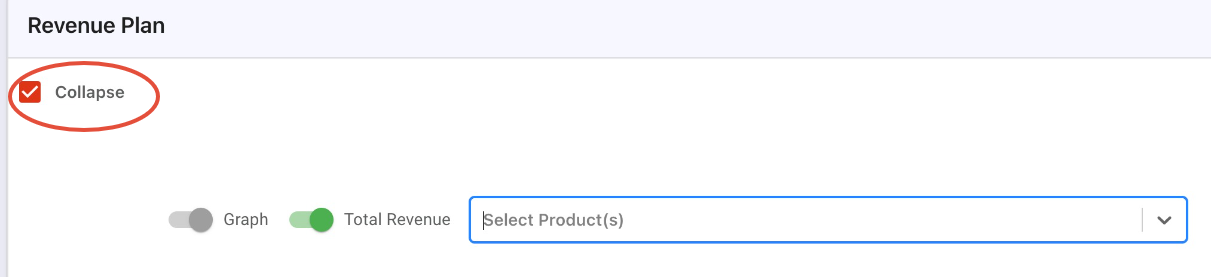
If you prefer to refer to data individually uncheck Collapse
As you can see the breakdown of data due to the downgrade is split into 1. Annual 1Y USD Yearly & 2. Annual 1Y USD Yearly. You can also view this by toggling the Graph button.
Note, that you can test Midterm Contraction using Time Machine in Chargebee test site & RevRec test enviornment.
Related Articles
Show more
Was this article helpful?