New in Chargebee: Explore Reveal and understand your payment performance end-to-end.Try Now
Docschargebee docs
HomeBillingPaymentsRevRecGrowthReveal
Support

Product Updates


  • Release Notes

Getting Started with RevRec


  • About Chargebee RevRec
  • Quick Start Guide
  • Site Configuration
  • Conversion
  • RevRec Essential
  • Articles and FAQ

Revenue Recognition


  • Configuring Product Catalog
  • Standalone Selling Price
  • Configuring Revenue Rules
  • Recognizing Discounts
  • Revenue Arrangement
  • Prior Period Adjustment
  • Pending Collectibility
  • Chargebee Billing Features
  • Articles and FAQ

Expense Recognition


  • Recognizing Expenses
  • Articles and FAQ

Multi Currency


  • Multi-Currency
  • Articles and FAQ

Multi Entity


  • Multi-Entity

Data Processing & Validation


  • Overview
  • Automated Data Synchronization
  • Importing Data in Bulk
  • Input via User Interface
  • Control Checks
  • Automated Import and Export
  • Understanding Errors
  • Articles and FAQ

Adjustments


  • Manual Adjustments

Reports & Analytics


  • Overview of RevRec Reporting
  • RevRec Standard Reports
  • Articles and FAQ

General Ledger & Accounting Close


  • Journal Account Mapping
  • Understanding Journal Entries
  • Creating Journal Entries
  • Journal Posting & Closing Accounting Period
  • Articles and FAQ

Integrations


  • HubSpot
  • Salesforce
  • QuickBooks Online
  • Xero
  • Sage Intacct
  • NetSuite
  • Stripe
  • Mobile Stores
  • Articles and FAQ

RevRec Premium


  • Overview
  • Quick Start Guide
  • Site Configuration
  • Getting Around RevRec Premium
  • General Ledger & Accounting Close
  • Reports & Analytics
  • Integrations
  1. Revrec
  2. Revenue Recognition
  3. Articles and FAQ
  4. Revenue Recognition
  1. Revrec
  2. Revenue Recognition
  3. Articles and FAQ
  4. Revenue Recognition

How to check consumption based Revenue Recognition in RevRec?

Scope

Example: Consumption-based Revenue Recognition in RevRec

Does RevRec provide the revenue plan as per the unit consumption?

Summary

To recognize revenue based on unit consumption, you need to configure the Revenue plan as Proportional Performance. You can also upload in bulk from Sync or create the delivery logs manually. To illustrate an example of consumption-based revenue recognition use an example of providing professional services at a fixed hourly rate by creating 1 yr SaaS subscription sold bundled with professional services.

Solution

In order to ensure revenue for the services sale is recognized as incurred we will configure the SSP revenue recognition rule for Professional Services to use the "Proportional Performance" revenue recognition method. Once a performance obligation is marked as either being recognized via proportional performance or percent complete a Service Delivery panel shows up on the UI allowing you to manage the service delivery log for each contract. In addition, we will illustrate how you can bulk load your delivery logs into the system and RevRec will automatically assign the delivered units to each contract for you.

For example, we have created a SaaS product with the Revenue rule as Ratable and a Professional service product with the Revenue rule as Proportional Performance (used for consumption-based revenue recognition)

image

Once you have updated the revenue rule, you can create sales order items from Sales Order, update Customer, Product, and Units based on your business requirements
image

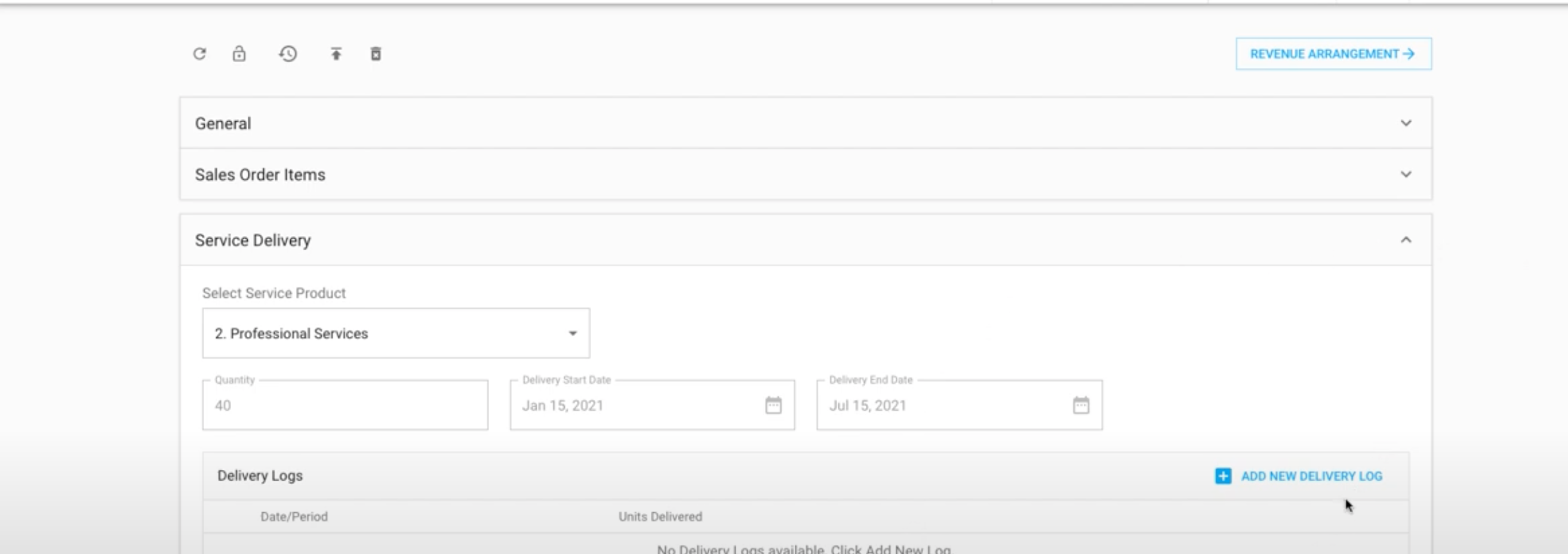
Once you create Sales Order Item, you will have the option to 'ADD NEW DELIVERY LOG'. Update the required details. This is where we update the service delivery log for each contract. You can add the delivery date and the units and click 'Save'.

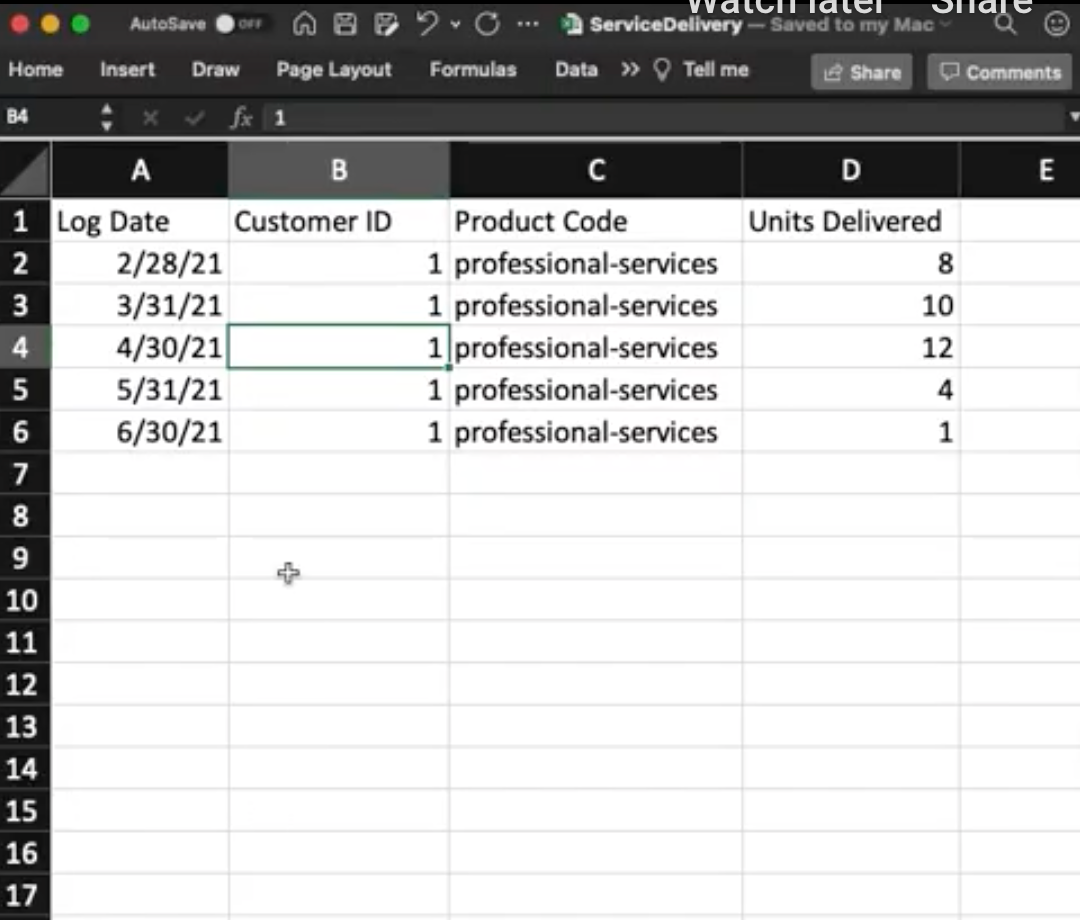
RevRec allows you to add delivery logs in two different ways. You can add it manually also you can upload the list of contract logs which will automatically sync to the respective contract. You will find the format on how to fill in the delivery tails below. You can update the Log Date, Customer ID, Product Code and Units Delivered are the required fields in a sheet.
image

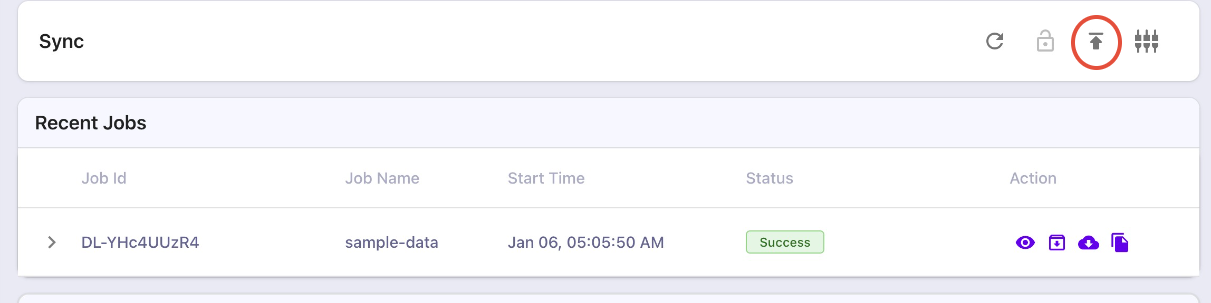
Navigate to Sync > Upload to update bulk delivery logs.
image

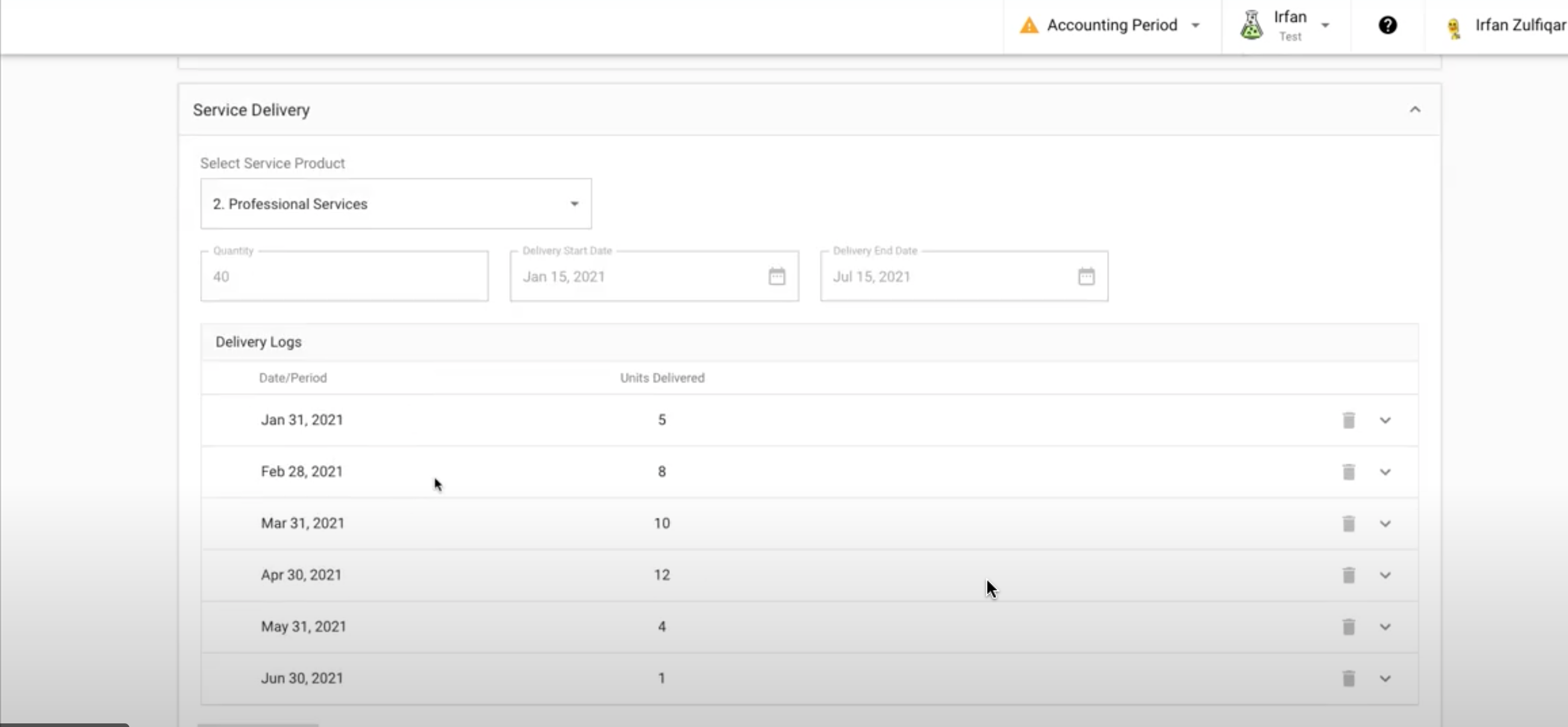
Once the sync is successful, you will find the uploaded delivery logs as shown below.
image

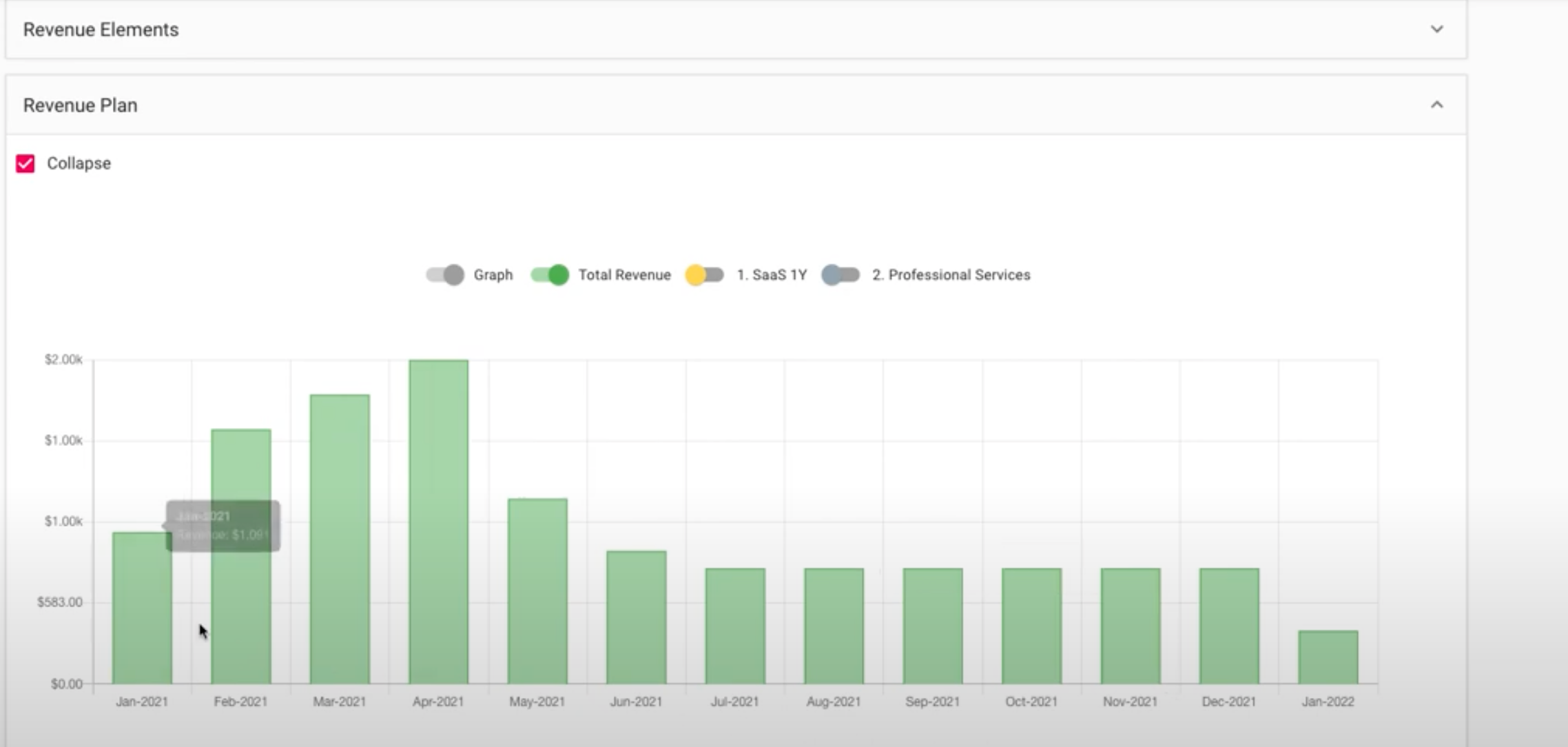
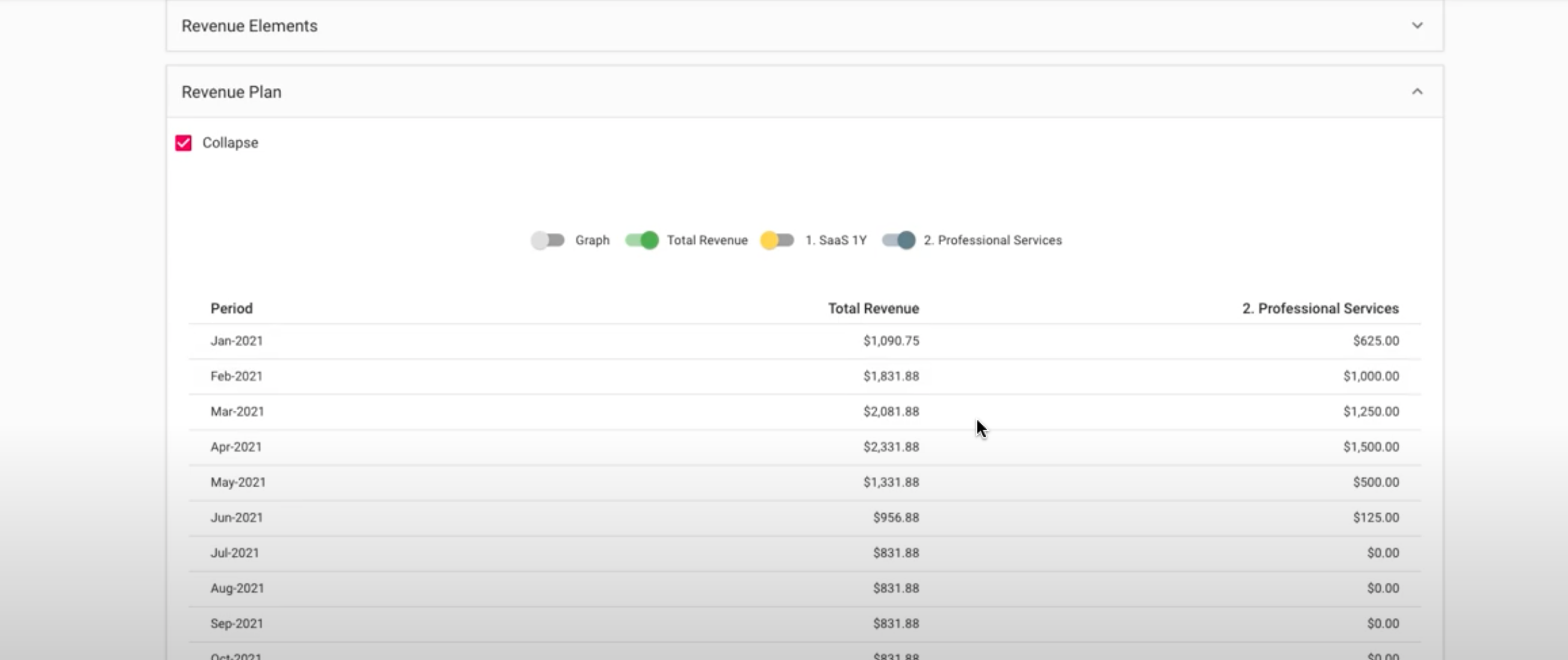
Then you can navigate from Customers > Sales Orders > Arrangements > Revenue Plan. Now you will see the graph and data with the unit-based consumption.
image

You can toggle the Graph button, to get the data respective to months.
image

Related Articles

What is the difference between default and advanced accounting treatment on the credit notes in RevRec?
What are the revenue recognition methods in RevRec and their associated rules?
How to understand your revenue plans and their accounting in RevRec?
What are the types of Ratable Revenue Recognition plans in RevRec?
What are the standalone selling price rules in RevRec?
How to check the customers revenue plan on RevRec?
What is the Standalone Selling Price in RevRec?
How to maintain your SSP library?
How is the Percent Net Revenue Reallocation is calculated in RevRec?
How is the decreased subscription value within the billing period is calculated in RevRec?
How to configure Product Catalog in RevRec?
How to reconcile Delivery data and Invoice data in RevRec?
What does the 'Unbilled Receivable' amount represent in RevRec?
What is SSP Versioning in RevRec?
What is SSP Analyzer in RevRec?
Enable passthrough feature for products in Revrec
RevRec - Accounting Journal Posting
Zero Dollar Invoice Sync RevRec

Show more

Was this article helpful?