How can I display the custom fields on an invoice?
Problem Statement
How can I display the custom fields on an invoice?
Solution
This article covers:
How many custom fields can be displayed on the invoice?
How to display a Tax number custom field on the invoice?
Custom Fields can be created to track additional information about a customer or their subscription in addition to the default fields present in Chargebee. To create a custom field, head to Settings > Configure Chargebee > Custom Fields. Click Here for further details.
To display the custom field values on the customers' invoice, navigate to Settings > Configure Chargebee > Invoices and Credit Notes and enable the Custom Fields toggle under the Invoices tab. You can set up to three custom fields to be displayed on the invoice.
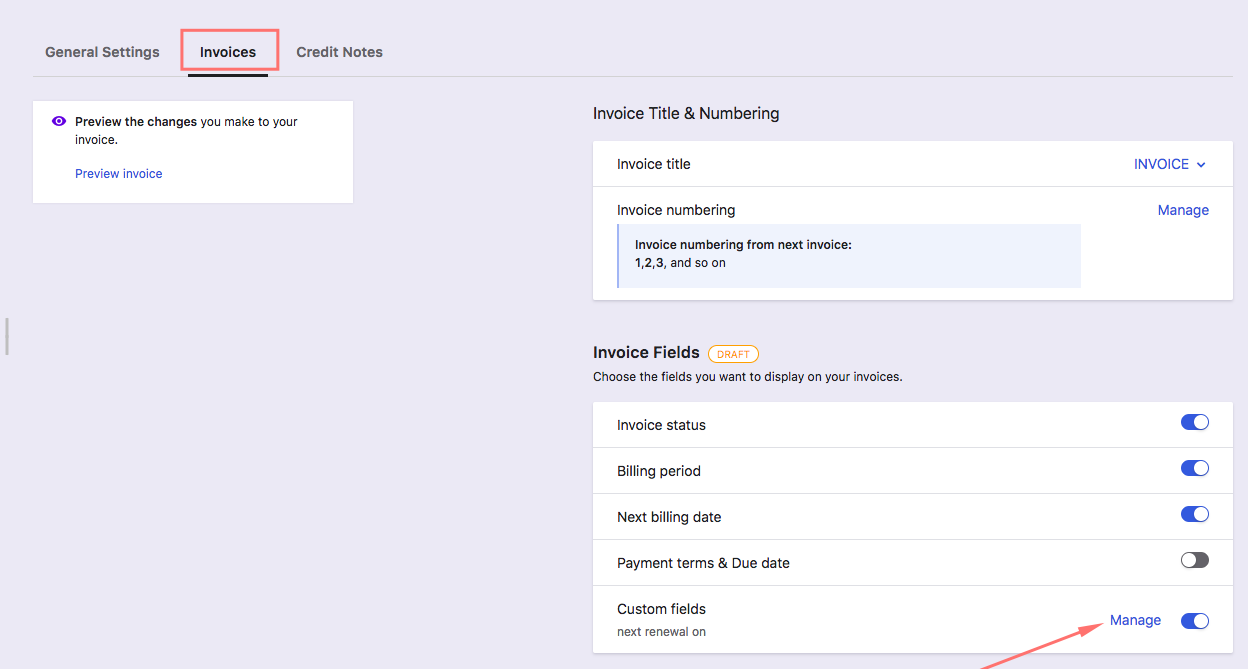
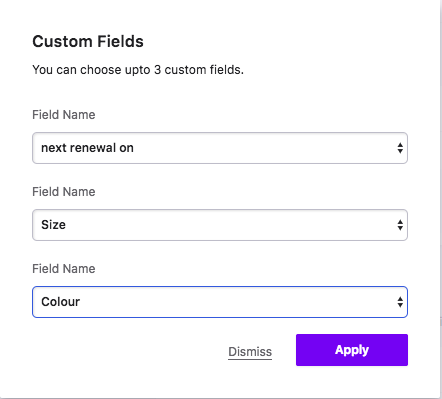
When invoices are consolidated, the custom fields will be displayed under each plan (Line Item).
Alternatively, if you prefer to display the EU & UK Customer's VAT number on the invoice, refer to this link Tax line item not showing on the invoice for more information.
Note
Custom fields cannot be added to an invoice upon creation (for example, when creating an invoice for a one-time charge or quick charge). You can only add custom fields to an invoice after it has been created.
However, custom fields can be added to an invoice through either of the following methods:
- Using the Update Invoice Details API by passing the Custom Field API name and the value in the API call.
Sample cURL call to update a Checkbox type Invoice Custom Field:
curl https://{SITE-NAME}.chargebee.com/api/v2/invoices/invoice_id123/update_details \
     -u {site_api_key}: \
     -d cf_Checkbox_Custom_field=True
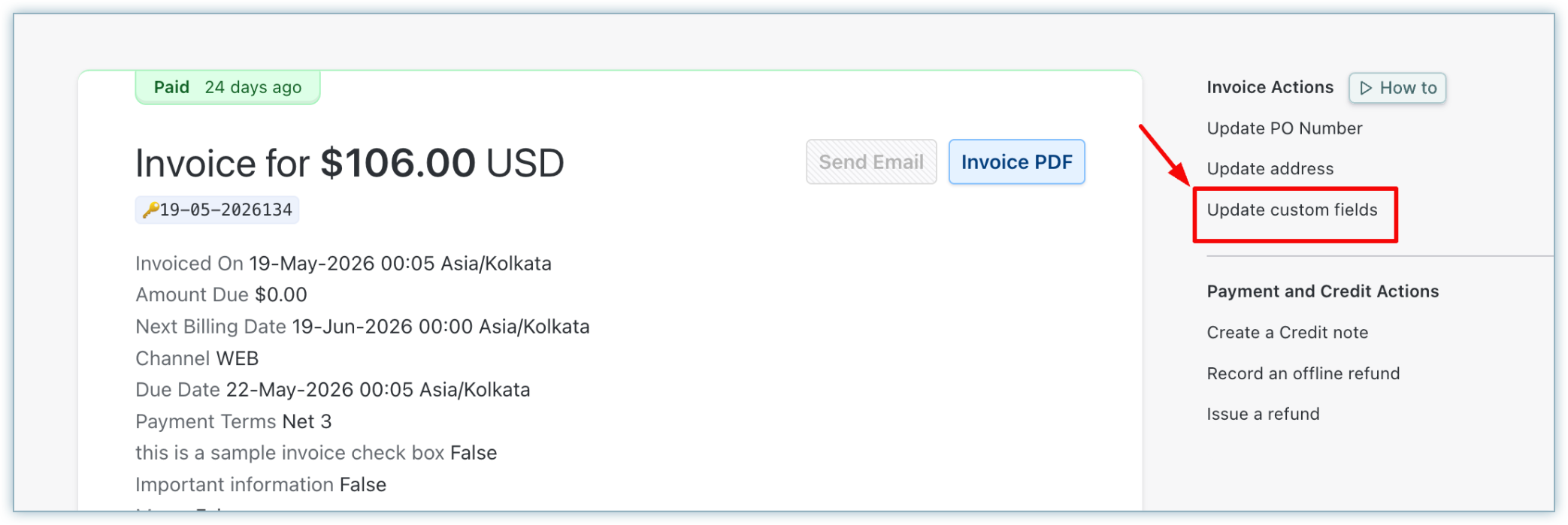
- Using the Update custom fields option at the invoice level.
Was this article helpful?