Docschargebeedocs

HomeBillingPaymentsRevRecGrowthReveal
Support

Product Updates


  • Release Notes

Getting Started


  • Overview
  • Chargebee Billing Data Centers
  • Object Relationship Model
  • Understanding Sites
  • Developer Resources
  • Chargebee Tech Glossary
  • Articles and FAQ

Implementing Chargebee


  • Implementation Guide
  • Go-live Checklist
  • Articles and FAQ

AI in Chargebee


  • Chargebee Agents
  • Chargebee Copilot
  • Chargebee MCP Server (Model context protocol)

Product Catalog


  • Product Catalog Overview
  • Coupons
  • Articles and FAQ

Subscriptions


  • Working with Subscriptions
  • Billing
  • Orders
  • Articles and FAQ

Customers


  • Managing Customers
  • Account Hierarchy
  • Email Notifications
  • Branding
  • Configure Multiple Languages
  • Articles and FAQ

Invoices, Credit Notes and Quotes


  • Invoices
  • Credit Notes
  • Quotes [Legacy]
  • Transactions
  • Articles and FAQ

Taxes


  • Overview
  • Configuring Taxes
  • Country-specific Taxes
  • Articles and FAQ

Hosted Capabilities


  • Overview
  • Hosted Checkout
  • Hosted Self-Serve Portal
  • Hosted Pages Features
  • Additional Hosted Pages
  • Payment Components
  • Managing payments with ChargebeeJS
  • Mobile-Optimized Hosted Pages
  • Articles and FAQ

Site Configuration


  • Users & Roles
  • Custom Fields & Metadata
  • Mandatory Fields
  • File Attachments & Comments
  • Advanced Filter Options
  • Multicurrency Pricing
  • Multi-decimal Support
  • Configuring Reason Codes
  • Events and Webhooks
  • API Keys
  • Time Zone
  • Time Machine
  • Transfer Configurations
  • Articles and FAQ

Reports and Analytics


  • RevenueStory
  • Home Dashboard
  • Frequently Asked Questions
  • FAQs for Classic Reports Sunset
  • Articles and FAQ

Integrations


  • Sales
  • Customer Support and Success
  • Finance
  • Tax
  • Marketing
  • Stitch
  • Collaboration
  • Contract Management
  • Order Management
  • Mobile Subscriptions (Legacy)
  • Other Integrations
  • Articles and FAQ

Data Privacy & Security


  • Two Factor Authentication
  • SAML Single Sign-On
  • System for Cross-Domain Identity Management (SCIM)
  • EU-GDPR
  • Consent Management
  • Personal Data Management
  • Compliance Certificates
  • HIPAA Guidelines
  • PCI Recommendations and Integration Types
  • Articles and FAQ

Data Operations


  • Bulk Operations
  • Migration
  • Articles and FAQ
  1. Billing
  2. Taxes
  3. Articles and FAQ
  4. Configuring Taxes
  1. Billing
  2. Taxes
  3. Articles and FAQ
  4. Configuring Taxes

The tax value is different or incorrect

Problem Statement

This article helps you understand the tax value is different or incorrect.

Solution

This article also covers

My customers are charged with incorrect tax. Why?

Why am I observing different tax amounts on different subscriptions?

Summary

In Chargebee, for taxes to be applied, the customer's billing/shipping address should be present. For subscriptions where the country's information is not available, taxes won't be applied. This leads to different pricing in your customer's invoice.

For example, if you have configured Australia as a region (where you collect tax for sales) whose checkout prices are tax inclusive then, the price gets reduced to the customers who haven't configured their billing/shipping address. Therefore, in such cases, you may observe a reduction in the subscription amount according to the AUD taxes.

To resolve this issue, make sure you update the country information for all customers so that the taxes are applied in the future.

  1. To update the tax value for the existing current term invoices,
  • Remove the payments and void the invoice.

  • Update the billing/shipping country.

  • Now, use the regenerate option (this option will only be available for the current term invoices)

An invoice can be regenerated only for the current term using the Chargebee interface/UI when the invoice is Voided or Deleted. See Regenerate Invoice.

  1. To update the tax value for the past invoices,

    • Remove the payments and void/delete the invoice.

    • Import the invoice

      1. Using bulk operations. (You can input the country details along with taxes while importing the invoice)

      2. Using Update invoice details API

How to avoid incorrect tax details?

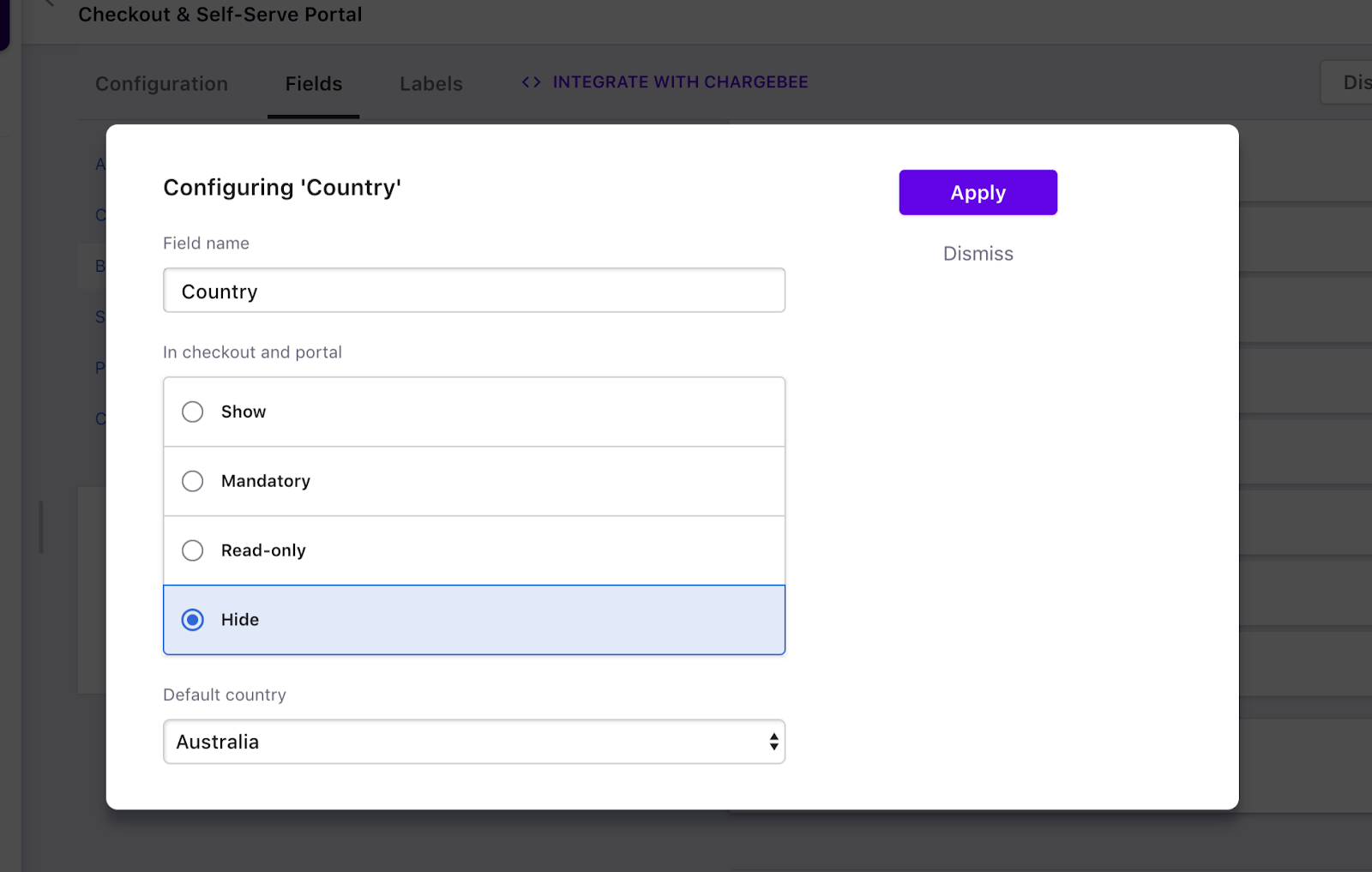
Tip: We recommend configuring the country field as mandatory so that the tax gets applied to the countries that you have configured. To set the country field as mandatory, Go to Settings > Configure Chargebee > Checkout & Self-Serve Portal > Fields tab > Billing/Shipping section > Country and configure the settings as shown below.
image

Related Articles

Is 0% a valid tax rate of VAT ?
Uploading customized tax settings (CSV)
Update your EU VAT number in Chargebee to avoid being charged EU VAT in your invoice
What is consistent pricing in Chargebee?
How to configure Inclusive or Exclusive taxes in Chargebee?
I want to shift from an exclusive tax to inclusive tax, is that possible?
Tax line item not showing on the invoice
Managing tax rate changes
I'm selling products which are subject to different tax rates in the same taxable country
How to apply different tax rates to the different line items of my subscriptions on my invoice via API?

Show more

Was this article helpful?