Void and regenerate an invoice
Problem Statement
This article helps you understand void and regenerate an invoice.
Solution
This article also covers
I want to cancel the invoice and regenerate it. How to do it?
Summary
You can void and regenerate an invoice if it is generated incorrectly or if you have missed including the customer's billing, tax, or PO number information, etc.
Note
We recommend voiding an invoice against deleting it as you will retain the invoice number sequence for auditing purposes whereas deleting will disrupt the sequence. Also, see the difference between deleting and voiding an invoice.
If you are a business selling in Nordic countries, use the void invoice with credit note workflow. A credit note is created and applied to the voided invoice automatically. Refer to this link to avail the Void invoice with credit note setting on your Chargebee site.
Solution
Steps to void and regenerate an invoice
-
Go to Dashboard > Invoices > Select the invoice that is in Payment Due. Alternatively, you could access the invoice from the Subscription details page > Invoices.
-
To void an invoice that is in Paid status remove the payments linked to the invoice.
-
The payment amount initiated will go to Customer Excess Payment and will be applied to the new invoice you generate
-
-
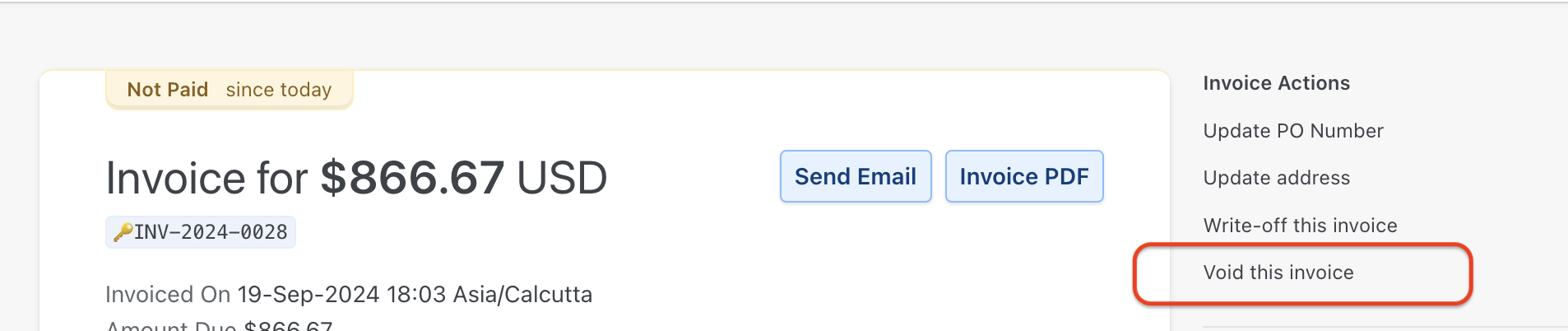
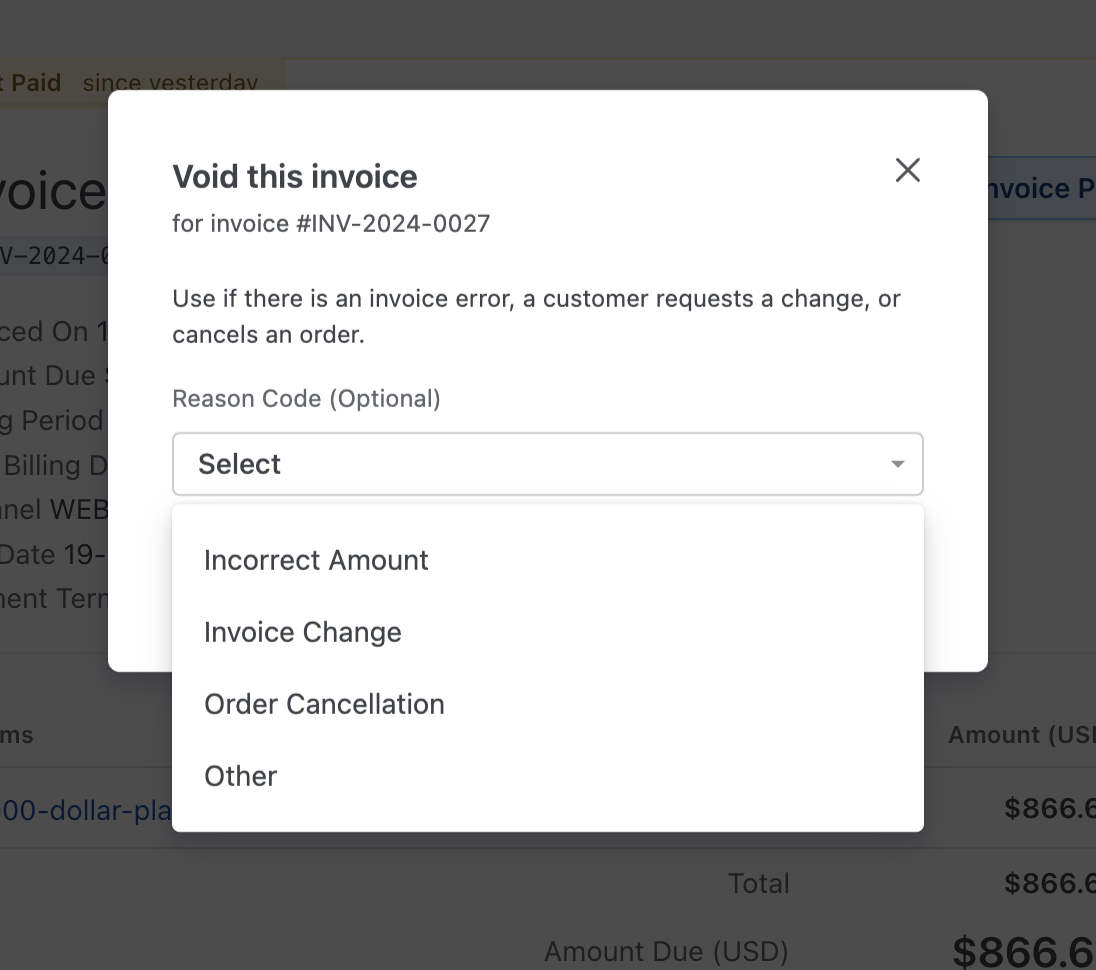
From the top right corner of the invoice, click on "Void this invoice":
-
A status message that reads "This invoice has been successfully voided" is generated.
-
You can go back to the Subscriptions details page, click the Subscription ID to the top of the invoice
-
Make the necessary changes to the subscription ie. adding billing information or configuring taxes etc.
Steps to void and regenerate an invoice
-
Open the invoice: Dashboard > Invoices and select the invoice (or open it from Subscription details > Invoices). The invoice must be in Payment Due (or Not Paid) to void. If it is Paid, first remove the payments linked to the invoice; the amount becomes customer excess and can be applied to the new invoice.
-
On the invoice, click Void this invoice (top right).
-
Confirm. You will see a message that the invoice has been voided.
-
Go to the Subscription details page (click the subscription ID above the invoice).
-
Make the required changes (e.g. billing address, tax, PO number).
-
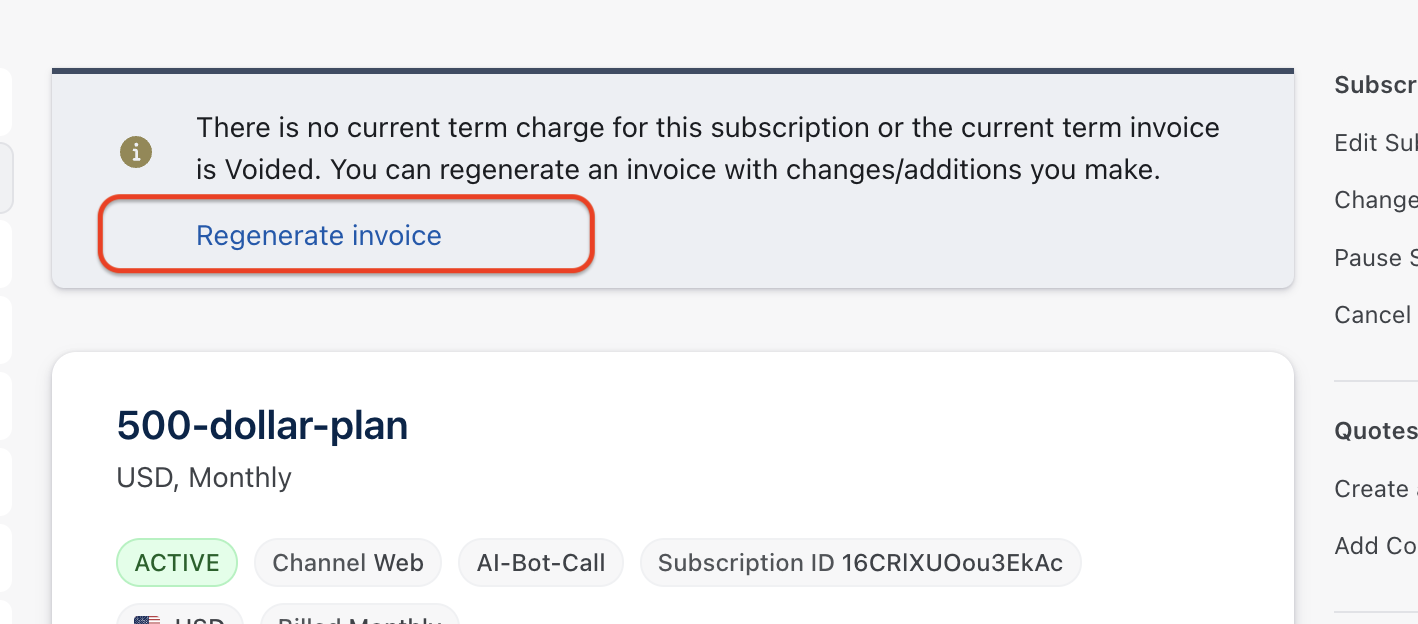
Click Regenerate Invoice.
-
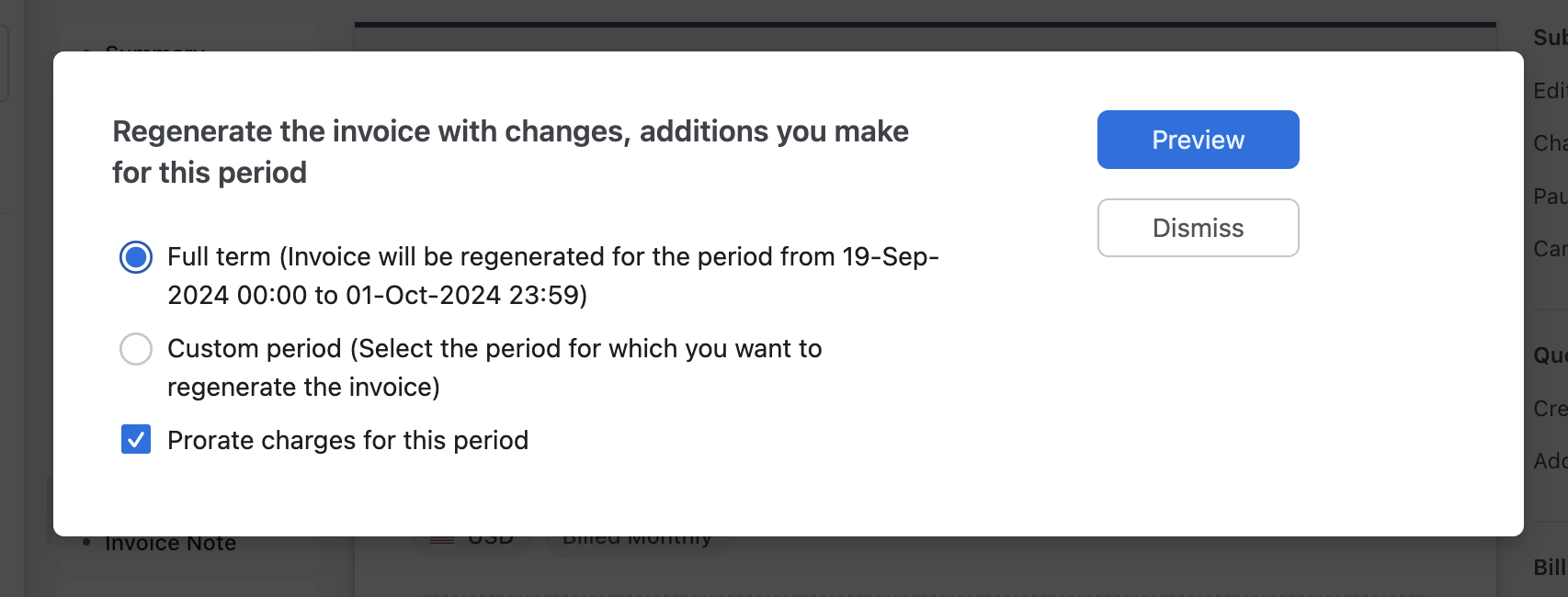
Choose Full term (entire term) or Custom period (specific days, prorated).
-
Click Generate. The new invoice is generated; the old one remains voided.
-
Choose the option Full term or Custom Period Full-term - To regenerate the invoice for the full term Custom period - To regenerate the invoice for a specific time in days(pro-rated)
-
Click Generate. Now, the old invoice gets voided and the new invoice is generated on top of it.
Here is a video on how to do this.
Regenerating invoices using bulk operation:
Invoices can also be regenerated using bulk operation.
To regenerate the invoice using bulk operations, go to Settings > Import & Export data > Choose a bulk operation > Select 'Subscriptions' from the dropdown > Regenerate an invoice > Proceed
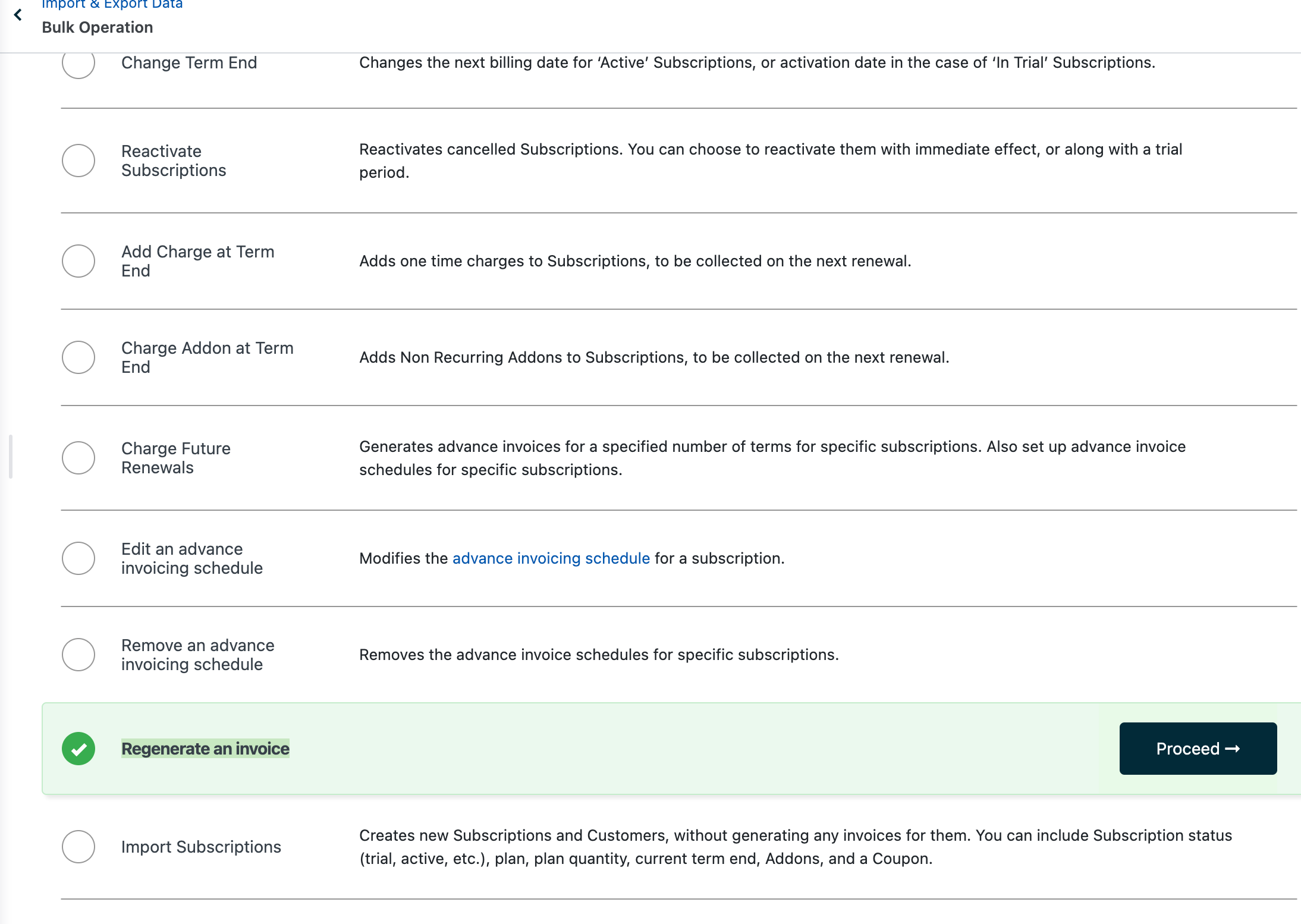
You may download the sample file, fill in the required columns and re-upload it to proceed with the bulk operation.
Note
Only current term invoices will have the option for regeneration from the UI.
Only current term invoices can be regenerated from the UI. Video walkthrough: Void and regenerate.
Was this article helpful?