How can I send payment link only to the customers subscribed without payment method?
Scope
How to add the 'Update Payment Method' on the invoice for the customers without a payment method
How to request a payment method for the customers who have not updated it yet?
How can I send payment links only to the customers subscribed without a payment method?
Summary
In Chargebee you can create an Email Segment for the customers subscribed without a payment method from Invoice Index Page. You can also customize the email notification by adding the 'Update Payment method' button from the Email notification settings using Smart Section and Mail Merge fields.
Solution
Below are the steps on how to update the payment method using Segments (available for specific plans) & Mail Merge Usage feature (applicable for all plans).
Email Segments
To customize email notifications for specific audiences (customers without payment method), you need to create an email segment for the customers you prefer to send emails to and customize the email content accordingly.
So we need to create two lists, customers with payment methods to send default invoice emails and users without payment methods to send the invoice emails with the 'Update payment method' link.
Note
This feature is applicable only for specific plans. Refer to the plans and pricing page for more details.
Step 1: Create a segment for the customers with the payment method
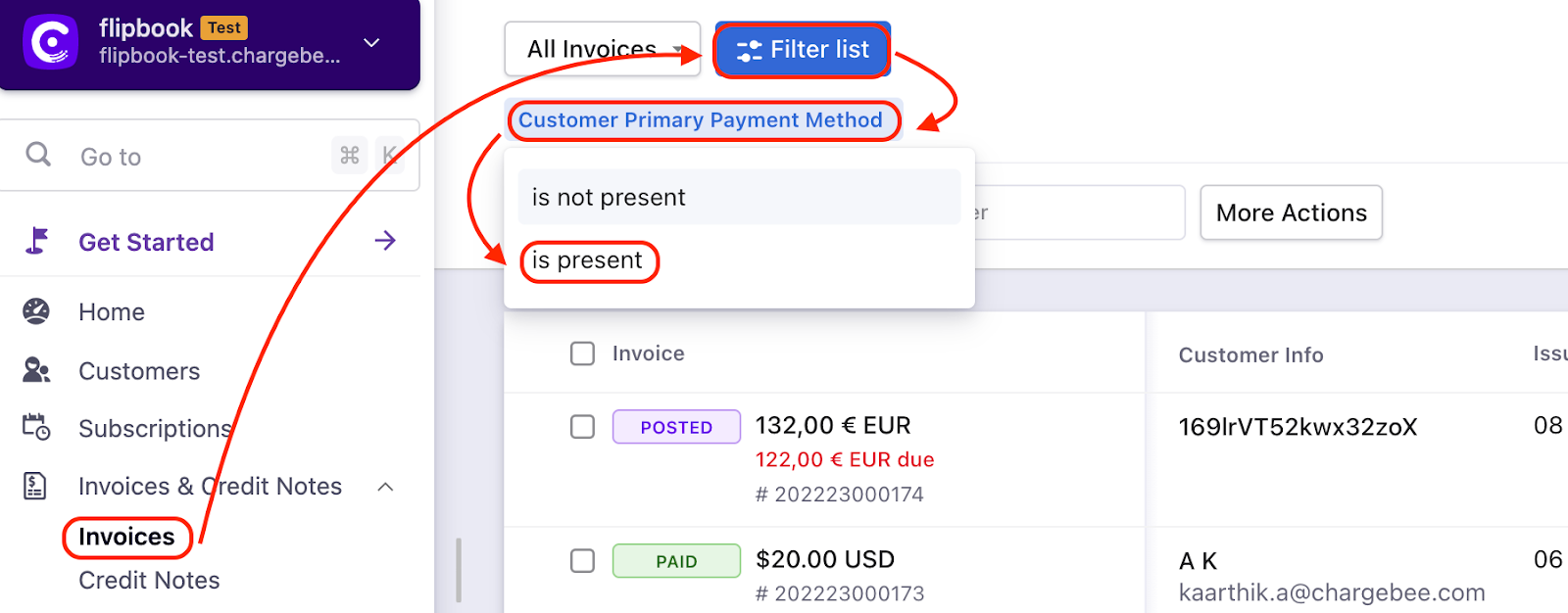
Navigate to Subscription Index page > Filter list > Customer > Primary Payment Method > is present
Note
On the recent UI enhancement you On the recent UI enhancement you can now scroll the index pages - Customers, Subscriptions, Invoices, and Credit Notes vertically. Earlier, the pages will be paginated which may prolong your search however with the new enhancement as you scroll down the list it will load all other data in a single page as highlighted below on the screenshot. Refer to this link for more information.
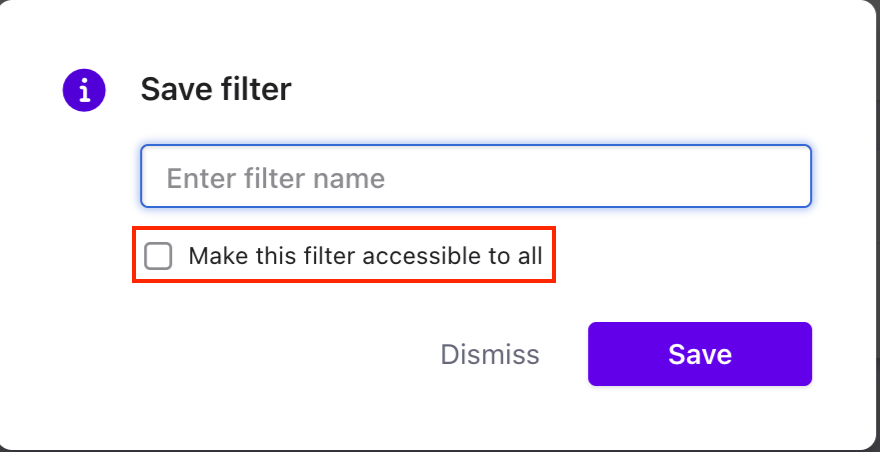
Click on 'Save Filter'

Then create a name for the filter as 'Primary Payment method is present' and ensure Make this filter accessible to all is enabled.
Step 2: Create a segment for the customers without a payment method
Navigate to Subscription page > Filter list > Customer > Primary Payment Method > is not present
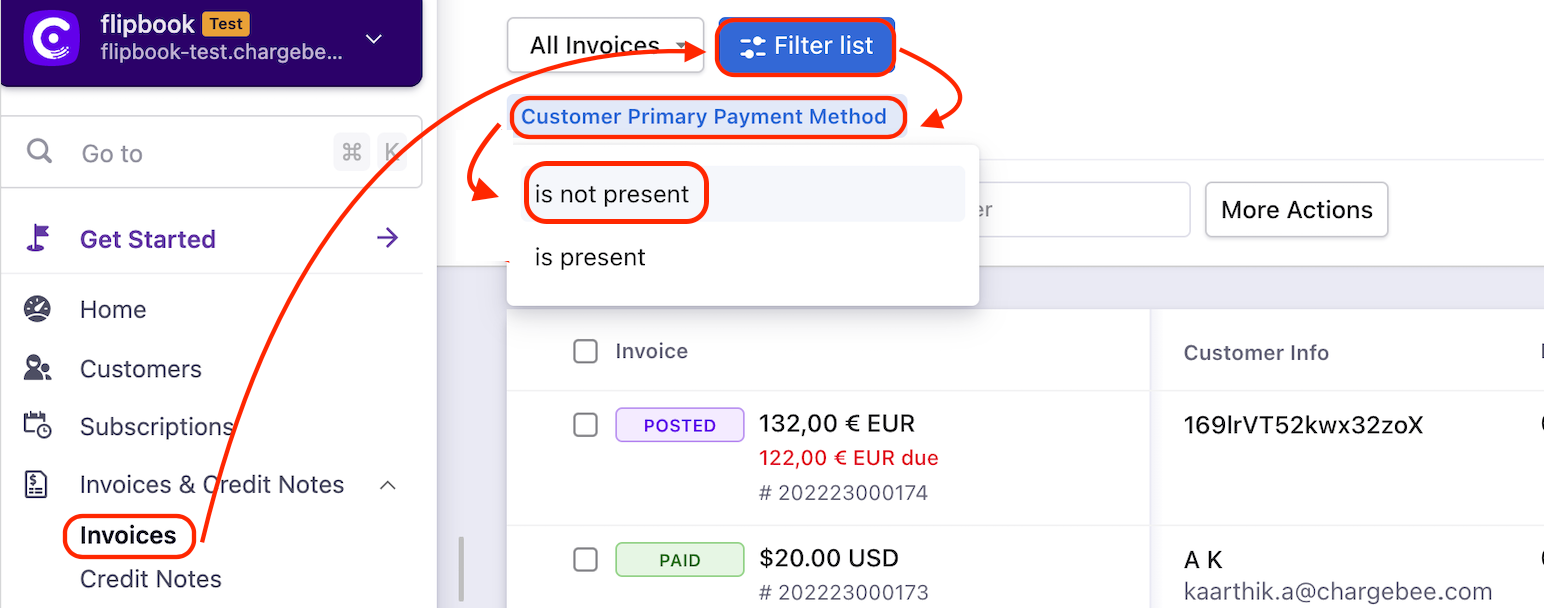
Then create a name for the filter as 'Primary Payment method is not present' and ensure to select Make this filter accessible to all. Once the Customer segmentation is created, we can now customize the email as per our requirements.
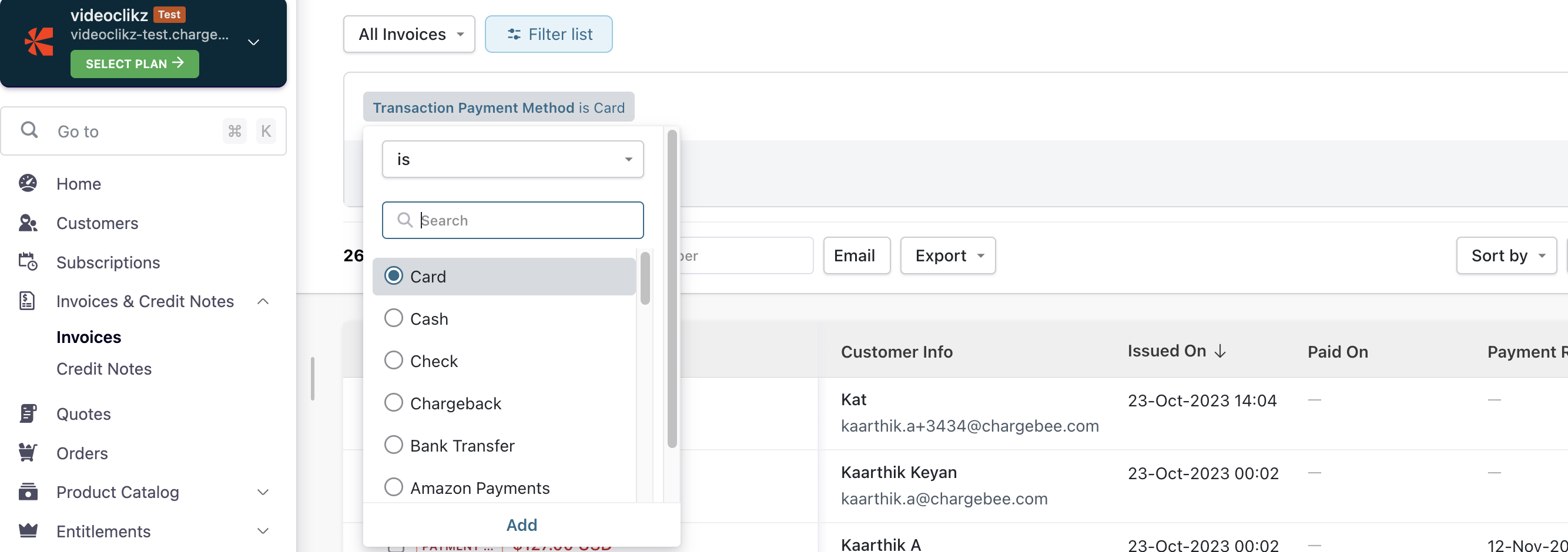
Step 2 (a): Note that if you want to filter customers with payment method, i.e, card, you can use the filter as **Transaction > Payment Method > is > Card > Apply filter
Step 3: Create an email notification for customers with the payment method
By default, you will have a notification enabled for All Invoices. Therefore, to avoid duplicate invoices sent to customers, we need to create 2 email notifications.
-
Customers with the payment method (default template)
-
Customers without payment method (customized template with request payment method link).
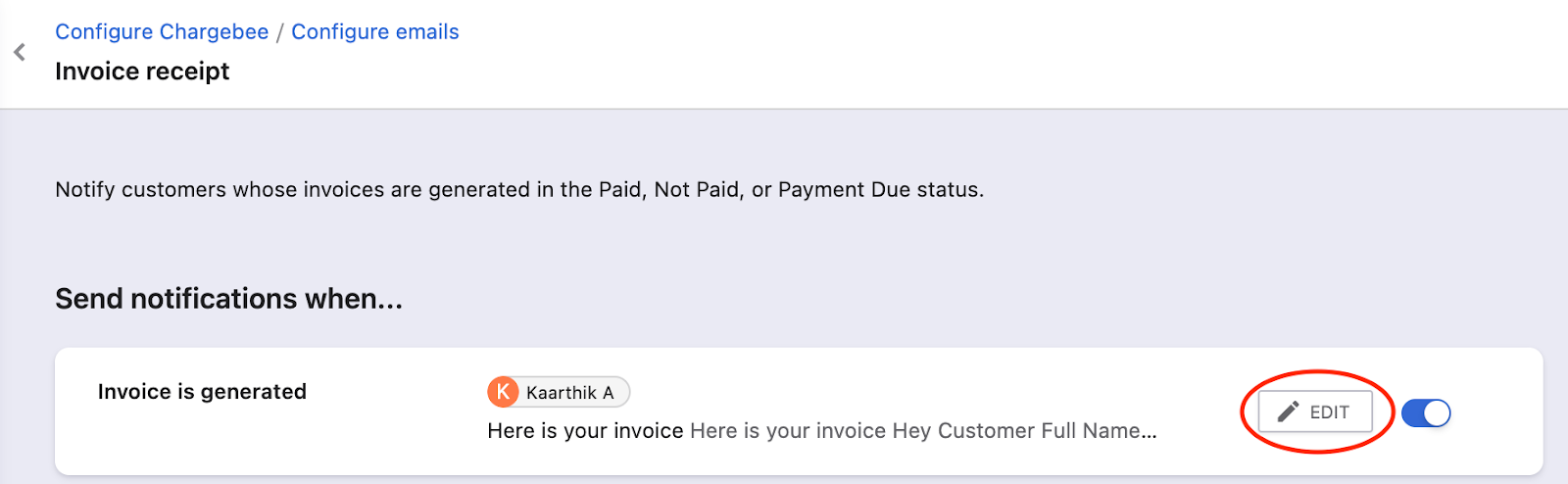
Navigate to Settings > Configure Chargebee > Email Notifications > Invoice receipt > Invoice is generated > 'EDIT' existing email notification.
Now, click on 'Send to' and you will get a drop-down list, where you can choose the recently created filter list i.e, 'Primary method is present', or any filter name that you have created and click Publish.
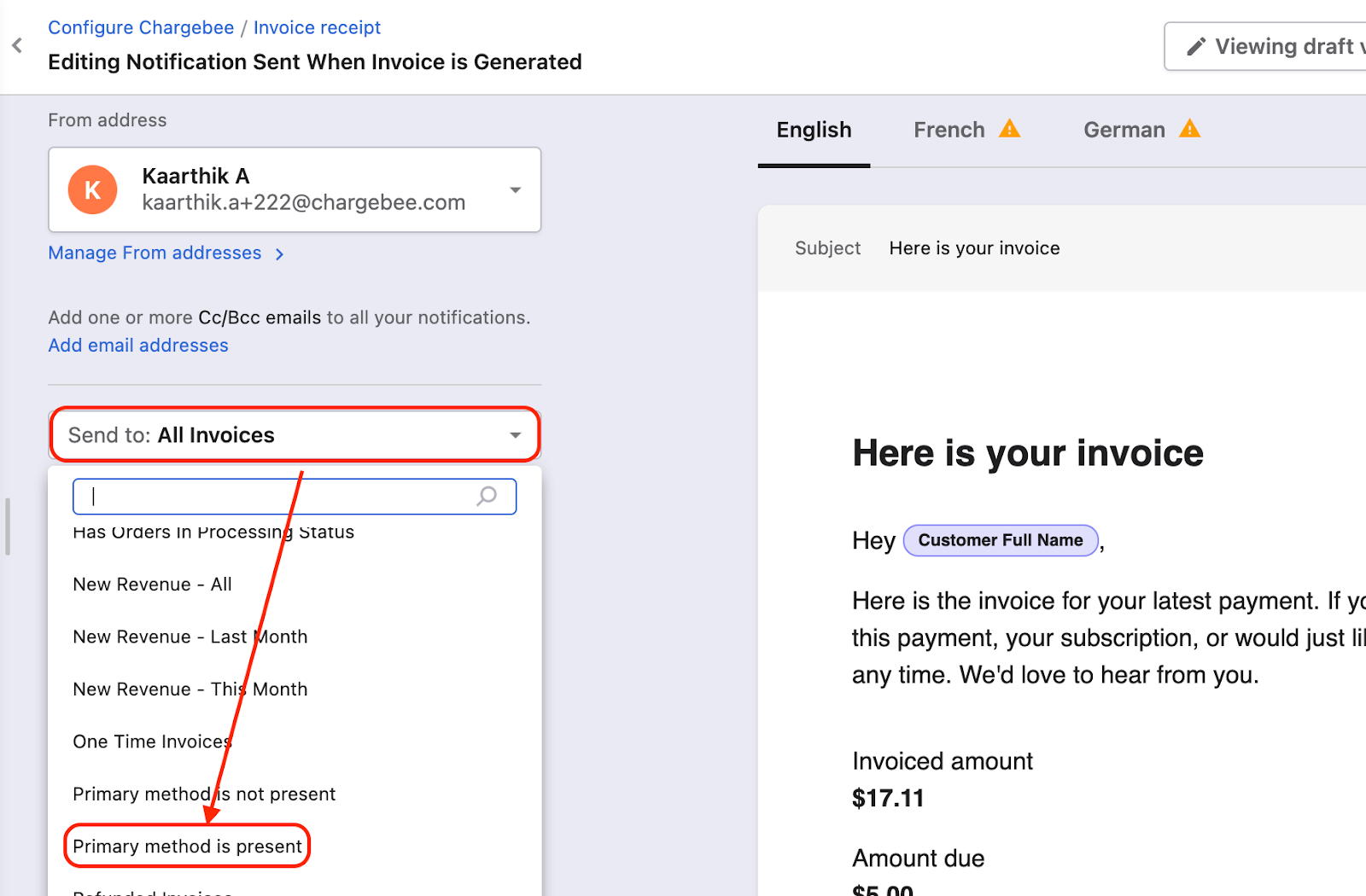
This will send a default invoice email notification to the customers who have the payment method updated.
Step 4: Create an email notification for customers without the payment method
Now, for customers without a payment method, we need to add another email notification.
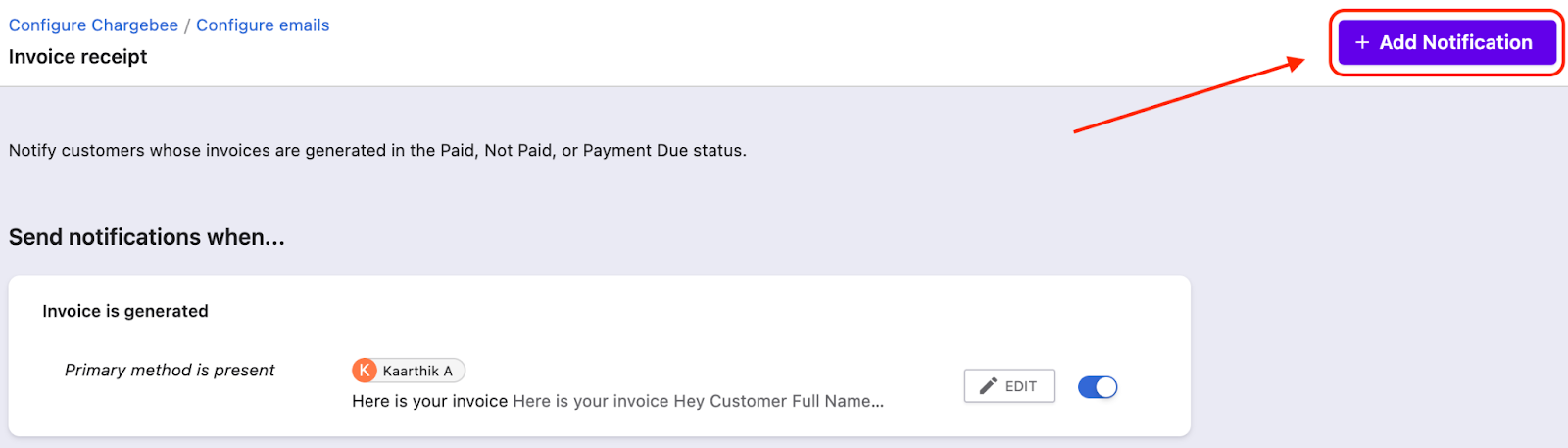
Add Notification
To add additional notifications click on 'Add Notification' and you will be prompted with a new window with two options.
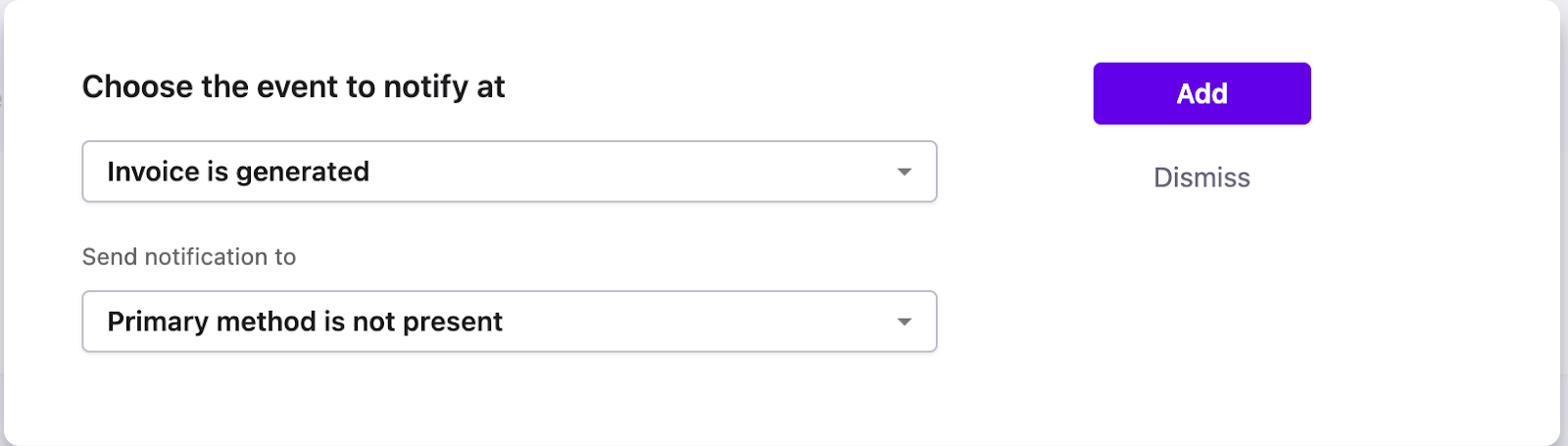
'Choose the event to notify at' as the Invoice is generated
'Send Notifications to' a Primary method is not present
Then, you will be directed to the 'Editing Notification Sent When Invoice is Generated' page. You can customize the email notification and add 'Update Payment Method' button using the Smart Section option and click 'Publish'
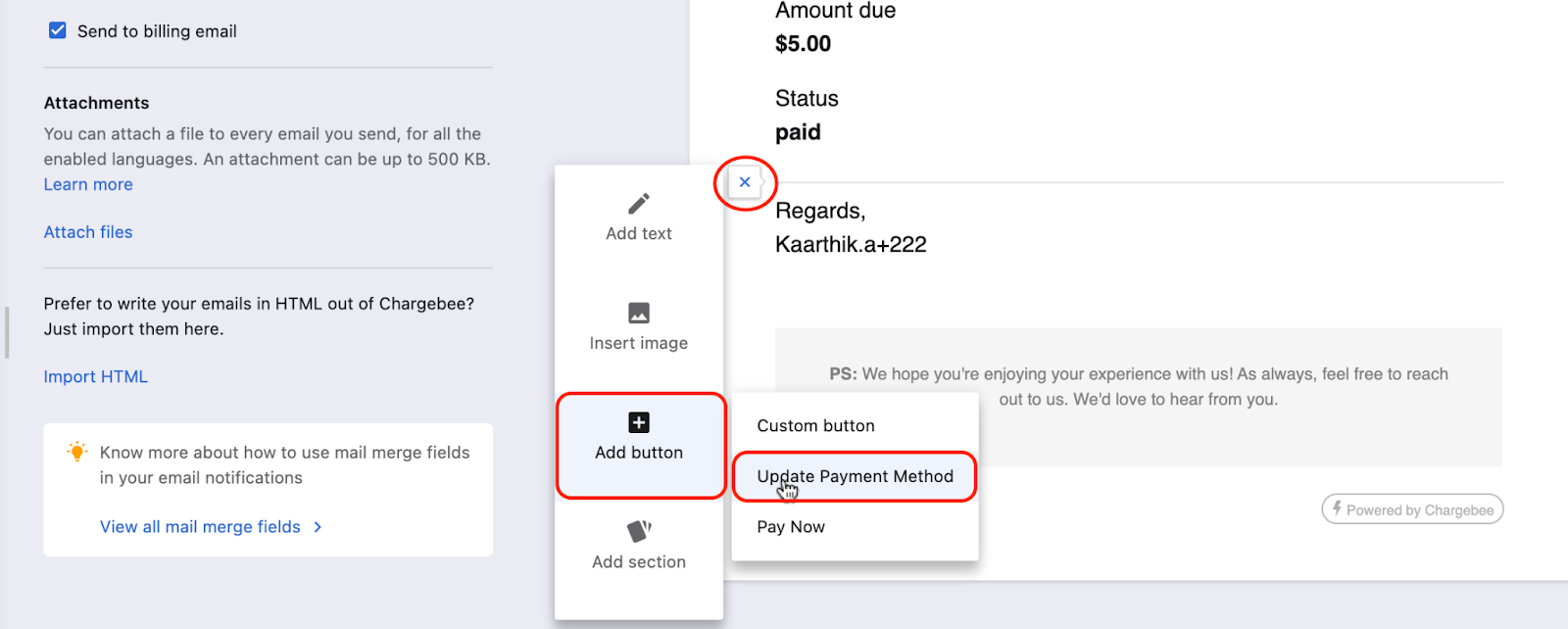
Now, your customers with the payment method will receive the default invoice receipt whereas the customers without the payment method will receive the customized invoice with 'Update Payment method'.
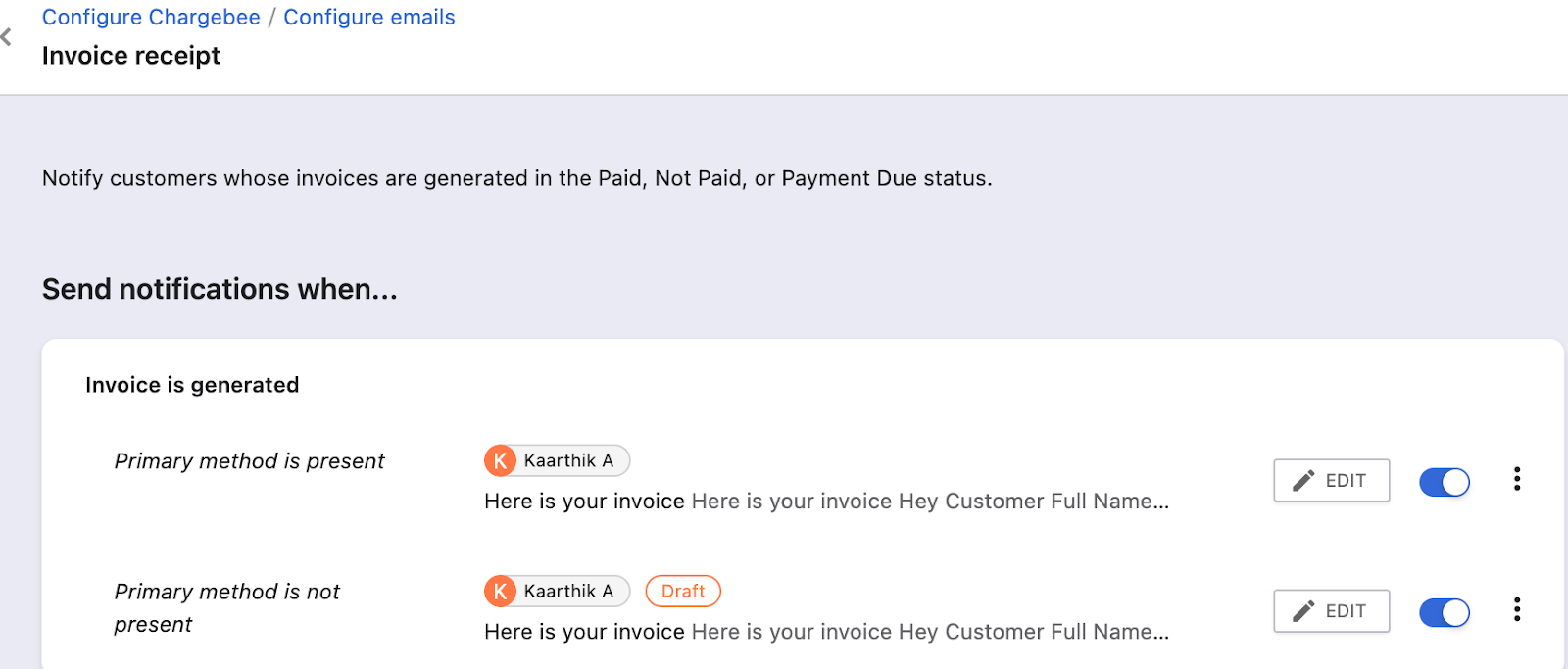
Note: After creating these segments, you need to manually update new customers by referring to Step 1 & Step 2.
Refer to this link to know more about Segments.
Mail Merge Usage
Note
This feature is available for all plans but since specific plans do not support the Segment option, we can use Mail Merge as an alternative.
Step #1: Navigate to Settings > Configure Chargebee > Email Notifications > Invoice receipt > Edit and choose the email that you want to set up Mail Merge field to request a payment method for the customers who have not updated the payment method.
Then click on 'EDIT' and add the Mail Merge as mentioned below.
| Mail Merge Code Example |
|---|
^customer_payment_method.status=valid...Content.../customer_payment_method.status=valid |
If the payment method is not available or not valid, the content entered within the block is displayed. " ^ " indicates that the condition specified has to be false. '/' indicates the end of the field block.
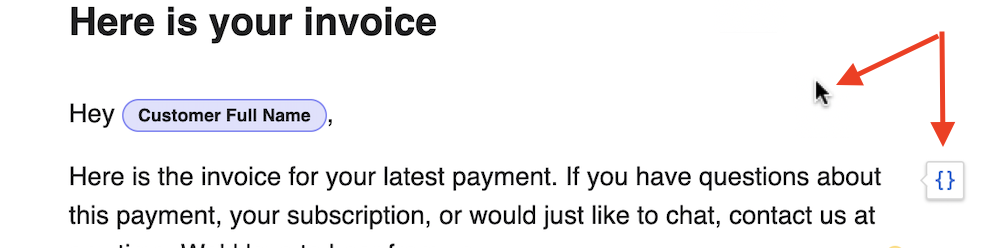
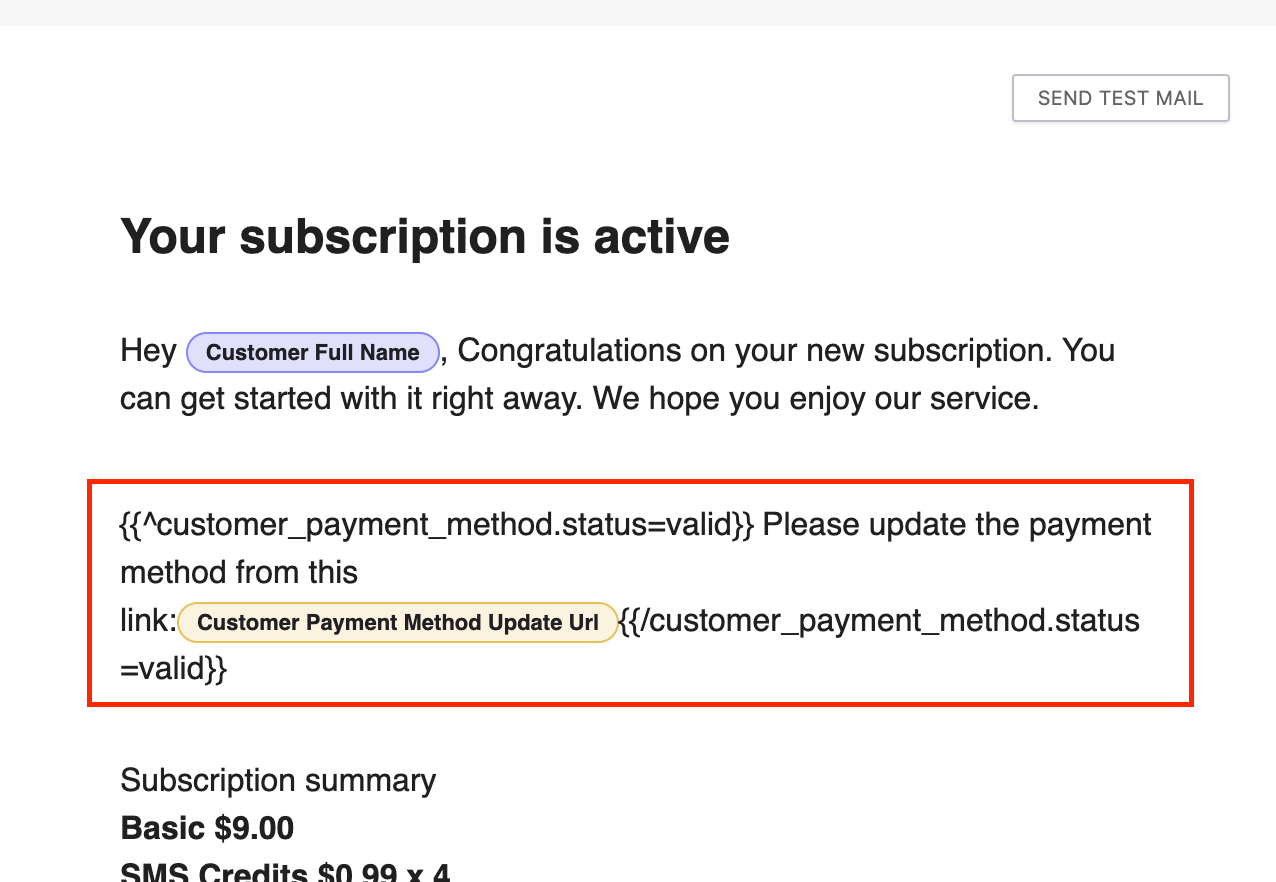
Step #2: Now, you can copy & paste the above Mail merge to your email content. Once done, click on the empty space and select .
Then navigate to Customer > Payment Method Update URL (or) you can type the keyword from the search box.
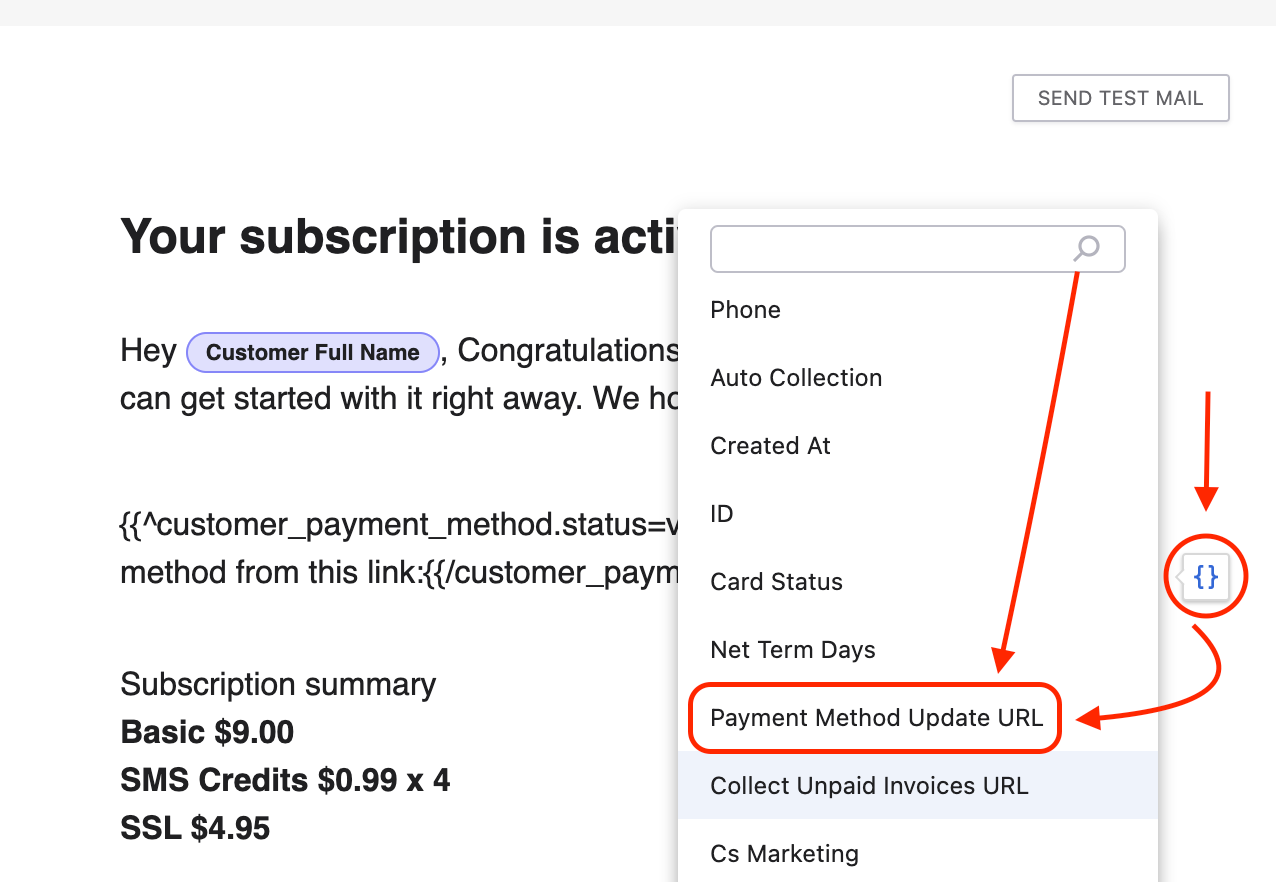
This is how it looks once you add the Mail merge field.
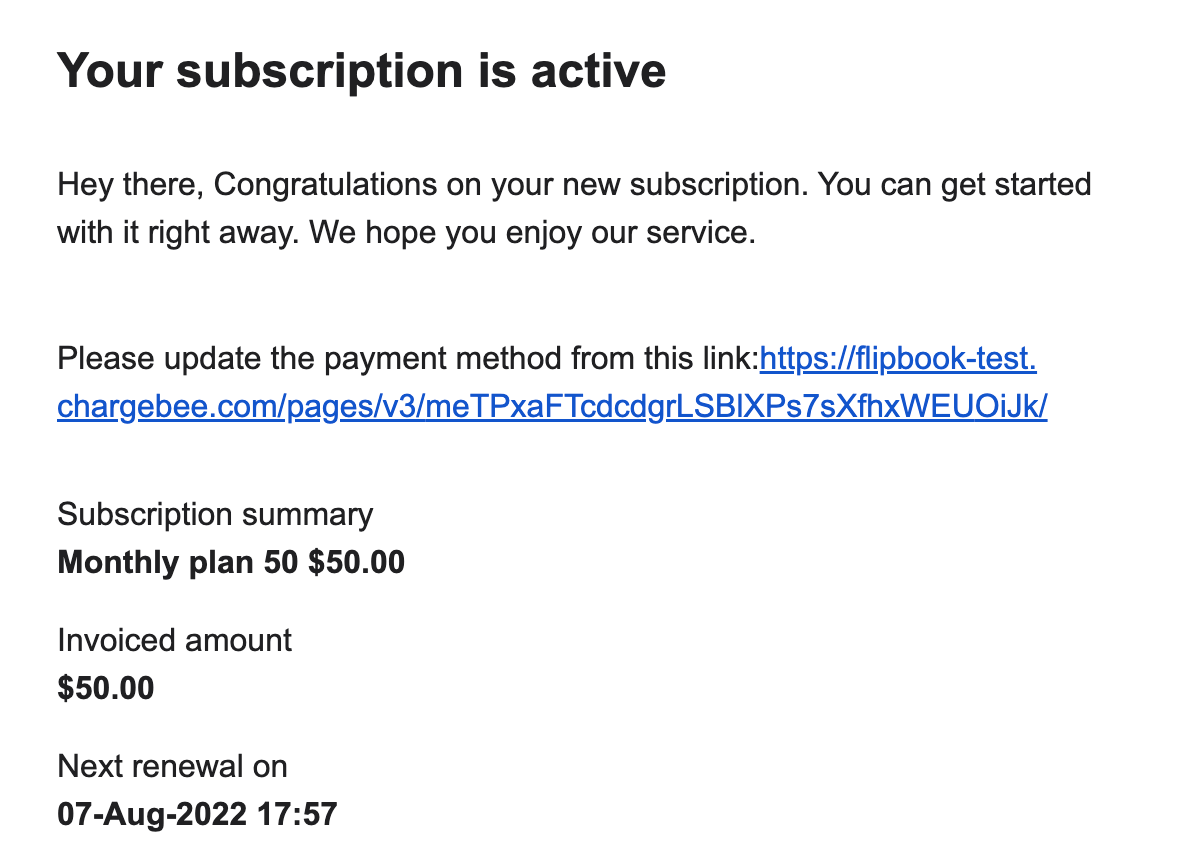
Output Email:
This is a sample email where this field is displayed for the customers who have not updated the payment method or have an invalid payment method.
Refer to this link to know more about Mail Merge Usage.
Related Links
How to create the Merge(variable) fields in Chargebee?
Can I customize the email templates available in Chargebee?
How to use Merge(variable) Fields in Email notifications?
Is there a way to include a link to update the payment details in the email notifications (V1)?
Related Articles
Show more
Was this article helpful?