Steps to Reconcile Payments between Chargebee and QuickBooks
Scope
Chargebee plugin for QBO not reconciling
Need help running the Chargebee chrome plugin for QBO reconciliation. Currently not matching transactions.
Summary
To ensure reconciling happens between Chargebee and Quickbooks. Please follow the below steps
-
Download Gateway Statement from Chargebee
-
Upload Gateway Statement in QuickBooks
-
Start Reconciliation Process
-
Review the Reconciled Payments
-
Map the Gateway Processing Fees
-
Transfer Settlement Amount to a Bank Account
Solution
1. Download Gateway Statement from Chargebee
If you have not enabled reconciliation during the initial configuration, you can begin the setup and select a clearing account.
-
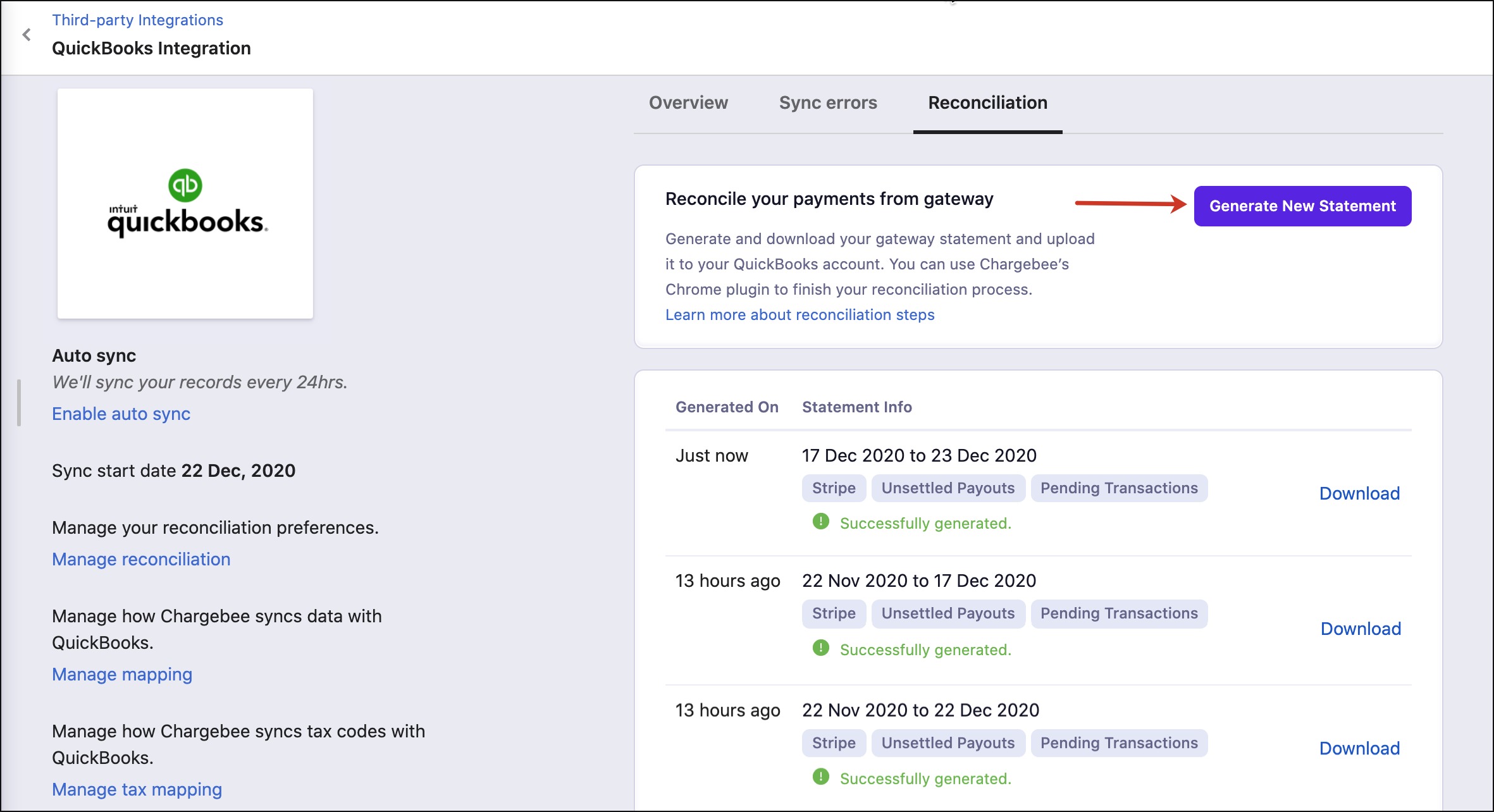
Connect your Chargebee and QuickBooks accounts. Click Settings > Third-Party Integrations > QuickBooks > Reconciliation to navigate to the QuickBooks integration sync settings page
-
Click Generate New Statement under the Reconciliation tab. The Reconciliation tab displays up to five recently generated gateway statements. You can also view the generated time and the date range of these statements.
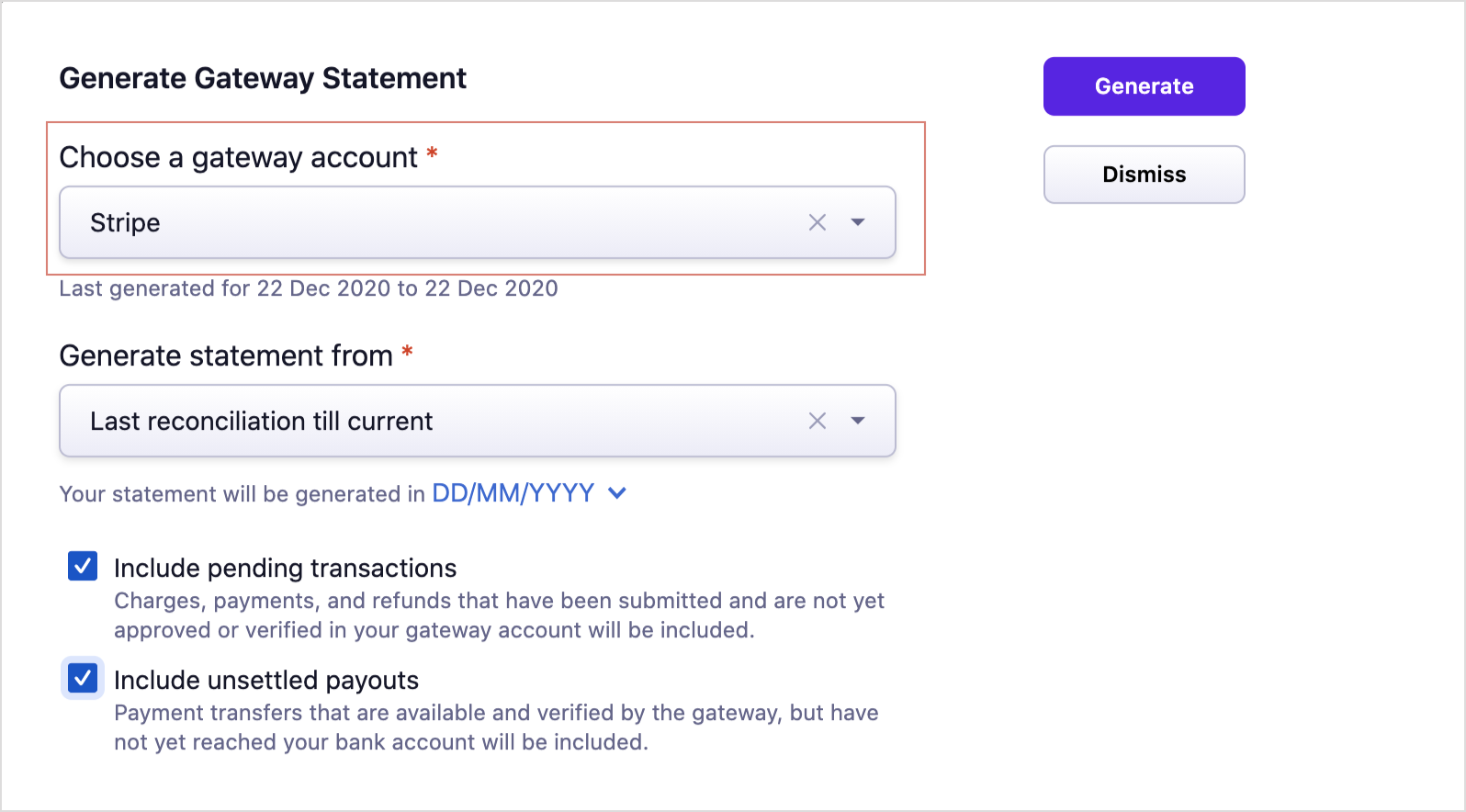
- In the Generate Gateway Statement pop-up, select a gateway account for which you want to download the statement.
-
Select the date range for which the statement should be downloaded. You can choose to download from Last reconciliation till current date or select start and end date, as required.
-
You can optionally select Include pending transactions for charges, payments and refunds that are in in-progress status to be included in the reconciliation statement.
-
Similarly, select Include unsettled payouts to include settlements and bank transfers that are in in-progress status to be included in the reconciliation statement.
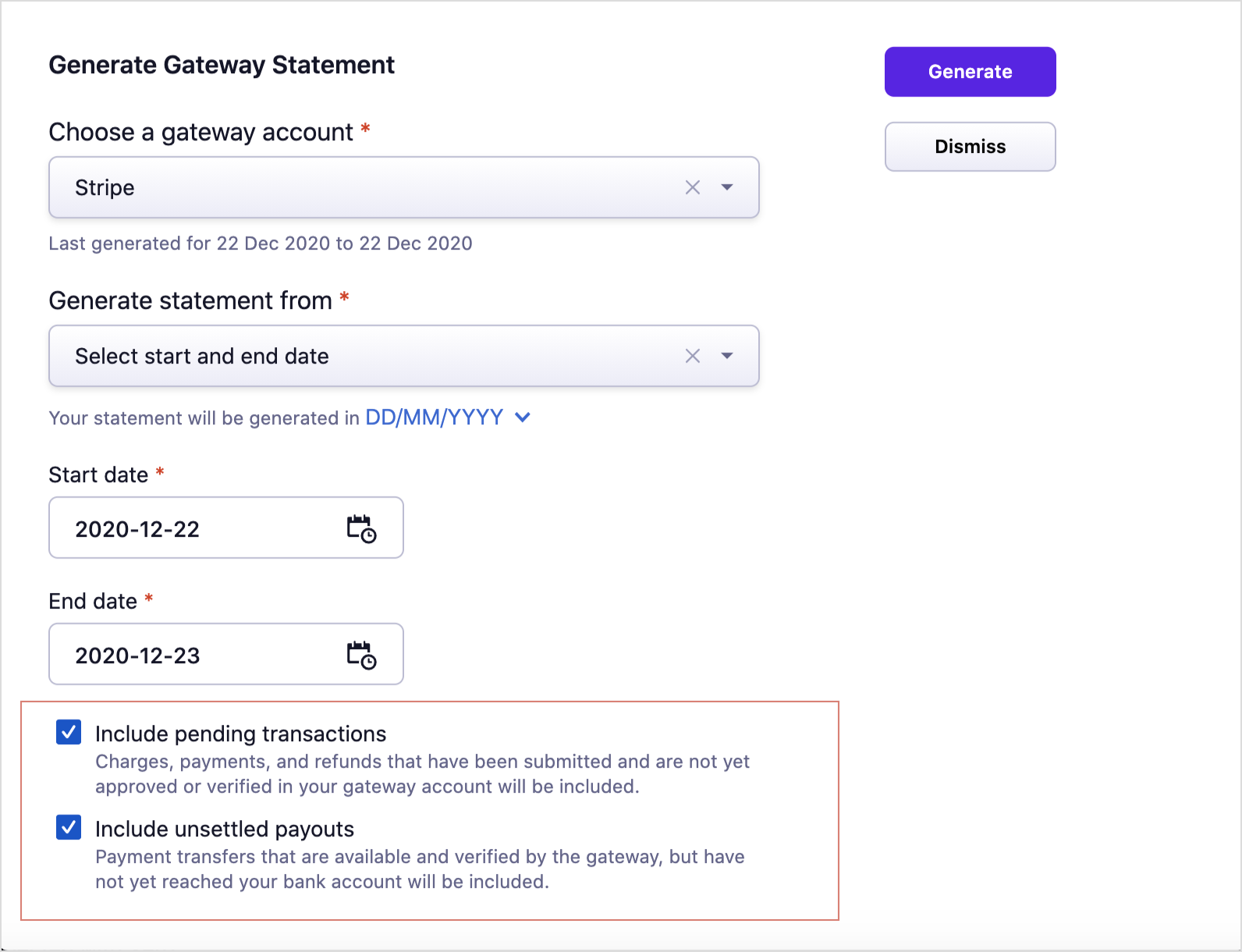
- Click Generate to generate a new gateway statement for the selected date range. Once the statement is generated, you can download the statement and upload it to your QuickBooks account.
2. Upload Gateway Statement in QuickBooks
If you have an existing gateway account in QuickBooks to manage the gateway statement, you can use that, or you can create a new bank chart of account and import the Gateway statement.
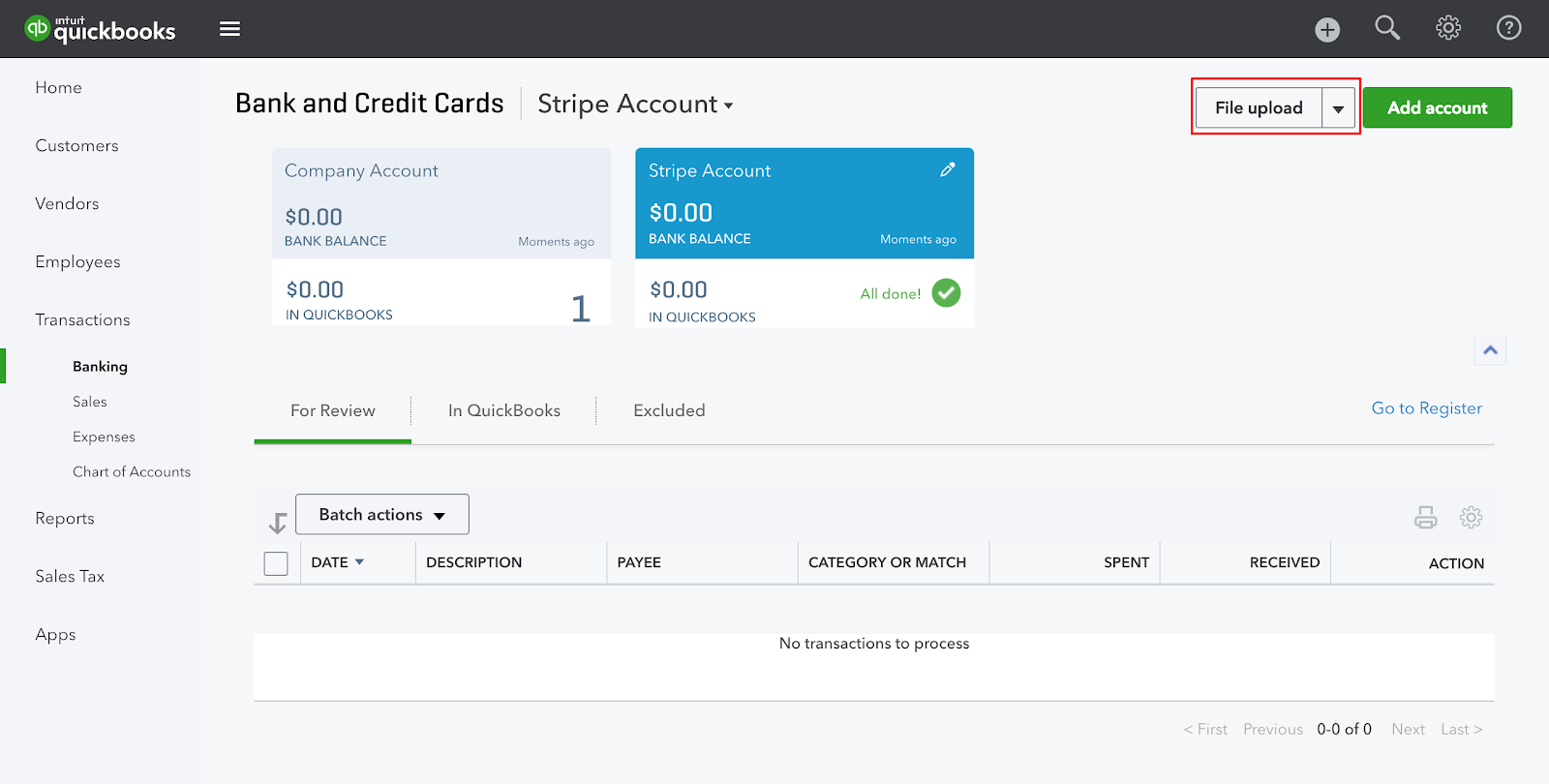
Note: When you upload the gateway statement and map the bank account fields with the CSV file fields, make sure that the date format is in sync with the date format selected while generating the payment gateway statement in Chargebee
3. Start Reconciliation Process
- Download and install Chargebee's browser extension for Chrome.
- After the gateway transactions have been imported into QuickBooks, run the Chargebee's Payment Reconciliation plugin.
- Before running the plugin, make sure that the date format in your QuickBooks account is in sync with the date format selected while generating the payment gateway statement in Chargebee.
- The plugin will start searching for transactions and find matches automatically.
Chargebee's plugin is compatible with the current reconciliation logic and User Interface (UI) of QuickBooks. Any further updates on the QuickBooks reconciliation logic or UI will not be supported automatically by the plugin and might disrupt the reconciliation process.
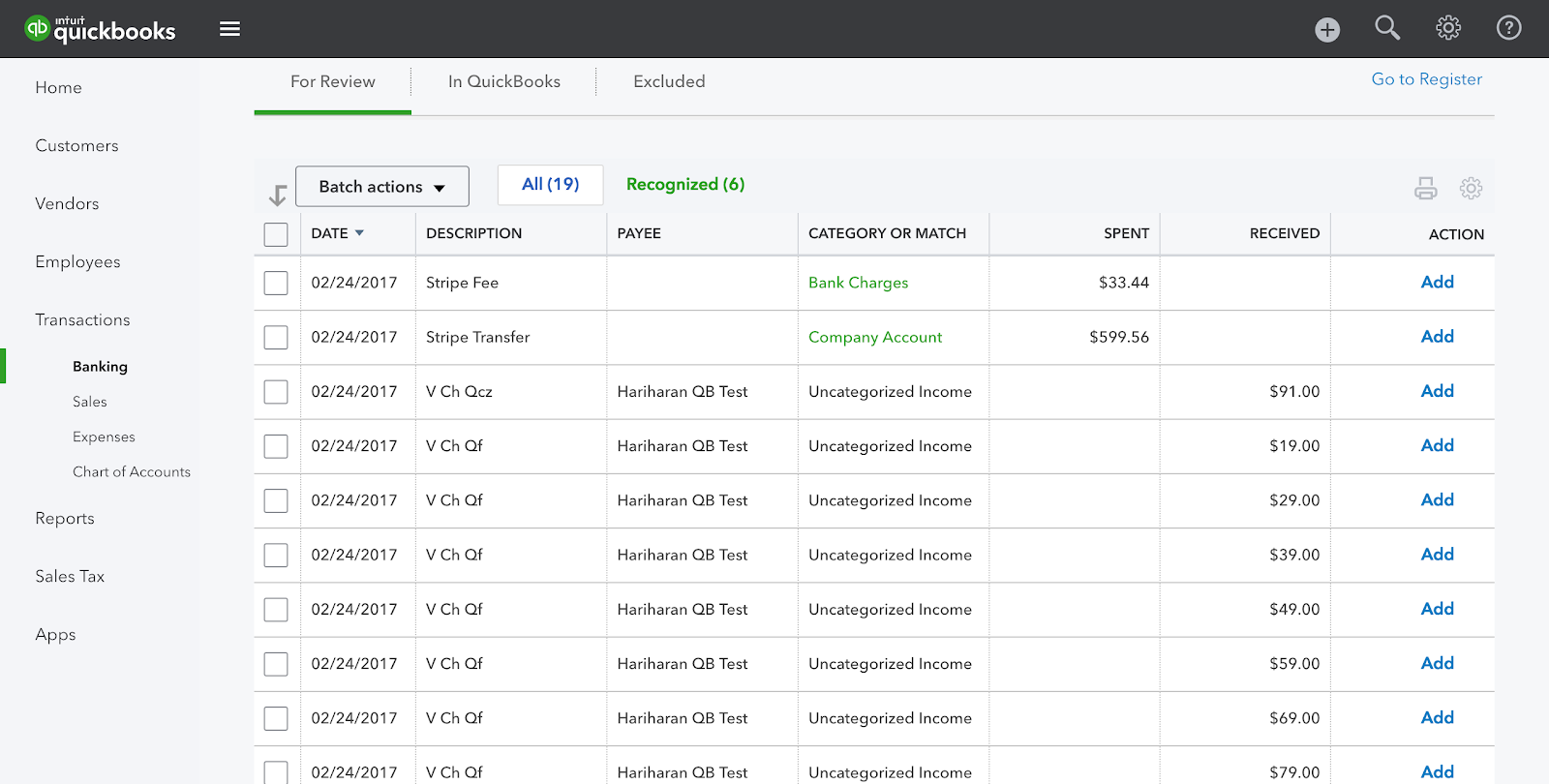
Note: If a match is not found, the extension will skip the entry and proceed to the next transaction. The extension will not match Gateway Fees and Settlement/transfers to Bank, these should be reconciled as explained in the following steps
4. Review the Reconciled Payments
- Click the Reconciliation option in the menu from Settings.
- Select the clearing/gateway account, enter the date and bank balance to begin the review process.
- The transactions which have matched will be auto-selected.
- Click Finish Now.
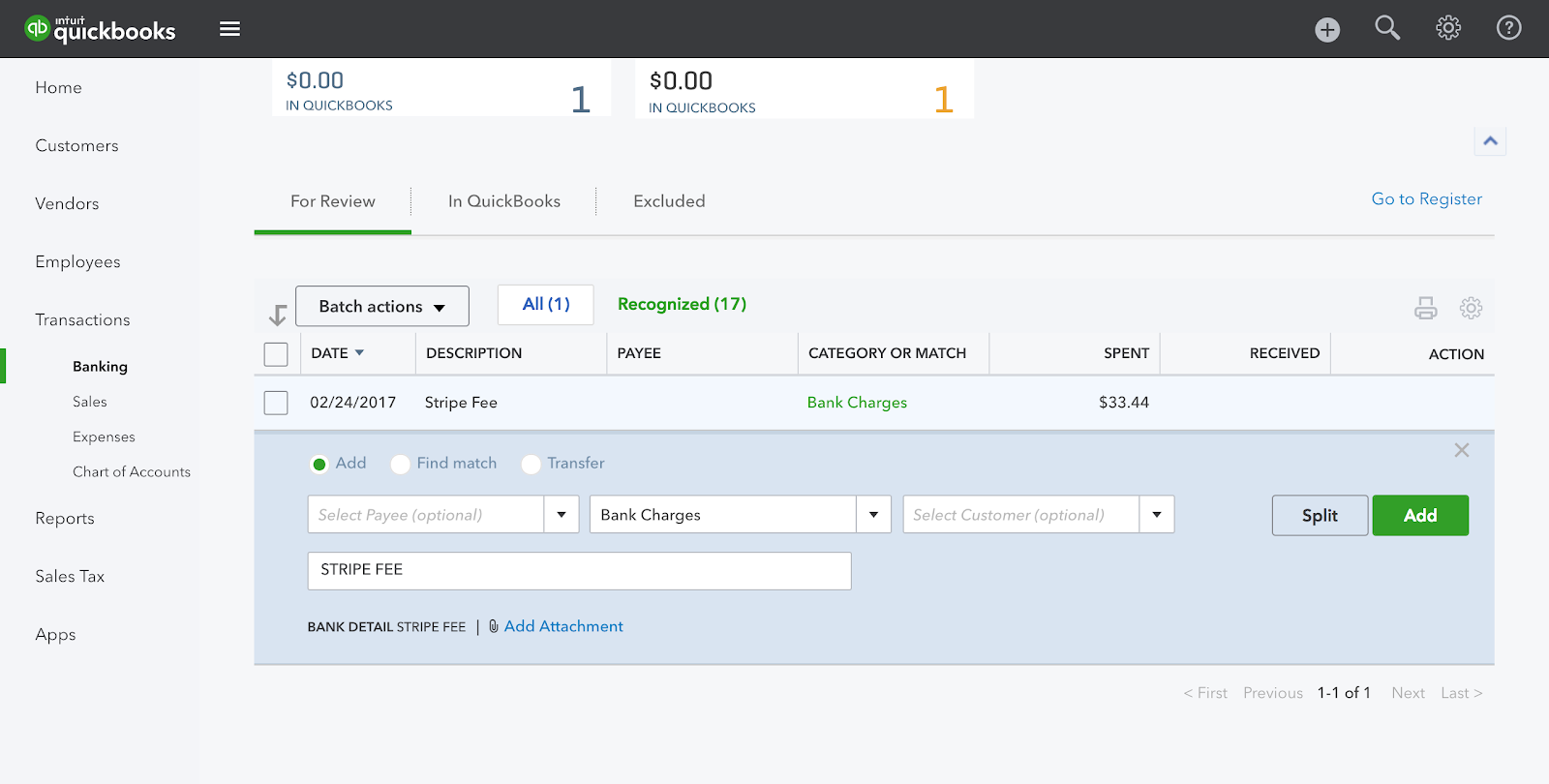
5. Map the Gateway Processing Fees
- Navigate to the Gateway account.
- Select an expense (or any Account) and map the gateway processing fees.
6. Transfer Settlement Amount to a Bank Account
After the Payments and refunds are reconciled, the settlement entries should be reconciled. You need to transfer the lump sum amount from the Gateway account to an actual Bank Account.
Now run the Reconciliation process for the Bank Account as well. Reconciliation is now complete and all entries are processed.
Click here to know more.
Was this article helpful?