Chargebee Pay is available to pre-qualified Chargebee Billing customers.
Payouts
Chargebee Pay automates the entire payout lifecycle, from transaction settlement through fund disbursement, and provides complete visibility within the Chargebee Pay portal. Payouts mark the final step of settlement, transferring funds collected from your customers to your bank account.
Settlement
A settlement is the grouping of eligible transactions into a settlement file, which initiates the transfer of funds to your account.
- Day T: Chargebee Pay generates a settlement file containing all eligible transactions.
- Day T+1 to T+2: The file undergoes internal processing, validation, and approval.
- Day T+2: Funds are released and transferred to your bank account as a payout.
Information
Payout Timelines
- Standard payout timeline: T+2 business days after settlement creation.
- Direct Debit payments: May take T+5 to T+7 business days to complete.
- Timeline may vary by payment method.
Payout
A payout is the transfer of funds to your bank account. It represents the net settled amount after applicable deductions.
Each payout includes the following components:
- Gross amount: Total value of settled transactions.
- Deductions: Refunds, disputes, chargebacks, and applicable fees.
- Net amount: Final amount transferred to your bank account.
Note
Payouts are handled automatically. No manual action is needed. All payout-related data is available in the dashboard and reports.
Payout Lifecycle
The payout lifecycle consists of the following stages:
| Step | Description | Timeline |
|---|---|---|
| Settlement Initiated | Transactions are grouped and processed | Day T |
| Settlement Period | File is validated and approved | Day T – T+2 |
| Payout Initiated | Funds are transferred to the merchant’s bank account | Cards: Day T+2; Direct Debit: Day T+5–T+7 |
| Transaction data available in dashboard and transaction export | Full transaction breakdown is visible in the UI and downloadable reports | Day T onwards |
| Payout data available in dashboard and transaction export | Full payout breakdown is visible in the UI and downloadable reports | Day T+2 onwards |
Payout Scheduling
Once you start processing live transactions, payouts are automatically scheduled to the bank account provided during onboarding.
- First payout: Your first payout might take longer, depending on the industry risk level and country of operation.
- Ongoing payouts:
- Card payments follow a standard T+2 business-day schedule.
- Direct debit payments are typically paid out in T+5 to T+7 business days.
Payouts may be temporarily held for review if unusual dispute rates, refund rates, or transaction activity are detected. This helps ensure compliance, account security, and the stability of future payouts.
Updating Your Payout Account
To update your payout account, contact Chargebee Support. Payouts will be paused until your new account is verified.
Provide the following details:
- Country of the bank account
- Account holder name
- Account type (savings or checking)
- Local account details (IBAN, sort code, routing number, etc.)
- Bank statement dated within the last six months
| Onboarding Country / Region | Bank Account Details |
|---|---|
| Europe (Austria, Belgium, Finland, France, Germany, Ireland, Italy, the Netherlands, Spain) |
|
| United Kingdom (UK) |
|
| United States of America (USA) |
|
Supported Settlement Currencies
The following are the supported settlement currencies:
| Onboarding Country / Region | Default Settlement Currency |
|---|---|
Europe (Austria, Belgium, Finland, France, Germany, Ireland, Italy, the Netherlands, Spain) | EUR |
| United Kingdom (UK) | GBP |
| United States of America (USA) | USD |
Note
Multi-currency payouts are supported (currently in beta). Contact Chargebee Support to enable this feature.
Default Payout Schedule
- All payments and payouts are processed in Coordinated Universal Time (UTC).
- Standard schedule: T+2 business days after transaction capture.
- Direct debit: T+5 to T+7 business days.
- Payouts scheduled on weekends/holidays arrive on the next business day.
Track and Reconcile Payouts
You can view the full breakdown of each payout in the portal and download detailed reports for reconciliation.
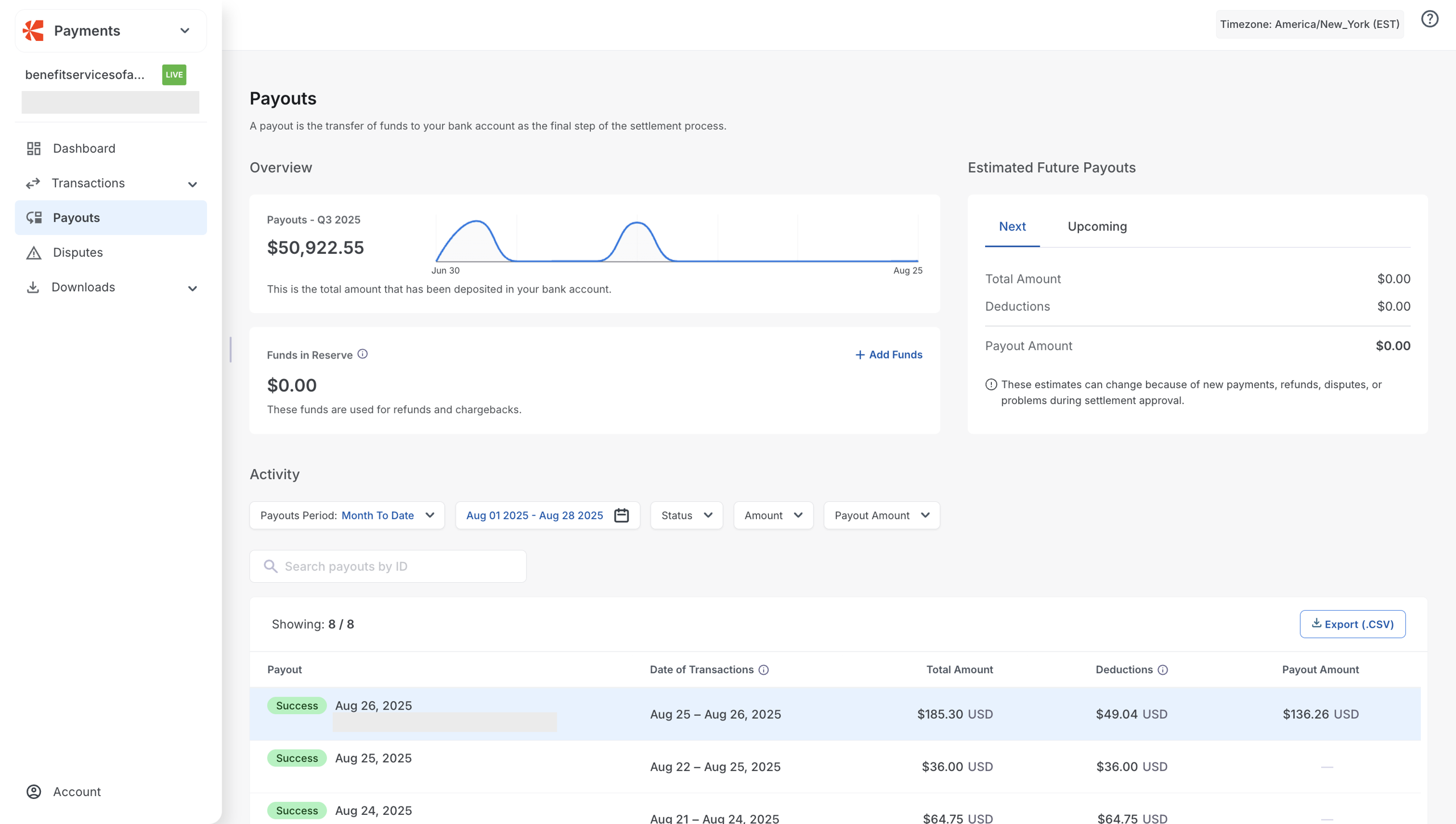
Payouts dashboard
Navigate to Chargebee Pay portal > Payouts.
Here, you can view a list of all your payouts, including:
- Gross vs. net payout amounts
- Deductions (fees, refunds, chargebacks)
- Number of transactions in the payout
Use Download Report (PDF) for a full breakdown.
Consolidated monthly report
At month-end, an Excel report that maps each transaction to its payout ID is generated. You can use it to reconcile multiple payouts.
Transactions export
Navigate to Chargebee Pay portal > Downloads > Exports. Generate exports for daily or weekly reconciliation. Each transaction includes its associated payout ID.
Payouts in the Chargebee Pay portal
The Payouts module gives you a real-time view of your payouts, reserves, and upcoming payouts.
Overview section
This section includes two widgets:
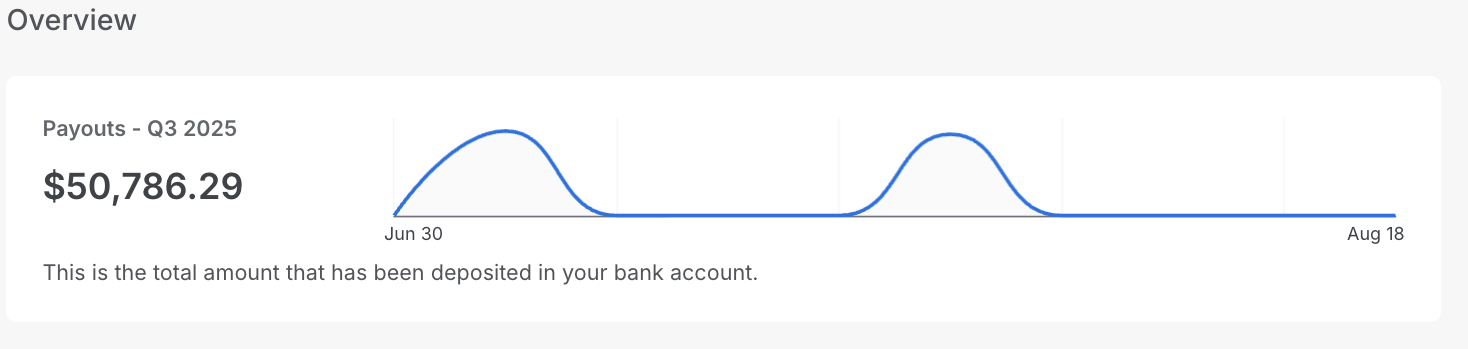
- Payout Amount
- Funds In Reserves
Payout Amount (for the ongoing quarter): The total net payout deposited to your account this quarter. The graph helps you quickly track trends.
Funds in reserves
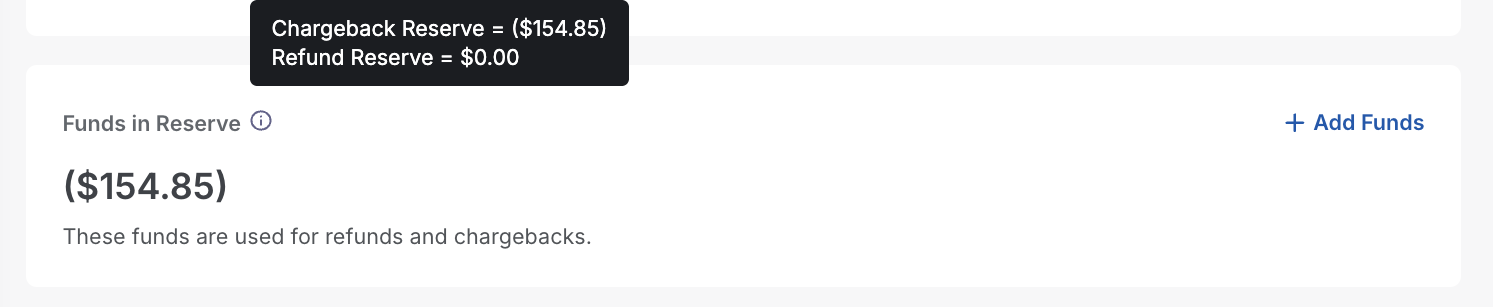
Chargebee Pay supports the following types of reserves:
-
Refund Reserves: These funds have been credited to this reserve by you to cover potential refunds. The current balance for refund reserves is displayed here.
-
Chargeback Reserves: You have credited funds to this reserve to cover potential chargebacks, late payment failures, and associated fees. The current balance for chargeback reserves is displayed here. The consolidated monthly report provides a detailed list of transactions debited from and credited to refund and chargeback reserves.
-
Rolling Reserves: Chargebee Pay can hold back a percentage of your customer’s daily transaction volume. This reserve acts like a safety buffer in case of chargebacks, fraud, or unexpected losses. It is not set up by default for all customers, but only for high-risk customers.
All reserve movements are available in the consolidated monthly report.
Estimated future payouts
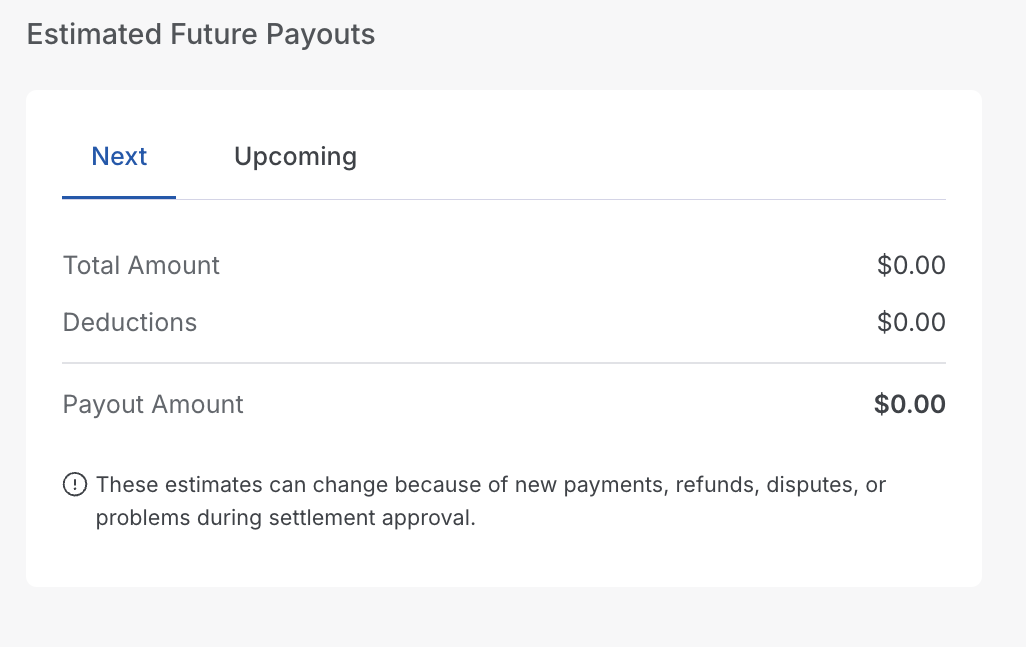
This widget displays your upcoming payouts:
- Next (T+1): Expected payout for tomorrow (pending approval)
- Upcoming (T+2): Expected payout for the day after tomorrow
Estimates may change based on refunds, chargebacks, or approval status.
Activity section
View payouts for a selected date range. Filter by status: Success, Failed, Pending.
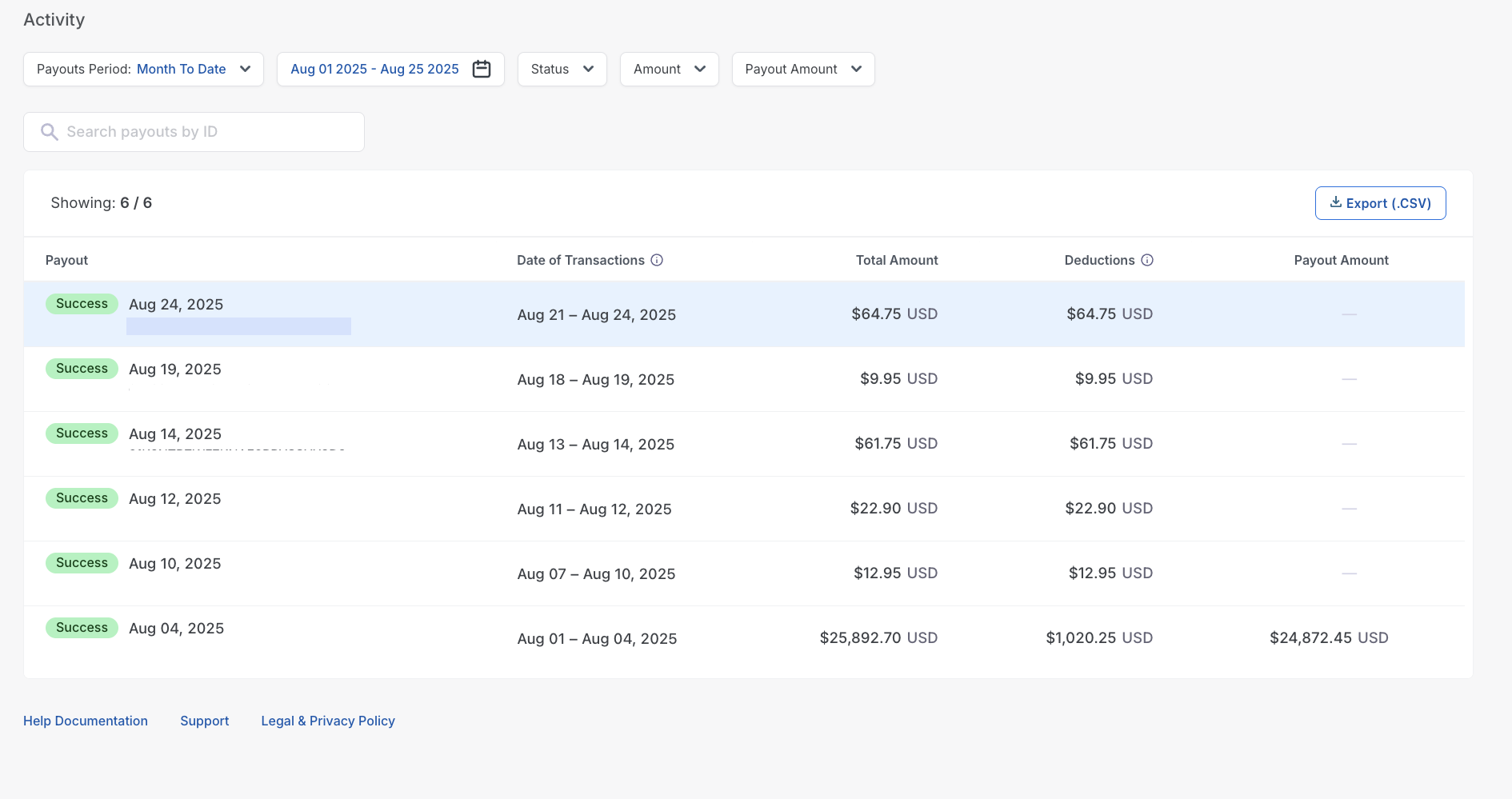
Payout detail view
The Payout Details view provides key information about a specific payout. It consists of two main sections:
- Overview
- Breakdown
Overview section
The overview section provides essential details for the payout.
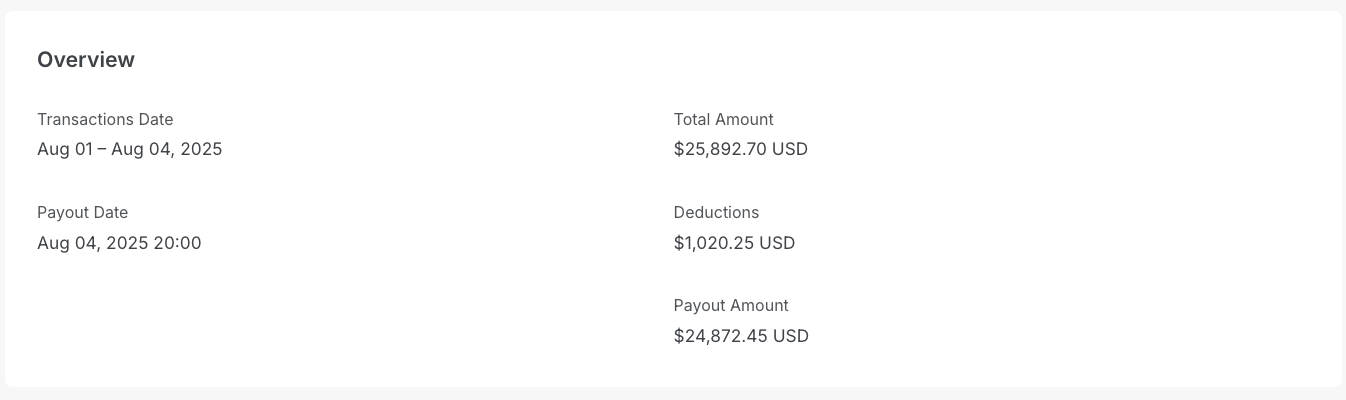
The overview section of payout details contains the following fields:
| Field | Description |
|---|---|
| Transaction Date | Indicates the transaction date range for this payout. |
| Total Amount | Total transaction amount included in the payout. |
| Payout Date | Indicates when the merchant will receive the payout amount in the bank account. |
| Deductions | Total fees, chargeback amounts, or late payment failure amounts deducted from the payout amount. |
| Payout Amount | Total payout amount deposited in the merchant's bank account. |
Note
If deductions are greater than the gross amount, your payout will be $0. The balance will carry forward to the next payout.
Breakdown section
This section provides a detailed breakdown of each payout component, including the number of occurrences and the corresponding amounts.
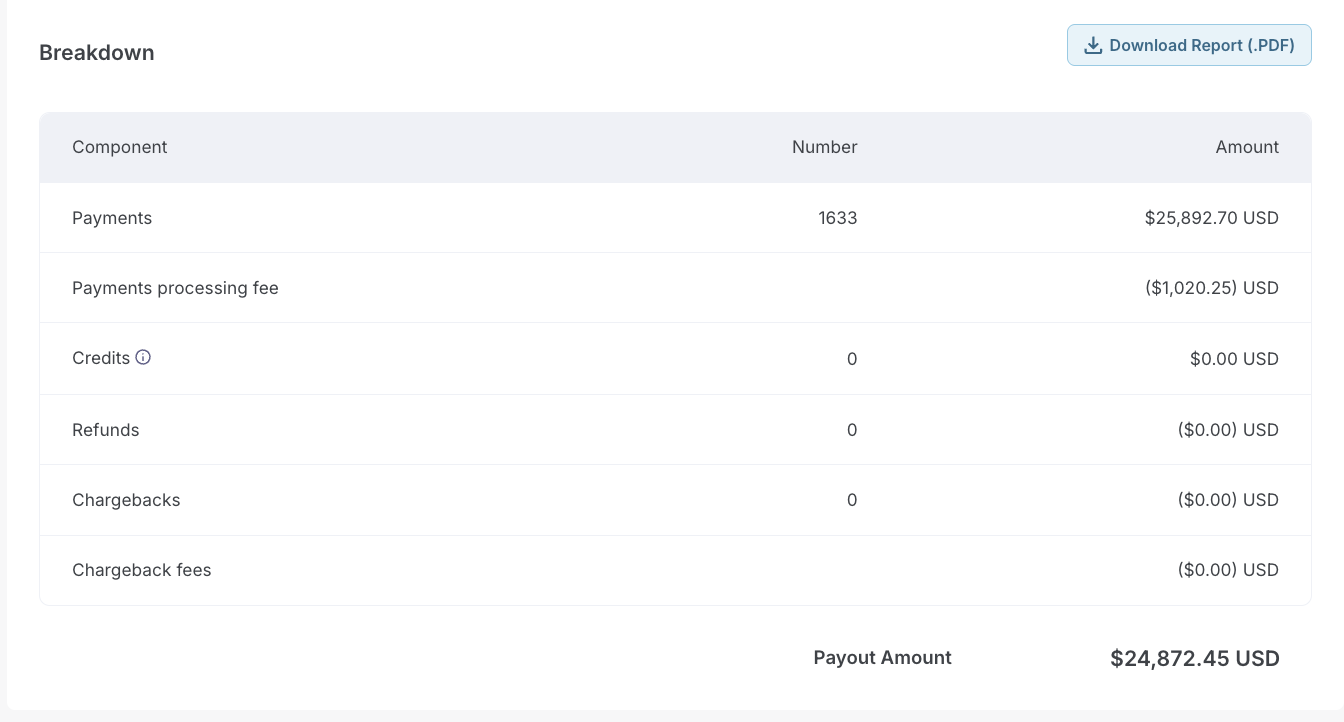
You can download the breakdown as a PDF using the Download option.
| Component | Number | Amount |
|---|---|---|
| Payments | Count of transactions processed | Total amount processed |
| Payment processing fee | Not applicable | Total fee charged |
| Credits | Count of chargebacks won | Total amount credited post-winning chargebacks |
| Refunds | Count of refunds | Total refund amount |
| Chargebacks | Count of chargebacks | Total chargeback amount |
Information
Transaction-level details for each payout will be available soon in the Payout Details View.
Example: Read your payout
- On August 1, 2025, you processed $10,000 in payments. Here is how your payout is calculated:
- Gross transactions: $10,000
- Deductions: $200 (fees) + $300 (refunds) = $500
- Net payout: $9,500
Was this article helpful?