Chargebee Pay is available to pre-qualified Chargebee Billing customers.
Transactions Overview
Transactions in Chargebee track the movement of funds between a business and its customers, providing a clear audit trail of billing activities such as payments, refunds, and adjustments. Chargebee records a transaction whenever you charge, refund, or adjust an amount in your account. This includes all transactions processed via Chargebee Pay. Transaction details include the following sections:
- Summary – High-level details of the transaction.
- Payment Details – Information about payment status and processing.
- Overview – Context of the transaction, including linked invoices and customers.
- Deductions – Any deductions, such as gateway fees or adjustments.
- Payment Instrument – The payment method used (e.g., card, bank account).
- Refund Details – Information about refunds processed against the transaction.
Summary
The Summary page provides an overview of transactions, grouped into the following categories:
- All Transactions
- Successful
- Failed
- Refunds
All Transactions
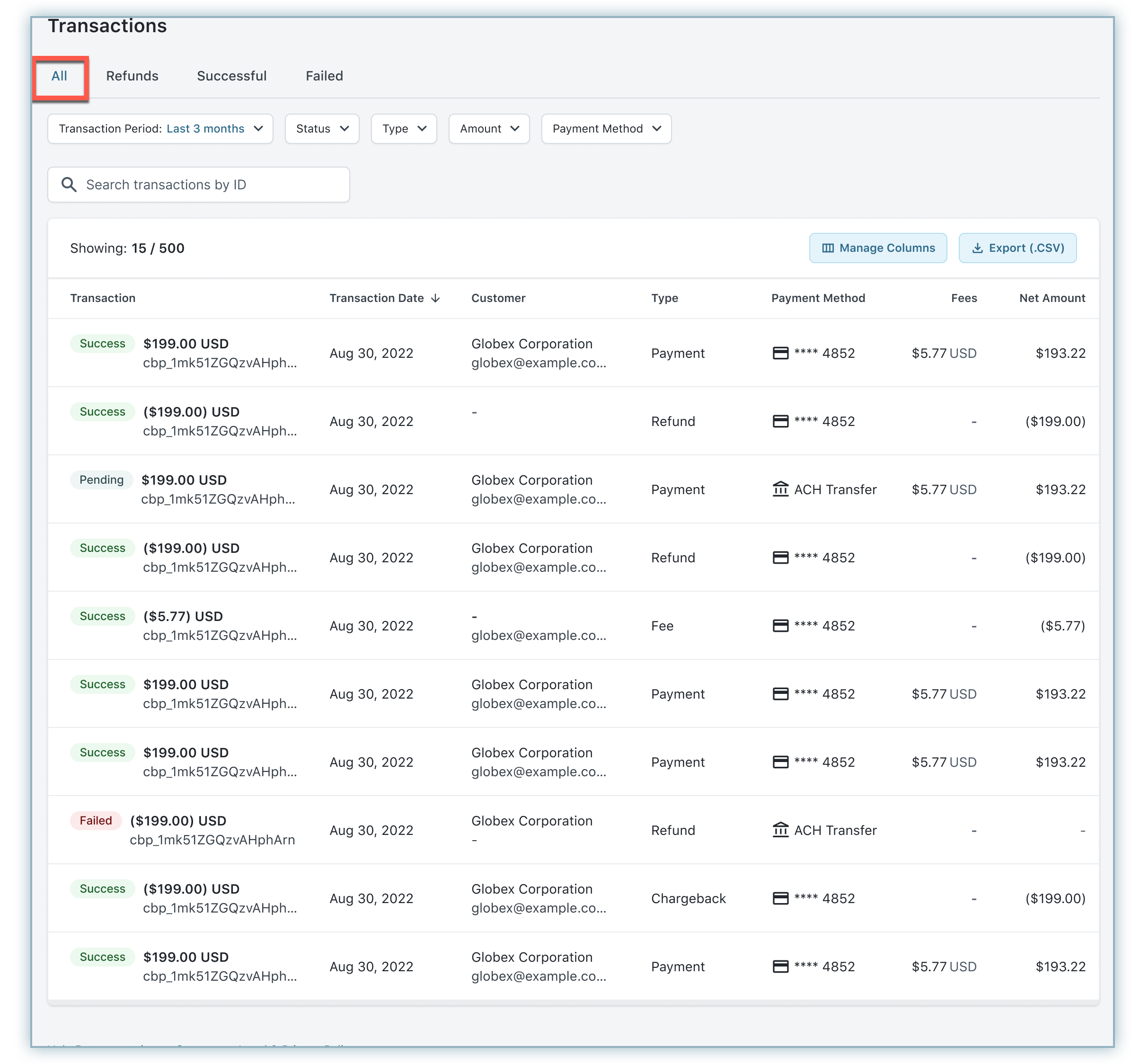
This tab displays all transactions processed via Chargebee Pay. The list is sorted by Transaction Date by default.
- Filters: The default setting for the Transaction Period is Month to Date, while other filters do not have any pre-selected values.
- Search: Transactions can be searched by Transaction ID.
- Data Table: The data table supports infinite scrolling and loads 20 records at a time.
- Export: Transactions can be exported in CSV format. If filters are applied, only the filtered records will be downloaded.
Note
The data table functions the same as shown in All Transactions, but only includes successful transactions.
Successful Transactions
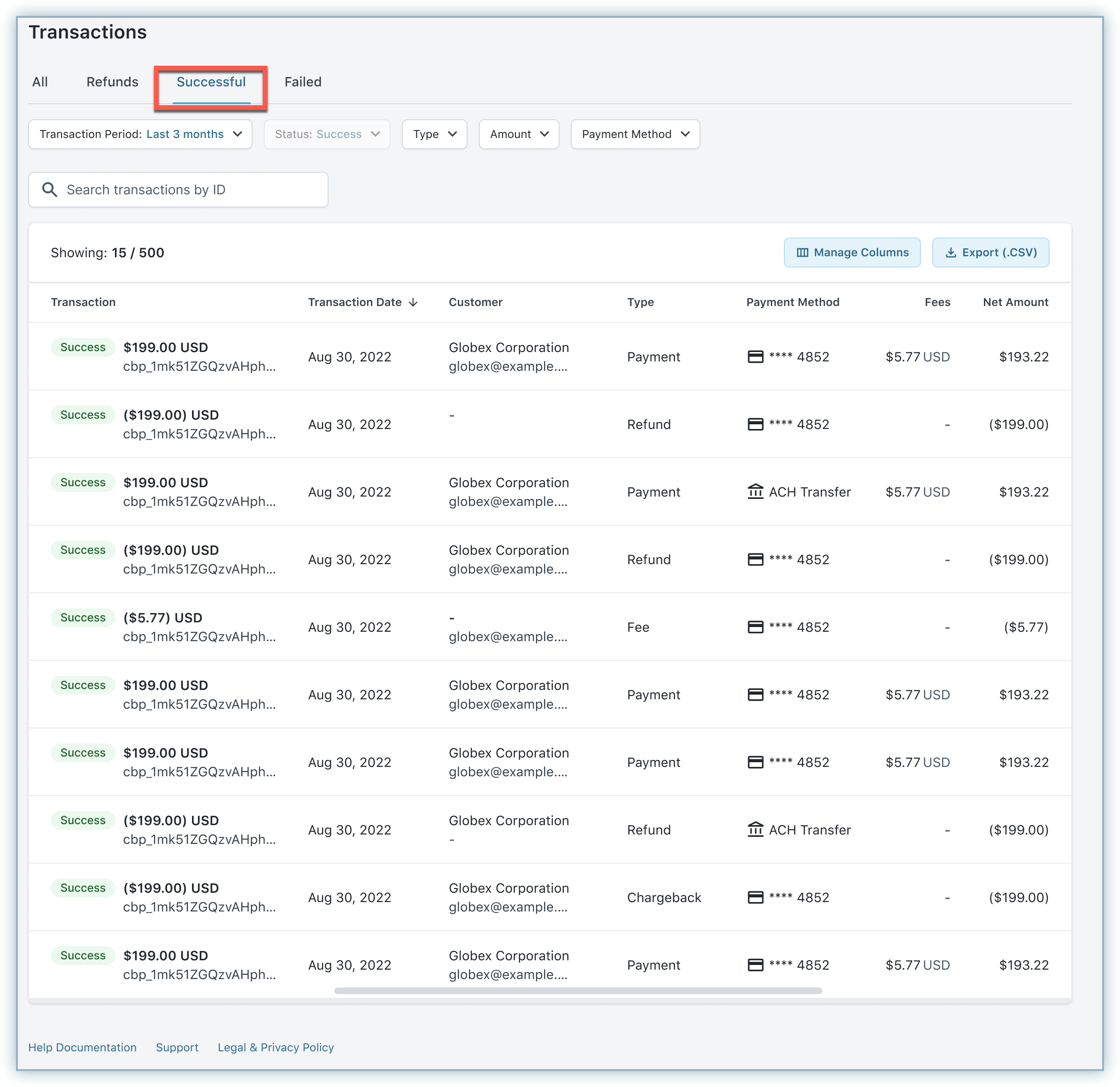
This includes all approved transactions processed by Chargebee Pay.
- Filters: The filters function is similar to the one in the All Transactions view, except for the Status filter, which is fixed at Success and cannot be modified.
- Search: The search function operates the same as the one in the All Transactions view.
- Data Table: The data table will only include successfully processed transactions.
Failed Transactions
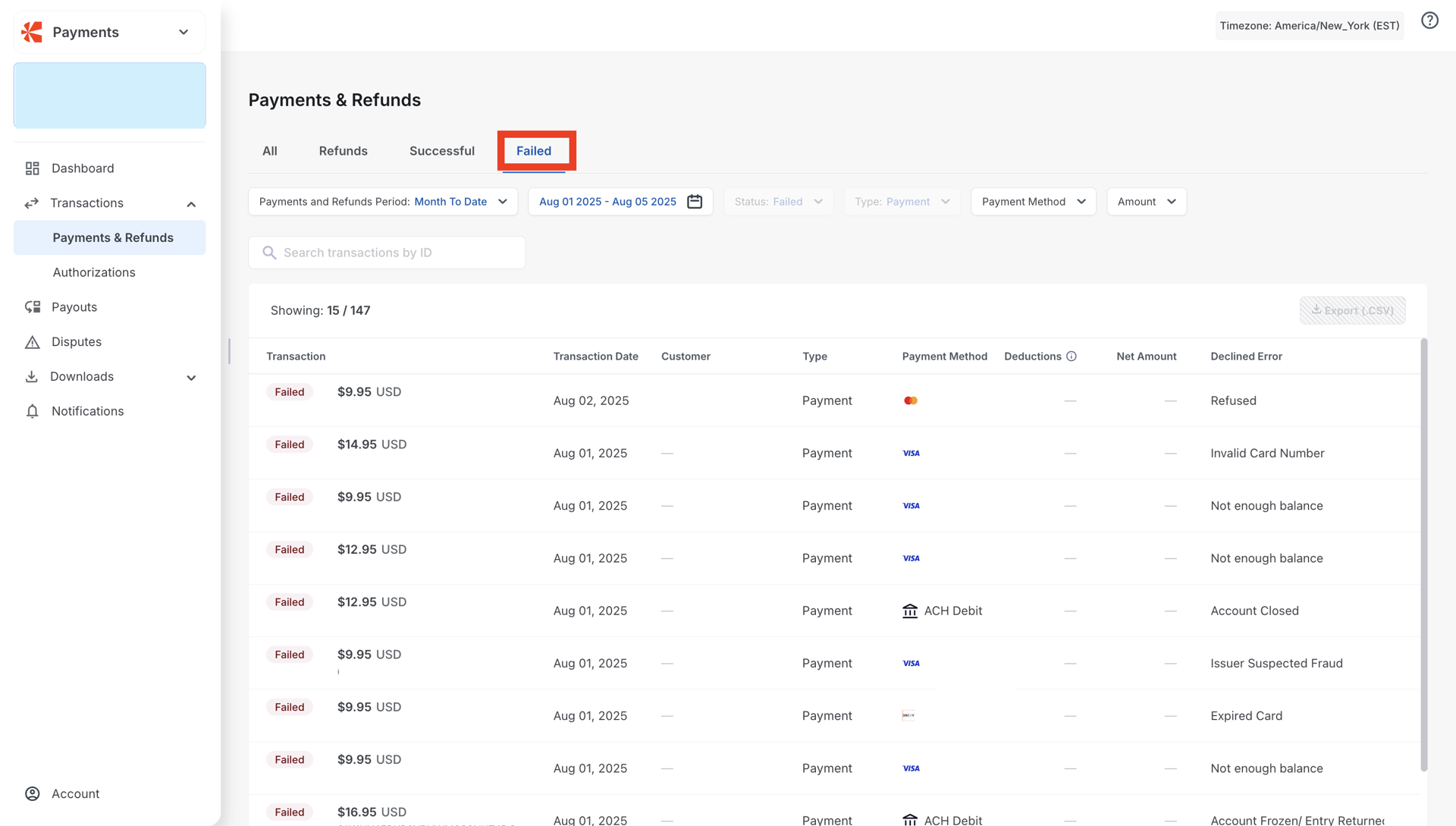
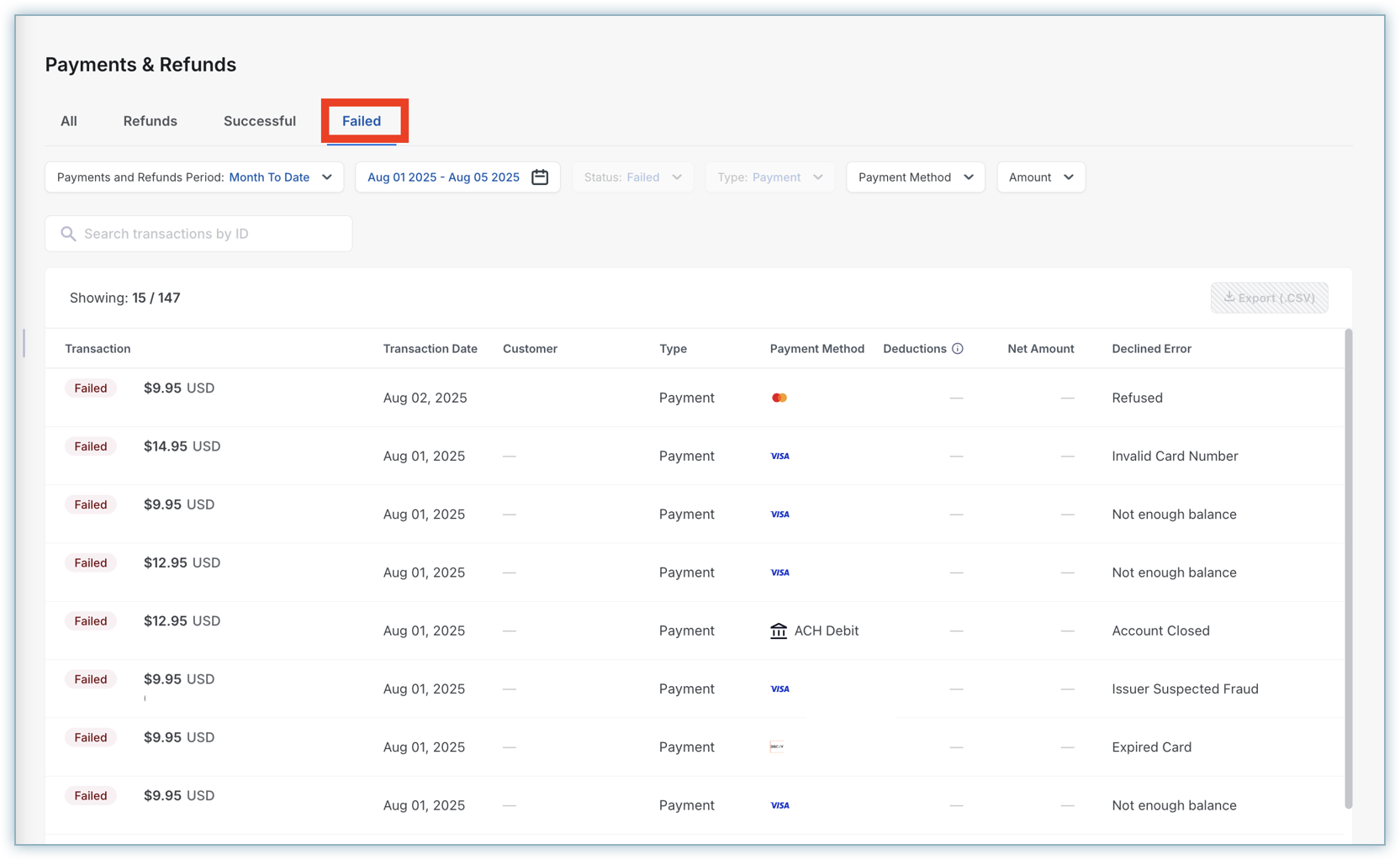
This includes all failed transactions processed via Chargebee Pay.
- Filters: The filters function as demonstrated in the All Transactions view, with the exception that the Status filter will be disabled and cannot be modified.
- Search: The search function operates the same as shown in the All Transactions view.
- Data Table: The data table will only include failed transactions.
Refunds
This includes all transactions processed via Chargebee Pay that have been refunded.
- Filters: The filters function as demonstrated in the All Transactions view, except for the Type filter, which is disabled and cannot be modified.
- Search: The search function operates the same as the one in the All Transactions view.
- Data Table: The data table will only include the refunded transactions.
Payment Details
A payment is a financial transaction in which an amount is deducted from the customer’s bank account. To view payment details, click any row in the Transactions table. The payment details section consists of the following sub-sections:
- High-Level Details
- Overview
- Payment
- Refunds
- Audit Logs
High-Level Details
This section includes high-level payment transaction details that are critical for your transaction. It comprises the following details.

| Field | Description |
|---|---|
| Transaction Type | Payment in this example. Possible values in the UI:
|
| Transaction Amount | Displayed in USD (in this example) |
| Status |
|
| Transaction ID | Displays the unique ID of the transaction. |
| Customer | Displays the name of the customer. |
Overview
This section gives you an overview of payment transaction details and comprises the following fields:
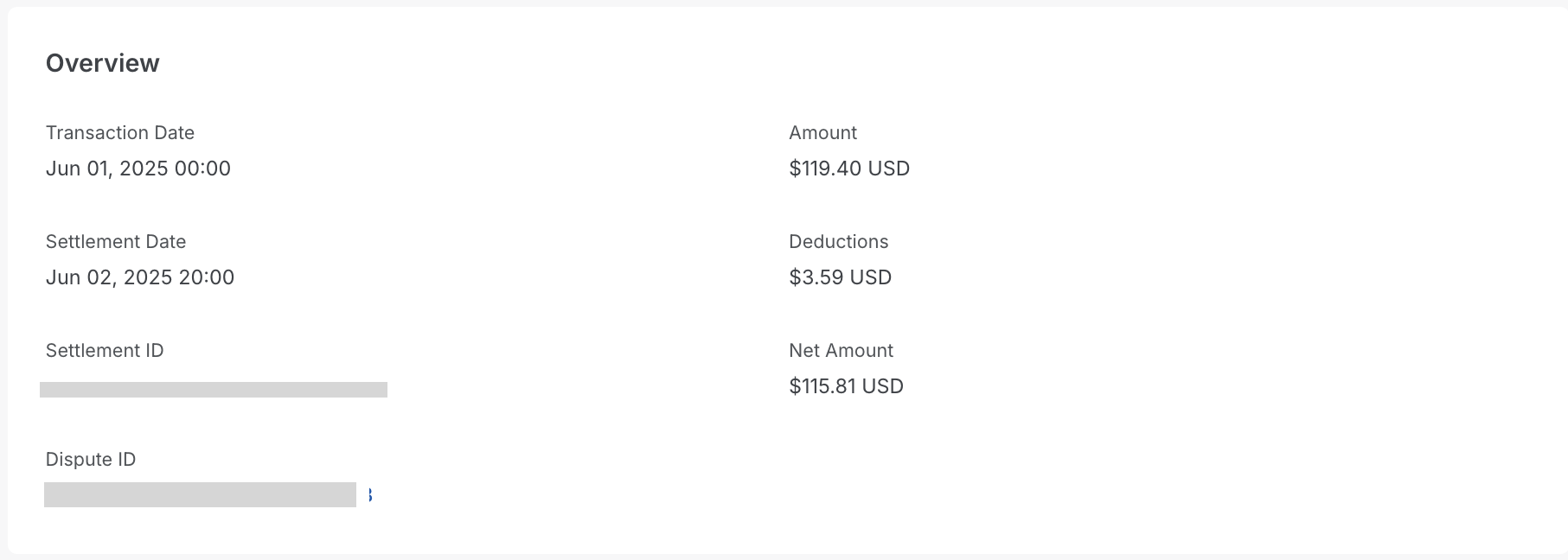
| Field | Description |
|---|---|
| Transaction Date | Displays the date and time of the transaction. |
| Settlement Date | Displays the date and time of the settlement. |
| Settlement ID | Displays the deposit ID / settlement ID for settled transactions. |
| Dispute ID | Displays the dispute ID if a chargeback is initiated. |
| Amount | Displays the transaction amount. |
| Deductions | Includes transaction processing fees and reserve deductions, if any. |
| Net Amount | Net amount is calculated as: Amount − Deductions |
Payment Instrument
This section gives you the details of the payment method used for the transaction. This can be one of the following:
- Cards
- ACH
- SEPA
- BACS
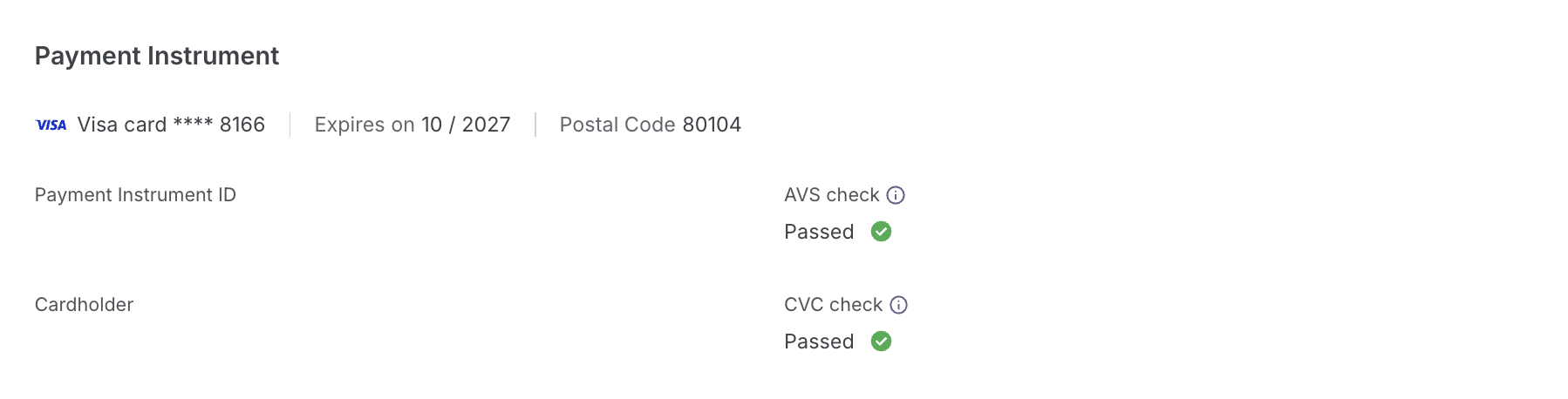
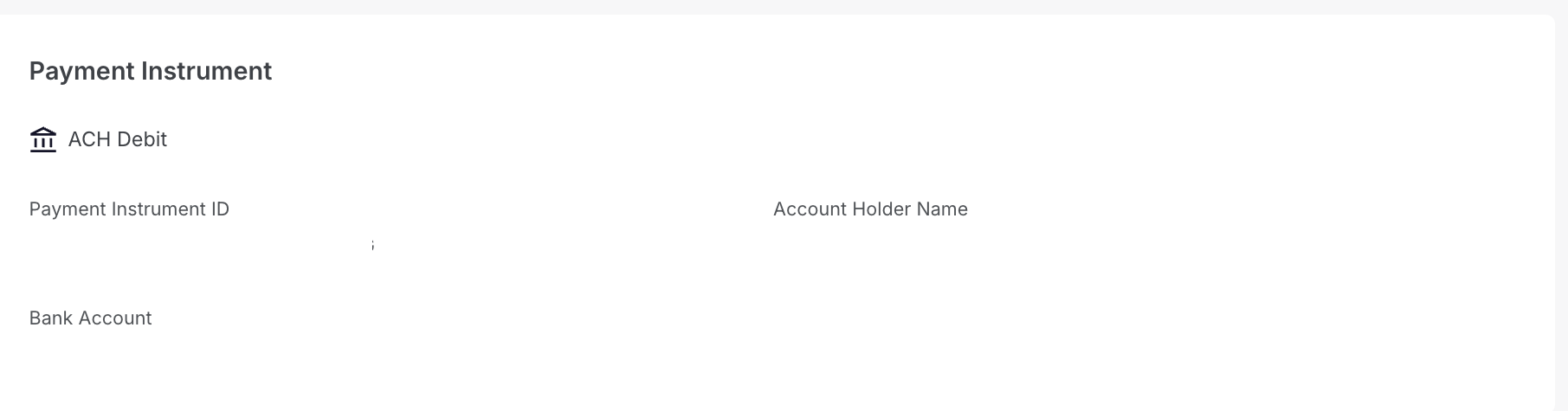
| Payment Type | Field | Description |
|---|---|---|
| Card Payment | Card Scheme | Visa, Mastercard, and other supported card networks. |
| Card Type | Debit / Credit / Prepaid | |
| Card Number | Last 4 digits of the card | |
| Expiry Date | Card expiration date | |
| Postal/Zip Code | Billing address zip code | |
| Payment Instrument ID | Unique identifier for the card on file | |
| Cardholder Name | Name on the card | |
| AVS Check | Values: Passed, Failed | |
| CVC Check | Values: Passed, Failed | |
| ACH Debit | Payment Instrument ID | Unique identifier for the bank account on file |
| Bank Account | Displays only the last 3 digits of the bank account number | |
| Account Holder Name | Name associated with the bank account |
Refunds
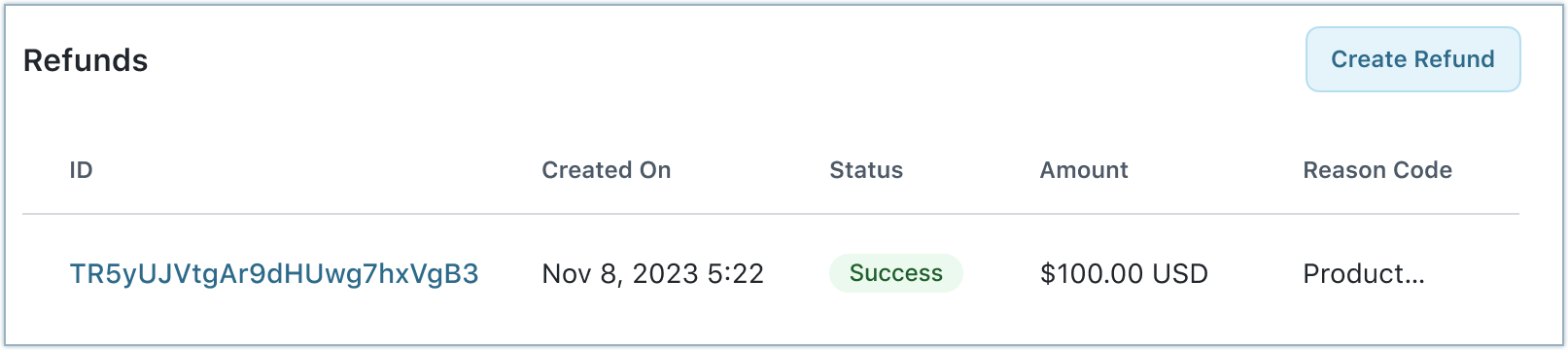
This section lists all refunds issued against the selected transaction. You can also initiate refunds from here. The sum of all refunds created should not be greater than the transaction amount.
Refund Details
A refund is the process of returning money to a customer who paid for a product, service, or transaction. This section explains the features and interactions in the refund details view. Chargebee Pay supports full and partial refunds. The refund details consist of the following sections:
- High-Level Details
- Overview
High-Level Details
This section includes high-level payment refund details that are critical for your transaction. It comprises the following fields.
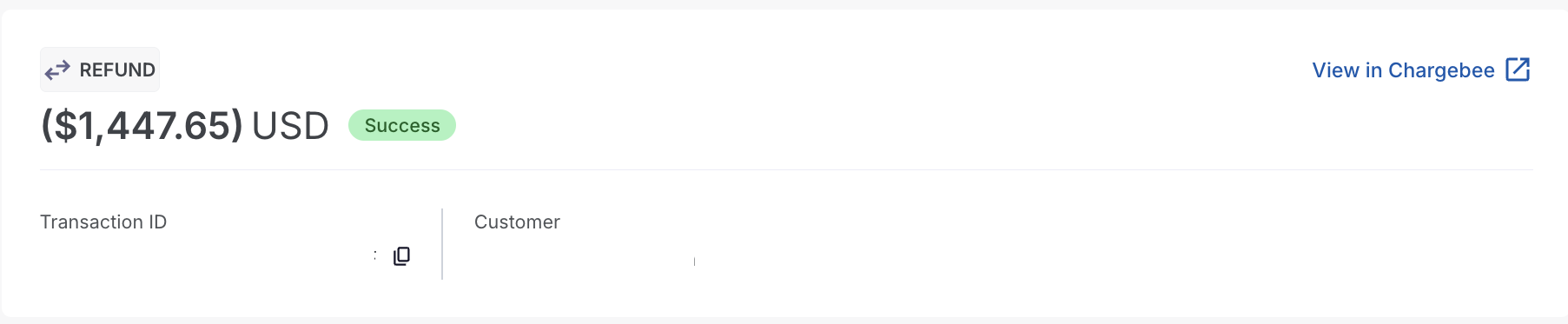
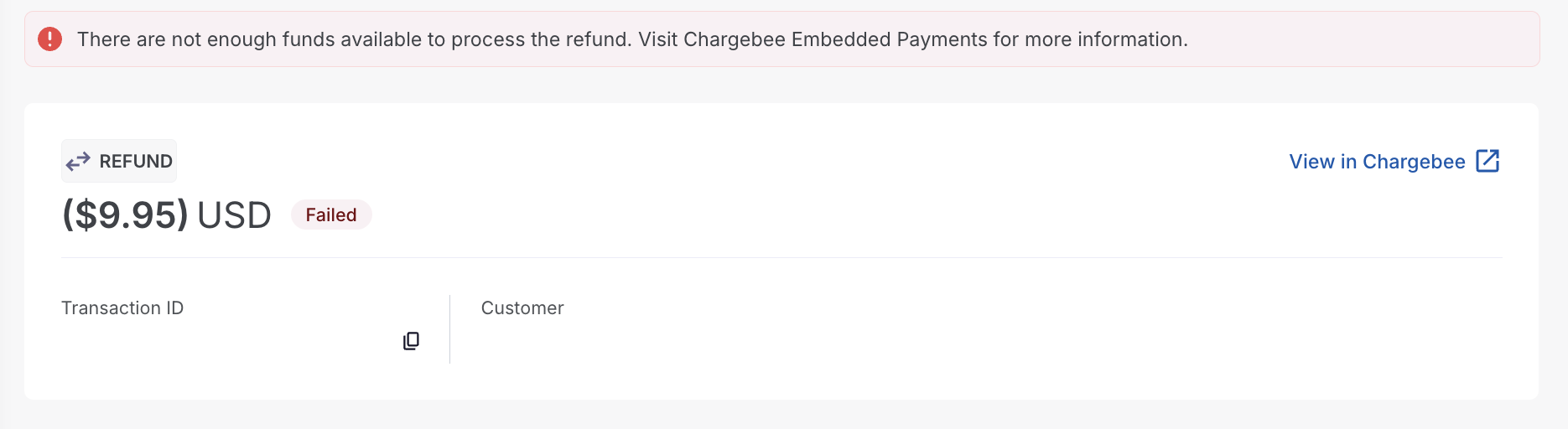
| Field | Description |
|---|---|
| Transaction Type | Refund in this example. Possible values in the UI:
|
| Transaction Amount | Displayed in USD |
| Status |
|
| Transaction ID | Unique identifier for the refund transaction |
| Customer | Name of the customer |
Overview
This section provides an overview of the refund transaction, including:
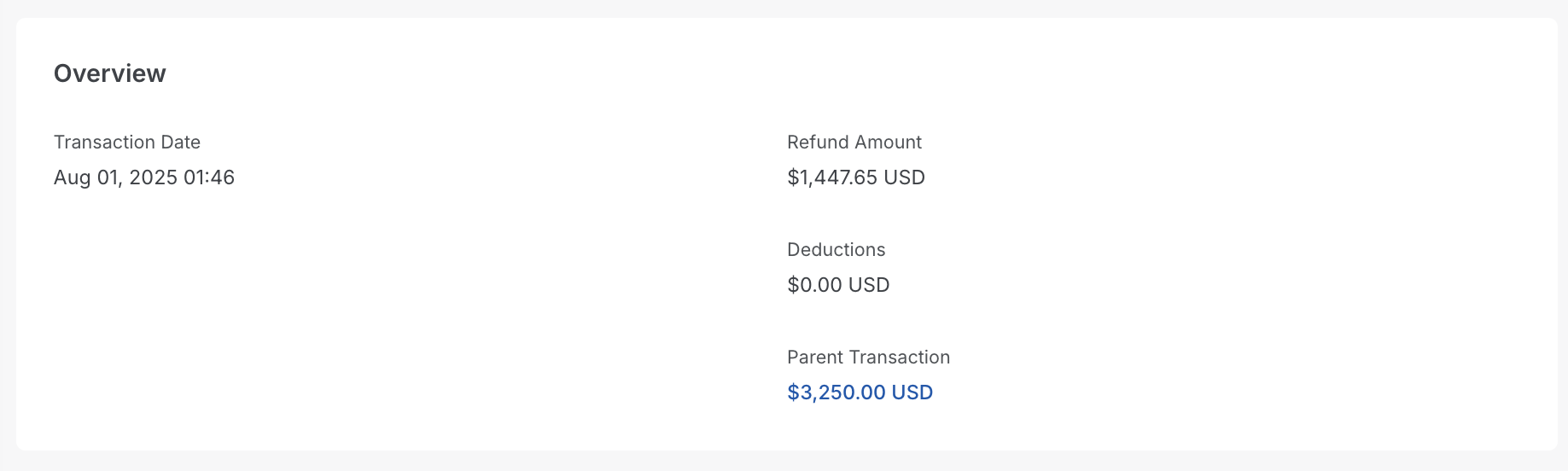
| Field | Description |
|---|---|
| Transaction Date | Date the refund was initiated |
| Refund Amount | Amount refunded. This value is less than or equal to the original transaction amount. |
| Fee | Not applicable. Always 0. |
| Parent Transaction | Link to the original transaction |
Was this article helpful?