Hosted Pages Themes
Note
Users who signed up after March 1st 2014, click here for new documentation.
Chargebee allows customization of hosted payment pages using themes, so your checkout pages match the look and feel of your website. Making your hosted pages resemble your website gives your customers a better checkout experience.
Chargebee's themes are built on top of Twitter's Bootstrap framework. We use a CDN (Content Delivery Network) to host the theme's static files, ensuring faster load times for your customers.
Why Bootstrap?
- Bootstrap is a well-known framework, widely used, and has a large ecosystem of users.
- Easily customizable. You can add and remove components easily since it is based on the Bootstrap framework. There are many resources available to help you build your own themes.
- Support for responsive pages. With Bootstrap, you can build themes that adapt to different mobile devices, which is important due to the growing number of mobile users.
Note
The default sample themes are only available in the test site and will not be present on your Chargebee live site.
Chargebee Sample Themes
There are default sample Chargebee themes available on the test site that you can download, edit, upload, preview and apply to your hosted payment pages. The files are in a .zip format.
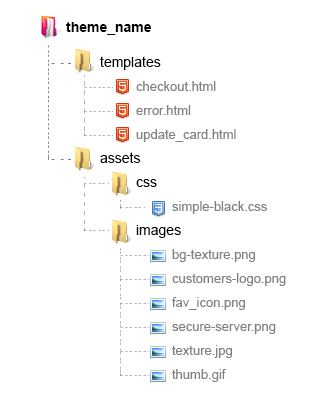
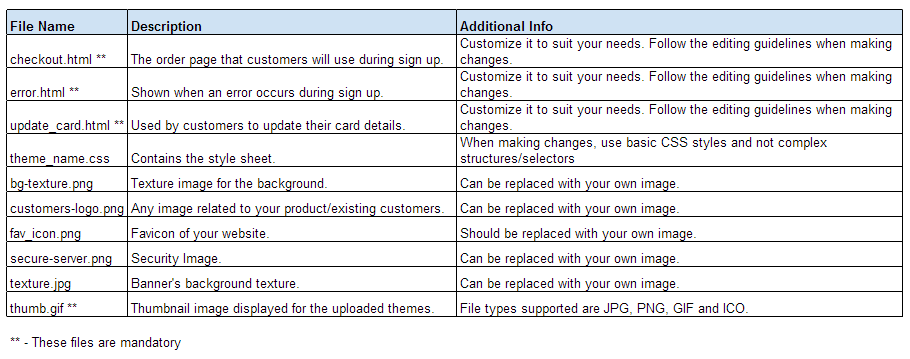
Contents of the Theme file
Editing the Themes
- Select and download any of the themes under Chargebee Sample Themes.
- Unzip the downloaded file and edit the HTML and CSS files and make all the necessary changes.
- Preview your changes locally by opening the HTML files in a browser. Note that when previewing files locally, Google Chrome does not support for viewing favicons. You can use Mozilla Firefox instead.
- Once you're done with your changes, zip the entire folder again, give the theme a name and upload it.
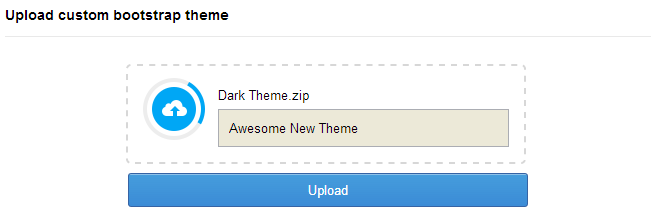
- Once the file has been uploaded and verified, it will appear under Your Custom Themes
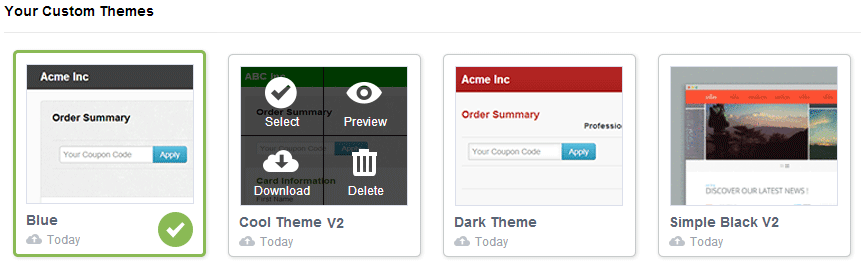
You can then apply, preview, download, or delete these themes.
Guidelines when editing the theme contents
- When editing the HTML files (checkout.html, error.html and update_card.html), do not make any changes in the blocks marked as CHARGEBEE CSS or CHARGEBEE CONTENT. If any changes are made, you will not be able to upload the theme.
- The bootstrap version used is 2.3.2. The core.css contains both the bootstrap CSS and Chargebee specific CSS classes. The CSS present inside the zip contains the theme specific CSS which you can customize to your needs. When making changes, use basic CSS styles and not complex structures/selectors.
- The file structure should be kept as-is (including the root directory). If you make any changes to the file structure, you will not be able to upload the theme.
- Do not rename or add new HTML files. Support for including additional HTML files will be coming soon.
- You can rename the CSS and image files, but you will need to update the name change in all the referred files.
- Do not include any scripts in the CSS and HTML files. If you do add any scripts, it will be automatically removed during upload.
- After you've completed editing, you need to zip with the root folder included and then upload it. Other file formats are not supported.
Limitations Involved
- Maximum file size of the theme zip file cannot exceed 2 MB.
- Individual file size cannot exceed 150 KB.
- Total file count cannot be more than 50.
- All files marked with "**" are mandatory and should be present in the theme. Without these files, you will not be able to upload the theme.
- You can upload a total of 12 customized themes.
- You cannot make any references to external CSS or images from other servers. All CSS/images referred should contained within the zip. Also ensure that you use relative references and not absolute references.
Previewing Locally
While viewing in local hard-disk, the content inside the div#CHARGEBEE_CONTENT is taken via java script and inserted. This content is purely for demo purposes to help you while customizing your theme. This demo content shows the complete hosted page with VAT, billing address & shipping address.
When you upload and preview your theme through Chargebee's web interface, the page will be dynamically rendered based on your hosted page configuration and will be displayed as your customers would see it.
Preview After Uploading your Themes
As soon as your theme has been uploaded, it will appear under Your Custom Themes. Use the Preview option to view your theme on the preview page.
You can switch between themes and the different pages (checkout, update card, and error) on the preview page. You can also see how the hosted pages will look on different devices (PC, mobile, table).
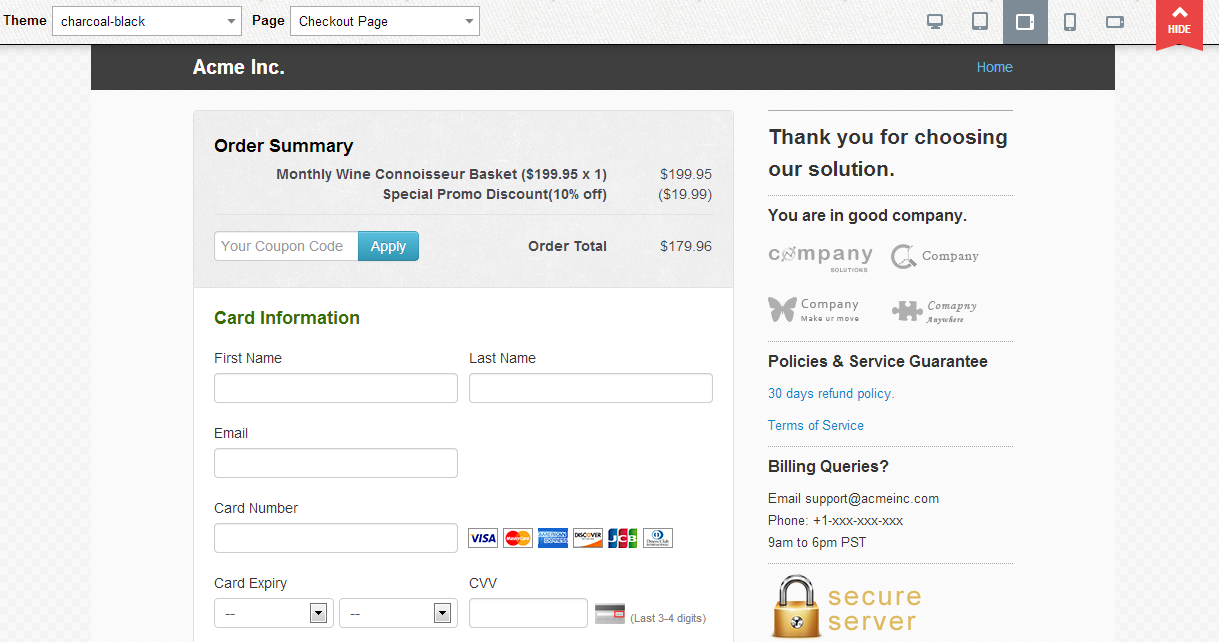
If after uploading, the interface does not look the way it did locally, download the uploaded theme and view the files locally to see if any of the content has been stripped.
Note
When previewing themes in your Chargebee site, favicon will not be visible and the buttons on the page will not work. To preview the themes as your customers would see them, you can use the plan specific hosted page URL of any of your plans.
Mac Users
When compressing the theme folder using a computer running on Mac OS, additional files and folders are created. These files and folders will not be visible when viewed on a Mac computer. Because of this, you will get an error when you try to upload the theme file.
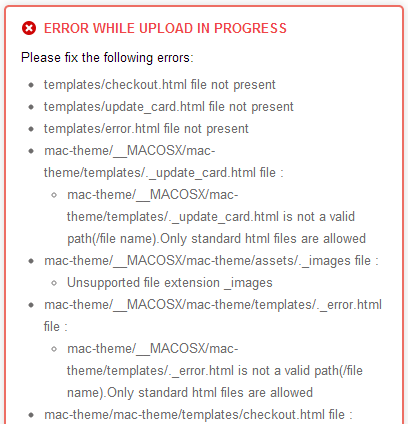
To compress files on a Mac without creating additional these files and folders, try using this command in your terminal:
zip -r yourtheme-name.zip yourtheme-name/ -x .DS_Store
Was this article helpful?