Quickbooks common sync errors
Duplicate Name Exists Error
Error Detail: The provided name already exists. Another product or service is already utilizing this name. Please select a unique name.
Case 1: Item Previously Synced, Name/SKU Update in Chargebee
When an item has been synced before and you try to change its name or SKU in Chargebee, the system attempts to update the corresponding product in QuickBooks Online (QBO). If the new name already exists in QBO, you'll encounter the following error:
"The name supplied already exists. Another product or service is already using this name."
Solution: To avoid this error, it's best to update the name or SKU in Chargebee to something unique that isn't already in QuickBooks Online. This proactive approach helps prevent conflicts during synchronization. If you need to remap the item completely, contacting Chargebee support for assistance is recommended.
Case 2: Item Not Yet Synced, Missing SKU in Chargebee
When the item has not been synced, and no SKU is specified in Chargebee, the system tries to create a new item in QuickBooks Online (QBO). However, if there's already a product in QBO with the same name as the one provided in Chargebee, it leads to an error.
Solution: To resolve this issue, consider the following steps:
- If you plan to map to an existing item in QBO, update the SKU in Chargebee to match the item's name in QBO.
- If there's no intention to map, update the SKU in Chargebee to a unique value that isn't currently used in QBO.
Following these guidelines ensures seamless integration and reduces conflicts between Chargebee and QBO.
Case 3: Product in QuickBooks Has Different Account Name
When synchronizing an item price from Chargebee to QBO, the system verifies if the item name already exists in QBO. If the item exists but the account associated with the item in QBO differs from the account provided in Chargebee, the following error occurs:
"The product in QuickBooks has a different Account Name than the Account Name provided in Chargebee."
Solution: To address this error, follow these steps:
Map an existing item:
- If you intend to map the item already present in QBO with Chargebee, update the account in QBO or Chargebee to ensure they match.
Creating a new item in QBO:
- If you prefer to create a new item in QBO, ensure that the SKU provided in Chargebee is unique and does not exist in QBO. The unique SKU can be used as an alternative name to create a new item in QBO.
Case 4: Duplicate Document Number Error
Error Detail: Duplicate Document Number Error: You must specify a different number. This number has already been used. DocNumber=xxx is assigned to TxnType=Invoice with TxnId=xxx.
The error occurs when trying to synchronize an invoice or credit note from Chargebee to QBO and an invoice or credit note with the same number already exists in QBO.
Solution: To resolve this error, you can consider the following approach:
- Ignore Sync Error for Manually Created Invoices/Credit Notes: If the invoice or credit note has already been manually created in QBO and you want it to remain unchanged, you can ignore the sync error.
By choosing to ignore the error, it will not be highlighted in future synchronization attempts.
Case 5: Renumber Existing Invoice/Credit Notes in QuickBooks Online
If you plan to synchronize the invoice or credit note from Chargebee, you can renumber the existing invoice or credit note in QBO. You can continue synchronizing by assigning a new and unique number to the existing invoice or credit note.
Accounting Code Provided Doesn't Exist in QuickBooks
If you encounter the error message "Accounting code provided doesn't exist in QuickBooks" while integrating Chargebee with QuickBooks Online (QBO), it indicates a discrepancy in the accounting information provided.
Solution: Follow these steps to resolve the issue:
-
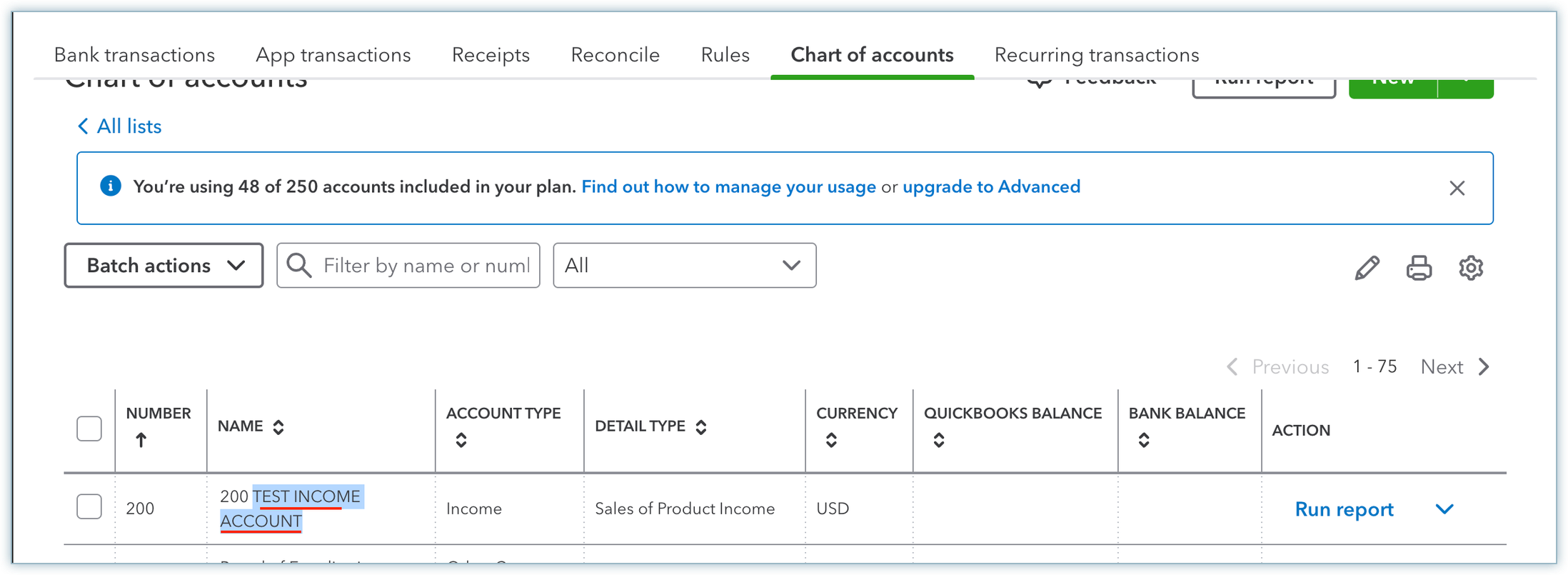
Verify Accounting Name: Check if the accounting name from the QBO chart of accounts is exactly entered in Chargebee. Ensure you enter the name exactly as it appears in QBO without including any numbers.
-
For instance, if the accounting name in QBO is "TEST INCOME ACCOUNT," ensure that you enter it as it is in Chargebee. Avoid adding numbers to the name ("200 TEST INCOME ACCOUNT"), as the name is displayed along with the number in QBO.
-
Editing Item Price in Chargebee: Edit the "Item Price" to access the "Accounting Information" section and add the correct "Account Name".
Was this article helpful?