New in Chargebee: Explore Reveal and understand your payment performance end-to-end.Try Now
Docschargebeedocs
HomeBillingPaymentsRevRecGrowthReveal
Support

Product Updates


  • Release Notes

Getting Started


  • Overview
  • Chargebee Billing Data Centers
  • Object Relationship Model
  • Understanding Sites
  • Developer Resources
  • Chargebee Tech Glossary
  • Articles and FAQ

Implementing Chargebee


  • Implementation Guide
  • Go-live Checklist
  • Articles and FAQ

AI in Chargebee


  • Chargebee Agents
  • Chargebee Copilot
  • Chargebee MCP Server (Model context protocol)

Product Catalog


  • Product Catalog Overview
  • Coupons
  • Articles and FAQ

Subscriptions


  • Working with Subscriptions
  • Billing
  • Orders
  • Articles and FAQ

Customers


  • Managing Customers
  • Account Hierarchy
  • Email Notifications
  • Branding
  • Configure Multiple Languages
  • Articles and FAQ

Invoices, Credit Notes and Quotes


  • Invoices
  • Credit Notes
  • Quotes [Legacy]
  • Transactions
  • Articles and FAQ

Taxes


  • Overview
  • Configuring Taxes
  • Country-specific Taxes
  • Articles and FAQ

Hosted Capabilities


  • Overview
  • Hosted Checkout
  • Hosted Self-Serve Portal
  • Hosted Pages Features
  • Additional Hosted Pages
  • Payment Components
  • Managing payments with ChargebeeJS
  • Mobile-Optimized Hosted Pages
  • Articles and FAQ

Site Configuration


  • Users & Roles
  • Custom Fields & Metadata
  • Mandatory Fields
  • File Attachments & Comments
  • Advanced Filter Options
  • Multicurrency Pricing
  • Multi-decimal Support
  • Configuring Reason Codes
  • Events and Webhooks
  • API Keys
  • Time Zone
  • Time Machine
  • Transfer Configurations
  • Articles and FAQ

Reports and Analytics


  • RevenueStory
  • Home Dashboard
  • Frequently Asked Questions
  • FAQs for Classic Reports Sunset
  • Articles and FAQ

Integrations


  • Sales
  • Customer Support and Success
  • Finance
  • Tax
  • Marketing
  • Stitch
  • Collaboration
  • Contract Management
  • Order Management
  • Mobile Subscriptions (Legacy)
  • Other Integrations
  • Articles and FAQ

Data Privacy & Security


  • Two Factor Authentication
  • SAML Single Sign-On
  • System for Cross-Domain Identity Management (SCIM)
  • EU-GDPR
  • Consent Management
  • Personal Data Management
  • Compliance Certificates
  • HIPAA Guidelines
  • PCI Recommendations and Integration Types
  • Articles and FAQ

Data Operations


  • Bulk Operations
  • Migration
  • Articles and FAQ
  1. Billing
  2. Product Catalog
  3. Articles and FAQ
  4. Plans
  1. Billing
  2. Product Catalog
  3. Articles and FAQ
  4. Plans

How to create a Plan and view plan ID in Latest Product Catalog?

Problem Statement

You want to know how to create a plan and view plan id in latest product catalog.

Scope

How to create a plan in Latest Product Catalog?

How to copy the Plan ID from the plan index page?

What is the new UI enhancement on the Plan ID?

Summary

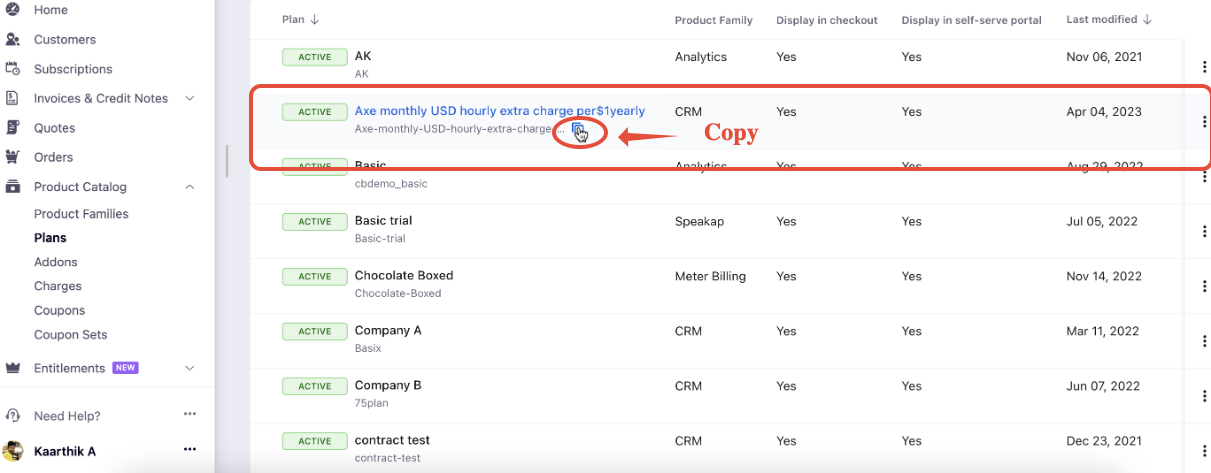
You can create the plan from Product Catalog > Plans > + Create Plan. Also once the plan is created, with the new UI enhancement on Latest Product Catalog, we have cut shot the Plan ID to adjust the width of the column. Also, you can copy the Plan ID by double-clicking or clicking the copy icon.
Solution

To create a new plan on your Chargebee site, follow these steps:

  1. Click Product Catalog > Plans > + Create Plan.
  2. In the Create a New Plan page, click the Product Family dropdown and select the product family to which you want to associate the plan.
  3. Specify an Internal Name for the plan that helps you to identify the plan internally. It is the name used to refer to the plan on your Chargebee site.
  4. You can add a Description to include additional details about the plan.
  5. The Plan ID is generated based on the Internal Name that you specify. You can modify this id as required. A plan Id is the unique identifier of the Plan. It's used when creating or updating subscriptions via the API to specify which plan the customer is subscribing to. If you need to programmatically retrieve plan IDs, you can use Chargebee's API to list all plans or retrieve a specific plan's details.
  6. Select This Plan is metered if you are using the Metered Billing feature in Chargebee to add usage-based charges to subscriptions of this plan. Invoices created for this plan are in a draft state. You can add usage to the subscriptions before closing the invoices. You can additionally override the site settings that you have configured for how you would like Chargebee to process the usage data that you share for this plan. You can select your preferred option to be either the sum of all usage data or the most recent usage data.
  7. Under Customer-Facing Info, you can do the following:
    • Enable the Display in Self-Serve Portal checkbox to make this plan available in the self-serve portal. The Self-serve Portal can be used by your customers to make changes to their subscriptions.
    • Enable the Display in the Checkout checkbox to make this plan available in Checkout. When this setting is enabled, your customers can subscribe to this plan using Checkout.
    • You can specify a Redirect URL for this plan. Chargebee redirects your customers to this URL (say your website or any other page that you specify) once they complete the checkout successfully.
  8. Click Create.

Plan ID is Truncated in Leap UI

Previously the length of the Plan ID was longer, which created blank space in the Plan ID column, leading to a longer table. With the new UI enhancement on Latest Product Catalog, we have cut shot the Plan ID to adjust the width of the column. Also, you can copy the Plan ID by double-clicking or clicking the copy icon.

image

Refer to this [link](https://support.chargebee.com/support/solutions/articles//billing/2.0/kb/site-configuration/what-are-the-new-ui-enhancements-on-leap-ui to know more about the other new UI enhancement of Latest Product Catalog.

Related Articles

What are the improvements on the revamped item detail page on Latest Product Catalog?
Editing a Plan's Pricing & Billing Frequency
Will a new plan price affect the existing subscriptions?
Is there any option to add a trial period for a subscription/plan?
How do I collect the setup fee upfront for a trial subscription?
How do I setup paid trial for my plans, in Chargebee?
What is the maximum duration of a trial period that I can offer using Chargebee?
Error : ChargeBee_InvalidRequestException
How do I create a zero-dollar or zero cost plan in Chargebee?
What happens when I delete a plan in Chargebee?
How to configure plans with different currencies in bulk?
Unable to remove trial for a plan
Unable to edit the free quantity in per-unit price plans
How to change plan pricing in Product Catalog?
How to configure trial period for a plan in Product Catalog?
Changing to a plan with different trial days
What is the difference between price override and differential pricing for addons/charges?
How to set up site wide billing frequency settings in Latest Product Catalog?
How to create a plan in Latest Product Catalog with multiple currencies and billing frequencies?
I am unable to find the invoice name field while creating the plan.
Delete an item or item price in Latest Product Catalog
Is it possible to change the ID of the plan on my Chargebee site?
How to define a product with fixed price for a specific number of units and then with a unit price??
Error:item_price_ids already applicable for item_type plan cannot be removed
What are pricing models available for plans, addons & charges in Chargebee?
What is the difference between price override and creating customer specific plans or addons?
How to find the plans that are associated with a feature using API?
How to combine and configure a per unit and flat-free pricing model?
Is it possible to have a single plan with different options for contract length such as 3 months, 6 months or forever?

Show more

Was this article helpful?