Docschargebeedocs

HomeBillingPaymentsRevRecGrowthReveal
Support

Product Updates


  • Release Notes

Getting Started


  • Overview
  • Chargebee Billing Data Centers
  • Object Relationship Model
  • Understanding Sites
  • Developer Resources
  • Chargebee Tech Glossary
  • Articles and FAQ

Implementing Chargebee


  • Implementation Guide
  • Go-live Checklist
  • Articles and FAQ

AI in Chargebee


  • Chargebee Agents
  • Chargebee Copilot
  • Chargebee MCP Server (Model context protocol)

Product Catalog


  • Product Catalog Overview
  • Coupons
  • Articles and FAQ

Subscriptions


  • Working with Subscriptions
  • Billing
  • Orders
  • Articles and FAQ

Customers


  • Managing Customers
  • Account Hierarchy
  • Email Notifications
  • Branding
  • Configure Multiple Languages
  • Articles and FAQ

Invoices, Credit Notes and Quotes


  • Invoices
  • Credit Notes
  • Quotes [Legacy]
  • Transactions
  • Articles and FAQ

Taxes


  • Overview
  • Configuring Taxes
  • Country-specific Taxes
  • Articles and FAQ

Hosted Capabilities


  • Overview
  • Hosted Checkout
  • Hosted Self-Serve Portal
  • Hosted Pages Features
  • Additional Hosted Pages
  • Payment Components
  • Managing payments with ChargebeeJS
  • Mobile-Optimized Hosted Pages
  • Articles and FAQ

Site Configuration


  • Users & Roles
  • Custom Fields & Metadata
  • Mandatory Fields
  • File Attachments & Comments
  • Advanced Filter Options
  • Multicurrency Pricing
  • Multi-decimal Support
  • Configuring Reason Codes
  • Events and Webhooks
  • API Keys
  • Time Zone
  • Time Machine
  • Transfer Configurations
  • Articles and FAQ

Reports and Analytics


  • RevenueStory
  • Home Dashboard
  • Frequently Asked Questions
  • FAQs for Classic Reports Sunset
  • Articles and FAQ

Integrations


  • Sales
  • Customer Support and Success
  • Finance
  • Tax
  • Marketing
  • Stitch
  • Collaboration
  • Contract Management
  • Order Management
  • Mobile Subscriptions (Legacy)
  • Other Integrations
  • Articles and FAQ

Data Privacy & Security


  • Two Factor Authentication
  • SAML Single Sign-On
  • System for Cross-Domain Identity Management (SCIM)
  • EU-GDPR
  • Consent Management
  • Personal Data Management
  • Compliance Certificates
  • HIPAA Guidelines
  • PCI Recommendations and Integration Types
  • Articles and FAQ

Data Operations


  • Bulk Operations
  • Migration
  • Articles and FAQ
  1. Billing
  2. Customers
  3. Articles and FAQ
  4. Configure Multiple Languages
  1. Billing
  2. Customers
  3. Articles and FAQ
  4. Configure Multiple Languages

How to allow customers to choose a language in checkout and self-service portal

Problem Statement

You have multiple languages configured and want customers to select their preferred language on the checkout or portal page. You need to know how Chargebee identifies customer locale and how to enable language selection for Hosted Pages v2 and v3.

Solution

Chargebee detects language from the customer's locale (set in the Admin console or chosen in the portal). Each site has a default language used when no locale is set. Multiple languages are available from the Rise plan and above.

For Hosted Pages V2

When you have more than one language on the same site, you can provide an option for the customers to choose their desired language. For this, you can enable "Allow language options" under Settings (Left-side panel) >> Configure Chargebee >> Checkout & Self-Serve Portal >> Field Configurations that would add a drop-down with the list of languages in the hosted pages.

Allow language options in Field Configurations

You can also send the "locale" parameter along with plan specific hosted page URL so that the hosted pages can be opened in the specific language based on the locale by default.

Example link with the customer[locale] being passed: https://test.chargebee.com/hosted_pages/plans/free?customer[locale]=sv

For more on the localization feature, please check this doc.

For Checkout & Portal V3

You can enable the "Allow Customer to change the locale" by going to Settings (Left-side panel) >> Configure Chargebee >> Checkout & Self-Serve Portal >> and choosing "Advanced Settings" under the "Configurations" tab.
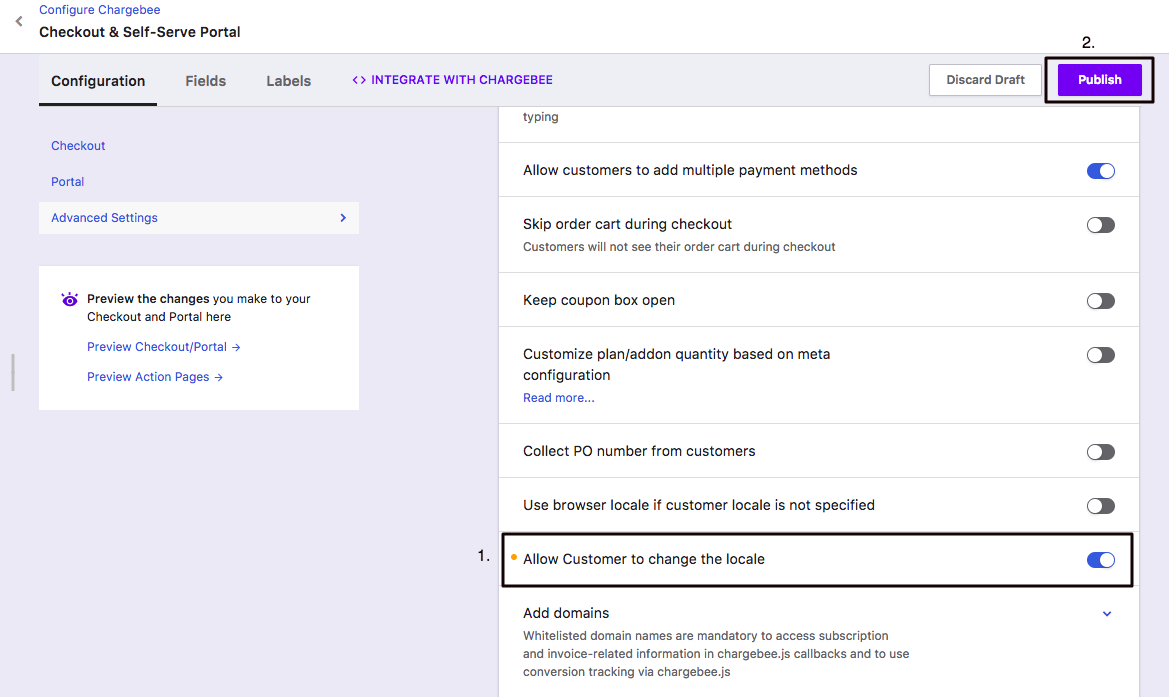
Allow Customer to change the locale in Advanced Settings

Related Doc How Languages are set for Customers?

Related Articles

What is Localized in Chargebee?
How to translate the Save this payment method text on pay now link?
Language pack - upload error
After language translation, a few words on invoice are still in English. Why?
'"Extra key :" error in the Language pack. How to resolve this?'
I can't find a CSV file where I have all the key buttons' names and descriptions for checkout and customer portal?
'Language Pack Error: Unwanted folder (Folder other than language folder)'
How to edit the GoCardless Sepa mandate message on checkout?
How to translate the terms 'Invoice' and 'Paid' on an invoice?
How to download the language pack for Chargebee?
How to edit the default languages translations given in Chargebee?
How languages are set for customers in Chargebee?
How to set localized payment instructions for bank transfer?
Where to edit the tax rate description on the invoice PDF?
How to change the text of 'Update Payment Method' button on the email?
How to rename payment method on checkout?
How to rename 'Canceled' field subscription status on portal?
How can Danish Special characters be displayed in Chargebee?

Show more

Was this article helpful?