Where to find the CSV file for checkout and portal button names
Problem Statement
You want to edit button names and labels on the checkout page and customer portal for additional languages.
Solution
Download the language pack from Settings > Configure Chargebee > Languages. The button and label text is in hosted_pages_text_configurations.csv under the Optional folder. Edit the Value column (Column B). Checkout fields start with inapp_checkout; portal fields start with inapp_portal.
For English, you can also edit from Settings > Configure Chargebee > Checkout & Self-Serve Portal > Labels. See Configure fullpage fields and labels.
Configuration steps
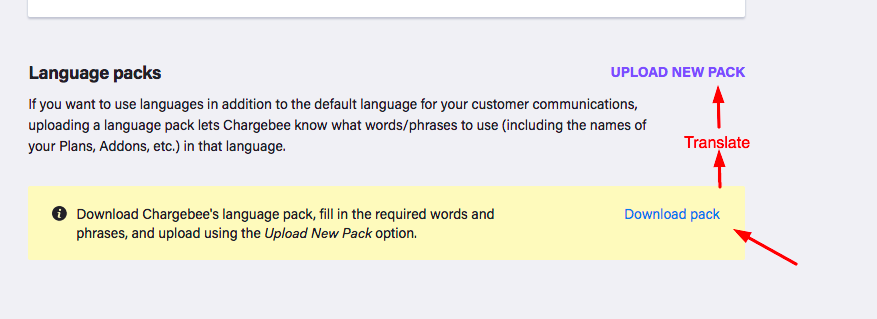
Step 1: To translate Checkout & Portal buttons' field names, navigate to Settings > Configure Chargebee > Languages. Download the language pack and translate all the values in the language pack and upload it to the same page.
Step 2: Unzip the downloaded pack. Navigate to the respective language folder, then go to Optional > hosted_pages_text_configurations.csv. See Supported locales for language folder codes.
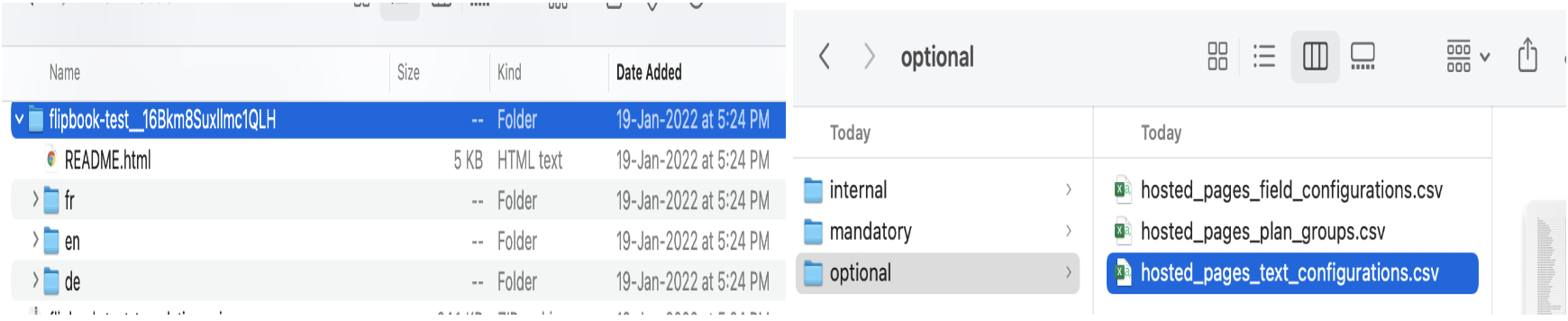
Note: Language folders will be in the code name, say for example fr-French, en-English & de-German. Refer to this link for more information.
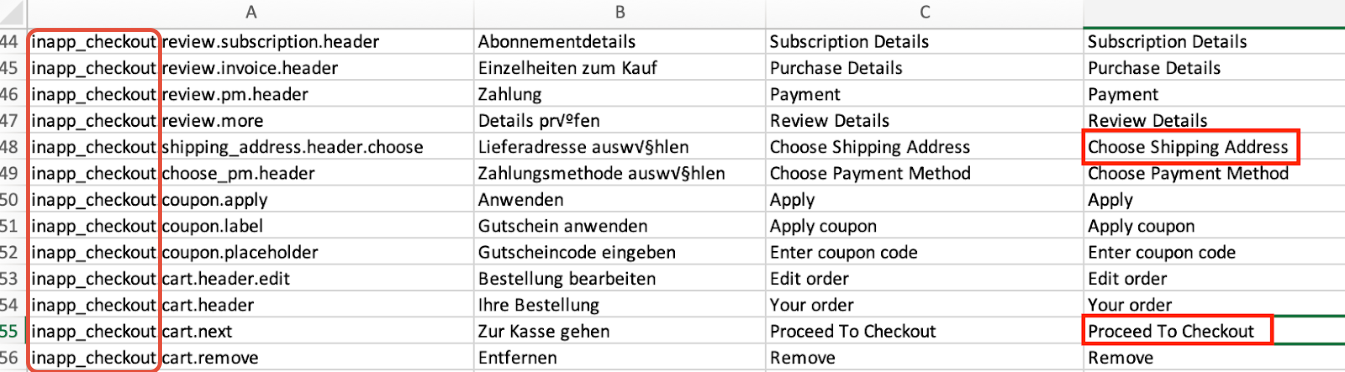
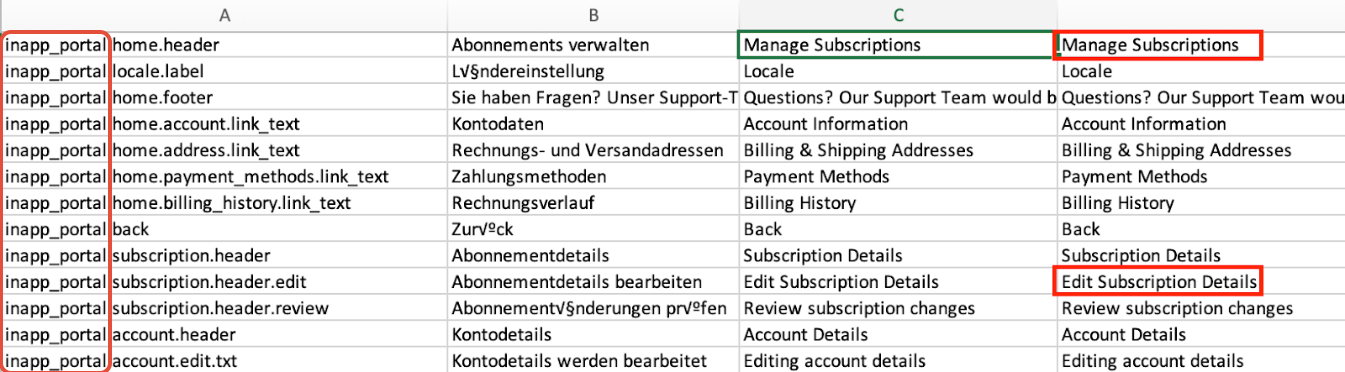
Step 3: Open the hosted_pages_text_configurations.csv file in an editable format and change the relevant field under the 'Value' column i.e, Column B.
Note: You can edit this csv file either in a text editor or in Google sheets. Remember to save the file in the .csv extension only
All the checkout label fields will start with 'inapp_checkout' in column A.
Sample Screenshots
All the portal fields will start with 'inapp_portal' in column A.
Step 4: Once the translation text is entered, upload the pack (only .zip format is supported)

In case, there are errors, the errors will be displayed and you can review the errors and fix them, before uploading the updated folder.
Refer to this link for more information.
Was this article helpful?