How to collect payments for unpaid invoices?
Problem Statement
You want to know how to collect payments for unpaid invoices.
Scope
Unpaid invoices remain unpaid even though a new payment method is added
How to collect payment for unpaid invoices in bulk?
How to collect payment for invoices?
How to charge past due balance?
Summary
In Chargebee, you can collect payment for the unpaid invoices of your customers for a specific invoice or multiple invoices. You can do this via the
1. API
2. Chargebee UI (Single/Multiple) customers
 **a. Customer details page**

 **b. Invoice details page**

 **c. Invoice index page**

 **d. Bulk Operation**

 **e. Email Notification**
Note
Total Amount due for a specific customer We have updated our summary box to provide a more streamlined and elegant user experience. With this upgrade, hyperlinks have been added to the summary box, allowing users to easily access related information. The Total Amount Due on Summary Section is available at the top of the Customer details page which provides a total amount due of a customer and hyperlink that directs to the details. Refer to this link for more details.
Solution
Via API
You can use the Collect Now API to generate a hosted page URL to collect due payments for the customer. You can also use the Collect Payments for an invoice API for a specific invoice.
I. Via Chargebee UI - Individual Request
1. Customer Details Page
To inform an individual customer to pay for their unpaid invoices, navigate to the Customer Index Page > Customer Details Page > Request Payment to send an email requesting payment.
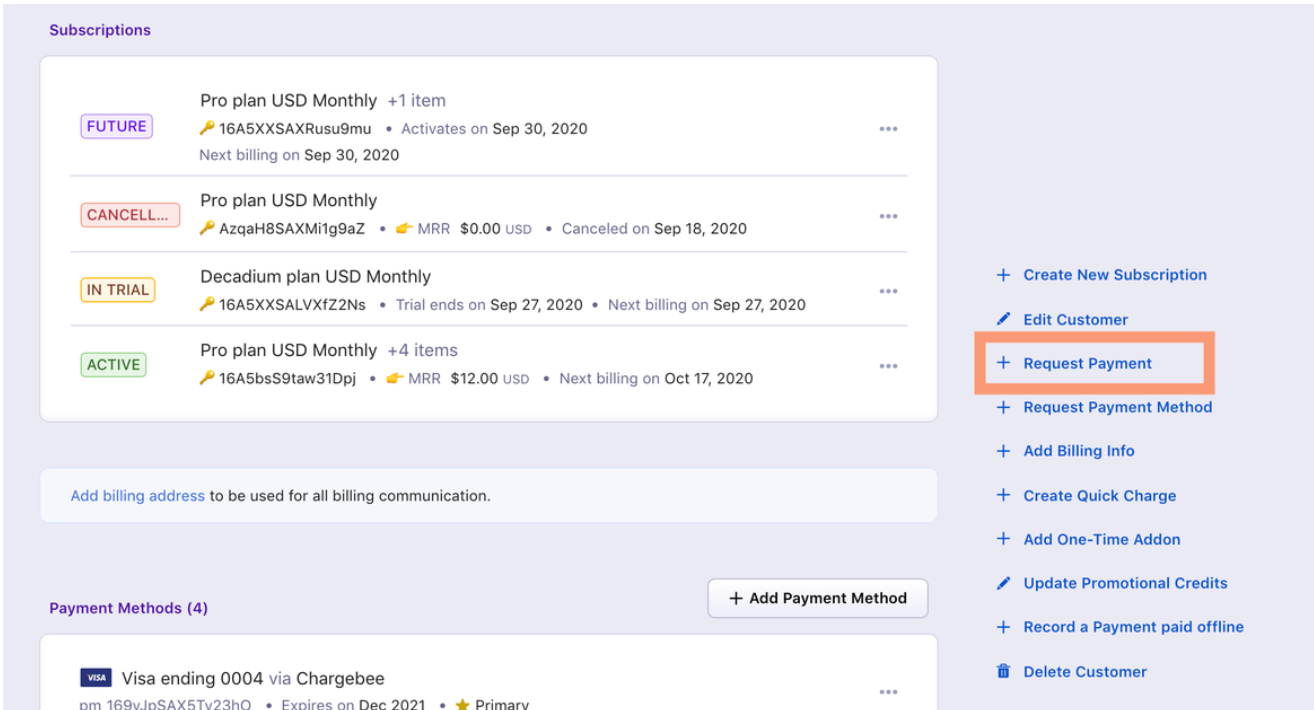
The option Request Payment will appear on the Customer Details page only if the customer has unpaid invoices.
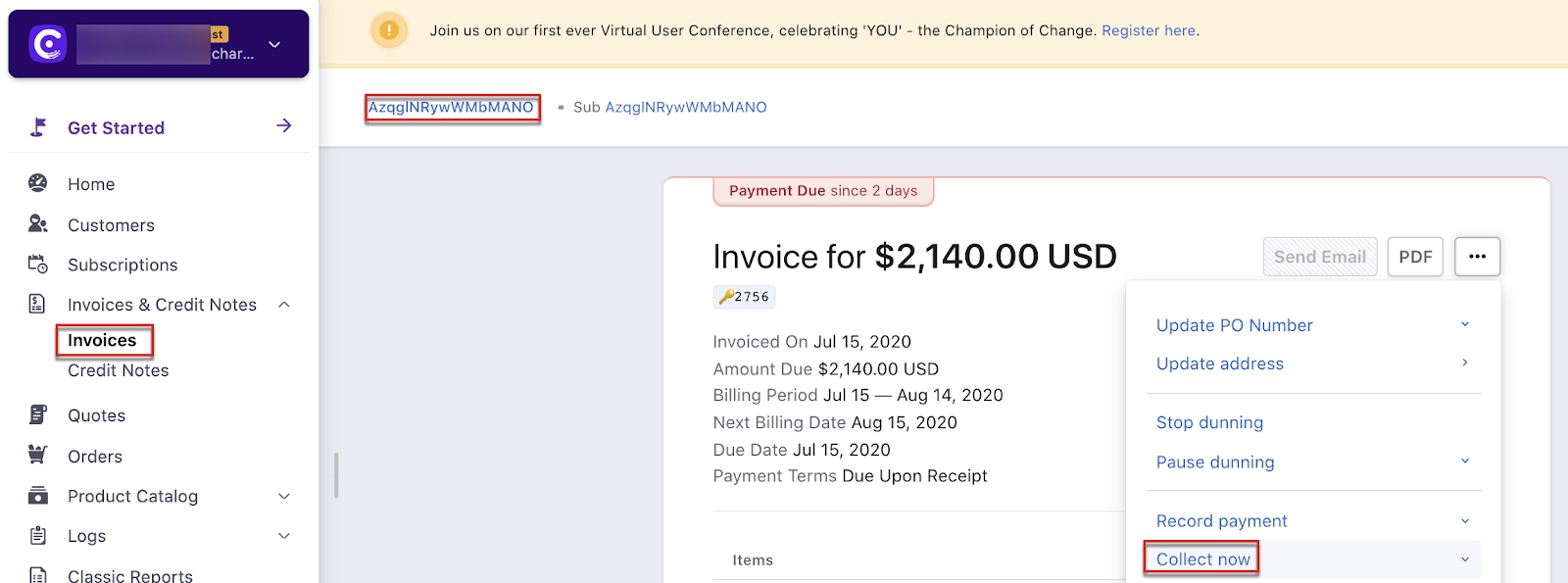
2. Invoice Details Page
Using the Collect Now option, you can collect full or partial payment for an invoice. The option would not appear if there was no payment method on file.
Leap UI
II. Via Chargebee UI - Multiple Request
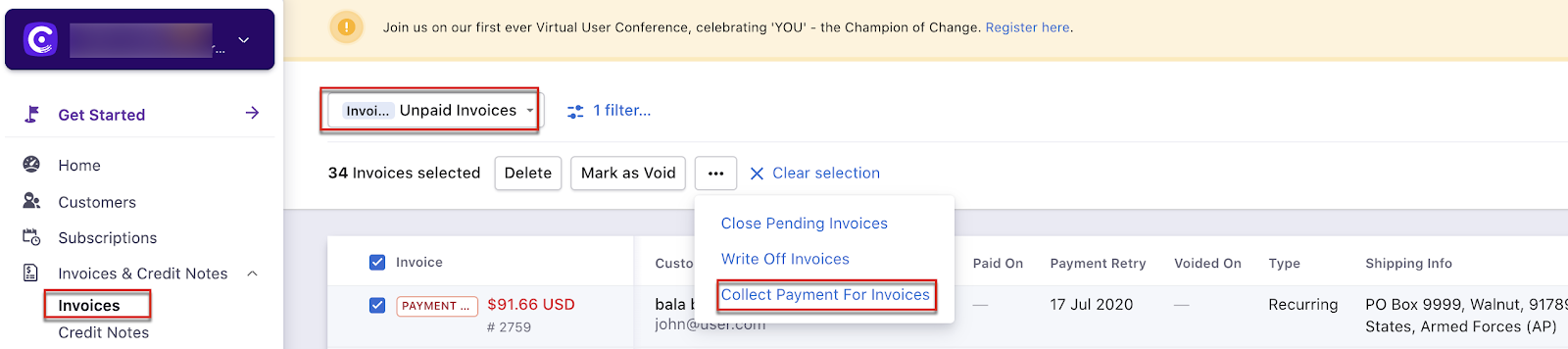
1. Invoice Index Page
Choose the Unpaid Invoices option from Chargebee Dashboard > Invoices > Filters to narrow down your search and send bulk emails for Payment Due and Not Paid invoices.
**
Note
You will still be able to collect payment for the subscriptions that are in the cancelled state.
Note
On the recent UI enhancement you On the recent UI enhancement you can now scroll the index pages - Customers, Subscriptions, Invoices, and Credit Notes vertically. Earlier, the pages will be paginated which may prolong your search however with the new enhancement as you scroll down the list it will load all other data in a single page as highlighted below on the screenshot. Refer to this link for more information.
2. Bulk Operation - Multiple Request
You can perform Bulk Operation to collect payment for unpaid invoices by navigating from Settings > Import & Export Data > Bulk Operations > Invoices > Collect Payment for Invoices. Click here to know more.

III. From Email Notification
Add Pay Now in Emails
Alternatively, you can add the Pay now link on the email notification if Email Notifications are enabled on your Chargebee site, a Pay Now button will appear in your customer's email. Navigate to Settings > Configure Chargebee > Email Notifications.
The Pay Now option can be added to the following emails that are sent by Chargebee:
- Payment Failure Notification
- Dunning
- Invoice Receipt (If an invoice is already paid, Pay Now button will not be available)
- Net-D
Editing any of the above emails will give you the option to add the Pay Now button.
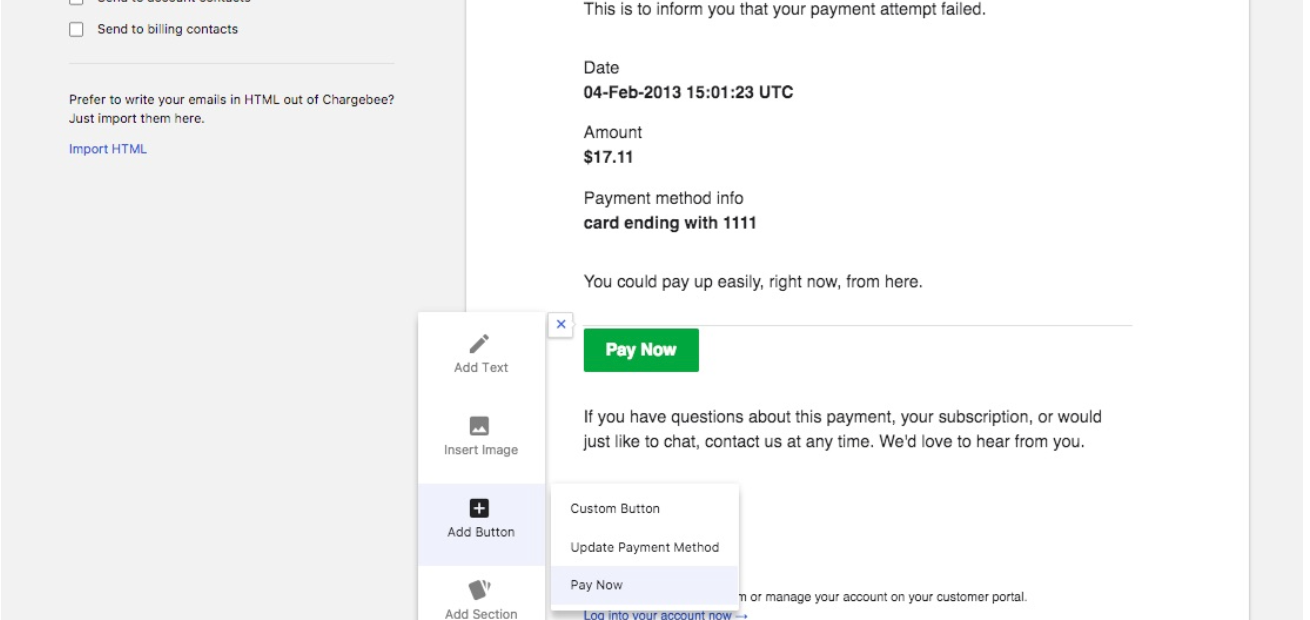
The button will be included in the copy of the email your customers receive.
Tip: To automatically attempt payment when a new card is on file, we request that you switch on "Payment collection when payment method is added" from Settings > Configure Chargebee > Billing LogIQ. (Your customer's invoices remain unpaid and require a manual retry if this option is not enabled.)
Info: To handle payment retries on the occasion of payment failure, we recommend you enable Online/Offline Dunning End Action Settings.
Was this article helpful?