How to send Pay now link to customers?
Problem Statement
You want to know how to send the Pay Now link to customers.
Solution
Scope
How to request a customer to pay for unpaid invoices?
How to select send Pay Now link for a list of unpaid customers?
Summary
Pay Now allows you to initiate the request for instant payment for all unpaid invoices. Presently, this feature works via email. You can send emails to your customers via Chargebee with the button/link for Pay Now. It redirects your customer to Chargebee's Pay Now page which has the list of invoices due for payment. The emails can be sent to an individual from the Customer Details page or a segment of customers from the Customer Index Page.
Note: Once the Pay Now link is sent, it is only valid for 5 days. If you wish to extend this validity for your customers, please contact support.
Request for Payment via Email
As it's been mentioned already, your customers will receive email notifications from Chargebee which will enable them to pay for unpaid invoices via email almost instantly.
There are 2 ways of collecting payment from your customers via email notifications with the use of Pay Now:
1. Send emails to multiple customers
You can send email notifications to all your customers who have unpaid invoices. Here's what you need to do:
Step 1: Search for Customers
After logging in to the Chargebee user interface, click Customers.
Use the filter 'Has Unpaid Invoices' to narrow down customers who have unpaid invoices (the status of the invoice will be either 'Payment Due' or 'Not Paid').

Step 2: Configure and Send Email
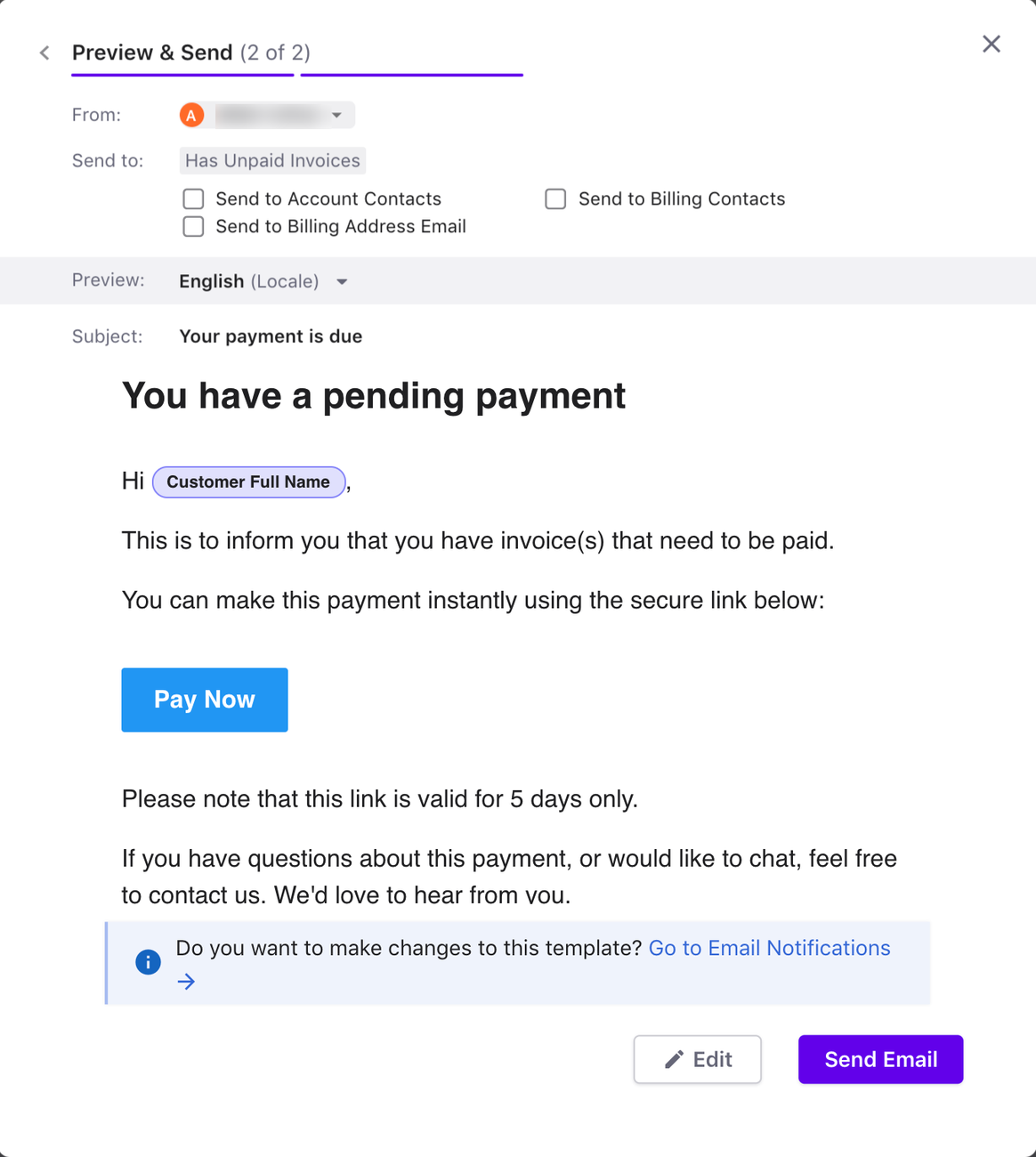
Click Email Customers to initiate the process of sending emails to the filtered set of customers who have unpaid invoices.
2. Send Email to an Individual Customer
To inform an individual customer to pay for their unpaid invoices, navigate to the customer details page and click Request Payment to send an email requesting payment.
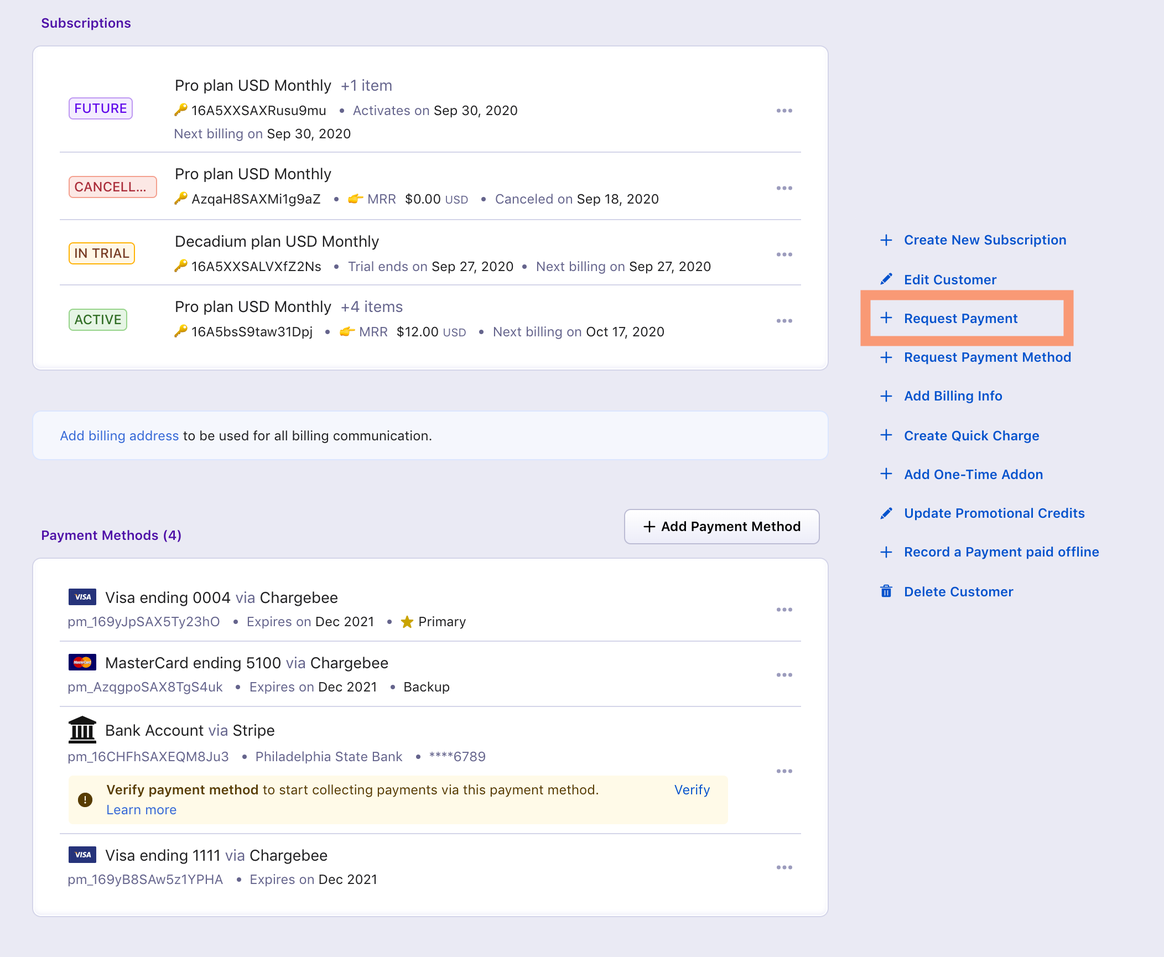
The option Request Payment will appear on the Customer Details page only if the customer has unpaid invoices.
You can review the content before sending the email.
Send email to collect payment for posted invoices
The Pay Now link displays only unpaid invoices (invoices with a Not Paid or Payment Due status) and excludes invoices with a Posted status.
To collect payment for invoices in Posted status, follow these steps:
- Navigate to the specific invoice.
- Select Send Email.
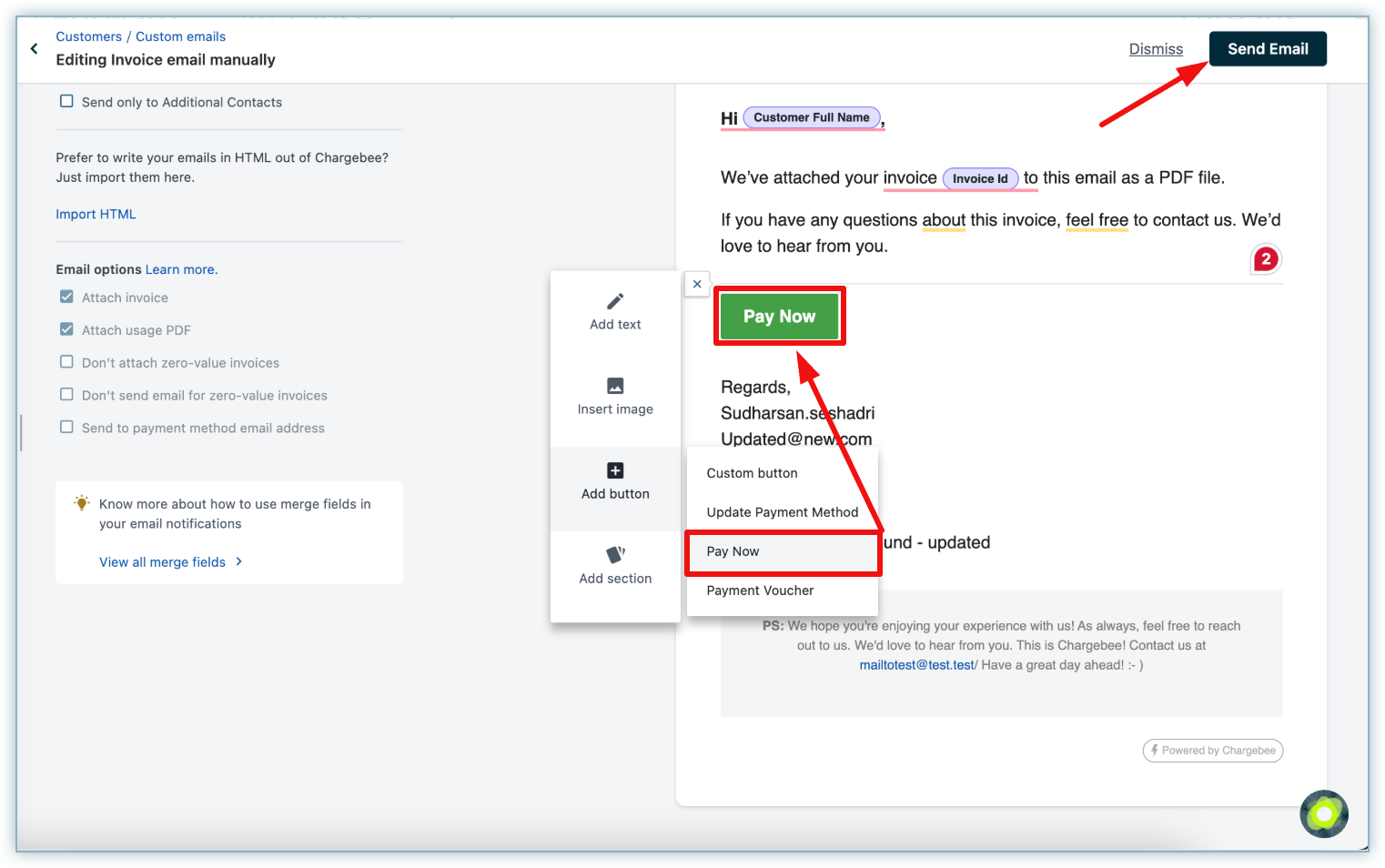
- Verify that the email template contains the Pay Now button.
- If the button is missing:
- Click Edit to open the custom email template.
- You will be redirected to the Custom Email template for "Send invoice".
- Click the Plus icon to add the Pay Now button (hover over the template to display the icon).
- Once added, click Send Email.
Accept Payments
The link/button included in your customer's email will redirect them to Chargebee's 'Pay Now' page.
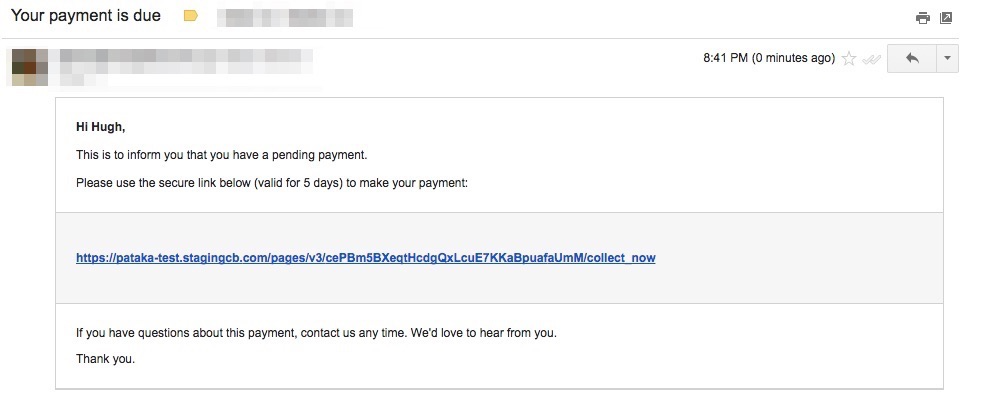
On Chargebee's Pay Now page, your customer will find the list of unpaid invoices.
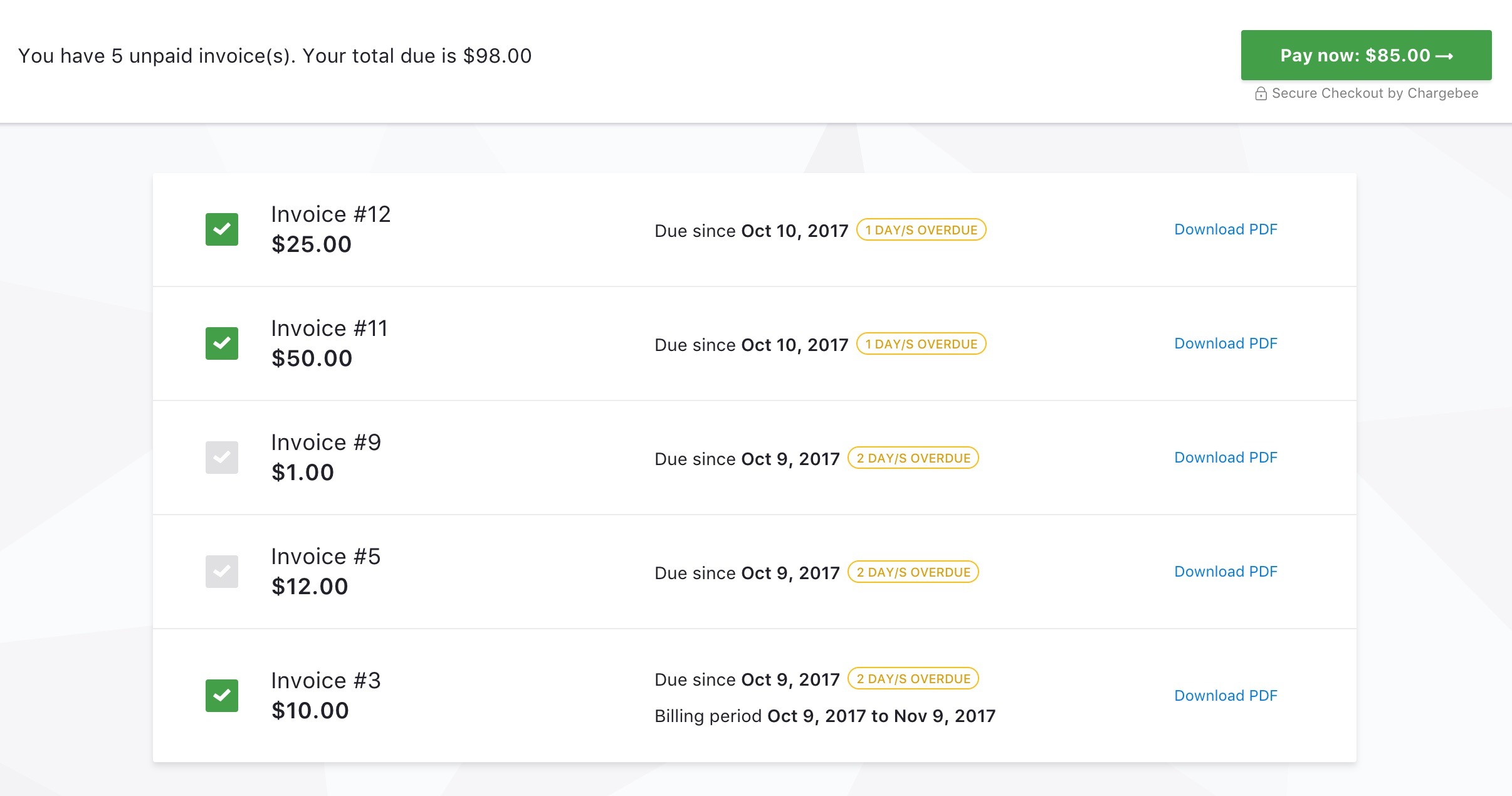
Your customers can either pay for all the invoices listed or select a few and make the payment.
They will be prompted to enter their payment details to make the payment right away.
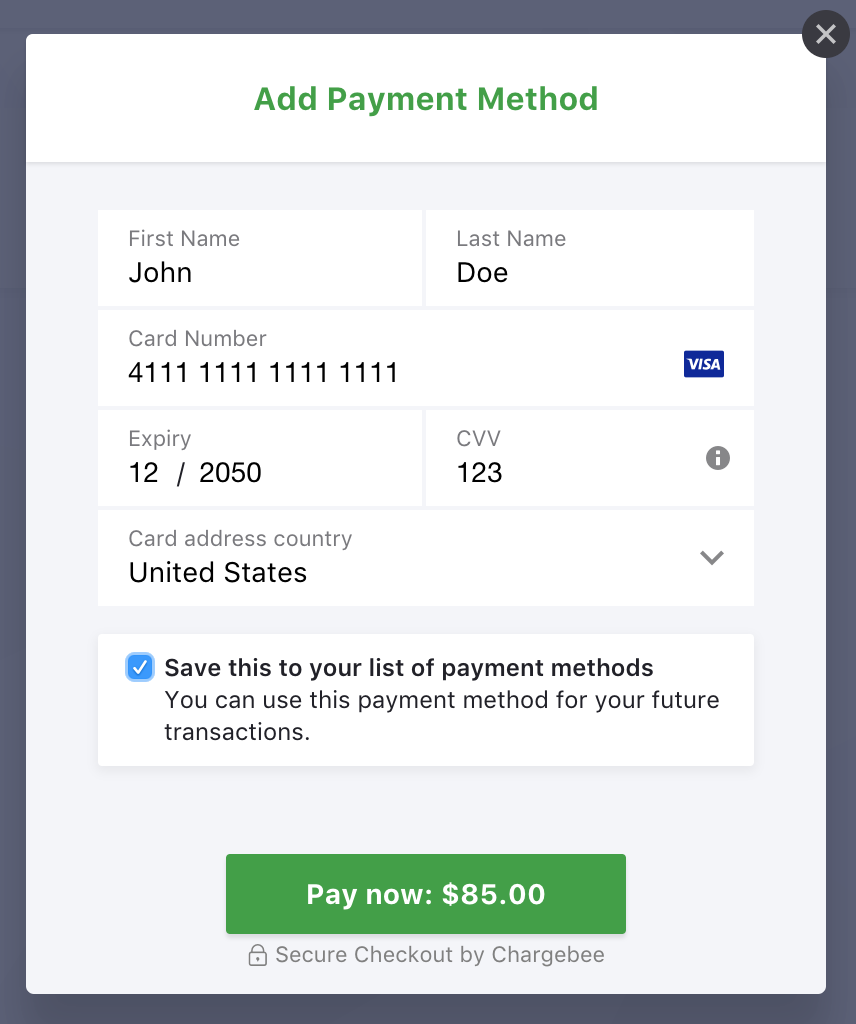
For payments, your customers can either add a new payment method or continue with what they had saved already. Payments can be made using a card or PayPal. If your customer is making the payment using a new method, they have the option to choose if they wish to use the same method later.
3D Secure Payments
When your customer selects the invoices to pay, they might be asked for verification. This is possible if your business is based out of Europe or has a significant customer base in the EEA. In such cases, the customer might have to go through a 3D Secure verification to complete the payment.
Note: To configure Pay now link on default email notification, refer to this link for more information.
Was this article helpful?