Subscription backdating and Change in SF
Problem Statement
You want to know whether you can backdate subscriptions or schedule subscription changes from Salesforce (SF).
Solution
You can create backdated subscriptions from Salesforce. You cannot backdate or schedule subscription changes; changes can only be applied immediately or on next renewal.
Prerequisites
Backdated Subscriptions and Invoices must be enabled for your Chargebee site.
Steps to Set It Up
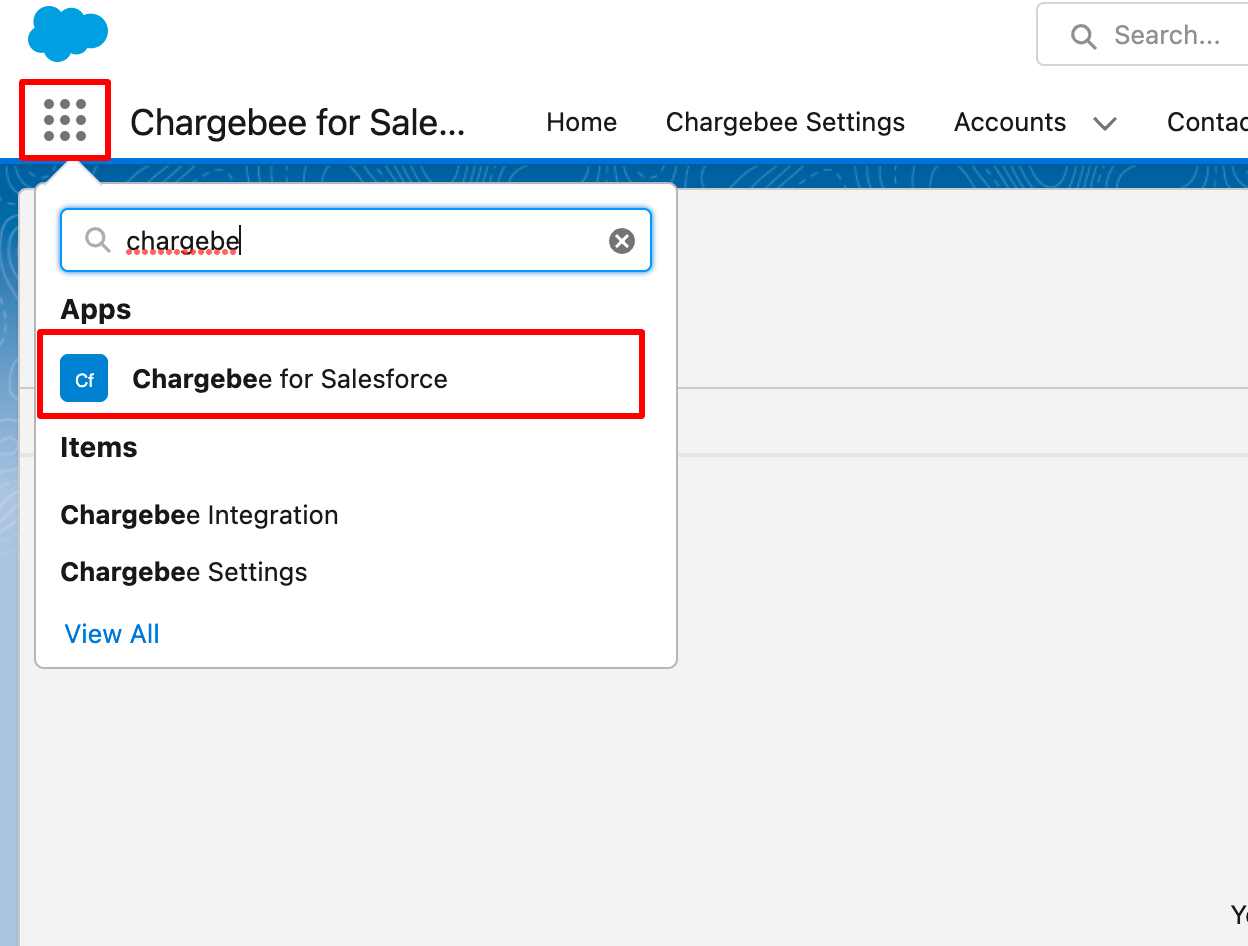
- Open Chargebee for SF in Salesforce.
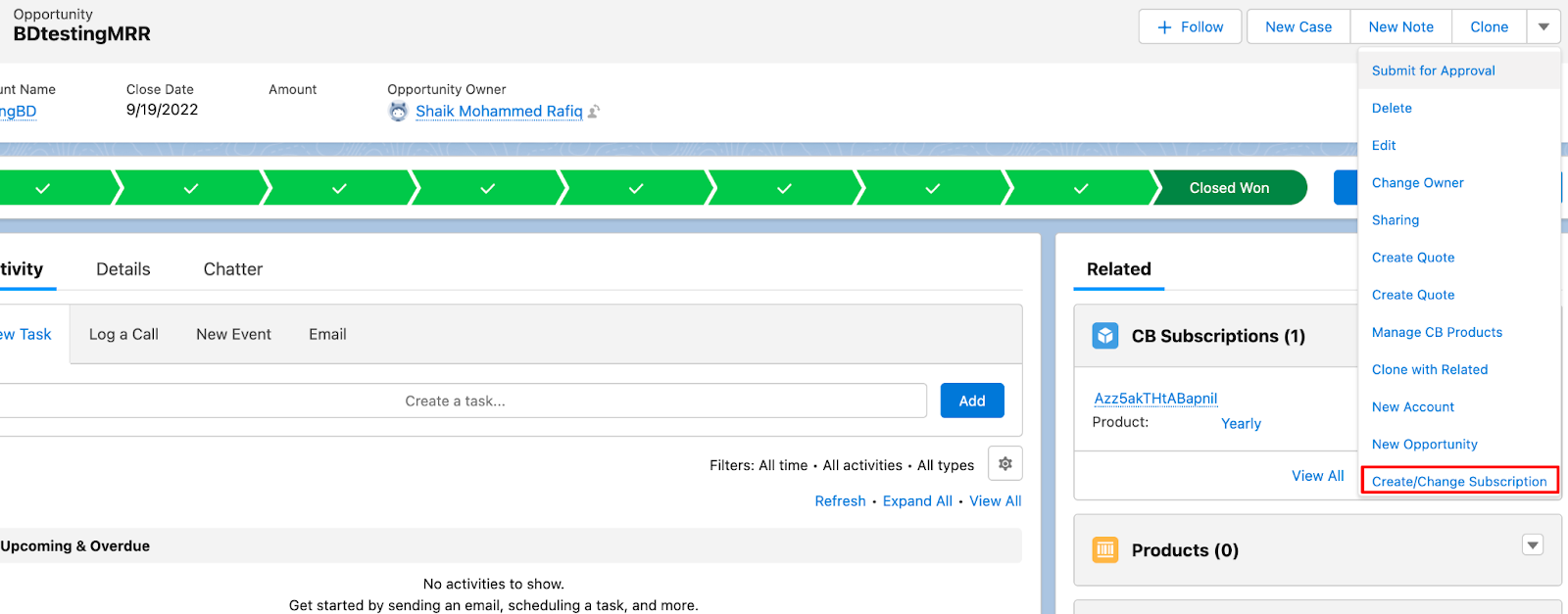
- Open the opportunity for which you want to create a subscription.
- Click Create/Change subscription.
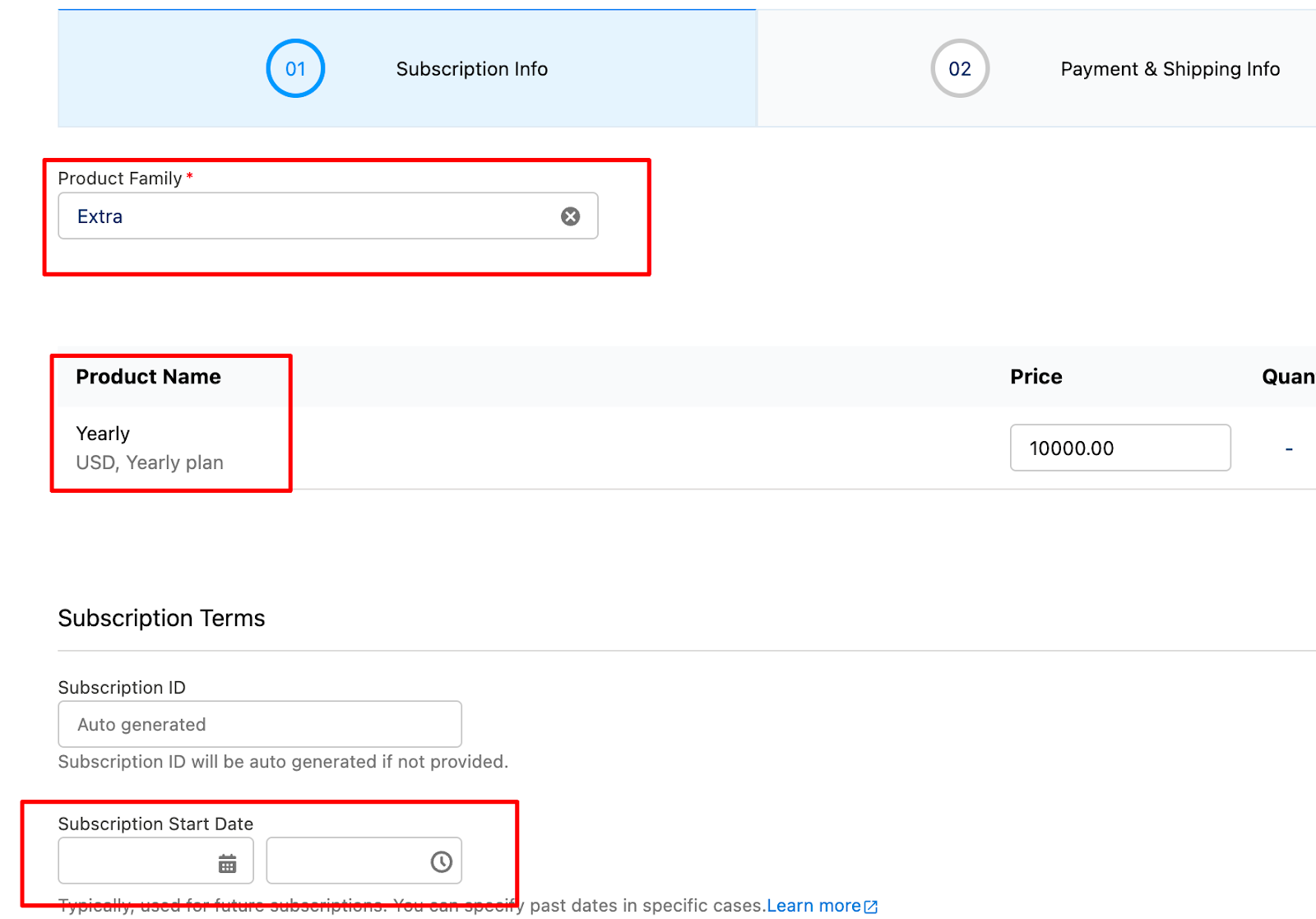
- Select the plan and add line items (add-ons, coupons) as needed.
- Select a date in the past and click Next.
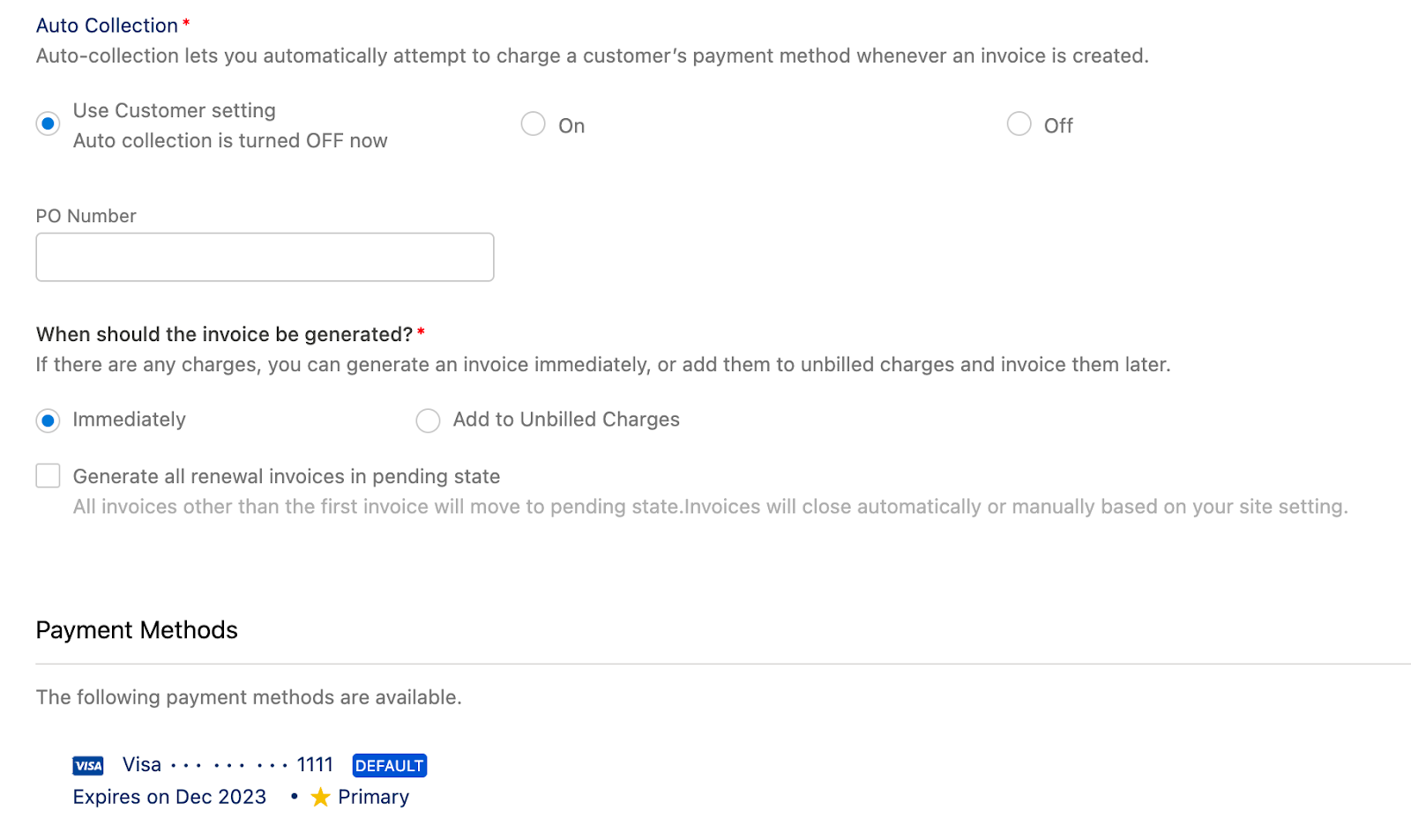
- Set Auto collection status and invoice options, then click Next.
- Click Create or Send Checkout link as needed.
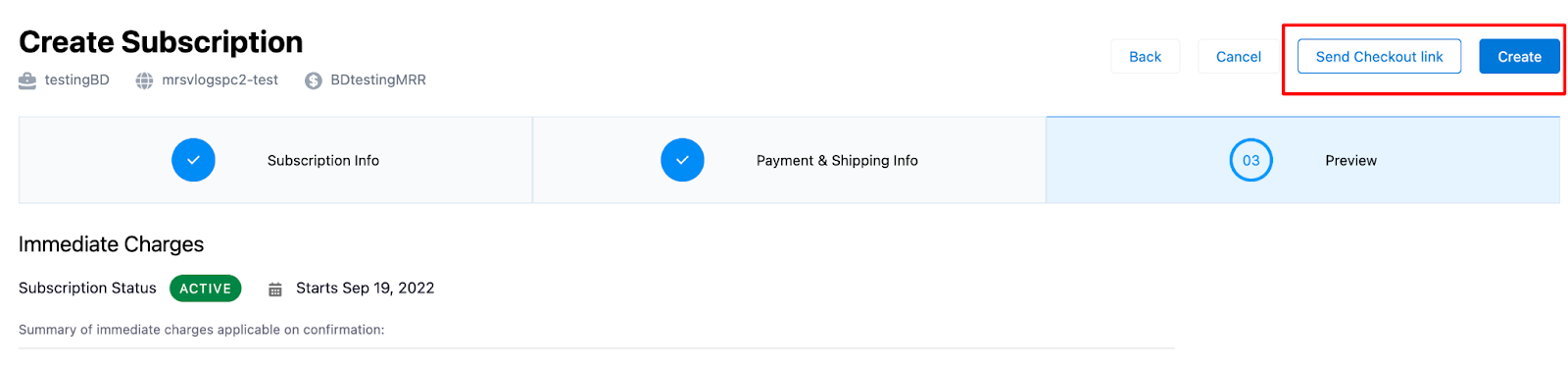
This creates a backdated subscription in Chargebee.
Important Notes
Note
Subscription changes cannot be backdated or scheduled for a future date. When making a subscription change in SF, you can only apply changes immediately or on next renewal.
Was this article helpful?